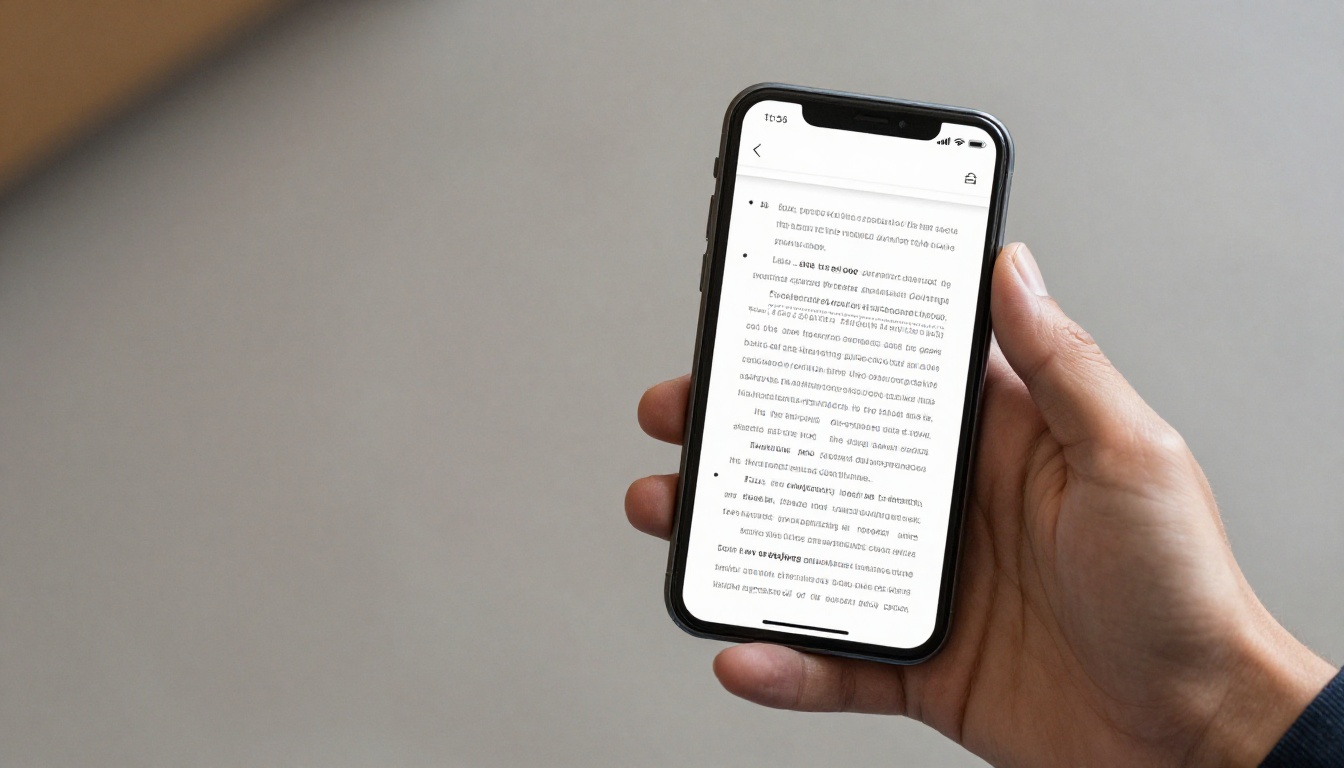
How to Add a Flipbook to a GoHighLevel Funnel Page in 10 Minutes
Embed a page-turning flipbook inside a GoHighLevel funnel page using a Custom HTML element. This tutorial walks through converting your PDF, copying the embed code, sizing it for mobile, adding lead capture around it, and fixing the most common display problems.
Most funnel pages ask visitors to download a PDF, and most visitors never open it. If you want to know how to add a flipbook to a GoHighLevel funnel page, the answer is refreshingly short: convert the PDF into a flipbook with Flipbooks AI, copy the embed code, and paste it into a Custom HTML element inside the funnel builder. The visitor stays on your page, flips through your catalog, lookbook, or lead magnet like a real magazine, and sees your call to action the whole time.
This tutorial walks through the full setup, from preparing the PDF to publishing the funnel step. You will also see where a flipbook fits in a funnel, how to size it for mobile, and how to fix the usual problems when an embed refuses to show up.
Why Put a Flipbook in Your Funnel
A static PDF link sends people away from the page you spent hours building. A flipbook keeps them on it. The document loads inline, pages turn with a smooth effect, and your form, button, or booking calendar sits right next to it.
Keep Visitors on the Page
Every click away from a funnel step is a chance to lose the lead. A downloaded PDF opens in another tab or app, and the visitor rarely returns. An embedded flipbook behaves like part of the page itself, so the funnel path stays intact.
Show Content Before the Opt-In
Some offers convert better when people can preview them. A flipbook lets you show the first few pages of an ebook, price list, or portfolio and then ask for an email address to unlock the rest through a second funnel step.
Where It Fits Best
Funnel Type
Flipbook Content
Goal
Lead magnet funnel
Free ebook or checklist preview
Collect emails
Product funnel
Digital catalog or price list
Drive purchases
Real estate funnel
Property brochure
Book showings
Coaching funnel
Program overview or workbook
Book discovery calls
Event funnel
Digital event program
Register attendees
💡 Pro tip: The best flipbook funnels show value first and ask for contact details second. Place the flipbook above the form, not below it.
What You Need Before Starting
The setup takes about ten minutes if you have these ready.
A finished PDF (catalog, ebook, brochure, report, or lookbook)
A GoHighLevel sub-account with access to Sites > Funnels
A funnel step where you want the flipbook to appear
Prepare Your PDF
Export the PDF at a reasonable size. Files under 30 MB convert quickly and load faster for visitors. Keep text at 10 points or larger so it stays readable on a phone, and use consistent page dimensions so the page-turn effect looks clean.
Pick the Right Page Count
Shorter documents convert better inside funnels. A 12 to 24 page flipbook feels like a quick read. A 100 page catalog works too, but add a clear first-page hook so the visitor knows where to look.
Go to Flipbooks AI and sign in or create your account.
Click the option to create a new flipbook and upload your PDF.
Wait for the conversion. Most files finish in under a minute.
Open the customization panel and set your brand colors, background, and logo.
Choose the page-turn effect and toggle sound on or off.
Add links, videos, or audio to individual pages if the document needs them.
Save and publish the flipbook.
Customize Without Overdoing It
Match the flipbook background to your funnel page background so it blends in. Use your brand color for the toolbar. Keep the effects simple, because visitors are there for the content, not the animation. Flipbooks AI never adds a watermark, so the finished piece looks like yours.
Set Privacy Correctly
If the flipbook is a paid asset or a gated bonus, turn on password protection. For a public lead magnet preview, leave it open so the embed loads for everyone. You can compare what each plan includes on the pricing page.
How to Copy the Embed Code
Once the flipbook is published, open its share options and select Embed. You will see an iframe snippet that looks like this:
Copy the whole snippet. The Embed Flipbook on Website page explains the available options in more detail.
Link or Embed?
Method
Best For
Visitor Stays on Page
Embed code (iframe)
Funnel steps, landing pages
Yes
Direct link button
Emails, SMS, social posts
No
Pop-up with embed
Click-to-view offers
Yes
For funnels, the embed code wins almost every time. Use the direct link in your follow-up emails and text messages from GoHighLevel instead.
How to Add It in GoHighLevel
Now the main event. Follow these steps inside the funnel builder.
In GoHighLevel, open Sites, then Funnels, and select your funnel.
Click the step where the flipbook should appear and open the editor.
Add a new Section and a Row with one column where the flipbook will sit.
Click the plus icon inside the column and choose the Custom JS/HTML element.
Click the element, open its settings, and select the code editor.
Paste your iframe snippet.
Save the code, then click Save at the top of the funnel editor.
Preview the step on desktop and mobile before publishing.
Size the Section Correctly
Set the section to full width or a wide boxed width so the book has room. A narrow column squeezes the pages and makes text hard to read. On desktop, a height between 600 and 700 pixels works well for most documents.
Handle Mobile Properly
On phones, a double-page spread becomes tiny. Most flipbook viewers switch to a single-page view automatically, but you should still check it. Set the iframe height to around 500 pixels in a mobile-specific section, or use a taller value in the main code if you only want one version.
⚠️ Warning: Do not paste the iframe into a plain text element. GoHighLevel will show the raw code instead of the flipbook. Always use the Custom JS/HTML element.
How to Build the Funnel Around It
A flipbook alone is not a funnel. Pair it with a clear action and a reason to take it.
A Simple Layout That Works
Headline that promises a result
Short subheading with one benefit
Flipbook embedded in the center
Button or form directly beneath it
Social proof such as a testimonial or client logo row
This order lets the visitor sample the content, feel confident, and act without scrolling hunting for the next step.
Two-Step Gating Pattern
Show a preview flipbook on step one with a button reading "Get the Full Version." Send the visitor to step two, which contains a GoHighLevel form. After they submit, redirect to a thank-you step with the full flipbook embedded. The preview builds interest, the form captures the lead, and the full document rewards them.
Use Tracking You Already Have
Keep your Facebook pixel, Google tag, and GoHighLevel tracking on the funnel step. If you are on the Professional plan of Flipbooks AI, you also get analytics and lead generation tools inside the flipbook itself, so you can see which pages hold attention.
Real Examples You Can Copy
The same technique fits many businesses. Here is how different users apply it.
Real Estate Agents
An agent embeds a digital property brochure on a listing funnel. Buyers browse photos, floor plans, and neighborhood details, then book a showing through a calendar below. The Real Estate Brochure Creator is built for this.
Fitness Coaches
A coach turns a workout plan into a flipbook preview and uses it as the lead magnet. Visitors read the first week of training, then enter their email for the full eight-week program. Try the Interactive E-Book Publisher for this kind of offer.
Retail and Product Businesses
A boutique owner publishes a seasonal lookbook or product catalog and drives paid traffic to a funnel page where shoppers browse before clicking through to buy. The Product Catalog Generator works well here.
Quick Comparison of Use Cases
Business
Document
Best Next Step
Real estate
Property brochure
Book a showing
Fitness coach
Workout ebook
Join email list
Retail shop
Product catalog
Visit store or buy
Consultant
Case study report
Book a call
Restaurant
Menu
Reserve a table
Fixing Common Problems
Most embed issues come down to a few causes.
The Flipbook Shows Blank
Check that the flipbook is published and not set to private without a password flow. Paste the direct link into a new browser tab. If it opens there, the problem is in the embed snippet, so copy it again from the share panel.
The Code Appears as Text
You used the wrong element. Delete it and add the Custom JS/HTML element instead.
The Book Looks Cut Off
Increase the iframe height and widen the section. Also confirm that the row has no padding that shrinks the column.
It Loads Slowly
Compress large images in the PDF before upload and trim unused pages. A lighter file opens faster, especially on mobile data connections.
Problem
Likely Cause
Fix
Blank box
Unpublished or private flipbook
Publish it or share the right link
Raw code visible
Wrong element type
Use Custom JS/HTML
Cut-off pages
Height too small
Raise iframe height
Slow load
Heavy PDF
Compress images
✅ Best practice: Always test the live funnel URL in an incognito window and on a real phone. The editor preview can differ from the published page.
Your Next Step
You now have everything needed to put a flipbook inside a funnel: a converted PDF, an embed snippet, a Custom HTML element, and a layout that guides the visitor toward one action.
Ready to build yours? Get started for free on Flipbooks AI, convert your first PDF in a minute, and paste the code into your funnel. Browse the full list of flipbook tools to find the right template for your offer, and compare pricing plans if you want analytics, lead generation, and unlimited flipbooks.