Your LinkedIn profile gets about five seconds of attention before a visitor decides to scroll on or stay. The Featured section sits right under your headline and About text, which makes it the best piece of real estate you own on the platform. Most people leave it empty or pin a static PDF that downloads as a flat file. A flipbook does better: it opens in the browser, turns pages like a real publication, and looks polished on desktop and mobile. In this tutorial you will build one with Flipbooks AI and pin it to your profile step by step.
Why Featured Beats a Plain PDF
The Featured section is a row of cards placed above your Activity feed. Each card can hold a post, an article, a newsletter, a link or an uploaded media file. Visitors see the first two or three cards without clicking anything, so what you pin there works like a storefront window.
A flat PDF has real drawbacks in that spot:
- It often downloads instead of opening, which breaks the flow for mobile visitors.
- Large files load slowly on weak connections.
- There is no way to see whether anyone read past page one.
- You cannot update it without re-uploading and re-pinning.
A flipbook solves each of these. It lives at a single link, loads page by page, and you can replace the underlying document without changing the URL you pinned.
| Feature | Static PDF upload | Flipbook link |
|---|
| Opens in browser | Sometimes | Always |
| Page-turn effect | No | Yes |
| Mobile-friendly reading | Pinch and zoom | Responsive layout |
| Update without re-pinning | No | Yes |
| Read analytics | No | Yes (Professional plan) |
| Password protection | No | Yes |
| Custom branding | No | Yes |
💡 Pro tip: Think of the Featured card as an advertisement for the document, not the document itself. The card needs a sharp cover, a short title and one clear promise.
What Belongs in Featured
Not every file earns a spot. The best candidates are material that proves your work or makes a visitor's next step easier:
- A portfolio of recent projects
- A company brochure or capabilities deck
- A product catalog
- A media kit or press kit
- A case study with results
- A free e-book or checklist you give away
Pick the Right Document First
Before you touch any settings, decide what the flipbook is for. A profile visitor falls into one of a few groups, and each wants something different.
| Visitor type | What they want | Best flipbook |
|---|
| Recruiter | Proof of skills | Portfolio or one-page résumé booklet |
| Potential client | Services and results | Case study or capabilities brochure |
| Partner or press | Facts and assets | Press kit |
| Customer | Products and prices | Catalog or price list |
| Follower | Useful free content | E-book or checklist |
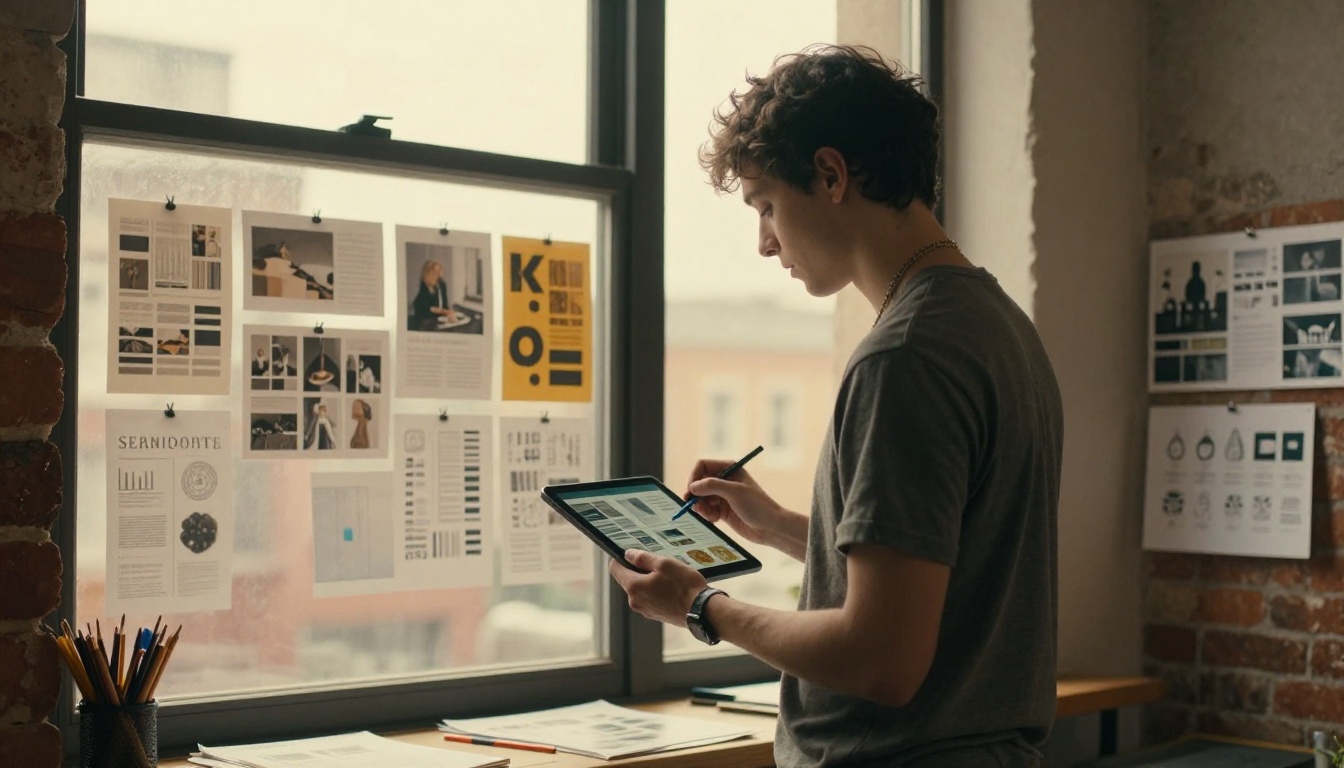
If you are a creative, the Digital Portfolio Creator and the Portfolio Flipbook Builder are built for this exact job. Selling something? Look at the Product Catalog tool. Photographers get the most from the Photography Portfolio layout, and teams that need to share company facts can use the Press Kit Designer.
Keep It Short
A document pinned to a profile is not a book. Aim for 6 to 20 pages. Visitors skim, and a tight flipbook gets finished while a 60-page one gets abandoned on page three.
Build Your Flipbook in Minutes
You need a finished PDF. Export it from Canva, Google Slides, PowerPoint, Word, InDesign or whatever you already use. Landscape pages work well for decks, portrait for brochures and catalogs.
Step by Step: Create the Flipbook
- Go to Flipbooks AI and create an account. The free start is enough to test the flow.
- Click the option to create a new flipbook and upload your PDF. If you want to see how the conversion works in detail, the PDF to Flipbook Converter page explains it.
- Wait a few seconds while the pages convert. Each page becomes a crisp, zoomable layer.
- Open the customization panel and set your brand colors, background and page-turn effect.
- Add a logo and, if you like, background music or an embedded video on a specific page.
- Name the flipbook with something a visitor would click on, like "2026 Portfolio" or "Services and Pricing".
- Save and copy the share link.

✅ Best practice: Make your first page a strong cover. In the LinkedIn card, the thumbnail comes from that page, so a cluttered or text-heavy first page makes a weak preview.
Settings Worth Changing
The default settings are fine, but a few small changes make a flipbook feel custom:
- Remove the search bar if the document is short.
- Turn on single-page mode for mobile so text stays large.
- Match your background to your LinkedIn banner color for a consistent look.
- Use a clean title since it also shows in the browser tab.
- Add a table of contents link on page two for longer documents.
No watermarks appear on your flipbook, so the finished result looks like it came from your own brand. Standard plans and above give you unlimited flipbooks, which helps if you want a separate one for each audience. You can check the pricing plans for the details.
Add It to Your Featured Section
Now to the part you came for. LinkedIn changes its layout from time to time, so button names can shift slightly, but the path stays the same.
Step by Step: Pin the Link
- Open your LinkedIn profile on desktop.
- Scroll to the Featured section. If you do not see it, look for the "Add profile section" button near the top, then choose Featured under Recommended.
- Click the plus (+) icon in the Featured header.
- Choose Add a link.
- Paste your flipbook URL from Flipbooks AI.
- Wait for LinkedIn to fetch the preview. The cover image and title usually load within a couple of seconds.
- Edit the title if needed. Keep it under 40 characters so it does not get cut off.
- Click Save.
Your flipbook now appears as a card. Click it from a different browser or a private window to confirm that it opens, loads fast and shows the page-turn effect.
⚠️ Warning: Do not paste the link into a post and assume it is pinned. A post and a Featured item are separate. You can feature a post that contains the link, but for a clean card, add the link directly.
Reorder the Cards
Drag cards using the handle that appears when you edit the section. Put the item that serves your main goal first. A job seeker should lead with the portfolio. A consultant should lead with the case study.
Feature a Post Instead
There is a second route that sometimes performs better. Publish a short post, include the flipbook link, and then feature that post.
| Method | Pros | Cons |
|---|
| Add a link directly | Clean card, cover thumbnail | No supporting text |
| Feature a post | Room for context, comments and likes | Card shows post text, not the cover |
| Feature a newsletter issue | Reaches subscribers | Needs an established newsletter |
| Upload a file | Stays on LinkedIn | No page-turn effect, flat file |
A common approach is to do both: pin the direct link in position one and feature the announcement post in position two.
Make the Card Click-Worthy
The thumbnail and title decide whether anyone clicks. Treat both like an ad.
Design the Cover Page
Your cover page becomes the preview image, so design it with a small card in mind:
- Use large, high-contrast type with five words or fewer.
- Add a single strong image instead of a collage.
- Keep your logo small and in a corner.
- Avoid thin fonts that disappear at thumbnail size.
- Test the preview by shrinking the page to the size of a postage stamp.
Write a Title That Promises Something
Compare these two titles on the same flipbook:
| Weak title | Stronger title |
|---|
| Company Brochure | How We Cut Delivery Time by 30% |
| My Portfolio | 12 Brand Projects, 2024 to 2026 |
| Price List | Service Packages and Pricing |
| Ebook | Free Checklist for First-Time Buyers |
The stronger versions tell the visitor what they will get and why it matters.
Real-World Examples
A few practical scenarios show how different people use the same trick.
A freelance photographer builds a 12-page flipbook from their best series using the Photography Portfolio layout. They pin it first. Clients who land on the profile browse the shots without leaving LinkedIn's flow, and an inquiry is only one click away.
A recruiter pins a booklet called "Roles We Are Hiring For" with one page per role. Candidates see open positions before sending a message, and the recruiter swaps pages as roles close without ever re-pinning.
A small business owner turns a spreadsheet of products into a catalog. A Digital Catalog Maker layout keeps images large and prices clear, and the link doubles as a sales tool in direct messages.
A consultant summarizes three client wins in a short case study booklet. A password-protected version goes to prospects under NDA while a public version sits in Featured.
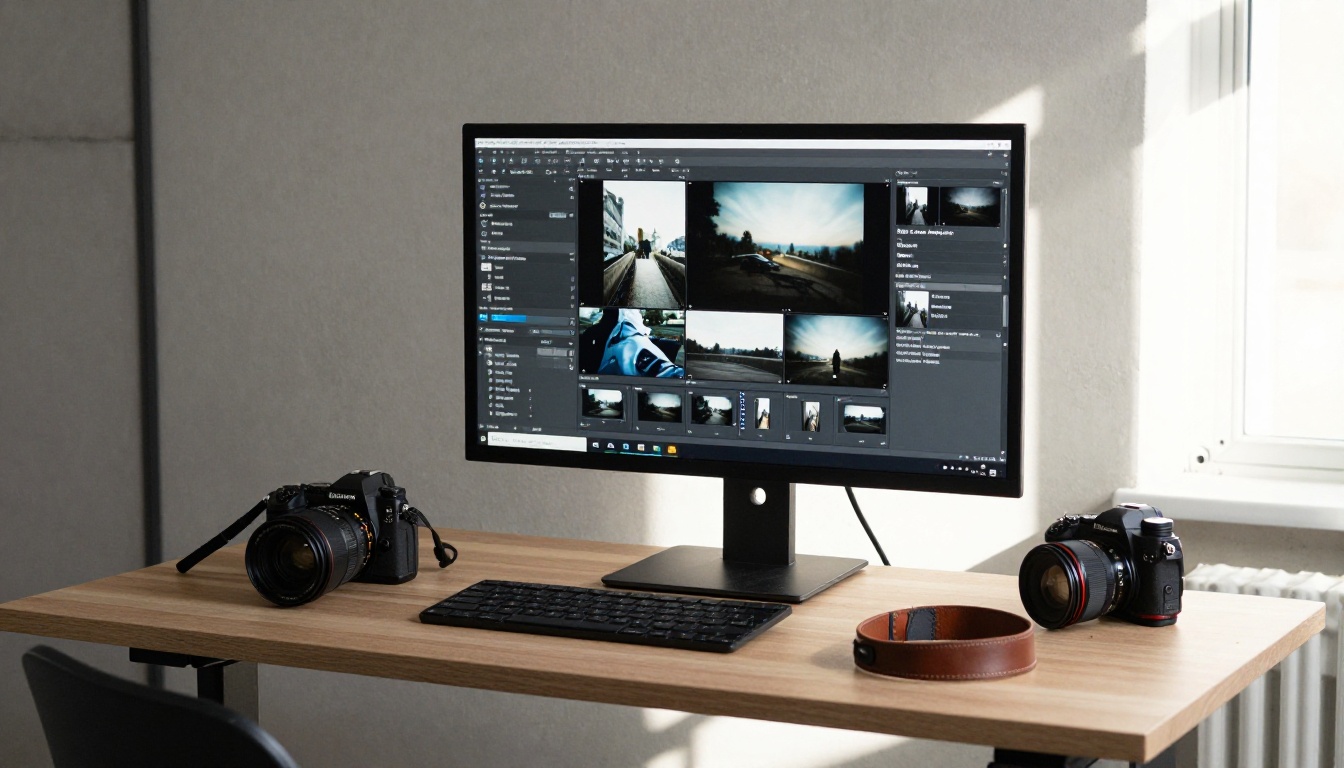
💡 Pro tip: Make a separate flipbook for each audience rather than one document for everyone. Unlimited flipbooks on paid plans make this easy, and it keeps each message sharp.
Track Who Actually Reads It
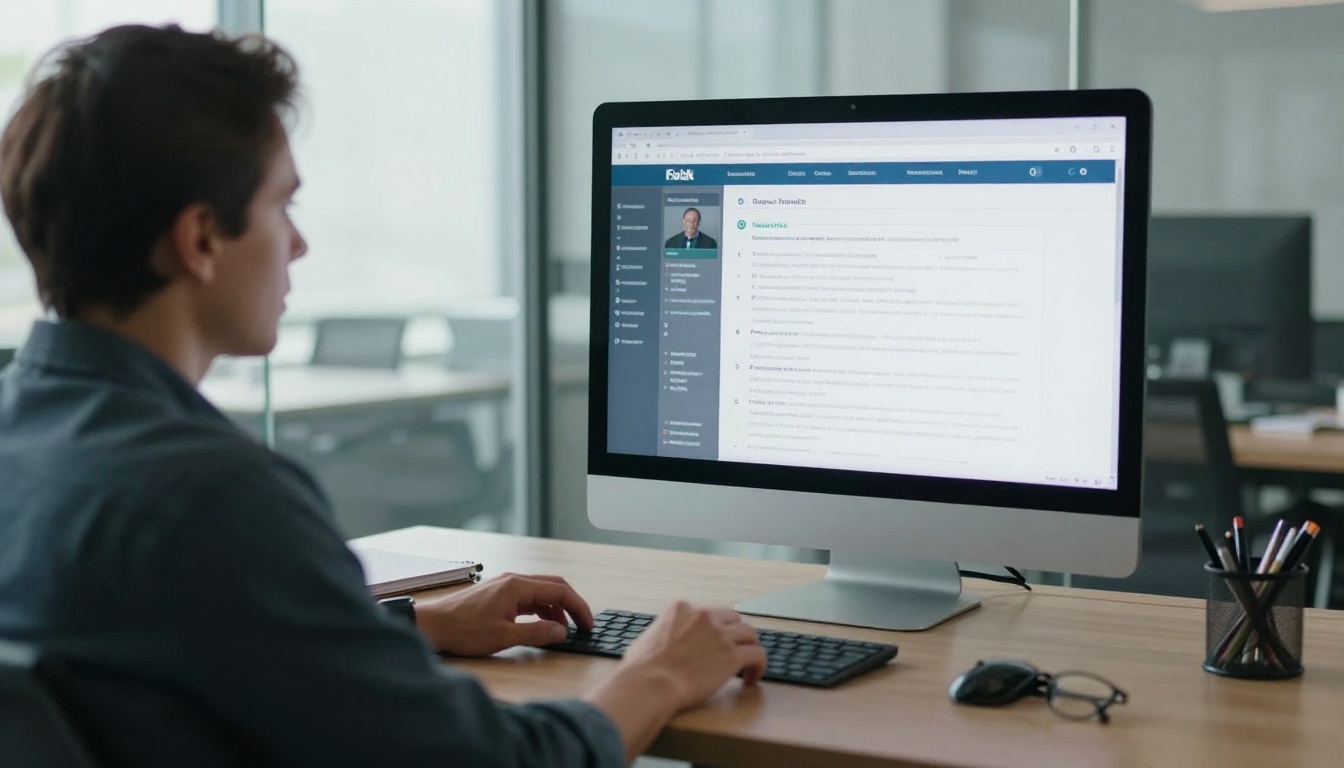
Pinning a document is only half the job. The other half is knowing whether it works. On the Professional plan you get analytics showing views, time spent and which pages hold attention. You can also use lead generation forms that ask for an email before a visitor reads past a chosen page, which is useful for e-books and gated reports. See the pricing page to compare what each plan includes.
| Plan feature | Why it matters on LinkedIn |
|---|
| Page-level analytics | Shows where readers drop off |
| Lead generation form | Turns profile visitors into contacts |
| Password protection | Gates private case studies |
| Offline download | Lets readers save a copy |
| Custom branding | Keeps your profile consistent |
| Embedded video and audio | Adds a personal welcome message |
Read the Numbers
If most readers leave on page two, the opening is weak. If they reach the end but never click anything, the final page needs a stronger call to action. Adjust the document, save it, and the same link keeps working. That is a big reason to prefer a flipbook link over an uploaded file.
Fix Common Problems
Even a simple process hits snags. These are the usual ones.
The Preview Image Does Not Load
LinkedIn caches link previews. If you changed your cover page after sharing, the old image may stick around. Use LinkedIn's Post Inspector tool to refresh the cache, or re-add the link after a few minutes.
The Link Opens but Looks Cropped
Check that your PDF page size is consistent. Mixed portrait and landscape pages create odd previews. Re-export with uniform page dimensions and upload again.
Mobile Readers Struggle with Small Text
Increase body text to at least 14 points in the original document, or switch the flipbook to single-page view on phones.
Visitors Cannot Open a Private Flipbook
If you enabled a password, the card works but the reader needs that password. Put the password in your connection message or switch to a public version for Featured.

Quick Checklist Before You Publish
Run through this list once before you pin anything:
- The cover page is readable at thumbnail size.
- The document is 6 to 20 pages.
- Branding and colors match your profile.
- The link opens in a private browser window.
- The title promises a result.
- A call to action sits on the last page.
- You tested it on a phone.
✅ Best practice: Revisit your Featured section every quarter. Swap in fresh work, retire outdated documents and refresh the cover so your profile does not look abandoned.
Share It Beyond LinkedIn
Once the flipbook exists, you can use it everywhere. Drop the link in your email signature, paste it into proposals, or place it on your site with the Embed Flipbook on Website option. One document, one link, many places, and every change you make updates all of them.

Ready to Pin Yours?
You now have the whole process: pick a document that serves your goal, convert it to a flipbook, design a cover that works as a thumbnail, and pin the link to your Featured section. It takes under fifteen minutes the first time and about five after that.
Get started for free on Flipbooks AI and build your first flipbook today. Browse all flipbook tools to find a template that matches your profile, and compare pricing plans when you are ready for analytics and lead capture.



