Nobody buys a book they have not touched. In a bookstore, readers pick up a paperback, read the first page, flip to the middle, and decide in under a minute. Your website needs to offer the same moment, and a Look Inside book preview does exactly that. With Flipbooks AI you can turn a PDF sample into a page-turning preview and embed it on any site without writing code.
This tutorial walks through the whole process: choosing what to show, preparing the sample, building the preview, embedding it, protecting it, and measuring whether it sells more copies.

Why a Preview Sells Books
A sample lowers the risk of a purchase. A blurb makes a promise, but pages prove it. When a visitor can read your opening chapter in the browser, three things happen:
- Trust goes up. The writing speaks for itself.
- Hesitation drops. The buyer already knows the voice, pacing, and layout.
- Time on page grows. Visitors who read stay longer, and search engines notice.
💡 Pro tip: Treat the preview as your best salesperson. Everything in it should make the next step, buying the book, feel obvious.
What Readers Expect Now
Shoppers are used to retail giants that offer a Look Inside feature on every listing. If your own site only shows a flat jacket image and a paragraph of text, it feels thin by comparison. A page-turning preview closes that gap, and you keep the traffic, the email signups, and the sale on your own domain.
Who Benefits Most
| Publisher type | Typical preview | Main payoff |
|---|
| Self-published novelist | First 2 chapters | Voice and pacing sell the story |
| Non-fiction author | Contents plus chapter 1 | Shows the promise and the method |
| Cookbook creator | 8 to 10 sample recipes | Photography drives the purchase |
| Children's book publisher | Full spreads, 6 pages | Parents judge illustration quality |
| Small press catalog | Sample from each title | One page showcases the whole list |
Choose What to Show
The biggest mistake is giving away too little or too much. A preview that stops after two paragraphs feels like a tease. One that includes the ending removes the reason to buy.
The 10 Percent Rule
A safe starting point is roughly 10 to 15 percent of the book. For a 300-page novel, that is 30 to 45 pages. For a short guide, 8 to 12 pages works well.
Pick Pages With Purpose
- The title page and table of contents. They set expectations fast.
- Your opening chapter. It should hook within three paragraphs.
- One strong middle page. Show a diagram, a recipe, or a vivid scene.
- A closing page that stops mid-momentum. End the sample on a question, not an answer.
⚠️ Warning: Avoid spoilers. If your sample reveals the twist or the final answer, readers have no reason to continue.
Prepare Your Sample PDF
You do not need special software. Any word processor or layout tool that exports PDF will do.
Export Settings That Work
- Export at 150 to 300 DPI so text stays sharp on large screens.
- Keep page size identical to your print trim, such as 5 x 8 inches.
- Embed fonts so nothing shifts during conversion.
- Remove blank pages that exist only for print binding.
- Keep the file under 50 MB for quick uploads.
Trim the Pages
Open your full PDF and extract only the pages you chose. Most PDF viewers have a "save selected pages" or "print to PDF" option for this. Name the file clearly, for example novel-sample.pdf, so you can find it later.
Add a Closing Page
Add one last page that tells the reader what to do next. Include the buy link, the retailer names, and a short line such as "Read the rest in the full edition." This page becomes your quiet call to action inside the preview.
How to Build It With Flipbooks AI
Flipbooks AI converts a PDF into a realistic page-turning flipbook, with no watermarks, ever. The steps below take about five minutes.
Step 1: Create Your Account
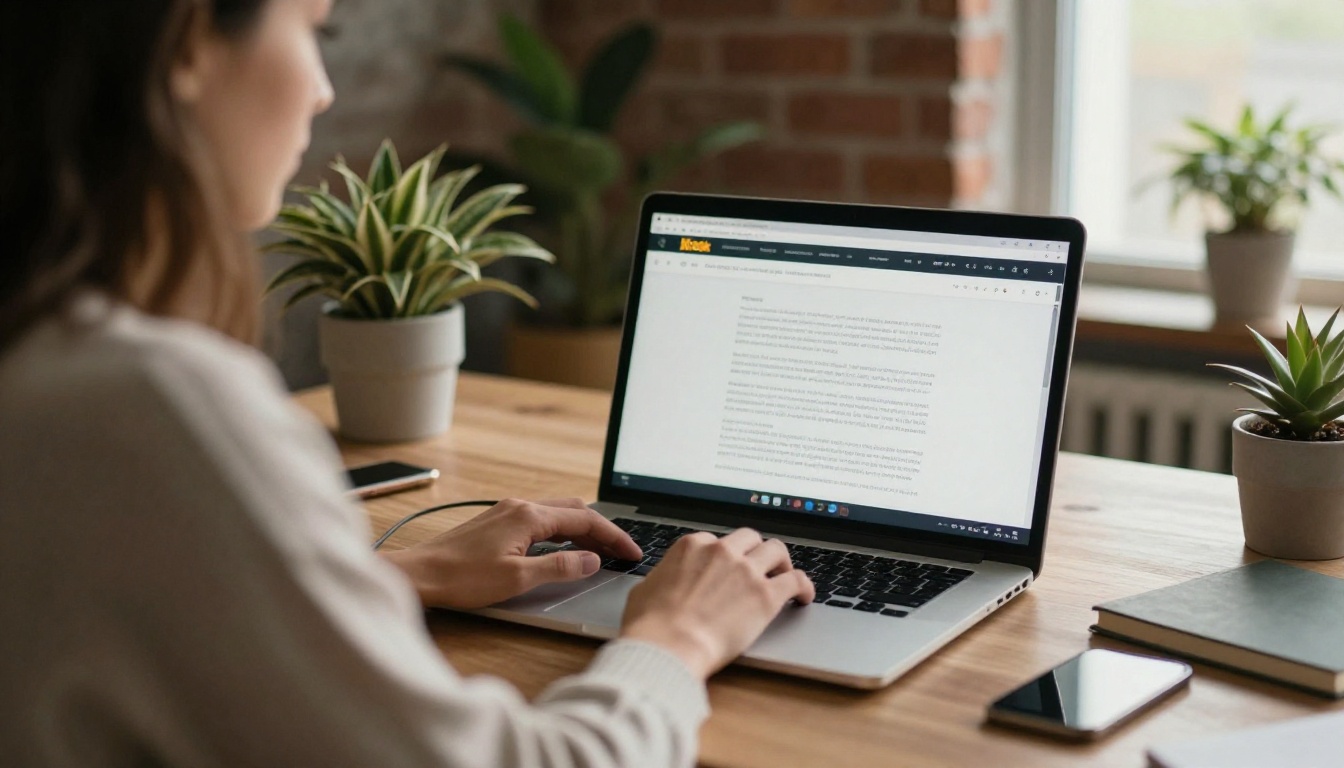
Go to Flipbooks AI and sign up. A free account lets you test the full workflow before you commit to anything. When you are ready for more, compare the pricing plans.
Step 2: Upload the PDF
Open your dashboard and drop the sample PDF onto the upload area. The PDF to Flipbook Converter processes each page into a crisp image and keeps your text readable. Larger files take a little longer, but a 40-page sample is usually ready in under a minute.
Step 3: Customize the Look
This is where the preview starts to feel like a real book.
- Branding: Add your logo and choose a background color that suits the jacket artwork.
- Page effects: Keep the realistic page curl and soft page shadows for a tactile feel.
- Multimedia: Embed an author video or an audio excerpt on the first page if you want a personal touch.
- Toolbar: Show zoom, fullscreen, and sound toggles so readers can control their experience.
If you publish digital editions as well, the Interactive E-Book Publisher and E-Book Flipbook Generator use the same workflow, so one process works for every format you sell.
Step 4: Set the Sharing Options
Choose how the preview will travel:
- Direct link for emails, social posts, and newsletters.
- Embed code for your own website.
- Password protection for advance readers and reviewers.
- Offline download if you want readers to keep the sample.
✅ Best practice: Create two versions of the same preview. One public version goes on your site. One password-protected version, with more pages, goes to reviewers and bloggers.
Step 5: Publish and Test
Click publish, open the link on your phone and your laptop, and flip through every page. Check that the text is legible, the closing page appears, and the buy button works. The flipbook layout is mobile-responsive, so it adapts to narrow screens automatically.
How to Embed It on Your Website
Once the preview is live, the embed step takes one copy and one paste. For a deeper look at this part of the process, see the Embed Flipbook on Website tool.
Copy the Embed Code
In your flipbook settings, open the Share panel and copy the embed snippet. It is a short block of HTML that places the flipbook inside a frame on your page.
Paste It Into Your Platform
| Platform | Where to paste | Notes |
|---|
| WordPress | Custom HTML block | Works in any block editor page |
| Wix | Embed a Site widget | Choose "Embed code" and paste |
| Squarespace | Code block | Turn off "Display source" |
| Shopify | Product description or custom section | Edit in HTML view |
| Webflow | Embed component | Set width to 100 percent |
| Plain HTML site | Inside the body tag | Place near your buy button |
Size It for Every Screen
Set the frame width to 100 percent and use a height of roughly 500 to 650 pixels on desktop. On phones, the flipbook switches to a single-page view, which is easier to read with a thumb.
Place It Where Buyers Look
Position the preview directly above or beside your buy button. A visitor who finishes the sample should not have to scroll to find the next step.
Three Layouts That Work
Not every site needs the same placement. Pick the one that fits your traffic.
Inline on the Product Page
The preview sits under the book description. It suits stores with a single title and visitors who arrive from search.
Button That Opens a Modal
A button labeled "Look Inside" opens the flipbook in a pop-up. This keeps the page clean and works well for catalogs with many titles. Combine it with the Catalog Flipbook Creator if you want one flipbook that previews your whole list.
Dedicated Sample Page
A standalone page, such as /read-a-sample, gives you a clean URL to share in ads, social bios, and newsletters. It also gives search engines a page that targets sample-related searches.
| Layout | Best for | Setup time | Mobile friendly |
|---|
| Inline | Single-title sites | 5 minutes | Yes |
| Modal button | Multi-title stores | 10 minutes | Yes |
| Dedicated page | Ads and newsletters | 10 minutes | Yes |
Protect Your Content
A preview is meant to be read, not copied. You can limit abuse without making the experience worse.

Keep the Sample Short
The strongest protection is the page count. A sample that contains only the first chapter is not worth pirating.
Use Passwords for Early Copies
Send advance review copies through a password-protected link. Reviewers get more pages, and the public never sees them. Change the password when a campaign ends.
Disable Downloads on the Public Version
Turn offline downloads off for the public preview. Keep them on for partners, teachers, or retailers who need a copy for their own use.
💡 Pro tip: Add a small line on the closing page, such as "Sample edition, not for resale." It sets expectations without sounding defensive.
Measure What Works
A preview is only useful if it moves readers toward a purchase. Analytics and lead generation are part of the Professional plan, and they turn a simple sample into a measurable channel. See what is included on the pricing page.
Metrics to Watch
- Views: How many visitors opened the preview.
- Average pages read: Whether readers get past your opening chapter.
- Drop-off page: The exact page where people leave.
- Click-throughs: How many reached the buy link on the closing page.
- Captured emails: Leads collected through the lead form.
Read the Drop-Off
If most readers stop at page 4, something on page 4 is losing them. It might be a slow passage, a dense paragraph, or an awkward layout. Swap in a stronger page and compare.
Capture Leads Before the Last Page
Add a lead form after the midpoint. Offer a bonus chapter, a discount code, or a reading list in exchange for an email. These readers have already sampled your writing, which makes them warm leads for your next launch.
| Goal | Metric | Action if low |
|---|
| More readers | Views | Promote the link in newsletters |
| Deeper reading | Pages per visit | Strengthen chapter openings |
| More sales | Buy-link clicks | Improve the closing page |
| Bigger list | Email captures | Offer a bonus for signing up |
Common Mistakes to Avoid
Hiding the Preview
If the button is buried in a footer, nobody clicks it. Put "Look Inside" near the top of the product page, close to the title.
Uploading a Heavy, Slow File
Large images slow the page. Compress your PDF before upload, and test the load time on a mobile connection.
Forgetting the Next Step
A preview that ends with a blank page loses the sale. Always finish with a clear buy link or a short email form.
Skipping Mobile Tests
Most book browsing now happens on phones. Test the preview on at least one iPhone and one Android device before you announce it.
Real-World Examples
A Novelist Selling Direct
A thriller author uploads the first three chapters and places the preview above the buy button. The closing page ends on a cliffhanger and links to the store. Readers who finish the sample are far more likely to purchase than visitors who only read the blurb.
A Cookbook Creator
A food blogger offers eight sample recipes with full-page photographs. Because the pages show real dishes, the preview does the persuading. She pairs it with the Recipe Book Flipbook tool to publish seasonal editions.
A Small Press With Many Titles
A press builds one flipbook per title and one catalog flipbook that links them. The Digital Catalog Maker lets visitors move from the catalog to any sample in one click, which keeps shoppers browsing instead of leaving.
A Teacher Sharing Course Material
An instructor publishes a sample chapter of a workbook through a password-protected link, so students preview the material before enrolling. The Course Material Publisher fits this workflow well.
Your Launch Checklist
Before you announce the preview, run through this list:
- Sample PDF trimmed to 10 to 15 percent of the book.
- Closing page with a clear buy link.
- Branding and background color match the book.
- Embed code pasted above or beside the buy button.
- Tested on desktop, phone, and tablet.
- Public downloads off, passwords set for reviewers.
- Analytics checked after the first week.

Ready to Publish Your Preview?
A good sample does the selling while you sleep. Upload your first chapter, customize the look, paste one snippet into your site, and let readers turn the pages.
Your readers are already on your website. Give them a reason to pick up the book.



