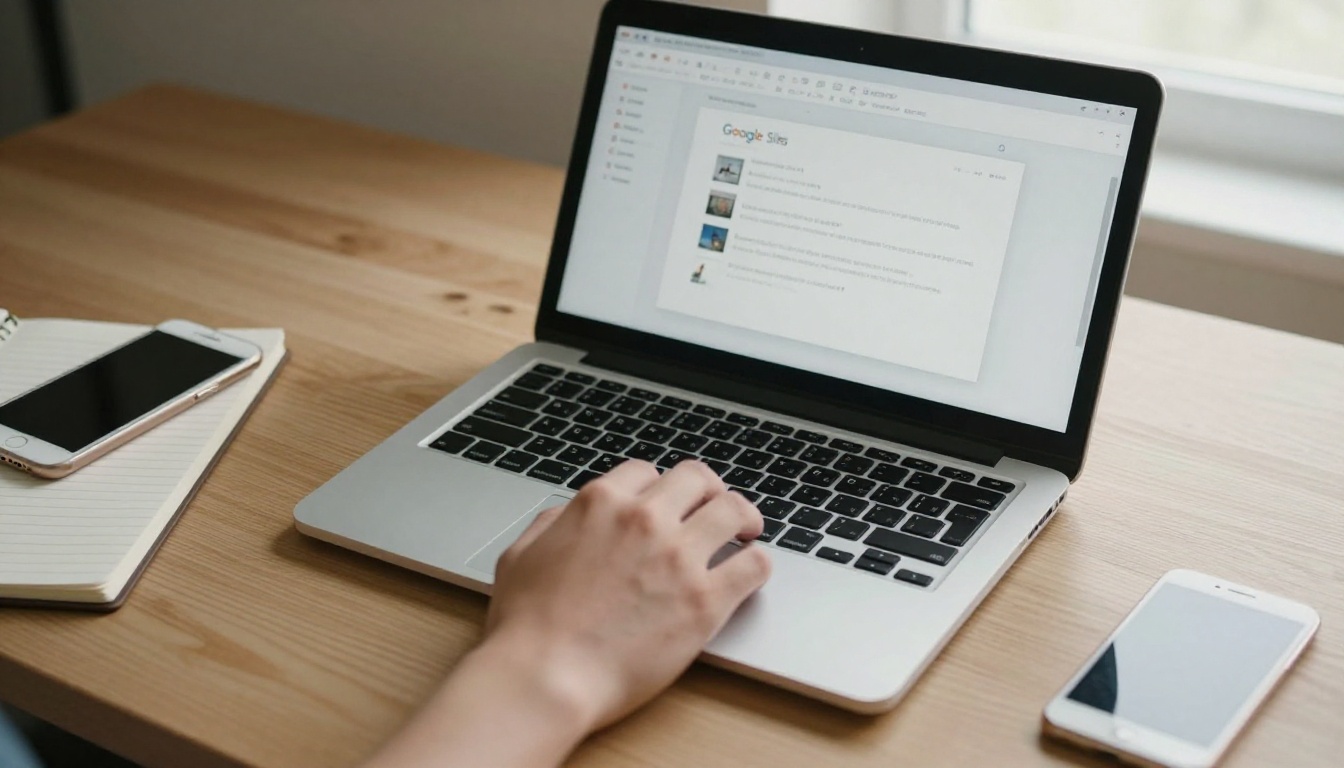
You built a good deck in Google Slides, but a silent deck makes the reader do all the work. Adding a voice changes that. Each page can speak for itself, and the person reading can follow along with your tone, pacing, and emphasis. This tutorial shows exactly how to add narration audio to a flipbook made in Google Slides, using a simple workflow and Flipbooks AI to bring the pages and the sound together.
There is one fact to settle first. Google Slides can hold audio files inside a presentation, but when you export the deck to PDF, that audio is gone. A PDF is a picture of each slide, nothing more. So the sound has to be attached after the conversion, at the flipbook stage. Once you accept that, the whole process becomes straightforward.
Why Narration Works in a Flipbook
A flipbook is a page-turning format. People move through it at their own speed, which makes it a natural match for short audio clips tied to individual pages. Compare that with a long recorded video, where the viewer is stuck on your timeline.
Here is what narration adds:
- Clarity. Complex slides become easier to follow when someone talks through them.
- Accessibility. Readers who prefer listening, or who have trouble with small text, get a second way in.
- Personality. Your voice builds trust faster than a block of bullet points.
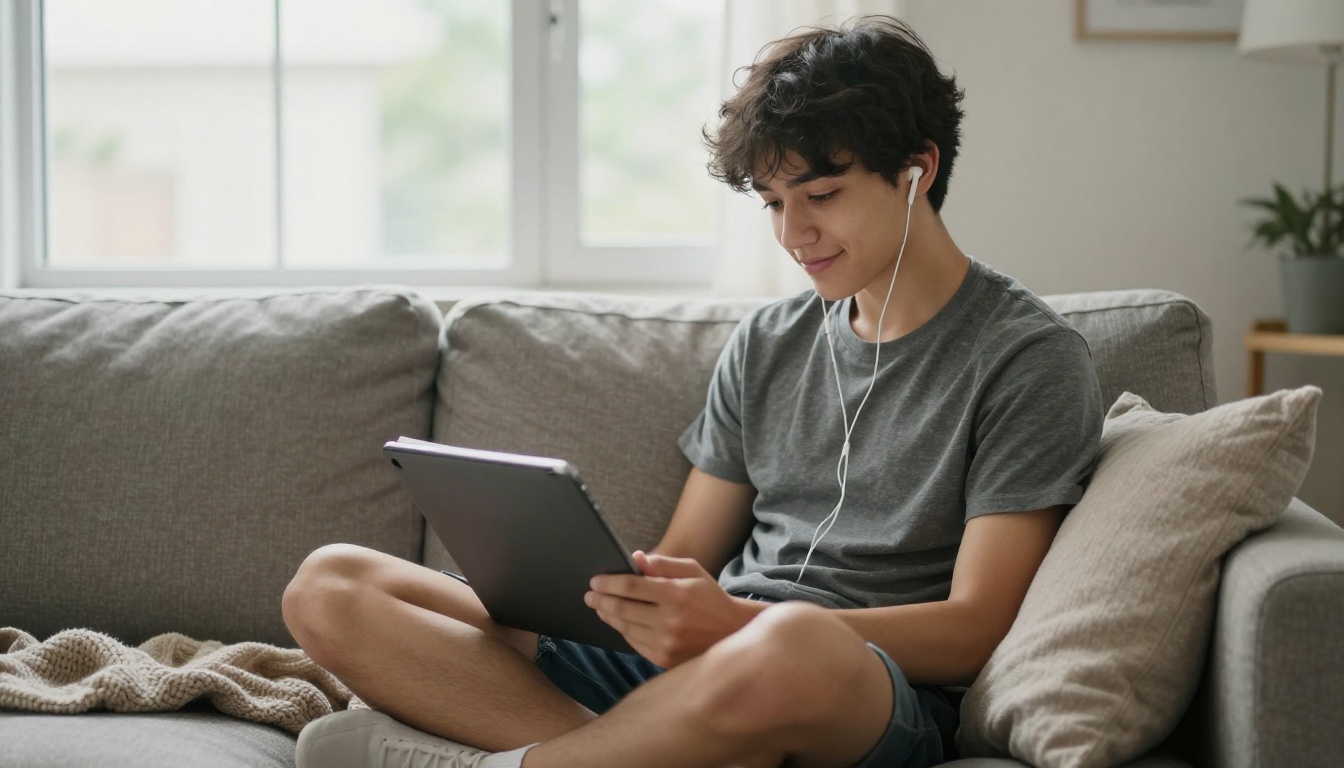
- Reach. Mobile readers can listen on the go with earbuds while the page stays on screen.
💡 Pro tip: Keep each clip tied to one page and one idea. A reader who flips ahead should never hear audio from the previous slide.
Who Benefits Most
Narrated flipbooks suit a wide range of work. A teacher can attach a spoken explanation to each page of a lesson. A sales rep can send a product walkthrough that sounds personal. A nonprofit can pair photos with a director's voice in an impact summary. A trainer can speak through each step of an onboarding manual using the Training Manual Flipbook tool.
| Use case | Audio length per page | Tone that works |
|---|
| Classroom lesson | 30 to 60 seconds | Patient, clear |
| Sales presentation | 15 to 30 seconds | Confident, direct |
| Employee training | 30 to 45 seconds | Calm, step by step |
| Event or nonprofit report | 20 to 40 seconds | Warm, personal |
Plan the Workflow Before You Record
Rushing into the microphone is the most common mistake. A few minutes of planning saves a lot of re-recording later.
Here is the full path, from slides to a talking flipbook:
- Finish the slide design in Google Slides.
- Write a short script for each slide.
- Record one audio file per slide.
- Export the deck as a PDF.
- Upload the PDF to Flipbooks AI.
- Attach each audio file to its matching page.
- Test, then share.
Lock the Slides First
Edit the slides before you record anything. If you change the order or the wording after recording, your audio no longer matches. Settle the layout, fix typos, and confirm the slide count. Then freeze it.
Choose Your Audio Format
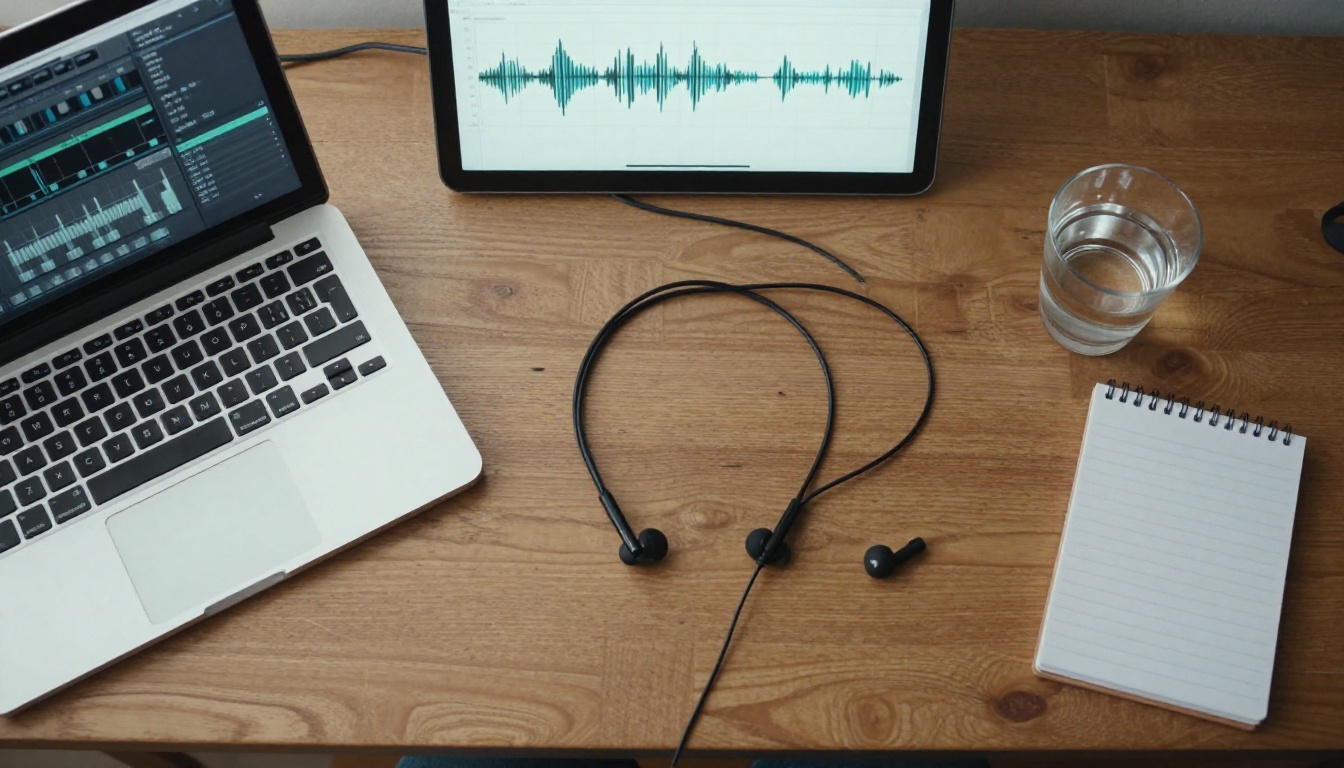
Most recording tools produce MP3, WAV, or M4A files. For web playback, MP3 is the safest option because every browser and phone plays it. WAV sounds excellent but creates large files that load slowly.
| Format | File size | Sound quality | Best for |
|---|
| MP3 | Small | Very good | Almost every flipbook |
| M4A | Small | Very good | Recordings from Apple devices |
| WAV | Large | Studio grade | Source files you plan to edit |
Write a Script That Sounds Human
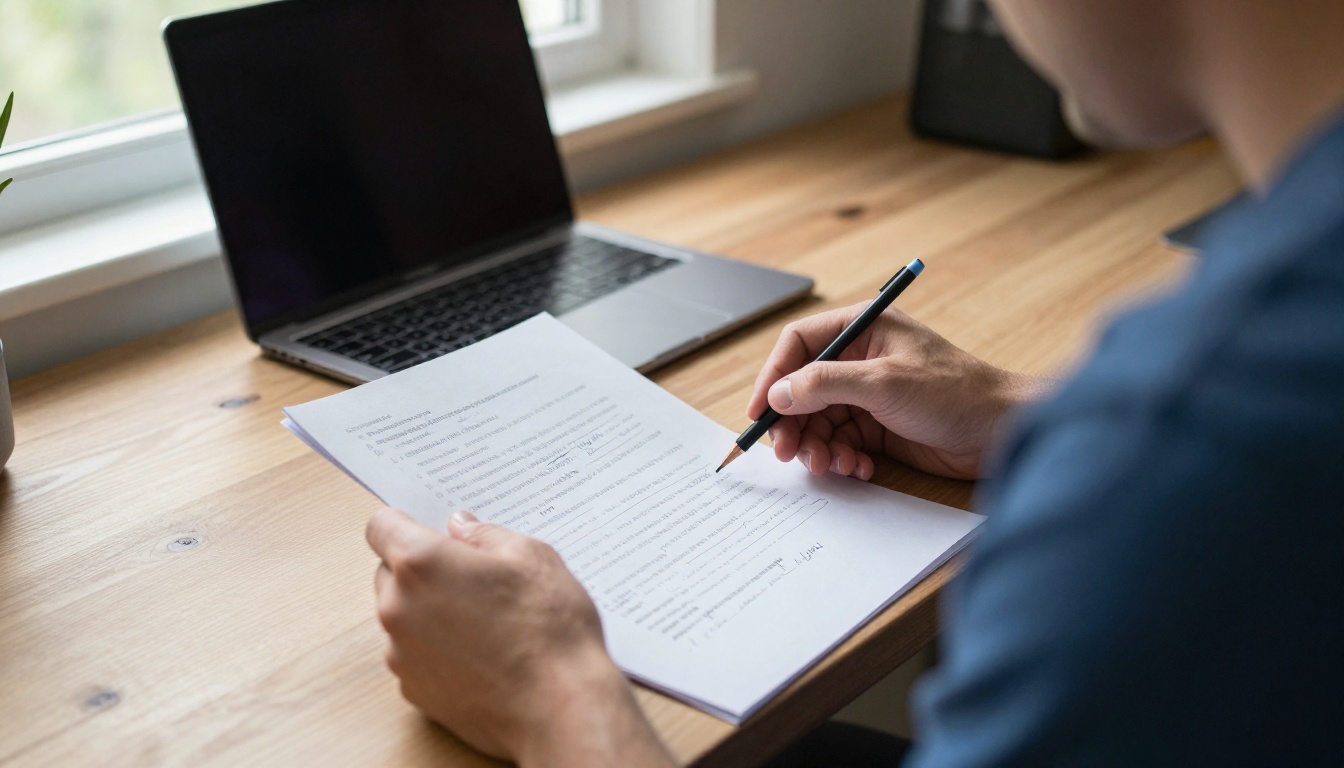
Reading slide text aloud is the fastest way to bore a listener. They can already see the words. Your voice should add what the page does not say.
Script Rules That Work
- Say it, don't read it. Summarize the slide in plain speech.
- Keep sentences short. If you run out of breath, the sentence is too long.
- Aim for 90 to 150 words per page. That lands between 40 and 60 seconds at a natural pace.
- Open each page with a hook. A question or a surprising number works well.
- End with a bridge. A short line that points to the next page keeps momentum.
✅ Best practice: Read the script aloud once before recording. Anything that feels awkward in your mouth will feel awkward in the listener's ears.
Record Clean Audio at Home
You do not need a studio. You need a quiet room and a little care.
Pick the Right Microphone
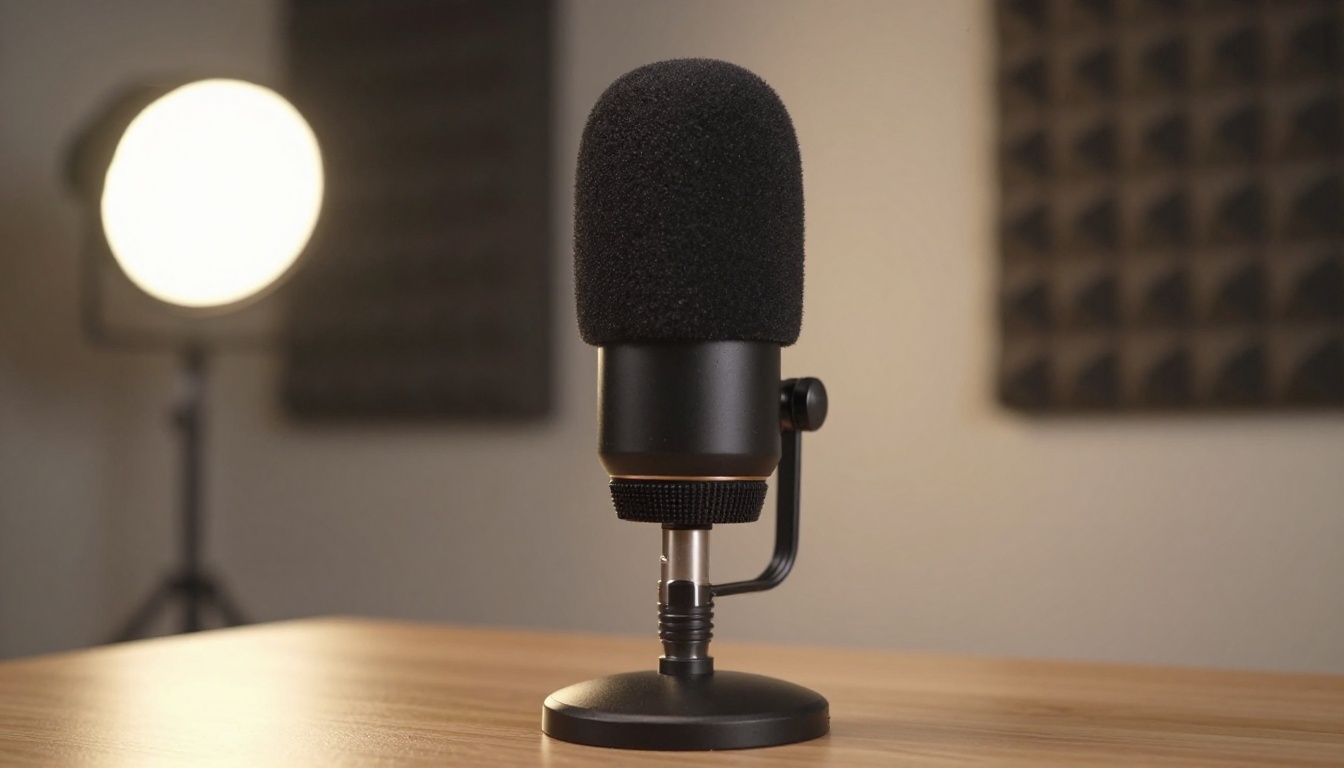
A USB microphone gives a large jump in quality over a laptop mic. A decent headset mic is also fine. Even the voice memo app on a recent phone works if you hold it steady about a hand's width from your mouth.
| Option | Cost level | Quality | Notes |
|---|
| Laptop built-in mic | Free | Fair | Picks up fan and room echo |
| Phone voice memo | Free | Good | Hold steady, record in a quiet room |
| Headset mic | Low | Good | Consistent distance from the mouth |
| USB condenser mic | Medium | Excellent | Use a pop filter to soften sharp sounds |
Fix Your Room
Hard walls bounce sound and create echo. Soft things absorb it. Record in a space with curtains, a rug, a sofa, or a closet full of hanging coats. A walk-in closet is a surprisingly good vocal booth.
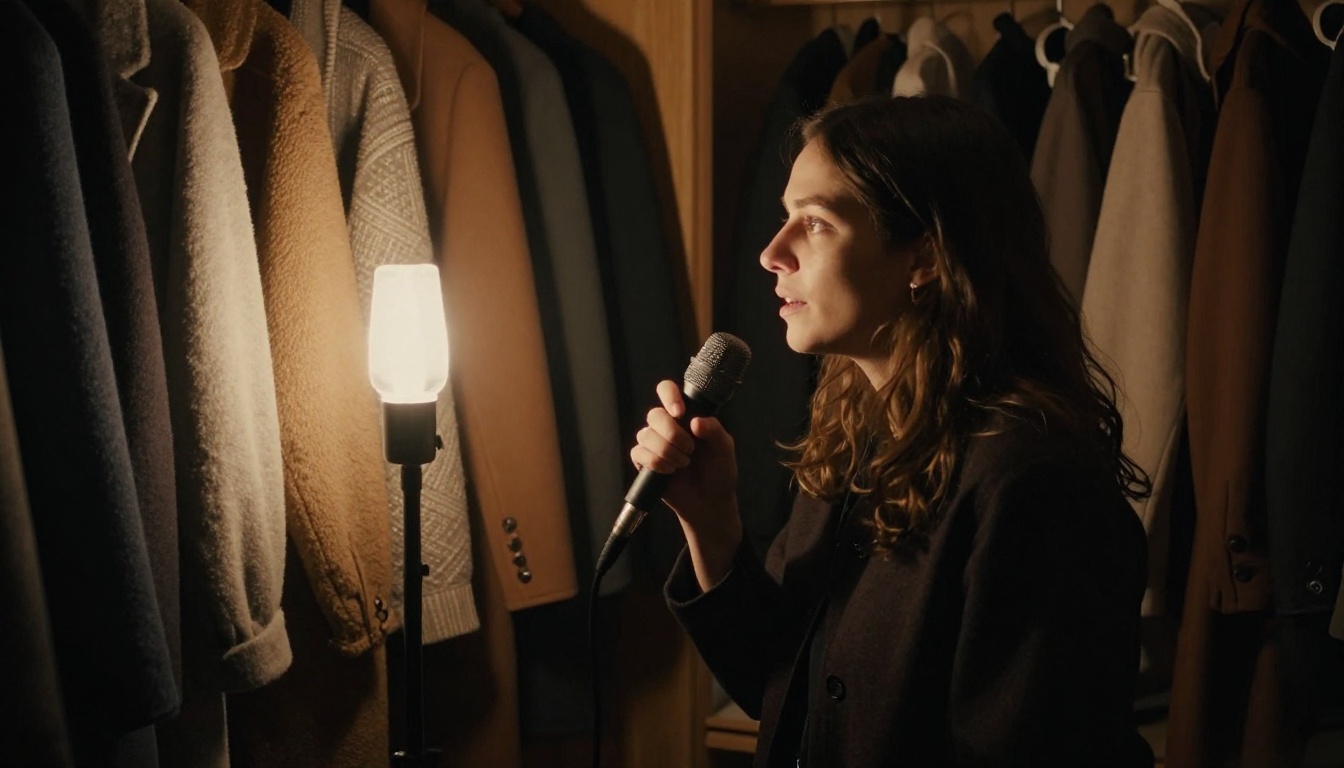
Before you press record, run through this checklist:
- Close windows and switch off fans and air conditioning.
- Silence phone notifications.
- Place a glass of water within reach.
- Do a ten second test and play it back with headphones.
Record One File Per Slide
Record each page as its own file. Name the files in order: 01-intro.mp3, 02-problem.mp3, 03-solution.mp3. Numbered names make the upload step quick and prevent mix-ups. If you flub a line, you only redo that one clip.
⚠️ Warning: Do not record the whole deck as one long file and plan to cut it later unless you are comfortable with an audio editor. Splitting by ear is slow and easy to get wrong.
Tidy the Audio
Open each file in a free editor and do three things: trim silence from the start and end, reduce steady background hiss, and bring the volume to a similar level across all clips. Uneven volume is jarring. A reader should not have to reach for the volume control on every page.
Should You Keep Audio in Google Slides Too?
You can. Google Slides lets you insert an audio file stored in Google Drive through the Insert menu, and it plays during a live slideshow. That is useful if you also present the deck in a meeting. But it does not carry over to the exported PDF, so treat it as a separate benefit and not part of the flipbook process.
| Approach | Audio survives PDF export | Works in a shareable flipbook |
|---|
| Audio inserted inside Google Slides | No | No |
| Audio attached to pages in Flipbooks AI | Yes | Yes |
Export Your Slides and Build the Flipbook
With the audio files ready, move to the conversion.
Export From Google Slides
- Open your deck in Google Slides.
- Choose File, then Download, then PDF document (.pdf).
- Save the file somewhere you can find it.
Check that the PDF has the same number of pages as your deck. If any slide uses animations that build step by step, remember that each slide becomes one static page. Split those builds into separate slides before exporting if every step matters.
Create the Flipbook on Flipbooks AI
Here is how to build the narrated version on Flipbooks AI:
- Go to Flipbooks AI and sign in or create an account.
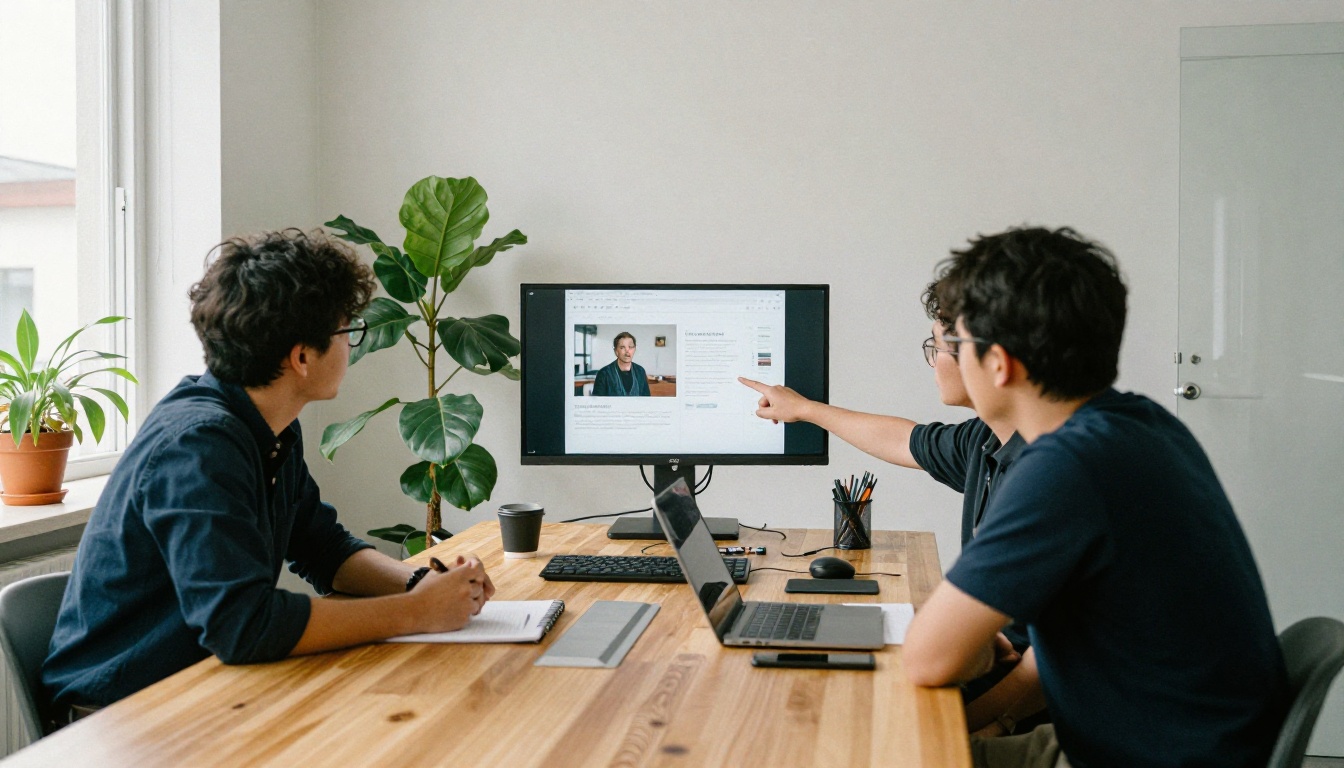
- Upload your PDF with the PDF to Flipbook Converter. Each slide turns into a page with a realistic page-turn effect.
- Open the editor and apply your branding: colors, logo, and background.
- Select the first page and add its audio clip. Repeat for every page, matching file numbers to page numbers.
- Preview the flipbook and listen through once from the first page to the last.
- Publish and copy the share link.
💡 Pro tip: Work through the pages in order and check the file name against the page number before you attach each clip. This catches the mix-ups that are hardest to spot later.
Flipbooks AI supports embedded video and audio, produces flipbooks with no watermarks, and works on mobile screens. The Presentation Flipbook Designer is a good starting point if your deck is a pitch or a talk.
Test Before You Share
A narrated flipbook that fails on a phone is worse than a silent one. Test it properly.
The Testing Checklist
- Order. Does every page play the right clip?
- Volume. Are the clips at a similar level?
- Start and stop. Does audio stop when the reader flips to the next page?
- Mobile. Does it play on both an iPhone and an Android device?
- Loading. Does the first clip start quickly on a normal connection?
Common Problems and Fixes
| Problem | Likely cause | Fix |
|---|
| No sound on a phone | Silent mode or autoplay limits | Add a note telling readers to tap play and raise the volume |
| Audio feels too quiet | Uneven recording levels | Normalize all clips to the same volume before upload |
| Slow first load | Large WAV files | Convert to MP3 and re-upload |
| Wrong clip on a page | Misnumbered files | Rename files in order and reattach |
| Echo or hollow voice | Hard room surfaces | Re-record near soft furnishings |
Browsers often block audio from starting without a tap, so do not count on autoplay. Design the experience around a visible play control, and mention it in your first page or your sharing message.
Share It the Right Way
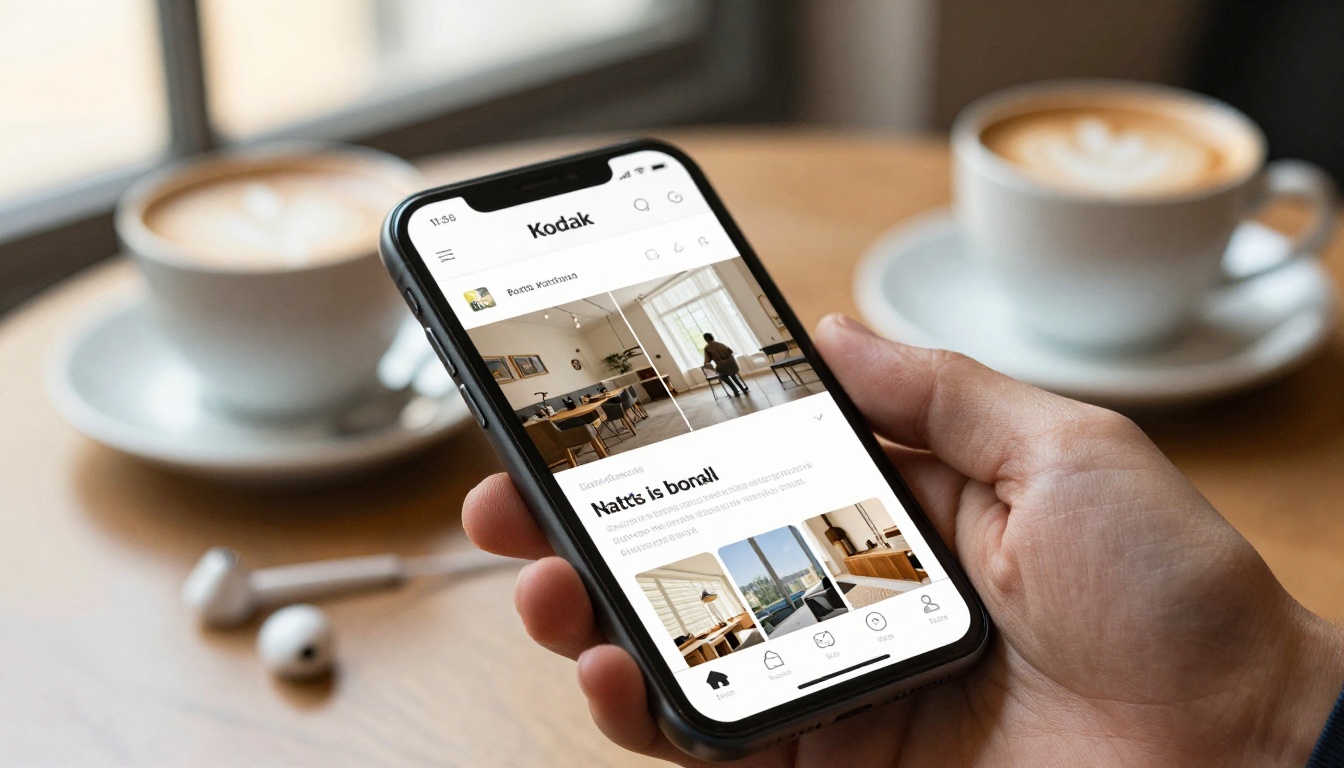
Once the audio plays well, pick how people will get to it.
| Sharing method | Best for | Notes |
|---|
| Direct link | Email and messaging | Fastest option |
| Website embed | Landing pages and course sites | Use the Embed Flipbook on Website tool |
| Password protection | Private client or student material | Limits access to people you invite |
| Offline download | Readers with weak connections | Available on higher plans |
If you want to see which pages hold attention and who opens the flipbook, analytics and lead capture are part of the Professional plan. Check the pricing plans to see what fits your volume.
Real-World Examples
A university instructor exports weekly lecture slides, records a 45 second clip per slide, and posts a single link in the course portal. Students listen on the bus and read at their desk later.
A real estate agent turns a listing deck into a flipbook with a short spoken note on each room. Buyers who cannot attend a viewing still hear the agent point out the details. The Real Estate Brochure tool pairs well with that approach.
A small company records its founder explaining each page of an investor update. The voice adds a personal layer no static PDF can match.

Habits That Make Narration Better
Small choices separate a forgettable narrated deck from a memorable one.
- Smile while you speak. Listeners can hear it.
- Vary your pace. Slow down for the important number, speed up through transitions.
- Leave a half second of silence at the start and end of each clip so playback does not feel clipped.
- Keep the whole thing short. Ten to fifteen pages with under a minute each is easier to finish than thirty pages of long speeches.
- Update one clip at a time. When a slide changes, re-record only that page.
✅ Best practice: Keep your original audio files in a folder named after the deck. When the content changes next quarter, you will thank yourself.
Quick Pre-Launch Review
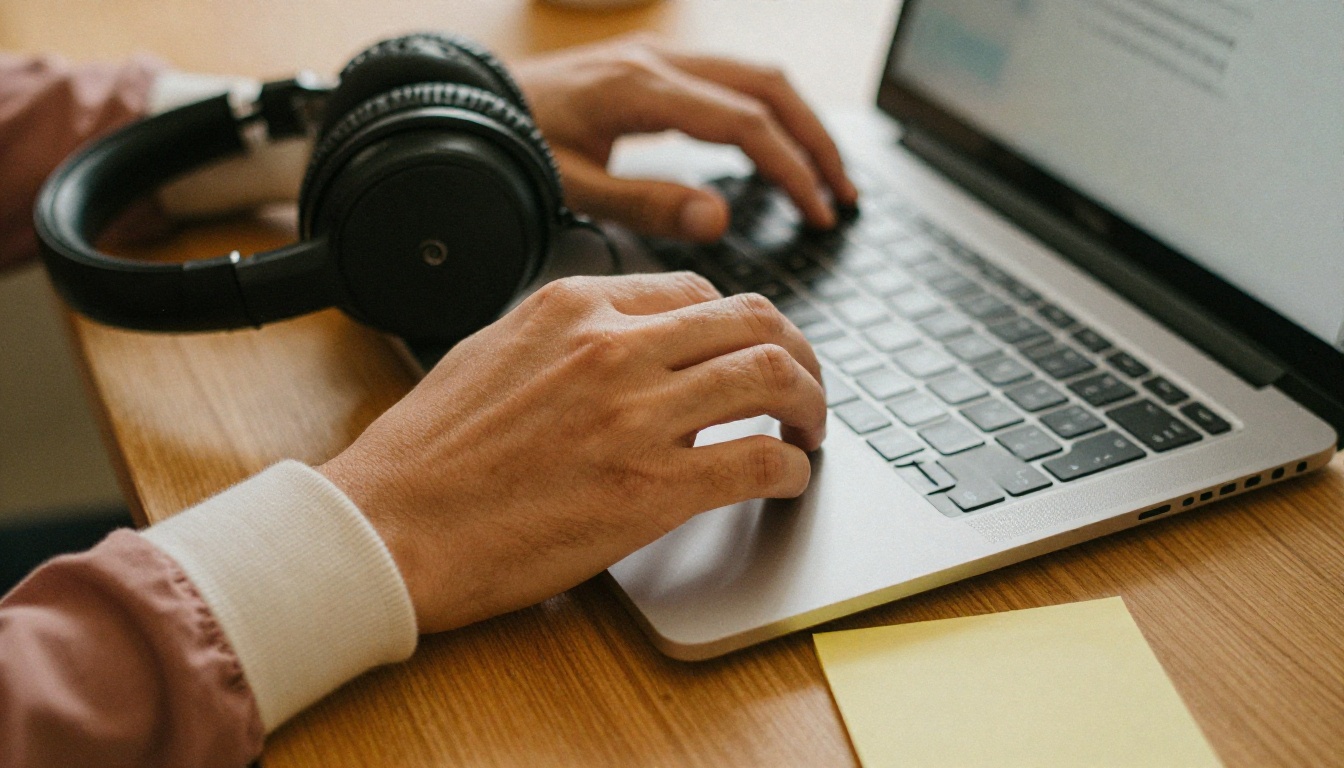
Before you send the link, listen to the flipbook from start to finish with headphones, then once more on your phone with the speaker. Ask one person who has never seen it to open the link and tell you what confused them. Fix that, and you are ready.
Ready to Give Your Slides a Voice?
You now have the full path: finish the deck, write short scripts, record clean clips, export to PDF, and attach the audio page by page. The result is a flipbook people can read, listen to, and share with a single link.
Ready to try it? Create your account on Flipbooks AI and upload your first deck today. Browse all flipbook tools to find the template that suits your project, and compare pricing plans when you want analytics, offline downloads, and lead capture. When you are set to go further, start with a plan that matches your audience.



