Most small businesses already have a product catalog. It just looks like a spreadsheet. Rows of SKUs, prices and descriptions sit in a Google Sheet that only your team can read, while customers are left asking for "the latest price list" over email. The good news: you can turn that sheet into a polished, shareable catalog in about an hour, and tools like Flipbooks AI make the last mile almost effortless.
This tutorial walks through the whole process, from cleaning your data to publishing a page-turning catalog you can send with a single link.
Why Start with a Google Sheet
A spreadsheet is the best place to keep product data. It is searchable, sortable, and multiple people can edit it at once. A design tool is the best place to present that data. The trick is to keep both roles separate: the sheet is your source of truth, and the catalog is a snapshot of it.

Here is what you gain by building from a sheet instead of designing page by page:
- Speed: one row equals one product block, so 200 products do not mean 200 manual layouts.
- Accuracy: prices and stock are edited once, in one place.
- Repeatability: next season, you update the sheet and regenerate the catalog.
- Team access: sales, marketing and operations all edit the same file.
💡 Pro tip: Keep your master sheet untouched. Duplicate it into a tab called "Catalog Export" and do all the formatting there.
Who Benefits Most
| Business type | Typical catalog size | Main benefit |
|---|
| Boutique retailer | 30 to 100 products | Seasonal lookbooks without a designer |
| Wholesale distributor | 300+ products | Fast price list updates for buyers |
| Craft seller | 10 to 40 products | A professional look for market stalls |
| Furniture dealer | 50 to 150 products | Clear specs and finishes per item |
Set Up Your Columns Properly
A catalog is only as good as the data behind it. Before you touch any design tool, spend ten minutes structuring your sheet. Every column should answer a question a buyer would ask.
The Essential Columns
- SKU: a unique code for each product.
- Product name: short and searchable.
- Category: the group the product belongs to.
- Short description: one or two sentences, 120 characters or fewer.
- Price: formatted consistently, with currency.
- Image URL: a link to the product photo.
- Availability: in stock, low stock, made to order.
- Variants: sizes, colors or materials.
Optional Columns Worth Adding
- Dimensions or weight for furniture, homeware and shipping.
- Minimum order quantity for wholesale buyers.
- Page order, a simple number so you control the sequence.
- Badge, such as "New" or "Best seller".
⚠️ Warning: Avoid merged cells. They look tidy in a sheet but break exports and make sorting impossible.
Quick Data Cleanup Checklist
| Problem | How to spot it | Fix in Google Sheets |
|---|
| Extra spaces | Names look misaligned | Use =TRIM(A2) |
| Mixed capitalization | "red MUG", "Blue mug" | Use =PROPER(A2) |
| Duplicate SKUs | Data > Data cleanup | Remove duplicates |
| Inconsistent prices | Some with $, some without | Format > Number > Currency |
| Empty descriptions | Filter for blanks | Fill or remove the row |
Organize Products by Category
Buyers browse by category, so your catalog should too. Sort the sheet by Category, then by Page order, so related items land next to each other.

A simple structure that works for most catalogs:
- A cover page with your logo and a short tagline.
- A contents page listing categories and page numbers.
- One section per category, with an intro line.
- A closing page with contact details and ordering instructions.
How Many Products per Page?
| Layout | Products per page | Best for |
|---|
| Hero | 1 | Premium or high ticket items |
| Duo | 2 | Furniture, fashion, large photos |
| Grid of 4 | 4 | Most retail products |
| Grid of 6 to 9 | 6 to 9 | Wholesale price lists |
✅ Best practice: Mix layouts. A hero page at the start of each category keeps the reader interested, then switch to grids for the rest.
Prepare Photos That Sell
Words describe, photos convince. Your catalog will be judged within seconds, and the images carry most of that judgment.

Photo Rules of Thumb
- Use natural or softbox light and avoid harsh flash.
- Keep backgrounds plain and consistent across all products.
- Shoot at 2000 pixels on the long side or higher.
- Name files after the SKU, such as
MUG-001.jpg, so matching is easy.
- Add one lifestyle shot per category to show scale and context.
Where to Store Images
Google Drive works well. Create one folder, set sharing to "Anyone with the link", and paste each file link into your Image URL column. For in-sheet previews, the =IMAGE("url") function renders the picture right in the cell, which helps you spot missing or wrong photos quickly.
💡 Pro tip: Add a column with =IF(F2="","MISSING","OK") to flag any row without an image before you export.
Turn the Sheet into a PDF
Now comes the conversion. You have three practical routes, and each fits a different situation.
| Method | Effort | Look | Best for |
|---|
| Print the sheet to PDF | Very low | Basic table | Internal price lists |
| Mail merge into Google Docs or Slides | Medium | Custom layout | Small and mid catalogs |
| Design tool with CSV import | Medium | Polished | Branded customer catalogs |
Route 1: Print Directly from Sheets
Go to File > Print, choose "Fit to width", hide gridlines, and set a landscape layout. It is quick, but the result looks like a spreadsheet because it is one. Use it for price lists, not for brand presentations.
Route 2: Slides as a Layout Engine
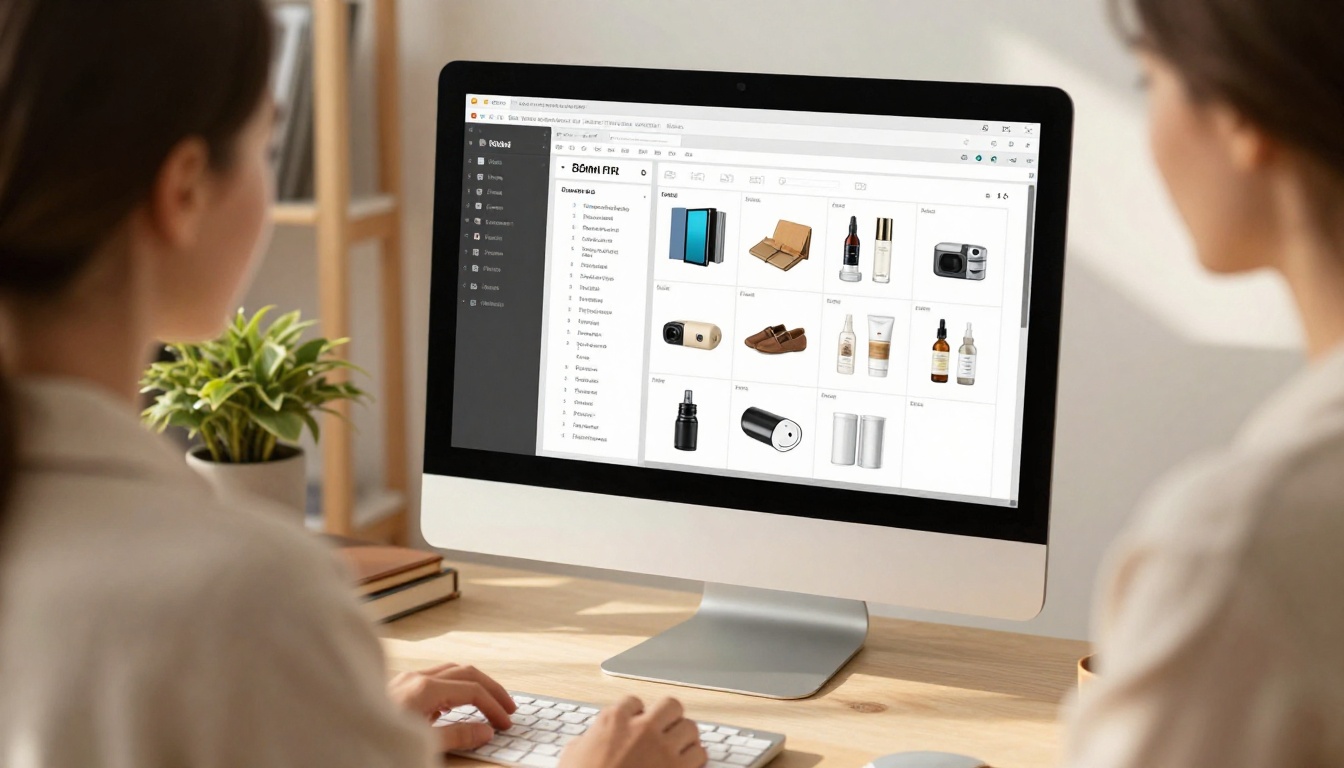
Google Slides makes a surprisingly good catalog canvas. Design a single product slide with placeholders, duplicate it, and fill each copy with the data from your row. Add-ons can automate this, but even the manual route takes under an hour for 30 products.
Route 3: Design Tool with CSV Import
Several design platforms let you upload a CSV and map columns to text and image boxes. Export your sheet with File > Download > Comma-separated values, then map each column once and let the tool repeat the layout for every row.
Whichever route you pick, finish by exporting to PDF at print quality. That file is the raw material for the next step.
Publish It as a Flipbook
A PDF attachment is fine, but it has problems. It is heavy to download, awkward on phones, and you cannot track whether anyone opened it. A flipbook solves all three.
How to Create the Catalog with Flipbooks AI
- Create an account. Go to Flipbooks AI and sign up. The free plan is enough to try a first catalog.
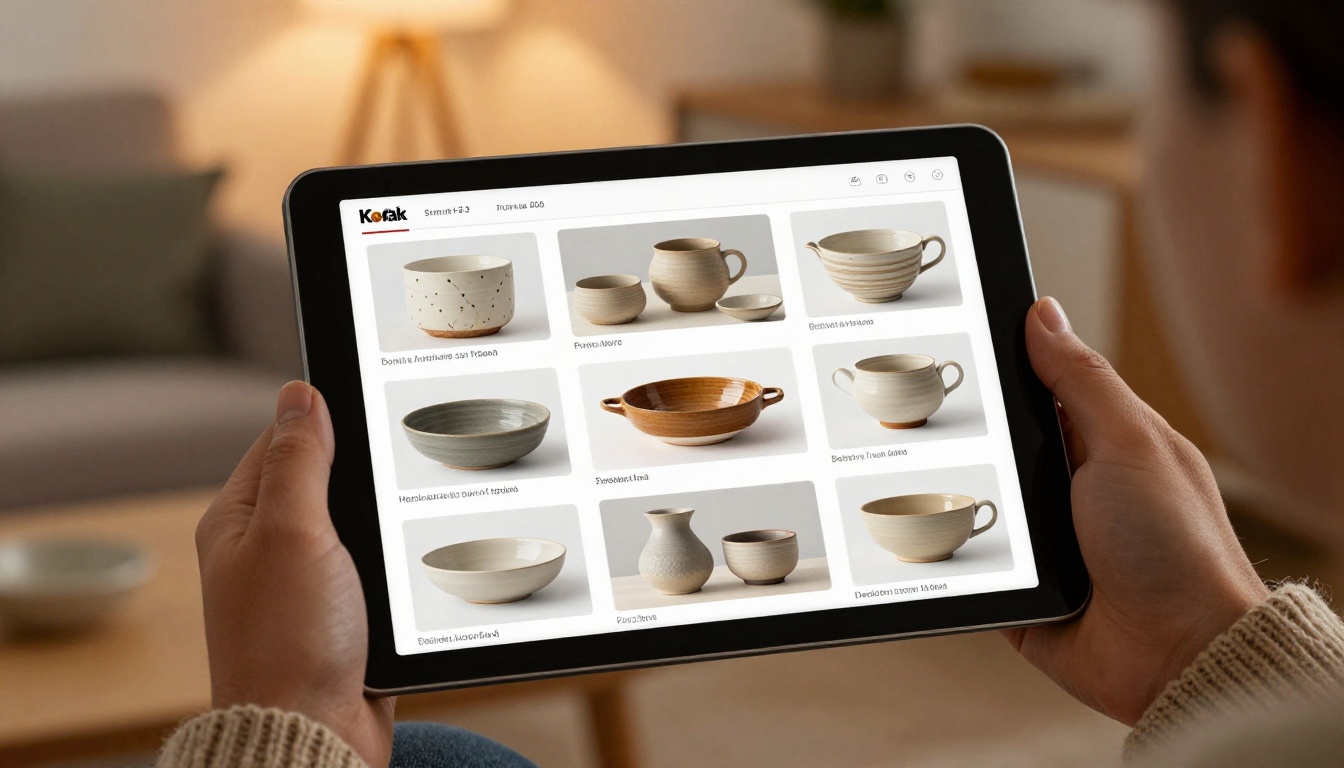
- Upload your PDF. Drag the file into the dashboard. The PDF to Flipbook Converter turns each page into a realistic page-turning spread in seconds.
- Customize the look. Add your logo, pick brand colors, choose the page-flip effect and background. You can also embed videos and audio on any page, for example a short demo of your best seller.
- Check the layout. Flip through every page on desktop and phone. Because the design is mobile-responsive, the same catalog adapts to any screen size.
- Share it. Copy the direct link, or grab an embed code to place the catalog on your site with the Embed Flipbook on Website tool. For private wholesale price lists, switch on password protection.
- Track results. On the Professional plan you get analytics and lead generation, so you can see which pages buyers open and capture emails before they read.
If you prefer a more guided starting point, the dedicated Product Catalog generator and the Digital Catalog Maker are built for exactly this workflow. Selling clothes? Try the Fashion Catalog Creator. Selling prices only? The Digital Price List Generator keeps things light.
✅ Best practice: There are no watermarks on your flipbook, so it looks like your brand, not ours. Offline downloads are also available, which helps for trade shows with poor Wi-Fi.
PDF Attachment vs Flipbook
| Feature | PDF attachment | Flipbook |
|---|
| Opens on mobile | Slow, pinch and zoom | Fast, responsive |
| Page-turn feel | None | Realistic |
| Embed in website | Difficult | One snippet |
| Password protection | Limited | Built in |
| Video and audio | No | Yes |
| View analytics | No | Yes (Professional) |
| Update after sending | Resend the file | Replace and keep the same link |
Real-World Examples
Seeing how others do it makes the process easier to copy.

A Boutique Candle Shop
A candle seller kept 45 products in a sheet with columns for scent, burn time and price. She exported the sheet into slides, one product per slide, added three lifestyle photos, and published the result as a flipbook. The link went into her email signature and Instagram bio. Orders by message rose because customers could finally see everything in one place.
A Hardware Wholesaler
A distributor with 600 products used a 6-per-page grid and a password-protected flipbook for registered buyers. Each quarter, the team updated the sheet, re-exported the PDF and replaced the file behind the same link. Buyers never needed a new URL.
A Furniture Dealer
A dealer with 90 items used the hero layout for sofas and a duo layout for tables. Dimensions and finishes came straight from the sheet, which cut quote questions dramatically.
| Example | Products | Layout | Distribution |
|---|
| Candle shop | 45 | Grid of 4 | Email signature and social bio |
| Hardware wholesaler | 600 | Grid of 9 | Password-protected link |
| Furniture dealer | 90 | Hero and duo | Embedded on website |
Mistakes to Avoid

Even a tidy sheet can produce a weak catalog. Watch for these five problems:
- Walls of text. Keep descriptions short. Buyers scan.
- Inconsistent photos. Mixed backgrounds make a catalog feel amateur.
- No ordering instructions. Tell the reader how to buy, with a link, an email or a phone number on every section.
- Outdated prices. Add a "Prices valid until" date on the first page.
- Ignoring mobile. Most readers will open it on a phone. Test before sharing.
Pre-Launch Checklist
Keep It Fresh Over Time
A catalog is not a one-time project. Treat it like a product in itself.

- Version your tabs. Name them "Catalog Spring 2027" and so on, so you can look back at old prices.
- Schedule a monthly review. Ten minutes to check stock and prices prevents embarrassing errors.
- Watch the analytics. If readers drop off at page 12, move your best sellers earlier.
- Replace, do not republish. Keep the same link so printed QR codes and old emails still work.
💡 Pro tip: Put a QR code to the flipbook on packaging, receipts and market stall signs. It turns every physical touchpoint into a catalog view.
Your Next Step

You do not need a design team or a big budget. You need a clean sheet, decent photos and a way to present them. Set up your columns, sort by category, export a PDF, and publish it as a flipbook.
Ready to try it? Get started for free on Flipbooks AI and upload your first catalog today. Browse all available flipbook tools to find the right template for your products, and compare pricing plans when you want analytics, lead capture and unlimited flipbooks. When you are ready to go further, you can upgrade your plan in a couple of clicks.



