You have twelve photos of a signed contract, a stack of receipts, or a weekend trip, and the person on the other end wants one file. Sending a dozen separate pictures is messy, and half of them arrive out of order. The fix is to combine phone photos into one PDF on Android, and it takes less than two minutes once you know where the tools hide. This article shows four reliable methods, then goes one step further: turning that PDF into a page-turning flipbook with Flipbooks AI so it looks great on any screen.
Why One PDF Beats Many Photos
A single PDF keeps pages in a fixed order, opens the same way on every device, and is far easier to attach to an email or a form. Photos, on the other hand, get compressed by chat apps, rotated by accident, and buried in gallery folders.
Here is what changes when you merge your images:
- Order is locked. Page 1 stays page 1, no matter who opens it.
- One attachment. Government portals, banks, and landlords usually accept a single upload.
- Smaller total size. A PDF can be compressed once instead of each picture separately.
- Easy archiving. One file named "Insurance claim March" beats forty files called IMG_2291.
- Print ready. Pages line up properly when someone prints the file.
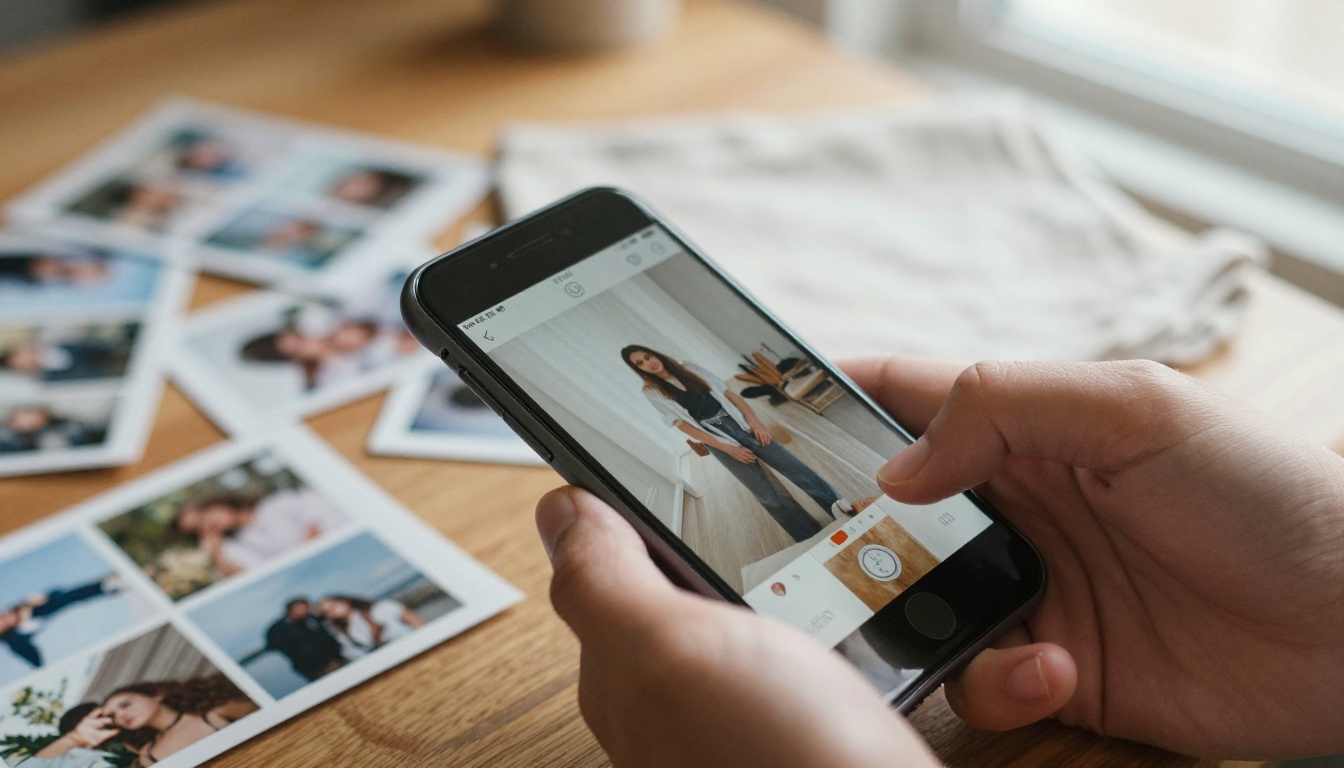
💡 Pro tip: Decide the page order before you start. Renaming or reordering photos first saves you from repeating the whole process later.
Quick Comparison of the Four Methods
Pick the approach that matches your situation. All four work on a regular Android phone without a computer.
| Method | Cost | Reorder pages | Works offline | Best for |
|---|
| Print to PDF (built in) | Free | Limited | Yes | Fast, small batches |
| Google Drive scanner | Free | Yes | Partly | Paper documents |
| Google Photos print option | Free | Limited | Yes | Albums and memories |
| Dedicated PDF app | Free or paid | Yes | Usually | Large batches, control |
Method 1: Print to PDF in the Gallery
This one needs no extra app. Android treats "save as PDF" as a printer, and it accepts several photos at once on most phones.
Select the photos
- Open your Gallery or Google Photos app.
- Long-press one photo to enter selection mode.
- Tap each additional photo you want in the document.
- Tap the Share or three dot menu and look for Print.
Choose Save as PDF
- In the print preview, open the printer dropdown at the top.
- Select Save as PDF.
- Set the paper size (A4 or Letter) and orientation.
- Tap the round PDF button and pick a folder.
Some phones print one photo per page automatically. Others shrink several onto one sheet, so check the preview before saving.
⚠️ Watch out: On certain manufacturer gallery apps the print option only appears for a single photo. If that happens, use Method 2 or Method 4.
Method 2: Use the Google Drive Scanner
Google Drive has a camera scanner that builds multi page PDFs directly. It is also the best choice when your "photos" are really pictures of paper.
Scan new pages
- Open the Google Drive app and tap the + button.
- Choose Scan.
- Point the camera at the first page and tap the shutter.
- Tap + to add another page, or Retake if the shot is blurry.
- Tap Save, name the file, and pick an account and folder.
Add existing photos instead
Newer versions of the scanner let you tap the gallery icon inside the scan screen and import photos you already took. Each imported image becomes its own page, which you can crop, rotate, and recolor before saving.
The scanner also cleans shadows, straightens edges, and lets you switch between color and black and white. For receipts and forms that is a real upgrade over a raw camera photo.
Method 3: Create a PDF from Google Photos
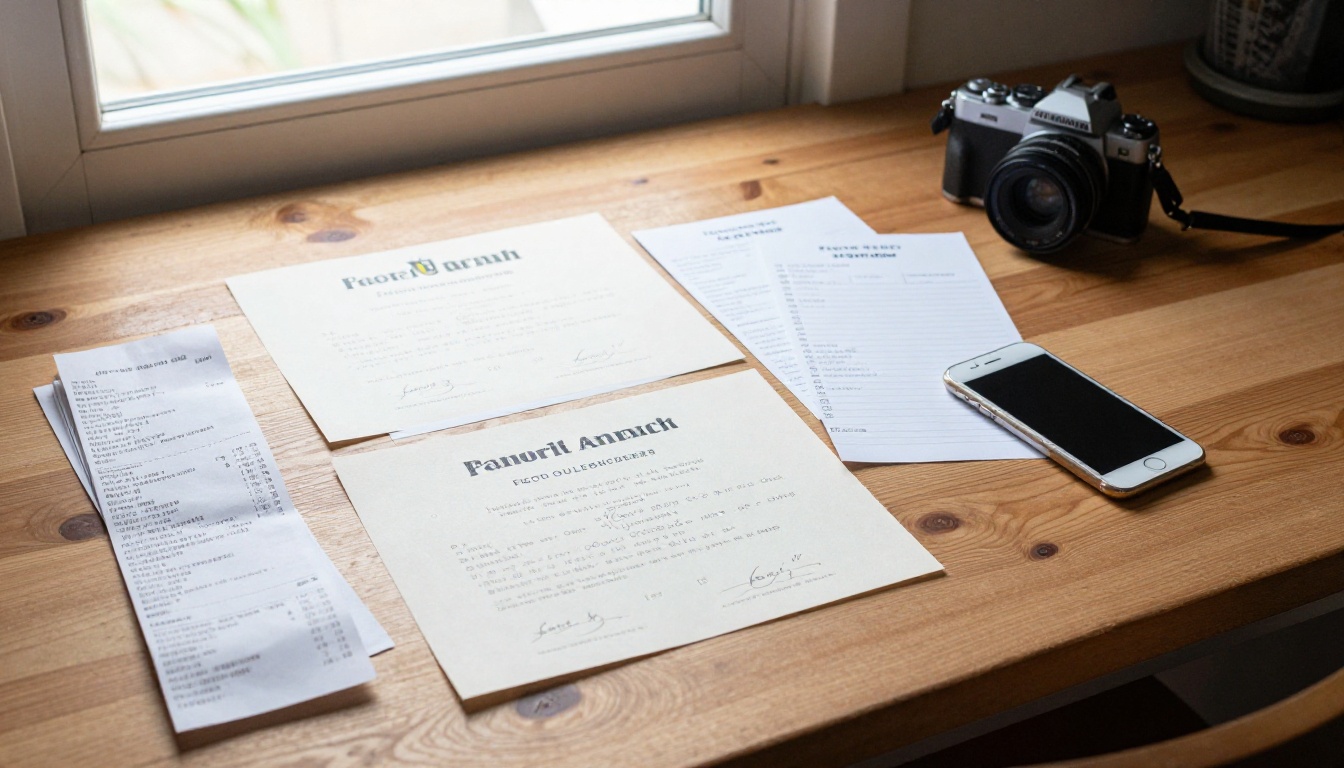
If your pictures already live in Google Photos, you can turn an album into a printable file without touching another app.
- Open Google Photos and create an album with the pictures you want.
- Open the album and tap the three dot menu.
- Choose Print or Order prints where available, then pick Save as PDF from the system dialog.
- Confirm the paper size and save.
This works nicely for travel albums and family events, because Google Photos already keeps the album in the order you chose. The trade-off is less control over margins and compression.
Method 4: Try a Dedicated PDF Maker App
Search the Play Store for "image to PDF" and you will find dozens of options. Good ones share a few traits, and it helps to know what to look for before installing anything.
| Feature to check | Why it matters |
|---|
| Drag to reorder pages | Fixes mistakes without starting over |
| Page size and margin options | Controls how the PDF prints |
| Compression slider | Keeps big batches under email limits |
| No watermark on free exports | Avoids a logo on every page |
| Works without sign-in | Protects your privacy |
The workflow is almost always the same:
- Open the app and tap Image to PDF (or similar).
- Select your photos in order.
- Drag thumbnails to rearrange them.
- Pick page size, quality, and margins.
- Tap Create and save.
✅ Best practice: Read the permissions screen. A PDF maker only needs access to your photos and files, not your contacts or location.

How to Get a Sharper, Smaller PDF
A merged file can balloon quickly. Twelve modern phone photos at full resolution often add up to 40 MB or more. Here is how to keep quality high and size reasonable.
Fix the photos first
- Shoot in good light. Daylight near a window beats a ceiling lamp.
- Keep the phone parallel to the page to avoid skewed text.
- Crop edges so you are not including your desk in every page.
- Turn on a document mode if your camera app offers one.
Compress without ruining text
| Target use | Suggested quality | Typical size for 10 pages |
|---|
| Email attachment | Medium | 2 to 5 MB |
| Online form upload | Medium to low | 1 to 3 MB |
| Printing at home | High | 8 to 15 MB |
| Archive of originals | Maximum | 20 MB and up |
If a portal rejects your file for being too large, re-export at a lower quality instead of deleting pages.
Real Life Examples Worth Copying
Different people merge photos for very different reasons. A few situations where one PDF saves the day:
- Renters and homeowners photograph each room before a move and keep one dated PDF as proof of condition.
- Students snap handwritten notes at the library and send a single file to a study group.
- Freelancers combine receipts into one monthly expense document for their accountant.
- Travelers merge tickets, reservations, and passport pages into one offline file.
- Parents turn school drawings and certificates into a yearly memory book.
Common Mistakes to Avoid
Most failed PDFs come down to a few repeat offenders.
- Mixed orientation. Portrait and landscape photos in one file look jumbled. Rotate before exporting.
- Blurry text. Tap to focus and hold steady. Retaking costs five seconds.
- Huge file sizes. Compress before attaching, not after the email bounces.
- Unclear file names. Use a name with a date, such as "Lease photos 2026".
- Sharing sensitive files openly. Never post an ID or contract as a public link.
⚠️ Privacy note: Documents with personal data deserve a password. Many free converters upload your files to unknown servers, so stick to apps and services you trust.
Turn Your PDF into a Flipbook
A PDF is functional, but it is not exactly exciting to open. If you are sharing a photo album, a portfolio, a trip diary, or a product sheet, a flipbook gives readers a smooth page-turning experience that works on phones, tablets, and desktops.
Flipbooks AI converts your PDF into an interactive flipbook with no watermarks. The PDF to Flipbook Converter handles the heavy lifting, and the result is a clean link you can send in a message.
How to Create a Flipbook with Flipbooks AI
- Start an account. Go to Flipbooks AI and sign up in a minute.
- Upload your PDF. Drag in the file you just made on Android, or pick it from your phone's storage. The converter splits it into pages automatically.
- Customize the look. Set background colors, add your logo for custom branding, and choose page-flip effects that suit the mood.
- Add extras. Embed videos and audio if you want a narrated album or a product demo.
- Choose sharing options. Copy a direct link, grab an embed code for your website, or add password protection for private content.
- Publish and test. Open the link on your phone to confirm the pages look sharp.
💡 Pro tip: Mobile-responsive design means the flipbook adapts to small screens, so your readers do not need to pinch and zoom like they do with a plain PDF.
Plans at a Glance
| Need | What to use | Plan |
|---|
| Try one flipbook | Upload and share a link | Free to start |
| Unlimited flipbooks | Publish as many as you like | Standard and above |
| Visitor analytics and lead capture | Track who reads and how far | Professional |
| Offline downloads | Let readers save a copy | Available on paid plans |
You can compare every option on the pricing page before you commit to anything. If you plan to put the flipbook on a blog or site, the Embed Flipbook on Website tool shows exactly how.
The type of content decides the best starting point. Browse the full tools directory or jump straight to a match:

Share Your PDF Safely
Once the file is ready, the way you send it matters almost as much as how you built it.
- Email is fine for small files under about 20 MB.
- Cloud links from Drive let you revoke access later.
- Messaging apps are quick, but check whether the file gets compressed.
- Flipbook links are ideal when you want a polished reading experience and optional password protection.
✅ Best practice: For anything with names, addresses, or account numbers, use a password and send the password through a different channel than the file.
Troubleshooting Quick Fixes
| Problem | Likely cause | Fix |
|---|
| Print option missing | Gallery app limits it | Use Google Photos or Drive |
| Pages come out sideways | Mixed photo orientation | Rotate images before exporting |
| PDF is too large | Full resolution photos | Lower the quality setting |
| Several photos on one page | Print layout setting | Choose "1 per page" in preview |
| Text looks fuzzy | Poor lighting or focus | Retake in daylight, hold steady |
Plan Your Next Album or Document
A little planning turns the next batch of photos into a polished file. Place pages on a flat surface, shoot straight down, check the order, and export. Within minutes you will have a single PDF that behaves the same on every phone and printer.
Ready to make it look as good as it reads? Get started for free on Flipbooks AI and upload your PDF. Browse the flipbook tools to find the best fit for your content, and compare pricing plans when you are ready for unlimited flipbooks, analytics, and offline downloads.



