Canva has quietly become one of the most popular design tools on the internet, and for good reason. Millions of people use it every day to build presentations, social media graphics, and marketing materials. But when it comes to creating a flipbook with that satisfying page-turning effect, Canva alone will not get you all the way there. This article breaks down exactly how to create a flipbook in Canva, what the process looks like from start to finish, and how to pair Canva's design power with a dedicated flipbook platform like Flipbooks AI to get professional, interactive results your audience will remember.
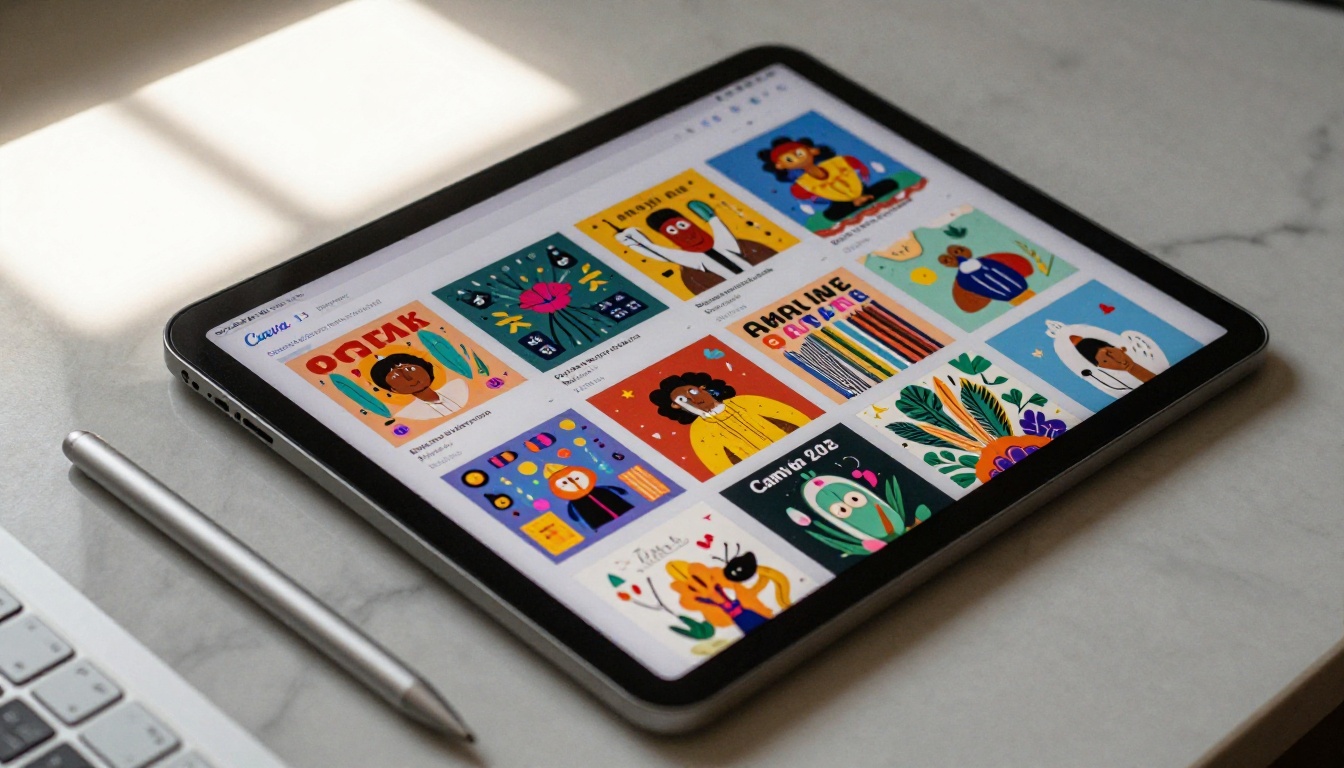
What Canva Actually Does (and Where It Stops)
Canva is a visual design platform, not a flipbook platform. That distinction matters. Inside Canva, you can create multi-page documents with animations, transitions, and rich visual layouts. But the "flipbook" effect, where pages curl and turn like a real book, is not a native Canva feature.
What Canva gives you:
- A drag-and-drop editor with thousands of templates
- Page transition animations for presentations
- PDF export with high-resolution output
- Team collaboration in real time
- A free plan with generous design capabilities
What Canva does not give you:
- A true page-flip animation when viewed as a flipbook
- An embeddable interactive reader for websites
- Password protection for private flipbook content
- Analytics to track who reads your document
- A shareable link that plays like an actual flipbook
The workflow that works is simple: design your pages in Canva, export as PDF, then upload to a dedicated platform like Flipbooks AI to apply the page-turning effect and publish your work to the world.
Canva as a Design Engine
Think of Canva as the design engine. It handles layout, typography, color, and imagery with tools most designers find intuitive and fast. For anyone who needs polished pages without a graphic design background, Canva is genuinely excellent. The real limitation appears only when you try to turn that design into an interactive publication that readers can flip through on any device.
Why the Page-Flip Effect Matters
The page-flip animation is not just a visual novelty. Research on digital reading behavior shows that interactive publications with realistic page turns drive significantly higher readership rates than static PDFs. Readers spend more time on each page, scroll through more content, and are more likely to share the publication with others. That small mechanical detail changes the psychological relationship between reader and document.
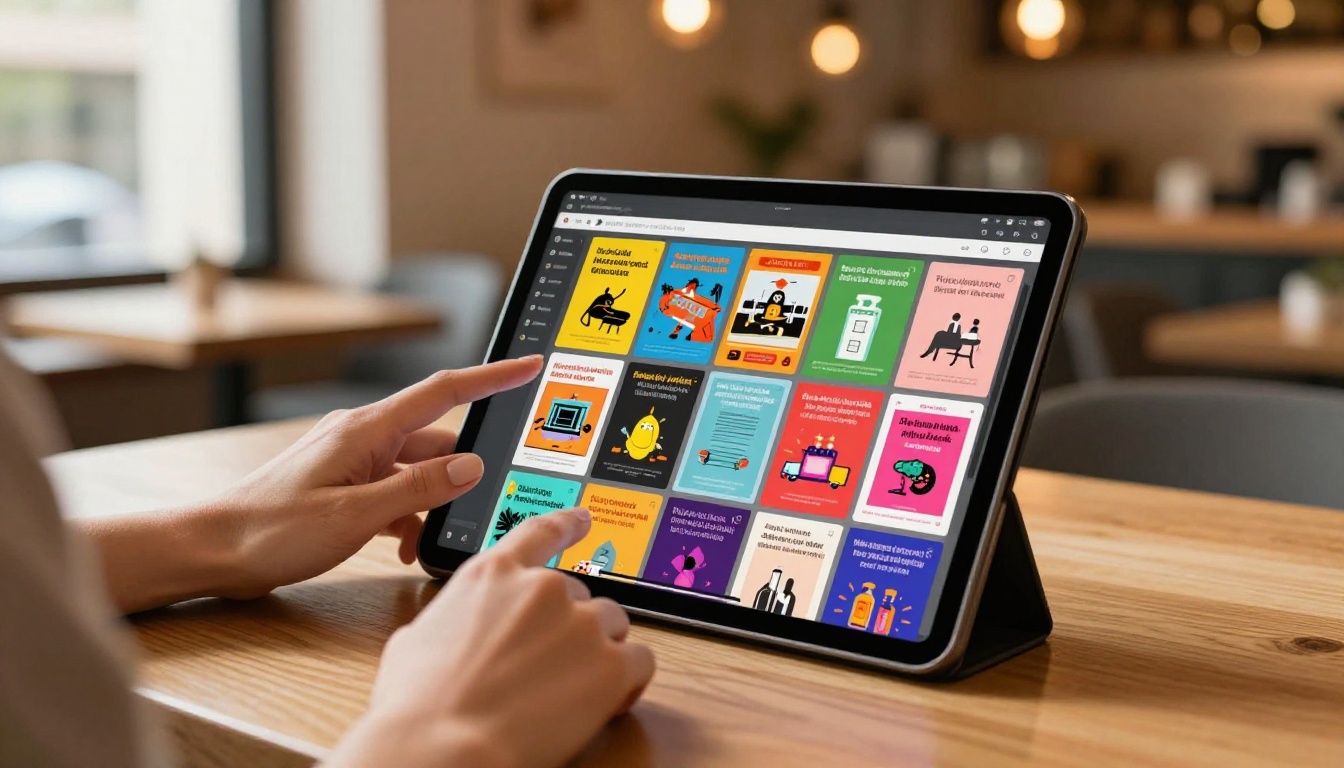
How to Create a Flipbook in Canva
Here is the exact workflow, step by step. This process takes most people between 20 and 60 minutes depending on the complexity of their design.
Step 1: Choose Your Document Type
Open Canva and select a document format. For flipbooks, the best options are:
- Presentation (16:9) if you want a landscape flipbook similar to a digital magazine
- A4 Document if you want a portrait-oriented flipbook that mimics a printed book or brochure
- Custom dimensions if your project has specific size requirements
💡 For printed brochures converted to digital, match your Canva canvas to the original print dimensions. This keeps all elements proportional when you export the final PDF.
Step 2: Pick a Template
Canva's template library includes thousands of designs for presentations, magazines, brochures, catalogs, and more. Search for terms like "magazine," "brochure," or "lookbook" to find layouts that work well as flipbook pages.
Best template categories for flipbooks:
| Template Type | Best For | Canva Search Term |
|---|
| Magazine layouts | Editorial content, news | "Magazine" |
| Brochure designs | Business, real estate | "Brochure" |
| Lookbook styles | Fashion, product catalogs | "Lookbook" |
| Annual reports | Corporate, nonprofit | "Annual Report" |
| Portfolio layouts | Creative, photography | "Portfolio" |
✅ Choose a template with a consistent visual style across all pages. Consistency is what makes a flipbook feel professional rather than pieced together from different sources.
Step 3: Design Each Page
This is where Canva earns its reputation. Use the editor to:
- Replace placeholder images with your own photos or Canva stock imagery
- Update all text with your specific content
- Apply your brand colors using the color palette tool
- Add your logo to a consistent position on every page
- Use Canva's grid and alignment tools to keep everything balanced
⚠️ Avoid placing critical content too close to the edges. When your PDF becomes a flipbook, the page-curl effect can obscure content near the spine and outer margins.
Keep your page count in mind. Most flipbooks work well with 8 to 40 pages. Fewer than 8 pages feels too thin. More than 40 can make navigation cumbersome unless your content genuinely demands it.
Step 4: Add Animations in Canva
Canva offers page animations for presentations. While these are not the same as a true flipbook page-turn, they add polish when someone previews your Canva file directly inside the platform.
To add animations in Canva:
- Click on any page in your design
- Select Animate from the top toolbar
- Choose a page transition from the available options (Fade, Pan, Rise, and others)
- Apply to all pages or individual pages as needed
💡 The "Rise" and "Slide" animations look closest to a page-flip effect when previewing inside Canva. However, these animations will not appear in your exported PDF, so do not rely on them for the final flipbook experience.
Step 5: Export Your Design as PDF
Once your design is complete, export it as a high-quality PDF.
- Click Share in the top right corner of Canva
- Select Download
- Choose PDF Print for the highest quality output
- Enable Crop marks and bleed if your design has full-bleed images
- Click Download and save the file to your device
PDF export settings comparison:
| Export Option | File Size | Quality | Best Use |
|---|
| PDF Standard | Small | Good | Web sharing, quick previews |
| PDF Print | Large | Excellent | Final flipbook upload, print |
| PNG/JPG | Medium | Varies | Individual pages only |
| MP4 Video | Large | Animated | Canva-only presentations |
For flipbook creation, always choose PDF Print. The higher quality preserves sharp text, detailed photography, and color accuracy when the flipbook platform processes your file.
What Canva Cannot Fix
Even the most polished Canva design hits a wall when you try to share it. Sending a PDF link is clunky. Viewers have to download the file, open it in a PDF reader, and scroll through pages without any page-flip interaction. There is no immersive reading experience, no analytics, and no way to embed it on a website with a live preview.
This is exactly where most designers get frustrated. They put hours into a beautiful Canva design only to share it in a format that feels flat and forgettable.

Turn Your Canva PDF into a Real Flipbook
This is where Flipbooks AI comes in. Upload your Canva-exported PDF and within seconds it becomes an interactive flipbook with a realistic page-turning effect, a shareable link, embed code for your website, and a mobile-responsive reader that works on any device.
The Full Conversion Process
Here is everything you need to do after your PDF is ready from Canva:
- Create your account at flipbooksai.com/account. The signup process takes under two minutes.
- Upload your PDF using the drag-and-drop upload interface. Files of any size are accepted.
- Wait for conversion. Flipbooks AI processes your PDF automatically, creating individual page images and applying the flip animation engine to every page.
- Customize your flipbook by selecting background colors, adding your logo, choosing a color theme that matches your brand, and enabling page effects.
- Add multimedia if your publication calls for it. Embed YouTube videos, audio tracks, or clickable links directly into specific pages of your flipbook.
- Set sharing preferences. Choose a public link, password-protected access for private content, or an embed code to place directly into your website.
- Share your flipbook via the generated link, or embed it on your site using the iframe snippet from the Embed Flipbook on Website tool.
✅ The PDF to Flipbook Converter handles everything automatically. No manual page editing or technical knowledge required.
Flipbooks AI features included:
- No watermarks, ever
- Unlimited flipbooks on Standard plan and above
- Password protection for private or gated content
- Analytics and lead generation on the Professional plan
- Offline downloads for readers without internet access
- Embed videos and audio directly into pages
- Full mobile-responsive design across all devices
- Custom branding with your own colors and logo
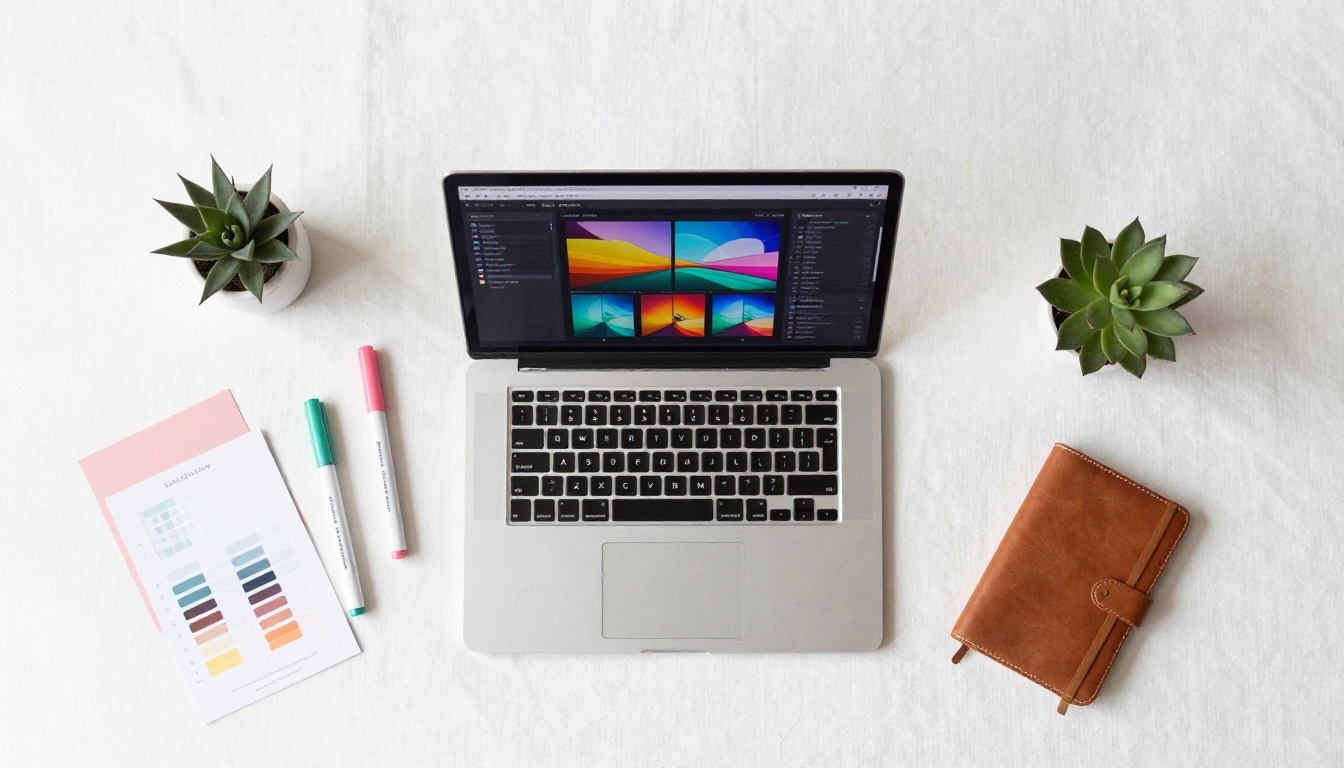
It is worth being clear about what each tool is built for. Canva is a design tool. Flipbooks AI is a publishing platform. They serve different purposes and work best in combination.
| Feature | Canva | Flipbooks AI |
|---|
| Drag-and-drop design editor | ✅ Yes | No |
| Template library (thousands) | ✅ Yes | No |
| Page-flip animation | No | ✅ Yes |
| Embeddable flipbook reader | No | ✅ Yes |
| Shareable flipbook link | No | ✅ Yes |
| Password protection | No | ✅ Yes |
| Reader analytics | No | ✅ Yes (Professional) |
| Lead capture forms | No | ✅ Yes (Professional) |
| Video/audio embed in pages | No | ✅ Yes |
| Mobile-responsive reader | No | ✅ Yes |
| Custom branding | ✅ Pro plan | ✅ Yes |
| Offline download | No | ✅ Yes |
The workflow is clear: use Canva to design beautiful pages, then use Flipbooks AI to publish them as an interactive experience that readers can actually flip through.
Real-World Use Cases
Digital flipbooks created through the Canva plus Flipbooks AI workflow appear across every industry. Here are the most common and effective applications.
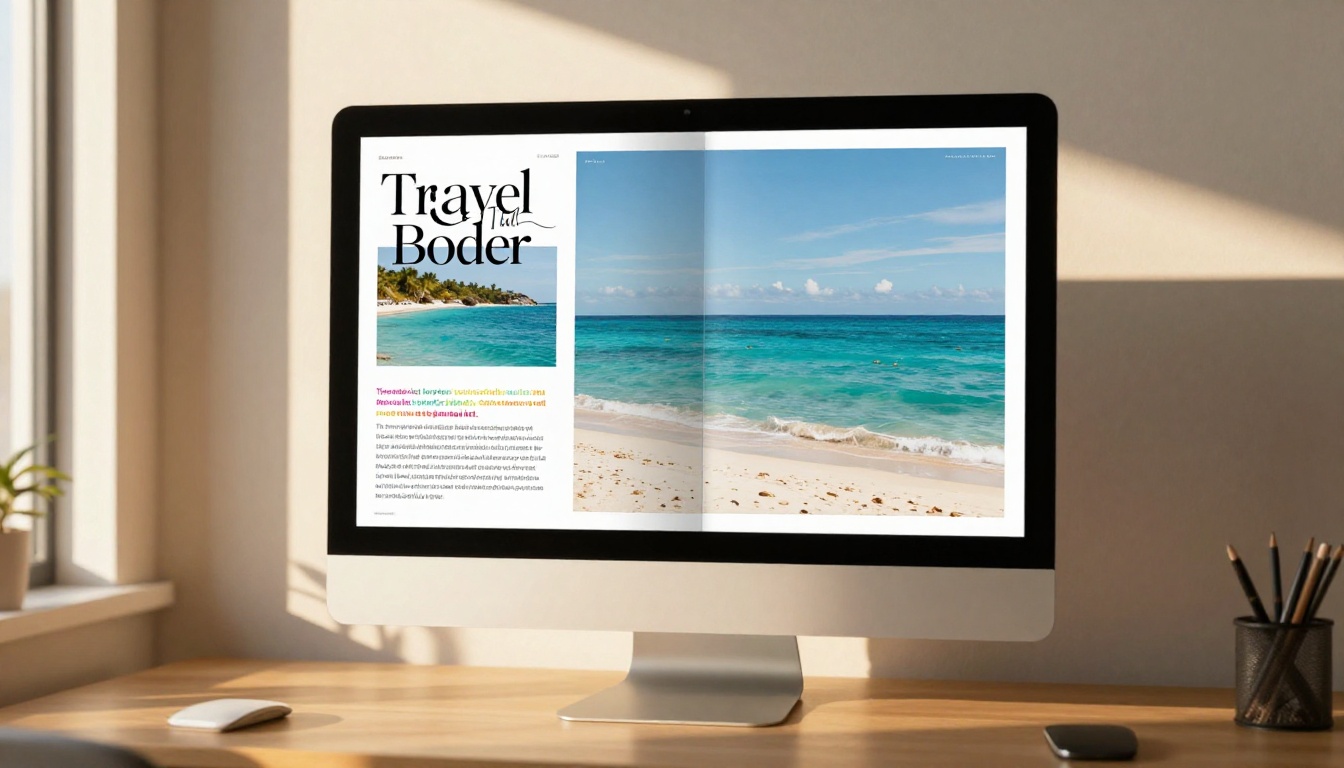
Real-world scenarios that show the value:
- A restaurant designs its seasonal menu in Canva, exports as PDF, uploads to Flipbooks AI, and shares the link via QR code on tables. Customers scan and browse the full menu without touching a physical copy.
- A real estate agency builds a property brochure in Canva with floor plans, photography, and agent contact details, then publishes it as a flipbook to embed directly on each property listing page on their website.
- A fashion brand creates a seasonal lookbook in Canva, uploads it to Flipbooks AI, and shares it via email newsletter with an embedded preview. Readers flip through the collection without leaving their inbox.
- A nonprofit organization produces an annual report in Canva and converts it into a polished interactive flipbook using the Annual Report Creator, then shares it with donors via a password-protected link.
Pricing at a Glance
Both Canva and Flipbooks AI have free options, but the features that matter for professional flipbook work require a paid plan.
| Feature | Canva Free | Canva Pro | Flipbooks AI Free | Flipbooks AI Standard | Flipbooks AI Professional |
|---|
| Design templates | Limited | All | n/a | n/a | n/a |
| PDF export | ✅ | ✅ | n/a | n/a | n/a |
| Flipbooks | n/a | n/a | Limited | Unlimited | Unlimited |
| Watermark-free | n/a | n/a | No | ✅ | ✅ |
| Password protection | n/a | n/a | No | ✅ | ✅ |
| Analytics | n/a | n/a | No | No | ✅ |
| Lead capture | n/a | n/a | No | No | ✅ |
| Custom branding | No | ✅ | No | ✅ | ✅ |
💡 For most small businesses and freelancers, Canva Free combined with Flipbooks AI Standard is the most cost-effective starting point. You get full design flexibility and professional flipbook publishing without paying for features you do not need yet.
Compare all Flipbooks AI pricing plans to find the option that fits your workflow and budget.
Working With Teams
Flipbook projects rarely happen in isolation. Marketing teams, design agencies, and content creators all collaborate across the production process. Canva handles the design collaboration side with real-time co-editing. Flipbooks AI handles the publication and distribution side.
A practical team workflow:
- Designer builds the layout in Canva and shares the file with the team for review
- Content writer updates copy directly in Canva using shared access
- Brand manager checks color consistency and logo placement before final approval
- Designer exports the final approved PDF
- Marketing manager uploads to Flipbooks AI, sets password protection if needed, and distributes the shareable link to stakeholders
This clean handoff between tools eliminates the bottlenecks that come from trying to use one tool for everything. Each platform does what it does best.
Flipbooks on Every Device
One of the consistent challenges with PDFs is that they were designed for print, not screens. On mobile, PDFs require pinching, zooming, and horizontal scrolling. The experience is frustrating and readers drop off quickly without finishing the content.
Flipbooks created with Flipbooks AI are mobile-responsive by default. The reader adapts to screen size automatically, whether someone opens your flipbook on a desktop monitor, an iPad, or a smartphone.
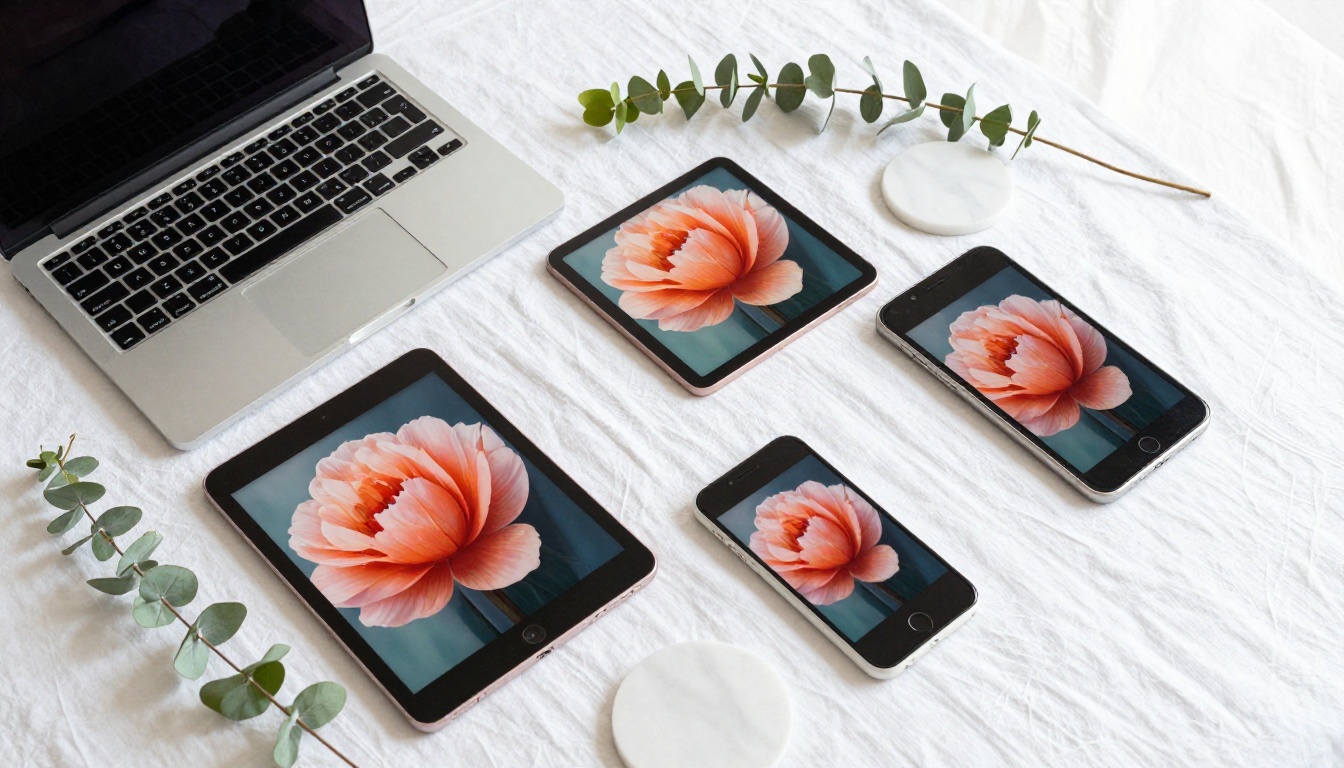
✅ Test your flipbook on a mobile device before sharing it publicly. What looks perfect on a 27-inch monitor may need font size adjustments when viewed on a 6-inch phone screen. Canva makes it easy to preview across device sizes before you export.
5 Mistakes That Ruin Flipbooks
Most flipbook failures come from the same handful of avoidable mistakes. Catch these early and your results will be significantly stronger:
- Small fonts. Text below 12pt looks unreadable on mobile screens. Use 14pt or larger for body copy throughout your design.
- Too much content per page. Flipbooks work best with focused, scannable pages. Do not cram everything onto one spread when two pages would breathe better.
- Low-resolution images. Export at PDF Print quality from Canva. Standard or compressed PDFs produce blurry images in the flipbook reader.
- Inconsistent layouts. Pages should feel like they belong together. Pick a template and stick to its visual style throughout the entire document.
- No call to action. Every flipbook should have at least one page with a clear next step: visit a website, make a purchase, request a quote, or send an email.
Choosing the Right Flipbook Tool for Your Content
Flipbooks AI offers a wide range of specialized tools that match perfectly with different Canva design categories. Matching your Canva project type to the right publishing tool makes the whole process faster.
Browse the full tools directory to see every available option across all publishing categories.
From Pages to Interactive Publication
Creating a flipbook in Canva is a two-part process. Canva handles the design work brilliantly, giving you access to polished templates, a powerful editor, and reliable PDF export. But the flipbook experience itself, the page-turn animation, the shareable link, the embedded reader, the mobile responsiveness, lives on a dedicated platform built specifically for that purpose.
The combination of Canva's design tools and Flipbooks AI gives you the best of both: design flexibility and professional publishing power without needing to hire a developer or learn a complex system.
Ready to create your first interactive flipbook? Get started for free on Flipbooks AI and upload the PDF you designed in Canva. Your readers will notice the difference from the first page turn.
Want to see what is possible? Browse all flipbook tools and templates or compare pricing plans to find the right fit for your project.



