A stack of printed catalogs in a storage room is money that has already been spent and cannot do anything new. Customers can't search it, you can't update a price in it, and every copy you mail costs more than the last. The fix is not complicated: scan the pages, convert them into a clean PDF, and publish the result as a page turning flipbook that opens in any browser. This article shows you how to do each step, which free tools are worth your time, and how to share the finished catalog with Flipbooks AI or any other route you prefer.
Whether you run a boutique, a furniture showroom or a wholesale business with 300 pages of SKUs, the process is the same. Only the scale changes.
Why Digitize Your Catalogs Now
Printing is the obvious cost, but it is rarely the biggest one. The real expense is lag. A price changes in March, the catalog is printed in January, and for months your sales team is apologizing for outdated numbers.
A digital catalog fixes several problems at once:
- Instant updates: replace one PDF and every link points to the new version.
- Lower costs: no print runs, no postage, no warehouse shelves full of leftovers.
- Wider reach: a link travels through email, WhatsApp, social media and QR codes in seconds.
- Searchable content: with text recognition, buyers can find a product code in two seconds instead of flipping through 80 pages.
- Real data: you can see which pages people actually open.
💡 Pro tip: Don't throw away your print run. Keep a small stock for trade shows and VIP clients, and use the digital version for everyone else.
Who Benefits Most
| Business Type | Typical Problem | What Digital Solves |
|---|
| Boutique or fashion label | Seasonal lookbooks go stale fast | New season, new link, no reprint |
| Furniture showroom | Heavy, expensive catalogs | Share a link before the customer visits |
| Wholesaler | Thousands of SKUs, frequent price changes | One master PDF updated in minutes |
| Restaurant or caterer | Menus change with ingredients | Edit and republish without a printer |
| Manufacturer | Distributors use old specs | Everyone sees the current version |
Step One: Prepare Your Originals
Good scans start before you touch the scanner. Spend twenty minutes on preparation and you will save hours of cleanup later.
Check What You Already Have
Before scanning anything, ask whether you already own a digital file. Many catalogs are designed in InDesign, Canva or Word, and the original file is sitting on a designer's drive or an old email thread. An exported PDF from the source file will always beat a scan. The text stays sharp, the images keep their quality, and the file is small.
Only scan when the original file is gone, or when the catalog was produced by a printer who never gave you the files.
Prepare the Paper
- Remove staples or spiral binding if you can do it without damaging the pages. Loose pages scan flatter and faster.
- Wipe the scanner glass with a lint free cloth. One smudge repeats on every page.
- Number the pages lightly in pencil on the back if the originals have no page numbers.
- Sort out spreads. Decide whether you will scan single pages or facing pages, and stay consistent.
⚠️ Warning: Never cut the spine of a rare or sentimental catalog. Use a book scanner or a phone and a stable stand instead.
Step Two: Scanning Methods Compared
You have three realistic options, and the right one depends on how many pages you have and how much quality matters.
| Method | Best For | Quality | Speed | Typical Cost |
|---|
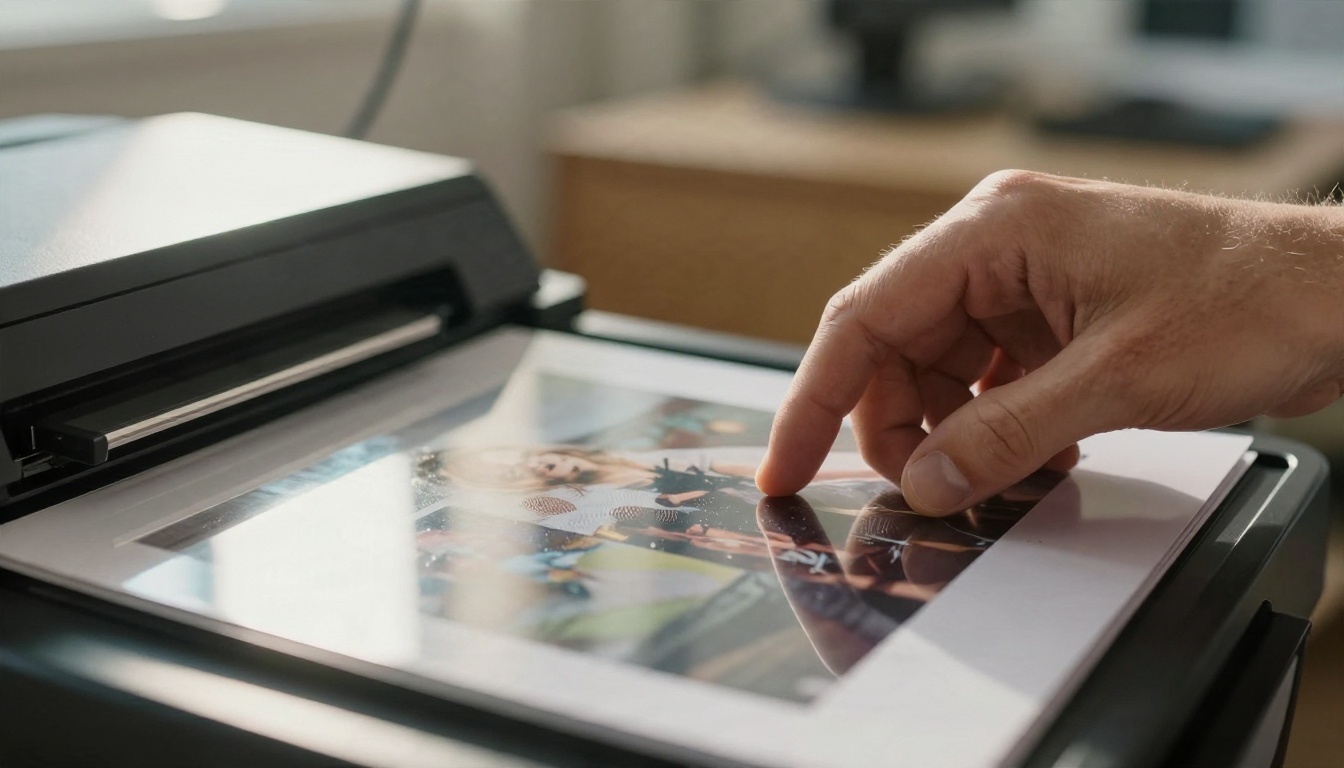
| Flatbed scanner | Premium catalogs, fine print, photos | Excellent | Slow, about 1 page per 15 seconds | Low if you own one |
| Sheet fed scanner | Loose pages, large volumes | Very good | Fast, dozens of pages per minute | Medium |
| Smartphone scanning app | Quick jobs, small catalogs | Good in daylight | Moderate | Free |
| Professional scanning service | Hundreds of bound catalogs | Excellent | Very fast | Pay per page |
Settings That Matter
Most bad scans come from the wrong settings, not the wrong hardware.
- Resolution: 300 DPI is the sweet spot for catalogs viewed on screen. Go to 600 DPI only for small print or detailed product photos.
- Color mode: use color for anything with photos, even if the text is black and white.
- File format: save as TIFF or high quality JPEG while you work, then combine into a PDF at the end.
- Auto crop and deskew: turn them on. They fix pages that were placed slightly crooked.
Scanning With Your Phone
A phone can do a surprisingly good job if you respect a few rules. Shoot in bright, even daylight near a window. Keep the phone parallel to the page, not tilted. Place a dark sheet under the page so the app detects the edges cleanly.

Free apps built into your phone or from major vendors handle edge detection, perspective correction and PDF export. Google Drive on Android and the Notes or Files apps on iPhone both include a document scanner at no cost.
💡 Pro tip: Turn off the flash. It creates a bright hot spot on glossy paper that no software can fix.
Step Three: Convert Scans to a Clean PDF
Raw scans are a pile of images. A usable catalog needs to be one PDF, in the right order, with a reasonable file size.
Merge, Order and Clean
- Combine all page images into a single PDF.
- Check the order. Missing or duplicated pages are the most common error.
- Crop edges so no scanner shadow remains.
- Straighten any pages that came out rotated.
- Compress the file to keep it under about 50 MB for web delivery.
Add Text Recognition
OCR (optical character recognition) turns the picture of a word into real, selectable text. It makes your catalog searchable and improves accessibility. Free desktop tools such as NAPS2 and the open source OCRmyPDF can add a text layer to scanned PDFs. Several online converters also offer OCR on their free tiers, usually with page or size limits.
Free Tools Worth Trying
| Tool | What It Does Well | Free Limits |
|---|
| NAPS2 | Scanning, merging, OCR on Windows | Fully free, open source |
| OCRmyPDF | Adds searchable text to PDFs | Free, command line |
| PDFsam Basic | Split, merge and reorder pages | Free desktop version |
| Smallpdf or iLovePDF | Quick online merge, compress, convert | Daily task limits |
| Phone scanner apps | Scan and export straight to PDF | Free with optional upgrades |
✅ Best practice: Name files clearly, for example spring-collection-2026-v2.pdf. You will thank yourself when you have six versions.
Why a PDF Alone Is Not Enough
A plain PDF works, but it is a document, not an experience. Visitors have to download it, zoom around on a phone, and scroll through pages instead of turning them. Large files load slowly on mobile connections, and you have no idea whether anyone read past page two.
A flipbook solves these problems. It loads in the browser, turns pages with a natural animation, adapts to any screen size, and can include links, video and tracking.
| Feature | Plain PDF | Flipbook |
|---|
| Opens in browser without download | Sometimes | Always |
| Page turning animation | No | Yes |
| Mobile friendly layout | Poor | Responsive |
| Clickable products and links | Limited | Yes |
| Embed on a website | Awkward | One snippet of code |
| Reader analytics | None | Available |
| Password protection | Clunky | Built in |

How to Create a Catalog Flipbook with Flipbooks AI
Once your PDF is ready, publishing takes only a few minutes. Here is the full process on Flipbooks AI, which never adds watermarks to your work.
Upload and Convert
- Create an account or sign in.
- Open the PDF to Flipbook Converter and drag in your PDF.
- Wait a moment while the pages are converted. A 60 page catalog typically takes well under a few minutes.
- Preview the result and check that the page order is right.
If you are building a catalog for a specific industry, the dedicated tools give you a better starting point: the Product Catalog, Fashion Catalog and Furniture Catalog pages are good places to begin. For a general purpose option, try the Digital Catalog Maker or the Catalog Flipbook Creator.
Customize the Look
- Branding: add your logo and choose background colors that match your store.
- Page effects: adjust the page turning style and speed.
- Multimedia: embed product videos and background audio on the pages where they make sense.
- Layout: the flipbook is mobile responsive, so it adapts automatically to phones and tablets.
💡 Pro tip: Use a neutral or dark background for photography heavy catalogs. It makes product images stand out.
Set Sharing Options
- Direct link: paste it into emails, chats and social posts.
- Embed code: place the catalog directly on your site with the Embed Flipbook on Website tool.
- Password protection: keep wholesale price lists private for approved buyers only.
- Offline downloads: let customers save a copy for places with poor signal, such as trade fairs.
Track Results
On the Professional plan you get analytics and lead generation, so you can see which pages attract attention and collect contact details before a reader gets to your price list. Check the pricing plans to see which tier suits your catalog. Unlimited flipbooks are available from the Standard plan upward.
Sharing Your Digital Catalog Online
Publishing is only half the job. People have to find and open it.

Pick the Right Channel
| Channel | Best Use | Tip |
|---|
| Email | Existing customers and leads | Put the link in a button, not a long URL |
| Your website | Anyone browsing your products | Embed it on a dedicated Catalog page |
| WhatsApp or SMS | Quick replies to inquiries | Send the direct link with a one line note |
| QR code | Stores, packaging, trade shows | Print it on receipts and business cards |
| Social media | Seasonal launches | Link in bio and in pinned posts |
| Sales team | Field sales and distributors | Share one master link, never attachments |
A Real World Example
Picture a family run furniture store with a 120 page printed catalog and three salespeople. Before digitizing, each visit meant carrying two heavy copies. After scanning the pages and publishing a flipbook, the salespeople open the same catalog on a tablet. A customer in another city gets a link by message, flips through the sofas on their phone, and arrives at the showroom already knowing what they want. When prices change, the owner updates the PDF once and every link shows the new version.

Keep the Catalog Alive
- Review quarterly. Remove discontinued items and refresh photos.
- Use clear version names in your files so nobody publishes the wrong one.
- Archive old editions privately rather than deleting them.
- Check your links on a phone before each campaign.
Common Mistakes to Avoid
- Scanning at too low a resolution. Text blurs and photos look muddy when zoomed.
- Skipping OCR. Without it, the catalog is not searchable and is harder for screen readers.
- Uploading a 400 MB file. Compress first, or readers on slow connections will leave.
- Ignoring page order. Spend two minutes scrolling through before you publish.
- Never reviewing the data. If you have analytics, use them. Pages nobody opens may need better photos or a clearer layout.
- Sending attachments. Every attachment becomes an outdated copy. Send links.
⚠️ Warning: If your catalog contains wholesale pricing, use password protection before sharing, not after.
Measuring What Works
Once the catalog is live, look at how people use it. On a plan with analytics you can see views, time spent and the pages that attract the most attention.

Use that information to make decisions:
- Move your best selling products closer to the front.
- Replace weak product photos on pages with low views.
- Add a short video to pages where readers linger.
- Build follow up emails for leads who viewed pricing pages.
A simple monthly review of these numbers will teach you more than a year of guessing at print runs.
Your Next Step
Digitizing a catalog is a weekend project, not a six month initiative. Prepare the pages, scan at 300 DPI, merge and compress the PDF, add text recognition, and publish.
Ready to put your catalog online? Get started for free on Flipbooks AI, browse all flipbook tools to find the best match for your business, or compare pricing plans when you are ready for analytics, lead generation and unlimited flipbooks.



