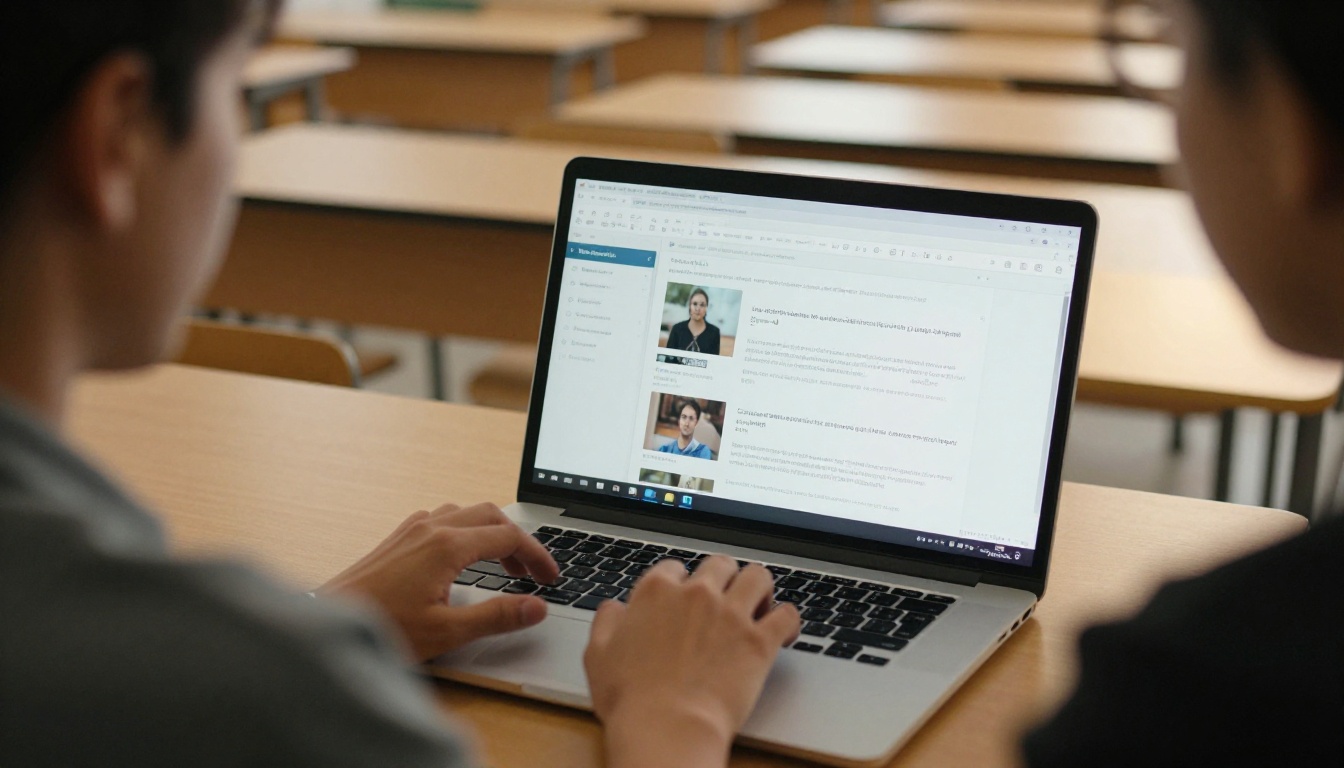
How to Embed a Flipbook in a Canvas LMS Page: Step by Step for Instructors
Turn a static PDF into a page-turning flipbook and place it inside a Canvas LMS page. This tutorial walks through conversion, the iframe embed code, the Rich Content Editor, sizing for mobile, privacy settings, and fixes for the most common display problems.
Every instructor knows the problem: you upload a 60 page PDF to a course, and half the class never opens it. Downloads are clumsy, previews load slowly, and nobody enjoys scrolling through a flat file on a phone. A flipbook solves that by turning the same PDF into a page-turning reader that lives right inside the lesson. This tutorial shows exactly how to embed a flipbook in a Canvas LMS page, from conversion to the final embed code, using Flipbooks AI as the publishing tool.
You do not need to be a developer. If you can paste text into the Rich Content Editor, you can finish this in about ten minutes.
Why Flipbooks Belong in Canvas
A Canvas page is a good home for reading material because students already go there for modules, assignments, and announcements. A flipbook adds three things a plain file link does not:
Reading happens in place. Students stay on the page instead of downloading a file and switching apps.
Pages turn like a real book. That familiar motion makes long documents feel lighter, especially for course packets, lab manuals, and reading lists.
Updates are instant. When you fix a typo in the source PDF and republish, every embedded copy shows the new version without editing the Canvas page again.
Here is how the options compare for a typical reading assignment.
Method
Reads inside Canvas
Works on phones
Page-turn feel
Easy to update
PDF file link
No, opens a new tab or downloads
Often awkward
No
Replace file in every course
Canvas file preview
Yes
Limited zoom
No
Replace file in every course
Slide deck embed
Yes
Fair
No
Edit once
Flipbook iframe embed
Yes
Yes, responsive
Yes
Edit once, republish
💡 Pro tip: If your course is cloned every term, a flipbook embed is a real time saver. The iframe points at one live flipbook, so each copied course stays current automatically.
What You Need Before You Start
Gather these items first so the process runs smoothly:
A finished PDF of your material (course packet, syllabus, textbook excerpt, worksheet set).
Edit rights on the Canvas course, specifically permission to create or edit pages.
A quick check with your institution about whether outside iframes are allowed. Some schools restrict embeds to approved domains, and your Canvas administrator can tell you in a minute.
Treat the address above as a placeholder. Your real snippet comes straight from the sharing panel, so copy it directly instead of typing it.
Step 3: Paste It Into a Canvas Page
Now move to Canvas. The process takes about a minute.
Open your course and go to Pages.
Click + Page to create a new one, or open an existing page and click Edit.
Give the page a clear title such as "Week 3 Reading Packet".
In the Rich Content Editor, switch to the HTML editor. You will find it as a small </> icon near the bottom right corner of the editor.
Paste the iframe code where you want the flipbook to appear.
Switch back to the rich view to confirm the box appears.
Click Save & Publish.
⚠️ Warning: Do not paste the iframe into the plain rich text view. Canvas may treat it as text and show the code instead of the flipbook. Always use the HTML editor, or the Embed option in the editor's insert menu if your version offers it.
Add Context Around the Embed
A flipbook alone is not a lesson. Surround it with short text that tells students what to do:
A one line purpose statement, such as "Read pages 1 to 12 before Thursday."
A link to the flipbook in a new tab for students who prefer full screen.
A reminder of due dates and a pointer to the related assignment.
Step 4: Size It for Every Screen
Most embed problems come down to width and height. A flipbook that looks great on your office monitor can feel cramped on a phone.
Screen type
Suggested width
Suggested height
Notes
Desktop
100%
650 to 750 px
Full page spread is readable
Tablet
100%
600 to 700 px
Spread or single page view
Phone
100%
500 to 600 px
Reader switches to single page
Because the flipbook is mobile-responsive, the reader adapts automatically as long as the width stays at 100%. Avoid fixed pixel widths such as 1200, which can force sideways scrolling inside Canvas.
Three Sizing Mistakes to Avoid
Fixed width in pixels. It breaks on small screens and inside the narrow Canvas mobile app.
Height too short. Students end up scrolling inside a tiny box.
No fullscreen permission. Without allowfullscreen, students cannot expand the reader for long reading sessions.
Control Who Can See It
Privacy matters in education, especially for graded or licensed material. You have options on the flipbook side, and Canvas adds another layer.
Canvas page visibility: restrict the page to a module, a section, or a date range so only enrolled students reach it.
Password protection: add a password in Flipbooks AI and share it in the course announcement. This is a good fit for exam prep packets.
Unlisted link: keep the flipbook unlisted so it cannot be found through search.
Downloads: turn off offline downloads for copyrighted excerpts, or leave them on for students with unreliable internet.
💡 Pro tip: For licensed textbook excerpts, combine password protection with a Canvas page that unpublishes after the term. That keeps access tied to the active course.
Real Classroom Examples
A biology instructor converts a 40 page lab manual and embeds it on each weekly lab page, so students read procedures on a tablet at the bench.
A language teacher builds a vocabulary book with audio on each page and embeds it in a module, giving students pronunciation practice at home.
A department coordinator publishes the student handbook as a flipbook and embeds it on the course home page, then edits it once each year.
A corporate trainer uses Canvas for onboarding and embeds a training manual in every new hire course.
Fix the Most Common Problems
Even with a clean setup, a few things can go wrong. Here is a quick reference.
Problem
Likely cause
Fix
Page shows code instead of a book
Pasted in rich text view
Use the HTML editor and paste again
Blank gray box
Domain blocked by the institution
Ask the Canvas administrator to allow the flipbook domain
Flipbook cut off on the right
Fixed pixel width
Set width to 100%
Cannot expand to full screen
Missing attribute
Add allowfullscreen to the iframe
Old version still showing
Browser cache
Hard refresh, then check that you republished
Works on desktop, blank on app
App restrictions
Add a direct link below the embed as a backup
When the Embed Is Blocked
Some institutions limit which outside sites can load inside Canvas. If you see a blank box, do not give up. Send your administrator this short request: "Please allow iframe content from the domain used by my flipbook links." It is a small change and usually approved quickly. In the meantime, place a plain link under the embed so students can still read.
⚠️ Warning: Always test as a student. Use Student View in Canvas to confirm the flipbook loads before the page goes live to the whole class.
Track What Students Actually Read
Embedding is only half the story. Knowing whether students open the material is what lets you act on it. With Professional plan features, you get:
Analytics: see views, time on page, and which pages get the most attention.
Lead generation forms: collect names or emails before a reader opens the book, useful for open workshops and continuing education courses.
Offline downloads: let students save the book for travel or poor connections.
Pair these numbers with Canvas data. If a reading page has many Canvas views but short flipbook time, students may be skimming. That is your signal to add a short quiz or discussion prompt right below the embed.
Pick the Right Plan
You can start free and upgrade when your needs grow. Here is a simple way to choose.
Need
Suggested plan
Why
Try one reading packet
Free
Test the embed in a sandbox course
Many flipbooks across courses
Standard and above
Unlimited flipbooks
Track reading and collect leads
Professional
Analytics and lead generation
Every plan is built around the same promise: no watermarks, ever, so your materials look clean and professional inside Canvas. See current details on the pricing page.
Best Practices for a Smooth Rollout
Test in a sandbox course before touching a live one.
Name pages clearly so students find the reading in module lists.
Add a backup link under every embed for restricted networks.
Check accessibility. Provide the original PDF for students who use screen readers, and add short alt text in the Canvas page text around the flipbook.
Keep files light. Compress oversized images in your PDF before converting so pages load fast on mobile data.
Review each term. Open the page in Student View at the start of a semester to confirm everything still loads.
Ready to Publish Your First One?
You now have everything needed to place a clean, page-turning reader inside any Canvas page: convert the PDF, copy the iframe, paste it into the HTML editor, size it at 100% width, and test in Student View.
Ready to create your first flipbook? Get started for free on Flipbooks AI. Browse all flipbook tools to find the right format for your course, or compare pricing plans when you are ready to track reading and publish without limits.