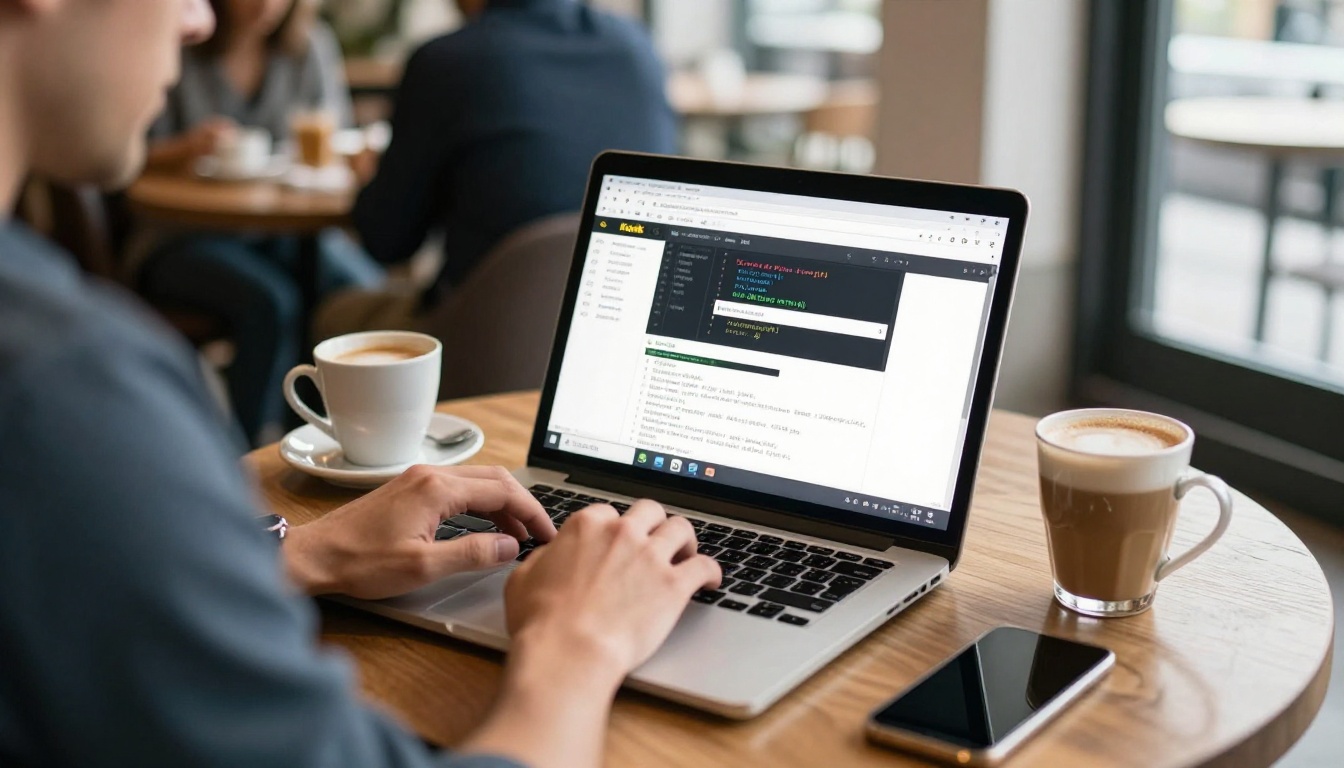
Turn a static PDF workbook into a page-turning flipbook and place it inside a Kajabi lesson using a simple iframe embed. This tutorial walks through conversion, branding, privacy settings, the exact Kajabi editor steps, mobile checks, and fixes for the most common embed problems.
Most Kajabi creators attach a PDF to a lesson and hope students open it. Many never do. A flipbook fixes that by putting the workbook, checklist, or ebook right inside the lesson page, where students can flip through it without leaving the video they are watching. With Flipbooks AI you can convert a PDF into a page-turning flipbook and paste a single embed code into Kajabi. This tutorial shows exactly how, step by step, plus the settings that keep your paid content protected.
Why Flipbooks Beat PDF Downloads
A downloaded PDF leaves your lesson. The student opens another app, loses their place, and often forgets to come back. An embedded flipbook stays on the page. It loads with the lesson, works on phones, and feels like a real book instead of a file.
Here is how the two formats compare inside a course:
Feature
PDF attachment
Embedded flipbook
Opens inside the lesson
No, separate download
Yes, on the same page
Page-turning experience
No
Yes
Mobile friendly
Pinch and zoom
Responsive layout
Clickable links and media
Limited
Links, video, and audio
Easy to update after publishing
Re-upload to every lesson
Update once, embed stays
Usage tracking
None
Analytics on Professional plan
💡 Pro tip: The "update once" benefit matters most. If you fix a typo in a workbook used across five lessons, the embed updates everywhere without touching Kajabi.
What You Need Before Starting
Gather four things before you open any editor:
A finished PDF of your workbook, ebook, slide handout, or cheat sheet
A Kajabi account with at least one product and a course lesson ready to edit
Your brand colors and logo, so the flipbook matches your course design
Compress very large PDFs first. A workbook full of full-bleed photos can be hundreds of megabytes, and a lighter file converts faster and loads faster for students on slow connections.
Choose the Right Content Type
Not every document deserves a flipbook. These work best:
Workbooks and worksheets that students read alongside a video
Ebooks you sell or give as a bonus
Slide handouts from a live call or webinar
Resource libraries such as templates, swipe files, and checklists
Course syllabi and welcome packs for the first lesson
Single-page forms that students must fill in and return are better left as editable PDFs.
Create the Flipbook First
Everything starts on the Flipbooks AI side. The process takes a few minutes.
Step 1: Upload your PDF
Sign in and use the PDF to Flipbook Converter. Drag your file in and wait while pages are converted into a flipbook. Text stays sharp and links inside the PDF remain clickable.
Step 2: Customize the look
Open the customization panel and match the flipbook to your Kajabi theme:
Branding: add your logo and choose a background color that matches your lesson page
Page effects: pick the page-turn style and speed you like
Multimedia: add video or audio to pages, such as a short walkthrough on worksheet page three
Toolbar: keep fullscreen and zoom on, since students often read on small screens
This step protects your income. If the workbook is part of a paid course, turn on password protection so the flipbook link cannot be shared freely. Then also keep the flipbook page itself unlisted from search. Students will see the flipbook inside Kajabi, where they are already logged in.
⚠️ Warning: An embed is only as private as its source link. Anyone who finds the direct flipbook URL can open it unless you add a password, so never paste the direct link in public places.
Step 4: Copy the embed code
Open the sharing options and choose the embed option. You will get an iframe snippet that looks roughly like this:
Copy the full snippet. For more detail on this part of the workflow, see the Embed Flipbook on Website tool page.
Embed It Inside Kajabi
Now switch to Kajabi. The exact menu labels can shift when Kajabi updates its dashboard, but the flow stays the same.
The step-by-step process
Log in to Kajabi and open Products.
Select your course, then open the lesson where the flipbook should appear.
In the lesson editor, add or select a text content block (the same area where you write lesson notes).
Switch the text editor to its source code or HTML view, usually shown as a code icon in the toolbar.
Paste the iframe snippet exactly where you want the flipbook to appear.
Switch back to the visual view and save the lesson.
Open the lesson preview as a student and check that the flipbook loads.
💡 Pro tip: Put one short sentence above the embed, such as "Open the workbook and follow along with page 3." Students then know the flipbook is part of the lesson and not a decoration.
Pick a sensible height
Height is the setting people get wrong most often. Use this table as a starting point:
Content type
Suggested iframe height
Notes
Worksheet or checklist
600 to 700 px
Portrait pages need more height
Ebook
650 to 800 px
Leave room for the toolbar
Slide handout (landscape)
450 to 550 px
Wide pages need less height
Resource library
600 px
Add a heading above it
Keep width at 100% so the flipbook shrinks to fit phones and tablets automatically.
Fix Common Embed Problems
Most issues come from one of five causes. Check them in order.
Problem
Likely cause
Fix
Blank box where the flipbook should be
Editor stripped the iframe
Re-paste in source view, not visual view
Flipbook looks cut off
Fixed height too small
Increase the height value
Horizontal scroll bar appears
Fixed pixel width
Set width to 100%
Password prompt shows every visit
Browser blocks cookies in frames
Share the password in the lesson text
Embed works on desktop, not phone
Cached old lesson version
Hard refresh and re-test in a private window
If Kajabi keeps removing the snippet from a lesson block, use a fallback: add a clearly styled button that links to the flipbook so students can open it in a new tab. It is less seamless, but the content still stays one click away.
Test on a real phone
More than half of course students watch lessons on mobile. Open the lesson on your own phone, rotate it, and swipe through the flipbook. Check that text is readable and that the toolbar does not hide the page number.
Real-World Examples That Work
Seeing how other creators use the setup makes it easier to plan your own lessons.
A fitness coach embeds a 28-page meal planner beside the video lesson on nutrition. Students flip to the page being discussed.
A business consultant places a client onboarding handbook in the first lesson, with a short audio note on page two welcoming new students.
A language teacher embeds a vocabulary booklet with links that jump to pronunciation clips.
A photographer uses a Photography Portfolio flipbook as a visual reference library in a editing course.
Embedding is only half the job. You also want to know whether students use the material. The Professional plan on Flipbooks AI includes analytics and lead generation. You can see how many times a flipbook was opened and which pages hold attention, then improve the pages that lose people. See pricing plans to compare tiers.
Use this simple review loop each month:
Check which flipbooks get the most opens.
Find the page where readers stop.
Shorten or reorganize that page.
Replace the PDF once and let every embed update automatically.
Lead generation can also help if you offer a free preview lesson. Place a gated flipbook sample in a free Kajabi offer, collect emails, and invite readers to join the paid program.
Flipbook Plans for Course Creators
Which plan fits? It depends on how many workbooks you publish and whether you need tracking.
Need
Suitable plan
Why
One or two workbooks
Entry plan
Covers basic conversion and embedding
A full course with many modules
Standard plan and above
Unlimited flipbooks
Tracking and lead capture
Professional plan
Analytics and lead generation
Offline copies for students
Plans with downloads
Students keep a copy
Check the current limits on the pricing page before you commit, since plan details change over time.
Quick Checklist Before You Publish
Run through this list for every lesson that includes an embed:
✅ PDF compressed and proofread
✅ Flipbook branded with your logo and colors
✅ Password protection on for paid material
✅ Embed pasted in source view and saved
✅ Height checked on desktop and phone
✅ Fallback link ready in case the iframe fails
✅ Lesson previewed as a student
Ready to Embed Your First Workbook?
Putting a flipbook in a Kajabi lesson takes less time than writing the lesson itself: upload, brand, protect, copy, paste. Students stay on the page, the material looks professional, and you update everything from one place.
Ready to build yours? Create your account on Flipbooks AI and convert your first PDF today. Browse all flipbook tools to find a format that fits your course, or compare plans and pricing to pick the right level for your library.