How to Embed a Flipbook in Shopify (Without Touching a Single Line of Code)
Add an interactive page-turning flipbook directly into your Shopify storefront without coding. This step-by-step article shows how to convert a PDF catalog, customize the viewer, and embed it on any Shopify page, from product listings to your homepage, for every theme version.
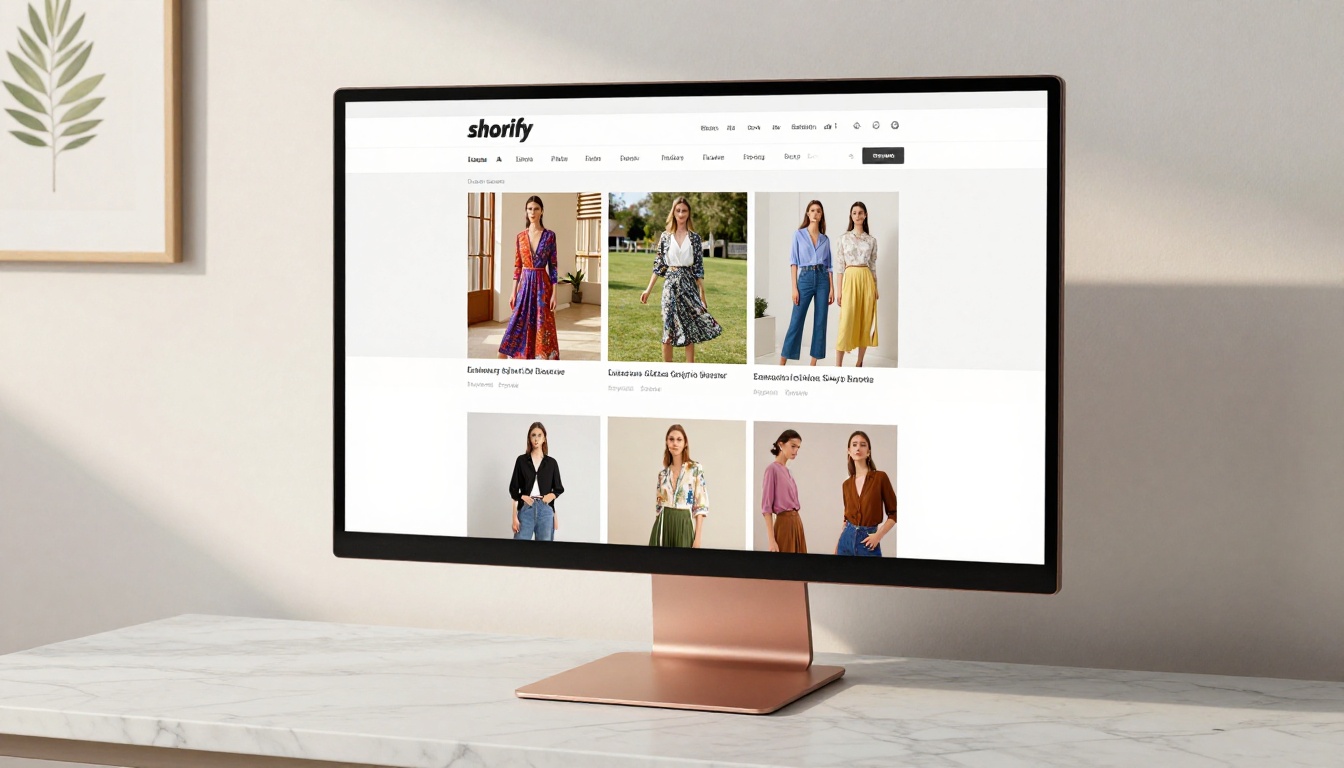
Embedding a flipbook in your Shopify store is one of the fastest ways to turn a flat, scrollable product page into something customers actually stop and interact with. Whether you run a clothing boutique, a furniture shop, or a specialty food brand, a page-turning digital catalog placed directly inside your storefront creates a shopping experience that static images cannot replicate. Flipbooks AI makes this process straightforward: upload a PDF, grab an embed code, paste it into Shopify. This article walks through every step, from account setup to live embed, across all three Shopify embedding methods.
Why Flipbooks Belong on Your Shopify Store
The problem with static product pages
Most Shopify stores follow the same pattern: product title, a handful of images, add-to-cart button, repeat. That structure works for search-driven shoppers who know exactly what they want. It does almost nothing for browsers, customers who are still deciding, who need context, styling, and inspiration before they commit.
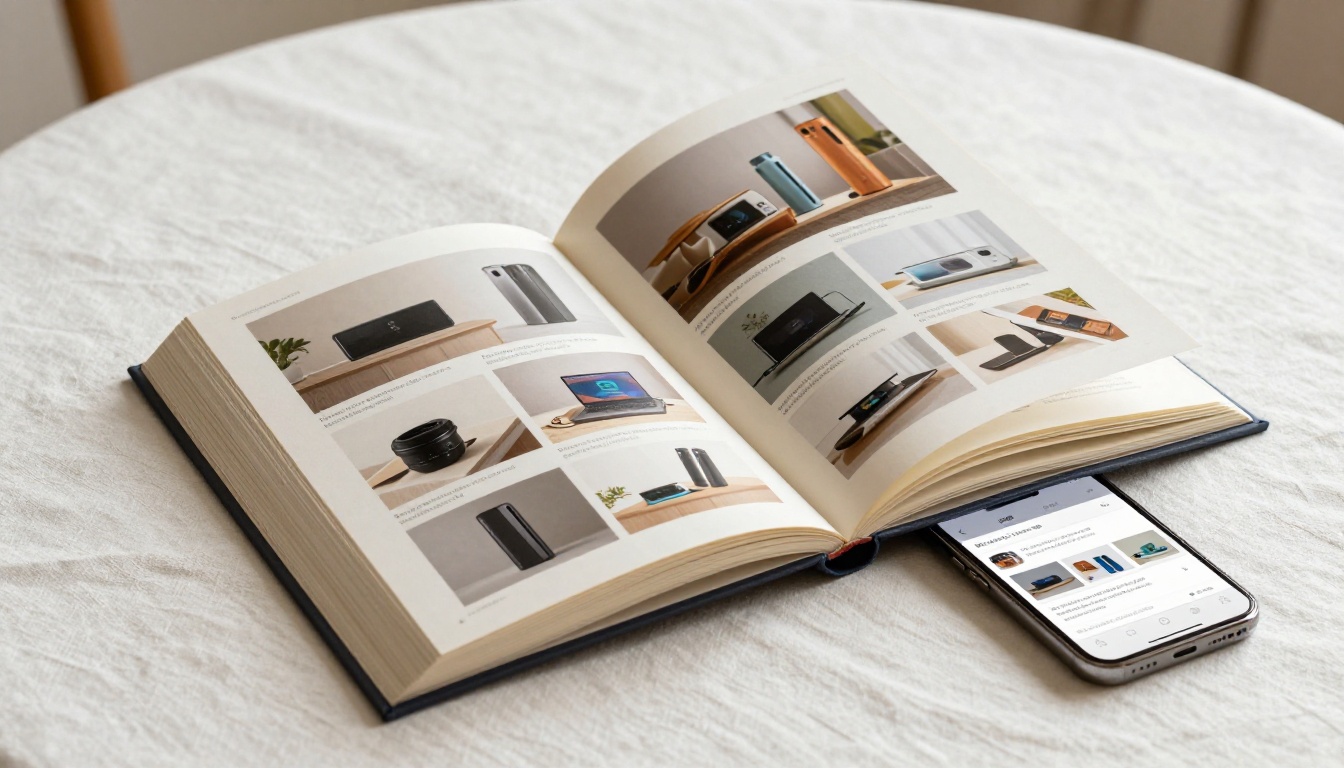
A flipbook embedded directly into a Shopify page gives customers a structured, editorial experience. They browse at their own pace, flipping from one product to the next the way they would through a print magazine. That shift in behavior matters: readers spend significantly more time with page-turning formats than with static scroll pages, and more time on page consistently correlates with higher purchase intent and lower bounce rates.
What flipbooks do for different store types
Interactive catalog flipbooks work across a wide range of Shopify store categories:
Fashion and apparel: Seasonal lookbooks where outfits are styled together, showing how pieces coordinate across a full collection
Home furnishings: Room-by-room catalogs where customers see products in real interior contexts, not isolated on white backgrounds
Specialty food and beverage: Menu-style catalogs with product descriptions, origin stories, and pairing notes
Beauty and cosmetics: Shade guides, application tutorials, and ingredient breakdowns embedded within collection pages
Wholesale and B2B: Full product catalogs with SKUs, pricing tiers, and technical specs tailored for bulk buyers
💡 A flipbook on a Shopify collection page can replace your seasonal landing page entirely, giving buyers a curated editorial path through your inventory rather than a product grid they have to manually filter.
SEO benefits of embedded flipbooks
Beyond customer experience, flipbooks embedded in Shopify pages contribute indirectly to SEO performance. Longer average session duration signals to search engines that the page provides value. Customers who spend more time browsing a flipbook increase your dwell time metric without any additional content optimization needed. Flipbooks also make previously plain pages linkable content assets: a well-designed digital catalog is something buyers bookmark and share, generating natural referral traffic to your store.
What You Need Before You Start
Before embedding, you need three things in place:
A PDF file ready to convert. This is your product catalog, lookbook, brochure, or any formatted document. It can be designed in Canva, Adobe InDesign, Google Slides exported as PDF, or any other software that outputs PDF.
A Flipbooks AI account. You can create one free in under two minutes. No credit card required to start.
Access to your Shopify theme editor. You need the ability to add custom HTML sections or, for older themes, edit your theme's Liquid files.
No developer is required. No Shopify app needs to be installed on the store side. No compatibility issues with your existing theme. The flipbook viewer is served externally and embedded via a standard iframe, which every Shopify theme supports.
⚠️ Finalize your PDF before converting. While you can replace it later, re-uploading means re-customizing your branding settings from scratch, which adds unnecessary time.
How to Create Your Flipbook with Flipbooks AI
Step 1: Create your account
Go to Flipbooks AI and sign up. The free tier lets you create and embed one flipbook immediately. For unlimited flipbooks and no watermarks, the Standard plan is where most Shopify stores begin.
Step 2: Upload your PDF
From your dashboard, click New Flipbook and upload your PDF file. Flipbooks AI converts it automatically into a page-turning viewer. A 20-page catalog typically processes in under 30 seconds. Longer documents with high-resolution photography may take a minute or two.
Step 3: Customize branding and appearance
Once converted, you can adjust every visual element of the flipbook viewer:
Cover style: Soft cover or hard cover page effect for the opening spread
Brand colors: Match your Shopify store's color palette precisely using hex codes
Background: Solid color, gradient, or transparent to blend with your page design
Multimedia: Embed video links, audio clips, or clickable hotspots into individual pages (Standard plan and above)
💡 Use your Shopify theme's exact hex color codes in the flipbook background and UI settings. When the flipbook matches the page it is embedded on, customers do not perceive a transition between "store" and "catalog." It reads as one seamless experience.
Step 4: Get your embed code
Click Share, then Embed. Flipbooks AI generates a clean iframe snippet that you paste directly into Shopify:
Copy this code. You will use it in the next section.
Step 5: Configure sharing and access
Before going live, decide on access settings:
Public or password-protected: Password protection (Standard plan and above) is ideal for wholesale catalogs or private VIP collections where you do not want general visitors browsing
Analytics: On the Professional plan, you can track how many unique visitors viewed the flipbook, how long they spent on each page, and how many filled out embedded lead generation forms
Offline downloads: Enable this so customers can save your catalog as a PDF to their device for offline browsing
How to Embed the Flipbook in Shopify (Step-by-Step)
Three embedding methods compared
Method
Difficulty
Best For
Theme Compatibility
Custom HTML section
Easy
Shopify 2.0 themes with drag-and-drop editor
Dawn, Sense, Refresh, and modern themes
Theme Liquid code edit
Medium
Precise placement inside any template
All Shopify themes
Page rich text editor
Easy
Quick single-page embed in minutes
All Shopify themes
Method 1: Custom HTML Section (Shopify 2.0 Themes)
This is the fastest method for stores using modern Shopify 2.0 themes like Dawn, Sense, Refresh, or Craft.
From your Shopify admin, go to Online Store and click Customize
Navigate to the specific page where you want the flipbook to appear
Click Add section in the left panel sidebar
Select Custom HTML or Custom content from the section list
Paste your Flipbooks AI iframe embed code into the content field
Adjust the section padding and width settings to match your page layout
Click Save to push it live
The flipbook appears immediately on your storefront without any code editing.
Method 2: Theme Liquid Code Edit
For older themes or when you need the flipbook placed at a very specific position inside a template:
Go to Online Store and click the three-dot menu next to your active theme
Select Edit code to open the code editor
Open the relevant template file. For a standard page, this is templates/page.liquid. For a product page, it is templates/product.liquid
Locate the HTML position where the flipbook should appear in the page flow
Paste the iframe code at that position
Click Save
⚠️ Always duplicate your theme before editing Liquid files. Go to your theme list, click the three-dot menu, and select Duplicate. This creates a safe restore point if something goes wrong.
Method 3: Page Content Editor
The simplest method for a dedicated catalog page:
Go to Online Store and click Pages
Open an existing page or create a new one (e.g., "Product Catalog" or "Lookbook")
In the content editor, click the Show HTML button (the <> icon in the toolbar)
Paste your iframe embed code directly into the HTML editor
Click Save and publish the page
This works on every Shopify theme without any customization. The tradeoff is less layout control: the flipbook appears inline with any other content on the page, without the section-level padding and positioning controls available in Method 1.
Where to Place Your Flipbook in Shopify
Homepage placement
A flipbook embedded in your homepage works best as a dedicated full-width section below the hero banner. This position captures visitors immediately after the initial brand impression, pulling them into a catalog experience before they reach the product grid. Seasonal campaigns, new arrivals, and brand story content all work well here.
Product pages
Embed a product-specific flipbook that shows the item in use across multiple contexts: different room settings, different outfits, or different lighting conditions. For fashion, this means showing a jacket styled three different ways. For furniture, it means showing the same sofa in three different room configurations. Context sells in ways individual product photography simply cannot.
Collection pages
Create a collection-specific catalog for your most important product ranges. Embed the flipbook at the top of the collection page, above the product grid. Customers read the editorial catalog first, forming preferences and mental shortlists, then scroll down to add items directly to their cart. This structure significantly increases the number of items added per session compared to a bare grid layout.
Dedicated catalog page
Build a standalone "Catalog" or "Lookbook" page and embed your full product flipbook there. Add this page to your main navigation. Buyers who specifically visit a catalog page tend to have higher average order values because they are in a deliberate browsing mode rather than search mode.
✅ Add a "View Catalog" link to your store header or announcement bar. Even a small CTA pointing toward your catalog page can meaningfully increase engagement with your full product range.
Flipbooks AI Plans: Which Fits Your Store?
Feature
Free
Standard
Professional
Flipbooks
1
Unlimited
Unlimited
Watermark
Yes
No
No
Custom branding
No
Yes
Yes
Password protection
No
Yes
Yes
Analytics dashboard
No
No
Yes
Lead generation forms
No
No
Yes
Offline downloads
No
Yes
Yes
Embed on Shopify
Yes
Yes
Yes
Video and audio embeds
No
Yes
Yes
Mobile-responsive viewer
Yes
Yes
Yes
For most Shopify stores, the Standard plan hits the right balance. No watermarks on embedded flipbooks, unlimited catalogs for different collections or seasons, password protection for wholesale buyers, and the ability to embed video clips directly into product pages. The Professional plan becomes worthwhile once you want per-page analytics showing which products inside your catalog receive the most attention, and lead generation forms to capture wholesale buyer inquiries directly inside the flipbook viewer.
Check the full pricing plans to see exactly what each tier includes.
💡 If you manage flipbooks for multiple Shopify stores across different brands, one Professional account covers all of them with no per-store fees and unlimited flipbooks.
Real Shopify Use Cases
Jewelry and accessories stores
A small accessories brand embeds a seasonal lookbook flipbook on their homepage each quarter. New collections launch inside the flipbook two weeks before they are live in the product grid, giving email subscribers an exclusive preview that drives early-access purchases. The Interactive Lookbook Designer on Flipbooks AI is purpose-built for this exact use case, with layout templates designed for jewelry and accessory editorial photography.
Fashion and apparel brands
Fashion brands embed a full editorial catalog on their Shopify collection pages. Each spread shows outfits styled head-to-toe, with clickable hotspots linking directly to individual product pages for each item in the look. Customers browse the editorial first, forming outfit intentions, then click through to add items. The Lookbook Flipbook Builder makes building these multi-page fashion catalogs fast, with pre-built fashion editorial templates.
Home furnishings retailers
Furniture stores benefit enormously from room-scene catalogs that show how pieces work together in real interiors. Rather than browsing isolated product images against white backgrounds, customers flip through full room photography. The Digital Catalog Maker is the right starting point for structured product catalogs with multi-column layouts and product specification sections alongside photography.
Wholesale and B2B stores
Shopify stores serving wholesale buyers use password-protected flipbooks embedded on a dedicated Trade Login page. Buyers get a full product catalog with SKUs and bulk pricing tiers, accessible only after logging in or receiving a shared password. This replaces emailing PDF files to buyers, keeps the catalog updatable without re-sending, and tracks which pages individual buyers view most using Professional plan analytics.
Fix These 3 Common Embed Mistakes
Flipbook not showing up after saving
The most common cause is Shopify's rich text editor stripping iframe code when you switch back from HTML to visual mode. Fix: use the Custom HTML section method (Method 1 above) instead of the page content editor for embeds. The Custom HTML section preserves raw HTML code without sanitization.
A less common cause is a Content Security Policy (CSP) set by your theme that blocks iframes from external domains. Check whether the flipbook appears in an incognito window with extensions disabled. If it does, a browser extension is interfering. If it does not, contact Flipbooks AI support with your store URL for domain-specific assistance.
Mobile display overflow or cropping
An iframe set to a fixed pixel height (e.g., height="600px") overflows on narrow mobile screens. Replace it with a responsive aspect-ratio wrapper:
This wrapper maintains a 16:9 aspect ratio automatically across all screen sizes, from desktop monitors to small mobile screens.
Slow initial load time
Large PDFs produce heavier flipbook files. If initial load is noticeably slow:
Compress your PDF before uploading. Aim for under 10MB. Tools like Smallpdf or iLovePDF reduce file size without visible quality loss.
Place the flipbook below the fold. Shopify loads visible content first. If the flipbook is lower on the page, it loads after the critical above-the-fold content, making the page feel faster.
Add loading="lazy" to the iframe tag so the browser defers loading the flipbook until the customer scrolls near it.
✅ Flipbooks AI hosts all flipbook assets on a global CDN, so the viewer loads fast for customers worldwide, not only in your home region. Compression reduces the initial payload the CDN delivers, which is where the speed gain comes from.
Tools for Every Shopify Catalog Type
Flipbooks AI offers specific tools that match common Shopify store formats. Browse all flipbook tools or start with the one that fits your catalog type:
Adding a flipbook to your Shopify store takes roughly 15 minutes from PDF upload to live embed. The result is a product page that holds attention, tells a visual story, and gives buyers the editorial experience that separates premium brands from commodity stores.
Ready to build yours?Create your free account on Flipbooks AI and upload your first catalog today. For unlimited flipbooks, custom branding, password-protected wholesale catalogs, and embedded video, compare the pricing plans and pick the tier that fits your store volume. Every plan supports full Shopify embedding, so you can get your first flipbook live without any upfront commitment.