Sharing a flipbook is supposed to be effortless. You build it, you send the link, and your audience opens it in seconds. But when recipients report they can't open it at all, and you're staring at a working version on your own screen, it creates real confusion. The good news: this problem almost always comes down to one of five fixable causes. Flipbooks AI gives you the tools to diagnose and resolve every one of them quickly.
Why Nobody Can Open Your Flipbook
Before diving into fixes, it helps to know why this happens at all. A flipbook that works perfectly on your screen but fails for everyone else is almost never a problem with the file itself. The issue lives in how it's being shared, who it's being shared with, and what's happening on the recipient's end.
The most common culprits, in order of frequency:
- Privacy settings set to private or restricted
- A broken, expired, or incomplete share link
- Browser incompatibility or outdated software
- Corporate or school network firewalls
- Password protection without clear instructions
Privacy Settings Are the #1 Cause
This is the one that catches most people off guard. You create a flipbook, you test it yourself while logged in, and it opens perfectly. Then you share the link and your recipients hit an "Access Denied" wall or a login prompt they can't get past.
Why? Because your account is authenticated. You're seeing the private version. Your recipients aren't logged in, so they're blocked.
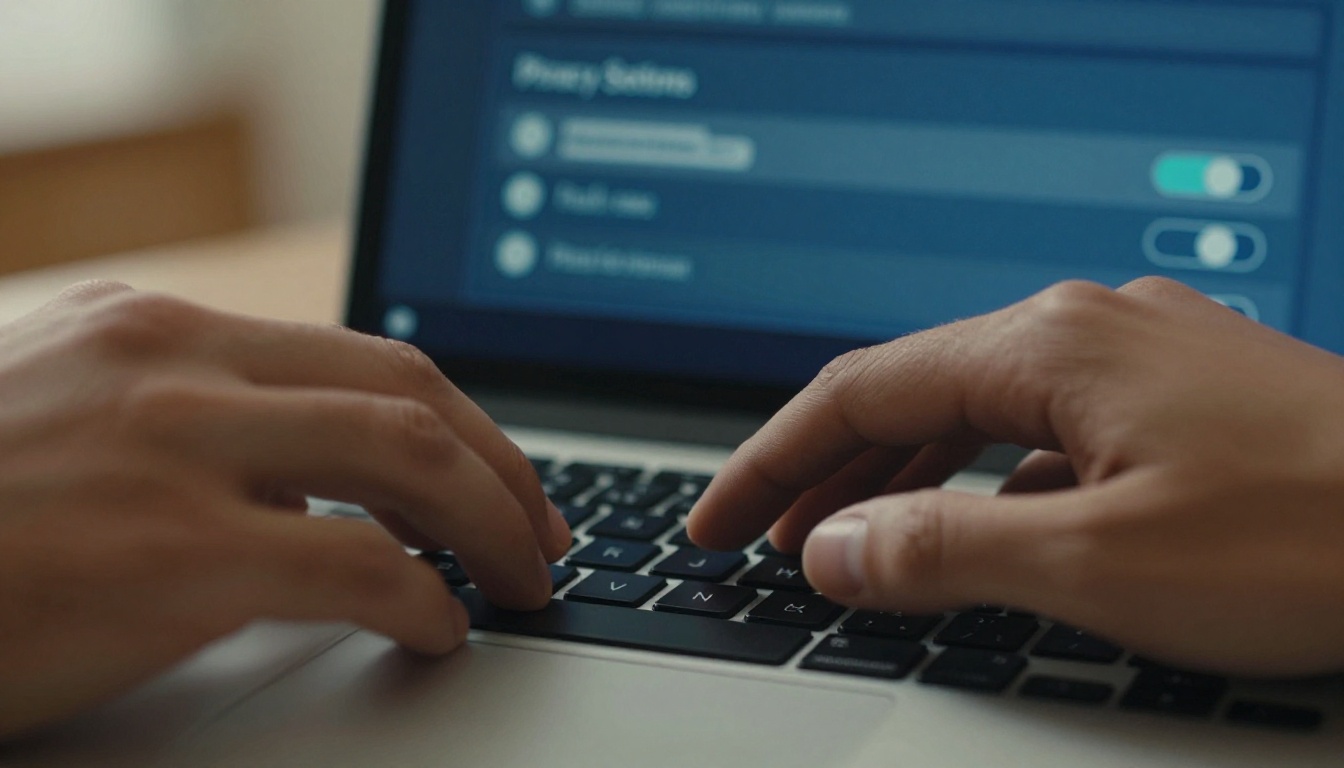
The fix is simple: go into your flipbook's sharing settings and switch visibility from Private to Public or Anyone with the link. On Flipbooks AI, this is handled from your flipbook's sharing panel, where you can toggle public access without removing password protection if you still want an extra layer of security.
⚠️ Always log out of your account and test the link in a private/incognito browser window before sharing. This simulates what your recipients actually see.
Broken or Expired Share Links
The second most common issue is a link that simply doesn't work. This happens more often than you'd expect, for several reasons:
- The link was copied incorrectly (truncated in an email client)
- The flipbook was deleted or moved after the link was created
- The platform regenerated URLs after a system update
- You shared a preview link instead of the published link
To verify, paste the link into a browser you've never used for the platform. If it returns a 404 or redirects to a homepage, the link itself is the problem. Head back to your flipbook dashboard, regenerate the share link, and copy it fresh. Avoid using email clients that auto-wrap long URLs, as these often break the link mid-character.
💡 Short links are more reliable in email. If your flipbook platform offers a short URL or custom domain option, use it when sending via email.
Browser and Device Problems
Even with a perfectly shared, publicly accessible flipbook, some recipients still can't open it. The next place to look is their browser or device.
Outdated Browsers Block Flipbooks
Modern flipbooks use HTML5, WebGL, and JavaScript features that browsers from several years ago simply don't support. If a recipient is running Internet Explorer, an outdated version of Chrome, or an enterprise-locked browser, they may see a blank page or an error.
Browser compatibility at a glance:
| Browser | Minimum Version | Notes |
|---|
| Chrome | 90+ | Best performance, recommended |
| Firefox | 88+ | Fully compatible |
| Safari | 14+ | Works on macOS and iOS |
| Edge | 90+ | Chromium-based, solid support |
| Internet Explorer | Any | Not supported, period |
| Samsung Internet | 14+ | Good mobile support |
If your recipient is stuck on an older version, ask them to try Chrome or Firefox. Both are free downloads and receive automatic updates.
✅ For audiences that include less tech-savvy users, mention the browser requirement in your sharing message: "Best viewed in Chrome or Firefox."
Mobile Devices With Strict Settings
Mobile access failures are a separate category. On iOS and Android, flipbooks can fail to load for several reasons:
- Low Power Mode on iPhone limits background loading
- Data Saver mode on Android blocks large content loads
- Older iOS versions (below 14) can't render certain HTML5 features
- Aggressive content blockers from privacy-focused apps
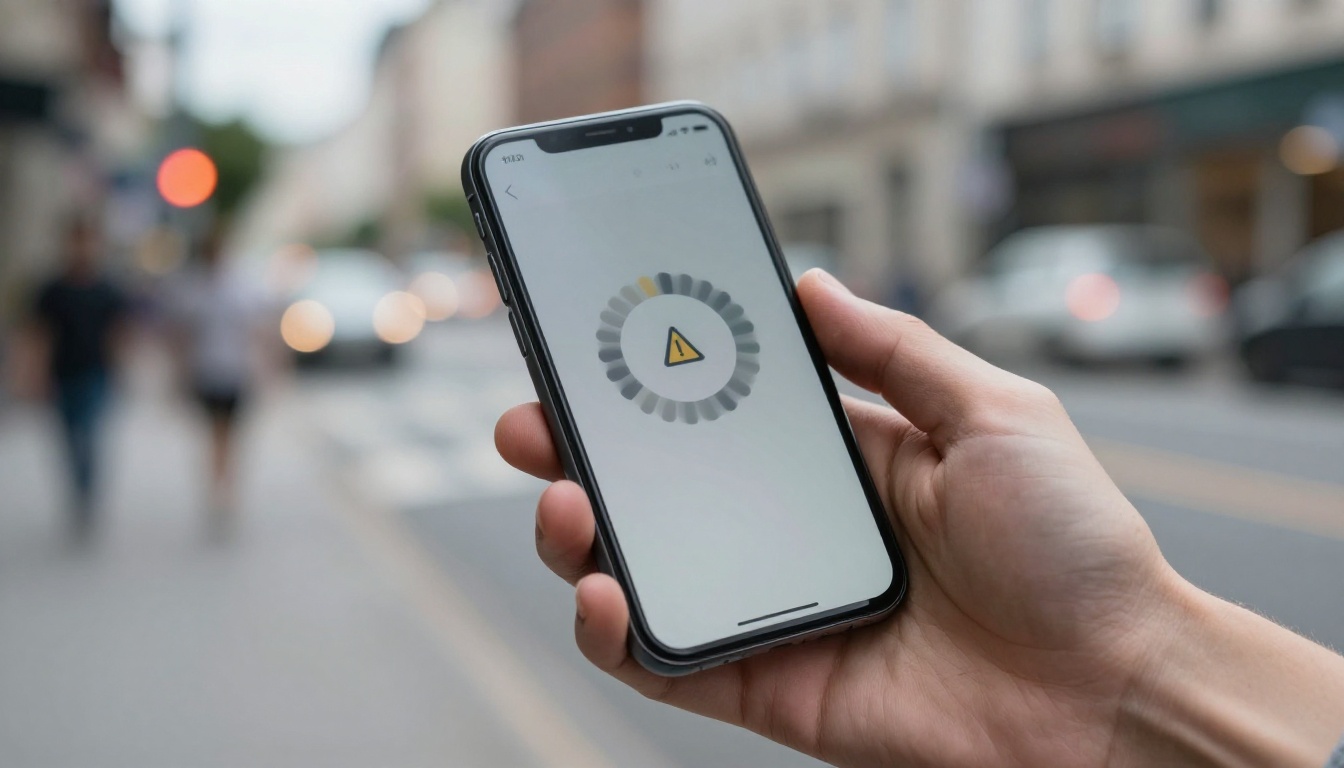
Ask recipients experiencing mobile issues to try:
- Switching from cellular data to Wi-Fi
- Disabling Low Power Mode or Data Saver
- Opening the link directly in Chrome or Safari instead of an in-app browser
- Disabling any content blocker extensions temporarily
In-app browsers, like the one inside Instagram, Gmail, or LinkedIn, are notorious for stripping JavaScript. Always recommend opening the link in a full browser.
Network and Firewall Blocks
This is the category that surprises most people because the problem is completely invisible. The link works, the browser is modern, but the recipient still can't open the flipbook. If those recipients are at a school, hospital, or large corporation, you're almost certainly dealing with a network block.
Corporate Firewalls Are Silent Blockers
Enterprise networks use deep packet inspection and URL filtering to block content categories. Digital publication platforms, external media hosting, and cloud-based content viewers are frequently in blocked categories, especially in:
- Healthcare (HIPAA compliance often triggers aggressive filtering)
- Finance (SEC regulations lead to broad URL blocking)
- Education (K-12 schools commonly block non-whitelisted domains)
- Government agencies (strong content policies on all external media)

The fix here isn't on your end, it's on theirs. But you can make it easier by:
- Asking the IT department to whitelist your flipbook's domain
- Providing a PDF download as a fallback (available on Flipbooks AI pricing plans)
- Using a custom domain if your platform supports it, as a custom domain sometimes bypasses category filters
⚠️ If multiple people from the same company report issues but others can open it fine, a corporate firewall is almost certainly the cause.
Slow Connections and Timeout Errors
Large flipbooks with many pages and high-resolution images can time out on slow connections. A 200-page catalog with 10MB of images won't load over a 2G mobile signal or a slow hotel Wi-Fi. Recipients see a blank page or an infinite spinner.
Fixes for this:
- Reduce file size before uploading: compress images before creating the PDF
- Enable progressive loading if your platform supports it (loads pages as you scroll)
- Recommend PDF download for recipients in areas with weak connectivity
Password Protection Confusion
Password protection is a valuable feature, especially for private catalogs, confidential reports, or internal documents. But it's also one of the most common causes of "nobody can open this."
They Don't Have the Password
This sounds obvious, but it happens constantly. You set a password, you forget to include it in the email, and recipients hit a password wall with no idea what to type.
The solution: always send the password in the same message as the link, and label it clearly. Some senders send the password in a separate message for security, which is smart, but make sure it arrives.
Case Errors and Copy-Paste Problems
Passwords are case-sensitive. When recipients copy a password from an email or messaging app, auto-correct or smart punctuation can silently change characters. A straight apostrophe becomes a curly one. Capital letters get auto-lowercased. The password breaks without the recipient knowing why.
Best practices for sharing password-protected flipbooks:
| Problem | Cause | Fix |
|---|
| Wrong characters | Auto-correct alters the pasted password | Type password manually, avoid special characters |
| Expired password | Platform rotated the password | Check current password in your dashboard |
| Password not received | Sent in separate message | Resend with clear subject line |
| Case mismatch | Recipient typed it differently | Use all-lowercase passwords when possible |
| Mobile keyboard | Autocapitalizes first letter | Tell recipients to check caps before submitting |
💡 For broad sharing, consider removing the password and using a less public URL instead. Reserve passwords for genuinely sensitive documents.
Fix It on Flipbooks AI Step by Step
If you're using Flipbooks AI and your flipbook isn't opening for anyone, here's the exact sequence to work through.
Step 1: Check Your Sharing Settings
- Log in to your Flipbooks AI account
- Open the flipbook that's having issues
- Click Share or Settings
- Verify the visibility is set to Public or Anyone with the link
- If it's set to Private, toggle it to Public and save
Step 2: Regenerate Your Link
- In the Share panel, look for the current share URL
- If there's a "Copy Link" button, use that rather than copying from the browser bar
- Paste it into a new incognito window to test it immediately
- If the link is broken or returns an error, use the "Generate New Link" option
Step 3: Switch to Direct Link
Embedded flipbooks (via iframe) are more likely to be blocked by browsers, ad blockers, and firewalls than direct links. If you've been sharing an embed code, try switching to the direct URL instead.
The Embed Flipbook on Website tool on Flipbooks AI generates both options. For email and messaging, always use the direct link. Reserve embeds for web pages where you control the hosting environment.
Step 4: Test on Multiple Devices
Before re-sending to your audience, test the link yourself on:
- A desktop browser in incognito mode
- A mobile phone on cellular data (not Wi-Fi)
- A different browser than you usually use
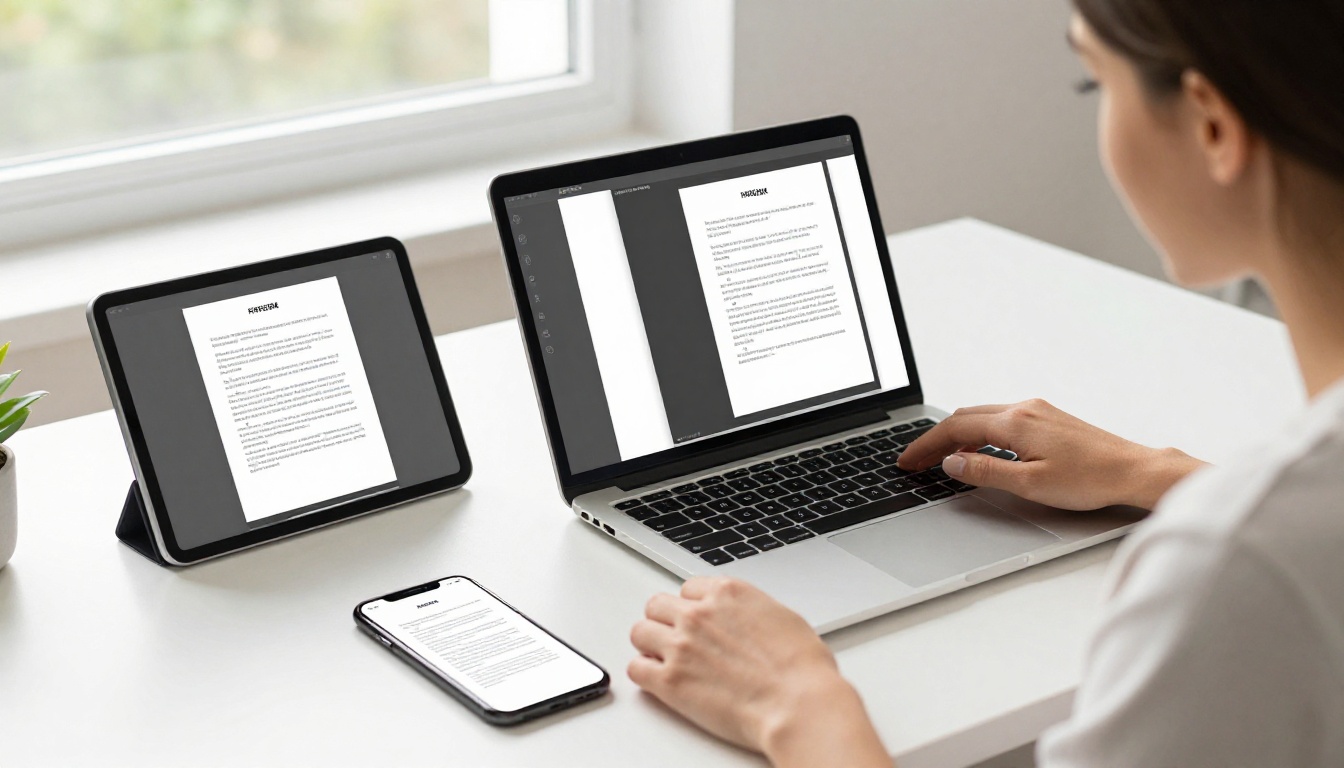
This three-device test catches 90% of issues before they reach your audience a second time.
What Error Messages Actually Mean
Not all access failures show the same error. Knowing which error maps to which cause saves significant troubleshooting time.
| Error Message | What It Means | What to Do |
|---|
| "Access Denied" or "403 Forbidden" | Privacy settings are restricting access | Change visibility to Public |
| "Page Not Found" or "404" | The link is broken or flipbook was deleted | Regenerate the link |
| "Content Blocked" | A browser extension or network is filtering it | Try a different browser or network |
| "Unable to Load" or infinite spinner | Slow connection or large file size | Compress the PDF, try on faster connection |
| Password prompt (unexpected) | Password protection is active | Share the password with recipients |
| "This content isn't available" | Domain is blocked by a firewall | Contact recipient's IT team for whitelisting |
Stop Problems Before They Start
Fixing a broken share after the fact is frustrating. Building habits that prevent the problem takes minutes and saves hours.
Always Test Before Sharing
This is the single most important habit. After publishing any flipbook, before sending it to anyone:
- Copy the share link
- Open a fresh incognito or private browser window
- Paste the link and confirm the flipbook opens fully
- Flip through a few pages to confirm loading works
- If you used a password, test the password entry too
Pick the Right Sharing Method
Different audiences need different sharing formats. Using the wrong format for the wrong context is a recipe for access failures.

Sharing format by use case:
| Use Case | Best Format | Why |
|---|
| Email newsletter | Direct link | Embeds rarely work in email clients |
| Website or blog post | Embed code (iframe) | Keeps readers on your site |
| Social media post | Direct link with preview | Platforms strip iframes |
| Internal company document | Password-protected link | Secure without login requirements |
| Print/physical distribution | QR code linking to direct URL | Scannable, no typing required |
| Large corporate audience | Custom domain + whitelisted URL | Reduces firewall blocks |
On Flipbooks AI, you get all of these sharing formats built in. The PDF to Flipbook Converter handles the conversion, and the sharing panel gives you direct links, embed codes, and QR codes in one place.
✅ For the Professional plan, you also get analytics that show you exactly who opened the flipbook, when, and from where. If nobody opened it, you'll know immediately. Compare plans to see what's included.
One More Thing Worth Knowing
If you're creating flipbooks regularly, whether it's a product catalog, a restaurant menu, a real estate brochure, or an annual report, the access issues described in this article will repeat. Setting up consistent sharing habits from the start prevents them from becoming a recurring problem.
A checklist worth bookmarking:
Flipbooks AI gives you control over every one of these points without any technical setup. Create your account to build your first flipbook or fix the one that's giving you trouble right now. And when you're ready to see who's actually opening your content, check the pricing options for plans that include real-time analytics and lead generation tools.



