Missing images in a flipbook are not just a visual annoyance. They are a credibility killer. Whether you are sharing a product catalog, a real estate brochure, or a brand magazine, blank grey boxes where photos should be can make your entire publication look broken and unprofessional. The good news is this problem almost always has a fixable root cause, and once you know what to look for, it takes minutes, not hours.
Flipbooks AI is built to handle image-heavy PDFs reliably, but even on the best platforms, the source file itself matters. This article breaks down every reason why images disappear from flipbooks and gives you exact steps to fix each one.
Why Images Go Missing in Flipbooks
Before you can fix the problem, you need to know where it starts. Missing images in digital flipbooks almost always trace back to one of three sources: how the PDF was exported, what image format was used, or how the flipbook platform handled the file during conversion.
The PDF Export Problem
Most missing image issues start inside your design software, not the flipbook platform. When you export a PDF from Adobe InDesign, Canva, or Microsoft PowerPoint, images can be embedded properly or linked externally. If they are linked externally, the image only exists as a reference path on your computer. When you upload that PDF to any online platform, those external paths break because the server cannot access files on your local machine.
Signs this is your problem:
- Images appear fine in your original PDF when opened on your computer
- The same pages show blank or grey boxes in the flipbook
- Missing images are concentrated on specific pages, not random throughout
⚠️ Always export PDFs with images embedded, not linked. In Adobe InDesign, go to File > Export and ensure "Embed Images" is selected before saving.
File Format Conflicts
Not every image format plays well with every PDF renderer. Flipbook conversion engines need to parse and rasterize images during the page-turn conversion process. Some formats that look fine in print PDFs cause silent failures in digital conversions.
Problematic formats:
.eps (Encapsulated PostScript) files.tiff files with LZW compression.psd embedded layers- Indexed-color PNG files instead of RGB
- CMYK color-mode images designed for print, not screen
Safe formats for flipbook conversion:
- RGB JPEG
- RGB PNG (8-bit)
- WEBP on supported platforms
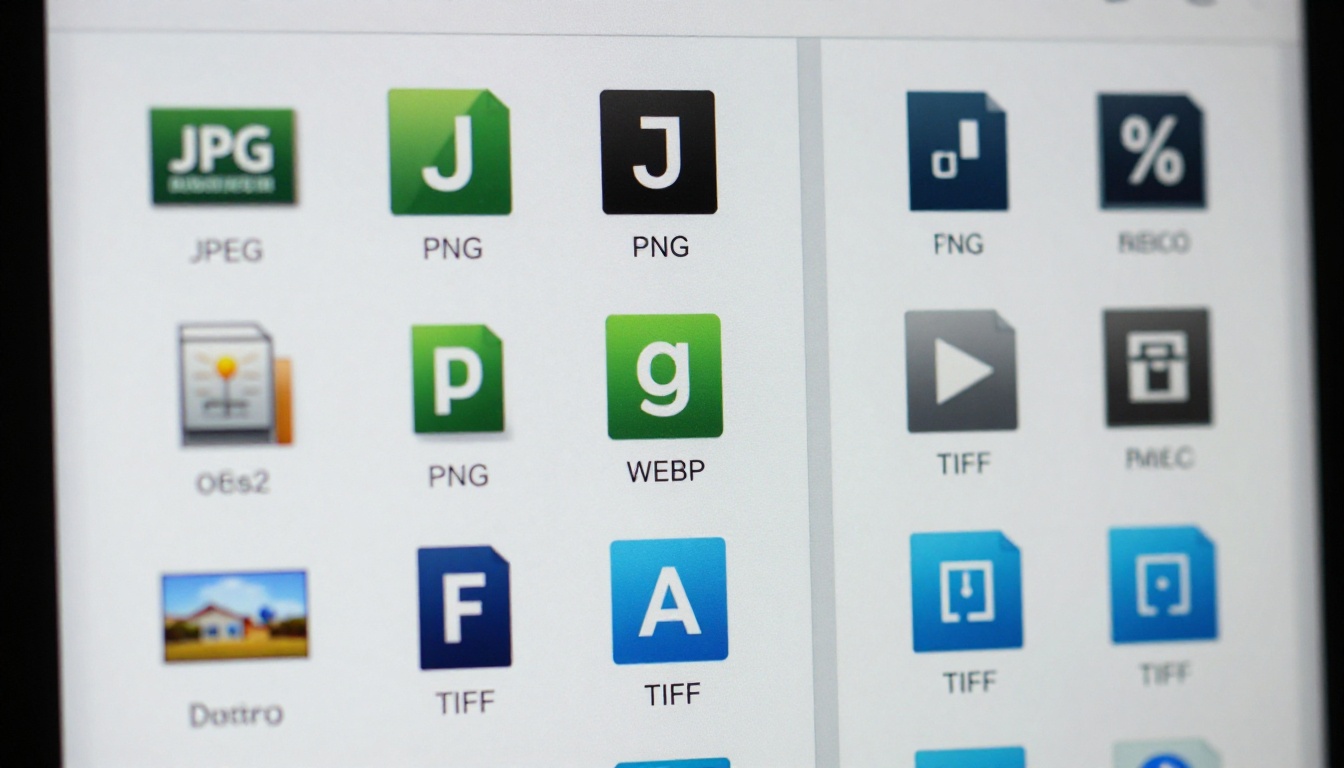
Image Resolution and Size Limits
Extremely high-resolution images can cause silent conversion failures. A 300 DPI print image at A4 size is roughly 2480 x 3508 pixels. Multiply that across 50 pages in a catalog and your PDF can exceed platform processing limits, causing random image drops during conversion.
On the other end, images under 72 DPI may render so poorly they appear invisible or corrupt after conversion.
💡 The sweet spot for flipbook images is 150 DPI at final print size, converted to RGB, saved as JPEG at 85-90% quality. This gives crisp visuals without oversized file weight.
5 Fixes That Actually Work
Here are the most effective solutions, ordered from fastest to most thorough.
Fix 1: Re-export With Embedded Images
This solves the majority of missing image cases. Open your original design file and re-export with these settings:
- Open your source file in the original application (InDesign, Illustrator, Canva, PowerPoint)
- Select File > Export or Save As PDF
- Choose PDF/X-1a or standard PDF/A format
- Enable embed all fonts and images
- Set color space to RGB (not CMYK)
- Set image compression to JPEG at High quality
- Save and re-upload to your flipbook platform
✅ After re-exporting, open the new PDF in Adobe Acrobat Reader and check File > Properties. A larger file size confirms images are now embedded rather than linked.

Fix 2: Convert CMYK Images to RGB
Print designers frequently work in CMYK because it is the standard for physical printing. But flipbook platforms render pages on screen, where RGB is the native color space. CMYK images that survive PDF export without being converted often fail to display correctly in digital flipbook viewers.
How to convert in Photoshop:
- Open the image in Photoshop
- Go to Image > Mode > RGB Color
- Click Flatten when prompted
- Save as JPEG or PNG
- Replace in your design file, then re-export the PDF
How to convert in GIMP (free alternative):
- Open the image
- Go to Image > Mode > RGB
- Export as JPEG with quality 85 or higher
Fix 3: Compress Without Losing Quality
Oversized PDFs can exceed file size limits on many flipbook platforms, causing partial loads where some images never render. Compressing intelligently, without destroying quality, solves this.

Recommended compression tools:
| Tool | Platform | Best For | Cost |
|---|
| Adobe Acrobat Pro | Desktop | Professional PDF compression | Paid |
| Smallpdf | Web | Quick online compression | Free/Paid |
| PDF24 | Web | Batch compression | Free |
| iLovePDF | Web | Format conversion plus compress | Free/Paid |
| Ghostscript | CLI | Automated advanced control | Free |
💡 Target a final PDF size under 50MB for standard flipbooks. For catalogs with 100+ pages, aim for under 150MB to avoid platform timeout issues during conversion.
Fix 4: Find Broken Links in Your PDF
Adobe Acrobat Pro can identify linked versus embedded images in your PDF. This is useful if you received a file from a third party and cannot access the original design source.
- Open the PDF in Adobe Acrobat Pro
- Go to Tools > Print Production > Preflight
- Run the "List images" or "Check images" diagnostic
- Look for any images flagged as "missing" or "linked"
- Note which pages they appear on
- Request the source files from the original creator
If you cannot access the source files, use Acrobat Pro's Edit PDF tool to manually replace images page by page.
Fix 5: Use a Platform Built for It
Sometimes the platform itself is the problem. Older or less capable flipbook converters use basic PDF rasterizers that cannot handle complex vector graphics, layered transparency, or embedded TIFF files.
Flipbooks AI uses a professional-grade PDF rendering engine that handles complex file structures, CMYK fallback conversion, and embedded font rendering automatically. If you have been fighting image issues on another platform, uploading your same PDF here often resolves the problem without any changes to the file.
Before exporting your next PDF, use this reference table to choose the right format for every image type:
| Image Type | Recommended Format | Color Mode | Resolution | Notes |
|---|
| Photos | JPEG | RGB | 150-300 DPI | 85% quality minimum |
| Logos | PNG | RGB | 300 DPI | Transparency preserved |
| Screenshots | PNG | RGB | 72-150 DPI | Lossless preferred |
| Illustrations | PNG or JPEG | RGB | 150 DPI | Avoid EPS in final PDF |
| Print artwork | JPEG (converted) | RGB | 150 DPI | Convert CMYK before embedding |
| Backgrounds | JPEG | RGB | 72-150 DPI | Lower resolution acceptable |
| Icons | PNG | RGB | 150+ DPI | SVG not directly embeddable in most PDFs |
⚠️ Never leave CMYK, EPS, or externally linked images in a PDF destined for a flipbook. These are the most common causes of missing visuals after conversion.
How to Stop This From Happening Again
Fixing missing images reactively costs time. Building your PDFs correctly from the start prevents the problem entirely.
Build Your PDF the Right Way
Set these standards for every PDF destined for a digital flipbook:
- Color mode: RGB only, never CMYK
- Image embedding: Always embed, never link
- Image formats: JPEG or PNG inside the document
- Resolution: 150 DPI for body images, 300 DPI for logos
- File size target: Under 50MB for standard publications
- Fonts: Always embed fonts in the export settings
- PDF version: PDF 1.4 or higher to avoid compatibility issues
If you work in a team or with external designers, create a one-page PDF specification document and share it before any design work begins. This eliminates revision cycles caused by format errors.

Test Before You Publish
Always do a test conversion before sharing a flipbook publicly. Upload your PDF to your flipbook platform, click through every page, and check for:
- Grey or white placeholder boxes
- Blurry or pixelated images that should be sharp
- Pages that load slowly or appear blank
- Color shifts indicating CMYK conversion issues, such as neon tones or washed-out colors
Catching these at the upload stage, before your link goes live, is the difference between a polished publication and a damaged first impression.
Fix Missing Images With Flipbooks AI
Flipbooks AI offers one of the most reliable PDF-to-flipbook conversion pipelines available. Here is how to use it to resolve or prevent missing image problems in your publications.
Step 1: Create Your Account
Go to flipbooksai.com/account and sign up. No credit card required for the free tier. The dashboard is clean and you can start converting a PDF within two minutes of signing up.

Step 2: Upload Your PDF
Inside the dashboard, click New Flipbook and upload your PDF. Flipbooks AI accepts files up to 500MB and processes multi-page documents automatically. The conversion engine handles embedded fonts, layered graphics, and RGB images natively.
If your PDF previously had missing images on another platform, try uploading it here without any modifications first. The rendering engine often resolves issues that simpler converters cannot handle.
Step 3: Preview Every Page
After conversion, use the built-in preview to click through every page. Flipbooks AI renders a live preview of the entire flipbook so you can spot any remaining issues before the flipbook is shared or embedded anywhere.
💡 Use the zoom tool in preview to inspect small images and logos at 100%. If something looks blurry or missing at full zoom, that points to a source file issue inside the PDF itself, not the platform.
Step 4: Customize and Share
Once your images look correct, customize the flipbook with your branding, set a password if needed, and share via link or embed code. The PDF to Flipbook Converter handles the technical conversion automatically.
For professional publications, the Interactive E-Book Publisher and Digital Catalog Maker tools add multimedia capabilities on top of your converted PDF, including embedded video, audio, and clickable links.
What Actually Matters for Image Reliability
When choosing a flipbook platform, image rendering quality is not a minor detail. It determines whether your publication looks professional or unprofessional. Here is how these platform attributes affect image display:
| Feature | Why It Matters | Flipbooks AI |
|---|
| PDF rendering engine | Determines image decode accuracy | Professional-grade |
| CMYK auto-conversion | Fixes print-format images automatically | Yes |
| Max file size | Limits complex catalogs and large documents | Up to 500MB |
| Image quality retention | Prevents compression artifacts | High-quality output |
| Preview before publish | Catch issues before going live | Full preview included |
| No watermarks | Professional output on all paid plans | No watermarks, ever |
| Analytics | Track which pages readers view | Professional plan |
| Password protection | Secure private publications | All paid plans |
The pricing plans at Flipbooks AI range from free for basic needs up to Professional for teams needing analytics, lead generation forms, and offline downloads. For image troubleshooting purposes, the Standard plan covers everything you need.
When the Problem Goes Deeper
Some missing image cases go beyond format or export settings. Here are less common but equally fixable causes:
Transparency conflicts: PDFs with heavily layered transparency from Illustrator files with complex blend modes can confuse conversion engines. Flatten all transparency layers before exporting.
Single oversized images: A single image filling an entire large format page at 300 DPI can exceed 200MB on its own. Even if the PDF uploads, that page may silently fail to render. Downsample very large images to 150 DPI before embedding.
Password-protected PDFs: Some PDFs have print or content restrictions embedded. Flipbook converters cannot access image content inside restricted PDFs. Remove all PDF security settings before uploading, using Adobe Acrobat or a PDF unlocker tool.
Corrupted image data: Occasionally, images inside a PDF are corrupt due to a save error in the original application. If a specific page always fails regardless of which platform you try, the image data may be damaged. Re-create that page from the original source file.
✅ A quick diagnostic: open your PDF in Google Chrome by dragging it to an open browser tab. Chrome's built-in PDF renderer is very forgiving. If images are missing even there, the problem is inside the PDF file itself, not the flipbook platform.

Stop Fighting Broken Flipbooks
Missing images are fixable. With the right export settings, the right image formats, and the right platform, your flipbook can display every image exactly as designed, on every device, every time.
Start by re-exporting your PDF with embedded RGB images, check for CMYK or linked-file issues, and compress to a reasonable file size. Then upload to Flipbooks AI and use the live preview to verify every page before sharing.
If you build product catalogs, real estate brochures, restaurant menus, or any image-heavy publication, the tools at Flipbooks AI are purpose-built for exactly this work. No watermarks, mobile-responsive layout, and a conversion engine that handles the difficult parts automatically.
Get started for free and see the difference a reliable converter makes. When you are ready for analytics, password protection, and professional sharing features, compare pricing plans to find the right fit for your team.



