You asked ChatGPT for an ebook, and it delivered 20,000 words in a few minutes. Then you pasted it into a document and the trouble started: asterisks in the middle of sentences, headings that look like body text, bullet lists with three different symbols and gaps nobody asked for. This tutorial shows how to fix all of it, step by step, and end with a PDF that looks like a real book. If you want the final file to be more than a static PDF, you can also turn it into a page-turning reader with Flipbooks AI.
Why ChatGPT Drafts Look Messy
ChatGPT writes in Markdown. That is great inside a chat window, where **bold** renders as bold text. Paste it into a word processor, though, and the symbols arrive as literal characters. Add the model's habit of repeating phrases, inventing inconsistent heading levels and mixing list styles, and you get a draft that reads fine but looks broken.

The Five Usual Problems
Almost every draft has the same issues. Check for these before touching the layout:
- Markdown leftovers: asterisks, pound signs and backticks that never rendered.
- Flat heading structure: chapter titles and sub-sections styled identically.
- Mixed list markers: dashes, bullets and numbers in the same chapter.
- Repeated openings: every chapter starting with "In today's world".
- Fake tables: columns made of pipes and spaces that fall apart on export.
Why Layout Comes After Editing
Format last. If you design pages first and then rewrite paragraphs, every edit shifts line breaks and pushes headings to the bottom of pages. Finish the words, then lock the layout.
💡 Pro tip: Save a plain-text copy of the raw ChatGPT output before you edit anything. If a cleanup step goes wrong, you can always start that chapter again.
Clean the Text First
Spend your first hour on the words. A tidy layout cannot rescue paragraphs that repeat each other or claims nobody checked.
Strip Markdown Symbols
Use find and replace to remove or convert leftovers. A quick checklist:
- Search for
** and remove the pairs, then reapply real bold where it matters.
- Search for
# at the start of lines and convert those lines into true headings.
- Search for backticks and delete them unless you are showing code.
- Search for double spaces and replace them with a single space.
- Search for manual line breaks inside paragraphs and remove them.
Alternatively, paste the Markdown into a converter that outputs Word or HTML, which keeps headings and lists intact in one pass.
Fix the Voice and Facts
ChatGPT drafts share a recognizable rhythm: balanced three-part lists, neat summary sentences, and generic examples. Read each chapter aloud and rewrite anything you would never say to a friend. Add one real story, number or screenshot per chapter. Verify every statistic, date and quotation, because language models invent sources with confidence.
Build a Consistent Outline
Print the headings only and read them as a list. If two chapters overlap, merge them. If one chapter is three times longer than the rest, split it. A reader should predict what each chapter holds from its title alone.
| Draft Problem | Quick Fix | Time Needed |
|---|
| Stray asterisks and pound signs | Find and replace, then apply real styles | 10 minutes |
| Repeated sentence openings | Rewrite first lines of each paragraph | 30 minutes |
| Uneven chapter lengths | Merge or split sections | 20 minutes |
| Unverified facts | Check against primary sources | 45 minutes |
| Mixed list styles | Apply one list style throughout | 10 minutes |
Set Up Styles and Layout
Now the fun part. Create the book's look once, in styles, and let those styles do the work for the entire document.
Choose a Page Size
Most ebooks read well on a 6 x 9 inch page, the same trim as many paperbacks. A4 or US Letter works for workbooks, checklists and reports, where readers want room for tables. Pick one size and keep it for every page.
Margins That Breathe
Cramped margins are the number one sign of an amateur PDF. Start with these values and adjust to taste:
- Top and bottom: 0.9 inches
- Inside edge: 0.9 inches
- Outside edge: 0.7 inches
- Line spacing: 1.3 to 1.5 times the font size
Pick Two Fonts, Not Five
One serif for body text and one sans-serif for headings is plenty. Georgia, Garamond or Merriweather suit long reading, while Inter, Helvetica or Lato work for headings and captions. Set the body at 11 to 12 points.
Define Heading Styles Once
Create real styles named Title, Heading 1 and Heading 2, and apply them to every chapter. This pays off later, because PDF export turns those styles into clickable bookmarks and an automatic table of contents.
| Element | Suggested Size | Font Style | Spacing After |
|---|
| Chapter title | 28 pt | Sans-serif, bold | 24 pt |
| Section heading | 18 pt | Sans-serif, bold | 12 pt |
| Sub-heading | 14 pt | Sans-serif, medium | 8 pt |
| Body text | 11.5 pt | Serif, regular | 8 pt |
| Callout box | 10.5 pt | Serif, italic | 12 pt |
✅ Best practice: Never format by hand. If you ever select a heading and change its size directly, you break the style and the book drifts out of sync.
Add the Book Elements
A text file becomes a book when it gains structure around the chapters.

Title Page and Front Matter
Place these pages in order before chapter one:
- Title page with the book title, subtitle and author name
- Copyright page with the year and a short rights statement
- Table of contents, generated from your heading styles
- Short introduction or note to the reader
Add a disclosure line if AI helped draft the text. Readers and some retail platforms appreciate transparency.
Page Numbers and Running Headers
Use the book title in the header on left pages and the chapter name on right pages. Start page numbering at the first chapter and leave title and copyright pages blank. Skip headers on the first page of each chapter for a cleaner opening.
Build a Cover That Sells
Your title page and front image are the first thing people see in a download list. Keep the design simple: one strong photograph or color field, a large readable title and little else.
Use Callouts and Tables Sparingly
Callout boxes break up long text, and tables compress comparisons. Both help skimmers. Limit callouts to one every two or three pages, and make sure each table fits within the margins without shrinking text below 9 points.
Export a Clean PDF
With styles applied, the export step takes a minute. The settings matter more than the button.

Export Settings That Work
- Standard quality (not minimum size): keeps images sharp.
- Embed fonts: prevents substitution on other devices.
- Create bookmarks from headings: gives readers a navigation panel.
- Tagged PDF: improves accessibility for screen readers.
- Image resolution: 150 dpi suits screens, 300 dpi suits print.
Choose the Right Tool
| Tool | Best For | Strength | Weakness |
|---|
| Word processor | Text-heavy ebooks | Familiar, flexible styles | Image placement can shift |
| Google Docs | Collaboration | Easy sharing, free | Fewer typography controls |
| Design software | Image-rich books | Full layout control | Steeper learning curve |
| Markdown to PDF converter | Technical writers | Fast and consistent | Limited visual design |
Run a Pre-Flight Check
Before sending the file to anyone, open the PDF and scroll through every page. Look for:
- Headings stranded at the bottom of a page
- Single words alone on the last line of a paragraph
- Images that jumped to the wrong page
- Broken links and a table of contents with wrong numbers
- Fonts that look different from your design
⚠️ Warning: Always open the exported PDF on a phone as well as a computer. Many readers will never see it on a large screen.
Turn the PDF into a Flipbook
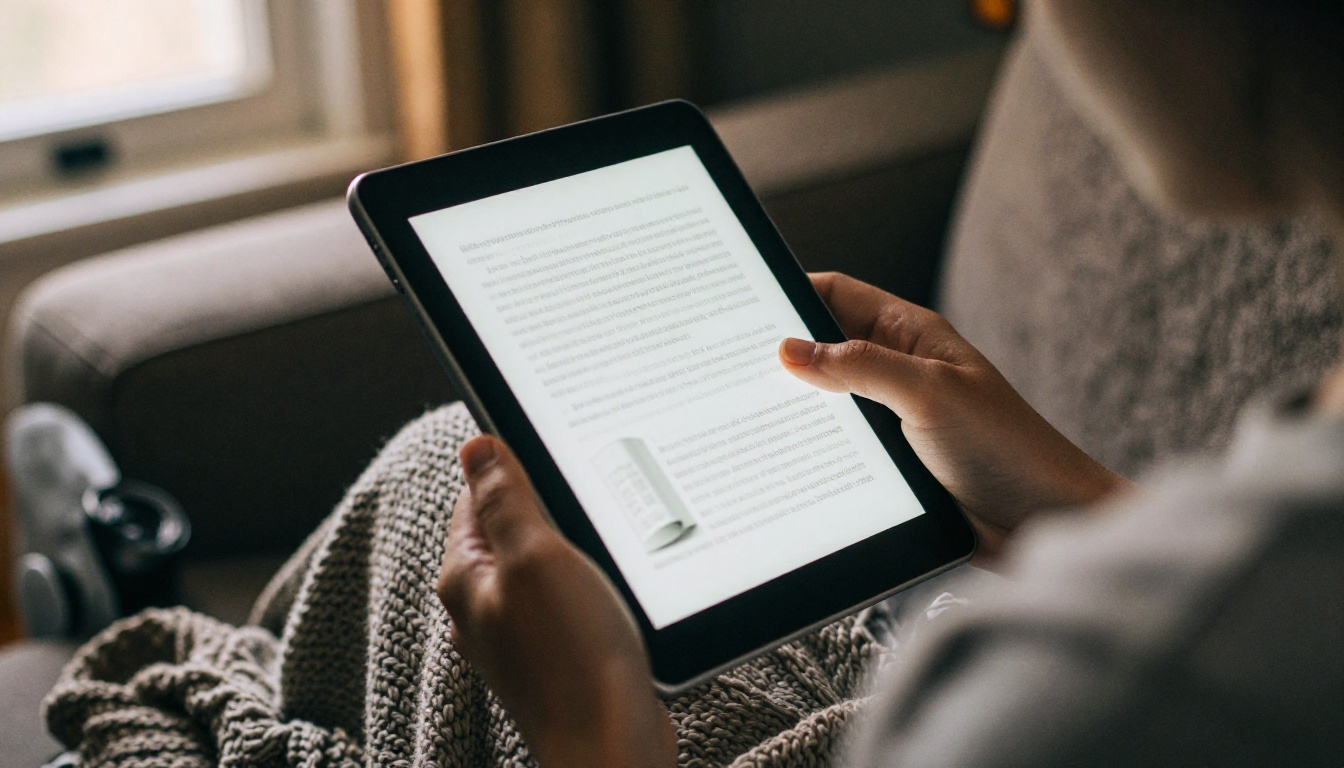
A PDF is dependable but flat. Readers download it, forget it and never come back. A flipbook keeps the same pages while adding page-turning, a shareable link and a reading experience that feels like holding a book.
How to Create It with Flipbooks AI
Follow these steps once your PDF passes the pre-flight check:
- Open Flipbooks AI and sign in or create an account.
- Upload your PDF using the PDF to Flipbook Converter. The pages convert in moments and keep your fonts and layout.
- Customize the reader: add your logo, pick a background color and choose a page-turn effect.
- Add multimedia where useful, such as an audio intro or a video walkthrough.
- Set sharing options: a direct link, an embed code for your website, or password protection for paid readers.
- Publish and send the link to your list.
For longer books, the Interactive E-Book Publisher and E-Book Flipbook Generator are built for this exact job. There are no watermarks on your pages, and the reader adapts to phones, tablets and desktops.
PDF Versus Flipbook
| Feature | Plain PDF | Flipbook |
|---|
| Reading experience | Scroll or zoom | Page-turn with animation |
| Mobile friendly | Often awkward | Responsive |
| Sharing | Attachment or download | One link or embed |
| Password protection | Limited | Built in |
| Reader analytics | None | Available on the Professional plan |
| Offline download | Native | Available |
Real-World Examples
- A coach sells a 40-page workbook and shares it behind a password after purchase.
- A consultant embeds a lead magnet on a landing page and tracks how far visitors read.
- A course creator publishes weekly lessons as flipbooks and links them in emails.
Quality Checks Before You Publish
One last pass saves embarrassing corrections later.

Three Common Mistakes
- Publishing unedited AI text. Readers notice generic phrasing quickly. Add your own examples.
- Using too many fonts. Two is enough; more looks chaotic.
- Skipping mobile tests. Check page size, text size and image sharpness on a phone.
Final Checklist
- Every chapter uses the same heading styles.
- Facts, quotes and links have been verified.
- Fonts are embedded and the file size is reasonable.
- The table of contents matches real page numbers.
- A test reader has opened it on at least two devices.
💡 Pro tip: Name the file clearly, such as your-book-title-2026.pdf, instead of final_v7_REAL.pdf. It looks professional in a download folder and helps search.
Ready to Publish Your Ebook?
You now have a repeatable process: clean the text, define styles, add the book elements, export with the right settings and test everything on small screens. The same workflow works for the next draft, and the next after that.
Ready to give readers something better than an attachment? Get started for free on Flipbooks AI, browse all flipbook tools to find the right template, or compare pricing plans to pick the one that fits your publishing schedule.



