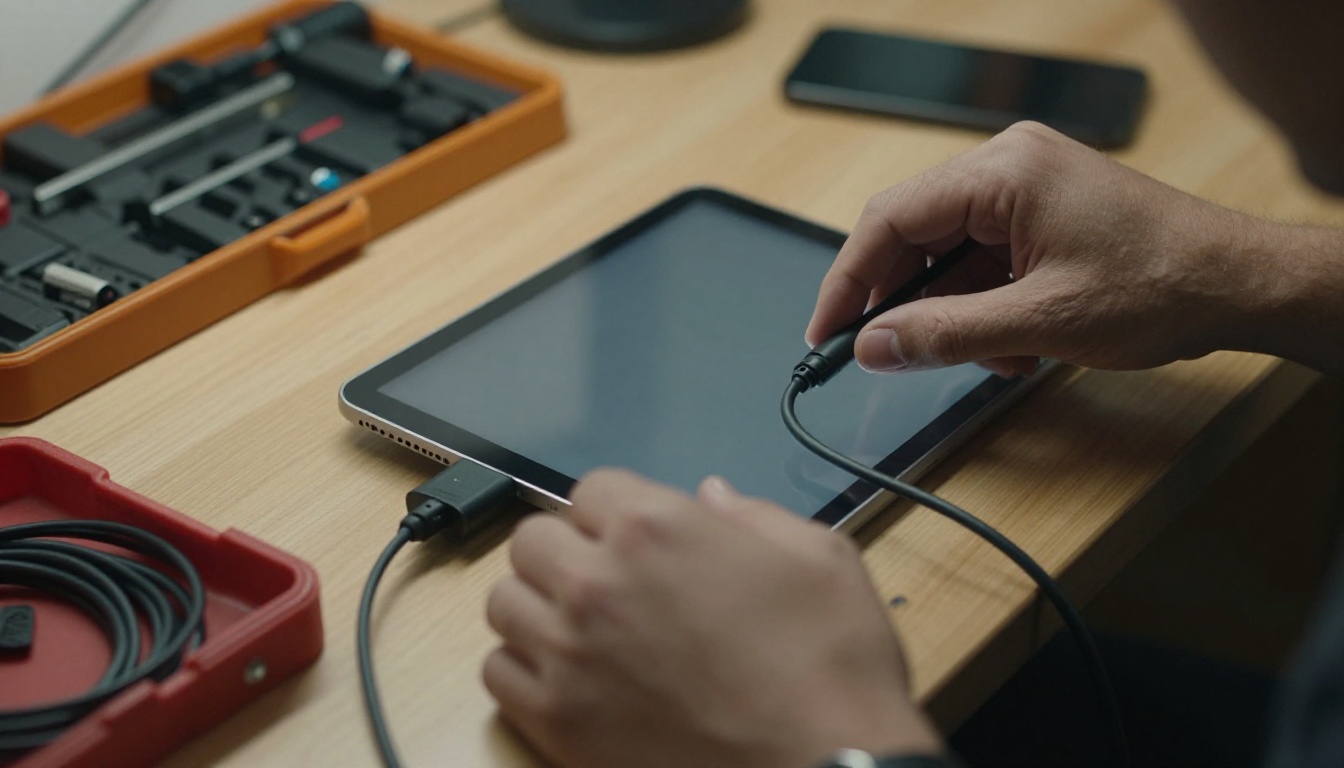
You put an iPad on a counter, open your catalog, and walk away. Ten minutes later a visitor has swiped out of it, opened the camera, and is reading their own email. A kiosk only works when the screen stays on one thing. This tutorial shows how to lock an iPad to a single flipbook built with Flipbooks AI, so visitors can turn pages, zoom, and nothing else.
The method is simple. You publish the flipbook, open it in full screen, and then use the iPad's built-in lock features to pin it there. No extra hardware or paid kiosk app is needed for a single device, and a fleet of iPads can use the same logic through device management.
Why Lock an iPad to One Flipbook
An unlocked iPad in a public space invites trouble. Curious hands find the Home Screen, change settings, or close the page. Staff then waste time resetting it instead of helping customers.
A locked kiosk gives you three things:
- Predictability: the same page greets every visitor, all day.
- Safety: nobody can reach your photos, messages, or saved logins.
- Focus: the visitor sees your catalog, menu, or brochure and has nothing else to tap.
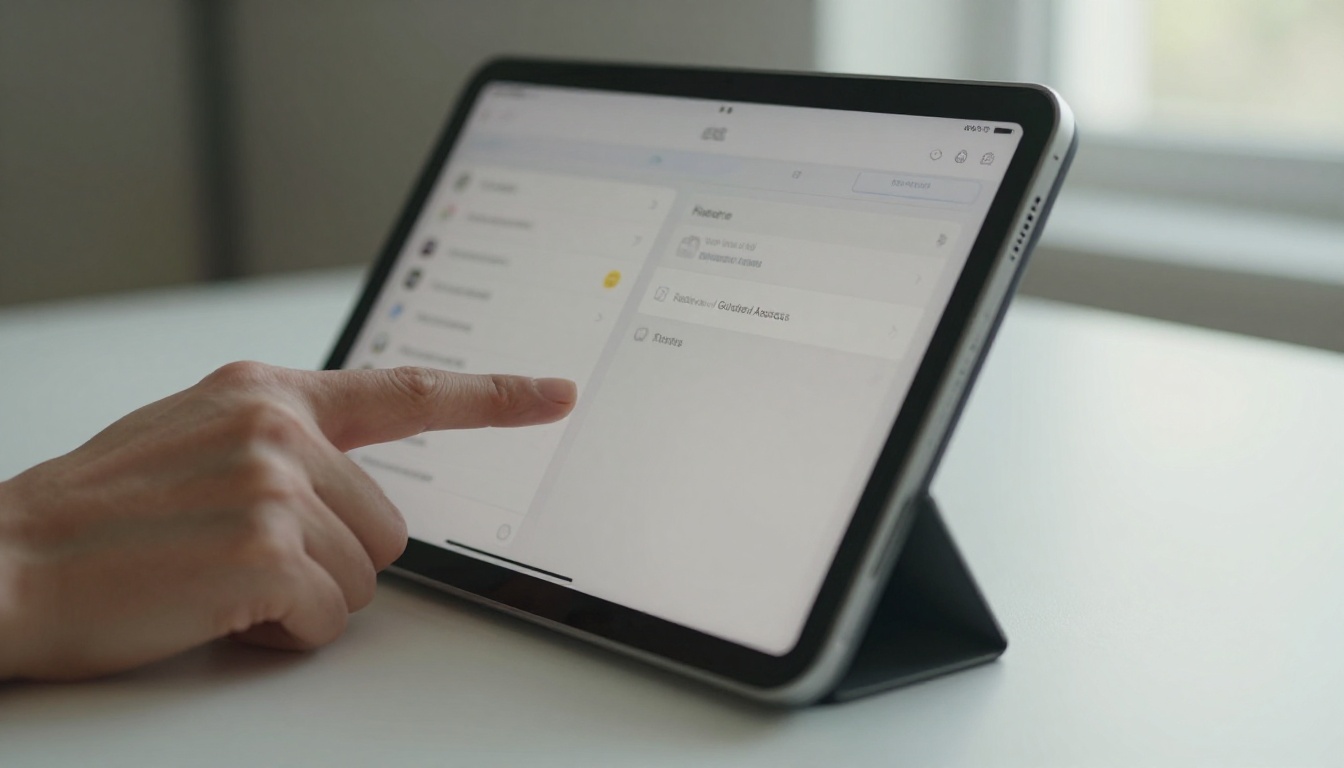
Where Kiosk Flipbooks Work Best
Any place where people browse on their own benefits from this setup:
What "Locked" Really Means
People use the word loosely, so here are the three levels you can reach:
- Page lock: the flipbook stays in the browser, but the visitor could still leave.
- App lock: the iPad refuses to leave the current app (Guided Access).
- Fleet lock: a management system forces one app or web clip on many devices (Single App Mode).
Most small businesses need level 2. Larger rollouts use level 3.
Prepare the Flipbook First
Locking a bad flipbook only locks in a bad experience. Spend ten minutes on the content before touching the iPad.
Create and Publish
Create your account on Flipbooks AI, upload your PDF with the PDF to Flipbook Converter, and wait for the conversion to finish. Then open the flipbook settings and check these points:
- Apply your logo, colors, and page effects so the kiosk matches your brand.
- Add video or audio only if the iPad has sound turned on for a reason.
- Copy the direct link. This is the address you will load on the iPad.
💡 Use the direct link, not an embed on a website page. A website adds menus and links that a visitor can tap to leave your flipbook.
Decide on Privacy
Public kiosks usually need a public link. If the content is internal, such as a staff training manual or a price list for partners, turn on password protection and enter the password once on the iPad. Password protection and the other sharing controls are described on the pricing page.
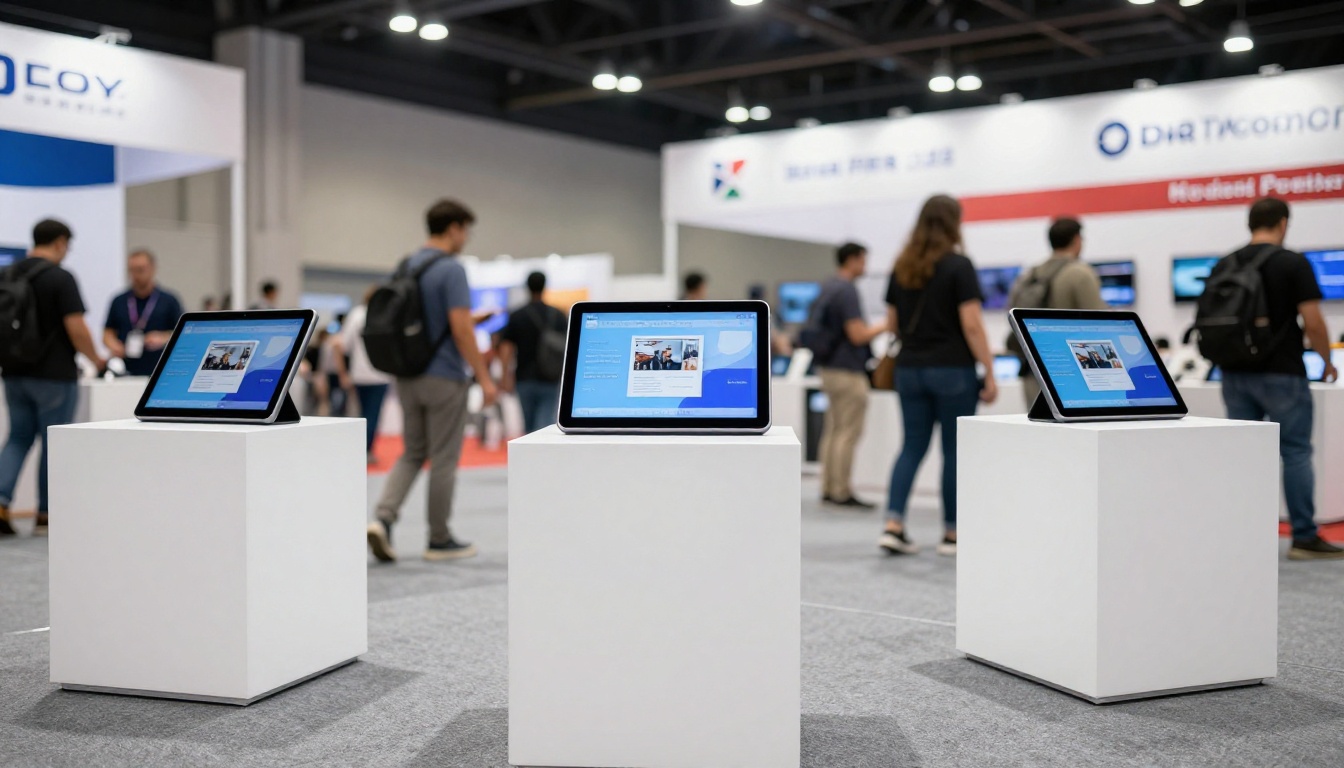
Check Mobile Layout
Flipbooks AI pages are mobile responsive, but you should still test on the exact iPad. Hold it in the orientation the kiosk will use. Turn a few pages, zoom in on small text, and make sure buttons are large enough for a thumb.
Set Up the iPad for Kiosk Duty
Before you lock anything, remove the small annoyances that would interrupt a visitor.
Open the Flipbook in Safari
- Connect the iPad to reliable Wi-Fi.
- Open Safari and type in the direct link.
- Check that the cover loads, then flip a few pages.
Add It to the Home Screen
Tap the Share button, then choose Add to Home Screen. When you open the new icon, the flipbook runs without the Safari address bar and tabs. This single step removes the easiest ways to leave the page.
✅ Name the shortcut clearly, for example "Menu" or "Catalog", so staff can find it again after a restart.
Turn Off Interruptions
Open Settings and adjust these items:
| Setting | Where to find it | Recommended value |
|---|
| Auto-Lock | Display & Brightness | Never |
| Notifications | Focus or Notifications | Do Not Disturb on |
| Brightness | Display & Brightness | Fixed, auto-brightness off in dim rooms |
| Wi-Fi | Settings | Connected, known network only |
| Software updates | General | Manual, so they do not restart mid-day |
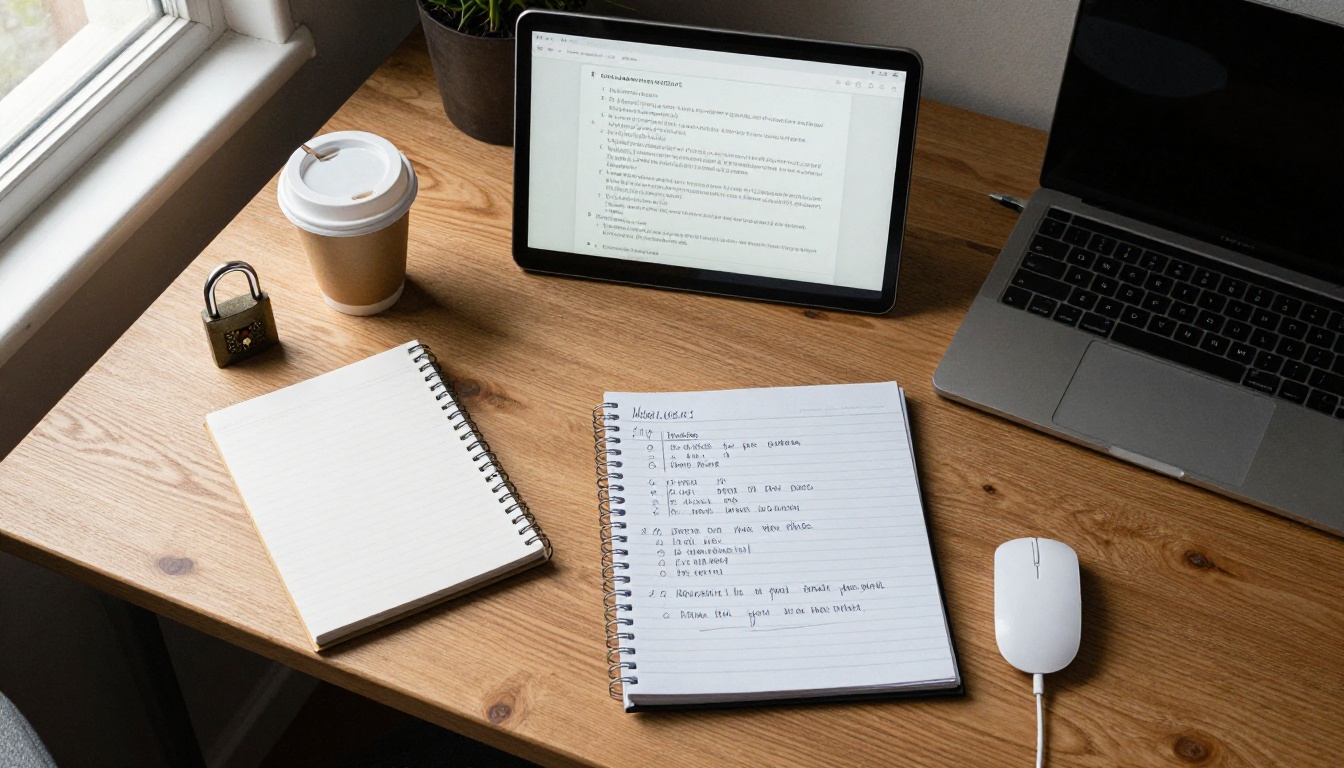
Lock It With Guided Access
Guided Access is the free iPad feature that restricts the device to one app. It works on every modern iPad and is the fastest path to a working kiosk.
Turn the Feature On
- Open Settings, then Accessibility.
- Scroll to Guided Access and switch it on.
- Tap Passcode Settings and set a Guided Access passcode.
- Optionally enable Face ID or Touch ID to end a session.
⚠️ This passcode is separate from the iPad's unlock passcode. Store it somewhere safe. Forgetting it means a restart or a reset to get out.
Start a Session
- Open the flipbook shortcut on the Home Screen.
- Triple-click the top button (or the Home button on older iPads).
- Tap Guided Access if the menu appears.
- Tap Options at the bottom left.
- Turn Touch on, Motion off, and keyboards off.
- Tap Start at the top right.
The iPad now ignores the Home gesture, the app switcher, and the Control Center. Visitors can still turn pages and zoom.
Block Parts of the Screen
Before pressing Start, you can draw a circle with your finger around any area to disable touches there. This is useful for page elements you do not want tapped, such as an outbound link at the edge of the screen.
End a Session
Triple-click again and enter the passcode, then tap End at the top left. Use this when you need to update the content or change settings.
Guided Access Options at a Glance
| Option | What it does | Kiosk use |
|---|
| Touch | Allows or blocks finger input | Keep on for browsing |
| Motion | Stops shake and rotate events | Turn off to avoid layout flips |
| Keyboards | Blocks the on-screen keyboard | Off unless a form is needed |
| Time Limit | Ends the session after a set time | Off for all-day kiosks |
| Display Auto-Lock | Controls screen sleep during the session | Set to Never |
Use Single App Mode for Many iPads
If you run five or fifty iPads, you do not want to triple-click each one every morning. Device management handles that.
What Is Single App Mode
Single App Mode is a supervised iPad setting. A management tool pushes a policy that locks the device to one app or web clip. The visitor cannot leave, and a restart returns to the same page automatically.
When to Choose It
- You manage more than a handful of iPads.
- Staff turnover is high and you do not trust manual setups.
- The iPads sit in areas without supervision all night.
Quick Comparison
| Feature | Guided Access | Single App Mode |
|---|
| Cost | Free, built in | Needs a management tool |
| Setup time | About 2 minutes per iPad | One policy for all devices |
| Restart behavior | Lock ends, must start again | Locks automatically |
| Best for | 1 to 5 iPads | Larger rollouts |
| Remote control | None | Yes |
Both methods work with a Flipbooks AI direct link, because the flipbook is just a web page.
Choose the Right Hardware
Software locks stop a visitor from leaving the page. Hardware stops them from leaving with the iPad.
Stands and Enclosures
Pick a stand that covers the buttons but leaves the screen open. A good enclosure hides the Home button and the volume rocker, which removes accidental presses.
Power and Cables
A kiosk runs for hours. Keep the iPad plugged in with a cable fed through the stand, and check that the cable cannot be tugged loose. A dead iPad is a blank kiosk.
Placement Tips
- Mount the screen at roughly chest height.
- Avoid direct sunlight on the glass.
- Face it toward foot traffic, not away from it.
- Leave space for two people to look together.
💡 A matte screen protector cuts glare from windows and spotlights, and it also hides fingerprints between cleanings.
Real-World Kiosk Examples
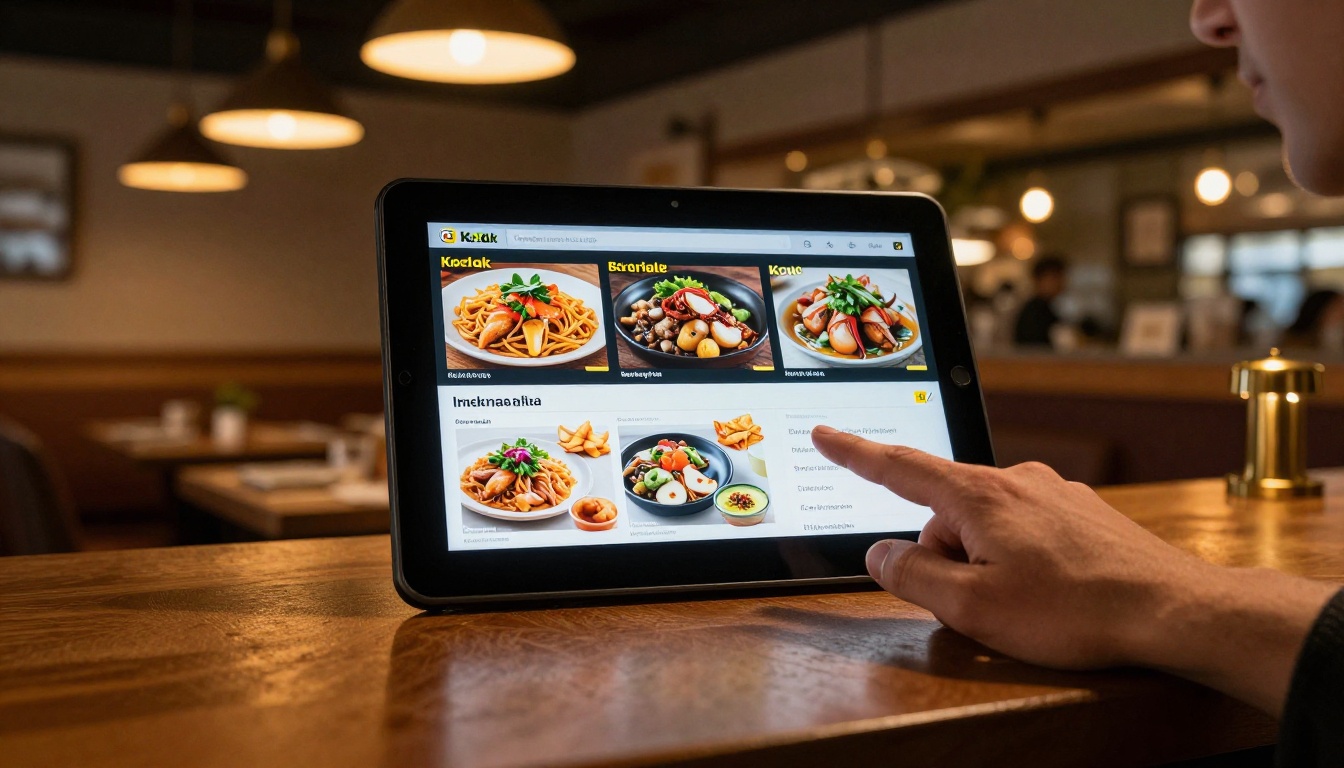
A Hotel Front Desk
A boutique hotel places an iPad on the reception counter with its welcome brochure. Guests browse the spa menu and nearby attractions while they wait. Staff never have to hand over a printed folder.
A Restaurant Host Stand
A restaurant locks the iPad to its menu flipbook. When the chef changes the specials, the team updates the flipbook once, and every kiosk shows the new version without touching the iPad.
A Car Dealership
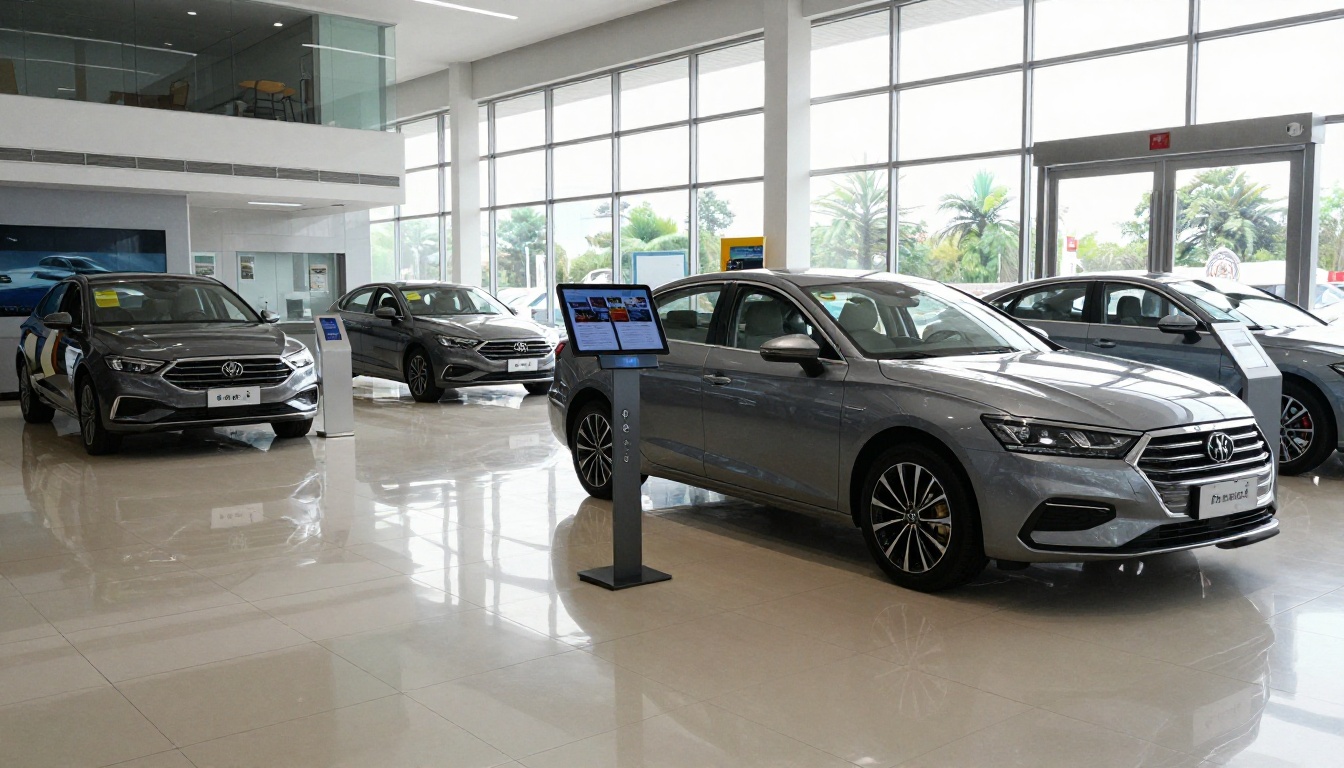
A showroom lets visitors browse brochures for every model while the sales team is busy. Because the flipbook is locked, the iPad cannot wander off to a competitor's website.
A Museum or Gallery
A wall-mounted iPad shows an exhibit catalog. The locked screen protects the experience, and staff check it only at opening and closing.
Share and Track Your Flipbook
A locked kiosk is also a way to learn what visitors read. On the Professional plan, Flipbooks AI offers analytics and lead generation, so you can see which pages get the most views. See the pricing page for plan details.
Update Without Touching the iPad
Because the iPad loads the flipbook from a link, you can replace the PDF and republish. The kiosk shows the new version after a refresh. This is the biggest advantage over a printed catalog or a stored file.
Offline Backups
Offline downloads are available on Flipbooks AI, which gives you a fallback if the venue Wi-Fi fails. Keep a copy ready for events where the network is unreliable.
Other Ways to Share
- Direct link: best for kiosks.
- Embed code: best for your website. Use the Embed Flipbook on Website tool.
- QR code: place one beside the kiosk so visitors can open the flipbook on their own phone.
Fix Common Kiosk Problems
The Flipbook Reloads to a Blank Page
Check the Wi-Fi connection first. If the network dropped, reload the page once and keep the iPad near the router. Consider a wired adapter for permanent installs.
Visitors Exit the Lock
If Guided Access ends, the usual cause is a restart or a battery that ran flat. Keep the iPad on power and re-run the session each morning.
Touch Feels Unresponsive
Clean the glass, remove thick protective films, and make sure Touch is enabled in Guided Access options.
The Screen Goes Dark
Auto-Lock is still on. Set it to Never in Display & Brightness, and set the Guided Access Display Auto-Lock option to match.
Quick Daily Checklist
- Wake the iPad and confirm the flipbook is on the first page.
- Check the power cable.
- Check Wi-Fi.
- Wipe the screen.
- Confirm Guided Access is still active.
Ready to Build Your Kiosk
A locked iPad turns a flipbook into a self-service display that runs all day without supervision. Create your flipbook, set up Guided Access, and place the iPad where people can see it.
Ready to start? Create your account on Flipbooks AI and publish your first flipbook today. Browse all flipbook tools to find a template for your catalog, menu, or brochure, then compare plans to pick the one that matches your needs. Flipbooks AI never adds watermarks, so your kiosk shows only your brand.