You have a folder full of JPG photos and you want to turn them into something people will actually want to flip through. Whether it is a vacation album, a product catalog, or a portfolio of your best shots, converting JPG files into a digital flipbook is easier than you think, and the result looks far better than a static PDF or a basic slideshow. Flipbooks AI makes this process available to anyone, no design background required.
What Is a JPG Flipbook
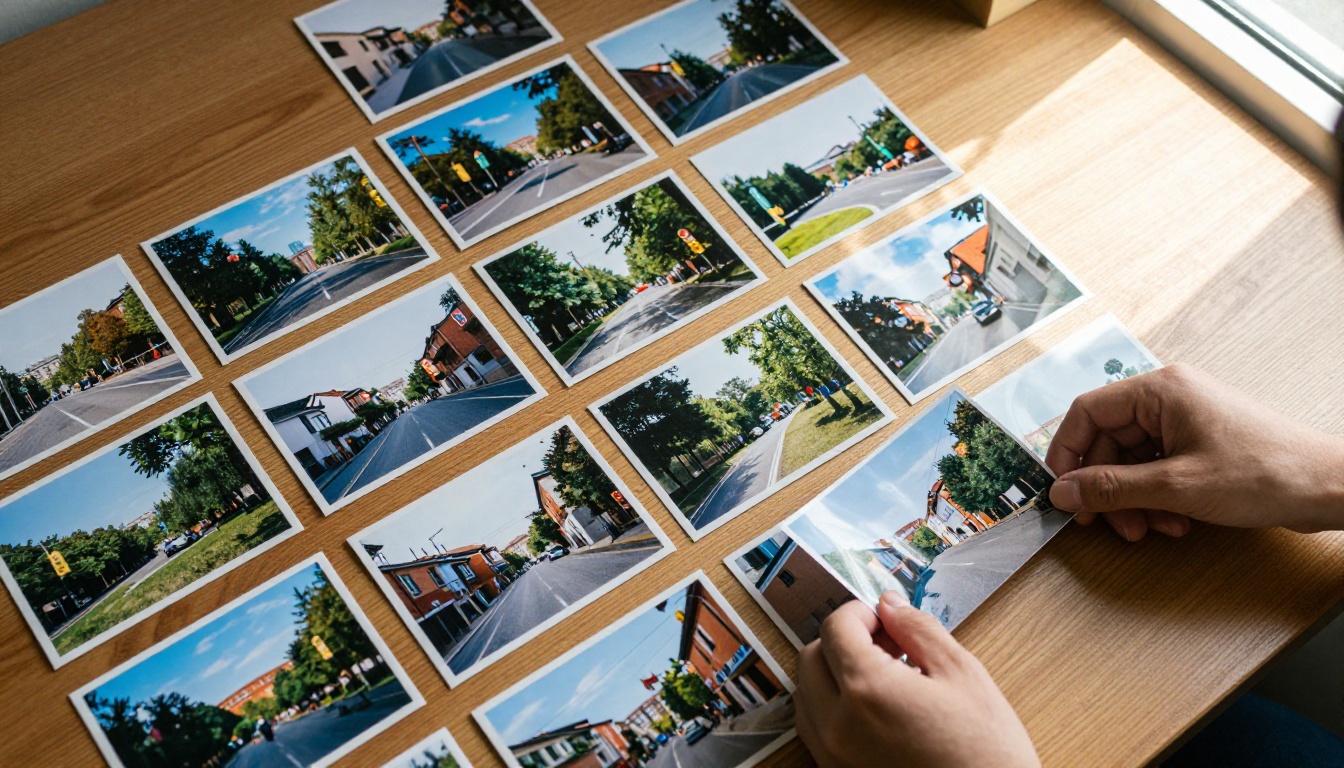
A digital flipbook mimics the physical sensation of flipping through a book, with smooth page-turn animations, zoomable pages, and interactive elements. Unlike a PDF, a flipbook is designed to be shared, embedded, and viewed on any device without losing its visual impact. The process of making one from JPG files involves a few straightforward steps that anyone can do, and the payoff is a publication that feels professional, polished, and genuinely enjoyable to read.
Why JPG Files Work So Well for Flipbooks
JPG (or JPEG) is the most common image format in the world. Cameras produce them, smartphones save them by default, and nearly every photo editing tool exports them. This means your existing photo library is already in the right format before you even open a browser tab.
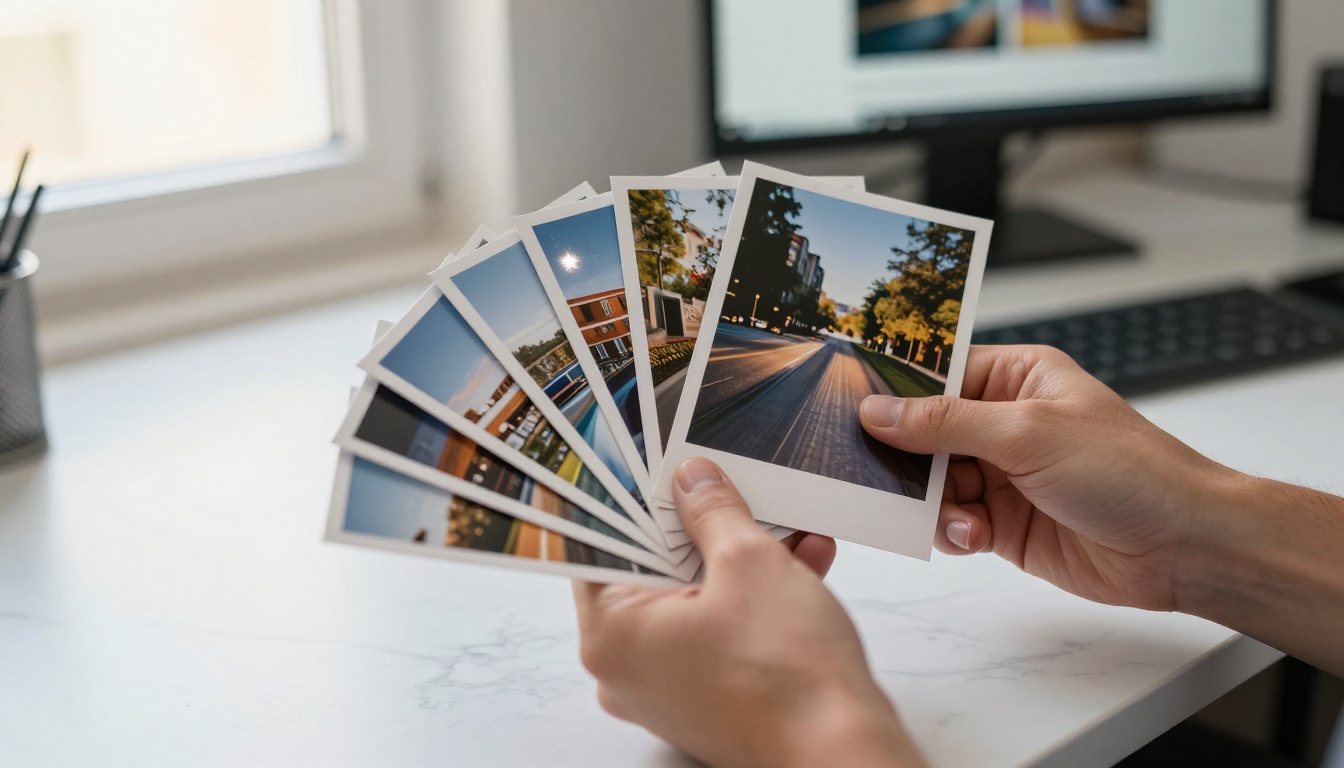
Here is why JPGs make excellent flipbook source material:
- High compatibility: Every platform and browser handles JPG files without conversion issues
- Compact file size: JPGs compress well, keeping your flipbook fast to load on any connection
- Vibrant color depth: JPG supports 24-bit color, meaning your photos look sharp and vivid in any viewer
- Instantly available: Your existing photo library is already in JPG format, no conversion needed before you start
💡 For best results, use JPG files that are at least 1920x1080 pixels. Larger source images give the flipbook engine more detail to work with when readers zoom in on pages.
JPG vs PNG vs PDF for Flipbooks
Before you start, it helps to know how JPG stacks up against other common formats for flipbook creation:
| Format | File Size | Quality | Best For Flipbooks |
|---|
| JPG | Small | High (with compression) | Photos, real-world images |
| PNG | Large | Lossless | Graphics, logos, text-heavy slides |
| PDF | Variable | Very high | Multi-page text documents |
| GIF | Small | Low (256 colors) | Simple animations only |
For photo-based flipbooks, JPG is the clear winner. PNG files are larger without meaningful quality gains for photographs, and PDF is better suited for text-heavy documents. JPG hits the sweet spot for image-forward flipbooks where visual quality and load speed both matter.
Step 1: Organize Your JPG Files
Before uploading anything, spend five minutes organizing your images. This single step saves significant frustration later and directly affects how your flipbook reads.
Name your files sequentially. Most flipbook tools load images in alphabetical or numerical order, so your file names determine the page order. Rename your files like this before uploading:
01_opening.jpg02_beach_morning.jpg03_beach_afternoon.jpg04_city_street.jpg05_final.jpg
Check your image dimensions. For a 16:9 flipbook layout, use images at 1920x1080 or larger. For a portrait book-style layout, 1080x1440 works well. Mixing orientations is possible but creates visual inconsistency.
Remove duplicates and poor-quality shots. A flipbook with 30 great photos is far more engaging than one with 80 mediocre ones. Edit ruthlessly before you import.
⚠️ If your JPG files have inconsistent dimensions, the flipbook may display them with letterboxing or stretching. Resize all images to the same aspect ratio before uploading for a clean, consistent look.
How Many Images Should a Flipbook Have
| Flipbook Type | Ideal Page Count | Reason |
|---|
| Personal photo album | 20 to 40 pages | Tells a story without overstaying |
| Product catalog | 15 to 60 pages | Depends on catalog depth |
| Photography portfolio | 15 to 25 pages | Curated selection performs better |
| Wedding album | 30 to 50 pages | Full event narrative |
| Travel journal | 25 to 45 pages | Destination by destination |
Step 2: Convert JPGs to PDF When Required
Some flipbook platforms require a PDF as input rather than individual JPG files. Converting is quick and free with several tools available across every operating system.
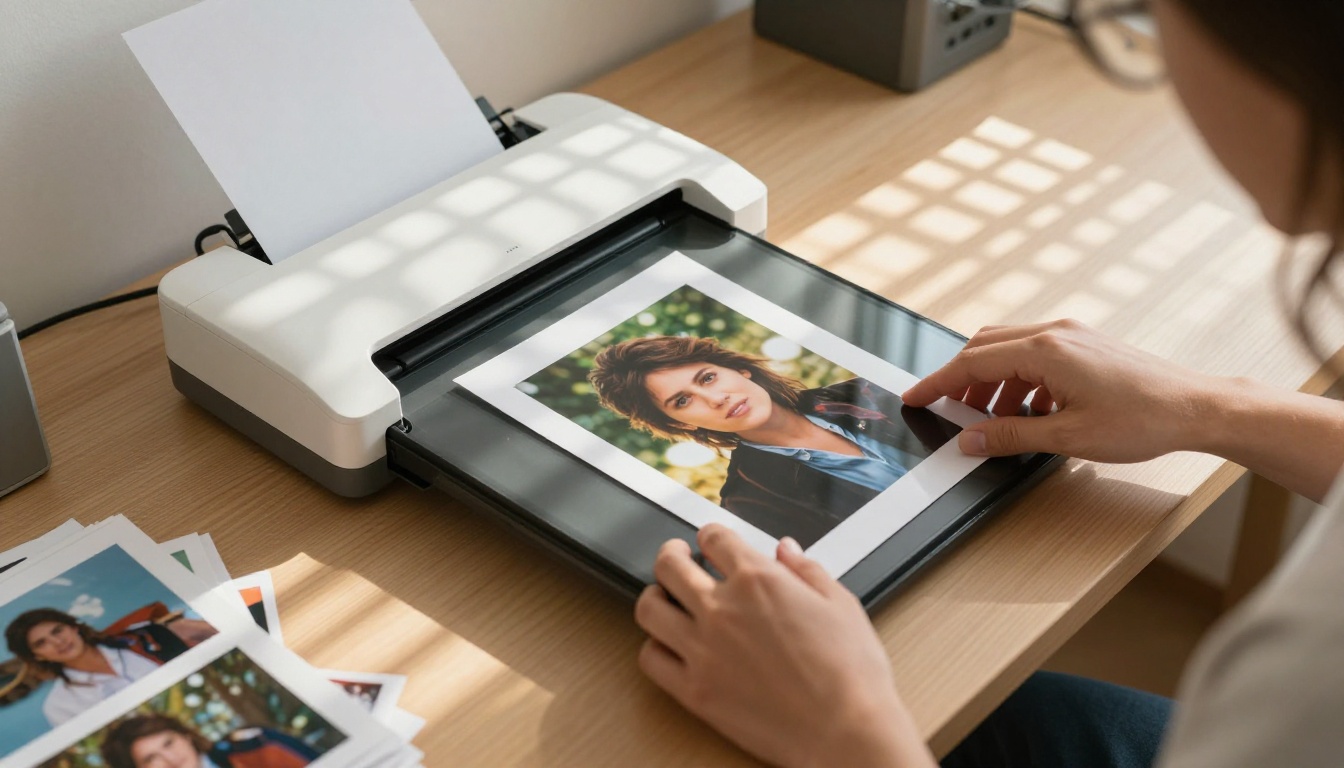
Free tools to convert JPG to PDF:
- Adobe Acrobat online: Drag and drop JPGs, download as a single PDF
- Smallpdf: Combine multiple JPGs into one PDF instantly in browser
- ILovePDF: Free batch conversion, reliable for 10 or more images
- macOS Preview: Select all JPGs, open in Preview, export as PDF
- Windows Print to PDF: Open images, print to the PDF driver built into Windows
The fastest method on Windows:
- Select all your JPG files in File Explorer
- Right-click and choose "Print"
- Select "Microsoft Print to PDF" as the printer
- Choose "Full page photo" layout to avoid white borders
- Click Print and save the resulting PDF file
On macOS:
- Select all JPG files in Finder
- Open them with Preview
- Drag and reorder images in the Preview sidebar
- Go to File, then Export as PDF
💡 If your platform accepts JPG files directly (like Flipbooks AI), skip this step entirely. Direct JPG upload is faster and avoids any quality loss that can occur during PDF compression.
Which Platforms Accept Direct JPG Uploads
Not all flipbook tools handle file formats equally. Here is how the most common options compare on format support:
| Platform | JPG Direct Upload | PDF Required | Watermark-Free | Free Plan |
|---|
| Flipbooks AI | Yes | Optional | Always | Yes |
| Issuu | No | Yes | Paid only | Limited |
| FlipHTML5 | Yes | Optional | Paid only | No |
| Yumpu | No | Yes | Paid only | Limited |
| Flipsnack | Yes | Optional | Paid only | No |
Flipbooks AI accepts JPG files directly without requiring a PDF conversion step and never adds watermarks to published flipbooks, even on the free plan.
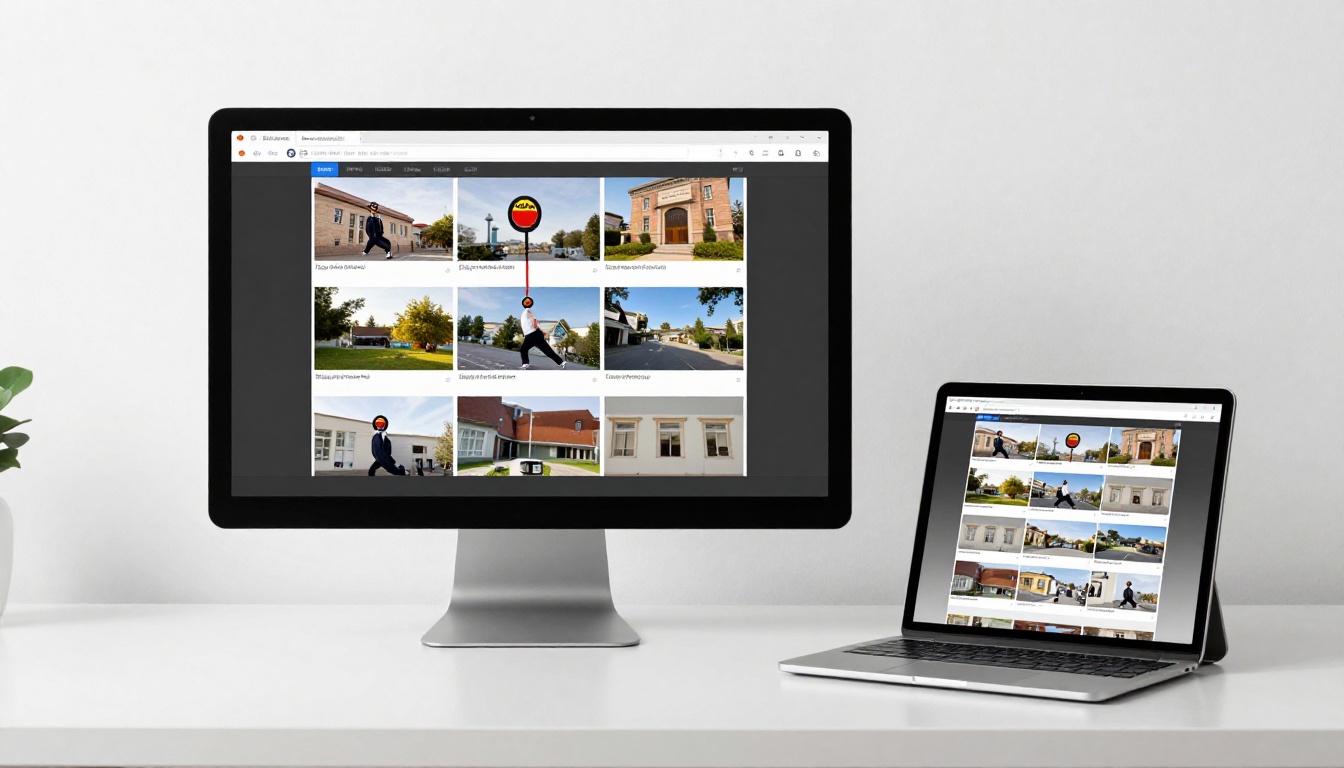
Step 3: Upload Your Images and Build Your Flipbook
Once your images are organized (and optionally converted to PDF if your platform needs it), the next step is uploading them and putting the flipbook together.
How to Create a JPG Flipbook with Flipbooks AI
Flipbooks AI is one of the fastest ways to turn JPG files into a polished digital flipbook. The process takes less than five minutes from start to shareable link.
1. Create your account
Go to flipbooksai.com/account and sign up. The free plan gives you access to the core features with no watermarks added to your published flipbooks.
2. Upload your JPG files
Click "New Flipbook" and drag your JPG images into the upload area. You can upload multiple files at once. The platform automatically sequences them based on file name order, which is why renaming files numerically in Step 1 matters.
3. Adjust page order
Once uploaded, drag pages in the editor to reorder them if needed. You can add, remove, or replace individual images without starting over from scratch.
4. Customize your flipbook
This is where Flipbooks AI separates itself from basic conversion tools:
- Custom branding: Add your logo, choose brand colors, and set a custom background
- Page effects: Select realistic page-flip animations or smooth slide transitions
- Multimedia: Embed clickable links, videos, and audio directly into specific pages
- Opening image: Set a dedicated front image with a title overlay for a polished first impression
5. Set sharing options
Choose how your flipbook reaches your audience:
- Direct link: Share a URL that opens the flipbook instantly in any browser
- Embed code: Paste an iframe snippet to embed the flipbook directly on any website
- Password protection: Restrict access with a password for private or client-only albums
- QR code: Generate a scannable code for printed materials, business cards, or event signage
6. Publish and share
Click Publish. Your flipbook is live and accessible from any device, including mobile, tablet, and desktop, with no app download required for viewers.
✅ Use password protection for personal photo albums shared with specific people, and a public link for portfolios or marketing materials that need maximum reach.
Step 4: Match Your Flipbook Setup to the Use Case
The way you configure your flipbook depends heavily on what you plan to do with it. A wedding album needs very different settings from a product catalog.
Recommended Setup by Use Case
| Use Case | Layout | Top Feature to Use |
|---|
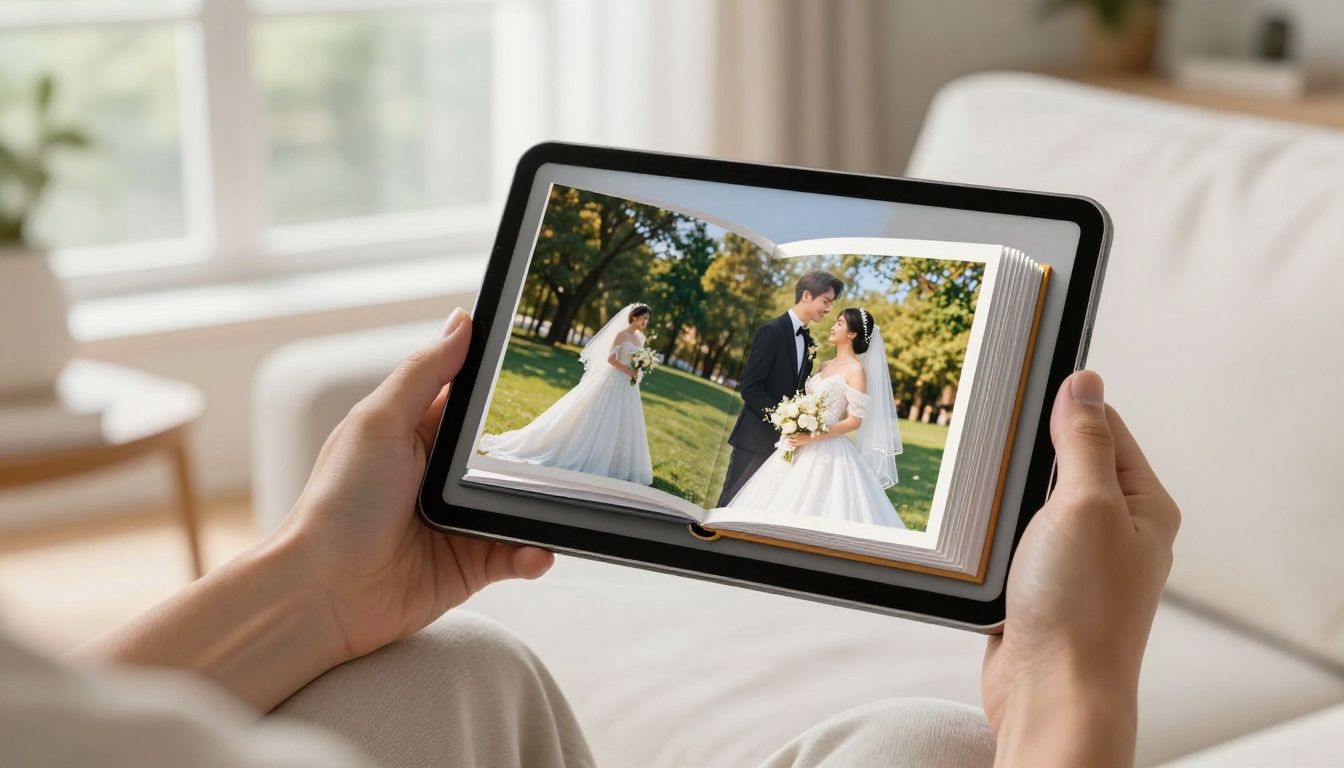
| Wedding album | Portrait, 2-page spread | Password protection, private link |
| Product catalog | Landscape, single page | Clickable product links |
| Photography portfolio | Landscape, full-bleed | Photography Portfolio tool |
| Travel journal | Mixed layout | Chapter dividers between destinations |
| School yearbook | Portrait, 2-page spread | Yearbook Flipbook Maker |
| Real estate brochure | Landscape | Real Estate Brochure tool |
| Fashion lookbook | Portrait, full-bleed | Lookbook Flipbook Builder |
For photo albums: Use a 2-page spread layout so the flipbook mimics a physical photo book. Portrait orientation feels more natural and familiar to viewers.
For product catalogs: Landscape orientation works better for showing products side by side. Enable clickable links on product images so viewers can click directly through to purchase pages.
For portfolios: Full-bleed landscape images with minimal text make your photos the centerpiece. Use the purpose-built Photography Portfolio tool for a layout designed specifically for photographers.
Step 5: Share and Distribute Your Flipbook
A flipbook nobody sees is a wasted effort. Here are the most effective distribution methods ranked by reach potential.
Sharing options ranked by reach:
- Direct URL: Copy and paste the flipbook link anywhere, email, WhatsApp, social media, text message
- Website embed: Paste the iframe code to embed the flipbook directly on your site or blog
- QR code: Print on physical materials, business cards, flyers, or packaging
- Social media: Most platforms support link previews, so sharing the URL automatically shows a thumbnail
- Email campaigns: Include a thumbnail image that links to the flipbook instead of attaching a heavy file
💡 Instead of attaching a heavy PDF to an email, share your flipbook link. It loads instantly, works on mobile, and looks far more professional than a static file download.
Tracking Who Views Your Flipbook
If you are using a flipbook for business purposes, analytics matter. With the Professional plan, Flipbooks AI gives you:
- View counts: See exactly how many times your flipbook has been opened
- Page analytics: Find out which pages viewers spend the most time on
- Lead generation: Add a contact form that appears when someone opens your flipbook
- Offline downloads: Allow viewers to save the flipbook for reading without internet access
This level of insight is invaluable for sales teams, marketers, and anyone using flipbooks as part of a client workflow. You can see which pages perform and which ones viewers skip, then refine your content accordingly.
Common Problems and How to Fix Them

Even with the right tools, a few issues trip people up when converting JPG files to flipbooks. Here is how to handle each one:
Images appear in the wrong order
Rename your files with a numerical prefix (01_, 02_, 03_) before uploading. Most platforms load files alphabetically, so numbers at the front force the correct sequence.
Images look blurry in the flipbook
Your source JPGs may be too small. The minimum recommended size is 1920x1080px. If your originals are smaller, upscaling with a tool like Topaz Gigapixel before uploading produces noticeably better results.
Some photos have different orientations
Rotate all images to the correct orientation before uploading. Photos taken in portrait mode on a phone often import sideways because EXIF rotation data is not always read correctly by every platform.
The flipbook loads slowly
Compress your JPGs before uploading. Tools like TinyJPG reduce file size by 60 to 80 percent with no visible quality loss. Aim for files under 500KB each for fast loading on mobile connections.
Colors look different in the flipbook
This is usually an sRGB versus Adobe RGB color profile issue. Convert your images to sRGB before uploading. Web browsers display sRGB correctly but can misinterpret Adobe RGB, causing colors to appear flat or shifted.
⚠️ Do not use screenshots of photos as your source images. Screenshots save at 72dpi and will look soft and pixelated in any flipbook viewer. Always use the original JPG files directly from your camera or photo library.
What Makes a Flipbook Actually Worth Flipping
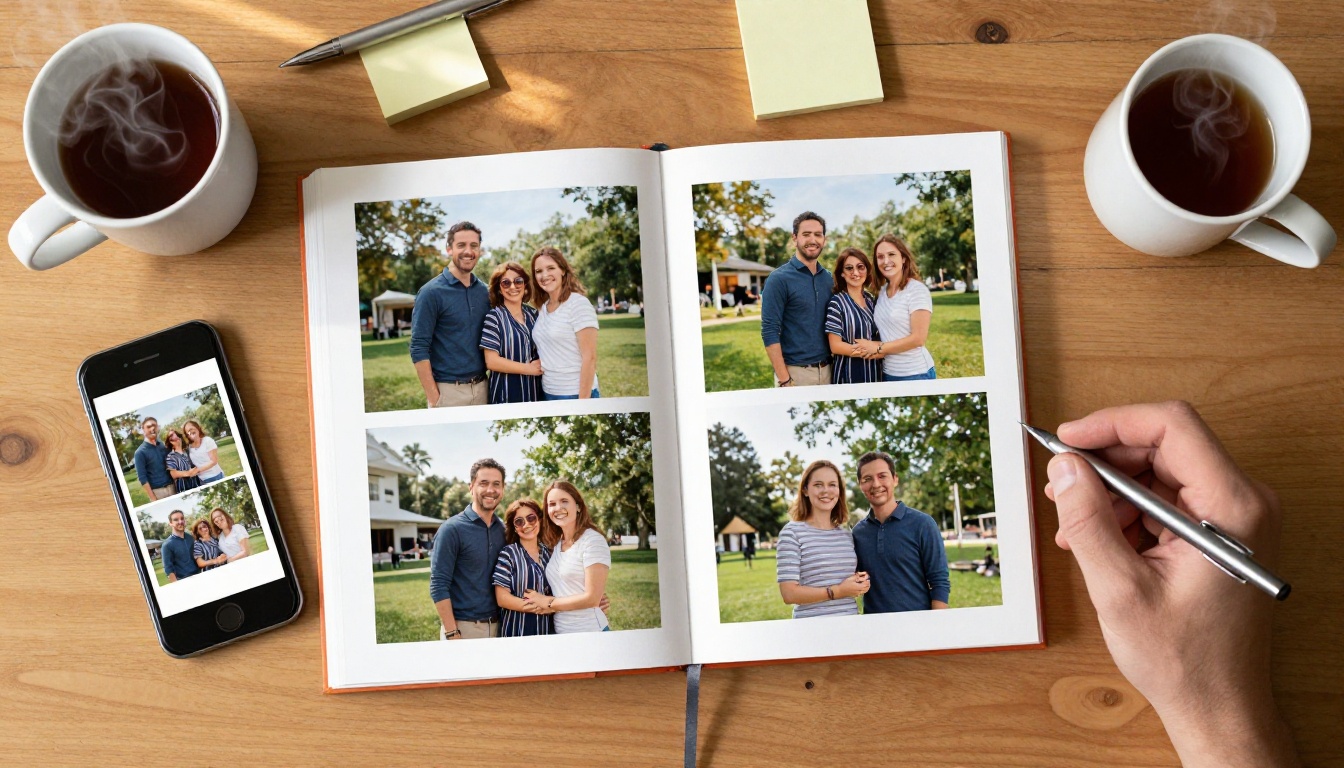
Anyone can dump images into a converter and hit publish. The flipbooks that actually impress people share a few traits worth paying attention to before you finalize yours.
Strong opening image: Your first page sets the tone for everything that follows. Use your single best image as the opening page, shot with strong composition and good lighting.
Consistent editing style: If half your photos are warm-toned and half are cool-toned, the flipbook feels disjointed. Edit your entire batch with a consistent preset or filter before importing anything.
Purposeful page flow: Think about the sequence deliberately. Start with an establishing shot, build through a narrative arc, and end with a memorable final image. The page-turn mechanic naturally encourages this kind of storytelling.
Minimal text on images: Flipbooks are visual by nature. If you need captions, keep them short, one line at most, set in a readable font at the bottom of the image without blocking the photo.
Appropriate length: 20 to 40 pages is the sweet spot for most photo flipbooks. Below 15 pages feels thin; above 60 pages, most readers will not reach the end.
Flipbooks AI Plan Features at a Glance
| Feature | Free | Standard | Professional |
|---|
| Flipbooks | 3 | Unlimited | Unlimited |
| Watermarks | None | None | None |
| Custom branding | Basic | Full | Full |
| Password protection | No | Yes | Yes |
| Analytics | No | No | Yes |
| Lead generation | No | No | Yes |
| Offline downloads | No | Yes | Yes |
| Embed on website | Yes | Yes | Yes |
✅ Start on the free plan to test the workflow with your JPG files. Move to Standard or Professional when you need unlimited flipbooks or more sharing controls. View all options at flipbooksai.com/pricing.
Your JPG Files Are Ready. Your Flipbook Should Be Too.
You now have everything you need to turn a folder of JPG photos into a flipbook people will actually want to flip through. Organize your files, pick a platform that fits your use case, and publish your first flipbook today.
If you want the fastest path with no watermarks, direct JPG upload, and professional sharing tools, get started for free on Flipbooks AI. The entire process from upload to shareable link takes under five minutes.
For specific project types, browse the full library of flipbook tools to find a purpose-built template. Whether you are putting together a wedding album, product catalog, photography portfolio, or travel journal, there is a dedicated tool that makes the process even smoother.
When you are ready to add analytics, lead generation, or unlimited storage, compare pricing plans to find the right fit for your work.
Your photos are already waiting. All they need is the right platform to bring them to life.



