You spent hours polishing a Keynote deck, and then the email bounced because the file was 180 MB. Or the recipient opened it on a Windows laptop and every font turned into something else. Learning how to make a flipbook from Keynote slides on a Mac fixes both problems at once: your slides become a lightweight, page-turning document that opens in any browser. In this tutorial you will export your deck, convert it with Flipbooks AI, polish the result, and share it with one link.
Why Turn Keynote Slides Into a Flipbook
Keynote is wonderful for presenting live. It is much weaker as a file you send to other people. A flipbook keeps your design intact and adds the feel of a real publication.

The Problem With Sending .key Files
A native Keynote file depends on the app, the fonts, and the macOS version of whoever opens it. Anyone on Windows, Android, or a Chromebook is stuck. Large videos and high-resolution photos also push file sizes past email limits.
What a Flipbook Does Better
A flipbook is a web page. There is nothing to install and nothing to download. Readers flip pages with a swipe or a click, zoom into details, and read on a phone just as comfortably as on a desktop.
| Feature | Keynote File (.key) | Shared PDF | Flipbook |
|---|
| Opens on Windows and Android | No | Yes | Yes |
| Page-turning animation | No | No | Yes |
| Lightweight to share | No | Sometimes | Yes, one link |
| Tracks who read it | No | No | Yes (Professional plan) |
| Password protection | No | Limited | Yes |
| Looks like a real publication | No | No | Yes |
💡 Pro tip: Flipbooks work best for decks that people read on their own time: sales proposals, investor updates, pitch decks, course material, and portfolios. For live talks, keep presenting from Keynote.
What You Need Before You Start
The setup is short. You do not need any design software beyond what ships with your Mac.
- A Mac running a recent version of macOS
- Keynote installed (it is free from the App Store)
- A finished slide deck
- A free account on Flipbooks AI
- A web browser such as Safari or Chrome
Prepare Your Deck First
A few small changes before export make the final flipbook look far better.
- Use a consistent slide size. Pick 16:9 for screens or 4:3 for a more book-like feel and stick with it.
- Check your fonts. Fonts are embedded during PDF export, but confirm nothing looks off in the preview.
- Reduce image weight. Oversized photos slow loading. Keynote can optimize them under File, then Reduce File Size.
- Remove speaker-only content. Hidden slides and presenter notes should not end up in a public document.
- Add readable text. Text smaller than 18 points becomes hard to read on a phone.
How to Export Keynote to PDF on Mac
The bridge between Keynote and a flipbook is a PDF. Exporting takes less than a minute.
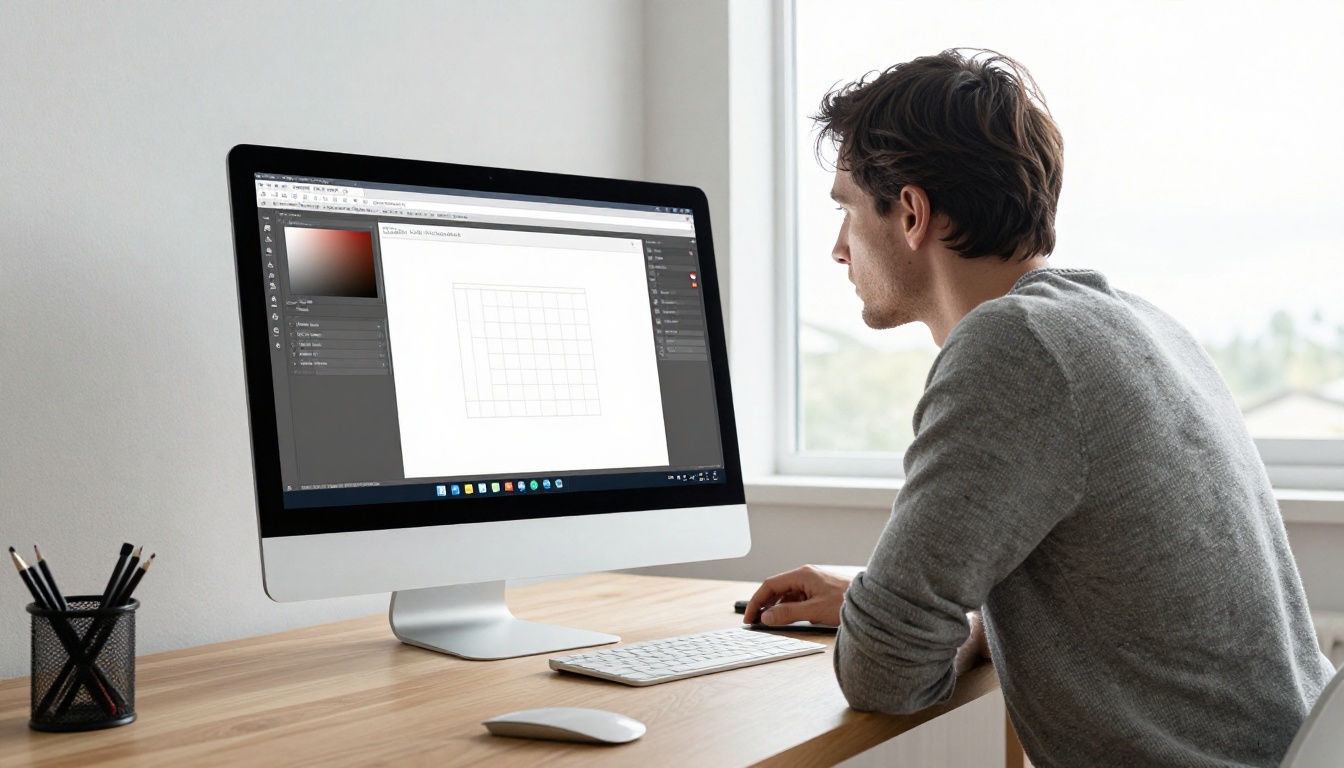
Step by Step Export
- Open your presentation in Keynote.
- Click File in the menu bar, then Export To, then PDF.
- In the dialog, set Image Quality to Best for sharp photos, or Good for a smaller file.
- Under Print Each Slide, choose Each stage of builds only if you want animation steps as separate pages. Otherwise leave it unchecked.
- Leave Include skipped slides unchecked unless you need them.
- Click Next, name the file, pick a location, and click Export.
Choosing the Right Export Settings
| Setting | Best For | Result |
|---|
| Best quality | Photography, design portfolios | Sharp but larger file |
| Good quality | Text-heavy reports, proposals | Balanced size and clarity |
| Each stage of builds | Step-by-step tutorials | More pages, shows progression |
| Include slide numbers | Reference documents | Easier to cite pages |
⚠️ Warning: Animated transitions and embedded movies do not carry over into a PDF. If your deck relies on video, plan to add it back inside the flipbook after conversion.
How to Create a Flipbook with Flipbooks AI
With your PDF ready, the conversion itself is quick. The PDF to Flipbook Converter handles the heavy lifting, and the Presentation Flipbook Designer is built for exactly this kind of deck.

Step 1: Create Your Account
Head to Flipbooks AI and sign up. You can start without a credit card. If you later need unlimited flipbooks or analytics, compare the pricing plans.
Step 2: Upload the PDF
- Click the button to create a new flipbook.
- Drag your exported PDF into the upload area, or click to browse your Mac.
- Wait a few seconds while the conversion runs. Each slide becomes a page.
You will see a preview with realistic page-turning right away. Pages keep their original sharpness, so charts and photos stay crisp.
Step 3: Customize the Look
This is where a plain export becomes something that feels designed.

- Branding: Add your logo and choose a background color that matches your brand.
- Page effects: Pick the page-turn style and speed.
- Toolbar: Show or hide zoom, fullscreen, sharing, and download buttons.
- Multimedia: Embed videos and audio to replace the animations Keynote could not export.
- Cover and background: Set a clean backdrop so the slides stand out.
Step 4: Publish and Share
Click publish and you get a link instantly. There is no watermark on any plan.
Sharing Options That Fit Your Audience
How you share depends on who needs to see it. Flipbooks AI offers several routes from the same flipbook.
| Method | Best For | Notes |
|---|
| Direct link | Email, chat, social posts | Fastest option |
| Embed code | Websites and landing pages | See the Embed Flipbook on Website tool |
| Password protection | Investor decks, client proposals | Only people with the password can read |
| Offline download | Travel, poor connections | Readers keep a copy |
| QR code | Print materials, events | Links paper to the digital flipbook |
Protect Private Decks
If your deck contains pricing, financials, or unreleased plans, add a password before you send the link. Share the password through a separate channel such as a text message for better security.
✅ Best practice: Use a different password for every client or investor. If one person shares it, you only need to change that one.
Embed It on Your Website
Paste the embed code into your site builder and the flipbook appears inline, with no redirect. This works well for case studies and product walkthroughs that you want visitors to read without leaving your page.
Real-World Examples That Work
Seeing how other people use this makes it easier to picture your own setup.
- Sales teams: A rep exports a proposal deck and sends a flipbook link. The prospect reads it on a phone during a commute. The Sales Presentation tool fits this case.
- Teachers: A lecturer shares Keynote lecture slides as a flipbook with students. Everyone gets the same layout regardless of device. The Course Material Publisher helps here.
- Designers: A freelancer builds a portfolio in Keynote and publishes it with the Digital Portfolio Creator.
- Startups: Founders share a pitch deck with a password and watch who opens it.
- Event organizers: A program built in Keynote becomes a flipbook with the Event Program Maker.

Choosing Between Tools
| Goal | Suggested Tool |
|---|
| Share a slide deck as a readable document | Presentation Flipbook Designer |
| Publish a long report from slides | Report Flipbook Creator |
| Show work visually | Portfolio Flipbook Builder |
| Send a quick one-off file | PDF to Flipbook Converter |
You can browse every option in the full flipbook tools directory.
Make It Work on Phones and Tablets
More than half of readers will open your link on a phone. Keynote slides are built for wide screens, so a few habits help.
Design for Small Screens
- Keep one idea per slide.
- Use large, high-contrast text.
- Avoid tiny footnotes. Move them into the body or drop them.
- Test the flipbook on your own phone before sending it.
The flipbook is mobile responsive, so pages scale and readers can pinch to zoom. Even so, clean slides always read better than crowded ones.
Common Mistakes to Avoid
- Exporting at low quality. Blurry pages look unprofessional. Use Best for photo-heavy decks.
- Leaving speaker notes in. Double check the export settings.
- Forgetting the link. Add a call to action on your final slide, such as a website or booking link.
- Skipping a test. Open the flipbook on two devices before it goes out.
- Ignoring file size. Reduce oversized images in Keynote first.
Track Who Reads Your Flipbook
Once your flipbook is live, you can see what happens to it. On the Professional plan, analytics show how many people opened it, which pages held attention, and where readers dropped off. Lead generation lets you ask for an email address before someone reads, which turns a shared deck into a real list of contacts. Check the pricing page to see which plan includes these tools.
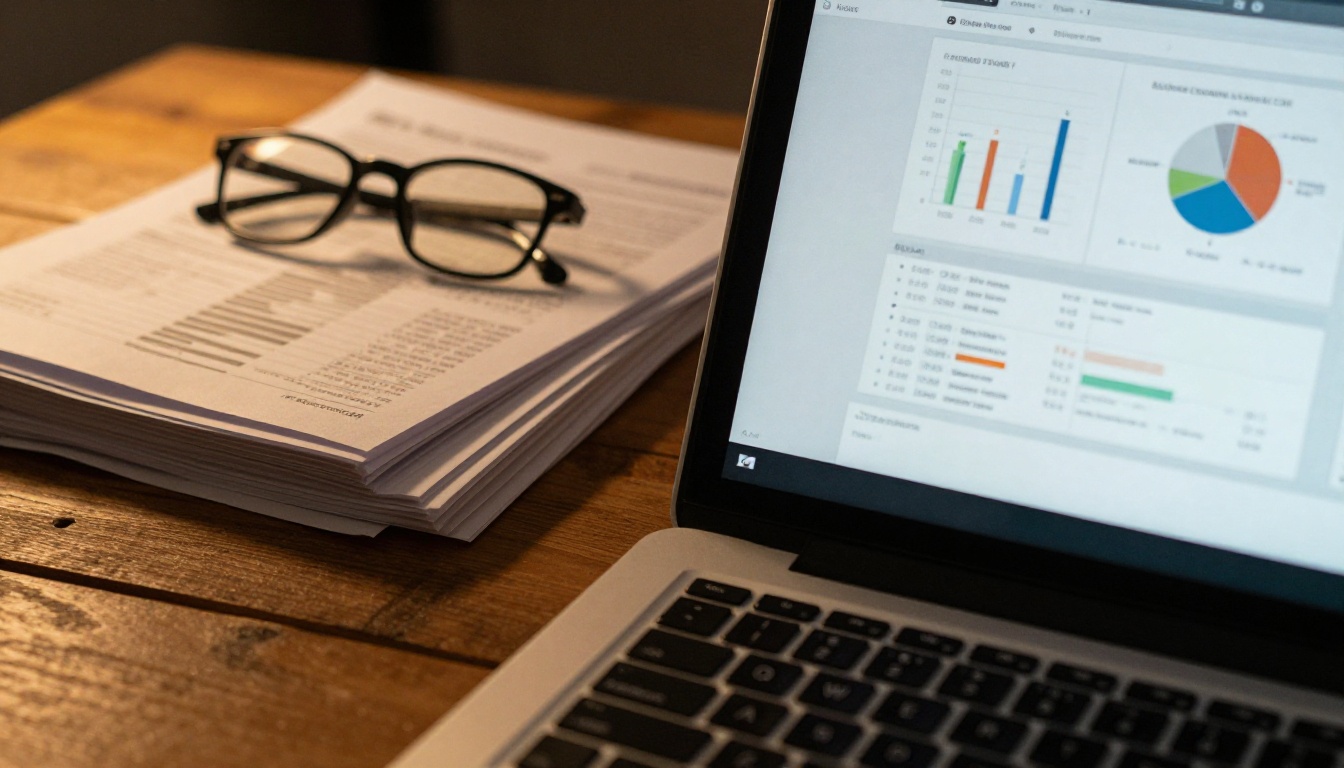
Using the Data
- Pages with long reading time show what interests people. Expand those topics.
- Pages where readers leave may be too dense. Simplify them.
- Repeat visits often signal serious buyers. Follow up quickly.
| Metric | What It Tells You | Action |
|---|
| Total views | Reach of the deck | Adjust distribution |
| Time per page | Which slides matter | Strengthen strong slides |
| Drop-off page | Where interest ends | Shorten or reorder |
| Lead captures | Who is interested | Send a personal follow-up |
Quick Troubleshooting
If something looks wrong, these fixes solve most issues.
- Text looks fuzzy: Re-export the PDF with Best image quality.
- Pages are cut off: Check that the slide size in Keynote matches what you intended before exporting.
- File is too large to upload: Reduce image size in Keynote, then export again at Good quality.
- Animations are missing: Export each stage of builds, or embed a short video in the flipbook.
- Colors look different: Keynote may use a wide color profile. Export again and compare in the preview.
💡 Pro tip: Save your Keynote file and your PDF with matching names and dates. When you update the deck, re-export and upload a new version so your link and your slides stay in sync.
Your Next Flipbook Starts Now
You now know the whole path: prepare the deck, export it to PDF, upload it, customize it, and share a link. The first time takes about ten minutes. After that, updating a deck is closer to two.
Ready to turn your slides into something people actually finish reading? Get started for free on Flipbooks AI, browse the tools and templates that match your project, and compare pricing plans when you need unlimited flipbooks, analytics, or lead generation.



