If you run a WordPress site and want to make your PDFs, catalogs, or publications actually worth reading, you need a flipbook. Static PDF downloads get ignored. Embedded flipbooks with realistic page-turn animations get clicked, scrolled, and shared. The good news is that adding one to WordPress takes less than 10 minutes, and you do not need to write a single line of code. Flipbooks AI is one of the fastest ways to do it.
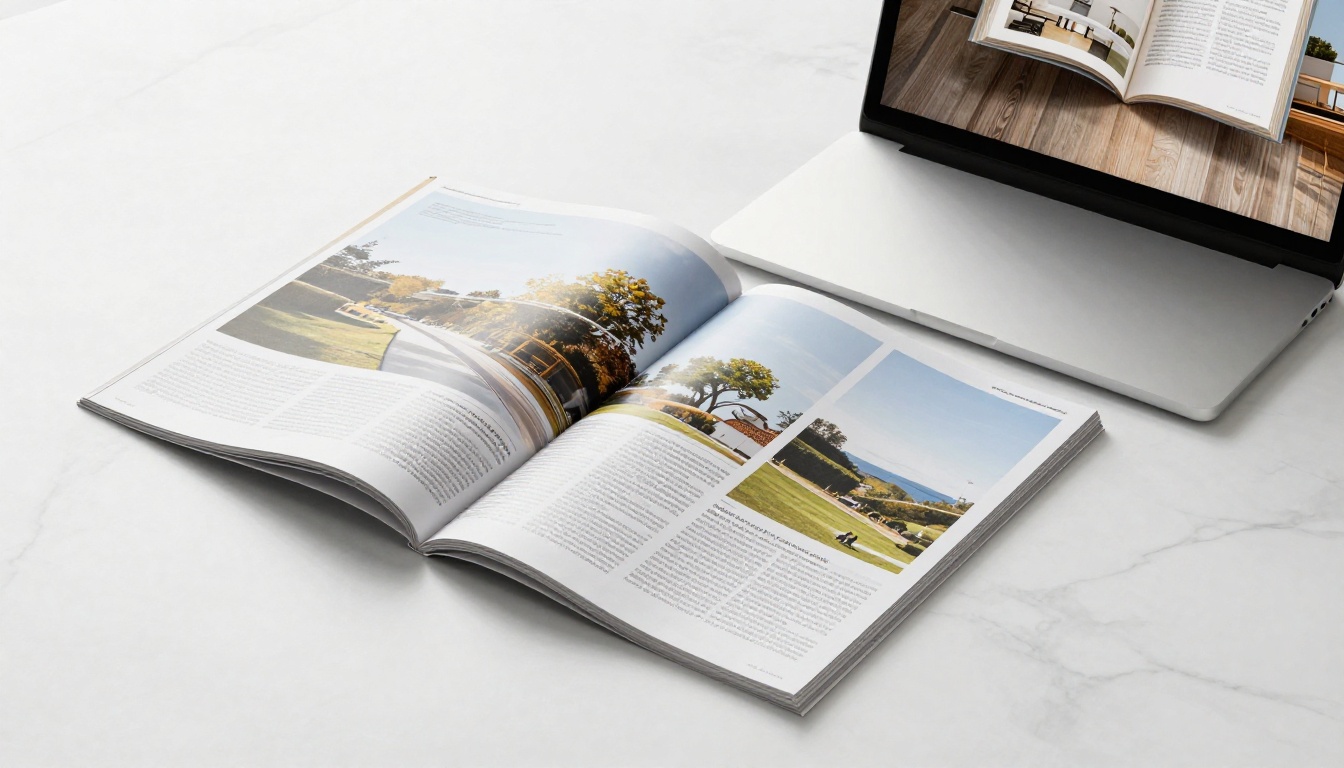
Why Flipbooks Beat Static PDFs
Most WordPress sites handle documents the same way: upload a PDF, link to it, hope visitors open it. The reality is that bounce rates on PDF links are brutal. Visitors expect a web experience, not a file download that opens a separate app or tab with no navigation, no branding, and no way back to your site.
Flipbooks change the equation. They load directly in the browser, support page-turn animations, work on mobile, and can embed videos and audio inside the pages. For content like product catalogs, restaurant menus, real estate brochures, portfolios, and e-books, the difference in time-on-page and conversion rates is significant.
The Numbers Worth Knowing
Interactive content consistently outperforms static documents in digital publishing:
- 3-5x longer average time spent on interactive flipbooks vs. plain PDF links
- Mobile-first reality: Over 60% of web traffic is mobile, and flipbooks are responsive by design
- SEO signal: Visitors staying longer on your page reduces bounce rate and sends positive ranking signals
- Lead capture: Professional-tier flipbook platforms allow gated access and lead forms built directly into the flipbook pages
- Shareability: A flipbook has its own URL and embeds anywhere, while a PDF link breaks constantly
What WordPress Does Not Offer by Default
WordPress has no native flipbook feature. Out of the box, you can embed a PDF using a viewer plugin or link directly to a file, but neither gives you the page-turn experience, interactive navigation, or embedded media support that a dedicated flipbook tool provides. You need a third-party solution, and there are three realistic paths to get there.
3 Ways to Add a Flipbook to WordPress
Before picking a method, understand what each approach actually involves. The three main options are: a dedicated flipbook platform with an embed code, a WordPress-specific flipbook plugin, or a direct iframe embed.
| Method | Effort Level | Cost | Best For |
|---|
| Flipbook Platform + Embed Code | Low | Free to paid | Professional, branded results |
| WordPress Flipbook Plugin | Medium | Free to paid | Self-hosted, offline use |
| Direct iframe Embed | Low-Medium | Depends on source | Quick one-off embeds |
Method 1: Use a Flipbook Platform and Embed Code
This is the recommended approach for most WordPress users. You create and host your flipbook on a dedicated platform like Flipbooks AI, then paste a short embed code snippet into your WordPress page or post.
Why it works well:
- The heavy lifting (rendering, hosting, page-turn engine) happens off your server
- No WordPress plugin conflicts or compatibility issues
- Your flipbook works even if your hosting plan is slow or limited
- Updates to the flipbook reflect automatically on your WordPress page without editing the post
- The flipbook is also accessible via its own shareable URL independently of WordPress
Method 2: Use a WordPress Flipbook Plugin
Several plugins in the WordPress repository add flipbook functionality directly to your site. You upload a PDF through the plugin interface, configure settings in the WordPress admin panel, and insert a shortcode wherever you want the flipbook to appear.
The tradeoff: Plugin-based flipbooks run on your server, so performance depends entirely on your hosting. Many free plugins include watermarks or page limits. The rendering quality is often noticeably inferior to dedicated platforms, and plugin maintenance can become a liability as WordPress updates roll out.
Method 3: Direct iframe Embed
If your flipbook is already hosted somewhere (a flipbook platform, a file storage service, or another tool), you can embed it using an HTML iframe block in the Gutenberg editor. This is the most flexible option but requires a bit more manual configuration for sizing and responsiveness.
How to Create Your Flipbook with Flipbooks AI
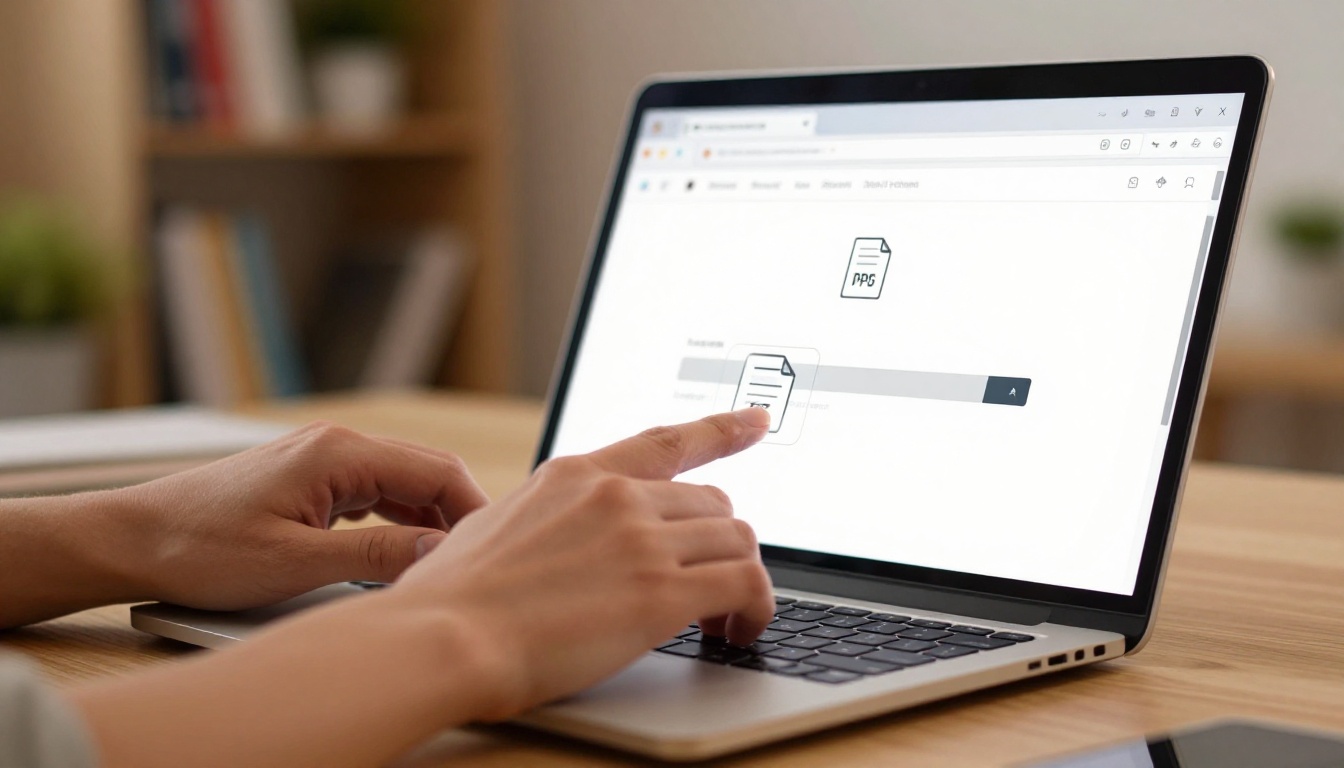
Flipbooks AI converts any PDF into a polished, page-turning digital publication in seconds. Here is exactly how to do it, from upload to live WordPress embed.
Step 1: Upload Your PDF
- Go to flipbooksai.com and create a free account
- Click New Flipbook from your dashboard
- Drag and drop your PDF file into the upload area, or click to browse your files
- Wait for the conversion, typically under 30 seconds for most documents
- Preview the result in the dashboard before moving forward
💡 Pro Tip: Make sure your PDF uses high-resolution images before uploading. The flipbook rendering preserves the original quality, so a low-res source PDF will produce a low-res flipbook. Export from your design tool at 150 dpi or higher.
Step 2: Customize Your Flipbook
Once converted, the Flipbooks AI editor lets you personalize the experience:
- Branding: Add your logo, choose brand colors for the toolbar and page background
- Page effects: Enable realistic page shadows and curl effects for an authentic book feel
- Table of contents: Auto-generated from PDF bookmarks for easy navigation
- Multimedia: Embed YouTube videos or audio clips directly on specific pages
- Password protection: Lock access to private or client-facing documents
- Custom domain: Point the flipbook to your own subdomain for a fully branded experience
Step 3: Get Your Embed Code
- Open your flipbook in the Flipbooks AI dashboard
- Click Share or Embed in the top action bar
- Copy the embed code snippet (an
<iframe> tag with your flipbook's unique URL)
- Optionally, set the desired width and height in the embed settings panel before copying
Step 4: Paste the Code into WordPress
In Gutenberg (Block Editor):
- Edit the page or post where you want the flipbook to appear
- Click the + button to add a new block
- Search for and select the Custom HTML block
- Paste your embed code into the block content area
- Click Preview to verify the flipbook renders correctly
- Hit Publish or Update to go live
✅ Best Practice: Set the iframe width to 100% and choose a height that works on both desktop and mobile. 600px is a reliable starting point for landscape-oriented flipbooks. For portrait documents like e-books or menus, 750-800px works better.
Embedding Flipbooks in WordPress: Page Builders

The exact steps vary depending on which editor or page builder your WordPress site uses. Here is how the process works across the most popular options.
Gutenberg Block Editor
Gutenberg is the default WordPress editor since version 5.0. To embed a flipbook:
- Use the Custom HTML block for full iframe embed codes from any platform
- Use the Embed block if the flipbook platform supports oEmbed auto-detection
- Set the block alignment to Wide Width or Full Width in the block toolbar for better visual impact
- The block preview may not render the iframe in the editor, but it will display correctly on the published page
Elementor
Elementor users have two clean options for embedding flipbooks:
- HTML Widget: Drag it onto your canvas, paste the embed code, save. No additional configuration needed.
- Video Widget: Only applicable if the flipbook platform outputs a video preview URL
💡 Pro Tip: In Elementor, place your HTML widget inside a Section set to 100% width with zero column padding. This gives your flipbook the full visual real estate it deserves and eliminates side-margin cropping on mobile.
Divi and Other Builders
Every major page builder supports raw HTML insertion through a dedicated module:
- Divi: Use the Code Module and paste the embed code
- Beaver Builder: Use the HTML Module in the content panel
- Bricks Builder: Use the Code element in the structure panel
- WPBakery: Use the Raw HTML element

This is the question most WordPress users get stuck on. Here is an honest, feature-by-feature breakdown so you can make the right call for your situation.
Feature Comparison
| Feature | WordPress Plugin | Flipbooks AI Platform |
|---|
| No watermarks | Sometimes (paid) | Always (Standard+) |
| Mobile responsive | Varies by plugin | Always |
| Custom branding | Limited | Full control |
| Password protection | Rare | Yes |
| Analytics dashboard | No | Yes (Professional) |
| Lead generation forms | No | Yes (Professional) |
| Embed video/audio in pages | No | Yes |
| Offline downloads | No | Yes |
| Hosted off your server | No | Yes |
| Unlimited flipbooks | Varies | Yes (Standard+) |
| Auto-updates | Plugin updates only | Platform updates, no action needed |
Cost Breakdown by Approach
| Approach | Free Tier Available | Watermark-Free | Server Load |
|---|
| Free WordPress Plugin | Yes | No | On your server |
| Premium WordPress Plugin | No | Sometimes | On your server |
| Flipbooks AI Standard | No | Yes | Off your server |
| Flipbooks AI Professional | No | Yes + Analytics | Off your server |
⚠️ Warning: Many free WordPress flipbook plugins add their own branding watermark to every flipbook. For business or client sites, this looks unprofessional and undermines the content. Always check licensing terms before using a free plugin commercially.
For most WordPress site owners, the platform approach wins on features, reliability, loading speed, and the final visual quality of the flipbook. Check pricing plans on Flipbooks AI to find what works for your budget and publishing volume.
Common Mistakes When Embedding Flipbooks

These are the issues that come up most often, and how to fix them before they cost you time or hurt the experience for your visitors.
Mobile Responsiveness Problems
The most common issue is a flipbook that looks great on desktop but breaks on mobile, either overflowing its container or appearing too small to read. This happens when the iframe has a fixed pixel width instead of a percentage.
Fix: Set width="100%" in your embed code. Most platforms including Flipbooks AI generate responsive embed codes by default, but double-check the code before publishing.
Loading Speed Problems
A heavy iframe can slow your page load, especially if your hosting is already stretched thin. This is one of the core reasons to use a hosted platform rather than a self-hosted plugin. When your flipbook is hosted on Flipbooks AI's CDN, none of the rendering load hits your WordPress server, and visitors in any region get fast loading through global edge caching.
Fix: Use a platform-hosted flipbook. If you must use a plugin, enable lazy loading so the iframe only initializes when scrolled into view, which speeds up initial page load significantly.
Wrong Embed Dimensions
A flipbook that appears cropped at the edges, or surrounded by large empty white space, is almost always a mismatch between the iframe dimensions and the flipbook's natural aspect ratio.
Fix: Match your iframe height to the flipbook's natural page orientation. For A4 portrait documents, a roughly 3:4 ratio works well. For landscape brochures and catalogs, 16:9 is the right fit.
⚠️ Warning: Never apply overflow: hidden to a container wrapping a flipbook iframe without testing across multiple devices. It can clip the navigation arrows, page controls, and toolbar that readers need to actually use the flipbook.
Real-World Use Cases on WordPress Sites
Every type of WordPress site benefits from flipbooks differently. Here are three scenarios where the impact is immediately visible.
WooCommerce Product Catalogs
Online stores using WooCommerce can embed a product catalog flipbook directly on their shop page or a dedicated catalog landing page. Instead of directing customers to a PDF download that opens in a separate app, visitors browse the catalog interactively and flip through pages without leaving the site.

The Product Catalog Generator and Digital Catalog Maker on Flipbooks AI are built for exactly this. You can embed the resulting flipbook on any WooCommerce page using the steps above, and update the catalog seasonally without touching the WordPress embed code.
Real scenario: A furniture retailer creates a seasonal lookbook in Canva, exports to PDF, uploads to Flipbooks AI, and embeds the flipbook on their WordPress homepage. Visitors browse the full catalog without leaving the site, and the retailer tracks which pages get the most views through the analytics dashboard, informing what products to feature in the next campaign.
Restaurant Menus on WordPress
Restaurants with WordPress sites often want their menu online but dread the maintenance of updating HTML tables or editing page content every time prices change. A flipbook solves this problem cleanly.
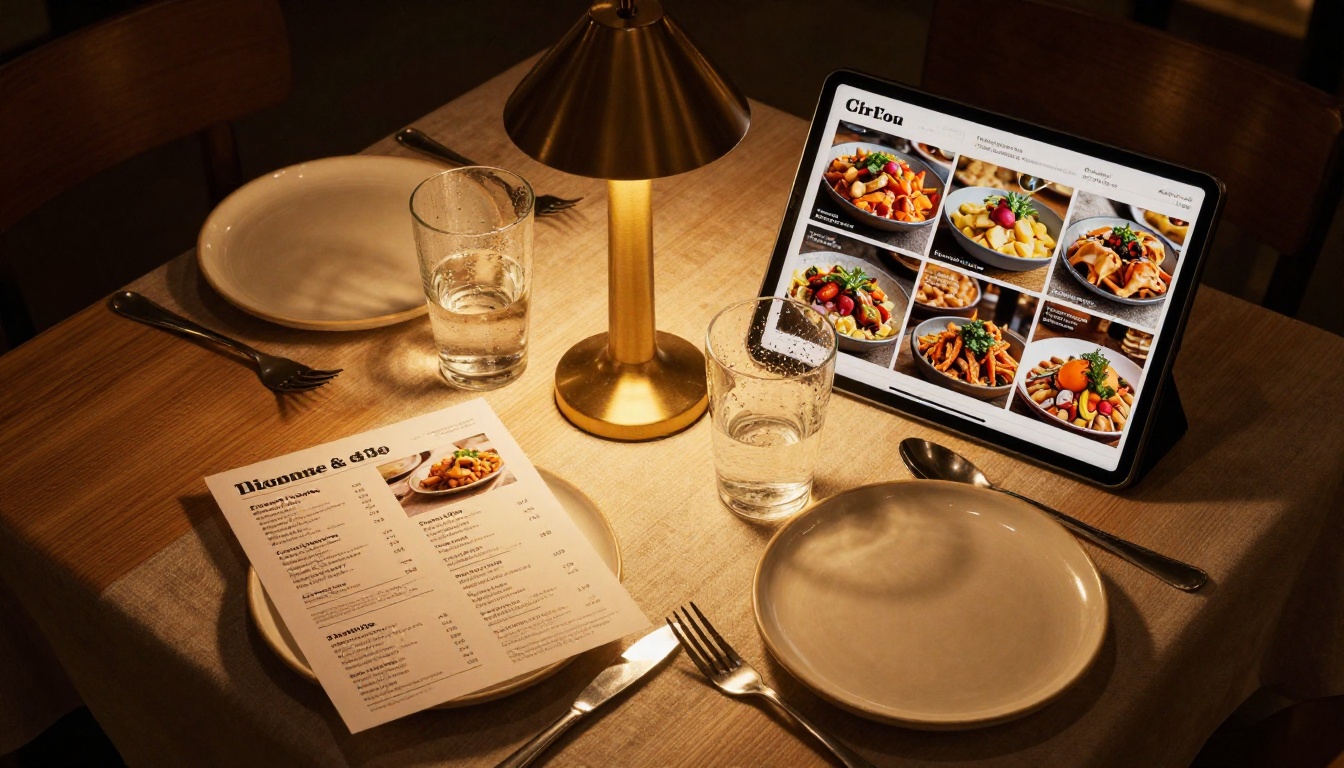
Use the Restaurant Menu Creator on Flipbooks AI to build a designed menu, export it, and embed it on your WordPress menu page. When prices or dishes change, update the source PDF and re-upload. The embed code on WordPress stays exactly the same, so no page editing is needed.
Portfolio Sites for Creatives
Photographers, designers, architects, and illustrators often use WordPress for their portfolio. A flipbook transforms a flat image gallery into a curated magazine-style presentation that clients remember.

The Digital Portfolio Creator and Photography Portfolio tools on Flipbooks AI are purpose-built for this. Embed the flipbook on your WordPress portfolio page for a presentation that actually impresses clients instead of sending them to a Google Drive folder.
Real scenario: A freelance architect adds a project portfolio flipbook to their WordPress site's homepage. Instead of a static image grid, visitors flip through a beautifully designed booklet of past projects with floor plans, renderings, and photography. The architect uses password protection to share client-specific versions privately, and the analytics dashboard shows exactly which projects get the most attention from prospective clients.
Real Estate and Property Brochures
Real estate agents and agencies embed property brochures directly on listing pages using WordPress. Visitors browse the full property presentation without downloading anything. The Real Estate Brochure Creator produces polished, branded brochures for every listing in minutes, and embedding them in WordPress takes less than two minutes per page.
Your First Flipbook Starts Here
WordPress does not make adding a flipbook complicated, once you know which method to use. The platform-plus-embed approach is the fastest, most reliable, and most visually impressive option for the vast majority of WordPress sites, and it requires zero plugin installations or compatibility testing.
Ready to do it? Create your free account on Flipbooks AI and have your first flipbook embedded in WordPress within the next 15 minutes.
Not sure which plan fits your publishing volume? Compare pricing plans side by side to see what features are available at each tier, including analytics, lead generation, and offline downloads.
If you want to see everything that is possible, browse the full list of flipbook tools covering menus, catalogs, annual reports, e-books, portfolios, lookbooks, and event programs. Whatever you publish on WordPress, there is a tool built specifically for it.



