Making a digital flipbook on your phone is something most people don't realize they can do in under five minutes. Whether you're putting together a product catalog, a photo album, a restaurant menu, or an event program, the process is faster than you'd expect, and you don't need to be a designer to pull it off. Flipbooks AI makes the whole thing work directly from your mobile browser on iOS or Android, with no app download required.
What a Digital Flipbook Actually Is
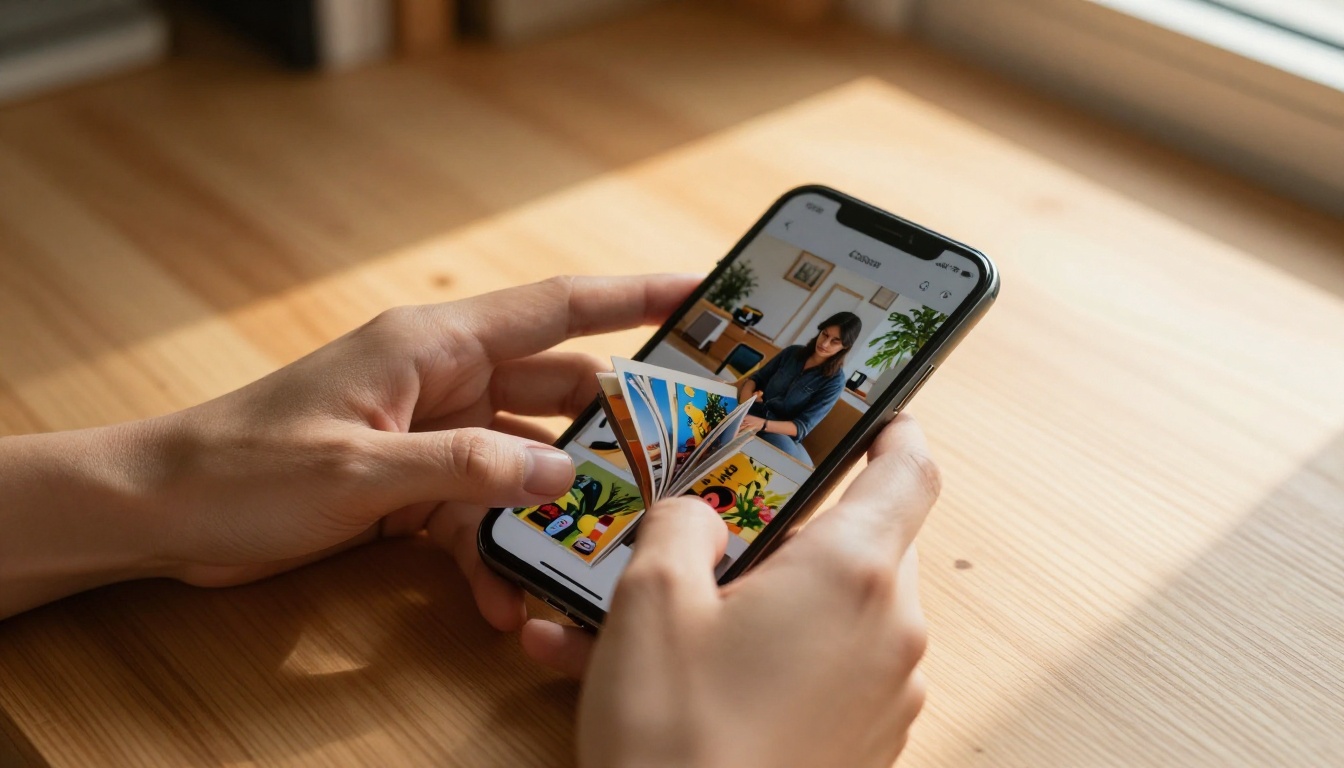
A digital flipbook is an interactive publication that simulates the experience of flipping physical pages, but it lives online and opens in any browser. Think of it as a PDF that gained a personality: pages turn with a realistic animation, content is zoomable, and the whole thing can be shared via a simple link instead of a clunky file attachment.
How It Differs from a Regular PDF
PDFs are static. They don't feel interactive, they're hard to share in a visually appealing way, and they're not designed for casual mobile browsing. A digital flipbook, by contrast:
- Opens with a satisfying page-turn animation that signals quality
- Works naturally on a phone screen without constant pinching and zooming
- Can embed video, audio, and clickable hyperlinks directly inside pages
- Gives your audience a shareable URL instead of a file they have to download and open
- Looks polished and professional without requiring extra design work
Why the Phone-First Approach Works
Most content creators and small business owners don't sit at a desktop all day. The ability to upload a PDF, customize the look, and share a polished flipbook link, all from a phone while between meetings or sitting at a cafe, is a genuine productivity upgrade. Because Flipbooks AI is fully mobile-responsive, your audience reads it beautifully on any device too.
What You Need Before You Start
The barrier to entry here is remarkably low. You only need two things ready before you begin.
The Right File Format
PDF is the standard input format. Flipbooks AI converts PDF files directly into interactive flipbooks. If your content lives somewhere else, here's how to prepare it:
- Google Slides or PowerPoint: File > Download as PDF
- Canva designs: Download as PDF (choose "Print quality" for crisp results)
- InDesign or Illustrator: Export as PDF with embedded fonts
- Photos or images: Arrange them in Canva or any layout tool, then export as PDF
💡 For best visual results, use a PDF with a 16:9 or 4:3 aspect ratio. Portrait PDFs work fine, but landscape orientations tend to look more cinematic on phone screens.
Your Phone Requirements
Any modern smartphone handles this without issues. Because Flipbooks AI is entirely browser-based:
- iOS: Safari or Chrome on iPhone (iPhone 8 and newer recommended)
- Android: Chrome or Firefox on Android 9 and above
- No app installation needed: The entire workflow runs in your mobile browser
- Wi-Fi or 4G/5G: Required only for the upload and initial conversion step
How to Make a Flipbook on Your Phone with Flipbooks AI
This is the core workflow. From a finished PDF to a live, shareable flipbook link, the whole process takes three to five minutes.

Step 1: Sign up or log in
Open your phone's browser and go to flipbooksai.com/account. Creating a free account takes about 30 seconds. No credit card required.
Step 2: Tap "Create New Flipbook"
Your dashboard shows all existing flipbooks and a clear button to create a new one. Tap it to begin.
Step 3: Upload your PDF
Tap the upload button and select your PDF from your phone's Files app, Google Drive, Dropbox, or iCloud. Files up to 100MB upload smoothly on a stable connection.
Step 4: Wait for automatic conversion
Flipbooks AI converts your PDF into an interactive flipbook with page-turn effects. This takes 15 to 60 seconds depending on file size and page count. A live progress indicator shows you where it is.
Step 5: Preview and check your pages
Once converted, tap through the flipbook preview directly on your phone. Confirm all pages loaded correctly and the order is right before making any visual changes.
Step 6: Customize the visual style
This is where a generic document becomes something worth sharing. From the customization panel:
- Add your logo for branded identity
- Change the background color or upload a custom background image
- Apply page shadow and texture effects for a realistic book feel
- Choose a color theme consistent with your brand palette
Step 7: Add interactive elements (Standard plan and above)
The page editor lets you tap any page and add:
- Embedded YouTube or Vimeo videos that play inside the flipbook
- Clickable hyperlinks on text or image areas
- Audio clips for narrated catalogs or guided walkthroughs
Step 8: Configure sharing settings
Before publishing, decide who can view your flipbook:
- Public: Anyone with the link can view it freely
- Password-protected: Ideal for client presentations or internal documents
- Unlisted: Not indexed publicly but accessible via the direct link
Step 9: Copy your link and share it
Hit the Share button, copy your unique flipbook URL, and send it anywhere. WhatsApp, Instagram DMs, email, LinkedIn, a text message: your audience clicks the link and the flipbook opens instantly in their browser.
✅ Your flipbook is mobile-responsive by default. Whether someone opens it on a phone, tablet, or desktop monitor, they get the same smooth, professional reading experience.
Best Use Cases for Mobile Flipbooks
Creating flipbooks from a phone isn't just a convenience trick. It unlocks real, practical workflows for different types of creators and businesses.
Product Catalogs
A boutique clothing brand can photograph their new collection, lay it out in Canva on their phone, export as PDF, and have a polished fashion catalog live and shareable in under fifteen minutes. No developer, no designer, no waiting. The digital catalog maker tool is purpose-built for exactly this kind of workflow.
Wedding Albums and Events
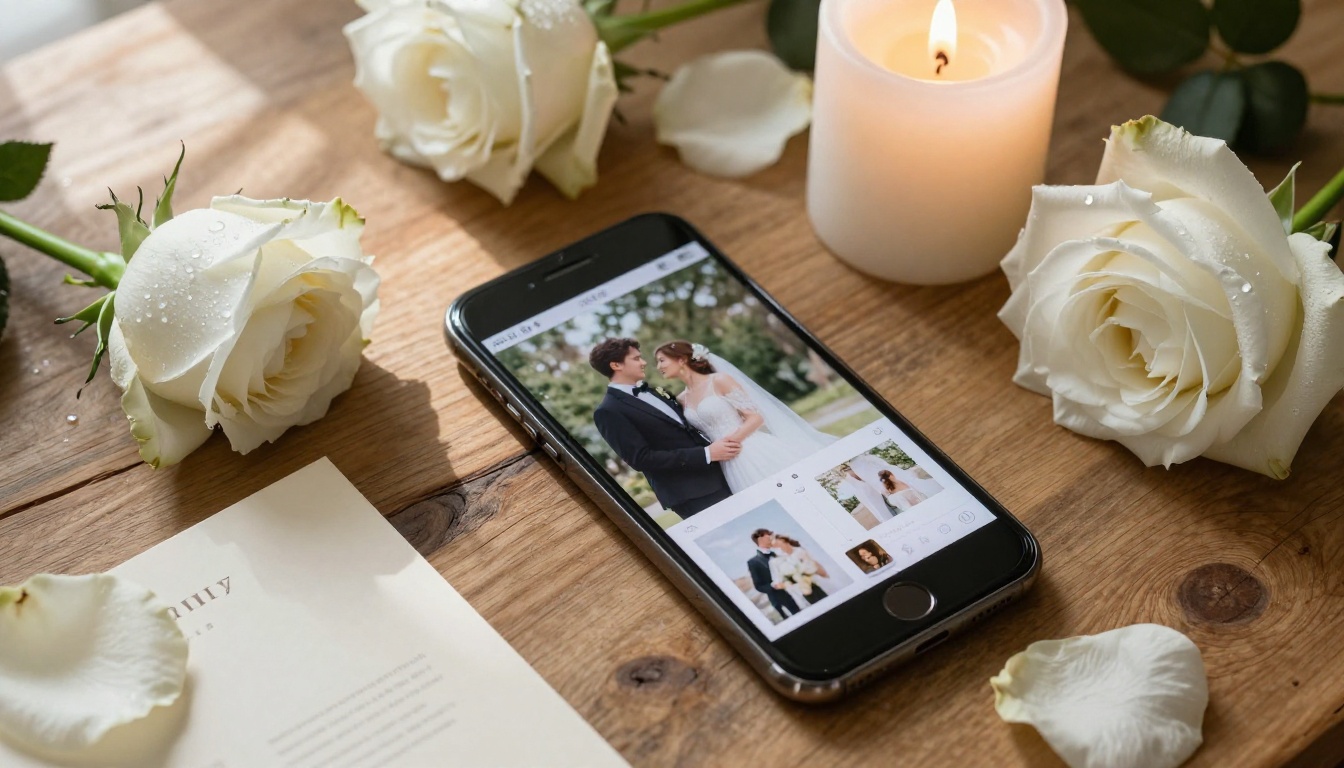
Wedding photographers can deliver a client gallery as an interactive flipbook instead of a flat link to a photo drive. The Wedding Album Flipbook tool makes this feel effortless. A photographer can have the initial gallery ready to share while still at the venue.
Restaurant Menus
A restaurant owner can update their seasonal menu in Canva, export as PDF, upload a fresh flipbook from the kitchen in three minutes, and update the QR code link on every table. No reprinting costs, no waiting for a designer. The Restaurant Menu Creator handles conversion automatically.
Portfolios and Lookbooks
Freelancers and creatives use the Digital Portfolio Creator to present their work in a format that feels intentional and premium. Sending a flipbook link in a DM during a live conversation with a potential client lands completely differently from attaching a PDF.
Event Programs and Brochures
Event coordinators can publish interactive programs with venue maps, schedules, and speaker bios as a flipbook. Attendees scan a QR code at the door and the program is immediately on their phone. The Event Program Maker makes the creation side fast and template-driven.
Flipbooks AI Plan Comparison
Picking the right plan depends on how often you publish and which features your workflow actually requires.
| Feature | Free | Standard | Professional |
|---|
| Flipbooks per month | 3 | Unlimited | Unlimited |
| Watermark | Yes | No | No |
| Custom branding | No | Yes | Yes |
| Password protection | No | Yes | Yes |
| Embed videos and audio | No | Yes | Yes |
| Analytics and tracking | No | No | Yes |
| Lead generation forms | No | No | Yes |
| Offline downloads | No | No | Yes |
| Priority support | No | No | Yes |
💡 The Standard plan is the sweet spot for most small business owners and content creators. It removes watermarks, unlocks unlimited flipbooks, and adds custom branding. Browse all pricing options to see the full feature breakdown.
Mobile Browser vs. Dedicated App
A lot of people search for "flipbook app" expecting to download something from the App Store or Google Play. Here's the honest comparison of both approaches.
| Factor | Browser-Based (Flipbooks AI) | Dedicated Mobile App |
|---|
| Setup time | Zero (no install) | 5 to 10 minutes |
| Device storage used | None | Takes phone storage |
| Always up to date | Yes, automatically | Requires manual updates |
| Cross-device sync | Automatic via your account | Often inconsistent |
| Feature completeness | Full platform features | Usually stripped down |
| Works on all devices | iOS, Android, and desktop | Platform-specific |
| Starting cost | Free with no download | Often paid upfront |
For the vast majority of use cases, a browser-based tool wins. It starts immediately, stays current automatically, and works the same on every device. The PDF to Flipbook Converter is available the moment you create an account, with nothing to install.
How to Share Your Flipbook from Your Phone
Publishing is only half the job. Here's how to get your flipbook in front of the right people.
Direct Link Sharing
Every flipbook on Flipbooks AI gets a permanent, shareable URL. From your phone you can:
- Copy the link and paste it into any messaging app or email
- Share directly to WhatsApp, Instagram Stories, or LinkedIn posts
- Add the link to your social media bio
- Generate a QR code that points directly to your published flipbook
Embedding on a Website
Flipbooks AI generates an HTML embed code for every flipbook. Copy the code from your phone's browser and paste it into your website's CMS. WordPress, Squarespace, and Webflow all support this natively. If you manage your own site, you can handle the entire process from your phone. The Embed Flipbook on Website tool provides the exact snippet you need.
Password-Protected Sharing
For private client presentations, internal documents, or exclusive member content, enable password protection in the flipbook settings. You share the link and the password separately, keeping the content controlled. This is available on Standard and Professional plans.

Creating Better Flipbook Content on Your Phone
The tool handles the technical side. Your job is to bring content worth flipping through. A few things make a significant difference in the final result.
Keep Pages Visually Consistent
If you're creating in Canva before uploading, stick to one font pairing, one color palette, and consistent margins across all pages. Visual inconsistency is the clearest signal that separates an amateur flipbook from a professional one.
Use High-Quality Images
Modern phone cameras produce publication-quality photos when used well. Shoot in natural light, avoid heavy digital zoom, and export images at full resolution before bringing them into your layout. Compressed or blurry source images will show up clearly in the final flipbook.
Front-Load Your Best Content
Most people decide whether to keep flipping within the first two or three pages. Put your strongest visual or most compelling information on pages one and two. Think of it the way a physical magazine works: the cover and the first spread do the selling.
⚠️ Mobile attention spans are limited. A flipbook with more than 30 pages loses most mobile readers before the end. If your content runs long, consider splitting it into multiple focused flipbooks and linking between them.
More Tools for Specific Content Types
The right starting point depends on what you're creating. Here's a quick reference for the most common content types.
Each of these tools comes pre-configured with appropriate page layouts and design defaults for that content type, saving you setup time and guesswork.
3 Mistakes That Hurt Your Flipbook Quality
Low-Resolution Source Files
If your source PDF is compressed or exported at low quality, the flipbook pages will look blurry when a reader zooms in. Always export from Canva at "Print quality" settings, or from other design tools at a minimum of 150 DPI (300 DPI is preferred). A 10MB high-resolution PDF will produce a dramatically better flipbook than a 2MB compressed version.
Skipping Custom Branding
The default flipbook appearance is clean but generic. Spending two extra minutes adding your logo, selecting brand colors, and choosing a background changes how the flipbook is perceived by anyone who opens it. This step matters most when sharing with clients, customers, or professional contacts.
Not Checking the Mobile Preview
Before sharing, always preview your flipbook on your actual phone screen. Things that look fine on a wide desktop screen sometimes have text that's too small to read at mobile scale, or images that crop unexpectedly. Flipbooks AI's preview mode lets you check the experience before publishing.

Practical Tips for Faster Creation on Mobile
Working from a small screen has its own rhythm. A few adjustments to your workflow will cut creation time significantly.
Use Canva's phone app first. Canva's mobile app is genuinely capable for layout work. Build your flipbook pages in Canva, export as PDF, then switch to your browser to upload to Flipbooks AI. This two-app workflow is faster than trying to design and publish from a single tool.
Save your PDF to Files before uploading. Instead of uploading directly from a cloud service, save the PDF locally to your phone's Files app first. The upload process is faster and more reliable when pulling from local storage rather than streaming from Google Drive or iCloud during the upload step.
Duplicate an existing flipbook as a template. Once you've created and customized your first flipbook to match your brand, duplicate it as the starting point for every new one. Your logo, colors, and background settings carry over automatically, so each new project starts from a branded baseline.
💡 On the Professional plan, you get access to detailed analytics showing how many people viewed your flipbook, how far they read, and where they dropped off. This data is genuinely useful for refining content in future editions.
Start Creating Today
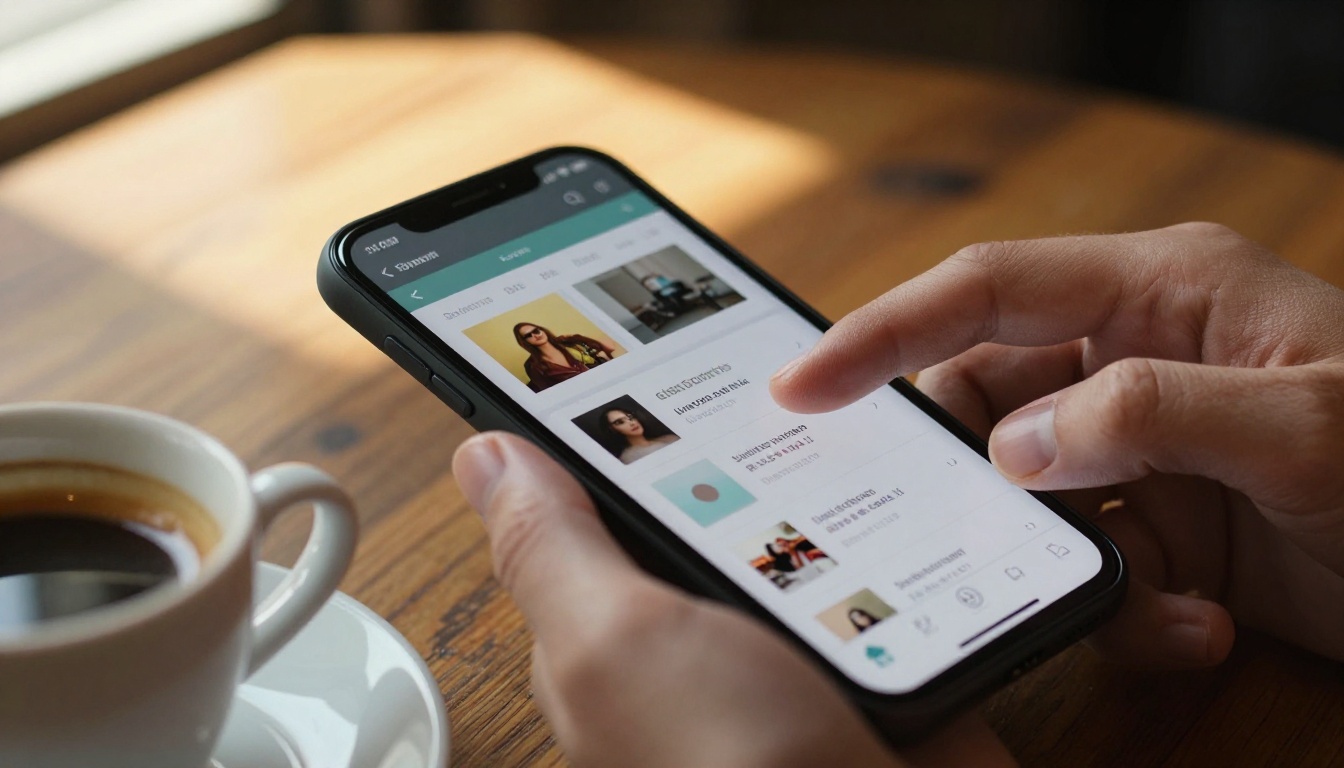
The phone in your pocket is fully capable of producing a polished, professional flipbook in the time it takes to drink a coffee. No desktop setup, no design skills, no expensive software subscription required to begin.
Create your first flipbook free on Flipbooks AI and see how fast the process really is. The free plan gets you started immediately, and upgrading to Standard removes the watermark and unlocks everything you need for professional publishing.
When you're ready to scale up, view all pricing options to find the plan that fits your publishing volume and feature needs. And if you want to see what's available by content type before committing, browse all flipbook tools and templates organized by use case.



