You have published on Issuu for years, your readers know where to find you, and now something is pushing you to leave. Maybe it is the cost, the ads around your content, the lack of control over branding, or the fact that your audience lives on someone else's platform. The fear is always the same: if I move, will anyone follow? The honest answer is yes, as long as you treat the move like a relaunch instead of a quiet exit. This plan walks through the whole process, and shows how to rebuild your issues on Flipbooks AI so readers land on pages you fully own.
Why Publishers Leave Issuu
Nobody migrates for fun. A move costs time, so there is always a trigger. The most common ones we see are practical, not emotional.
- Cost creep: plans that were fine for three issues a year hurt when you publish monthly.
- Branding limits: your magazine sits inside a platform page with its own look, its own suggestions and its own navigation.
- Third-party content: readers finish your issue and get shown somebody else's magazine.
- Audience ownership: followers belong to the platform, not to you.
- Lead capture: no easy way to collect emails before a reader opens an issue.
💡 Pro tip: Write down your single biggest reason for leaving before you start. It decides which features matter most in your new setup, and it keeps the project from turning into a never-ending wishlist.
Signs It Is Time
If you nodded at two or more of the bullets above, you are probably paying for a setup that no longer fits. If readers rarely arrive from the platform itself and mostly come through your own newsletter or social posts, the platform is giving you very little discovery in return for the lock-in.
Signs You Should Wait
Moving makes less sense in the middle of a big seasonal launch. Pick a window between issues, so the switch lands with a fresh release rather than interrupting one.
What Readers Really Lose (and Don't)
Most fear is about the unknown. Here is what actually changes when you move a magazine from one host to another.
| What readers use | Risk when you move | How to protect it |
|---|
| Old issue links in emails and posts | Links stop working | Redirect or republish with a clear pointer |
| Search results for your issues | Rankings reset for the old URLs | Keep a stub page and link to the new issue |
| Bookmarked publication page | Readers land on an empty page | Leave a visible notice with the new address |
| Subscriber notifications | Followers stop being alerted | Announce the move by email and social |
| Embedded issues on your own site | Embeds break | Swap in new embed codes |
The pattern is clear: nearly every loss is a link problem, and links are fixable. Readers do not care which logo sits behind the page turn. They care that the issue opens fast and looks good on their phone.
Audit Your Back Issues First
Before exporting a single file, know what you have. A proper audit takes an afternoon and saves days later.
- List every issue with its title, date, page count and original URL.
- Mark your top performers. Check which issues got the most reads, shares and inbound links.
- Find the source files. Look for the original layout PDFs from your designer, not the compressed copies.
- Note every place the old links live: newsletters, social bios, your website, partner sites, press pages.
- Decide what to retire. Some old issues (expired offers, outdated event programs) do not deserve a rebuild.

Build a Migration Spreadsheet
A simple sheet with these columns keeps everyone honest: issue name, source PDF location, old URL, new URL, status, and date announced. When the new URL column fills up, you have your redirect map too.
Rank by Value
Do not migrate everything on day one. Move the latest three to five issues first, then your top performers, then the rest in batches. Readers who arrive today want current content, and your best archive pieces will keep bringing in search visitors for years.
⚠️ Warning: Never delete your old publications before the new ones are live and tested. Keep both versions running until every redirect and announcement is in place.
Get Your Files Ready
Your best-looking migration starts with your best files. If you only have the compressed version that was downloaded from your old host, expect softer images and larger file sizes.
- Use the original layout export from InDesign, Affinity Publisher, Canva or whichever tool built the issue.
- Export at a sensible resolution: high enough for crisp text on a tablet, small enough that the file loads quickly.
- Check fonts and links: make sure embedded fonts are preserved and no images are missing.
- Keep spreads consistent: decide whether you want single pages or two-page spreads and stay consistent across issues.
What If You Lost the Source?
If the originals are gone, you can usually download your published PDF from your old account, as long as you still have access. Do this before you cancel anything. Treat it as the single most urgent task in the whole project.
Clean Up Metadata
Rename each file clearly, for example spring-2026-issue.pdf. Clean names make your new library easier to manage and often show up in links and downloads.
Before committing, compare what you get on each side. This table covers the points publishers usually care about most.
| Feature | Typical hosted magazine platform | Flipbooks AI |
|---|
| Watermarks and platform branding | Often present on free or lower tiers | No watermarks, ever |
| Custom branding and colors | Limited by plan | Custom branding included |
| Password protection | Usually tied to higher plans | Available for private content |
| Analytics | Basic reader counts | Analytics in the Professional plan |
| Lead generation | Often limited | Lead capture in the Professional plan |
| Offline downloads | Varies | Supported |
| Embed on your own site | Possible, with platform branding | Clean embeds on your domain |
| Video and audio inside pages | Varies by plan | Embed videos and audio |
| Mobile experience | Responsive | Mobile-responsive design |
Check the current pricing plans for the latest limits, since plans change. If you publish often, unlimited flipbooks on the Standard plan and above matter a lot when you are rebuilding an entire archive.
✅ Best practice: Run one test issue through both systems side by side. Open both on your phone and judge the reading experience honestly before you commit the whole archive.
Rebuild Each Issue on Flipbooks AI
This is the practical part. Here is how to take one issue from PDF to published magazine.
Step 1: Create Your Account
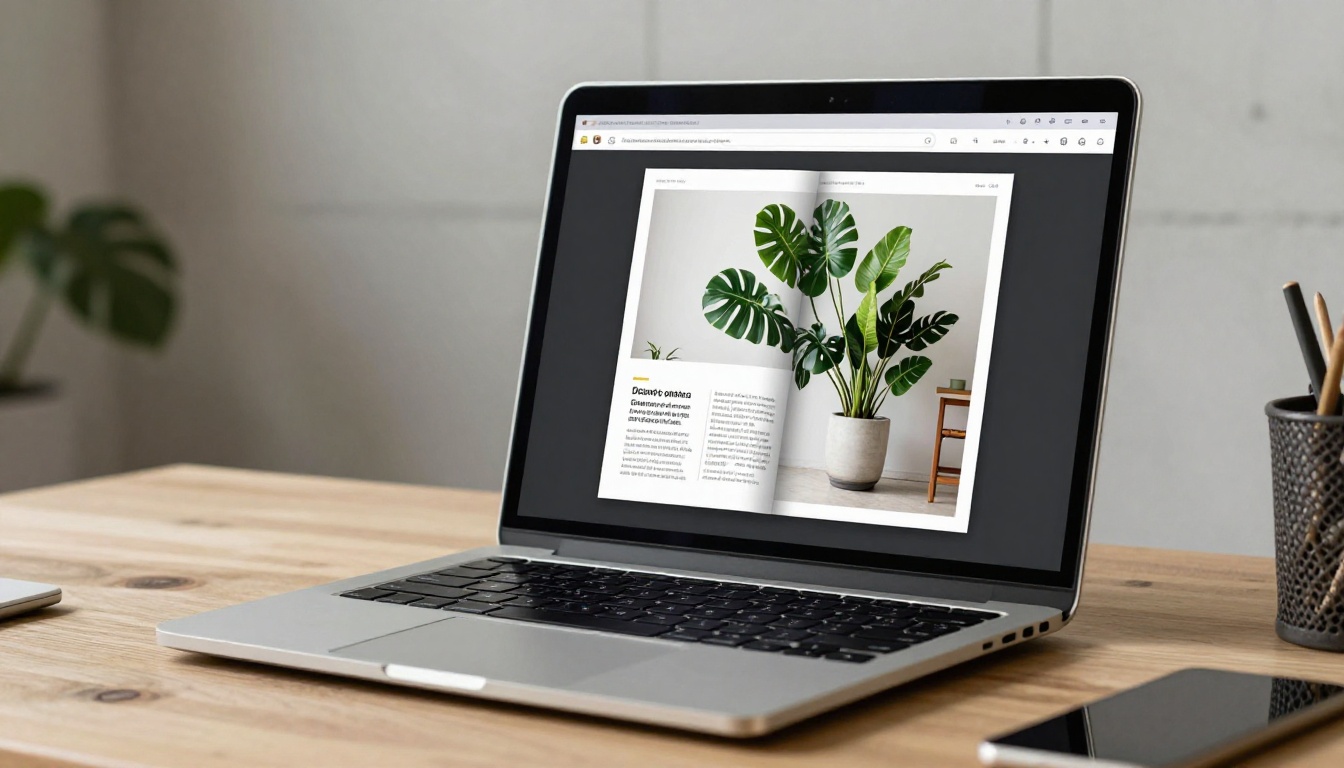
Head to Flipbooks AI and create an account. Pick the plan that matches your publishing pace. If you publish monthly and have a large archive, the unlimited option makes the most sense.
Step 2: Upload Your PDF
Drag in your issue file. The conversion turns each PDF page into a flippable page with a realistic page-turn effect. For magazines, the dedicated Magazine Flipbook Creator and the E-Magazine Publishing Tool are built for this exact format. If you only need the conversion itself, the PDF to Flipbook Converter handles the upload.
Step 3: Customize the Look
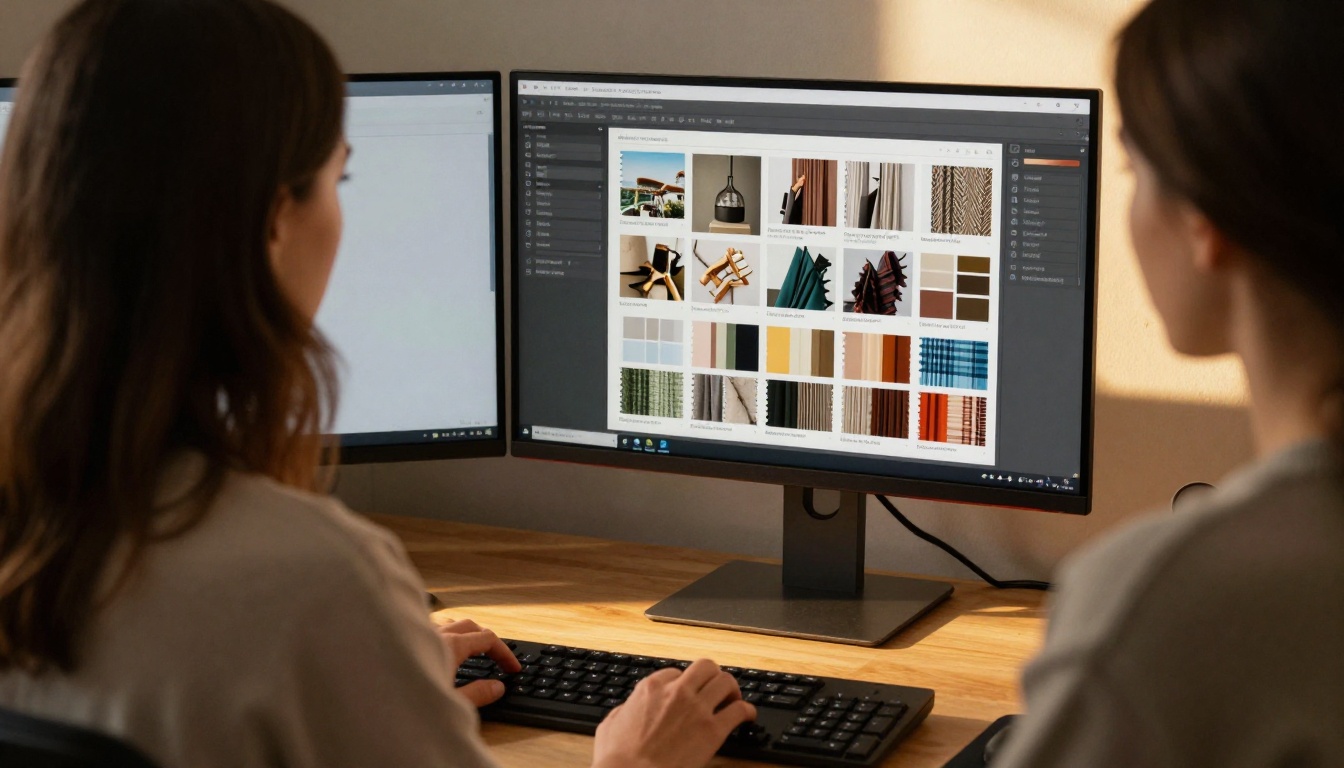
Set your logo, colors and background so the reader sees your brand, not a platform's. Try these settings:
- Match the background to your masthead color.
- Choose a page-turn effect that feels natural, not flashy.
- Add your logo to the toolbar.
- Set a cover thumbnail that matches the printed issue.
Step 4: Add Multimedia
This is where a digital issue beats a flat PDF. You can embed video and audio directly into pages: a behind-the-scenes clip next to a photo shoot, or a short audio interview beside a profile. It gives readers a reason to open the digital issue rather than skim a static file.
Step 5: Choose Sharing Options
You can share a direct link, drop in an embed code, or protect the issue with a password. Subscriber-only issues work well with password protection, and public issues work well with a clean link. For website placement, read the Embed Flipbook on Website tool page.
Step 6: Switch On Analytics and Leads
On the Professional plan you can see how people read each issue and collect lead details. Compare it with your old numbers so you know whether the move improved things. See what is included on the pricing page.
💡 Pro tip: Publish a single recent issue first. Share it privately with a few trusted readers and ask what felt different. Fix small problems before you batch-convert the whole library.
Protect Your Links and Search Traffic
This is the section that decides whether readers follow you. If someone clicks an old link and hits a dead end, they leave. If they see a friendly note and a button, most will click through.
Build a Redirect Plan
Use your migration spreadsheet. For every old URL, you need one of these outcomes:
- Redirect to the new issue if you control the original link, for example a link on your own domain.
- Pointer page if the old platform page is the only place the link lives. Update the description of the old publication with the new address.
- Retire if the issue is no longer relevant.
Update Every Place You Linked
Go through this list and replace old links with new ones:
- Newsletter footers and templates
- Social profile links and pinned posts
- Your website navigation and issue archive
- Press kits, media pages and partner pages
- Email signatures for the whole team
Keep a Stub Page for Search
If your old issues rank in search, keep a short page on your site for each major one, with a summary, a cover image and a link to the new flipbook. Search engines then see a stable URL that you control. Over time, that URL becomes the permanent home for the issue, no matter which tool hosts the flipbook.
Practical Example
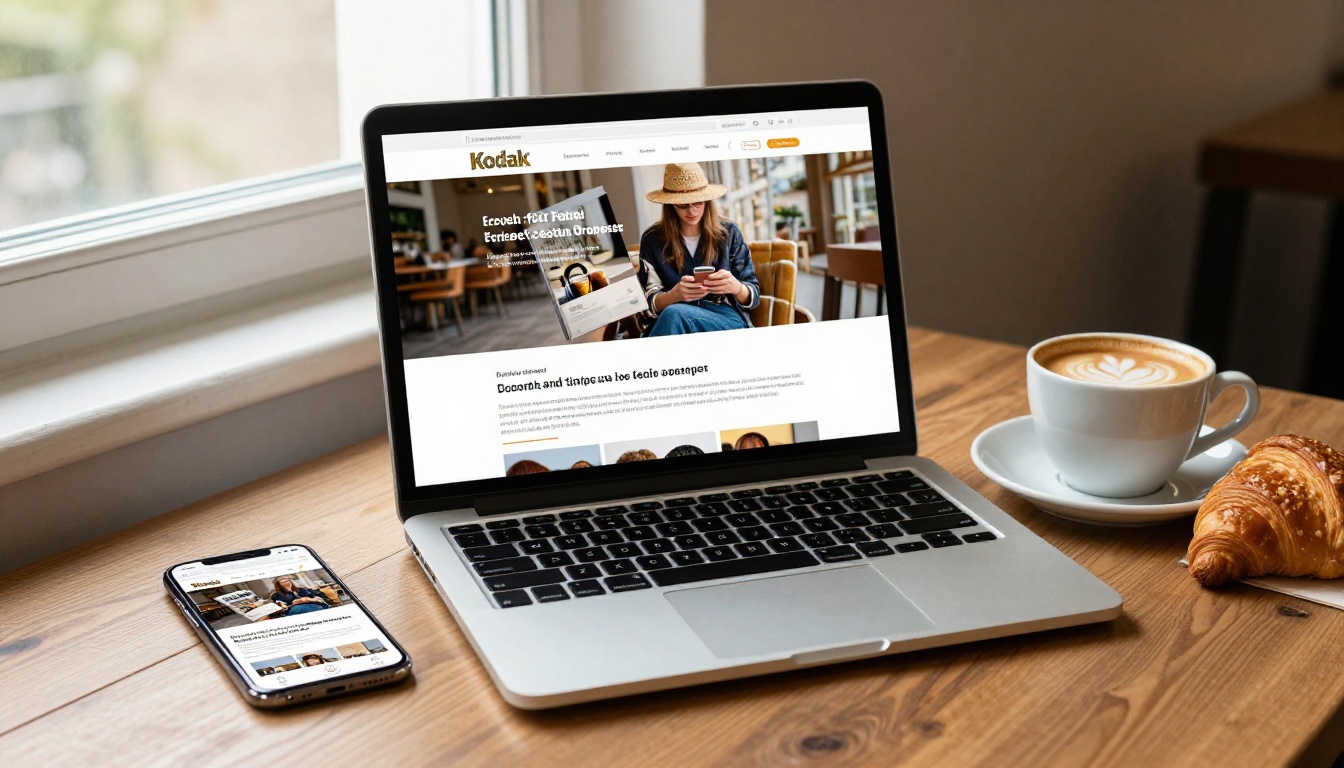
A regional lifestyle magazine with 40 back issues moved over a month. They republished the latest six issues first, created an archive page on their own website with one embed per issue, and put a banner on the old publication pages pointing to the new address. Their newsletter links now point to the website archive, so future moves will not break anything, because the link that readers click belongs to the publisher, not the host.
Tell Your Readers Early and Often
Technical work only protects the links. Communication protects the relationship.
A Simple Announcement Timeline
| When | What to do | Where |
|---|
| Two weeks before | Tease the change and promise a better reading experience | Newsletter, social |
| Launch day | Release the new issue with the new link | Newsletter, website, social |
| One week after | Remind anyone who has not opened the new issue | Email follow-up |
| One month after | Share a short thank-you and highlight a popular issue | Social, newsletter |
What to Say
Keep it short and benefit-focused. Readers do not need the story of your old platform. They want to know: where is the next issue, will it work on my phone, and do I need to do anything? The ideal answer to the last question is "no, just click this link."
Make the First Click Easy
Put one button in your email: "Read the new issue." Avoid asking readers to re-subscribe, create accounts or install anything. Every extra step cuts the number who follow.

✅ Best practice: Test the reading experience on a phone, a tablet and a laptop before sending the announcement. Most magazine readers open the email on a phone first.
Common Mistakes to Avoid
Publishers who struggle with a move usually stumble on the same things.
- Cancelling too early. Keep the old account until the new setup has run for at least one full issue cycle.
- Using low-quality PDFs. A compressed copy from your old host gives you a blurry result.
- Forgetting embedded issues. Old embeds on your own pages keep pointing at the old host.
- Moving everything at once. Batches are easier to check and fix.
- Skipping the announcement. Silent moves feel like abandonment.
Budget Honestly
Compare the full yearly cost of both setups, including any tools you only use because of limits on the old one. This quick comparison helps you decide with real numbers.
| Cost item | Old setup | New setup |
|---|
| Platform subscription | Fill in current plan | Fill in chosen plan |
| Extras (branding, analytics, lead capture) | Add-on costs | Check what is included |
| Time to convert one issue | Existing workflow | Usually minutes per PDF |
| Cost of lost leads | Estimate monthly | Estimate monthly |
Measure What Happens After
Do not stop at launch. Track a few numbers for the first three issues and compare them with your old baseline.
- Opens per issue: how many people click through to the new flipbook.
- Reading depth: how far readers get before leaving.
- Email captures: if you switched on lead generation, how many readers shared details.
- Direct versus referred traffic: how many arrive from your own site versus social links.

If numbers dip in the first issue, do not panic. Check that links work, then follow up with readers who did not open it. Most dips come from a missed link or a weak announcement, not from the new platform.
Use the Data
When analytics show where readers drop off, you can reorder content in future issues, move your best story earlier, or add a video where people lose interest. That feedback loop is a real upside of owning your publication page.
Your Move Checklist
Print this and tick it off as you go.
- Write down why you are leaving.
- Audit and list every back issue.
- Collect the original PDFs.
- Create your account on Flipbooks AI.
- Convert and style one test issue.
- Share the test issue privately and fix issues.
- Convert the latest issues, then top performers, then the rest.
- Build an archive page on your own website with embeds.
- Update every old link you control.
- Announce the move to readers with one clear button.
- Keep the old account until the new one has proven itself.
- Review analytics after three issues.

Ready to Make the Switch?
Moving a magazine is mostly about careful link management and a clear message, and readers will follow you if both are in place. Start by creating your Flipbooks AI account, convert your latest issue, and see how it feels on your phone. Browse all flipbook tools to find the right format for newsletters, catalogs or annual reports that sit alongside your magazine, and compare pricing plans to pick the one that fits your publishing schedule.



