You built twelve artboards in Illustrator, one per page of a brochure, and now you need a single PDF that holds all of them in order. Exporting twelve separate files and stitching them together in another app is the slow way. Illustrator can do it in one pass, and once you have the file, a tool like Flipbooks AI can turn it into a page-turning online publication in minutes.
This article walks through the exact menu path, the settings that matter, how to pick specific pages, and what to do when the export misbehaves. You will also find three comparison tables, a troubleshooting list, and a short workflow for publishing the finished PDF.
Why Multi-Page PDFs Matter
A multi-page PDF is the standard handoff format for anything with more than one page: catalogs, lookbooks, menus, proposals, annual reports, and portfolios. Printers want one file with the pages in order. Clients want one attachment they can scroll. Web tools want one source file to convert.
Illustrator was never a page-layout app in the way InDesign is, but artboards behave like pages. Each artboard becomes one PDF page, in the order shown in the Artboards panel. That is the whole trick, and it explains most of the problems people run into.

Who Needs This Most
- Brand designers sending a logo sheet, color page, and usage rules as one document.
- Packaging and print designers delivering dielines and mockups together.
- Freelance illustrators assembling a portfolio from separate pieces.
- Small business owners who build a price list or menu in Illustrator and want to share it online.
Save As vs Export As
This is the most common point of confusion. Both commands can produce a PDF, but only one gives you full control over multiple pages.
| Command | Where to find it | Multi-page PDF | PDF presets and marks | Best for |
|---|
| Save As (Adobe PDF) | File > Save As | Yes, with Use Artboards | Full control | Print and sharing |
| Save a Copy | File > Save a Copy | Yes | Full control | Keeping the .ai untouched |
| Export As | File > Export > Export As | No, images only | Not available | PNG, JPG, SVG |
| Save for Web | File > Export > Save for Web | No | Not available | Web graphics |
💡 Pro tip: Use Save a Copy when you want a PDF but do not want Illustrator to rename your working .ai file to the PDF name. It avoids the classic mistake of continuing to edit a file that is now linked to the PDF.
Prepare Your Artboards First
Ten minutes of cleanup before saving prevents most re-exports. The PDF will faithfully reproduce whatever is in your document, including the mess.
Set the Artboard Order
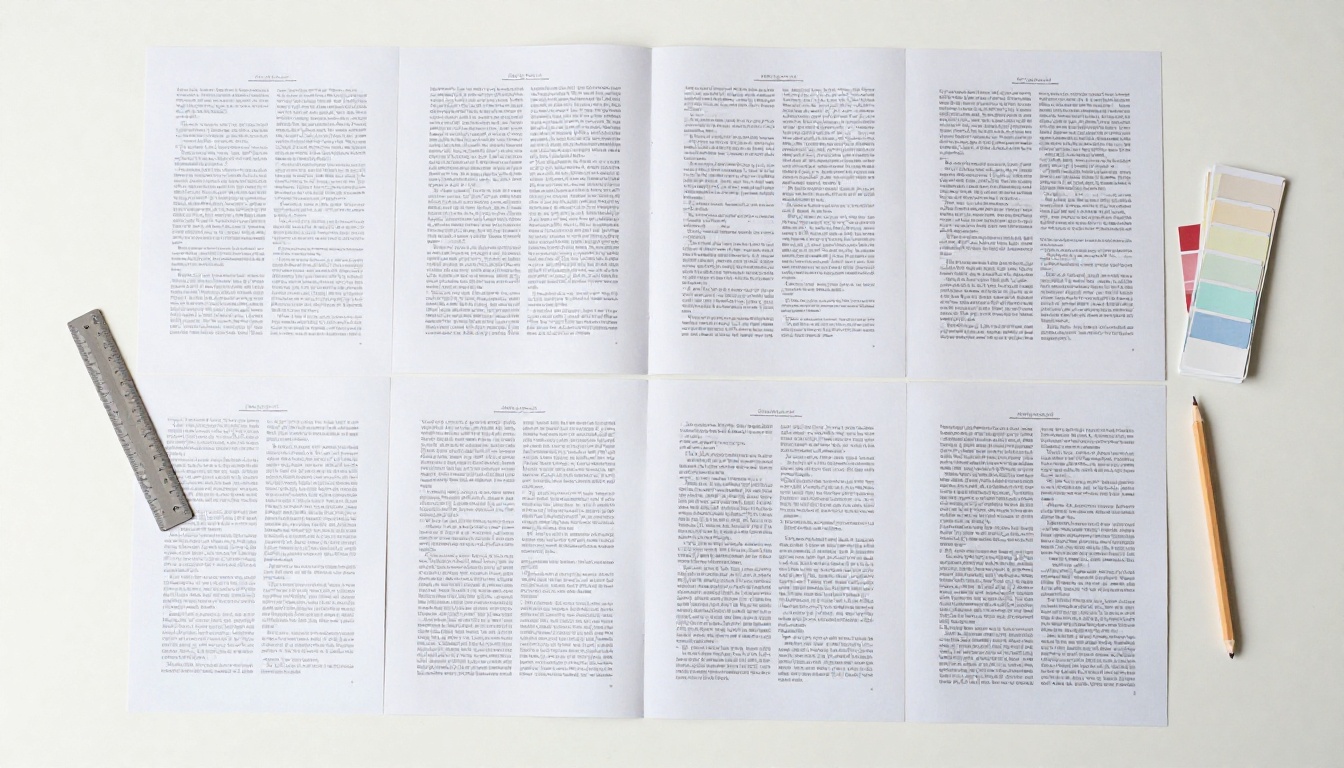
Open the Artboards panel (Window > Artboards). The numbered list is the page order of the final PDF. Drag the entries to reorder them. The position of the artboards on the canvas does not matter, only the number in the panel.
Rename each artboard with something useful like "Cover" or "Pricing". Names do not appear in the PDF, but they make it far easier to select the right range later.
Use Consistent Sizes
Illustrator allows artboards of different sizes in one document, and the PDF will keep those sizes. That is fine for a mixed deliverable, but a brochure with one odd-sized page looks like a mistake when it is read on screen. Select the Artboard tool and check the dimensions in the Properties panel.
Check Bleed and Live Area
If the file is going to a printer, set bleed under File > Document Setup. Three millimeters (0.125 inch) is the usual request. Keep text at least 5 mm inside the trim edge.
Outline or Embed Everything
Missing fonts and broken links are the top reasons for a PDF that looks different from the artboard. Before saving:
- Open Type > Find Font and replace anything marked as missing.
- Open Window > Links and make sure every placed image shows no warning icon.
- Choose Embed for any linked image that will not travel with the file.
- Check overprint and transparency by using View > Overprint Preview.
How to Save Artboards as a Multi-Page PDF
Here is the exact sequence. It takes less than a minute once the document is ready.
Step-by-Step Instructions
- Open your document and confirm the artboard order in the Artboards panel.
- Choose File > Save As (or Save a Copy).
- In the dialog, set Save as type to Adobe PDF (*.pdf) and pick a file name and folder.
- In the Save As dialog, tick Use Artboards. This is the checkbox that makes the PDF multi-page.
- Select All to include every artboard, or choose Range and type the pages you want, such as
1-4, 7.
- Click Save. The Save Adobe PDF dialog opens.
- Pick an Adobe PDF Preset (see the table below).
- Review the General, Marks and Bleeds, and Output tabs.
- Click Save PDF.
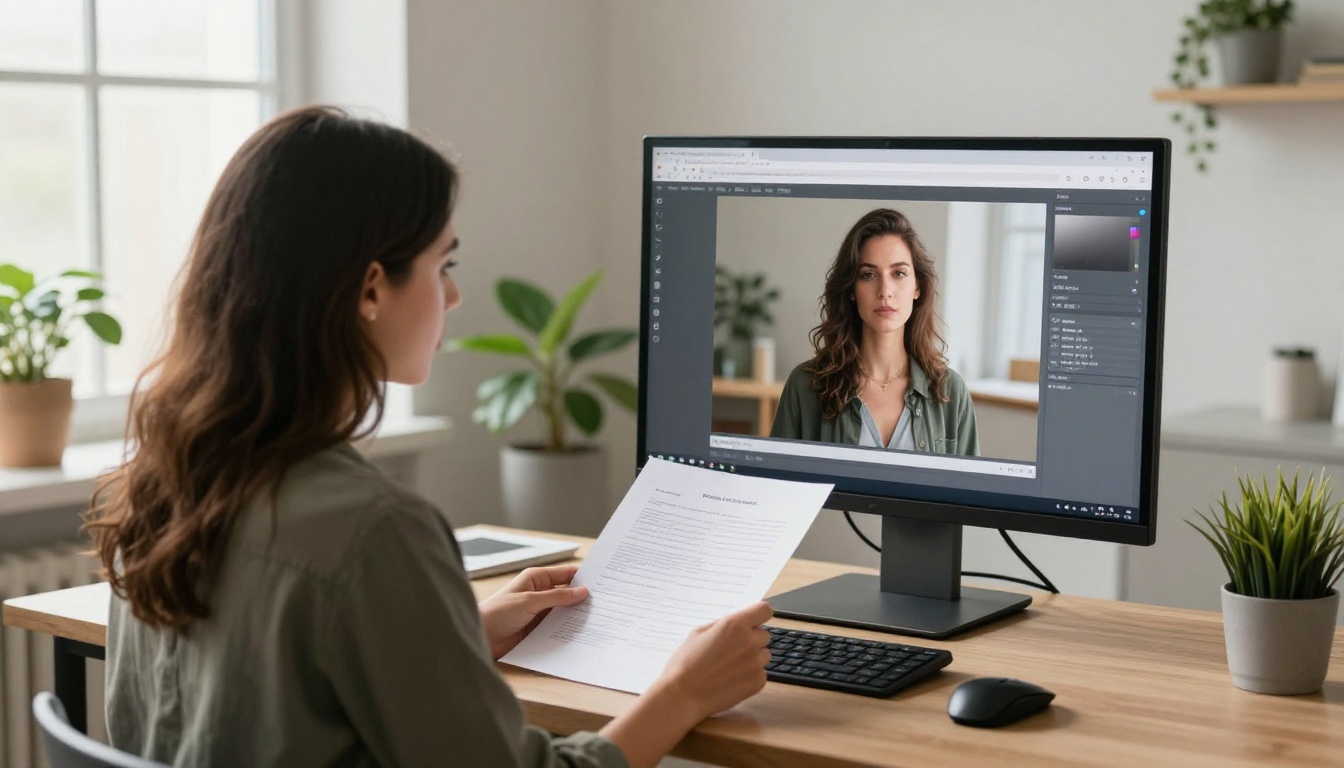
If you leave Use Artboards unticked, Illustrator saves only the first artboard. Many people assume the tool is broken when this is the only problem.
Choosing the Right Preset
The preset sets compression, color handling, and compatibility in one choice. Pick by destination, not by habit.
| Preset | File size | Color mode | Use it when |
|---|
| High Quality Print | Large | CMYK or as set | Desktop printing and proofs |
| Press Quality | Large | CMYK | Sending to a commercial printer |
| PDF/X-4:2008 | Large | CMYK, transparency kept | Print shops that request PDF/X |
| Smallest File Size | Small | RGB | Email attachments and quick previews |
| Illustrator Default | Medium | As set | Keeping editing data inside the PDF |
For anything that will be viewed on a screen, including conversion into an online flipbook, High Quality Print is a good starting point and Smallest File Size is only acceptable when images are not the main attraction. Heavy compression turns fine gradients into visible bands.
⚠️ Warning: The Smallest File Size preset converts colors to RGB and downsamples images aggressively. Do not use it for a file that will also be printed.
Page Ranges That Work
The Range field accepts a flexible syntax:
1-5 saves artboards 1 through 5.1, 3, 5 saves only those three.2-4, 8-10 combines two blocks.All is the default and includes every artboard.
The numbers refer to the order in the Artboards panel, not to names or canvas positions. If the PDF contains the wrong pages, reopen the panel and check the numbering.
Settings Worth Checking Before You Save
The Save Adobe PDF dialog has more tabs than most people open. A few options deserve a look every time.
General Tab Options
| Option | Recommended | Why |
|---|
| Preserve Illustrator Editing Capabilities | Off for sharing | Keeps the file small and hides source data |
| Embed Page Thumbnails | On | Gives viewers fast page previews |
| Optimize for Fast Web View | On | Lets the first page open before the full download |
| View PDF After Saving | On | Instant visual check |
| Create Acrobat Layers from Top-Level Layers | Off unless needed | Layers add size and rarely help readers |
Leaving Preserve Illustrator Editing Capabilities on can double the file size, because the PDF carries a full copy of the native artwork. That is useful for an internal working file and wasteful for a client delivery.
Marks and Bleeds
Open the Marks and Bleeds tab only when a printer asked for it. Tick Trim Marks and use the document bleed values. Marks appear outside the trim box, so a PDF with marks has a larger page size than the artboard. Do not enable them for a PDF you plan to share on screen, because readers will see crop marks around every page.
Compression and Output
Under Compression, 300 ppi is the right target for print and 150 ppi is plenty for screens. Under Output, keep the color conversion at "No Conversion" unless your printer gives you a specific profile. Converting twice, once in Illustrator and again at the print shop, is how reds turn orange.
✅ Best practice: Save one print version and one screen version. Name them clearly, for example catalog-print.pdf and catalog-web.pdf. It costs two extra minutes and prevents sending a 180 MB file by mistake.
Fixing Common Problems
Even with perfect settings, something goes wrong sometimes. These are the usual suspects.
Only One Page Appears
The Use Artboards checkbox was not ticked, or the Range field held a single number. Save again with the option on and All selected.
Pages Are in the Wrong Order
Order follows the Artboards panel. Drag the entries into the sequence you want, then save again. There is no need to move artwork around the canvas.
Fonts Look Different
Illustrator embeds fonts when the license allows it. If a font is restricted, the viewer substitutes another. Convert the text to outlines with Type > Create Outlines in a duplicate of your file, and save the PDF from that copy so your editable version stays intact.
Transparency or Shadows Look Flat
Drop shadows and blends can flatten badly under older compatibility settings. On the General tab, set Compatibility to Acrobat 7 (PDF 1.6) or newer so transparency is preserved.
The File Is Huge
Check three things in this order: the preset, the embedded image resolution, and whether editing capabilities are preserved. A catalog with forty high-resolution photos will still be large, but it should not need to exceed a few dozen megabytes.
Quick Diagnostic Table
| Symptom | Likely cause | Fix |
|---|
| Single page only | Use Artboards unchecked | Tick it and choose All |
| Crop marks on screen PDF | Trim Marks enabled | Disable in Marks and Bleeds |
| Colors look dull | RGB preset used for print | Use Press Quality or PDF/X-4 |
| Blurry images | Low compression setting | Raise ppi to 300 |
| Text replaced | Font not embeddable | Outline text in a copy |
Real-World Examples
Abstract settings make more sense when you see them applied.
A restaurant owner designs a six-page menu in Illustrator, one artboard per section: starters, mains, desserts, drinks, wine, and specials. They save with Press Quality for the printer, then save a second copy with High Quality Print and 150 ppi images for the website.
A freelance illustrator keeps thirty artboards in one master file, one per finished piece. For a client pitch, they use Range with 3, 8, 12-15 to produce a short, tailored PDF without touching the master.
A packaging studio saves a dieline artboard, a flat mockup, and a color callout page as one PDF so the brand manager sees everything in a single attachment.
Match the PDF to the Job
| Project | Artboards | Preset | Marks | Notes |
|---|
| Product catalog | 12 to 40 | High Quality Print | Off | Keep images at 150 ppi for web |
| Restaurant menu | 4 to 8 | Press Quality | On for print | Embed all fonts |
| Portfolio | 10 to 30 | High Quality Print | Off | Use Range for client versions |
| Annual report | 16 to 48 | PDF/X-4 | On for print | Consistent page sizes |
| Proposal | 5 to 15 | Smallest File Size | Off | Email friendly |
Turn the PDF Into a Flipbook
A PDF is reliable, but it is also a flat file. Readers download it, scroll, and often leave after page two. A flipbook keeps the same content and adds page-turning motion, a shareable link, and the option to embed it in a website.

How to Create a Flipbook With Flipbooks AI
- Open Flipbooks AI and create an account.
- Upload your multi-page PDF using the PDF to Flipbook Converter. Conversion takes moments, and every Illustrator artboard becomes one flipbook page.
- Customize the look: add your logo, choose background colors, and set the page-turn effect.
- Add multimedia such as embedded video or audio where it helps.
- Share the result with a direct link, or place it on your site using the Embed Flipbook on Website tool.
- Add password protection when the document is private, for example a client proposal.
The output has no watermarks and works on phones, tablets, and desktops. If you publish regularly, compare pricing plans for unlimited flipbooks, analytics, offline downloads, and lead generation on the Professional plan.
Pick a Tool for Your Document
Different Illustrator projects fit different tools on the platform:
You can browse every option in the tools directory.

💡 Pro tip: Upload the screen version of your PDF, not the print version. Smaller files load faster for readers, and trim marks never appear in the flipbook.
Keep Your Workflow Tidy
Once the export process works, a few habits will save you time on every project.
Habits Worth Building
- Name artboards on creation. Names make range selection and file review easier.
- Keep one master .ai file and always export from a copy.
- Use Save a Copy so the working file stays untouched.
- Check the PDF in a viewer at 100 percent zoom, page by page, before sending.
- Store export presets. In the Save Adobe PDF dialog, click Save Preset so your favorite settings are one click away.
A Final Quality Check
Open the PDF and scan the page thumbnails. Every page should have the same orientation, the same size, and visible content. Then zoom in on a few pages to confirm fonts, thin lines, and image sharpness. Finally, check the file size. If it is above 25 MB and the PDF is meant for email, produce a lighter version.

Ready to Publish Your PDF?
Saving artboards as a multi-page PDF comes down to four moves: order the artboards, choose Save As with Use Artboards ticked, pick a preset that fits the destination, and review the result page by page. Do that, and one Illustrator file becomes a clean document that prints well and reads well on screen.
When you want readers to actually enjoy the pages, get started for free on Flipbooks AI and convert your PDF into a flipbook. Browse the tools and templates to find the best fit for your project, or compare pricing plans to choose what works for you.



