You spent weeks on the deck, the handout and the product sheet, and then your Zoom webinar ends and attendees are left with nothing but a vague memory. A flipbook fixes that. It turns your PDF into a page-turning document that opens in any browser, and you can drop one link into Zoom so every attendee holds the same polished material in seconds. If you have not built one yet, Flipbooks AI converts a PDF into a flipbook in about a minute, with no watermarks.
This tutorial walks through the full process: preparing the flipbook, choosing the right sharing channel for each stage of your webinar, protecting private content, and measuring who actually opened it.
Why Flipbooks Beat Attachments
Zoom Webinars were built for broadcasting, not for file distribution. The chat panel handles links well but struggles with large files, and attendees on phones often cannot open a 40 MB PDF without a fight. A flipbook solves three problems at once.
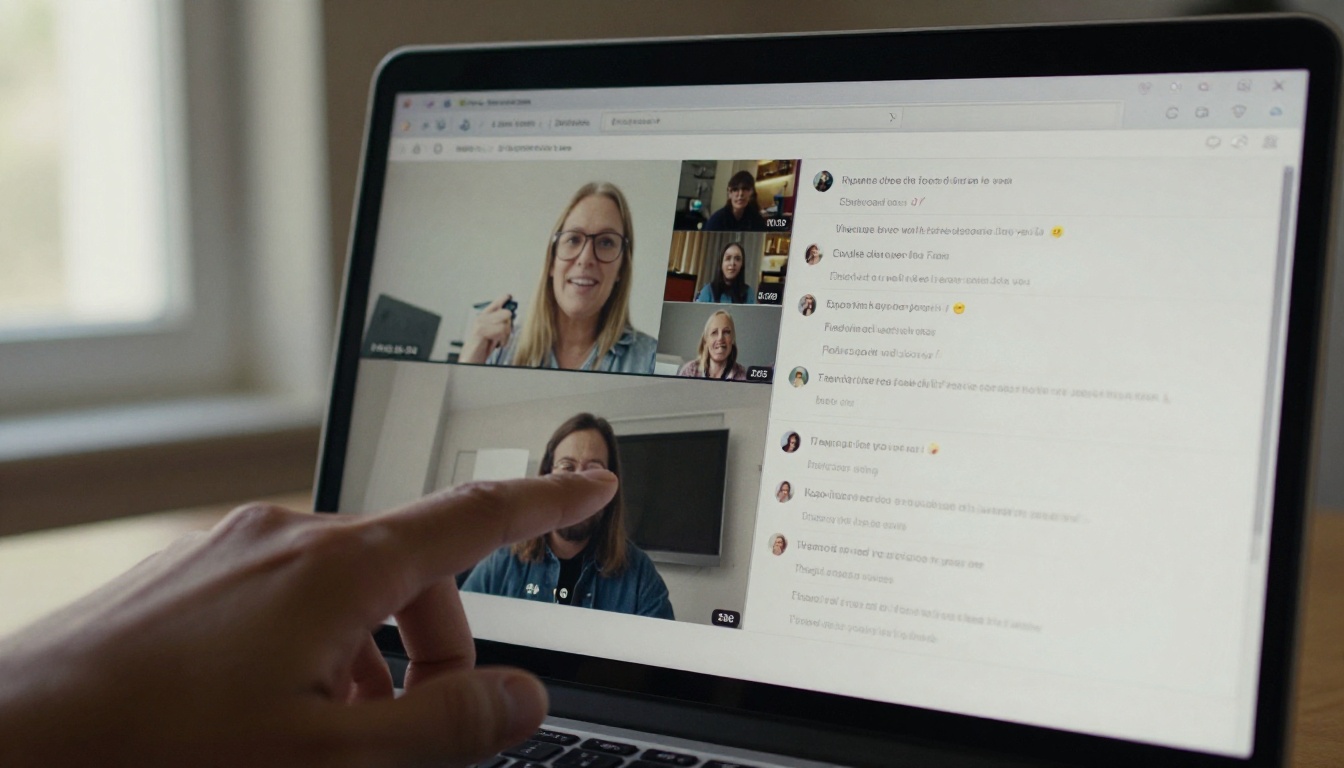
- One link, any device. Laptops, tablets and phones all open the same URL with no download.
- Always current. If you spot a typo after the session, you fix the source and the link keeps working.
- Trackable. Unlike an emailed PDF, you can see opens and reading behavior on the Professional plan.
| Delivery method | File size limit | Works on mobile | Trackable | Updatable after sending |
|---|
| Zoom file transfer | Small files only | Often awkward | No | No |
| Email attachment | About 20 to 25 MB | Mixed | No | No |
| Cloud drive link | Large | Good | Basic | Yes |
| Flipbook link | Large PDFs fine | Excellent | Yes | Yes |
💡 Pro tip: Attendees remember an experience far longer than a download. A page-turning flipbook feels like a branded publication, not a leftover file.
Prepare the Flipbook Before You Go Live
Do the work the day before, not ten minutes before the webinar. A rushed upload is where broken pages and missing links come from.
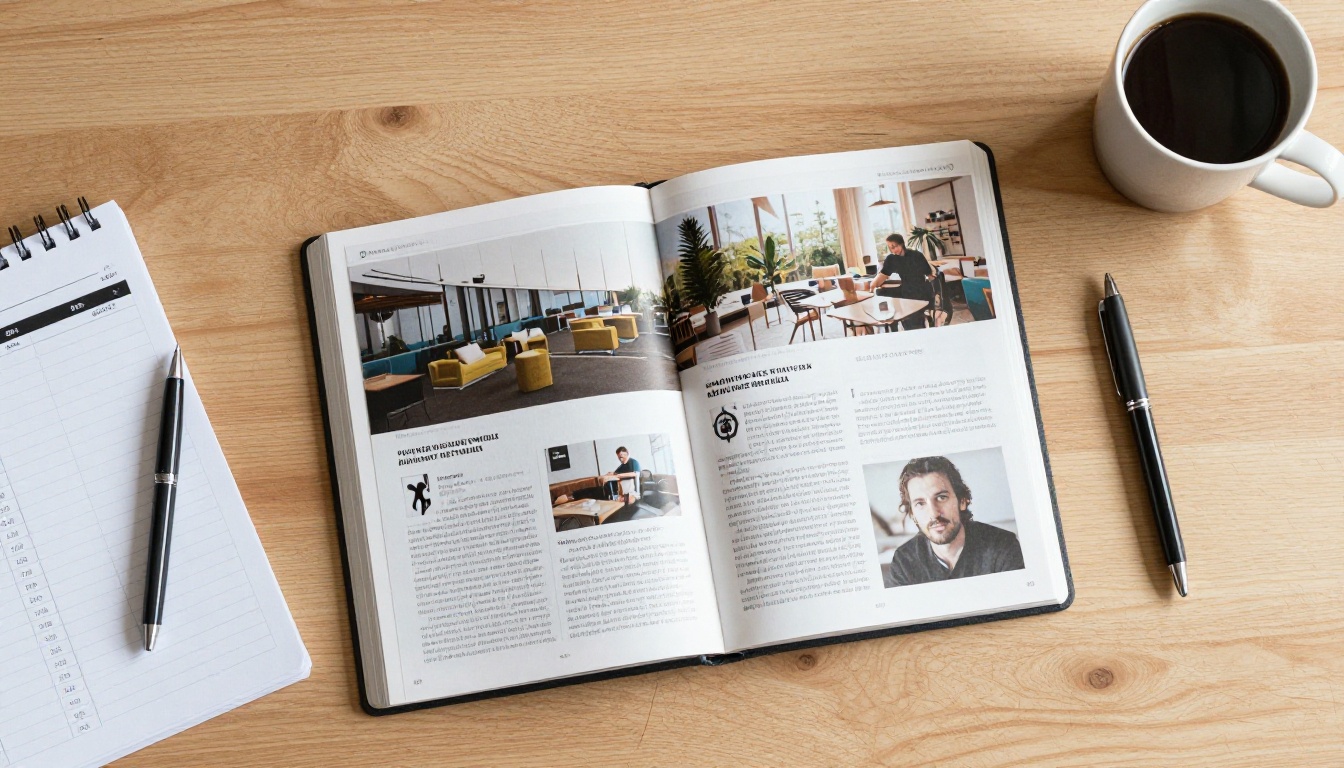
Build the Source PDF
Export your slides or handout as a PDF at a sensible resolution. Keep fonts embedded and aim for a clean page order. If the PDF will double as a takeaway, add a title page with your name, webinar date and contact details.
Convert It in Minutes
Follow these steps on the platform:
- Open your Flipbooks AI account and sign in.
- Upload the PDF using the PDF to Flipbook Converter.
- Wait for the conversion to finish. Most files take under a minute.
- Open the preview and flip through every page to confirm the layout holds up.
- Add your logo, pick a background color that matches your webinar slides, and choose a page-turn effect.
- Save and copy the share link.
✅ Best practice: Test the link in a private browser window and on your phone. If it opens cleanly there, it will open cleanly for attendees.
Choose a Format That Fits the Event
Different webinars call for different material. The right tool template speeds up the setup.
Share the Link Inside Zoom
Zoom gives you several places to put a link. Each one fits a different moment in the session.
Paste It in the Chat
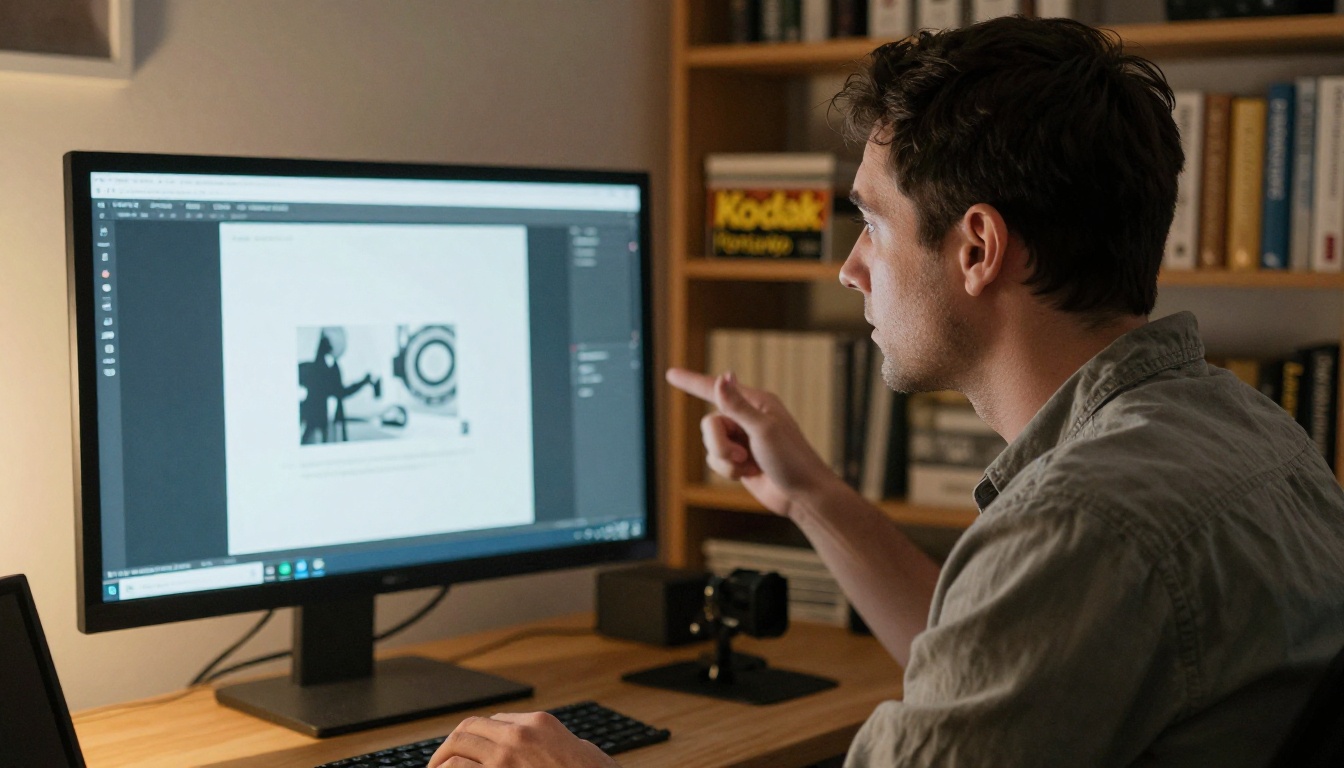
This is the fastest route. In a Zoom Webinar, panelists can post to attendees when chat is set to "All panelists and attendees." Paste the flipbook URL with one short line explaining what it is, for example: "Here is the handout with every template we just discussed."
Because chat scrolls quickly, repeat the link two or three times: once when you mention the material, once at the midpoint, and once at the close.
Assign a Moderator
If you are presenting, you cannot also watch the chat. Ask a co-host to drop the link at agreed moments. Give them a short script file with the link and three suggested messages so nothing gets improvised.
Use the Q&A Panel
When someone asks "Will you send the slides?", answer the question in the Q&A panel and include the flipbook link. Other attendees see the answered question, which saves you repeating yourself.
Show a QR Code on Screen
Put a QR code on your closing slide that points to the flipbook. Attendees who join from a laptop can scan it with their phone and read on the couch later. Keep the code large and leave it up for at least thirty seconds.
| Zoom method | Best moment | Effort | Reach |
|---|
| Chat link | Throughout | Very low | High |
| Q&A answer | After a question | Low | Medium |
| QR code slide | Closing | Low | High |
| Registration confirmation | Before the event | Medium | Very high |
| Post-event email | Within 24 hours | Medium | Very high |
⚠️ Warning: Zoom may shorten or alter very long URLs in some views. Use the clean share link from your dashboard instead of a link with tracking parameters attached.
Reach Attendees Before and After
The live session is only one touchpoint. Two other moments often matter more.

Pre-Event Material
Send a short pre-read in the registration confirmation email. Zoom lets you customize this message in the webinar registration settings. A one-page agenda flipbook sets expectations and lifts show-up rates, because people see exactly what they will get.
The Follow-Up Email
Send your thank-you email within 24 hours, while the topic is still fresh. Keep it short:
- Thank attendees for their time.
- Link the flipbook with a clear label such as "Slides and resources."
- Add a single call to action, such as booking a call or starting a trial.
- Mention the recording link if you have one.
💡 Pro tip: Send a different email to no-shows. Zoom's attendee report shows who registered but did not join. Give them the flipbook and the recording so they still get value.
Real-World Examples
- A software company shares a feature comparison flipbook during a product demo, then follows up with the pricing page.
- A real estate agent hosts a market update webinar and shares a listings brochure built with the Real Estate Brochure creator.
- A trainer distributes a workbook that attendees fill in as they follow along, then sends the final version afterward.
- A nonprofit presents impact numbers and links a Non-Profit Annual Report so donors can read the details.
Control Who Can Open It
Not every webinar is public. Paid workshops, internal briefings and investor updates need a gate.
Password Protection
Turn on password protection in the flipbook settings. Then announce the password in the webinar itself, or send it only in the registration confirmation email. This gives paying or registered attendees access while keeping strangers out.
Public Versus Private Sharing
| Setting | Best for | Risk level | Notes |
|---|
| Public link | Free webinars, lead magnets | Higher | Anyone with the link can read |
| Password protected | Paid sessions, internal talks | Low | Share password separately |
| Embedded on a gated page | Member portals | Low | Access follows your site login |
| Offline download | Field teams | Medium | Useful where signal is weak |
If you want the flipbook to live on your own site, use the Embed Flipbook on Website option. You can place it on your webinar landing page so the same material appears before and after the event.
✅ Best practice: Never put a password on the same slide as the link. Share it verbally or in a separate message.
Make It Read Well on Phones
Many Zoom attendees join from a phone or tablet, and nearly all of them will open your follow-up on one.
Flipbooks are mobile-responsive by default, but the source still matters. Use these checks:
- Use a font size of at least 14 points in the original PDF.
- Avoid dense two-column text that forces pinch-zooming.
- Keep images high resolution but compressed.
- Place important links in large, tappable buttons or underlined text.
- Add short page titles so attendees can find sections quickly.
You can also embed video and audio inside the flipbook. A two-minute recap clip after your final slide gives mobile readers a lighter way to revisit the main points.
Track What Happens Next
Sharing is only half the job. You want to know whether it worked.

Read the Analytics
On the Professional plan, you get views, reading time and page-level behavior. Compare them with Zoom's own report.
| Metric | Source | What it tells you |
|---|
| Registrants | Zoom | Total interest |
| Attendees | Zoom | Live turnout |
| Flipbook opens | Flipbooks AI | Who followed up |
| Pages reached | Flipbooks AI | Which topics resonated |
| Time on document | Flipbooks AI | Depth of reading |
If most readers stop at page six, move your strongest section earlier next time. If pricing pages get the longest reads, mention pricing sooner in the live session.
Capture Leads
The Professional plan also supports lead generation. Add a form before the flipbook opens, and readers leave their email in exchange for access. This works well for public webinars where you cannot control who receives the link.
💡 Pro tip: Run one webinar with a lead form and one without, then compare opens and downstream replies. The numbers settle the debate faster than guessing.
A Simple Checklist for Webinar Day
Use this list as a repeatable routine for every event.
- Convert the PDF and review every page.
- Brand the flipbook with your logo and colors.
- Set a password if the content is private.
- Copy the clean share link and test it on a phone.
- Include the link in the registration confirmation email.
- Brief your co-host on when to paste it into chat.
- Show a QR code on the closing slide.
- Send the follow-up email within 24 hours.
- Review analytics the next day and note what to adjust.
Start Sharing Better Webinars
Attendees give you an hour of their time. Hand them something worth keeping and they will come back to it. Ready to create your first flipbook? Get started for free on Flipbooks AI, browse all flipbook tools to find the right template for your next session, or compare pricing plans to pick the level of analytics and lead capture that suits you.



