Dealing with an oversized PDF is one of the most common frustrations people face before converting their document into a digital flipbook. Whether it's a 200-page product catalog, a high-resolution annual report, or a photography portfolio packed with full-resolution images, large PDFs cause real problems: failed uploads, slow loading times, and poor mobile performance. Flipbooks AI makes the conversion process fast and smooth, but getting your PDF to the right size first is the step that separates a frustrating experience from a seamless one.
This article breaks down every method worth knowing, from quick online tools to manual PDF optimization, so your document is ready to convert without a hitch.
Why PDF File Size Slows Everything Down
Slow loading drives readers away
When a flipbook is built from an unoptimized PDF, every page flip requires loading more data. Readers on mobile devices or slower connections will notice lag immediately, and digital publications with slow load times lose significant reader retention within the first few seconds. Research on digital reading behavior consistently shows that anything longer than a 2-3 second page load causes measurable drop-off. A compressed, well-optimized PDF translates directly into a faster, smoother flipbook that keeps readers turning pages instead of closing the tab.
The size of each individual page in your flipbook also affects the experience. When a PDF is converted page by page, each page becomes its own rendered asset. A page from an uncompressed 300 DPI PDF might weigh 3-5MB as a rendered image. That same page at 150 DPI drops to under 800KB, cutting load time by roughly 80% without any perceptible quality loss on screen.
Upload limits are real
Most platforms impose file size limits that vary between 50MB and 500MB. Even if a platform technically supports large uploads, a 500MB PDF will take several minutes to process, and any interruption means starting from scratch. Keeping your PDF under a practical threshold, typically 50MB or less for most use cases, eliminates these headaches entirely.
Beyond the upload itself, processing time scales with file size. A 10MB PDF might process in under 30 seconds. A 200MB PDF can take 5-10 minutes, during which the browser session must remain open and stable.
Mobile performance depends on it
A significant portion of flipbook readers access content on smartphones and tablets. Large PDFs with uncompressed images create flipbooks with heavy page assets that stutter on mobile, consume data unnecessarily, and drain battery faster than they should. Readers on a cellular connection will experience this most acutely. Optimizing before conversion ensures the final product performs well everywhere your audience is, regardless of device or connection speed.
How to Check What's Making Your PDF Heavy
Before compressing anything, it helps to understand where the file size is actually coming from.
Analyze the file structure
Free tools like Adobe Acrobat Reader let you inspect file properties under File > Properties. This shows you total pages, file size, and basic metadata. For a deeper look, PDF Optimizer in Adobe Acrobat Pro reveals exactly which elements are consuming the most space, broken down by category.
On a Mac, you can open any PDF in Preview and choose File > Export as PDF, which will often produce a noticeably smaller file through Apple's built-in PDF rendering without any manual settings adjustment.
Common culprits behind bloated PDFs
| Element | Typical Contribution to File Size |
|---|
| Embedded high-resolution images | 60-85% |
| Embedded video or audio clips | Up to 95% |
| Duplicate embedded fonts | 5-15% |
| Hidden layers and form fields | 3-10% |
| Color profiles and metadata | 1-5% |
Understanding this breakdown lets you target the right approach immediately. If your PDF is large because of raw images exported at 600 DPI for print, dropping those to 150 DPI for screen viewing will cut the file size dramatically without any visible quality loss on screen. If the bloat comes from embedded fonts, subsetting them in Acrobat Pro removes that overhead entirely.
5 Methods to Shrink Your PDF Before Conversion
There is no single best method. The right approach depends on your file's contents, how much reduction you need, and which tools you have access to.
1. Use an online PDF compressor
For most people, a free online compressor is the fastest and easiest starting point. Tools like Smallpdf, ILovePDF, and PDF2Go accept uploaded files, apply compression algorithms automatically, and return a smaller file in seconds. Most offer multiple compression levels so you can balance file size against visual quality.
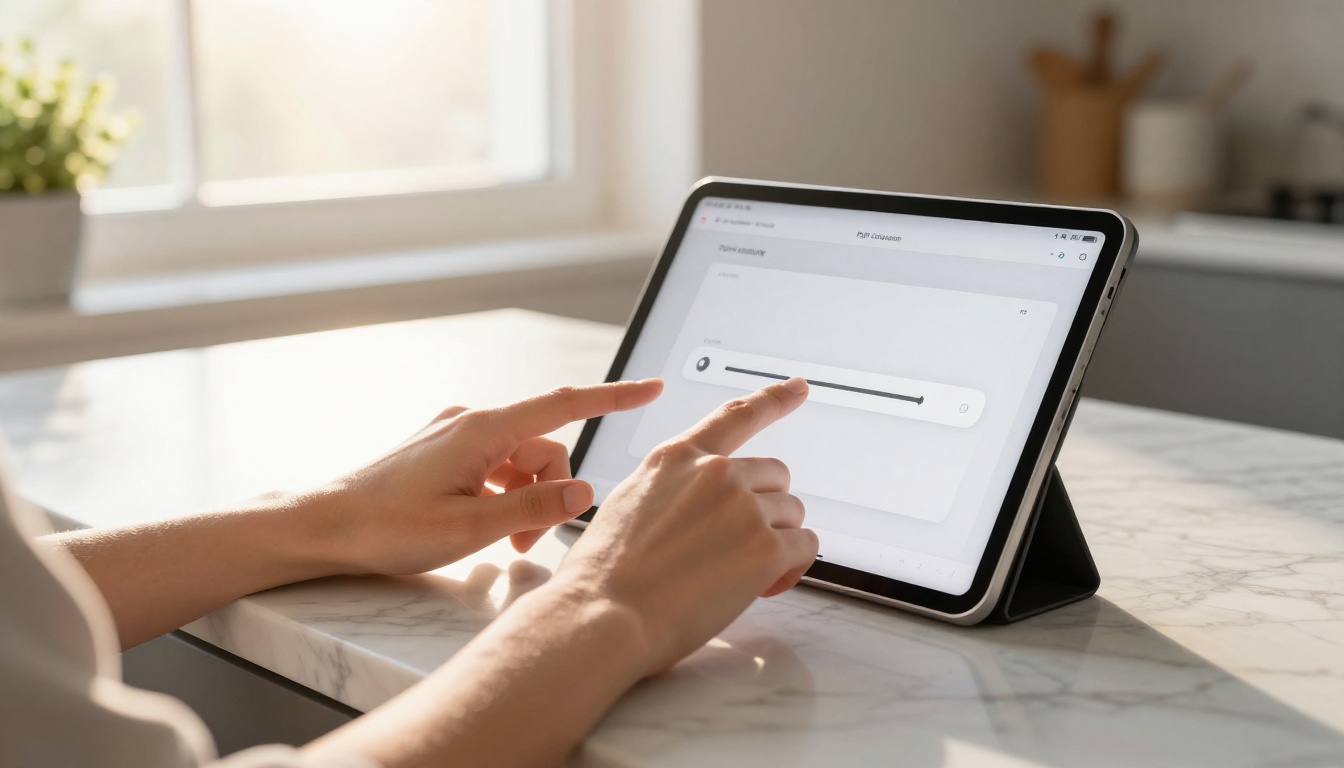
💡 Pro tip: Run your PDF through at least two different compression levels and compare the output quality before settling on one. What looks sharp on a desktop monitor might appear pixelated on a 6-inch phone screen.
The limitations: free tiers often cap file sizes at around 100MB and restrict daily usage to a few files. For large batches or very heavy source files, this becomes a bottleneck quickly. PDF24 is a notable exception, offering unlimited file sizes for free without requiring an account.
2. Adobe Acrobat Pro's PDF Optimizer
If you have access to Adobe Acrobat Pro, the PDF Optimizer under File > Save As > Optimized PDF is the most precise tool available. You can control exactly which elements get compressed, at what quality level, and whether fonts get subsetted or removed entirely.
The Audit Space Usage feature inside the optimizer shows a detailed breakdown of what's taking up space. From there, you can:
- Downsample images to a specific DPI (150 DPI is ideal for screen viewing)
- Remove embedded fonts that are already common system fonts
- Discard hidden layers, form fields, annotations, and comments
- Flatten transparency, which eliminates complex rendering requirements that inflate file size
- Remove metadata and document information that isn't needed for digital distribution
This level of control makes Acrobat Pro the gold standard for serious document optimization, but the monthly subscription puts it out of reach for occasional users.
3. Reduce image resolution at export time
If you're creating the PDF from a design application like Adobe InDesign, Affinity Publisher, or Canva Pro, you have the option to control image resolution at export. Instead of exporting at print quality (300-600 DPI), switch to a screen-optimized preset (72-150 DPI).
Most design applications offer an export preset specifically for digital or web use. In InDesign, this appears as "Smallest File Size" in the export presets dialog. In Canva, it's the "Compressed PDF" option. This approach produces the smallest possible PDF with the cleanest results because the compression happens at the source, before the PDF is even assembled.
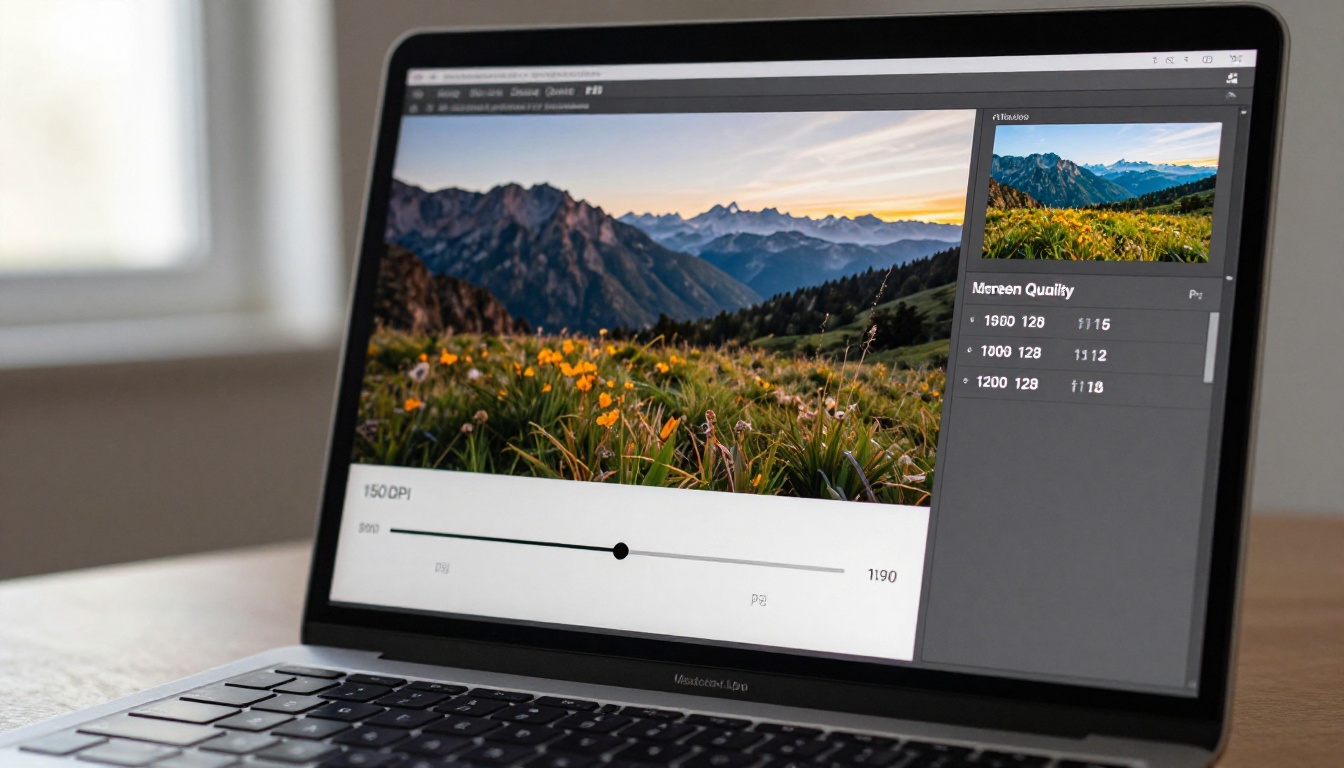
✅ Best practice: Always work at full resolution in your design file and only reduce resolution at export. This preserves your originals while keeping the exported PDF lean.
4. Remove unnecessary pages
If your PDF contains pages that aren't needed for the flipbook, such as print bleed marks, blank separator pages, internal draft pages, crop marks, or high-resolution print appendices, removing them before conversion reduces file size proportionally. A 200-page PDF with 20 blank or printer-only pages is 10% larger than it needs to be.
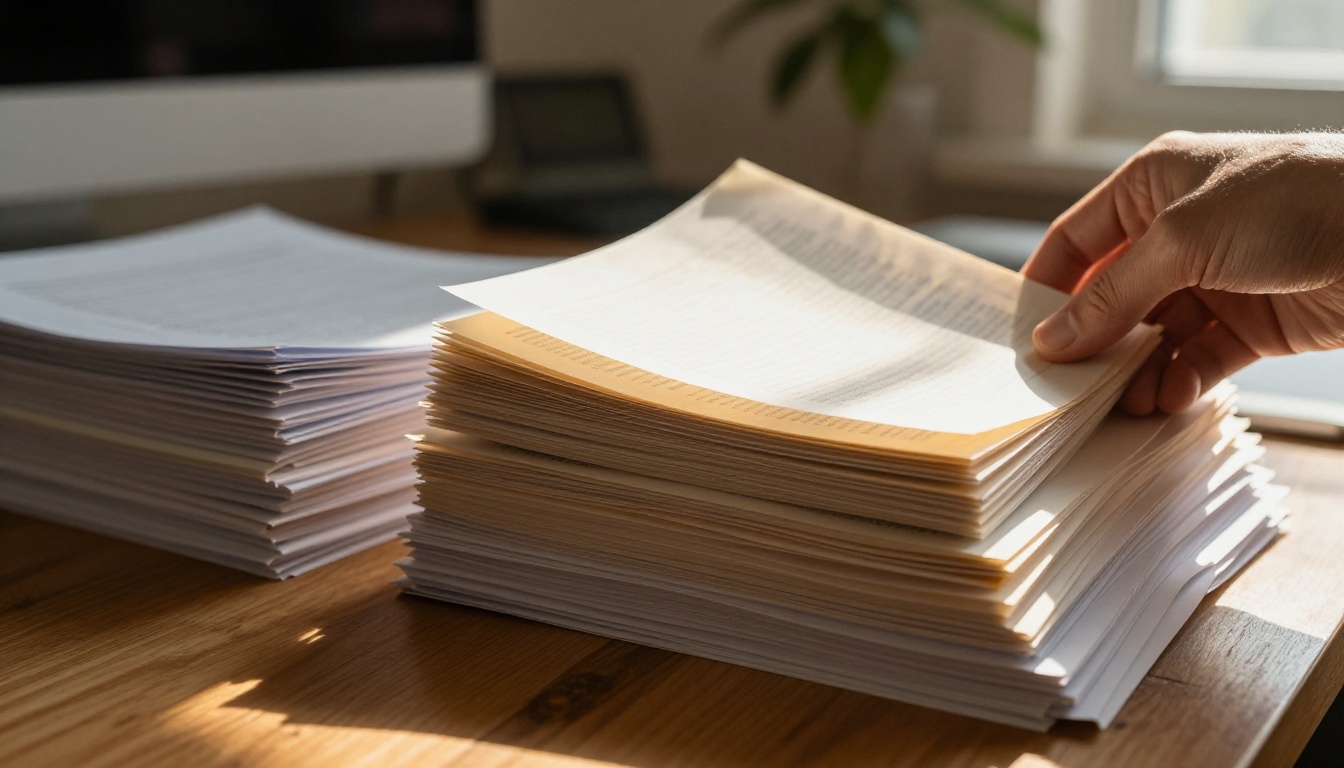
Free tools like PDF Arranger (Windows and Linux), Preview (macOS drag-and-drop page deletion), and Smallpdf's Split and Merge tool let you select and remove specific pages without affecting the rest of the document. On Windows, even the built-in Microsoft Print to PDF feature can produce a leaner version when you print only the desired page range to a new PDF.
5. Flatten transparency and simplify vector artwork
Complex vector illustrations with multiple transparency layers, gradient meshes, and blending modes can significantly inflate PDF file size. These elements require the PDF renderer to calculate interactions between overlapping shapes dynamically, which both increases file size and slows rendering on every device.
Flattening transparency converts these effects into simpler rasterized elements that are smaller and faster to render everywhere.
In Acrobat Pro, this is found under Print Production > Flatten Transparency. In InDesign, it's available in the export dialog under the Transparency Flattener section.
⚠️ Warning: Flattening transparency is irreversible in the exported PDF. Always work on a copy of your original file before applying this step, so you can return to the layered version if needed.
Choosing the right tool depends on your budget, file size, and how much control you need over the final output quality.
| Tool | Best For | Max Free File Size | Price | Quality Control |
|---|
| Smallpdf | Quick one-off online compression | 100MB | Free / $12/mo | Low, Medium, High preset |
| ILovePDF | Batch online compression | 100MB | Free / $7/mo | Low, Medium, High preset |
| Adobe Acrobat Pro | Full granular control over every element | Unlimited | $20/mo | Complete DPI and element-level control |
| PDF24 | No file size limit, completely free | Unlimited | Free | Basic preset settings |
| PDF2Go | Secure cloud compression | 200MB | Free / $5/mo | Percentage-based quality slider |
| Canva Pro Export | Design-first workflows with direct export | N/A | Free / $13/mo | Resolution-based presets |
| Preview (macOS) | Quick compression with no installs | Unlimited | Free (built-in) | Single reduce file size quartz filter |
⚠️ Warning: Some free online tools retain uploaded files on their servers for 24 hours or longer before deleting them. For confidential documents such as financial reports, contracts, legal agreements, or client materials, use desktop software or a platform with an explicit data deletion policy.
How Big Should Your PDF Be for a Flipbook?
There is no universal rule, but practical targets exist based on content type and intended audience.
Recommended file size targets by document type
| Document Type | Recommended Size | Reason |
|---|
| Product catalog (20-50 pages) | Under 15MB | Fast mobile loading without data concerns |
| Annual report (100+ pages) | Under 30MB | Acceptable performance on all connection speeds |
| Photography portfolio | Under 25MB | Balance between image fidelity and load time |
| Restaurant menu (4-16 pages) | Under 5MB | Near-instant loading is critical for diner experience |
| Training manual (100+ pages) | Under 40MB | Practical for offline download and storage |
| Magazine or publication | Under 20MB | Standard per-issue benchmark for digital distribution |
| Real estate brochure | Under 10MB | Fast sharing via direct link or email |
| Event program | Under 8MB | Often accessed on-site over cellular data |
Image resolution: the single biggest variable
The DPI setting on embedded images is almost always the biggest driver of PDF file size. Here is what each level means in practice:
- 72 DPI: Minimum for web use, looks acceptable on standard density screens, produces the smallest file
- 96 DPI: Handles standard HD monitors well with a slight quality increase over 72 DPI
- 150 DPI: The ideal sweet spot for flipbooks, looks crisp on retina and 4K screens with manageable file size
- 300 DPI: Print quality, unnecessary for screen use, inflates file size dramatically with no benefit to digital readers
For a flipbook that will be read on screens, 150 DPI is the optimal target. It looks crisp on retina and 4K displays while keeping file sizes at a fraction of print-ready PDFs. Most readers cannot tell the difference between 150 DPI and 300 DPI on any modern display.
From Compressed PDF to Professional Flipbook with Flipbooks AI
Once your PDF is optimized, converting it to a professional digital flipbook takes just a few minutes on Flipbooks AI. The platform handles all rendering, hosting, and delivery automatically, so you focus entirely on your content.
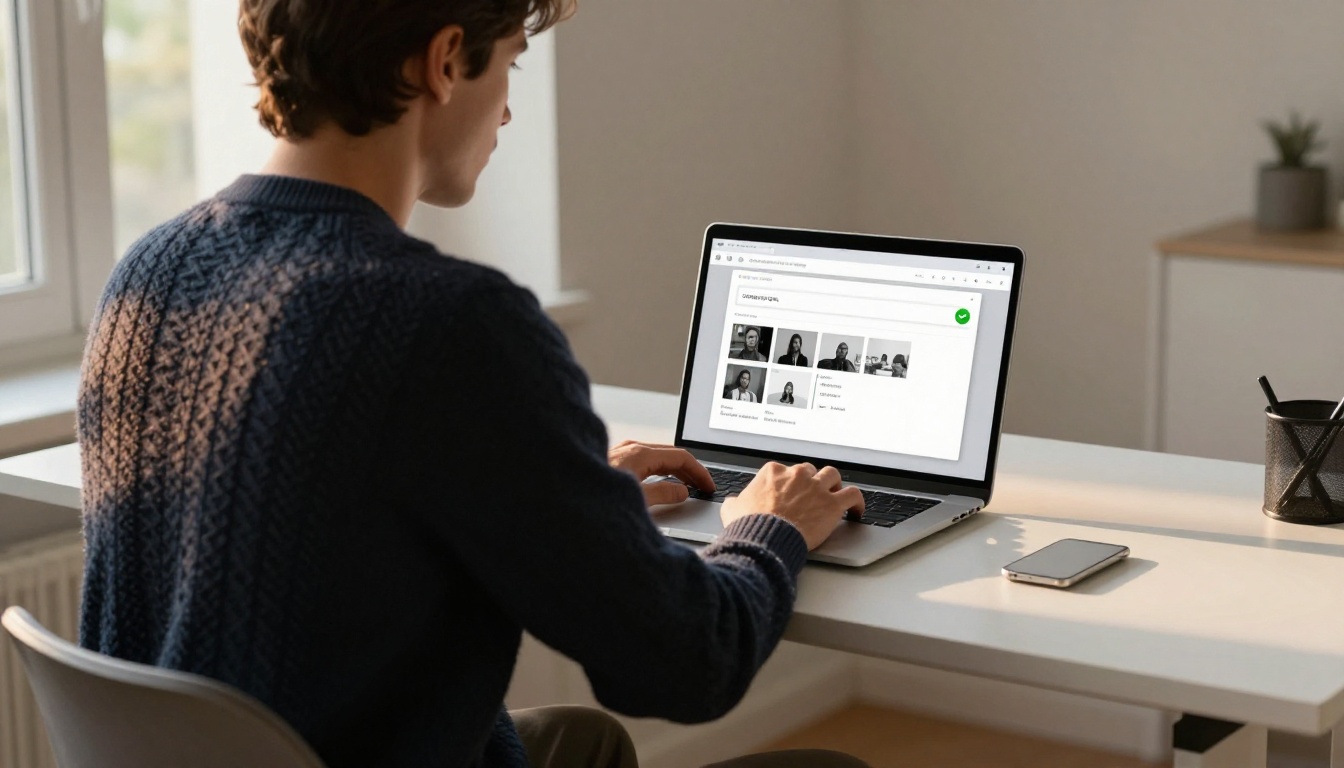
Step 1: Create your account
Go to flipbooksai.com/account and sign up. No credit card is required for the free plan, which lets you create and share flipbooks immediately to test the workflow.
Step 2: Upload your compressed PDF
From the dashboard, click New Flipbook and drag your compressed PDF into the upload zone. With a well-optimized PDF under 20MB, upload and processing completes in under a minute even for 100+ page documents.
The PDF to Flipbook Converter handles page rendering automatically, preserving your fonts, colors, vector elements, and layouts exactly as they appear in the source document. There is no manual page configuration required.
Step 3: Personalize your flipbook
After conversion, you can tailor the experience for your readers:
- Custom branding: Upload your logo and set brand colors to match your visual identity
- Page effects: Choose from realistic page-curl animations, smooth horizontal scroll, or slide transitions
- Embedded multimedia: Add video clips or audio to specific pages for interactive content
- Password protection: Restrict access to paying clients, subscribers, or internal team members
- Analytics tracking: Monitor reads, page views, average time per page, and reader behavior on the Professional plan
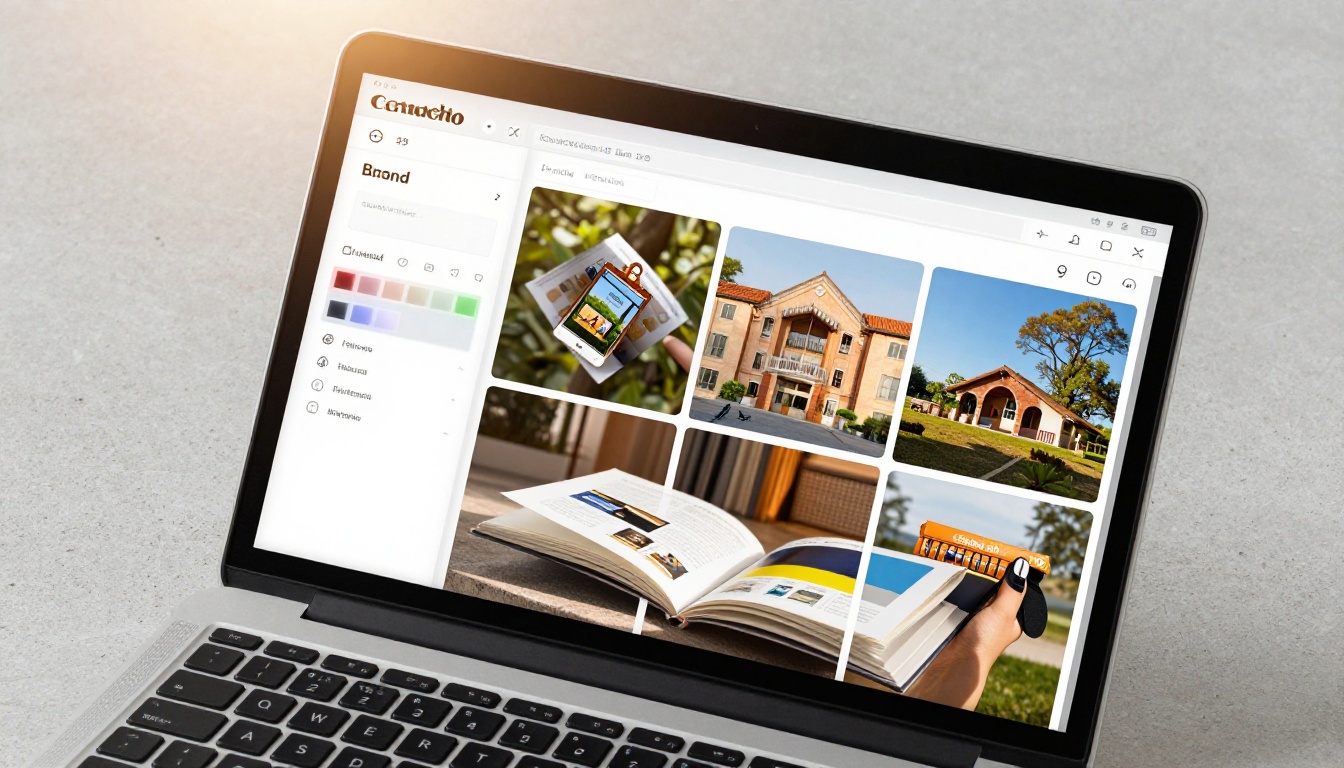
💡 Pro tip: Use the page thumbnail preview after conversion to spot any rendering issues before publishing. Complex vector elements or unusual font choices occasionally render slightly differently in the digital version, and catching this takes seconds compared to finding it after distribution.
Step 4: Publish and share
Flipbooks AI provides multiple ways to distribute your flipbook once it's ready:
- Direct link: A clean, shareable URL you can drop into any email, message, or social post
- Embed code: Drop the flipbook into any website or landing page with a single snippet using the Embed Flipbook on Website tool
- QR code: Generate a scannable QR code for print materials that links directly to the digital version
- Password-protected sharing: Share with selected recipients without making the content publicly accessible
- Offline downloads: Allow readers to save the flipbook for offline reading on their device (Professional plan)

Common Mistakes When Shrinking PDFs
Even with good tools and clear targets, a few missteps consistently trip people up.
Over-compressing and losing legibility
Pushing compression too far, especially with scanned documents or text-heavy PDFs, can make text blurry and difficult to read at normal sizes. Always review the compressed file at 100% zoom in a PDF viewer before converting to a flipbook. If body text looks soft or pixelated at normal reading magnification, back off the compression and try a medium setting instead of the aggressive one.
Pay particular attention to small fonts below 10pt and thin-line graphics such as charts, tables, and technical diagrams. These suffer most from over-compression and become unreadable at low quality settings.
Ignoring vector text versus rasterized text
PDFs with embedded vector text compress extremely well and remain crisp at any zoom level. PDFs where text has been converted to images, as happens with scanned physical documents, compress much less effectively and look blurry at high zoom levels.
If your PDF came from scanning printed pages, run it through an OCR process first. Adobe Acrobat's OCR feature under Tools > Scan and OCR can recognize text in scanned pages and embed it as real vector content. This makes the PDF smaller, searchable, and far better suited for flipbook conversion.
Not testing on mobile before publishing
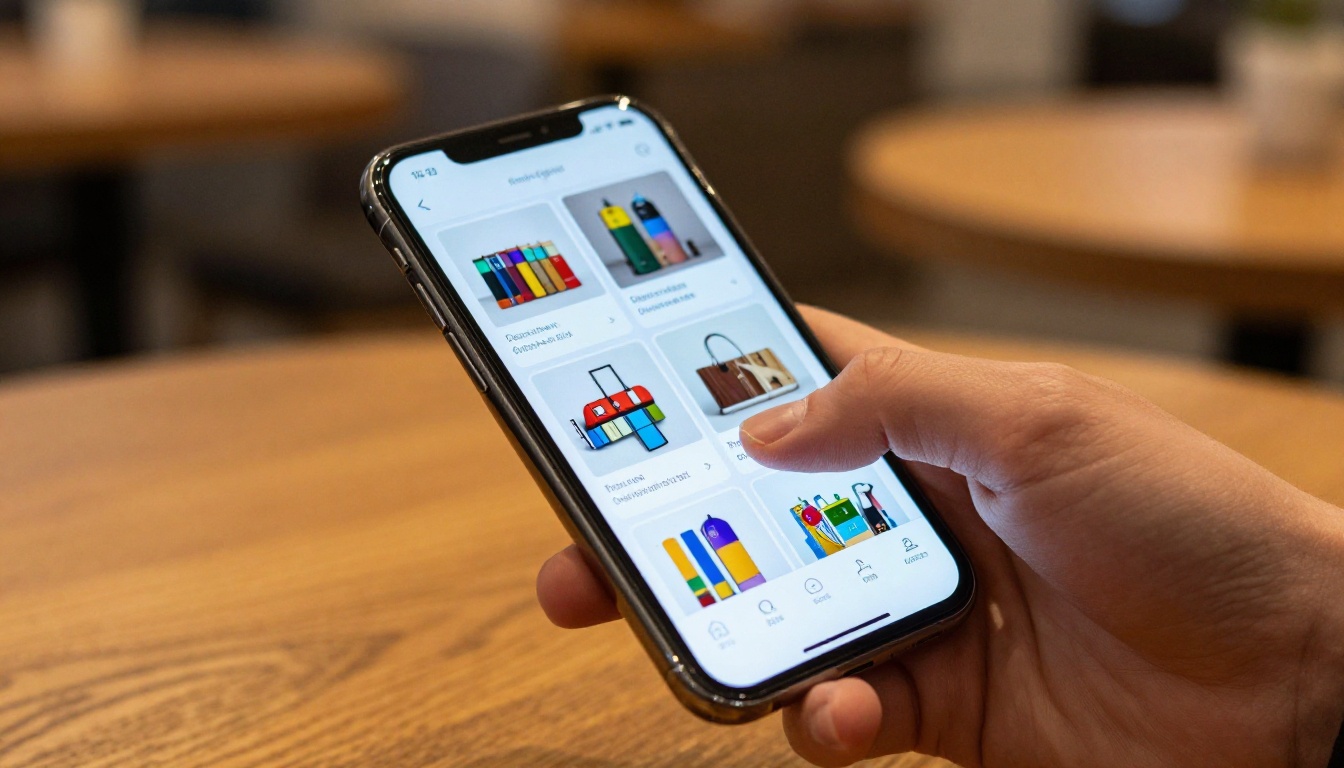
After compression and conversion, always test the flipbook on a smartphone before sharing publicly. Open it in a mobile browser, flip through several pages, and zoom into body text and images. If images look pixelated or text is difficult to read at normal viewing distance, the compression was too aggressive for the content type and you should regenerate at a lighter setting.
Forgetting to check document security settings
PDFs with print or copy restrictions applied by the original creator often cannot be processed by compression tools. Many online tools will reject these files silently or return an error without explanation. Check File > Properties > Security in any PDF viewer to see if restrictions are active before attempting compression. You may need to remove these settings with appropriate permissions before any compression tool can process the file.
Who Benefits Most From This Process
Several categories of users regularly face large PDF challenges before flipbook conversion:
Marketing and design teams creating product catalogs, brochures, and lookbooks with high-resolution photography should compress assets to screen resolution before using the Product Catalog Generator or the Brochure Flipbook Maker.
Restaurants and hospitality businesses uploading seasonal menus need fast-loading flipbooks above all else. The Restaurant Menu Creator works best when the source PDF is under 5MB, which most well-optimized menus achieve easily after removing print-specific elements.
Real estate professionals sharing property brochures with high-resolution photography benefit from dropping image DPI from 300 to 150 before using the Real Estate Brochure Creator. Buyers browsing properties on mobile need pages that load instantly.
Educators and training coordinators publishing course materials with long documents can remove unnecessary print-specific pages and compress embedded images before using the Course Material Publisher or Training Manual Flipbook tool.
Photographers and creatives building portfolios work with some of the heaviest files. Dropping export resolution to 150 DPI before uploading to the Digital Portfolio Creator produces portfolios that load instantly while still looking stunning on high-resolution displays.
Publishers and magazine editors distributing regular issues benefit most from having a consistent compression workflow in place before each publication cycle. The Magazine Flipbook Creator and E-Magazine Publishing Tool accept any well-optimized PDF and handle all distribution automatically.
What to Do Next
Shrinking your PDF is a one-time preparation step that pays off in every interaction a reader has with your flipbook. Faster loading, cleaner uploads, and better mobile performance all trace back to this single investment of 5-10 minutes before conversion. The tools are free or built into software you already use, the process is straightforward, and the result is a professional-grade digital publication that works for every reader on every device.
Get started for free on Flipbooks AI, upload your optimized PDF, and have a professional flipbook ready to share in minutes. Browse pricing plans if you need features like analytics, lead generation, or offline downloads. Check all available flipbook tools to find the right format for your specific use case, whether it's a catalog, menu, brochure, portfolio, report, or publication.



