You still have them somewhere: a folder full of .pub files from a decade of brochures, newsletters, price lists and event flyers. Microsoft has announced that it is ending support for Publisher in October 2026, which means those files are about to become awkward to open, edit or share. The good news is that you can turn them into modern, page-turning digital publications with Flipbooks AI in about the time it takes to drink a coffee.
This tutorial walks through the whole process: finding your old files, exporting them cleanly, fixing the usual problems, and publishing a flipbook that looks great on a phone, a tablet or a desktop.
Why Publisher Files Are at Risk
A .pub file is a closed, proprietary format. Only Publisher opens it properly, and Publisher only runs on Windows. Once the software stops receiving updates, three problems appear fast.
- No Mac or mobile access. Colleagues and clients cannot open the file at all.
- No future compatibility. New Windows or Office builds may break layouts or fonts.
- No easy sharing. You cannot email a
.pub file and expect anyone to read it.
Many small businesses, schools and nonprofits keep years of valuable material locked inside this format. A restaurant menu from 2014, a school newsletter template, a real estate brochure: all of it is still useful if you can get it out.
⚠️ Do not delete your original .pub files after converting. Keep them in a backup folder in case you need to make edits to the layout later.
The Real Cost of Waiting
Every month you wait, the chance of losing access grows. Hard drives fail, old laptops get recycled, and the one person who knew where the files were moves on. Converting now takes minutes per file. Rebuilding a lost brochure from scratch takes days.
What You Gain by Converting
A flipbook is more than a PDF with a fancy viewer. It gives you a shareable link, an embed code for your website, mobile-friendly reading and the option to track who opens it. Print layouts become living documents.
Print Layouts vs Digital Flipbooks
Before you start, it helps to see what changes and what stays the same.
| Feature | Original Publisher File | Flipbook |
|---|
| Opens without special software | No | Yes, in any browser |
| Works on phones and tablets | No | Yes, fully responsive |
| Shareable by link | No | Yes |
| Embeddable on a website | No | Yes |
| Page-turning experience | No | Yes |
| Clickable links and media | Limited | Yes, including video and audio |
| Needs a Windows license | Yes | No |
The page layout, images and typography carry over because the flipbook is built from a PDF of your design. What you gain is distribution.
Step 1: Find and Sort Your Files
Start by gathering everything. Search your computer for *.pub, then check external drives, shared network folders and old email attachments.
- Copy every
.pub file into a single working folder.
- Rename files with clear names, for example
spring-menu-2019.pub.
- Sort them into three groups: publish now, maybe later and outdated.
- Note which files use special fonts or linked images.
💡 Linked images are the number one cause of broken exports. In Publisher, open the File menu, choose Info, then Manage Linked Files to see what the layout expects to find.
Check What Still Matters
Be honest about what deserves a second life. Evergreen material such as product catalogs, training handouts, event programs and company profiles usually earns its place. A flyer for an event that happened in 2012 does not.
Step 2: Export Each File to PDF
You still need a working copy of Publisher for this step. If you no longer have it, borrow a Windows machine with Office or use a trial version. You only need it for the export.
How to Export Correctly
- Open the
.pub file in Publisher.
- Click File, then Export, then Create PDF/XPS Document.
- Choose Standard (publishing online and printing) for the best quality.
- Open Options and tick Document structure tags if you want accessibility support.
- Save the PDF next to the original with the same name.
For files that will be read only on screens, Minimum size works fine, but standard quality keeps small text crisp when readers zoom in on a phone.
Which Export Setting Should You Use?
| Setting | Best For | File Size | Image Quality |
|---|
| Minimum size | Newsletters with few images | Small | Acceptable |
| Standard | Brochures, menus, catalogs | Medium | High |
| High quality printing | Photo-heavy portfolios | Large | Very high |
| Commercial press | Print shops only | Largest | Maximum, but not needed online |
If you pick commercial press, you will just create larger uploads with no visible benefit on screen.
Exporting Spreads Properly
Publisher often stores two-page spreads. In the export dialog, check whether you want single pages or spreads. For a flipbook, single pages are almost always the safer choice because the viewer creates its own spreads automatically.
Step 3: Fix Common Problems Before Uploading
Open each PDF and scroll through every page before you publish. Ten minutes of checking saves embarrassing corrections later.
Problem Checklist
- Missing fonts. If the PDF shows a substitute typeface, reopen the
.pub file on a machine with the original font installed and export again.
- Low-resolution images. Old files often used 72 dpi web images. Replace them with higher resolution originals if you have them.
- Text running off the page. This happens when a font was swapped. Resize the text box in Publisher and export again.
- Broken hyperlinks. Dead links to old websites should be updated before you export.
- Crop marks or bleed. Turn off printer's marks in the export options.
Quick Fix Reference
| Symptom | Likely Cause | Fix |
|---|
| Odd letter spacing | Font substitution | Install original font, re-export |
| Blurry photos | Low dpi linked images | Relink to originals, re-export |
| Blank image boxes | Missing linked files | Use Manage Linked Files |
| White margins too wide | Bleed settings | Disable printer's marks |
| Oversized PDF | Print quality export | Re-export at Standard |
✅ Best practice: name your final PDFs exactly how you want your flipbooks titled. Clean names make your library easier to manage later.
Step 4: Upload Your PDF to Flipbooks AI
Now comes the quick part. The PDF to Flipbook Converter does the heavy lifting.
- Go to Flipbooks AI and create a free account.
- Click Create new flipbook and drag your PDF into the upload area.
- Wait a few moments while pages are converted into a page-turning viewer.
- Preview the flipbook on desktop and mobile layouts.
- Click Publish to get your public link.
No watermarks are added to your pages, and your design stays exactly as exported.
Customize the Look
Once the file is uploaded you can adjust how readers experience it.
- Branding: add your logo and choose background colors that match your company.
- Page effects: pick the speed and style of the page curl.
- Multimedia: embed videos or audio on specific pages.
- Table of contents: add clickable navigation for long documents.
💡 Matching the background color to your brand makes an old design feel brand new without touching the original layout.
Step 5: Share Your Flipbook Everywhere
A published flipbook gives you several ways to reach people, and each fits a different situation.

| Sharing Method | Best For | Setup Time |
|---|
| Direct link | Email, social media, messaging apps | Instant |
| Embed code | Website pages and blog posts | 2 minutes |
| QR code | Printed posters, table cards, packaging | 5 minutes |
| Password protection | Private catalogs and internal training | 1 minute |
| Offline download | Trade shows with poor connectivity | 1 minute |
To place a flipbook on your site, follow the steps on the Embed Flipbook on Website page and paste the code into your page editor.
Track Who Reads It
On the Professional plan you get analytics and lead generation, so you can see which pages hold attention and capture contact details before readers open a private document. Check the current options on the pricing page.
Real Examples of Old Publisher Files with New Life
Here are practical cases that fit this workflow well.
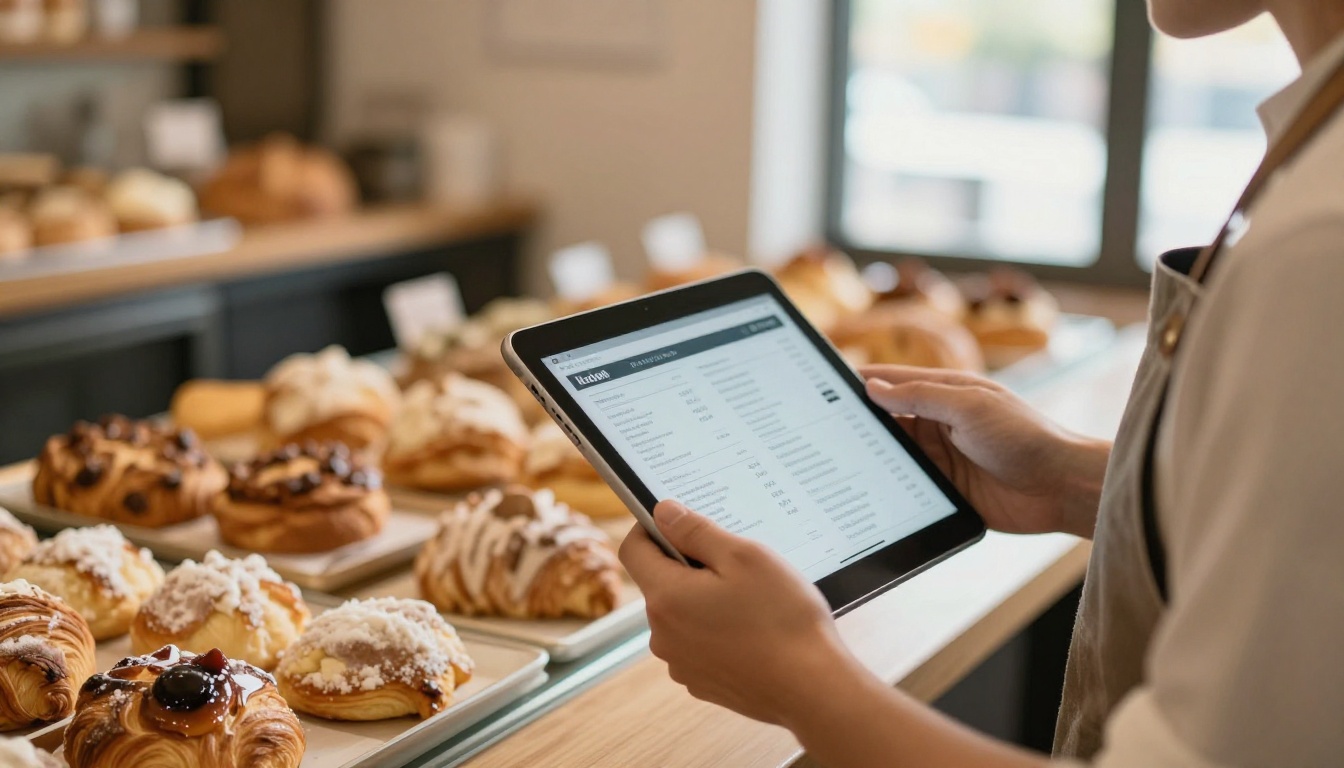
A Café Reviving Its Menu
A neighborhood bakery still has a beautiful 2017 menu built in Publisher. Exporting it to PDF and publishing it with the Restaurant Menu Creator produces a QR-code menu for the counter, and updates need only a re-upload.
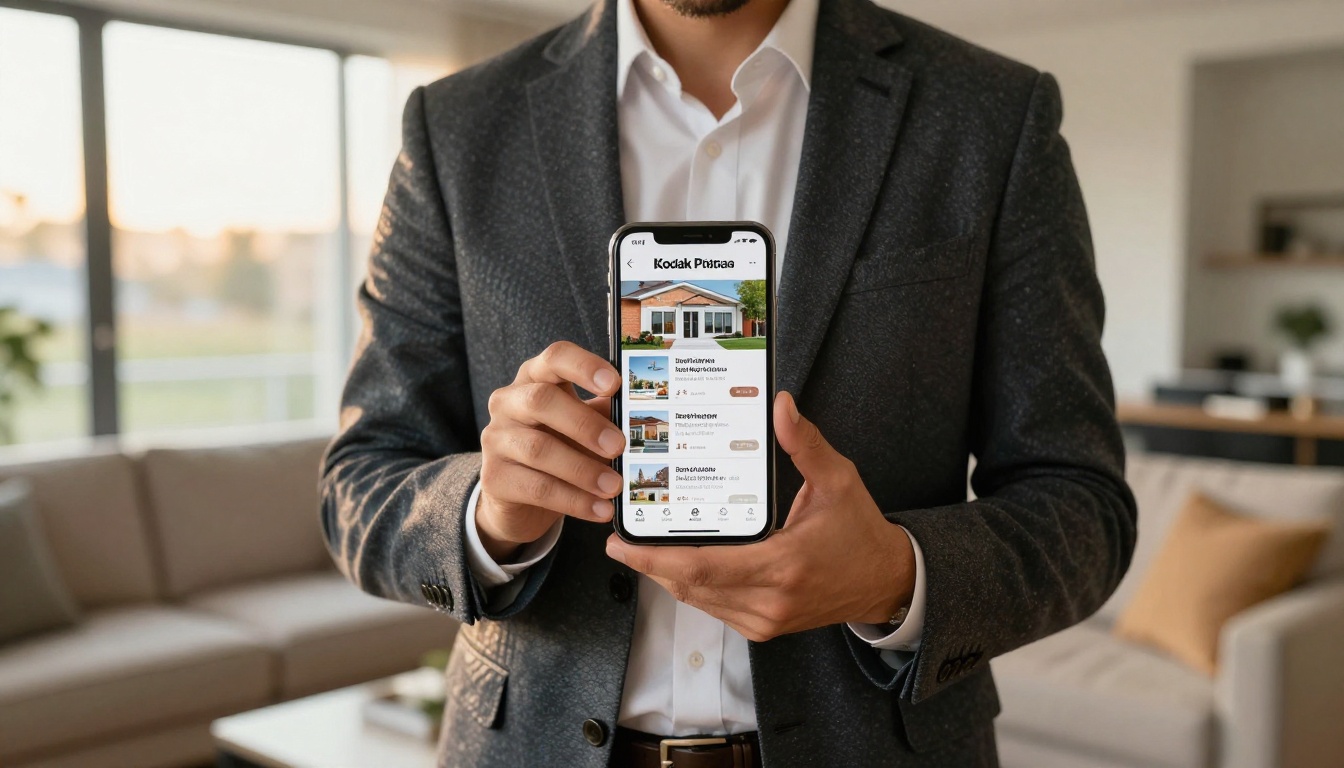
A Real Estate Agent Sharing Listings
Agents who built property brochures in Publisher can send a single link instead of heavy email attachments. The Real Estate Brochure Creator keeps those layouts clean on phones, where most buyers browse.
A School Archiving Newsletters
Schools often have years of monthly newsletters in .pub format. Converting them lets parents read back issues on any device, and the School Newsletter Creator keeps them in one tidy library.
A Nonprofit Sharing Annual Reports
Older annual reports and donor updates are strong trust signals. Publishing them gives supporters a proper reading experience, and the Nonprofit Annual Report tool is a natural fit.
Use Case Summary
| Organization | Typical Publisher File | Best Flipbook Use |
|---|
| Restaurant or café | Menu, specials sheet | QR code menu |
| Real estate agency | Listing brochure | Link in email and messages |
| School | Monthly newsletter | Searchable archive |
| Nonprofit | Annual report | Embedded on donation page |
| Retailer | Price list, catalog | Password-protected wholesale catalog |
| Event planner | Program, schedule | Offline download for attendees |
Batch Converting Many Files
If you have dozens of files, a repeatable routine saves hours.
- Export all PDFs in one session so settings stay consistent.
- Use a naming pattern such as
topic-year-version.
- Upload them in order of importance, starting with your most-requested material.
- Add every published link to a single spreadsheet.
- Link the best ones from a resources page on your website.
💡 Ask a colleague to review each flipbook on their phone before you share it publicly. A fresh pair of eyes catches typos and odd page breaks that you stopped seeing years ago.
Three Common Mistakes
- Uploading the
.pub file directly. Only PDFs convert. Always export first.
- Skipping the mobile preview. Most readers will open your flipbook on a phone.
- Forgetting the file name. A title like
Final_v7_REAL is not something you want in a public library.
Keeping Your Flipbooks Up to Date
A flipbook is easy to refresh. When prices change or a new season begins, you do not need Publisher at all. Edit the content in any tool that creates PDFs, such as Word, Canva or Google Docs, and upload the new version. Your link stays the same, so printed QR codes and website embeds keep working.
If you want to rebuild a layout from scratch rather than recreate it, browse the full list of flipbook tools for templates suited to catalogs, brochures, magazines and reports.

Frequently Asked Questions
Can I convert a .pub file without Publisher?
Not directly. The .pub format needs Publisher, or a converter that supports it, to produce a PDF. Once you have a PDF, no Microsoft software is needed.
Will my fonts and layout stay the same?
Yes, if the PDF export looks right. The flipbook reproduces the PDF exactly, so check fonts and images before uploading.
Do I lose clickable links?
Hyperlinks inside the PDF stay clickable in the flipbook, and you can add extra links, videos and audio inside the editor.
Is there a page limit?
Plans differ, so check the pricing page to see what fits your library.
Ready to Rescue Your Old Files?
Your Publisher archive holds years of work that deserves a better home. Export the PDFs, spend ten minutes polishing them, and publish. Get started for free on Flipbooks AI, browse the tools and templates for your use case, or compare pricing plans to pick the right one for your library.



