Microsoft Teams is where your team lives. Meetings, channels, chats, file sharing, project threads — everything runs through it. But the moment you drop a PDF into a channel, something breaks. Readership collapses. People scroll past it or download it once, never to open it again. In a platform built for dynamic, real-time communication, static documents are dead weight. The fix is replacing those flat files with interactive flipbooks that open instantly in any browser, look polished on any device, and actually get read. Flipbooks AI converts any PDF into a responsive, page-turning digital publication in minutes, and sharing it inside Teams requires nothing more than pasting a link.
This is not about adding complexity to your workflow. It is about removing friction from the document experience that slows every team down.
Why Static PDFs Kill Team Productivity
The problem with PDFs in Teams is not the format itself — it is the friction chain they create. Every step between sharing a document and someone actually reading it is a point where readership drops.
The Hidden Cost of Dead Documents
Think about what happens when you share a PDF in a Teams channel. The file appears. Someone might click the preview. Most people scroll past it. Those who do open it download a local copy, launch it in a separate app, and by the time the page loads, they have already switched back to what they were doing.
Research on internal document sharing in team messaging platforms consistently shows that static file attachments have single-digit average read rates for non-urgent content. Your carefully prepared training manual, your quarterly department update, your product catalog — most of it goes unread.
The friction is multi-layered:
- Download barrier: Even small PDFs require a deliberate download action
- Application switching: Opening a PDF takes you out of Teams entirely
- Mobile usability: Long PDFs on mobile are genuinely painful to read
- No persistent access: The file gets buried in chat history within days
- Version confusion: Team members may hold outdated downloaded copies when you update the document
What Flipbooks Do Differently
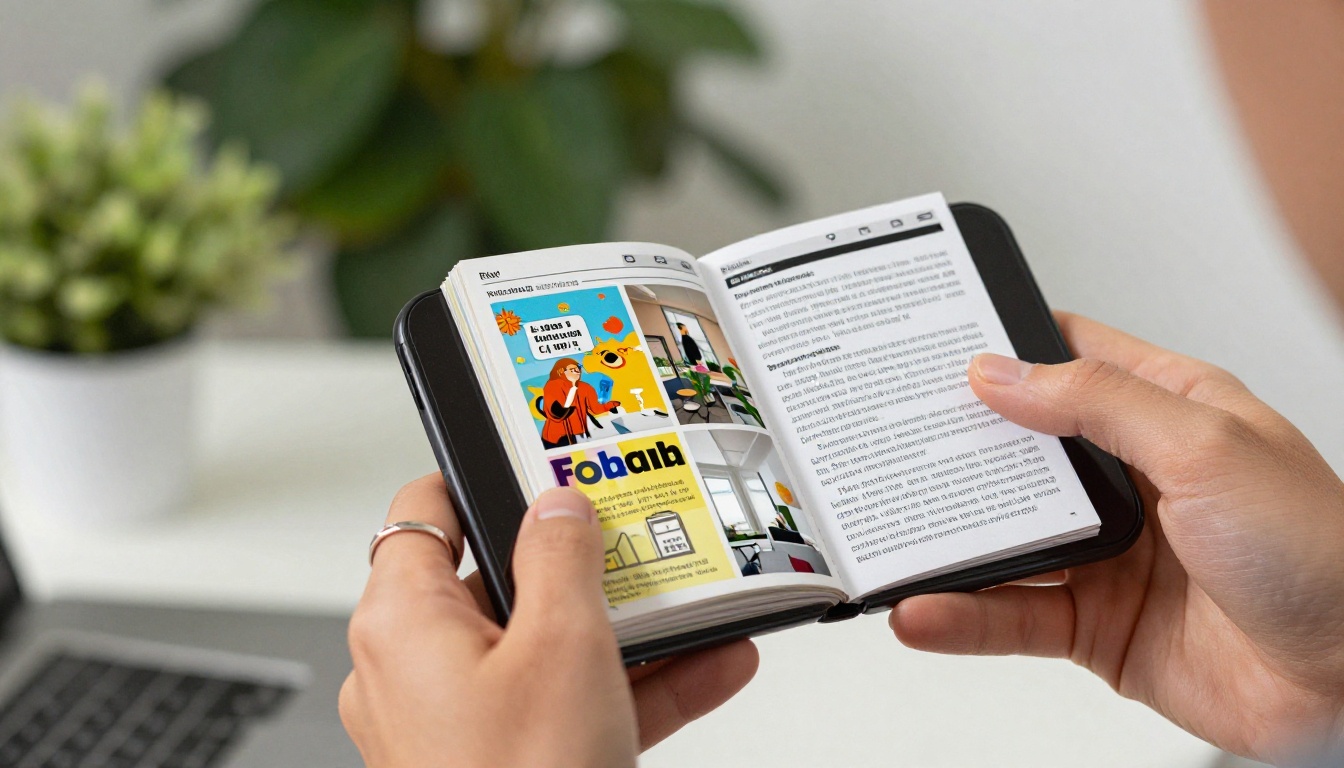
A flipbook is a browser-based, interactive publication built from your PDF. It has real page-turning behavior, a clean reading interface, embedded media support, and a mobile-first layout. When you share a flipbook link in Teams, recipients click once and the document opens in their browser — fully interactive, no download, no friction.

The difference is immediate and measurable. Pages are navigable with a table of contents. Content is searchable. Videos and audio play inline. Links are fully clickable. On mobile, the layout automatically adapts to screen size.
With Flipbooks AI, the Professional plan adds detailed analytics showing exactly who opened your document, which pages held attention the longest, and where readers dropped off. That visibility does not exist for PDF attachments in any form.
3 Ways to Share Flipbooks in Microsoft Teams
No plugin installation required. No Teams app to configure. Flipbooks work through a standard web link, making integration completely frictionless across all three sharing methods below.
1. Drop a Link in Any Chat or Channel
This is the fastest method. Once your flipbook is published on Flipbooks AI, you get a clean direct URL. Paste it into any Teams chat, channel message, or reply thread.
Teams automatically renders a link preview showing the flipbook title. Recipients click once and the full interactive document opens in their browser. No downloads, no waiting.

When to use this method:
- Sharing weekly reports in project channels
- Distributing training materials to new hires
- Sending product catalogs to the sales team
- Posting meeting pre-reads before a scheduled call
- Publishing company announcements with high-quality formatting
💡 Pro tip: Add a short, specific message above the link with a clear call to action. "Q3 financial results are live — page 8 has the numbers that will drive tomorrow's budget discussion." Context dramatically increases read rates. A bare link with no context gets ignored.
2. Pin a Flipbook as a Teams Tab
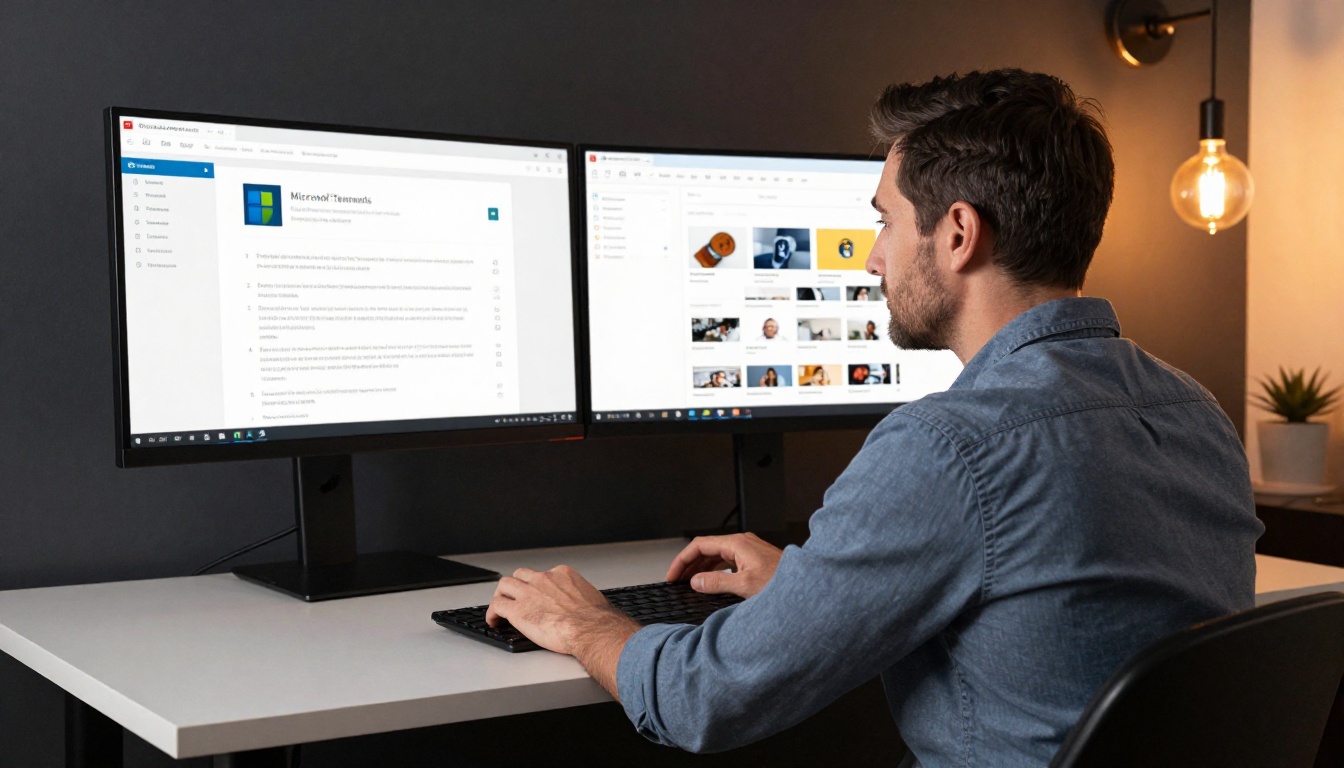
This is the most powerful integration available. In any Teams channel or group chat, you can add a Website tab that loads your flipbook directly inside the Teams interface. No app switching, no new windows.
How to set it up:
- Open the Teams channel where you want to pin the flipbook
- Click the + button next to the existing tabs at the top of the channel
- Select Website from the app list (search for it if it is not immediately visible)
- Paste your flipbook URL into the URL field
- Give the tab a clear, specific name such as "Q4 Sales Playbook" or "Employee Handbook 2025"
- Click Save — the flipbook is now a permanent tab in the channel
Every team member can access it instantly at any time without searching through message history. When you update the flipbook on Flipbooks AI, the tab automatically reflects the latest version.

✅ Best practice: Pin your most frequently referenced documents as permanent tabs. Training manuals, standard operating procedures, active sales playbooks, and current product catalogs all belong here. It keeps the whole team aligned on a single source of truth with zero ongoing effort.
3. Share Your Screen During a Teams Meeting
During any Teams video call, share your screen and open your flipbook in the browser. Everyone in the meeting sees the full page-turning experience in real time, with your cursor visible as you move between sections.
This approach is substantially more compelling than a static slideshow for:
- Sales walkthroughs where you flip dynamically between product pages based on the conversation
- Training sessions where participants follow along at their own pace on a separate device
- Executive briefings where the visual polish of the document signals preparation and professionalism
- Client presentations where a branded, interactive flipbook creates a strong first impression
⚠️ Warning: Avoid sending the PDF as a pre-meeting attachment and reading from it on screen. That fragments attention — participants look at their local copy instead of following yours. Share the flipbook link in the Teams chat at the meeting start. Participants open it on their own screen and follow along with full interactivity.
How to Create a Flipbook with Flipbooks AI
The whole process takes under five minutes for most documents. Here is the exact workflow.

Step 1: Upload Your PDF
Go to Flipbooks AI and create an account. From the dashboard:
- Click Create New Flipbook
- Select Upload PDF and choose your file
- The conversion runs automatically, typically 20-60 seconds depending on file size
- Your flipbook is generated immediately, preserving all layouts, fonts, and graphics
The PDF to Flipbook Converter handles everything automatically. Any document that looks good as a PDF will translate directly into an excellent flipbook with zero manual formatting.
Step 2: Customize for Your Brand
Before sharing in Teams, spend two minutes on customization:
- Logo and brand colors: Upload your company logo and set brand colors for the flipbook interface
- Background settings: Choose a solid color or subtle texture behind the pages
- Page shadow effects: Enable depth and shadow for a more realistic page-turning feel
- Table of contents: Enable automatic chapter navigation for longer documents
For documents like sales presentations, corporate reports, or client-facing brochures, custom branding raises the perceived professionalism of every document you share in Teams.
Step 3: Copy Your Share Link and Publish
From the editor, click Publish then Share. You will see several options:
- Direct link: The primary URL to paste in Teams chats and channels
- Password protection: Optional toggle for confidential documents
- Download toggle: Control whether recipients can download the original PDF
- Analytics access: Available on the Professional plan to track reading behavior
Copy the direct link. It is ready to use in Teams immediately.
Best Use Cases Inside Microsoft Teams
Different teams across different industries use this combination in different ways. Here are four applications with the highest return.

Corporate Training and Onboarding
HR and Learning & Development teams build training materials that often sit unused in SharePoint folders. Pinning a Training Manual Flipbook as a tab in the onboarding Teams channel solves this completely.
New hires find it on day one. They work through it at their own pace. Analytics show you exactly which employees finished each section and which ones have not yet started. This data is invaluable for compliance training where completion verification is required.
For more structured onboarding, the Course Material Publisher lets you build multi-chapter publications that work as standalone training resources pinned permanently in your HR channel.
Sales Presentations and Playbooks in Channels
Sales managers can pin the current sales deck, pricing guide, or product catalog directly in the sales team channel. Every rep has the latest version at all times. No version confusion, no outdated attachments, no mass-distribution emails when something changes.
During customer calls, reps share their screen and walk through the flipbook live — a far more professional experience than a static PowerPoint, especially for visually rich catalogs with product photography.
Internal Reports and Company Newsletters
Monthly company updates, department performance summaries, and internal newsletters translate beautifully into flipbooks. The Corporate Report Maker and Newsletter Flipbook Publisher tools accelerate formatting for recurring documents.
Drop the link in your #general or #announcements channel. Read rates for flipbook-format newsletters consistently outperform PDF attachments because the format signals quality and delivers a genuinely better reading experience on every device.
Product Catalogs for Customer-Facing Teams
For companies with physical or digital products, a live catalog pinned in Teams is a practical competitive tool. The Digital Catalog Maker and Fashion Catalog Creator produce interactive catalogs your team can reference in any meeting or customer call.

When a product line is updated, you update the flipbook once. Every rep across every Teams channel automatically has the current version. No redistribution process, no "please use the new version" reminders, no stale information in client conversations.
Teams + Flipbooks: Feature Comparison
Here is how the flipbook approach compares to the document-sharing alternatives most teams default to:
| Feature | PDF Attachment | PowerPoint in Teams | Flipbook via Flipbooks AI |
|---|
| Opens without download | No | No | Yes |
| Mobile-friendly experience | Poor | Moderate | Excellent |
| Page-turning interactivity | No | No | Yes |
| Embedded video and audio | No | Yes | Yes |
| Reading analytics | No | No | Yes (Professional plan) |
| Password protection | No | Limited | Yes |
| Always shows latest version | No | No | Yes |
| Custom branding and colors | No | Limited | Yes |
| Shareable via clean URL | Limited | Limited | Yes |
| No watermarks | Yes | Yes | Yes (Standard and above) |
The advantage is clear at every row. Flipbooks address every core weakness of static file formats in a collaborative team environment.
Choosing the Right Plan for Your Team
Flipbooks AI offers tiered plans built for different team sizes and requirements:
| Plan | Best For | Standout Features |
|---|
| Free | Solo users testing the platform | 3 flipbooks, basic sharing, standard viewer |
| Standard | Small to mid-size teams | Unlimited flipbooks, no watermarks, custom branding, password protection |
| Professional | Corporate teams, sales, HR | Analytics dashboard, lead generation, offline downloads, priority support |
For most teams using this workflow inside Microsoft Teams, the Standard plan covers everything needed for daily document sharing. Teams that need visibility into reading behavior and training completion will want Professional for the full analytics suite.
💡 Pro tip: The Professional plan's lead generation feature is particularly valuable for external-facing documents. If you share flipbooks outside your organization with clients or prospects, you can capture their contact information directly from within the flipbook.
Tips That Make a Real Difference

Password-Protect Confidential Documents
Not every document should be accessible to the entire organization. Financial reports, HR files, executive briefings, and legal documents should be password-protected before the link is shared in Teams.
Flipbooks AI makes this a one-click toggle in the sharing settings. Set the password, share the link in the relevant channel, and post the password separately to authorized recipients only. The document stays fully secure while remaining instantly accessible.
Use Reading Analytics to Verify Completion
The Professional plan analytics dashboard is the feature that converts team managers into long-term users. After sharing a flipbook link in Teams, the dashboard shows:
- Total views and unique visitor count
- Average time spent reading per session
- Per-page reading heat maps showing where attention concentrates
- Drop-off points identifying which pages lose readers
- Geographic distribution for global and distributed teams
For compliance training, this data is non-negotiable. You can verify which employees completed required reading and follow up directly with those who have not opened the document.
Offline Downloads for Field Teams
Field sales reps, consultants, and employees who travel to low-connectivity environments need documents that work without internet access. The Professional plan includes offline downloads, packaging your flipbook as a standalone file that maintains the full interactive reading experience without requiring an active browser connection.
Share the offline version link in Teams before travel. Recipients download it once and carry the complete, interactive document wherever they go — no signal required.
Keep Links Evergreen
One of the most practical advantages of this workflow: when you update your document, you update the flipbook once. Every link already shared in Teams channels, chats, and pinned tabs automatically shows the latest version. No re-sharing, no version confusion, no "please delete the old file and use this one" messages.
For documents that change regularly — pricing guides, product catalogs, HR policies, compliance materials — this single feature eliminates an entire category of operational overhead.
Where to Start Today
The fastest path to impact is picking one high-frequency document your team shares repeatedly in Teams. A sales deck, a training manual, an onboarding packet, a monthly report — take that one document and convert it today.
The PDF to Flipbook Converter handles the conversion in under a minute. Add your branding, copy the share link, and pin it as a tab in your most active channel. Your team will be referencing a live, interactive document by the end of the day — instead of downloading yet another static PDF that nobody reads.
Browse all available tools and templates to find the right format for every document type your team produces. Get started free on Flipbooks AI and convert your first document today, or compare pricing plans to find the tier that fits your team size and requirements.



