HTML5 Magazine Creator: Free Online Tool, Embed Options and Mobile Viewing
Turn a PDF into a page-turning HTML5 magazine without code or software. See what a free online tool should include, how to embed the result on your website with an iframe, and how to make every page read cleanly on phones and tablets.
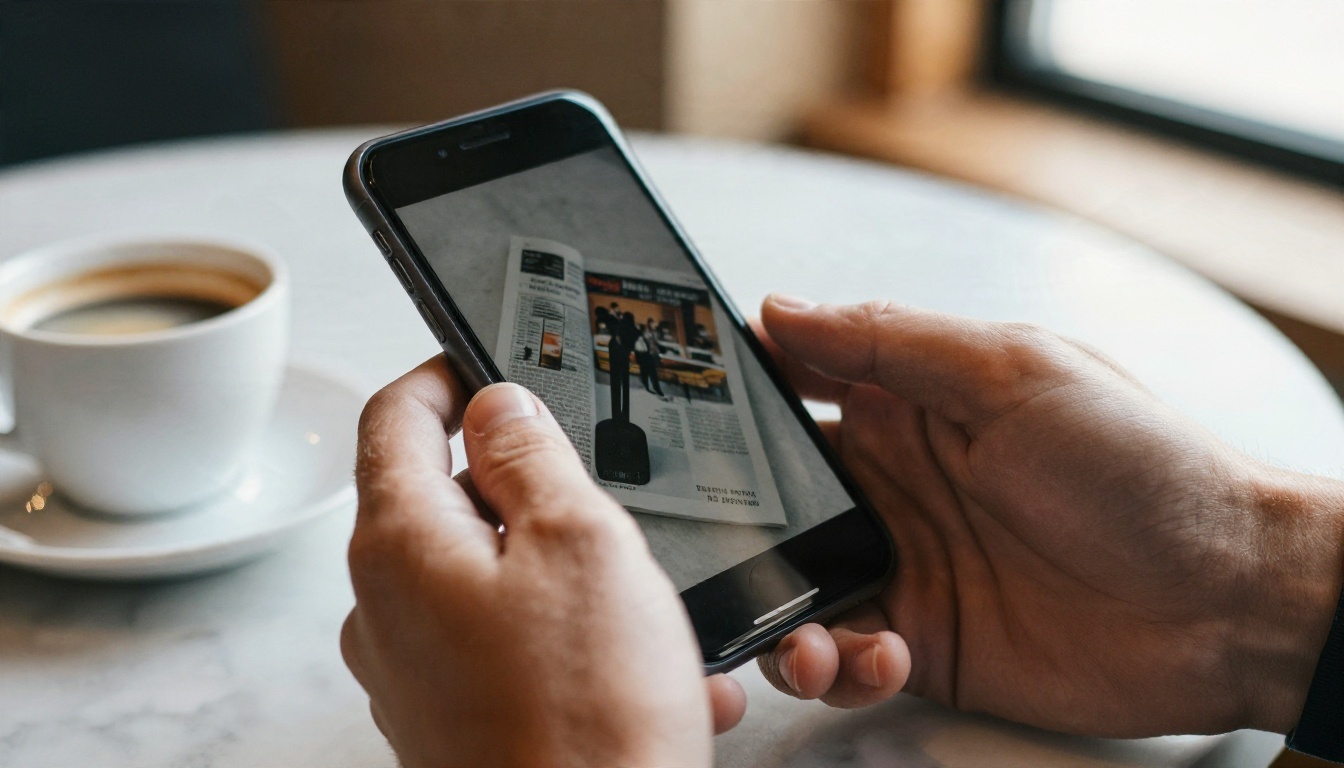
A PDF magazine is easy to export and surprisingly hard to enjoy. Readers pinch, zoom, scroll sideways and give up by page three. An HTML5 magazine fixes that: the same pages open in any browser, turn like paper, load quickly and fit the screen in your reader's hand. With an online tool such as Flipbooks AI, you can go from a finished PDF to a shareable, embeddable publication in a few minutes, with no plugins and no developer.
This article walks through what an HTML5 magazine creator should offer, what to expect from a free plan, how embedding works, and how to make sure mobile readers get a clean experience. You will also find a step-by-step tutorial, several comparison tables and a checklist you can reuse for every issue.
What an HTML5 Magazine Actually Is
An HTML5 magazine is a digital publication rendered by the browser itself, using standard web technology instead of a proprietary reader. There is nothing to install. Readers click a link, the pages load, and they flip through using a swipe, a tap or an arrow key.
HTML5 vs Flash and Plain PDF
Older flipbooks relied on Flash, which browsers dropped years ago. Plain PDFs still work everywhere, but they behave like a document, not a magazine. HTML5 sits in the middle: it keeps your layout and adds the feel of a real publication.
Feature
Plain PDF
HTML5 Flipbook
Print
Opens without a download
Sometimes
Yes
Not applicable
Page-turn effect
No
Yes
Physical
Embeds in a web page
Poorly
Cleanly
No
Adapts to phone screens
Rarely
Yes
No
Clickable links and media
Basic
Rich
No
Cost per extra reader
Zero
Zero
High
Reader statistics
Almost none
Available
None
Why Readers Prefer It
Readers do not think in file formats. They notice friction. A magazine that opens instantly, shows crisp photography and responds to a thumb swipe feels finished. One that demands a download or a pinch-zoom feels like homework.
💡 Pro tip: Publishers who switch from attached PDFs to a link usually see more people reach the second spread, simply because the first page loads fast and looks right on the screen they are holding.
Free Online Tool: What to Expect
Plenty of tools advertise a free plan. The difference between a useful one and a trap comes down to a handful of limits. Before you build an issue, check them against this list.
What a Good Free Plan Includes
A free tool should let you publish a real issue and judge the result honestly. At minimum, look for these:
PDF upload with automatic page conversion
Page-turn animation and zoom
A shareable link that works on every device
Responsive layout for phones and tablets
No forced redirects or pop-ups before the first page
You can start on Flipbooks AI and see how your own file looks before committing to anything. When you are ready to compare tiers, the pricing page lays out what each plan adds.
Spotting Hidden Limits
Some free plans hide the real restrictions in small print. Here is what to check:
Limit to check
Why it matters
Red flag
Watermark
Your brand should lead, not theirs
Logo stamped on every page
Page count
Magazines run long
Cap under 30 pages
Expiry
Old issues should stay live
Links that vanish after weeks
Embed access
Needed for your website
Embed locked behind payment
Download rights
Some readers want offline copies
No offline option at all
⚠️ Warning: A watermark on a free plan is acceptable for testing. A watermark you cannot remove on any plan is a branding problem you will have to explain to every reader.
Flipbooks AI never adds watermarks, and unlimited flipbooks are available from the Standard plan upward.
How to Create an HTML5 Magazine with Flipbooks AI
This is the practical part. The process takes about five minutes for a typical 40-page issue. If you want a shortcut to the core feature, the PDF to Flipbook Converter does the same job in one screen, and the Magazine Flipbook Creator is tuned for editorial layouts.
Step 1: Open Your Account
Go to flipbooksai.com/account and register with your email. You land on a dashboard that lists every publication you have built, so past issues stay in one place.
Step 2: Upload and Convert Your PDF
Click the upload button and select your exported PDF.
Wait while each page is converted into a crisp HTML5 page.
Check the page order in the preview. Spreads should sit side by side on desktop.
✅ Best practice: Export your PDF at the final trim size with embedded fonts, and keep images around 150 to 200 DPI. That gives sharp zoom without slowing down phones.
Step 3: Customize the Look
Open the settings panel and adjust:
Branding: upload your logo and set the viewer's background colour to match your masthead
Page effects: choose the page-turn style and its speed
Multimedia: add video, audio and clickable hotspots on any page
Table of contents: link headings to their pages so readers can jump straight to the feature they want
Step 4: Pick Your Sharing Method
Once you are happy with the preview, publish. You can then copy a direct link, grab an embed code, or add password protection for subscriber-only issues. The next section covers each option in detail.
Step 5: Use Professional Features
On the Professional plan, you can also switch on analytics to see which pages hold attention, add lead generation forms before the first page, and allow offline downloads for readers who travel. Compare the plans on the pricing page to see which fits your publishing rhythm.
Embed Options That Work
Embedding keeps readers on your site, which helps with time on page and brand recall. Instead of sending people to a separate viewer, you place the magazine inside your own layout.
The Iframe Method
An iframe is a small snippet of HTML that displays another page inside yours. Paste it where you want the magazine to appear:
A few details make the difference between an embed that works and one that frustrates people:
Set width to 100% so the viewer shrinks with the column
Keep allowfullscreen so readers can expand the magazine on any device
Add loading="lazy" so the viewer does not slow down the rest of the page
Give the iframe a clear title for screen readers
The Embed Flipbook on Website page explains the process for common site builders, including WordPress, Wix and Squarespace.
Direct Links and QR Codes
Not every reader arrives through your website. A direct link works in email, social posts and messaging apps. A QR code printed in a store, on a poster or inside a physical issue sends people straight to the digital edition.
Password and Private Access
For paid subscribers, internal staff magazines or early-access editions, password protection keeps the content private without a login system on your own site.
Sharing method
Best for
Setup effort
Privacy
Direct link
Email, social, chat
Seconds
Public
Iframe embed
Your own website
A minute
Public
QR code
Print, events, retail
A few minutes
Public
Password link
Members, clients, staff
Seconds
Restricted
Offline download
Travellers, field teams
Seconds
Depends on plan
💡 Pro tip: Embed the latest issue on one fixed page, such as /magazine, and replace the link each month. Your URL stays stable for search engines and bookmarks, while the content stays fresh.
Mobile Viewing Done Right
More than half of magazine readers now open links on a phone. If your issue only looks good on a laptop, you are losing most of your audience before they reach page two.
Single Page vs Spread View
On a desktop, two pages side by side imitate a printed spread. On a phone held upright, the same layout would shrink text to an unreadable size. A good HTML5 viewer detects the screen and switches automatically: spreads on wide screens, single pages on narrow ones.
Device
Typical view
Reader action
Design tip
Desktop
Two-page spread
Click corners or use arrow keys
Keep text away from the gutter
Tablet landscape
Spread
Swipe
Test pinch zoom on photos
Tablet portrait
Single page
Swipe
Body text at 10 pt or larger
Phone portrait
Single page
Swipe and tap to zoom
Avoid tiny captions
Phone landscape
Spread or single
Swipe
Check that controls do not hide text
Image Weight and Load Speed
Big photography is the heart of a magazine, and also the biggest threat to load time. Heavy files make phones on mobile data feel slow. A few simple habits help:
Compress images before building the PDF, without visible quality loss
Avoid full-bleed backgrounds with unnecessary detail on text-heavy pages
Limit embedded video per issue, and link longer clips instead
Test on a real phone using mobile data, not only on office Wi-Fi
A Quick Testing Checklist
Before you announce a new issue, run through these checks on at least one iPhone, one Android phone and one tablet:
Does the first page appear within a couple of seconds?
Can you read body text without zooming?
Do links and buttons respond to a single tap?
Does fullscreen mode open and close cleanly?
Does the embed on your website fit the column without sideways scrolling?
Real-World Use Cases
The same technology serves very different publishers. Here are a few scenarios that show how the format adapts.
Independent Fashion and Lifestyle Titles
A small fashion magazine can publish each issue as a flipbook, embed it on its homepage and share the link on social channels. Because layouts stay intact, editorial photography looks the same on a phone as it does in the design file. A Lookbook Flipbook Builder suits seasonal collections that sit between a catalogue and a magazine.
Company Newsletters and Internal Magazines
An HR team can send a staff magazine to hundreds of people with a single link, protect it with a password and check which stories got read. The Newsletter Flipbook Publisher is built for this kind of recurring publication.
Travel, Food and Hobby Publishers
A travel writer can turn a seasonal PDF into an interactive issue with embedded video from the road. A food publisher can add audio notes to recipe pages. See the Travel Guide Flipbook and Recipe Book Flipbook tools for examples.
Publisher type
Typical issue length
Main goal
Useful feature
Fashion title
60 to 120 pages
Visual impact
Zoom and page effects
Staff magazine
12 to 24 pages
Internal reach
Password protection
Travel publisher
30 to 60 pages
Inspiration
Embedded video
Local community paper
16 to 40 pages
Wide access
QR codes and direct links
Brand magazine
20 to 50 pages
Lead capture
Lead forms and analytics
If your project is closer to a digital periodical with regular editions, the E-Magazine Publishing Tool is worth a look, and the full tools directory lists every format.
Common Mistakes to Avoid
Most problems with HTML5 magazines come from the source file, not the tool. Fix these before you upload.
Three Mistakes That Cost Readers
Text too small. Print designers often set captions at 6 pt. On a phone, that is invisible. Raise caption sizes or accept that mobile readers will skip them.
Unoptimized images. A 200 MB PDF turns into a slow magazine. Compress first.
Dead links. Check every URL in your PDF before export, since broken buttons break trust quickly.
Skipping the Preview
Always preview the published flipbook on a phone before you share it. A two-minute test catches missing fonts, cropped pages and misplaced hotspots that never showed up in the design software.
✅ Best practice: Keep a reusable checklist for every issue and give one person the job of signing it off. Consistency matters more than perfection.
Ready to Publish Your Issue?
An HTML5 magazine gives your pages a reader-friendly home: free to start, simple to embed and comfortable on any screen. The process comes down to a clean PDF, a few customization choices and a quick check on a real phone.
Ready to build yours? Get started for free on Flipbooks AI, browse all flipbook tools to find the right format, or compare pricing plans if you need analytics, lead generation and unlimited publications. Your next issue could be live before your coffee gets cold.