You posted the link in your bio, a follower tapped it, and your beautiful catalog showed up as a blank white rectangle. If that sounds familiar, you are not alone. The culprit is almost never your flipbook. It is the Instagram in-app browser, a stripped-down viewer that behaves very differently from Safari or Chrome. In this article you will see exactly what breaks, why it breaks, and how to fix it, whether you publish with Flipbooks AI or any other tool.
What the In-App Browser Is
When someone taps a link inside Instagram, the app does not hand them over to their normal browser. It opens its own embedded web view. Think of it as a small browser living inside another app, controlled by Meta rather than by the user.
That matters because the embedded view is built for quick reading of articles and product pages. It was not designed to run rich, interactive experiences such as page-turning animations, embedded video and full-screen controls.
Why Instagram Does This
Keeping people inside the app is good for the platform. It also lets Instagram inject its own scripts for tracking and for the bottom toolbar. Those injected scripts, combined with trimmed browser features, are the root of most flipbook problems.
Which Devices Are Affected
Both iPhone and Android users see it, but the symptoms differ. iPhones use the system web view with extra restrictions, while Android uses a Chromium-based web view that may be several versions behind the installed Chrome.
Symptoms You Will Notice
Most issues fall into a handful of patterns. Check which one matches what your audience reports.
| Symptom | Likely cause | Severity |
|---|
| Blank white page | Blocked script or slow first load | High |
| Page turns do nothing | Touch gestures captured by the app | High |
| Video will not play inline | Autoplay and fullscreen limits | Medium |
| Fullscreen button missing | Fullscreen API disabled | Medium |
| Download or print fails | Downloads blocked in web view | Medium |
| Layout looks cropped | Toolbar eats vertical space | Low |
The Blank Page Problem
This is the scariest one, and the most common. The web view loads the HTML shell but a script that renders the pages never runs, or runs too late, so the visitor stares at white space and leaves.
The Swipe Conflict
Flipbooks rely on horizontal swipes to turn pages. On some versions, Instagram treats a horizontal swipe near the screen edge as a gesture of its own, such as going back. The result is a flipbook that feels broken or jumpy.
How to Test It Yourself
Do not trust your desktop preview. Test inside the real environment before you blame anything else.
- Put your flipbook link in your Instagram bio or send it to yourself in a direct message.
- Open Instagram on a phone, not on desktop.
- Tap the link and watch the first five seconds.
- Try swiping pages, tapping a video, and opening the fullscreen option.
- Repeat on both iPhone and Android if you can borrow a second device.
💡 Keep a short checklist in your notes app. Every time you publish a new flipbook, run the same five steps. It takes under two minutes and catches problems before your audience does.
Use a Real Device Matrix
Emulators miss many in-app browser quirks. If you manage social accounts for clients, a small test shelf with one older Android phone and one iPhone pays for itself quickly.

The Fastest Fix: Open Externally
The simplest solution is to move the visitor into their normal browser. Inside Instagram, the three-dot menu in the corner of the web view offers an option such as Open in browser. Once the flipbook loads in Safari or Chrome, nearly every issue disappears.
Tell Followers What to Do
Most visitors will not find that menu on their own. Add a short instruction near your link.
- In your bio: "Tap the link, then choose Open in browser for the best view."
- In a Story: a text sticker pointing to the menu icon.
- In a post caption: one clear line before the link.
✅ Short, specific instructions outperform long explanations. People follow a single clear step far more often than a paragraph of tips.
The Limit of This Fix
Asking people to do extra work always loses some of them. Treat it as a patch, then apply the structural fixes below so the flipbook works even without the extra tap.
Make the Flipbook Resilient
A well-built flipbook can survive the in-app browser. These changes reduce risk without asking visitors to do anything.
Keep the File Light
Heavy PDFs are the biggest cause of blank pages. A 200 MB document on a mobile connection inside a restricted web view often times out.
| File size | Typical result in in-app browser |
|---|
| Under 10 MB | Loads fast, rarely fails |
| 10 to 30 MB | Usually fine on Wi-Fi, slow on mobile data |
| 30 to 80 MB | Frequent delays and blank starts |
| Over 80 MB | High chance of failure |
Compress images before exporting your PDF, remove unused pages and avoid embedding uncompressed photos. Upload the result with the PDF to Flipbook Converter and check the final page count.
Choose a Mobile-Friendly Layout
A two-page spread on a narrow phone screen forces tiny text. Use a single-page view for mobile visitors. Flipbooks AI uses a mobile-responsive design, so the reader switches to a layout that suits the screen without extra setup.
Avoid Heavy Effects
Elaborate page-curl animations look great on desktop, but they cost processing power. On older phones inside a web view, simpler transitions feel smoother and fail less often.
⚠️ Do not stack effects. Page curl, shadows, background music and autoplay video together can overwhelm a basic web view.
Fix Video and Audio Issues
Rich media is where in-app browsers struggle most. Autoplay with sound is blocked on many phones, and some versions refuse to enter fullscreen.
Practical Rules for Media
- Never rely on autoplay. Give every video a visible play button.
- Keep clips short, ideally under 60 seconds.
- Host or embed video that supports inline playback on mobile.
- Offer a link to open the flipbook externally right next to the video.
- Test audio separately, since many phones start muted.
A clothing boutique, for example, might embed a 20-second runway clip on page three. If the clip fails inside Instagram, the page still needs to make sense with the still image and a clear caption. Design every media page so it works with the video removed.
Fallbacks Save the Sale
Always pair video with text. If the clip does not play, the visitor still sees the product name, price and a button to continue.

Smarter Link Strategy
How you share the link matters as much as how you build the flipbook.
Use a Clean Short Link
Long, tracking-heavy URLs are more likely to trigger warnings or get truncated. Use a short, readable link that you control. You can also point it to a landing page that contains a clear button leading to the flipbook.
Add a QR Code for Offline Use
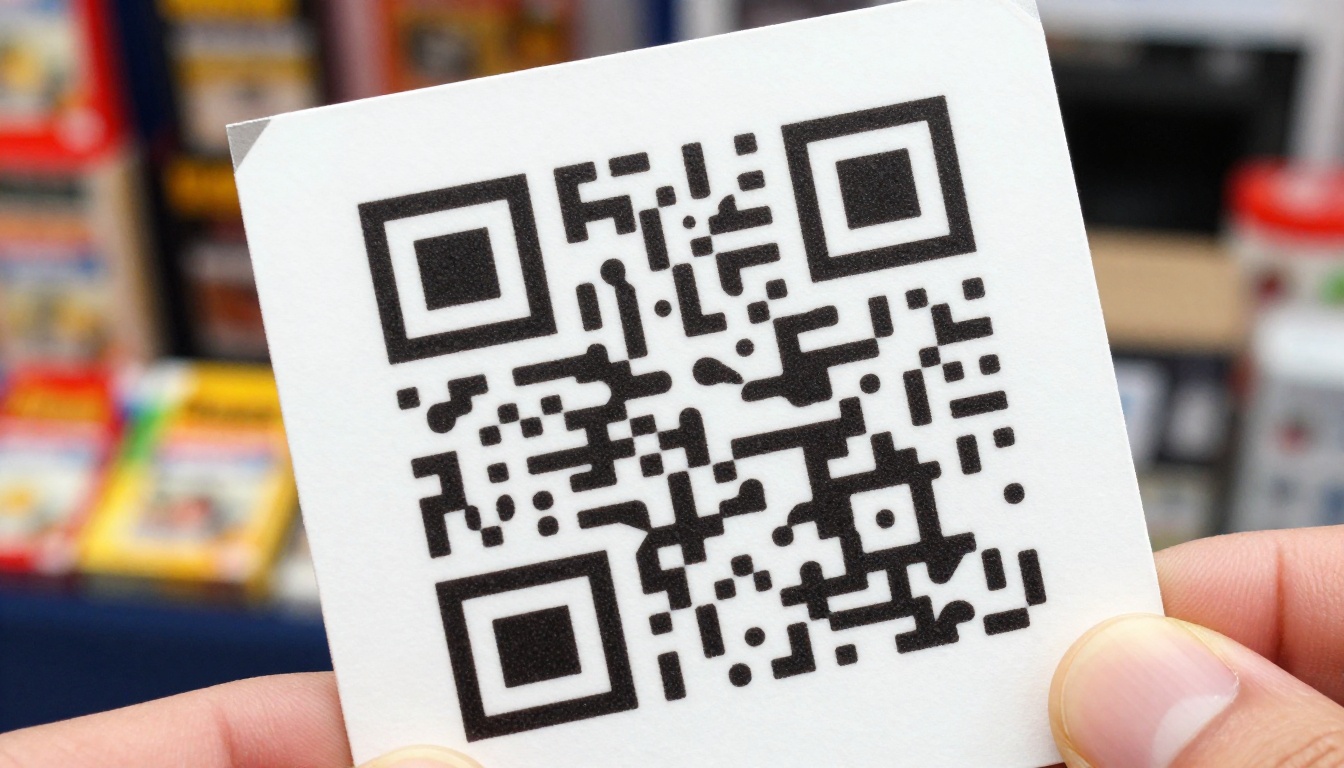
If your flipbook is a catalog or menu, print a QR code on flyers and packaging. Scanning with the phone camera opens the default browser directly, which avoids the Instagram web view entirely. The Embed Flipbook on Website option is also useful when you want the flipbook living on your own domain.
Compare Your Sharing Options
| Method | Works in Instagram browser | Effort | Best for |
|---|
| Direct link in bio | Sometimes | Low | Quick posts |
| Link plus Open in browser tip | Yes | Low | Stories and bios |
| Landing page with button | Mostly | Medium | Campaigns |
| QR code | Yes, opens default browser | Medium | Print and in-store |
| Embed on your website | Depends on the page | Medium | Brand sites |
Step-by-Step Fix With Flipbooks AI
Here is a practical workflow to publish a flipbook that holds up on social traffic. If you do not have an account yet, create one on Flipbooks AI first.
- Prepare the PDF. Compress images and keep the file under 30 MB when possible.
- Upload and convert. Drop the PDF into the converter and wait for the flipbook to build.
- Pick a simple layout. Choose a clean mobile view and a light page effect.
- Set your branding. Add colors and a logo so the first screen looks trustworthy while it loads.
- Check media. Replace autoplay clips with click-to-play video and audio.
- Choose sharing settings. Copy the direct link, or use the embed code if you want it on your site. Use password protection if the content is private.
- Test inside Instagram. Send the link to yourself and run the five-step test above.
- Add the external-browser tip to your bio or Story text.
💡 Flipbooks never carry a watermark, so the page looks clean even in a small web view. Compare pricing plans if you need analytics to see where visitors drop off.
Track What Actually Happens
If you have the Professional plan, analytics show how many visitors open the flipbook and how long they stay. A sudden pile of very short visits from Instagram traffic is a strong sign that the in-app browser is the problem. That kind of data turns a hunch into a clear decision.

Real-World Scenarios
A Restaurant Menu
A restaurant shares its menu in the bio. Followers tap, see a slow blank page and give up. The fix: shrink the PDF from 45 MB to 8 MB, add a menu QR code on tables, and mention Open in browser in the Story. Using the Restaurant Menu Creator keeps the layout simple for phones.
A Real Estate Agent
An agent posts property listings through Reels. Buyers tap the link while watching and expect instant photos. The agent builds a Real Estate Brochure with a light file size and a short first page that loads before anything heavy.
A Photographer
A photographer uses a portfolio flipbook. Large images are the whole point, so compression is tricky. The solution is to limit each gallery to the best twenty shots and use the Photography Portfolio layout, which is designed for image-heavy pages.
Common Mistakes to Avoid
- Testing only on desktop. The in-app browser never appears there.
- Uploading raw print PDFs. They are built for paper, not for phones.
- Relying on autoplay. It is blocked often, and silently.
- Forgetting older phones. Many followers use devices several years old.
- Ignoring analytics. Without data, you guess instead of fixing.
⚠️ Instagram updates its app frequently. A flipbook that worked last month may behave differently today, so retest after major app updates.
Quick Fix Checklist
Print this or keep it handy before every campaign.
| Step | Done |
|---|
| PDF under 30 MB | ☐ |
| Single-page mobile view tested | ☐ |
| Videos have visible play buttons | ☐ |
| Tested inside Instagram on iPhone | ☐ |
| Tested inside Instagram on Android | ☐ |
| Open in browser tip added | ☐ |
| QR code ready for print | ☐ |
Ready to Publish Without Headaches?
The Instagram in-app browser will keep changing, but the approach stays the same: keep files light, keep layouts simple, give people an easy way to open the link in their own browser, and always test on real phones. Ready to build a flipbook that works where your audience actually is? Get started for free on Flipbooks AI, browse all flipbook tools to find the right template, or compare plans to pick the features you need.



