If you have spent years laying out brochures and newsletters in Microsoft Publisher, October 2026 probably felt like a door closing. Microsoft has ended support for the app, which means no more updates, no security fixes and no help when a file refuses to open. The good news: the work Publisher did is easier to do elsewhere today, and you can even skip printing entirely by turning a PDF into an interactive page-turning document with Flipbooks AI.
This article is a practical map. You will see what Publisher users actually lose, which replacement fits which job, what to do with your old .pub files, and how to publish a brochure or newsletter in about fifteen minutes.
What Changed for Publisher Users
Publisher was never glamorous. It was the program a bakery owner, a church secretary or a school office manager opened when they needed a trifold or a monthly newsletter and had no designer. It shipped with Microsoft 365 for decades, handled print margins well, and saved everything in a single .pub file.
Now that support has ended, three things matter:
- Security: unpatched software that opens files from email is a risk.
- Compatibility: new versions of Windows and Office will stop playing nicely with it, one update at a time.
- Sharing: almost nobody outside the Publisher world can open a .pub file, and you cannot send one to a client and expect it to look right.
⚠️ Do not wait for the app to break. Export your active files to PDF now, while Publisher still launches on your machine.
The Old Workflow Was Print First
Publisher assumed the finished product was paper. You designed, you printed, you folded, you mailed. That model made sense when the audience was local and the budget was small.
Today most brochures and newsletters are read on a phone. The recipient taps a link, flicks through, and closes the tab. A layout built for A4 or Letter paper is still useful, but it works best as a PDF that then becomes something more interactive.
What People Actually Miss
Ask long-time users and the answers are consistent: precise control over text boxes, easy mail merge, ready-made brochure templates, and a one-time purchase instead of another subscription. A good replacement does not need to match every feature, but it should cover those four needs in some form.
Your Real Options Compared
There is no single replacement. The right pick depends on whether you design from scratch, need print-ready files, or mostly want readers to open something on a screen.
| Option | Best for | Print ready | Interactive page turn | Learning curve |
|---|
| Canva | Quick designs from templates | Yes | No | Low |
| Adobe InDesign | Professional layout work | Yes | Limited | High |
| Affinity Publisher | One-time purchase, print layout | Yes | No | Medium |
| Microsoft Word | Simple newsletters and flyers | Basic | No | Low |
| Google Docs and Slides | Collaborative drafts | Basic | No | Low |
| Flipbooks AI | Sharing a finished PDF as a flipbook | Keeps your PDF | Yes | Very low |
The last row is not a layout tool. It is the publishing step that sits after layout. Most small teams end up with two tools: one to design, one to distribute.
If You Want the Closest Feel
Affinity Publisher is the nearest spiritual successor. It uses frames, master pages and precise print settings, and it costs a single payment rather than a rolling fee. If you like drawing text boxes and dragging them around, you will feel at home.
If You Want the Fastest Result
Canva wins on speed. Pick a brochure or newsletter template, replace the text and photos, and export a PDF. It is not as precise as Publisher, but for a seasonal promo it is hard to beat.
If You Already Pay for Microsoft 365
Word is the quiet fallback. It handles columns, text wrapping and images well enough for a two-page newsletter. For a trifold brochure, set the page to landscape, use three columns and keep a close eye on margins.
💡 Whatever you design in, always export to PDF. A PDF is the common currency between design tools, printers and flipbook platforms.
How to Move Your Old .pub Files
Your archive is the real worry. Years of newsletters and brochure templates sit in a format that fewer and fewer programs can open.
Step by Step Rescue
- Open each file in Publisher while it still works.
- Choose File, Export, Create PDF/XPS and pick High quality printing.
- Check that fonts did not shift. If they did, embed fonts in the export options.
- Name files with the date and the project, for example
2025-11-newsletter.pdf.
- Store the PDFs in a shared drive and a second backup location.
- For templates you will reuse, rebuild them once in your new design tool instead of trying to convert them.
What Does Not Convert Well
Mail merge fields, linked text boxes and custom page sizes rarely survive. Treat those as rebuilds. A rebuilt template in a current tool takes an afternoon and saves you from repeating this problem in five years.
| File element | Survives PDF export | Plan |
|---|
| Text and fonts | Yes, if embedded | Embed fonts on export |
| Images | Yes | Keep originals in a folder |
| Mail merge fields | No | Rebuild in your mailing tool |
| Linked text frames | Flattened | Rebuild if you plan to edit |
| Custom page size | Yes | Note the size in the file name |
Why Digital Beats Paper for Most Teams
Print still has a place. A restaurant counter, a trade show table and a waiting room all love a physical brochure. But for everything else, a digital version has clear advantages.

- No printing cost for each new edition.
- Instant updates: fix a typo and everyone sees the corrected version.
- Easy sharing through a link, an email or an embed on your website.
- Tracking: you can see how many people opened it and how far they read.
- Accessibility: readers zoom text on any device.
A newsletter that used to cost postage and a weekend of folding can go out in an email in minutes. A brochure that went out of date the moment prices changed can be refreshed the same afternoon.
A Real World Example
A small landscaping company used to print 500 trifold brochures twice a year. After each price change, half were wasted. Switching to a PDF turned into a flipbook meant one link in every quote email and one QR code on the van. Prints dropped to a small stack for walk-ins.
Where Paper Still Wins
Be honest about your audience. Older customers, hospitality and local events may still prefer something to hold. The smartest approach is hybrid: print a short run and put a QR code on it that points to the live digital edition.
How to Create a Brochure Flipbook with Flipbooks AI
Once your PDF is ready, publishing it takes minutes. If you want a tool built for exactly this job, try the Brochure Flipbook Maker or the Online Brochure Designer.
Step 1: Create an Account
Head to Flipbooks AI and create an account. You can start on a free plan and upgrade later if you need more.
Step 2: Upload Your PDF
Drag your exported PDF into the upload area. The PDF to Flipbook Converter turns each page into a flippable spread, keeping your fonts, images and layout exactly as you exported them. A screenshot of this screen would show a large drop zone and a progress bar.
Step 3: Customize the Look
Add your logo, pick background colors that match your brand, and choose a page-turn effect. You can also embed video and audio, which a paper brochure can never do. Every flipbook is mobile responsive and free of watermarks.
Step 4: Share It
You have several choices:
- Copy the direct link and paste it into an email.
- Use the embed code to place the flipbook on your site, as described in Embed Flipbook on Website.
- Turn on password protection for client-only price lists.
- Add a QR code to printed material.
Step 5: Track and Improve
On the Professional plan you get analytics, lead generation forms and offline downloads. See which pages people spend time on, then adjust the next edition. Compare pricing plans to find the right tier.
✅ Best practice: put your most important offer on page two. Analytics from flipbooks often show that readers flip past a cover quickly.
Newsletters Need a Different Approach
Brochures are a single event. Newsletters are a habit. That changes what you need from a tool.
Build a Repeatable Template
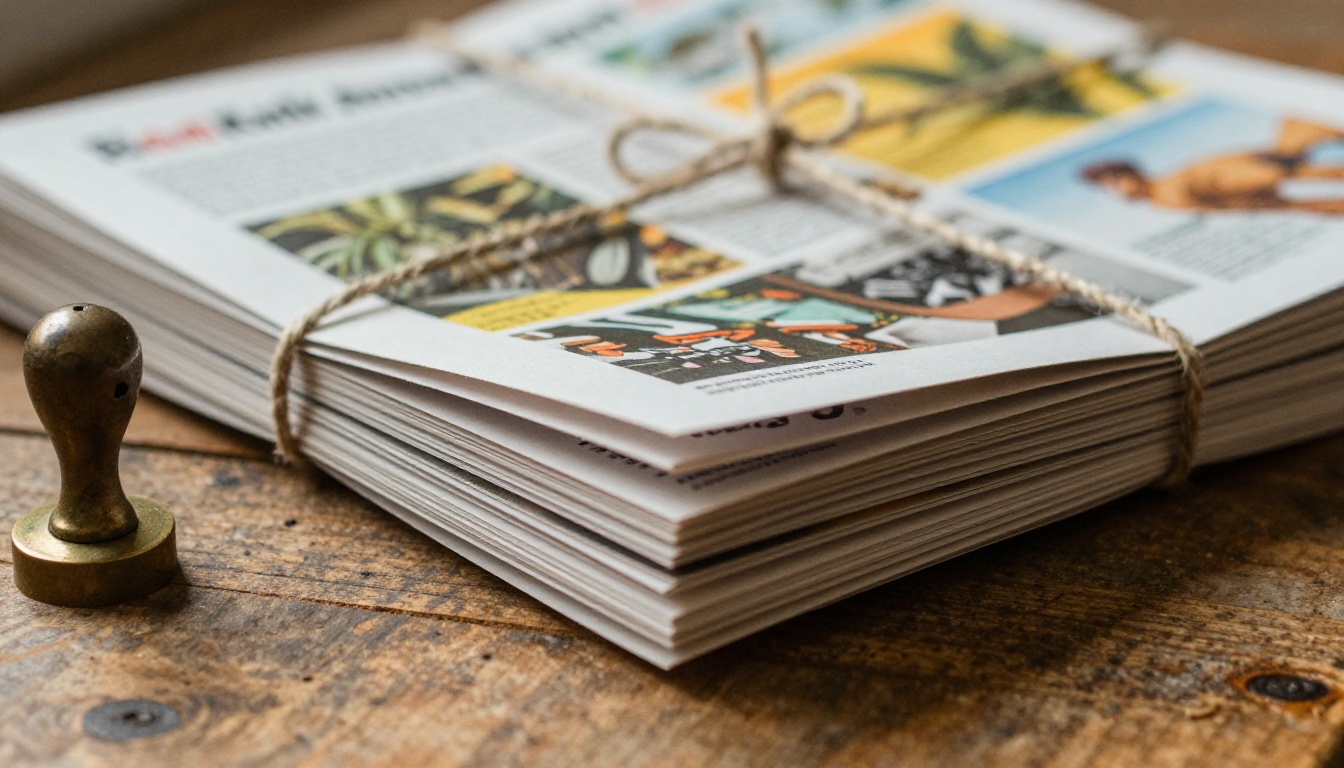
Design one master layout with a masthead, a lead story area, a sidebar and a footer. Each month, only the content changes. This is exactly what Publisher master pages did, and every replacement above supports it in some form.
Pick a Delivery Style
| Delivery style | Cost per issue | Looks like the design | Readers can flip pages |
|---|
| Printed and mailed | High | Yes | Yes, physically |
| Email with inline HTML | Low | Sometimes | No |
| PDF attachment | Low | Yes | Scroll only |
| Flipbook link | Low | Yes | Yes |
Email clients mangle complex layouts, and attachments get ignored. A link to a flipbook keeps the design intact and feels more like opening a magazine. The Newsletter Flipbook Publisher and the School Newsletter Creator are built for this monthly rhythm.
A Simple Monthly Routine
- Week one: collect stories and photos in a shared folder.
- Week two: drop content into your template and export a PDF.
- Week three: proofread with a second person.
- Week four: upload to your flipbook, send the link, and archive the PDF.
💡 Keep a permanent archive page on your website with every past issue as a flipbook. It builds trust and helps search visibility.
Picking by Business Type
Different small businesses lean on different features. Use this table as a starting point.

Real Estate Agents
Listings change weekly. A digital brochure with a gallery of rooms, a floor plan and a video walkthrough can be updated the minute a price drops, and the same link stays in every email you have already sent.
Boutiques and Retail
A lookbook that flips like a magazine feels premium on a phone. Pair it with a QR code at the register so shoppers can browse the new season while they wait.

Schools and Nonprofits
Budgets are tight and volunteers rotate. A simple Word or Google Docs template, exported to PDF and published as a flipbook, survives staff changes because anyone can pick it up in an afternoon.
Common Mistakes to Avoid
Switching tools exposes habits that were hiding in the old workflow. Watch for these.
- Exporting low resolution PDFs. Choose high quality so zoomed text stays sharp.
- Skipping fonts. Missing fonts silently swap and ruin spacing.
- Designing for paper only. Leave room for a link or QR code.
- Keeping the only copy in .pub format. Always keep a PDF backup.
- Overloading pages. Phone readers need white space and larger text.
The Mobile Test
Before you send anything, open it on your own phone. If you have to pinch and squint, simplify. Readers on small screens rarely forgive dense paragraphs.
Budget Reality Check
| Setup | Monthly cost estimate | Good for |
|---|
| Word plus free flipbook plan | Very low | Tiny teams and clubs |
| Canva plus flipbook plan | Low | Small shops and agents |
| Affinity plus flipbook plan | Low after one purchase | Print heavy work |
| InDesign plus flipbook plan | Higher | Agencies and designers |
Costs change, so check each vendor's current pricing before you commit.
Ready to Make Your Next Edition?
Losing Publisher is annoying, but it is also a reason to clean house. Export your archive to PDF, choose one design tool that fits your skills, and add a publishing step so your work reaches readers on whatever device they hold.
Ready to publish your first brochure or newsletter as a flipbook? Get started for free on Flipbooks AI. Browse all flipbook tools to find a template for your industry, and compare pricing plans to pick the tier that matches your volume. When you are sure, upgrade your account and keep every issue you ever made one click away.



