You drew the fox. Your daughter wrote the story. Now you both want a real book that grandparents can open on a phone, a teacher can show on a classroom screen, and a friend can read without installing anything. The good news: you can make your own children's book with pictures online for free, and the whole job comes down to one PDF. Tools like Flipbooks AI turn that PDF into a page turning book with a share link, so you skip layout software, print runs and email attachments that bounce.
This article follows the exact path from loose drawings to a shared book. You will see how to prepare pictures, how the PDF upload works, which sharing options exist, and where the limits sit, so nothing surprises you on page 24.
What "Free" Really Means Here
Before you open any tool, decide what you need the book to do. A children's picture book has three jobs: look good, load fast, and reach the right people. Free options handle all three, with some trade-offs.
Free tool versus free forever
Many platforms offer a free entry point and then restrict something you only notice later: a watermark on every page, a cap on page count, or a link that expires. Read the pricing page first. On Flipbooks AI, the platform states that flipbooks carry no watermarks, ever, which matters for a children's book because a logo stamped across your illustration ruins the page.
Four ways to publish a picture book online
| Method | Cost to start | Page turn effect | Easy to share | Best for |
|---|
| Slide deck exported as PDF | Free | None | Attachment only | Quick drafts |
| Blog post with images | Free | None | Link | Short stories |
| Print on demand site | Free to upload, pay per copy | Paper only | Store link | Physical copies |
| PDF to flipbook converter | Free entry level | Realistic page flip | Link, embed, QR | Reading on any screen |
If your goal is a book that feels like a book on a screen, the flipbook route wins. If you also want paper copies, you can still export the same PDF for printing later.
💡 Pro tip: Build one PDF and use it twice. The same file feeds your online flipbook and a local print shop.
Prepare Your Pictures and Pages
A flipbook is only as sharp as the PDF behind it. Ten minutes of preparation saves an hour of fixing blurry pages.
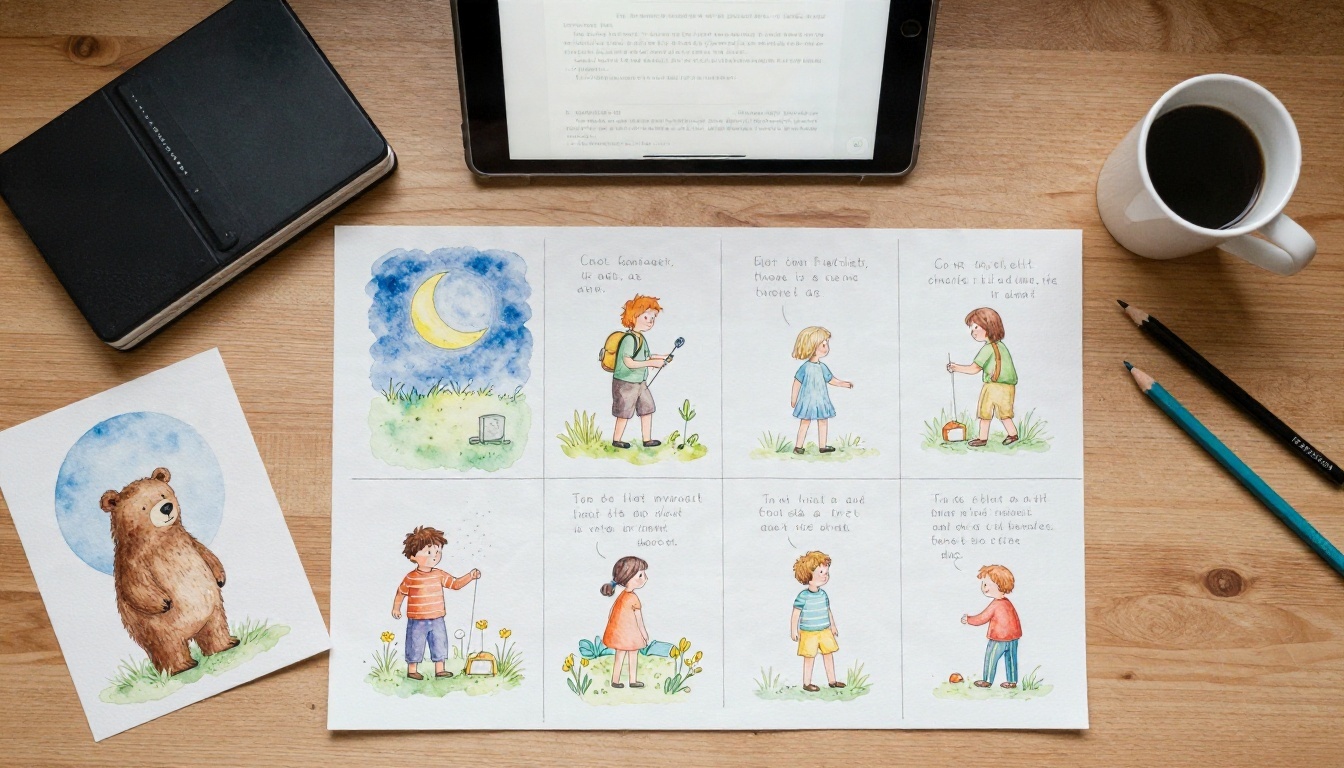
Draw, photograph or scan
You have three sources for pictures, and each one behaves differently:
- Hand drawn art: scan it flat at 300 dpi, or photograph it near a window with no shadow across the sheet.
- Digital drawings: export from your drawing app as PNG or JPG at full size.
- Photographs: pick sharp, well lit shots and crop them to the page shape before placing them.
A scan beats a phone photo for paper art. If you only have a phone, shoot straight down, never at an angle, and turn off the flash so the paper does not glare.
Choose page size and orientation
Picture books usually work in one of three shapes. Pick one and stay with it for every page.
| Shape | Typical ratio | Feels like | Good for |
|---|
| Square | 1:1 | Classic toddler book | Bold, centered pictures |
| Landscape | 4:3 or 16:9 | Wide scene | Panoramic spreads |
| Portrait | 3:4 or 2:3 | Standard storybook | Text under picture |
Landscape pages read well on laptops and classroom screens. Portrait pages feel natural on phones. Square sits in the middle and rarely looks wrong.
Export everything as one PDF
Place each picture and its text on its own page in a free design tool or a word processor. Then export as PDF. Check these points before you save:
- Every page uses the same size.
- Text sits at least a thumb's width away from the page edge.
- Pictures are 150 dpi or higher at the final size.
- The front page is page one, and the last page is the last page.
- The file name has no odd symbols, for example
fox-and-the-moon.pdf.
⚠️ Warning: Do not compress the PDF to the smallest size just to be safe. Heavy compression turns watercolor gradients into blocky patches.
How to Create a Children's Book With Flipbooks AI
This is the hands on part. The steps below use the PDF to Flipbook Converter, which suits picture books because it keeps layout, fonts and illustrations exactly as you exported them.
Step 1: Create your account
Go to Flipbooks AI and create an account. You land in a dashboard where every book you make is listed, so you can return and edit later without starting over.
Step 2: Upload the PDF
- Click the button to create a new flipbook.
- Drag your PDF into the upload area, or pick it from your computer.
- Wait while the platform splits the file into pages. A short picture book usually finishes in under a minute.
- Scroll through the preview and check that no page is cropped.
If a page looks wrong, fix it in your source file, export again and re-upload. That takes seconds and keeps things clean.
Step 3: Customize the look
Open the settings panel and adjust what readers see:
- Background color: soft cream or pale sky blue suits most illustrations. Avoid pure black, which makes pastel art look dull.
- Page effects: keep the realistic page turn, since children enjoy the motion.
- Branding: add your name or a small logo if you want credit on the reader screen.
- Toolbar: keep zoom and full screen buttons visible, because small hands and tired eyes use them often.
Step 4: Add sound and video
A picture book gets livelier with extras. You can embed audio and video in your flipbook, which opens real options for early readers:
- Record yourself reading each page aloud and attach the audio.
- Add a short clip of the author drawing the main character.
- Place a lullaby at the final page.
✅ Best practice: Keep audio clips under a minute per page. Children lose the thread when narration runs long.
Step 5: Publish and test
Hit publish, then open the link on your phone and on a laptop. Turn at least ten pages. If the book feels slow on mobile, your images are probably oversized, so reduce them to roughly 2000 pixels on the long side and upload again.
Sharing Options That Work
Once the book exists, the question is who sees it and how. A picture book has a small, specific audience, so pick the sharing method that fits each group.
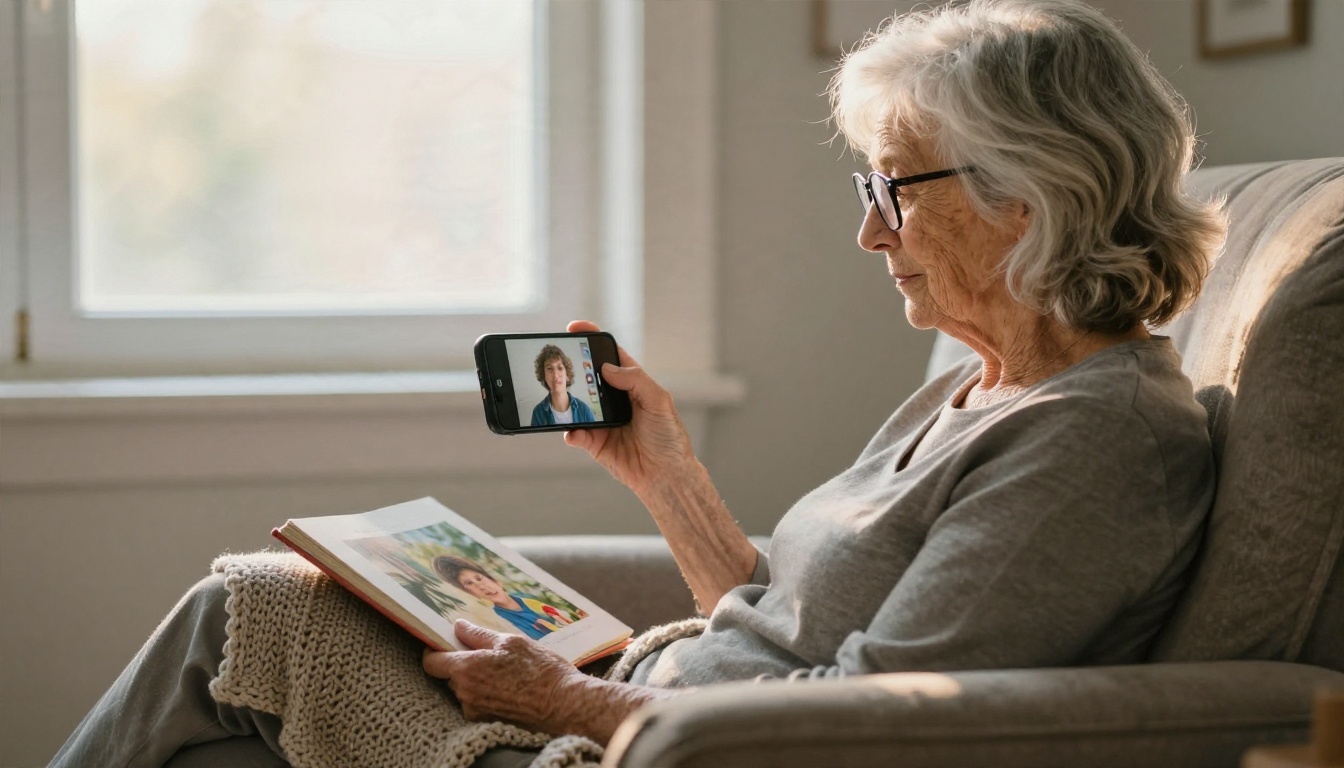
Send a direct link
The simplest option. Paste the link into a family chat or an email. Anyone with the link reads the book in a browser, with no app and no account. Grandparents on a different continent can open it as easily as a neighbor.
Embed on a website or blog
If you run a classroom page, a parenting blog or an author site, use the embed option. You copy a short code snippet and paste it where the book should appear. The flipbook sits inside your page and stays responsive on mobile.
Protect it with a password
Children's books often contain photos of real kids. For those, password protection is worth using. Share the link in one message and the password in another. Only people who hold both can open the book.
Compare the sharing methods
| Sharing method | Setup time | Privacy level | Best audience |
|---|
| Direct link | 10 seconds | Anyone with link | Family and friends |
| Password protected link | 1 minute | High | Books with real child photos |
| Website embed | 3 minutes | Public | Teachers, bloggers, authors |
| QR code on printed card | 5 minutes | Public or protected | Birthday parties, school fairs |
💡 Pro tip: Print the QR code on a birthday invitation. Guests scan it and read the story about the birthday child before they arrive.
Limits to Know Before You Start
Every free service has a ceiling. Knowing where it sits keeps you from rebuilding a book halfway through.
File size and page count
Platforms set a maximum for PDF file size and sometimes for the number of pages. Most picture books land between 16 and 40 pages, so the page count rarely matters. File size is the real issue, because full page illustrations at high resolution add up fast. Check the current numbers on the pricing page before you build a long book, and keep your exports balanced between sharp and light.
Free versus paid features
Plans differ in how many flipbooks you can make and which extras you get. Here is the general picture:
| Feature | Free entry level | Standard plan | Professional plan |
|---|
| Watermark on pages | None | None | None |
| Number of flipbooks | Limited | Unlimited | Unlimited |
| Password protection | Check plan | Included | Included |
| Offline downloads | Check plan | Included | Included |
| Reader analytics | No | No | Yes |
| Lead generation forms | No | No | Yes |
Plan details change over time, so confirm the current list at Flipbooks AI pricing before you decide. For a single family book, the free level is usually enough. If you plan to publish a whole series, unlimited flipbooks on a paid plan make more sense.
Rights and copyright basics
This part gets ignored and shouldn't be. Keep these rules in mind:
- Only upload pictures you drew, photographed or have permission to use.
- Do not copy characters from existing books, even as a tribute.
- Ask a parent for written permission before you publish another child's photo.
- If you used an AI image tool for illustrations, check that tool's terms before you sell the book.
Real Examples You Can Copy
Numbers and steps are useful, but a concrete scenario shows what the finished project looks like.
A parent making a bedtime story
A father in Leeds scans twelve crayon drawings his son made of a dragon who is afraid of the dark. He lays them out as a 14 page landscape PDF, uploads it, records his voice reading each page, and sends the link to both sets of grandparents. They read it on tablets at their own bedtime hour. Total cost: nothing but an evening.
A teacher building classroom readers
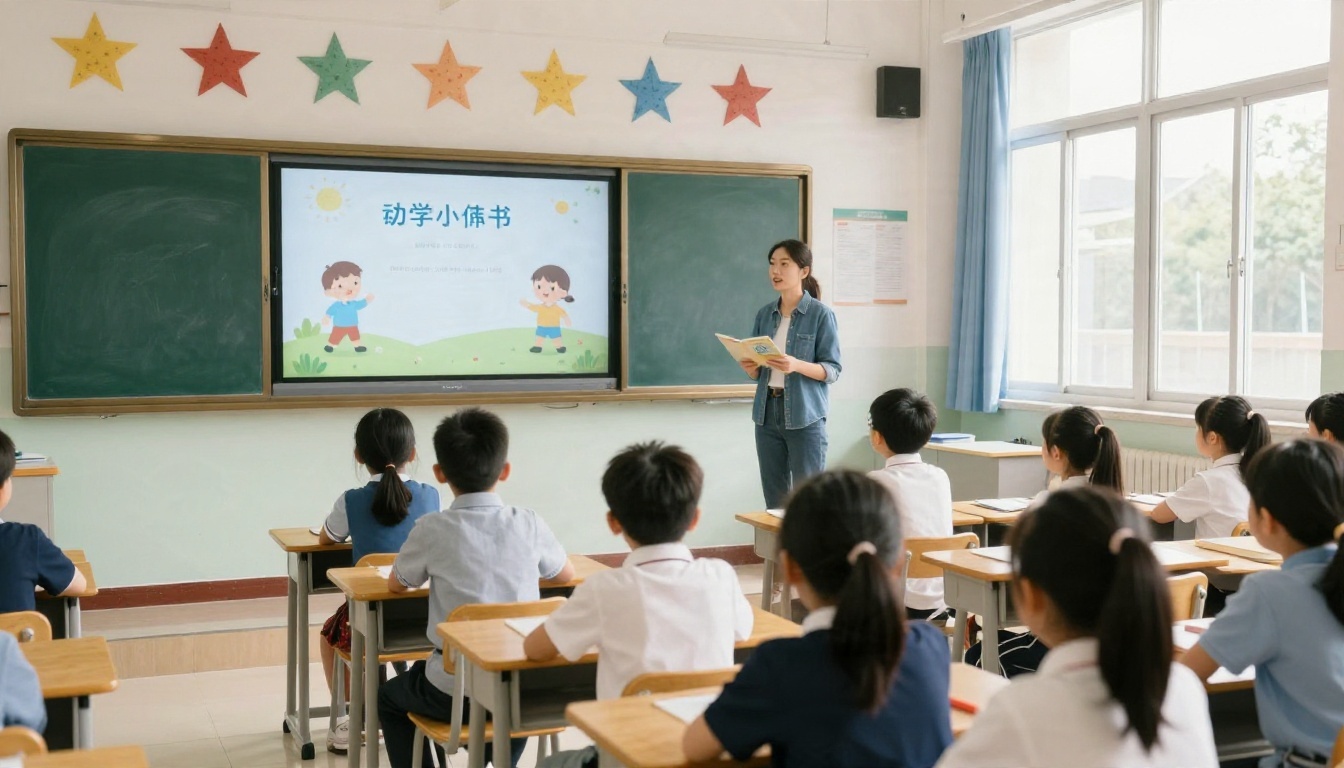
A primary school teacher wants every pupil to finish one illustrated book per term. Each child draws four pages, the teacher merges them into a single PDF, and the class publishes it as a flipbook. The finished book plays on the classroom screen, then goes home as a link. For more school formats, see the Course Material Publisher and the School Newsletter Creator.
A self publishing author testing an idea
An illustrator has a picture book idea and wants reader feedback before paying for printing. She publishes a ten page sample, embeds it on her portfolio site, and watches what happens. On the Professional plan, she can see how many people open the book and which pages they reach, then adjust the story before the print run. Tools like the Interactive E-Book Publisher and the E-Book Flipbook Generator fit this path well.
Which tool fits which project
Three Mistakes That Ruin Picture Books
Most disappointing flipbooks fail for the same few reasons. Avoid these and your book looks professional from day one.
Blurry pictures
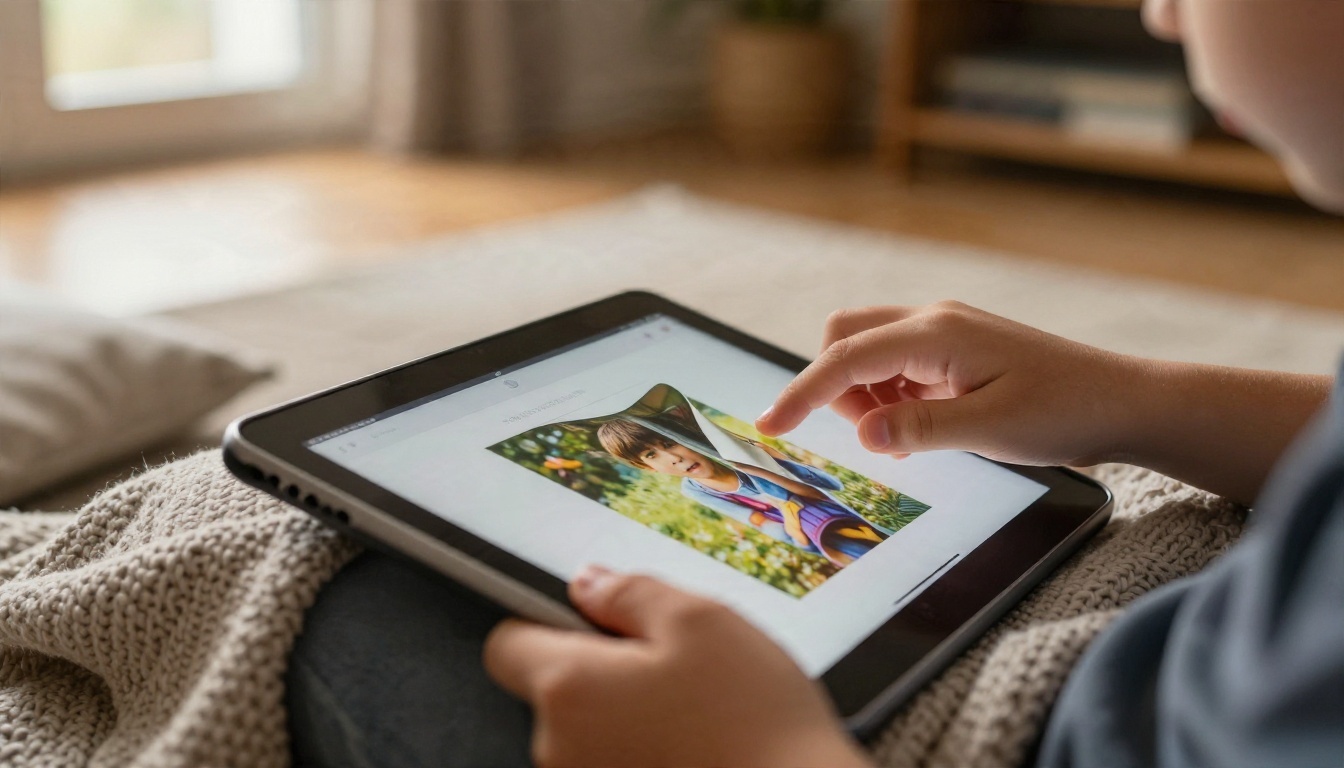
A phone photo taken in dim light, then stretched across a full page, looks soft on any screen. Scan or reshoot instead. Sharp pictures matter more than clever layout.
Text that is too small
Children's books use big letters, often 24 points or more. A line that looks fine on your desktop turns into a smudge on a phone. Test every page on a small screen before you share.
Skipping the phone test
Most readers will open your link on a phone. If you only check on a large monitor, you miss cut off text and awkward zoom. Always open the final link on a phone before you send it to anyone.
⚠️ Warning: Never put a child's full name, school and address on the same page of a public book. Keep personal details out of anything you publish openly.
Make Your Book Today
You already have the hard part: the story and the pictures. The rest is a short sequence. Prepare a clean PDF, upload it, choose a soft background, add a voice recording if you like, and share the link with the people who matter.
Ready to see your own drawings turn into a page turning book? Create your free account on Flipbooks AI and upload your first PDF. Browse all flipbook tools to find a layout that fits your story, or compare pricing plans if you plan to publish more than one book. When you are ready to publish a series, you can pick a plan with unlimited flipbooks and reader analytics.



