You typed "Microsoft Publisher free" into a search bar because you have a flyer, a newsletter or a brochure to build, and you would rather not pay for software you will open twice a year. Fair enough. The honest answer is that Publisher is not free, it is being phased out, and there are better free options than most people realize. This article walks through what Microsoft still offers, which trials are worth your time, which free tools can replace Publisher, where to find templates, and how to publish the finished result online with a tool like Flipbooks AI, so people can flip through it on any device instead of squinting at an email attachment.
Is Microsoft Publisher Free?
Short answer: no. Publisher has never been sold as a standalone free download, and there is no official free web version. It has been bundled with certain Microsoft 365 plans and with some perpetual Office editions on Windows only. There is no Mac version, which has frustrated designers for years.
What Microsoft Actually Offers
Here is the realistic picture of how people have accessed Publisher:
- Microsoft 365 subscription (desktop apps): Publisher came bundled on Windows with certain plans.
- Perpetual licenses: Publisher 2016, 2019 and 2021 were sold as part of Office Home and Business or Professional bundles.
- Workplace or school accounts: Some organizations provided Publisher through their own licensing.
- Free web apps: Word, PowerPoint and Excel run in a browser for free. Publisher never joined that list.
⚠️ Beware of sites promising a "free Publisher download" or a cracked installer. They are a reliable way to pick up malware, and the file you get is never legitimate.
Trial Options That Still Work
Microsoft has often offered a time-limited trial of Microsoft 365 that includes the desktop apps. Length, region and eligibility change, and a payment method is usually required, so read the sign-up screen carefully before you confirm anything.
A trial is useful in exactly one scenario: you have an old .pub file, you need to open it, tweak it and export it to PDF. In that case, the trial is a fine bridge. Set a calendar reminder for the day before it ends so you are not billed by surprise.
| Option | Cost | Platform | The Catch |
|---|
| Microsoft 365 trial | Free for a limited period | Windows desktop | Card required, auto-renews, Publisher availability depends on the plan |
| Old perpetual license (2016, 2019, 2021) | One-time purchase, already owned | Windows only | No Mac support, no new features |
| Work or school license | Free through your organization | Windows | Access ends when you leave |
| Word or PowerPoint on the web | Free | Browser | Not a real page layout tool |
Publisher Is Being Retired
Here is the part many articles skip. Microsoft announced that Publisher would reach end of support in October 2026, and that date has now passed. Microsoft's support pages are the final word on how this affects your specific version and subscription, so check them before you invest in any workflow built around Publisher.
What Happens to Your .pub Files
Your files do not vanish. But a format that its owner no longer supports is a risky place to keep important work. Think about what you will do when your computer is replaced, or when the last installed copy stops running.
The safest habit is to export every active project today:
- Open the file in Publisher while you still can.
- Choose Export and save a PDF at the highest print quality setting.
- Save a second, smaller PDF for screens and email.
- Keep the original .pub in a backup folder, along with the fonts and images it uses.
Why PDF Is the Safe Exit
A PDF keeps fonts, spacing and images locked in place. It opens on any computer, and almost every modern tool can import it. It is also the starting point for turning a layout into an online publication, which we will get to shortly.
💡 Package your fonts and linked images together with the original file. A .pub without its fonts will reflow and look wrong the next time anyone opens it.
The Best Free Alternatives
No single tool does everything Publisher did. Pick based on the job in front of you.
Canva for Quick Design
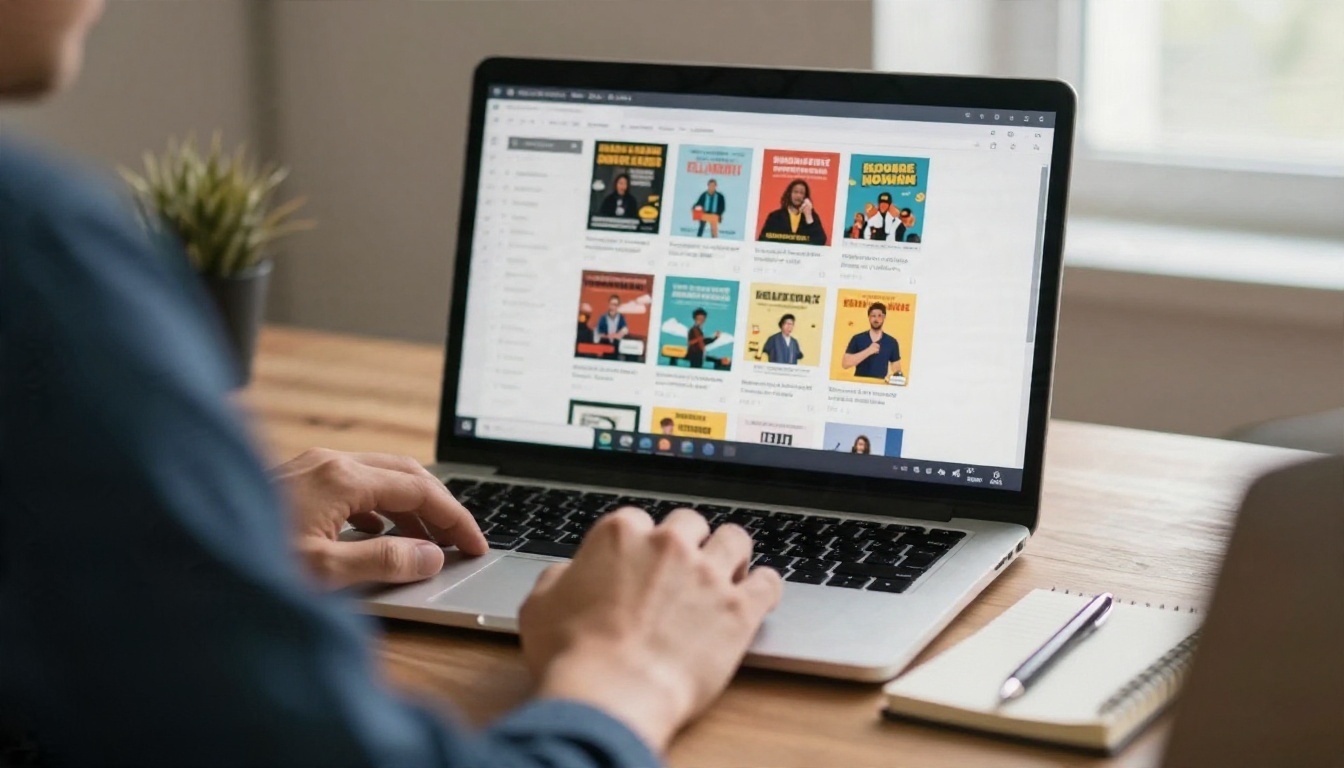
Canva has a generous free plan, a huge template library and a drag-and-drop editor that almost anyone can use in five minutes. It is the best fit for flyers, social posts, invitations, simple brochures and menus. The limit shows up with long documents: multi-page newsletters with many linked text boxes are clumsy, and some premium assets sit behind a paid tier.
Scribus for Print Control
Scribus is open-source desktop publishing software for Windows, Mac and Linux. It handles CMYK color, bleeds, crop marks and linked text frames, which makes it the closest free match to Publisher's serious print features. The price of that power is a steeper start. The interface feels dated, and you will spend a little time with the manual.
LibreOffice Draw for Old Files
LibreOffice Draw is free, and it can import many .pub files, which makes it a handy rescue tool when a Publisher file lands in your inbox and you have no Publisher. Expect some layout drift on complex files, so check every page against the original PDF.
Google Docs and Slides for Teams
Not glamorous, but practical. Google Slides works as a surprisingly capable layout canvas, because you can set a custom page size and drop images and text anywhere. Real-time collaboration is the draw: three people can edit the same newsletter without emailing versions back and forth.
| Tool | Best For | Free Plan Limits | Learning Curve |
|---|
| Canva | Flyers, menus, social graphics | Some premium assets locked | Very low |
| Scribus | Print-ready brochures and booklets | None, fully open source | High |
| LibreOffice Draw | Opening and editing .pub files | None | Medium |
| Google Slides | Team newsletters, simple layouts | Basic typography control | Low |
| Adobe Express | Quick marketing graphics | Some premium templates locked | Low |
| Word (web) | Text-heavy documents | Limited layout freedom | Very low |
✅ Best practice: use one tool for the design and a separate one for publishing. Design in Canva or Scribus, export a PDF, then publish that PDF as a flipbook.
Free Templates Worth Using
Templates are the real reason most people loved Publisher. The good news is that the free template supply today is larger than anything Publisher shipped with.
Where to Find Them
- Canva: thousands of brochure, flyer, newsletter and menu layouts, searchable by industry.
- Microsoft Word templates: brochures, newsletters and calendars you can open for free in the browser.
- Google Slides galleries: community-made layouts in custom page sizes.
- Scribus community: shared layouts for booklets and posters.
- Adobe Express: quick campaign layouts for social and print.
Template Rules That Save Time
Before you commit to a template, run it through this short checklist:
- Does the page size match your final output (A4, Letter, tri-fold, square)?
- Are the fonts free to use commercially, and can you install them?
- Is there room for your longest headline and your real photos?
- Does it export to PDF without clipped edges?
- Does it still look good with your brand colors dropped in?
A template that fails two of those questions will cost you more time than starting from a blank page.
Share Your Design Online
Finishing the layout is only half the work. If the result sits in a PDF attachment, many people will never open it. Attachments get blocked, downloads get ignored, and phones render large PDFs poorly.
Why Plain PDFs Fall Short
| Sharing Method | Works on Mobile | Looks Like a Publication | Tracks Readers |
|---|
| Email attachment | Poorly | No | No |
| Cloud link to PDF | Okay | No | Limited |
| Website image gallery | Okay | Partly | No |
| Online flipbook | Yes | Yes, page-turning effect | Yes, with analytics |
A flipbook keeps your original layout intact and adds page-turning, zoom and a single link anyone can open on a phone. That matters for a menu, a catalog or a newsletter, where the first impression decides whether someone keeps reading.

Real-World Examples
How to Create a Flipbook with Flipbooks AI
If your old Publisher files are now PDFs, this is the fastest route from file to shareable link. The PDF to Flipbook Converter handles the heavy lifting.
Step 1: Create Your Account
Head to Flipbooks AI and create an account. You can compare what each plan includes on the pricing page before you decide whether a paid tier makes sense.
Step 2: Upload and Convert Your PDF
- Click the upload button in your dashboard.
- Drag in the PDF you exported from Publisher, Canva, Scribus or any other tool.
- Wait a few moments while the pages are converted into a flipbook.
- Preview it straight away and flip through every page.
The layout stays as you designed it, including fonts, images and spacing. Because the PDF is the source, you never depend on a program that has been retired.
Step 3: Customize the Look
- Custom branding: add your logo and choose colors that match your brand.
- Page effects: pick the page-turning style that suits the content.
- Multimedia: embed videos and audio to bring a menu, lookbook or report to life.
- No watermarks, ever: the finished flipbook carries only your branding.
The result is mobile-responsive, so it adapts to phones and tablets without extra work.
Step 4: Share It Your Way
| Sharing Option | Best For |
|---|
| Direct link | Email, messaging apps, social bios |
| Embed code | Your website or blog (see Embed Flipbook on Website) |
| Password protection | Private reports, client proposals, internal documents |
| QR code placement | Printed menus, posters, packaging |
Step 5: Use Professional Features
On the Professional plan, you get analytics to see how readers move through your publication, lead generation to collect contact details, and offline downloads for people who want a copy. If you plan to publish many documents, the Standard plan and above include unlimited flipbooks. See the details on the pricing page.
💡 Test your first flipbook with a short document, like a one-page flyer set. You will see the whole workflow in a few minutes, and mistakes cost nothing.

Common Mistakes to Avoid
Switching tools is mostly painless, but a few traps catch people repeatedly.
Waiting Until the Last Minute
If you still have Publisher files that matter, export them now. Do not wait for a computer failure to find out that the only copy of your catalog lives in a format you cannot open.
Skipping the Font Check
Missing fonts are the number one reason a converted file looks wrong. Embed fonts when exporting PDFs, and check each page before you publish.
Sending Giant Files
A print-quality PDF with huge images can be hundreds of megabytes. Make a screen version for online use. Smaller files load faster and open more reliably on mobile.
| Mistake | What Goes Wrong | Simple Fix |
|---|
| Using a pirated installer | Malware, no support | Use a free alternative |
| Skipping the font check | Text reflows, pages break | Embed fonts in the PDF |
| Sharing only a PDF attachment | Low open rates | Publish a flipbook link |
| Keeping files only as .pub | Hard to open later | Export PDFs and store both |
Pick Your Next Step
You do not need to pay for Publisher to design, print or publish well. A free trial can bridge an urgent job, Canva or Scribus can handle the design, and a PDF gives your work a safe home no matter what happens to the software that made it.
Ready to put your first layout online? Get started for free on Flipbooks AI, browse all available flipbook tools to find the right fit for menus, brochures, catalogs and newsletters, or compare pricing plans to pick what works for you.



