You paid for the booth, shipped the banners, and booked the flights. Then the doors open, three thousand people pull out their phones, and the venue network collapses. Your online catalog spins on a blank screen while a buyer waits. This is the moment an offline flipbook earns its place. With Flipbooks AI, you can download your flipbook to a tablet before the show and run it with zero signal, so every visitor sees your full catalog the second they stop at your stand.
This article walks through exactly how to prepare, test, and run an offline flipbook at an event, plus what to do about leads, battery life, and updates once you are on the floor.
Why Expo Wi-Fi Fails
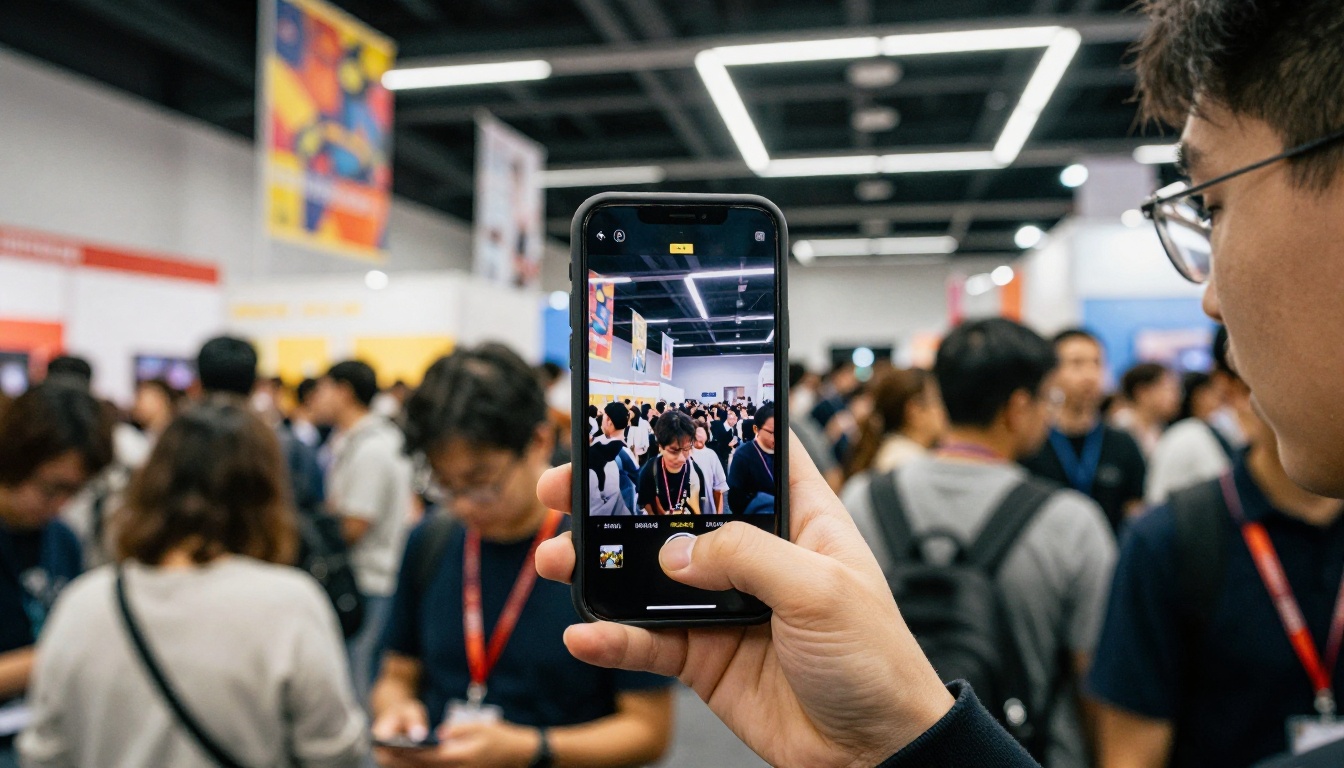
Convention centers are built for foot traffic, not data traffic. Everyone arrives at the same time, everyone streams, uploads, and scans badges, and the network was sized for a fraction of that load. Exhibitors who rely on the venue connection learn this on day one.
The Three Usual Culprits
- Overloaded access points. Hundreds of devices share a handful of routers in the hall.
- Metal and concrete. Steel trusses, thick walls, and crowded stands weaken cellular signal, especially in basement halls.
- Paid tiers that still stall. Premium exhibitor Wi-Fi often costs hundreds of dollars and slows down at peak hours anyway.
What a Dead Connection Costs You
A visitor gives a stand about eight seconds before moving on. If your demo hangs for ten of them, you lose the conversation. Multiply that by a few hundred visitors over three days and the damage to your pipeline is real.
💡 Pro tip: Never plan an expo demo that depends on a connection you do not control. Treat any live internet at the booth as a bonus, not a requirement.
What Offline Mode Actually Does
An offline flipbook is a copy of your publication stored on the device itself. Pages, images, and navigation load from local storage, so turning a page does not need a network request. Your visitor sees the same page-curl effect, the same zoom, and the same layout as the online version.
Online vs Offline at a Glance
| Feature | Online Flipbook | Offline Flipbook |
|---|
| Needs Wi-Fi to open | Yes | No |
| Page load speed | Depends on venue network | Instant from local storage |
| Embedded video | Streams, may buffer | Plays from device when bundled |
| Live content updates | Automatic | Requires a fresh download |
| Risk at a crowded expo | High | Very low |
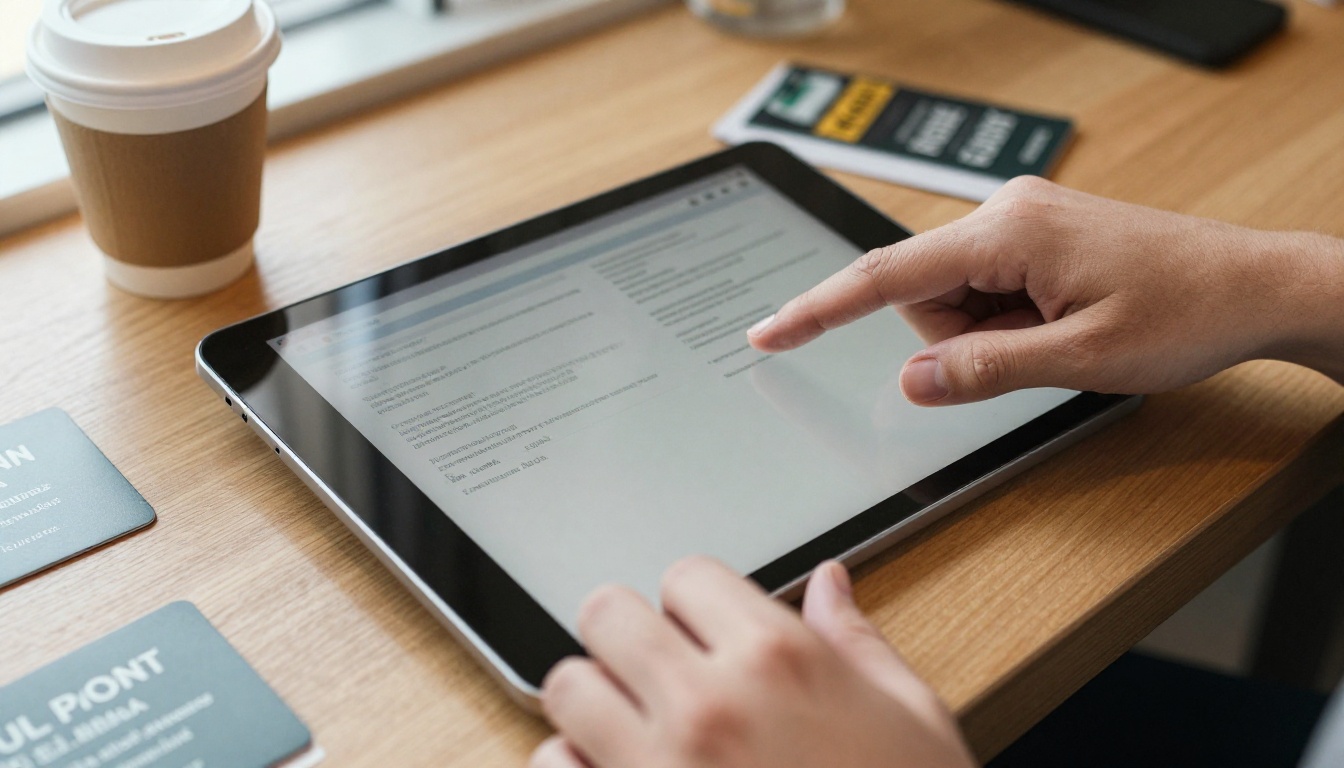
The tradeoff is simple: you give up automatic live updates in exchange for reliability. For a three day show, that is almost always a good deal, because your catalog does not change between breakfast and lunch.
How to Prepare Your Flipbook Offline
Start at least a week before the event. Rushing this the night before is how people discover a missing page in the hotel room.
Step by Step: Create and Download
- Sign up or log in. Go to Flipbooks AI and open your dashboard.
- Upload your PDF. Use the PDF to Flipbook Converter to turn your brochure, price list, or catalog into a page-turning flipbook. Export your PDF at a sensible size, since huge files are slow on tablets.
- Customize the look. Add your logo, brand colors, and background. Keep the first page clean so it works as a hook.
- Add multimedia. Embed short product videos or audio clips where they help the sale. Remember that every video adds to the file size.
- Set protection. Turn on password protection if the publication includes private pricing.
- Download for offline use. Use the offline download option, available on supported plans, and save the package to your tablet.
- Open it in airplane mode. Do this before you pack. If it opens, scrolls, zooms, and plays media with no network, you are ready.

⚠️ Warning: Do not trust a test done while connected. Browsers can quietly fetch missing assets from the internet. Only airplane mode proves that the file works on its own.
Pick the Right Format for the Booth
Different documents suit different stands. Browse all flipbook tools to find the closest match.
Choose the Right Tablet
You do not need a premium device, but you do need one that stays smooth after eight hours of swiping.
Specs That Matter
- Screen size of 10 inches or more. Visitors read spreads more comfortably, and two people can look at once.
- At least 64 GB of storage. Leave room for the flipbook, a spare copy, and your leads.
- A battery that lasts a full day. Look for 10 hours of real use, then add a power bank anyway.
- A matte screen protector. Hall lighting causes glare, and a matte film cuts it down.
Quick Comparison
| Option | Strength | Watch Out For |
|---|
| 10 to 11 inch tablet | Good balance of size and weight | Smaller for group viewing |
| 12 inch plus tablet | Big, impressive demo screen | Heavier, drains faster |
| Phone only | Always in your pocket | Too small for a sales conversation |
| Laptop | Familiar and powerful | Awkward to hand to a visitor |
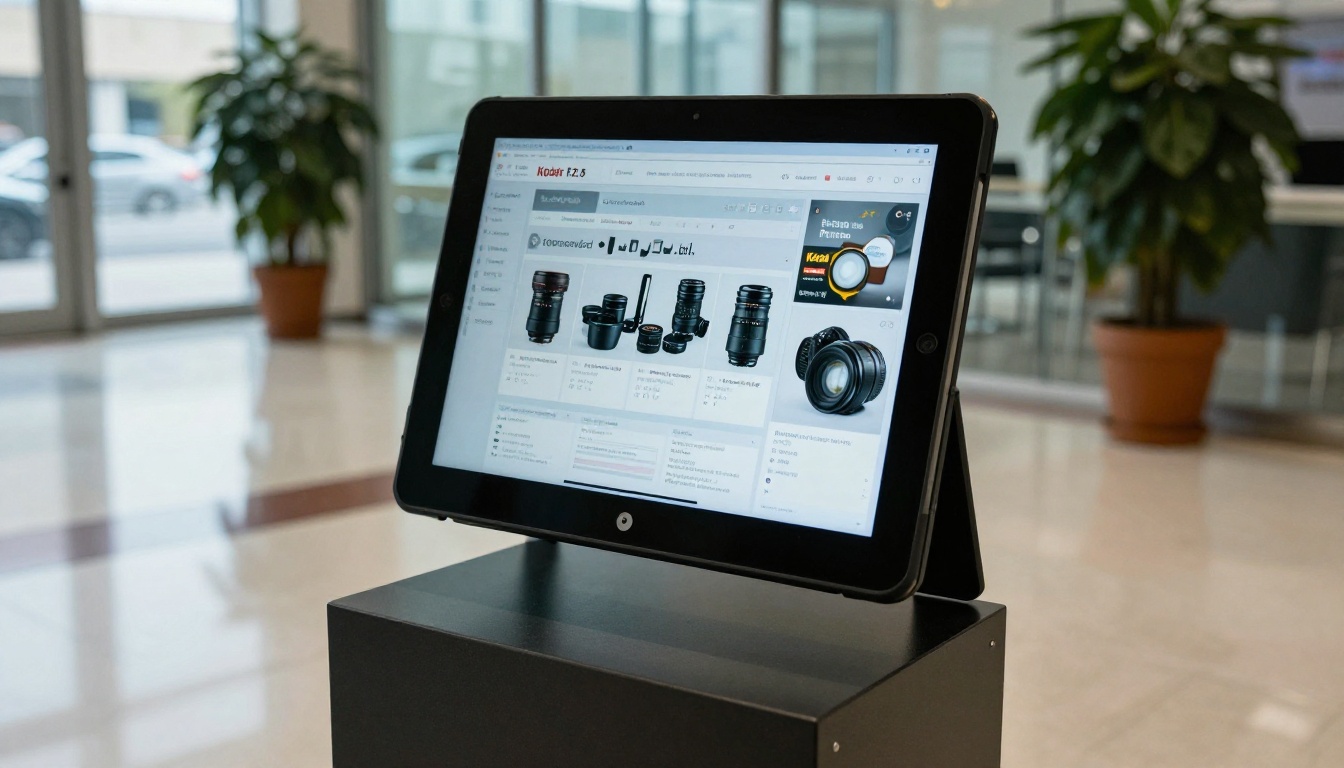
Set Up the Booth Like a Pro
A tablet lying flat on a table gets ignored. A tablet at eye level, angled toward the aisle, gets touched.
Handheld vs Stand Mode
Use both. A stand holds the flipbook open as a silent salesperson that runs a loop while you talk to another visitor. The handheld mode is for one-on-one demos, where you pass the tablet to the buyer and let them swipe.
Lock It Down
- Turn on guided access or kiosk mode so visitors cannot leave the flipbook.
- Disable notifications. A personal message popping up over your pricing page looks careless.
- Set auto-lock to a long timeout so the screen does not go dark mid-pitch.
- Keep brightness high enough for a bright hall, but not at 100 percent all day.
✅ Best practice: Keep a second device with the same offline copy in your bag. If one tablet freezes or gets knocked off the table, you swap and keep going.
Power and Backup Plan
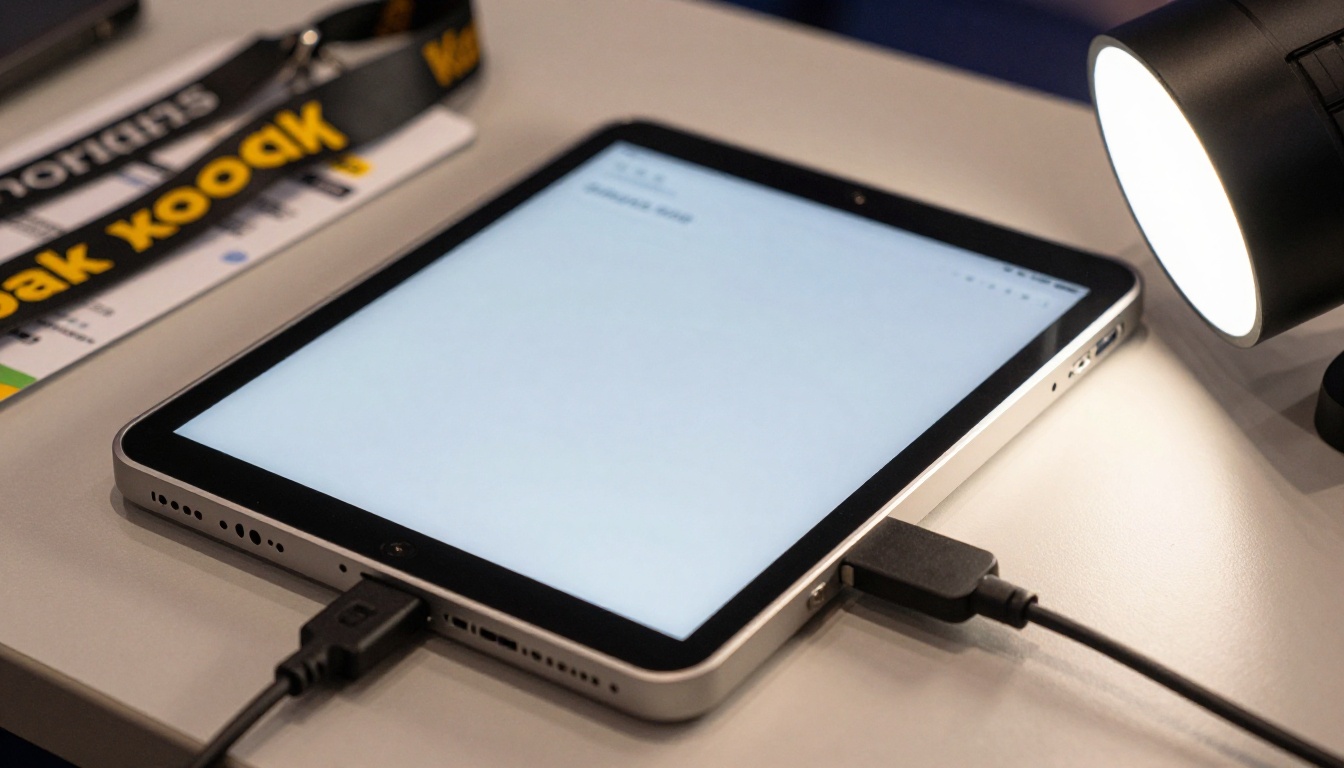
Offline mode removes the network risk, but a dead battery removes the whole demo. Plan power like you plan stock.
Booth Power Checklist
- Charge the tablet to 100 percent the night before.
- Pack a power bank with at least 20,000 mAh.
- Bring the right cable, plus a spare, since cables fail more often than tablets.
- Pre-order a power outlet from the organizer, because many halls charge extra for it.
- Turn on battery saver and reduce background apps.
A Simple Backup Ladder
| Failure | First Fix | Second Fix |
|---|
| Flipbook will not open | Reopen the saved file | Switch to the spare tablet |
| Tablet battery low | Plug into power bank | Use the spare device |
| Video will not play | Skip to the next page | Show the same clip from your phone |
| Tablet lost or stolen | Use the spare | Lock the account from the dashboard |
Capture Leads Without a Connection
A great demo is wasted if you cannot remember who watched it. Without a signal, live forms may not submit, so plan a fallback.
Three Offline Lead Methods
- Paper or notes app. Simple, fast, and always works. Write the name, company, and a note about what they cared about.
- Badge scanner. Most shows rent scanners that store data locally and sync later.
- QR code on the last page. Visitors scan it with their own phones. Their phone may have signal even when yours does not, and it takes them to your online contact form.
💡 Pro tip: Put your QR code on the final page of the flipbook, with one short line like "Get the price list." A clear reason to scan beats a generic "Contact us."
Follow Up Within 48 Hours
Leads go cold quickly. Send the online link to the full flipbook the same evening, or the next morning at the latest. With Professional features such as analytics and lead generation, you can see which contacts actually opened it, so your first calls go to the warmest names.
Real Booth Scenarios

A Ceramics Maker at a Design Fair
A small studio brings a 60 page catalog to a regional design fair. The venue Wi-Fi drops by noon. Because the catalog is stored on the tablet, the owner keeps showing glazes and sizes to retailers while neighbors apologize for their blank screens.
A Software Rep at a Conference
A rep uses a Sales Presentation flipbook as a visual pitch. In a basement hall with no cellular coverage at all, the pitch runs in full, and the rep ends each demo with the QR code on the final page.
A Real Estate Team at a Property Expo
Agents show a Real Estate Brochure with floor plans and photos. Buyers zoom into plans on the tablet, and the agents note interest on paper for same-day follow-up.
Handle Updates and Last Minute Changes
Offline copies are snapshots. If your price changes on day two, the tablet will not know.
A Simple Update Routine
- Make the change in your dashboard at the hotel, where you have a stable connection.
- Download the new offline version.
- Replace the old file on every device.
- Open it in airplane mode again to confirm.
- Delete the old version so nobody shows outdated prices.
Version Naming Matters
Name each file with a date, such as "catalog-oct-12". It takes five seconds and saves you from showing last week's prices.
The Pre-Show Checklist
Print this and tick it off with your team.
| Task | When | Done |
|---|
| Finalize PDF and build flipbook | 7 days before | ☐ |
| Download offline copy to all tablets | 5 days before | ☐ |
| Test in airplane mode | 5 days before | ☐ |
| Set password, kiosk mode, and brightness | 3 days before | ☐ |
| Charge tablets, pack power banks and spare cables | Night before | ☐ |
| Print QR code backup and lead sheets | Night before | ☐ |
| Confirm file version on every device | Morning of show | ☐ |
⚠️ Warning: The most common failure is not technology. It is a team member who never tested their tablet. Make everyone open the flipbook in airplane mode in front of you.
Common Mistakes to Avoid
- Testing only with Wi-Fi on. The file may look fine until the network disappears.
- Huge video files. A 500 MB clip slows page turns. Compress videos before embedding.
- No backup device. One tablet is one point of failure.
- Forgetting the update routine. Old prices on a screen can cost you a deal.
- Ignoring privacy. If your flipbook has private pricing, keep password protection on and lock the device when unattended.
Start Before the Next Show

An offline flipbook turns the weakest part of any expo, the network, into a non-issue. You build once, download once, test once, and then spend the show talking to buyers instead of staring at a loading spinner.
Afterward, review the results at your desk. Compare how many conversations you started with what your analytics show, and refine the flipbook for the next event.
Ready to build yours? Get started for free on Flipbooks AI, browse all tools and templates to find the right format, and compare pricing plans to pick the one with offline downloads. When you are ready to commit, go straight to your account and pricing and be set up well before the next show opens its doors.



