You are on a borrowed laptop, you need three pages on paper in ten minutes, and the only thing between you and the printer is a PDF you cannot open. This is where an online PDF viewer and printer workflow earns its place. No installer, no account wall, no waiting for updates. Just a browser tab, a few smart settings and a link you can send to anyone. In this article we compare the free options, walk through the print settings that actually change the result, and show how to share a PDF by link with Flipbooks AI when an attachment is not good enough.
Why Browser Viewers Win
Desktop PDF software still has its fans, but most people who open a PDF today do it for one of three reasons: read it, print part of it, or send it on. All three work fine in a browser, and that is why online viewers have become the default.
No Install, No Updates
A web viewer runs on whatever device is in front of you. Windows, macOS, Chromebook, a tablet at a hotel desk: the experience is nearly identical. There is nothing to patch, nothing to uninstall, and no bundled toolbar that sneaks in during setup.
That matters more than it sounds. IT departments often block installs, and shared computers wipe themselves on restart. A browser tab survives both situations.
What Free Really Means
"Free" covers a wide range. Some tools are free forever with basic features. Others are free for a few files per day. A few are free only until you try to download the result. Before you rely on one, check these points:
- File size limits: many free tools stop at a set number of megabytes or pages.
- Daily caps: some allow two or three tasks per day, then ask you to pay.
- Watermarks: a stamp on every printed page defeats the purpose.
- Privacy: read how long uploaded files are stored and who can see them.
💡 Pro tip: If a tool asks you to upload a sensitive file, such as a contract or ID scan, prefer your browser's built-in viewer. Nothing leaves your device.
Free Online PDF Viewers Compared
Not every viewer is built for the same job. Some are great for quick reading, others for printing, and a few for sharing. Here is how the main categories stack up.
| Viewer type | Best for | Print control | Sharing by link | Typical limit |
|---|
| Built-in browser viewer | Quick reading, private files | Good (system print dialog) | None | Local file only |
| Cloud drive preview | Team folders, simple sharing | Basic | Yes, permission based | Storage quota |
| Dedicated web PDF tool | Merging, splitting, editing | Varies | Often temporary links | Daily task caps |
| Flipbook viewer | Presentation, branding, tracking | Download or print option | Permanent, shareable link | Plan dependent |
What to Check First
Open the file and test three things in under a minute. Does text stay sharp when you zoom to 200 percent? Do page thumbnails load quickly? Is there a visible print button, or do you have to hunt for it? A viewer that fails any of these will frustrate you again on the next file.
Where Free Tools Fall Short
Free viewers rarely handle large catalogs or image-heavy brochures well. A 120-page product catalog can crawl on a basic viewer, and the experience on a phone is often a tiny page you have to pinch and drag. For documents that other people will read, a flipbook format is easier on the reader and keeps your layout intact.
Print Settings That Actually Matter
Most print problems are not printer problems. They come from three or four settings that default to the wrong value. Set them once per job and your pages will come out right.

Scale, Margins and Page Size
The scale option is the single most common culprit behind cut-off edges. Here is what each choice does:
- Default or 100%: prints at the file's real size. Good when the PDF matches your paper.
- Fit to page: shrinks content so nothing is clipped. Safest for mixed page sizes.
- Actual size: ignores printer margins, so edges may be trimmed.
- Custom scale: useful when you want larger text for easier reading.
Also confirm the paper size. A PDF built for A4 printed on US Letter, or the other way round, shifts everything by a few millimetres and can push footers off the sheet.
Pages Per Sheet and Duplex
Printing two or four pages per sheet is perfect for drafts and reading copies. Pair it with duplex (double-sided) printing and a 40-page document becomes five sheets instead of forty.
- Pages per sheet 2: still readable for standard text.
- Pages per sheet 4: fine for slides, too small for dense paragraphs.
- Flip on long edge: correct for portrait documents bound at the side.
- Flip on short edge: correct for landscape documents bound at the top.
Colour, Grayscale and Ink Saving
Colour is expensive. If the PDF is text with a few blue links, grayscale looks nearly the same and costs a fraction of the ink. Switch to Black and white or Grayscale, then enable a draft or economy mode for internal copies.
| Setting | Use it when | Result |
|---|
| Fit to page | Mixed page sizes, cut-off edges | Everything visible, slightly smaller |
| Actual size | Technical drawings, forms | Exact dimensions preserved |
| 2 pages per sheet | Reading copies | Half the paper |
| Duplex | Long documents | Roughly half the sheets again |
| Grayscale | Text-heavy files | Lower ink cost |
| High quality | Photos, brochures | Sharper, slower, more ink |
✅ Best practice: Print a single test page first. It takes a minute and saves a whole stack of misprints.
Printing Problems and Quick Fixes
Even with good settings, things go sideways. These are the issues readers report most often and how to solve them.
Cut-Off Edges
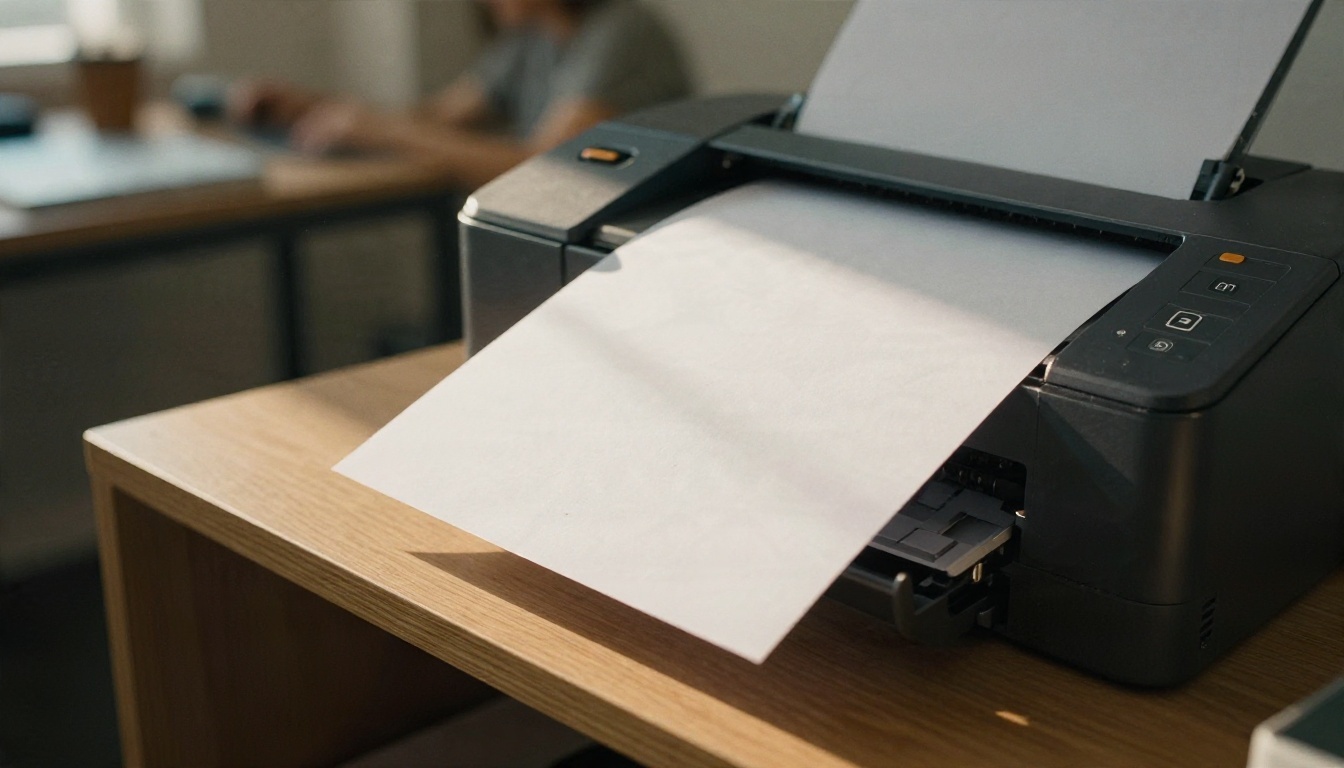
If text near the border disappears, change the scale to Fit to page and check that the paper size in the dialog matches the loaded paper. Some printers have a non-printable zone of around 5 mm, so a PDF with design elements right at the edge will always lose a sliver unless it is scaled down.
Blurry or Faded Output
Blur usually comes from a low-resolution image inside the PDF, not from the printer. Zoom to 400 percent in the viewer. If the page already looks soft on screen, paper will not improve it. Faded lines, on the other hand, point to low toner, a clogged nozzle or an economy mode left on from the last job.
⚠️ Warning: Do not print from a browser preview of a file that is still loading. Wait until every page thumbnail has appeared, or later pages may print blank.
Sharing a PDF by Link
Printing is only half the story. Plenty of PDFs never need paper: a price list sent to a client, a lease sent to a landlord, a menu sent to a hundred customers. In those cases a link is faster, lighter and easier to update than an attachment.
Attachment vs Link
| Factor | Email attachment | Shared link |
|---|
| File size | Blocked above roughly 20 to 25 MB by many providers | Any size the host allows |
| Updating the file | Resend to everyone | Replace once, link stays the same |
| Tracking opens | Not possible | Possible with analytics |
| Access control | None after sending | Password or expiry options |
| Reader experience | Download, open, scroll | Opens in the browser instantly |
| Mobile friendliness | Often awkward | Usually responsive |
An attachment is a copy you can never take back. A link is a door you can lock.

Link Safety Basics
Before you paste a link into a group chat, run through this short list:
- Check permissions: "anyone with the link" means exactly that.
- Use a password for contracts, invoices and anything with personal data.
- Avoid public forums for private links, since they can be indexed.
- Replace the file rather than creating a new link when a document changes.
- Review who opened it if your tool offers analytics.
How to Share a PDF with Flipbooks AI
If you want more than a plain preview, Flipbooks AI turns a PDF into a page-turning flipbook with its own shareable link. It runs in the browser, adds no watermarks, ever, and works on phones without pinching. The PDF to Flipbook Converter is the quickest entry point.
Upload and Convert
- Go to Flipbooks AI and create an account.
- Click the upload button and choose your PDF from your device.
- Wait a few seconds while the pages are converted. Text stays sharp and links inside the PDF remain clickable.
- Review the page preview. If the order looks wrong, fix the source PDF and upload again.
Customize and Protect
Once the flipbook is ready, open the settings panel to match it to your brand:
- Custom branding: add your logo and a background colour that fits your site.
- Page effects: choose how pages turn, from subtle to dramatic.
- Multimedia: embed videos and audio so the document does more than a static PDF.
- Password protection: require a password before anyone can open the file.
The result is mobile-responsive by default, so your readers see a clean layout whether they are on a laptop or a phone.
Share, Embed and Track
You have several ways to deliver the finished flipbook:
- Direct link: copy the URL and send it by email, chat or social media.
- Embed code: paste a snippet on your site, or use the Embed Flipbook on Website tool for step-by-step help.
- Offline download: let readers save a copy when they need paper or a local file.
- Analytics and lead generation: on the Professional plan you can see who opened the document and collect contact details before it loads.
| Capability | Basic use | Standard plan and above | Professional plan |
|---|
| Convert PDF to flipbook | Yes | Yes | Yes |
| Unlimited flipbooks | No | Yes | Yes |
| No watermarks | Yes | Yes | Yes |
| Password protection | Yes | Yes | Yes |
| Analytics and lead capture | No | No | Yes |
Check current limits on the pricing page, since plans can change.
💡 Pro tip: Keep a print-ready copy of the PDF available for download. Readers who want paper can use the same print settings from earlier in this article, and everyone else reads online.
Real-World Examples
Seeing how other people use this setup makes the choice easier.
- A restaurant uploads its menu once and shares one link on a QR code. When prices change, the owner replaces the file. The Restaurant Menu Creator is built for that case.
- A real estate agent sends a property brochure by link instead of a 30 MB attachment. Buyers open it on their phones during a viewing, and the agent sees who opened it. The Real Estate Brochure tool fits this workflow.
- A school office posts the monthly newsletter as a link. Parents who prefer paper print pages two per sheet. See the School Newsletter Creator.
- A freelance designer shares a portfolio through a password-protected link, giving each client a private view. The Digital Portfolio Creator handles it.
Quick Decision Table
| If you need to... | Best choice |
|---|
| Read a private file once | Built-in browser viewer |
| Print a few pages fast | Browser viewer plus system print dialog |
| Share a file with a team | Cloud drive link |
| Present a branded document to customers | Flipbook with a shareable link |
| Track who reads your file | Flipbook with analytics |
Ready to Share Your PDF?
You now have the full picture: pick a viewer that suits the job, set scale, duplex and colour before you print, and send a link instead of an attachment whenever the file is going to more than one person.
When you are ready to turn a PDF into something readers actually enjoy opening, get started for free on Flipbooks AI. Browse all the flipbook tools to find a template for your use case, or compare pricing plans to see which one fits your volume. Your next PDF can open in one click, print cleanly on demand and travel as a single link.



