You finish a quarterly report, attach it to an email, and hit send. Three seconds later you realize the address autocompleted to the wrong "Martin." That small slip is exactly why password-protected client reports for consultants and accountants have moved from a nice extra to a basic professional habit. With Flipbooks AI, you can turn a PDF into a private, page-turning report that only the right person can open, and you never have to attach the file again.
This article walks through why attachments fail, what a protected report should include, how to build one step by step, and how to run the whole thing across dozens of clients without adding hours to your week.

Why Email Attachments Fail Clients
Most firms still deliver reports the same way they did in 2005: a PDF, an email, and hope. The trouble is that an attachment has no memory and no brakes. Once it leaves your outbox, you lose control of it.
The Forwarding Problem
A client forwards your report to their spouse, their bank, their cousin who "knows spreadsheets." Each forward creates a new copy on a server you will never see. If the report contains payroll, tax positions, or acquisition targets, that is a real exposure.
The Inbox Is Not Private
Shared mailboxes, assistants with delegated access, and phones left unlocked at airports all sit between your report and the intended reader. Email was built for convenience, not confidentiality.
The Version Chaos
Anyone who has written "Q3_Report_FINAL_v7_revised.pdf" knows the pain. Clients keep old versions, quote outdated figures, and call you about numbers you already corrected.
⚠️ Many professional bodies expect reasonable safeguards for client financial data. Sending unprotected files by default is hard to defend after an incident.
What a Protected Report Looks Like
Instead of sending a file, you send a link. The client clicks it, types a password, and reads the report in a browser as a smooth, page-turning flipbook. You keep the original, and you can change the access rules whenever you like.

Core Ingredients
A well-built protected report usually has:
- A password gate on the link itself
- Your own branding, colors, and logo, with no third party watermark
- Mobile responsive pages so clients can read on a phone between meetings
- Optional download permissions you can switch on or off
- Analytics that show whether the report was opened and which pages held attention
Attachment vs Protected Flipbook
| Feature | Email PDF Attachment | Password Protected Flipbook |
|---|
| Access control after sending | None | Change or revoke anytime |
| Password requirement | Only if you encrypt manually | Built in |
| Forwarding risk | High | Low, recipient still needs the password |
| Version control | Multiple copies in circulation | One live link |
| Read tracking | No | Yes, on Professional plan |
| Branded experience | Plain file | Fully branded viewer |
| Mobile reading | Pinch and zoom | Responsive layout |
Who Benefits Most
The idea works for any professional who sends numbers to people who did not build them.

Accountants and Bookkeepers
Monthly management accounts, year end summaries, and tax estimates all hold sensitive data. A bookkeeper with 40 small business clients can publish one protected flipbook per client per month and stop worrying about who forwarded what.
Management Consultants
Strategy decks and diagnostic findings often name individuals, margins, and plans that would embarrass a client if leaked. A password gate keeps the audience to the people you agreed on.
Financial Advisors
Portfolio reviews contain balances and holdings. Sending them as private flipbooks gives a calmer, more premium feel than a loose spreadsheet.
Real World Scenarios
- A fractional CFO sends a board pack to five directors, each with the same password shared by phone, and revokes access after the meeting.
- A tax accountant publishes an annual summary for a family business and lets only the owner download it.
- An HR consultant delivers a salary benchmarking report to a leadership team and checks analytics to confirm every director opened it.
How to Create a Protected Client Report
Here is the full workflow using Flipbooks AI. It takes about ten minutes the first time and far less after that.

Step 1: Create Your Account
Head to Flipbooks AI and sign up. Review the pricing plans so you know which features you need. Password protection is available for private content, and analytics and lead generation sit in the Professional plan.
Step 2: Prepare and Upload the PDF
Export your report from Word, Excel, or your accounting software as a PDF. Then use the PDF to Flipbook Converter to upload it. The platform turns each page into a flipbook spread, keeping text sharp and charts readable.
💡 Before uploading, remove draft comments and hidden sheets. Whatever is in the PDF will be in the flipbook.
Step 3: Apply Your Branding
Open the customization panel and set:
- Your logo and brand colors
- The page turning effect and background
- A clean cover with the client name and reporting period
- Optional multimedia such as a short video walkthrough or audio note
For a polished result, start from the Corporate Report Maker or the Report Flipbook Creator.
Step 4: Turn On Password Protection
In the sharing settings, enable password protection and choose a strong passphrase. Avoid the client's name or birth year. A short phrase of three unrelated words works well and is easy to read out over the phone.
Step 5: Share the Link
Copy the direct link, or use the embed code if you run a client portal. The Embed Flipbook on Website tool shows how to place a flipbook inside a private page. Send the link by email and the password through a separate channel, such as a text message or a call.
Step 6: Watch and Follow Up
With Professional plan analytics, you can see whether the report was opened and how far the client read. If a director never opened the budget section, you know where to start the conversation.
✅ Best practice: use a different password for every client, and rotate it when a staff member leaves their company.
Channels for Sharing Passwords
The report is only as safe as the way you hand over the password.

| Method | Security Level | Best For |
|---|
| Phone call | High | Board packs, tax data |
| Text message | Medium to high | Routine monthly reports |
| Separate email | Medium | Low sensitivity updates |
| Same email as the link | Low | Avoid |
| Client portal login note | High | Recurring monthly clients |
The Two Message Rule
Always split the link and the password across two messages or two channels. It costs you ten seconds and removes the most common failure.
Passwords You Can Remember
Clients abandon complicated passwords and ask you to resend. Pick something readable aloud, like "harbor-violet-seven," and you cut support questions in half.
Features Worth Using
Beyond the gate itself, several settings make a client report feel professional.
Offline Downloads on Your Terms
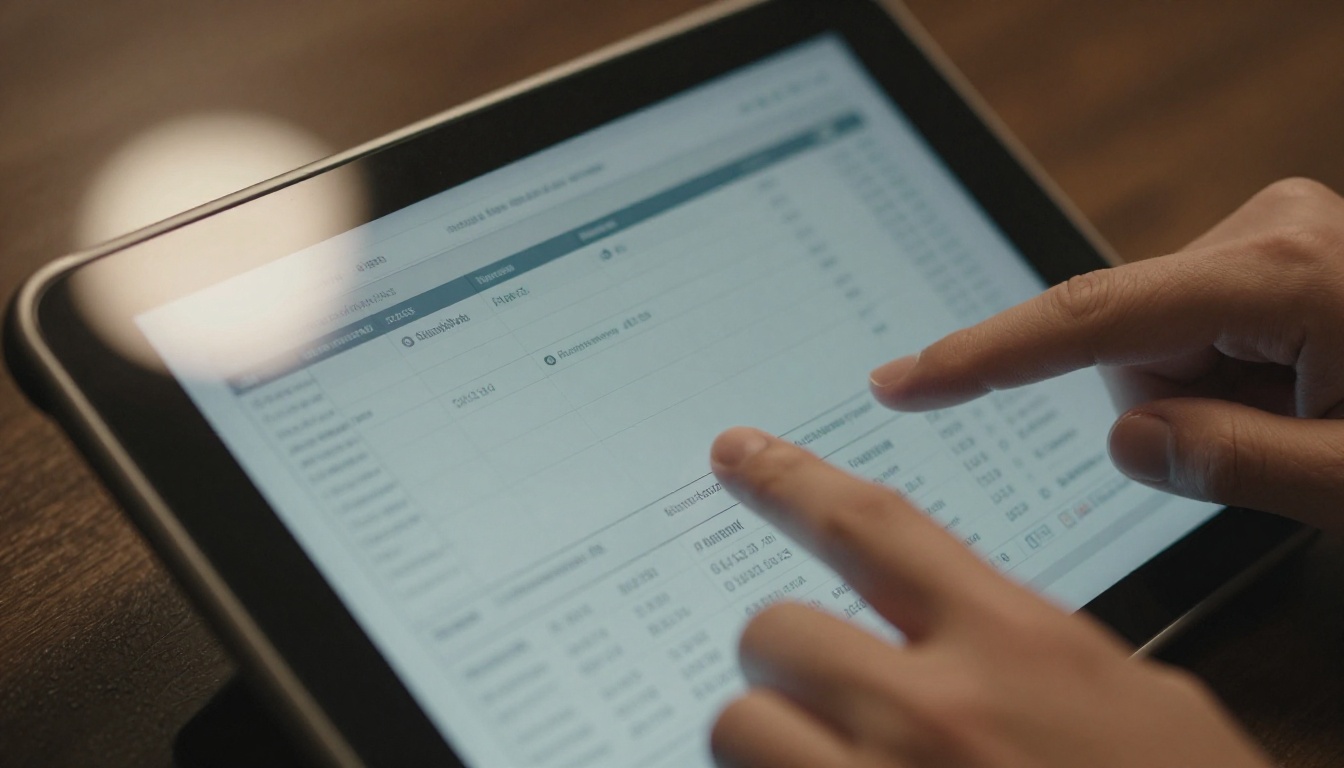
Some clients want a copy for their records. You can allow downloads for them and disable it for a wider audience. Either choice is yours, and you can change it later.
Embedded Video and Audio
Record a three minute walkthrough of the numbers and embed it inside the report. Clients who dislike spreadsheets often respond better to a human voice explaining the story.
No Watermarks, Ever
Your clients see your brand, not ours. That matters when you charge premium fees and want every touchpoint to look deliberate.
Unlimited Flipbooks
The Standard plan and above allow unlimited flipbooks, which suits firms that publish one report per client per month.
Building a Repeatable Reporting Routine
One protected report is useful. A repeatable system is where the time savings appear.
Create a Naming Convention
Use one pattern such as "ClientName Month Year Report" so you can find any flipbook within seconds. Consistent names also help when a client asks about "the March one."
Build a Template Once
Keep a master PDF layout with your cover, summary page, and closing notes. Each month you replace the figures, export, and upload. The branding stays identical, and clients start to recognize your format.
Monthly Checklist
- Export the new PDF and check every page
- Upload and apply your standard branding
- Set a fresh password
- Send the link and password separately
- Check analytics after two days
- Archive or revoke last month's link
Time Comparison
| Task | Old Email Method | Flipbook Method |
|---|
| Prepare and attach file | 5 minutes | 3 minutes |
| Answer "where is the file?" messages | 10 minutes | 1 minute |
| Confirm client received it | Phone call | Analytics check |
| Fix a wrong version | Resend and apologize | Update the live link |
| Total per client | Around 20 minutes | Around 7 minutes |
For a firm with 30 clients, that gap adds up to nearly seven hours a month.
Common Mistakes to Avoid
Even good intentions go sideways. Watch for these.

Reusing One Password for Everyone
If one client shares theirs, every other client is exposed. Use a unique password per client.
Skipping the Test
Open the link in a private browser window before sending. Check that the password works, the pages load, and the mobile view reads cleanly.
Leaving Old Reports Live
A report from two years ago should not stay accessible forever. Revoke or archive links once they stop being useful.
Hiding the Instructions
Clients get nervous when a password screen appears with no context. Add one friendly line in your email: "You will see a password box. Use the phrase I sent by text."
💡 A short welcome note on the first page, such as "Prepared for the leadership team, confidential," sets a professional tone and reminds readers not to share it.
Making Clients Feel Looked After
Security is partly a feeling. When a client opens a branded, smooth, private report, they notice. It signals that you take their data seriously, which is exactly what they pay you for.

You can extend the same approach to other documents. A Sales Presentation works for pitching new engagements, and the Annual Report Creator suits year end summaries. Browse all flipbook tools to see which formats match your practice.
Questions Clients Often Ask
- Can I read it on my phone? Yes, the layout adapts to any screen.
- Do I need to install anything? No, it opens in the browser.
- What if I forget the password? You simply ask your advisor, who can resend or reset it.
Protect Your Next Report
Sending sensitive numbers as loose attachments is a habit worth retiring. A protected flipbook gives you a single live link, a password gate, branded pages, and real insight into whether clients read what you wrote.
Ready to send your first private report? Create your free account on Flipbooks AI, convert a PDF in minutes, and switch on password protection. Compare pricing plans to pick the tier with analytics, or head to Upgrade through your account when you are ready to track client activity. Your clients will notice the difference with the very next report.



