You send a polished PDF to a client, they open it on their phone, tap the big "Book Now" link, and nothing happens. It is one of the most common and most annoying document problems, and it quietly costs businesses clicks, sales and credibility. The good news: the cause is usually small and fixable. This article walks through why PDF links stop working on mobile, how to repair them on iPhone and Android, and how a tool like Flipbooks AI removes the problem for good by turning your PDF into a mobile-friendly flipbook.
Why PDF Links Break on Phones
A PDF was designed for print and desktop screens. Phones have to squeeze a fixed page layout into a small touch display, and that is where links start to fail. Before you try random fixes, it helps to know which of three buckets your problem falls into: the viewer, the file, or the surrounding app.
The Viewer Ignores Link Annotations
Every PDF link is stored as an annotation sitting on top of the page. Some lightweight viewers, especially the quick preview panes inside email apps, messaging apps and cloud storage previews, render the page as a flat picture. The text looks clickable, yet the annotation layer is never activated.
The Link Was Never Real
Many "links" are only blue underlined text. If the PDF was exported from a design tool or a slide deck with the wrong settings, the text kept its color but lost its hyperlink. On a desktop you might copy and paste the address. On a phone, there is nothing to tap.
The Preview Sits Inside Another App
When you open a PDF inside a chat app or an in-app browser, the host app decides what a tap does. Some block external URLs, some open them in a tiny overlay, and some simply swallow the touch.
| Cause | What you see | Where it fixes |
|---|
| Preview-only viewer | Links look normal, taps do nothing | On the phone |
| Plain text, no hyperlink | Blue text but no response | In the source file |
| Tiny tap area | Taps work only sometimes | In the source file |
| In-app browser block | Link opens blank or not at all | On the phone |
| Outdated viewer or system component | Random failures after updates | On the phone |
💡 Quick test: open the same PDF on a laptop. If the link works there but not on your phone, the viewer is the suspect. If it fails everywhere, the file itself is broken.
Fixes for iPhone
Apple's built-in tools handle links well in most cases, so on iOS the trouble usually comes from where the PDF is opened rather than from the phone itself.
Open the File in Files or Books
If the PDF was previewed inside Mail, Messages or a third-party app, save it first. Tap the share icon, choose Save to Files, then open it from the Files app. You can also send it to Books. Both use a full PDF engine, which respects link annotations far more reliably than a thumbnail preview.
Check How the Link Opens
Safari is the default destination for web links. If you changed your default browser, a tap may be handed to an app that is not signed in, not installed, or not allowed to open the address. Open Settings, find your default browser app, and confirm it is set to a browser you actually use.
Review Content Blockers
Content blockers and some privacy extensions can stop a redirect or a tracking link from loading. If your PDF links go through a shortener or a campaign tracker, temporarily switch the blocker off for that site and test again.
Update iOS and Reopen
Old system builds occasionally contain bugs in the viewer. Install the latest iOS update, force close the app, and reopen the file. It sounds basic, yet it solves a surprising share of cases.
✅ Best practice: when you send PDFs to iPhone users, tell them to tap the share icon and choose "Open in Files" or "Books" if links ever fail.
Fixes for Android
Android has more variety. Different manufacturers ship different default viewers, which is why one person's links work and another person's do not.
Switch the Default PDF App
Go to Settings, Apps, Default apps and look at what opens PDF files. If it is a stripped-down viewer bundled by the phone maker, install a full reader such as Google Drive's PDF viewer or Adobe Acrobat Reader, then set it as the default. Many broken links start working immediately after this change.
Update the Web Component and Browser
Android relies on a system web component and on your browser to open links. Open the Play Store, update Android System WebView, Google Chrome and your PDF app. After updating, restart the phone.
Clear Cache and Storage
A corrupted cache can make a viewer ignore taps. Open Settings, Apps, choose your PDF app, tap Storage, then clear the cache. If the problem continues, clear storage too, but be aware that this removes saved settings.
Check Link Handling Settings
Under the same app settings you will find Open by default or Open supported links. If a link points to a site that has its own app, Android may try to open that app and fail. Turn the option off to force the browser.
| Fix | iPhone | Android | Effort |
|---|
| Open file in a full viewer | ✅ Files or Books | ✅ Drive or Acrobat | Low |
| Update system and apps | ✅ | ✅ | Low |
| Clear cache and storage | Limited | ✅ | Low |
| Change default app | Browser only | ✅ PDF and browser | Medium |
| Disable content blocker | ✅ | ✅ | Low |
Repair the PDF at the Source
If your own readers keep reporting the same issue, stop treating each phone and start fixing the document. A repaired file helps everyone, whatever device they use.
Rebuild Links Before Exporting
In Word, select the text, press Ctrl + K (or Cmd + K on a Mac) and paste the full address. In Google Docs, use the link button on the toolbar. In Canva, select the element, click the link icon, and enter the address. In PowerPoint and InDesign, add the hyperlink to the object itself.
When you export, check the option labelled something like Include hyperlinks or Create tagged PDF. Skipping it is the most common reason links vanish.
Always Use the Full Address
Write https://example.com/page, not example.com/page or a mailto-style shortcut. Without the protocol, some mobile viewers do not recognize the text as a link at all.
Make Tap Targets Big
Fingers are much bigger than mouse pointers. Apple and Google both recommend touch targets of roughly 44 to 48 pixels. If a link sits on a single small word between two other links, taps will hit the wrong one or none. Turn important links into buttons or full-width lines with space around them.
Test Before You Send
Open the exported PDF on at least one iPhone and one Android phone, in two places: the native viewer and the email app. Ten minutes of testing prevents hundreds of failed taps.
| Source tool | Where to add the link | Export setting to check |
|---|
| Word | Ctrl + K on selected text | Save as PDF, keep "Document structure tags" on |
| Google Docs | Link icon in toolbar | Download as PDF (links stay by default) |
| Canva | Link icon on element | PDF Standard, not "Flatten PDF" |
| PowerPoint | Insert, Link on the shape | Save as PDF, keep hyperlinks |
| InDesign | Hyperlinks panel | Include hyperlinks in Export settings |
⚠️ Warning: never run a PDF through "print to PDF" as a shortcut. That method flattens the page and removes every link annotation.
Skip the Problem With a Flipbook
Even a perfect PDF can fail when readers open it in an app you do not control. That is why more teams are moving their brochures, catalogs and reports into web-based flipbooks. A flipbook opens in the browser, so links behave like normal web links, whether the reader is on a Samsung, a Pixel or an iPhone.

PDF vs Flipbook on a Phone
| Feature | Standard PDF | Flipbook |
|---|
| Links respond on every phone | Depends on the viewer | Yes, browser based |
| Layout fits small screens | Pinch and zoom | Mobile-responsive |
| Embed video and audio | Rarely works | Supported |
| Password protection | Limited | Built in |
| Track opens and clicks | No | Analytics (Professional plan) |
| Share with one link | File download | Direct link or embed |
| Watermarks | None | None on Flipbooks AI |
If you want to see how this works in practice, the PDF to Flipbook Converter takes your existing file and keeps the links alive on every device.
💡 Tip: links you already built in your PDF carry over, so you do not need to redo your design work.
How to Convert a PDF Into a Flipbook
Here is the process with Flipbooks AI, from first click to a shareable link. It takes only a few minutes.
Step 1: Create Your Account and Upload
- Go to Flipbooks AI and create an account.
- Click the upload button and choose your PDF. The file is converted into page-turning flipbook pages within moments.
- Open the preview and tap through the pages on your own phone to confirm the links respond.
Step 2: Customize the Look
- Add custom branding: your logo, brand colors and background.
- Choose page effects, such as the speed and style of the page turn.
- Add multimedia: embed a video, an audio clip or a product gallery next to the text.
- Check each link and edit any address that needs a fix. Links that failed in the PDF can be corrected right here.
Step 3: Share With Confidence
- Copy the direct link and paste it into an email, text message or social post.
- Use the embed code to place the flipbook on your website. The Embed Flipbook on Website page explains how.
- Turn on password protection if the content is private, such as a price list for trade partners.
- Enable offline downloads if readers need access without a connection.
Step 4: Measure Results
On the Professional plan, you can see which pages readers open and which links they tap, and you can collect leads through built-in forms. Review the options on the pricing page to see which plan fits your volume. The Standard plan and above include unlimited flipbooks.
✅ Best practice: after publishing, send the link to yourself and open it on both an iPhone and an Android phone. It is the fastest final check.
Real-World Examples
Seeing how other businesses handle the problem makes the choice clearer.
A Restaurant With Tap-Friendly Menus
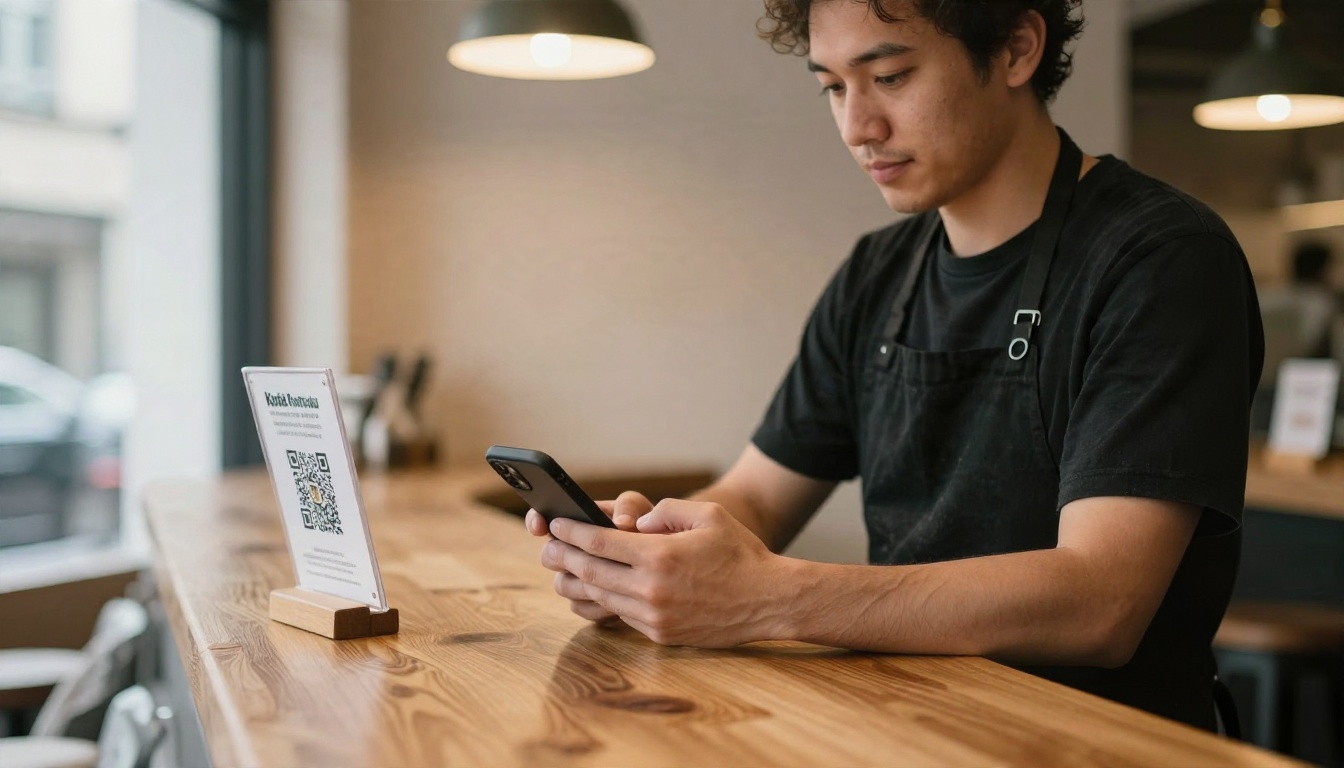
A bistro prints a QR code on every table that opens a PDF menu. Guests with older phones tap the reservation link at the bottom and nothing happens. After moving to a flipbook through the Restaurant Menu Creator, the reservation and delivery buttons work on any phone, and the owner can update prices without reprinting a single card.
A Real Estate Agent Sharing Listings
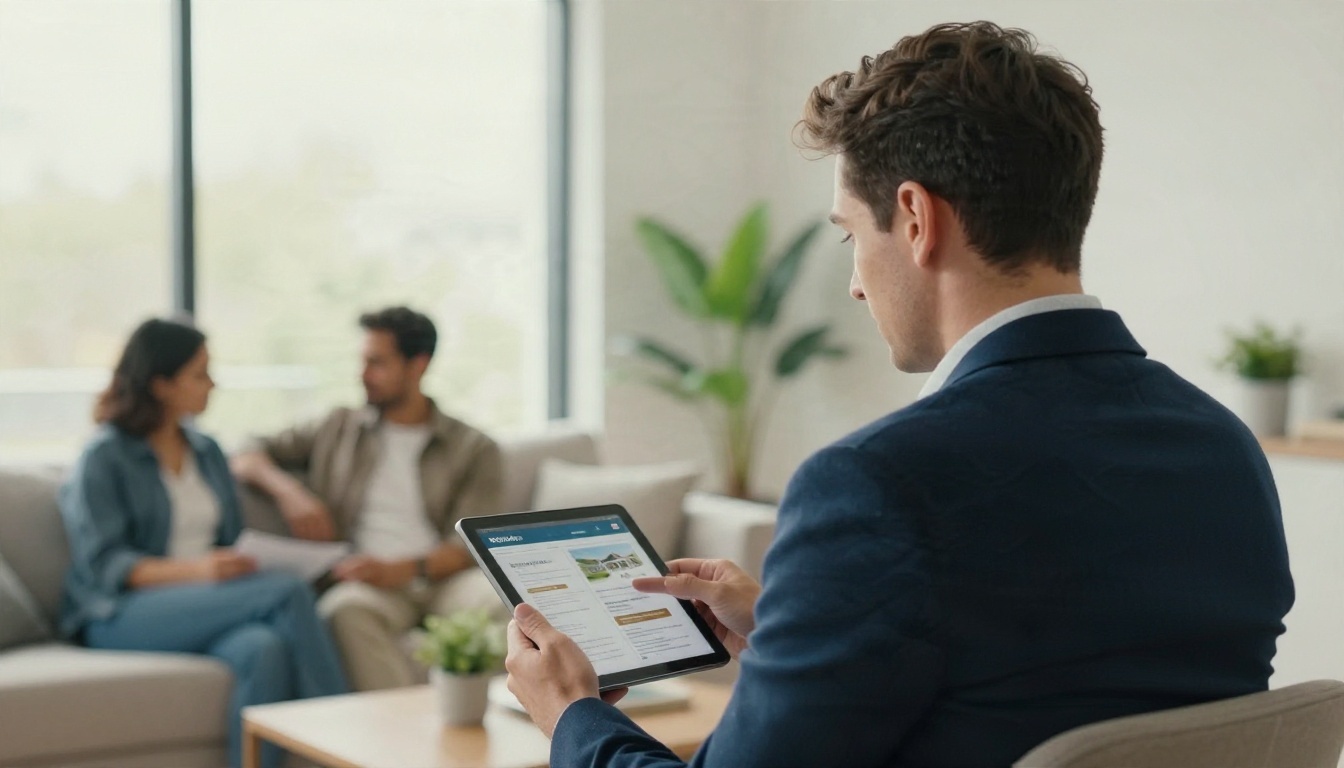
An agent sends property brochures that include links to virtual tours. Buyers open them on tablets and phones during a viewing, and half the tour links fail. A flipbook built with the Real Estate Brochure Creator keeps the tour buttons active and lets the agent see which listings received the most attention.
A Design Studio Sending Catalogs
A small studio emails a 60-page catalog with links to every product page. Retail buyers read on phones between meetings. With the Digital Catalog Maker, the catalog loads quickly, links stay tappable, and buyers can reopen it from one saved web address.

| Use case | Typical PDF problem | Flipbook result |
|---|
| Restaurant menu | Reservation link fails in QR preview | Buttons work in any browser |
| Real estate brochure | Virtual tour links ignored | Tour links open reliably |
| Product catalog | Heavy file, slow on mobile data | Pages load as the reader scrolls |
| Event program | Schedule links break in chat apps | One shareable address |
Mistakes to Avoid
Even careful teams repeat the same errors. Check this list before you send your next document.
- Pasting short text instead of full addresses. Always include
https://.
- Using screenshots of links. An image cannot be tapped.
- Flattening the PDF during export. It removes every annotation.
- Crowding links together. Leave generous space between tap areas.
- Testing only on a desktop. Phones behave differently, so test on real ones.
- Relying on email previews. They are the weakest viewers, so ask readers to open the file in a full app.
- Forgetting to retest after edits. One change in your source file can break a link that worked yesterday.
⚠️ Common trap: link shorteners that expire. If the short address dies, every old PDF you sent stops working with it.
Quick Troubleshooting Checklist
Use this order when a reader says "your link does not work":
- Ask which app they used to open the PDF.
- Have them open it in Files, Books, Drive or Acrobat instead.
- Check that the phone and the app are updated.
- Confirm the link starts with
https://.
- Open the PDF yourself on a phone to see if the link is real.
- Re-export the source file with hyperlinks enabled.
- If it still fails, publish the document as a flipbook and send the web link.

Ready to Stop Losing Taps?
Broken PDF links are rarely a mystery. Most of the time the cause is a weak viewer, a flattened export or a tiny tap target, and each one has a fix you can apply today. Update the apps, open files in a proper reader, rebuild the hyperlinks, and test on real phones.
If you would rather not depend on whatever app your reader happens to use, turn the document into a flipbook. Get started for free on Flipbooks AI, browse all flipbook tools for your use case, or compare pricing plans to choose the one that suits your team. Your links deserve to work on every screen.



