PDFs are everywhere. Every business has them, every team sends them, and nearly every document that matters ends up as one at some point. But static PDFs no longer hold attention the way they once did. Readers scroll past flat documents, skip dense pages, and close tabs faster than ever. That's exactly why PDF to flipbook converters have moved from novelty to necessity for anyone serious about digital publishing. Flipbooks AI sits at the center of this shift, giving marketers, educators, real estate professionals, and small business owners the tools to turn their PDFs into page-turning digital experiences in minutes.
What a PDF to Flipbook Converter Actually Does
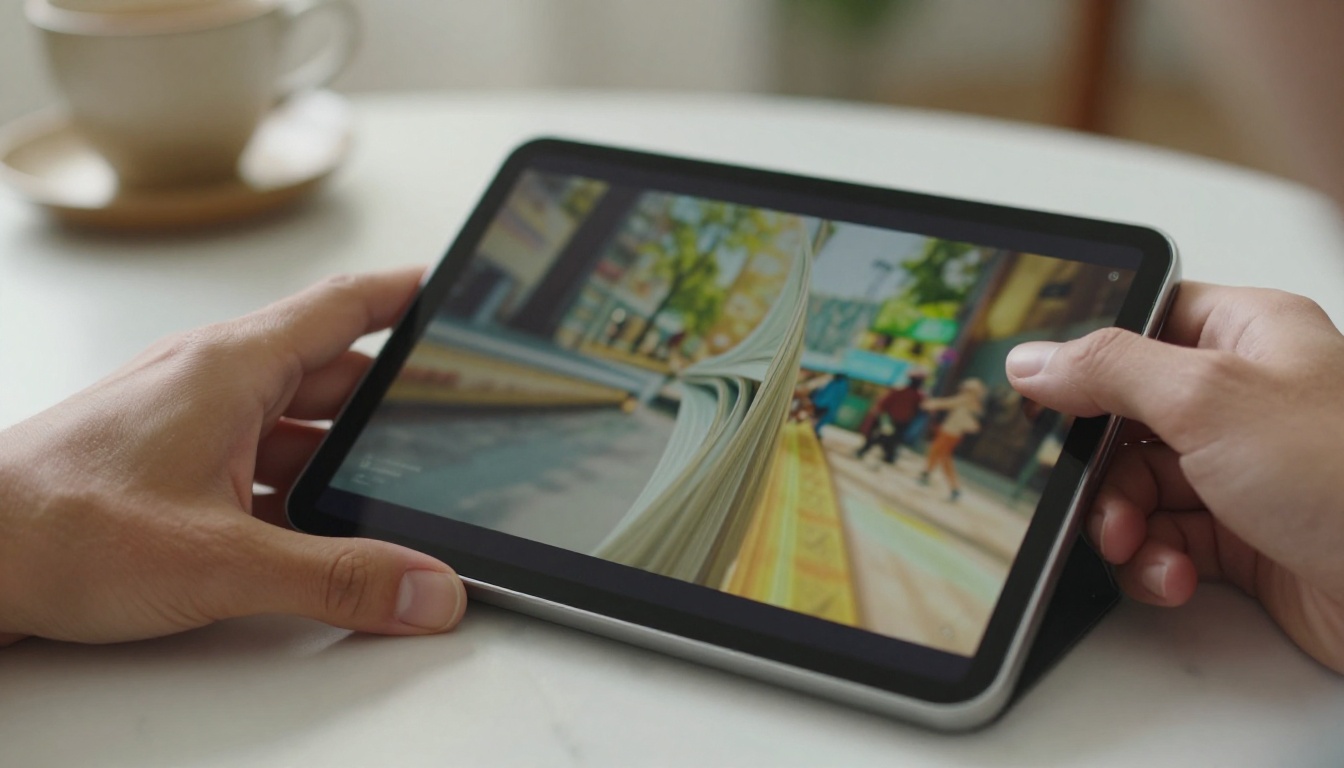
A PDF to flipbook converter takes any standard PDF file and transforms it into an interactive digital publication with realistic page-flip animations. Instead of forcing readers to scroll endlessly through a flat document, a flipbook mimics the tactile experience of thumbing through a physical magazine or brochure. Pages turn with smooth animations, content scales beautifully on any device, and the whole experience feels designed rather than dumped.
The process itself is simpler than most people expect. You upload a PDF, the converter processes each page as a high-resolution image or renders the text layer directly, and the result is an embeddable HTML5 publication that works in any modern browser without plugins.
The Technology Behind Page-Flip Effects
Early flipbook tools ran on Adobe Flash, which created compatibility nightmares on mobile and eventually became obsolete. Modern converters use HTML5 and JavaScript to deliver the same visual effect while remaining fully compatible with iPhones, Android tablets, and every major browser. The page-flip physics, shadow rendering, and zoom capabilities are all handled client-side, meaning your readers don't need to install anything.
The underlying rendering quality depends heavily on the converter. Some tools rasterize each PDF page as a compressed JPEG, which looks fine at standard zoom but falls apart when a reader tries to zoom in on small text or product details. Better tools preserve vector text layers so type stays crisp at any zoom level.
HTML5 vs. Legacy Flash Converters
| Feature | HTML5 Flipbook | Flash-Based Flipbook |
|---|
| Mobile compatibility | Full (iOS + Android) | None (Flash blocked) |
| Browser support | All modern browsers | Limited, deprecated |
| SEO indexable | Yes | No |
| Load speed | Fast (lazy loading) | Slow |
| Plugin required | None | Adobe Flash Player |
| Long-term viability | Yes | Obsolete |
The takeaway is straightforward: if a tool still mentions Flash or Shockwave, skip it. HTML5 is the only viable standard today.
Who Uses PDF to Flipbook Converters
The range of people using these tools is wider than most realize. The common thread is that they all have documents people need to actually read, not just receive.

Businesses That Rely on Digital Flipbooks
- Marketing teams converting product catalogs and lookbooks for email and social sharing
- Real estate agencies publishing property brochures that clients can browse on their phones
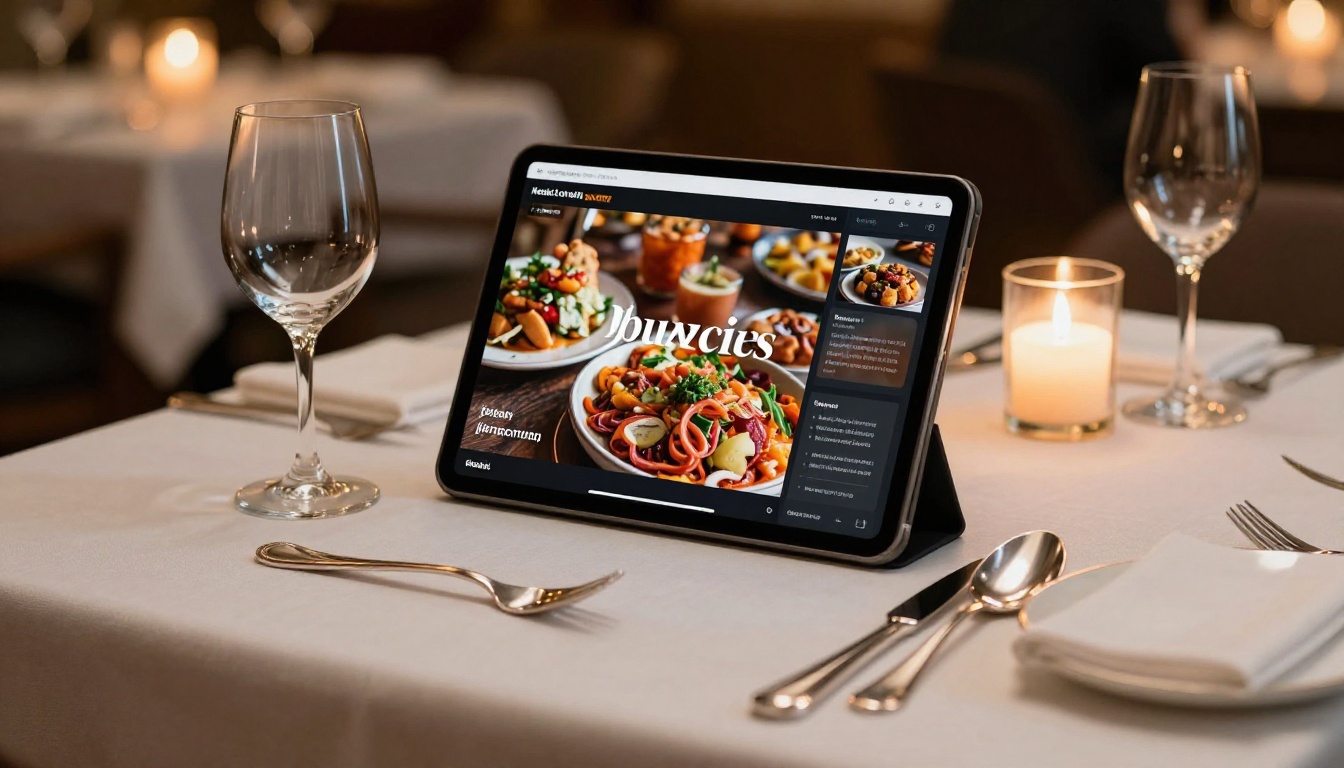
- Restaurants replacing printed menus with tablet-friendly digital versions
- Publishers distributing magazines, newsletters, and e-books without printing costs
- HR departments sharing employee handbooks and onboarding materials interactively
- Educational institutions publishing course materials and school newsletters
- Event organizers creating digital event programs that update in real time
Real-World Use Cases by Industry
| Industry | Document Type | Main Benefit |
|---|
| Retail | Product catalog | Shoppable, shareable, no print costs |
| Real Estate | Property brochure | Mobile-friendly, trackable views |
| Hospitality | Menu or hotel brochure | Easy updates, no reprinting |
| Education | Course material | Interactive, accessible anywhere |
| Finance | Annual report | Professional, branded, analytics |
| Fashion | Lookbook | Visually rich, embed video |
| Non-profit | Donor report | Credibility, no distribution cost |
The use cases keep expanding as more document types benefit from the interactive format. Flipbooks AI provides specialized tools for each of these scenarios rather than a generic one-size-fits-all converter.
What to Look For in a Converter
Choosing the wrong converter wastes time and produces results that embarrass the content you've worked hard to create. There are specific features that separate genuinely useful tools from the ones that look good in a demo but fail in practice.
5 Features That Separate Good Tools from Bad
1. Text Layer Preservation
Your converted pages should have selectable, searchable text. If the converter just screenshots each page, your readers can't highlight, copy, or search your content. This also affects SEO.
2. Mobile-First Rendering
Test any converter on a phone before committing. Pages should reflow correctly, the flip interface should be touch-friendly, and load times should be acceptable on cellular connections.
3. Custom Branding
A converter that puts its own watermark or logo on your publication is selling advertising space on your content. Look for tools that let you add your own brand colors, logo, and custom domain.
✅ Best Practice: Always test the mobile view of your flipbook before sharing. More than 60% of digital content is consumed on smartphones.
4. Embed and Share Options
The flipbook needs to live somewhere useful. Look for iFrame embed codes, direct shareable links, and options to password-protect private publications.
5. Analytics
Knowing how readers interact with your flipbook, which pages they linger on, and where they drop off is invaluable for optimizing content. Basic view counts are table stakes; page-level analytics are where real value starts.
Pricing Models: What You're Really Paying For
Most PDF to flipbook converters operate on a SaaS model with tiered plans. Here's what different price points typically deliver:
| Plan Type | Typical Features | Best For |
|---|
| Free | Limited flipbooks, watermarks, basic sharing | Testing the concept |
| Standard (~$10-20/mo) | Unlimited flipbooks, no watermarks, custom branding | Small businesses, creators |
| Professional (~$30-50/mo) | Analytics, lead gen, offline downloads, priority support | Marketing teams, agencies |
| Enterprise | White-label, API access, dedicated support | Large organizations |
⚠️ Warning: Free plans on most platforms include prominent watermarks. If you're sharing professionally, a watermarked flipbook sends the wrong message to your audience. Check the pricing options to see exactly what's included before you start building.
Flipbooks AI offers a Standard plan with unlimited flipbooks and zero watermarks, plus a Professional plan with analytics and lead generation tools for teams that need deeper insights into reader behavior.
How to Convert a PDF to a Flipbook with Flipbooks AI
This is where the rubber meets the road. Flipbooks AI makes the conversion process fast and straightforward, but knowing what each step involves helps you get the best possible result from your documents.

Step 1: Create Your Account and Upload Your PDF
Go to flipbooksai.com/account to create a free account. Once inside the dashboard, click the upload button and drag your PDF directly into the interface. Files up to several hundred pages are supported, and the conversion typically completes in under a minute for standard documents.
💡 Pro Tip: Before uploading, optimize your PDF. Compress large images within the PDF using tools like Acrobat or Smallpdf to reduce file size without visible quality loss. Smaller files convert faster and load quicker for your readers.
Step 2: Customize Branding and Layout
After conversion, you'll see your flipbook preview with default settings. This is where you add your brand identity:
- Upload your logo to appear in the flipbook header
- Set your primary and accent colors to match your brand palette
- Choose a background style (solid color, gradient, or image)
- Enable or disable the page count display and table of contents
- Select the page-flip animation style and speed
The PDF to Flipbook Converter tool handles all of this through a visual interface, with no coding required.
Step 3: Add Multimedia and Interactive Elements
This is where digital flipbooks go beyond anything a PDF can do. Within your converted flipbook, you can:
- Embed videos directly onto specific pages (YouTube, Vimeo, or uploaded MP4s)
- Add audio for narration, background music, or product demonstrations
- Insert clickable links on any element within the pages
- Create hotspots that open popups with additional information
A restaurant can embed a video of their chef explaining signature dishes directly in the digital menu. A real estate agency can add a virtual tour video to a property brochure page. These additions are invisible in the static PDF but become powerful interactive additions in the flipbook format.

Step 4: Configure Privacy and Sharing Settings
Before publishing, decide how you want to distribute your flipbook:
- Public link: Anyone with the URL can view the flipbook
- Password protection: Viewers must enter a password, ideal for internal documents or premium content
- Unlisted: The flipbook isn't indexed publicly but the link works for anyone who has it
- Domain restriction: Limit where the embed code can be displayed
For embedding on a website, use the Embed Flipbook on Website tool to generate a custom iFrame code sized precisely to your layout.
Step 5: Publish and Monitor Performance
Once live, the Professional plan gives you access to a full analytics dashboard showing:
- Total views and unique visitors
- Average time spent per page
- Drop-off points within the document
- Lead capture form data from readers
- Geographic data on your audience
This data tells you whether page 3 of your catalog gets three times more attention than page 12, which is exactly the kind of insight that shapes better content decisions on your next publication.
Common Problems When Converting PDFs
Even with a solid converter, certain issues come up regularly. Knowing about them in advance saves frustration and rework.
Poor Image Quality After Conversion
If your flipbook pages look blurry or pixelated, the source PDF likely has low-resolution images embedded. The converter can only work with what you give it. Fix this at the source: export your original design file (InDesign, Canva, PowerPoint) at 150-300 DPI before generating the PDF.
✅ Best Practice: Use PDF/X-1a or PDF/X-4 export settings from professional design tools for the cleanest flipbook conversion results.
Fonts Not Rendering Correctly
Some PDFs embed subset fonts or use proprietary typefaces that don't translate cleanly. The safest approach is to outline all text before exporting the final PDF from your design application. This converts text to vector shapes, eliminating font dependency entirely.
File Size Causing Slow Loads
A 200-page product catalog with full-resolution photography can easily produce a PDF over 100MB. Flipbooks AI uses lazy loading to only serve the pages a reader is currently viewing, but the underlying assets still need to be reasonable sizes. Compress images to 72-96 DPI for screen-only publications to keep load times snappy.
Sharing and Embedding Your Flipbook
Once your flipbook is live, how you distribute it matters as much as how you built it.

Embed Codes and Website Integration
The iFrame embed code is the most flexible distribution method. You control the dimensions, and the flipbook renders inline within your page, giving visitors the full interactive experience without leaving your site. This works on WordPress, Squarespace, Webflow, Wix, Shopify, and any platform that accepts HTML embeds.
For social sharing, Flipbooks AI generates a direct link with proper Open Graph metadata so the preview image and title display correctly when the link is shared on LinkedIn, Facebook, or via email campaigns.
Password Protection and Private Links
Not everything is meant for the public. Client proposals, internal training materials, and confidential pricing documents all benefit from password protection. With a protected flipbook, you share the link and password separately, and the viewer enters it to access the content.
💡 Pro Tip: For client presentations, use an unlisted link rather than a public URL. The client gets the full interactive experience, but the document doesn't appear in search results.
Making the Most of Your Digital Flipbook
Converting and publishing is the beginning. The readers you attract and what happens after they open your flipbook depends on how well you've set up the experience beyond the pages themselves.
Analytics and Lead Generation
The Professional plan on Flipbooks AI includes lead capture forms that can appear on any page of your flipbook. A product catalog can ask readers to leave their email before accessing the pricing section. An e-book can prompt readers to subscribe after the first chapter. These forms integrate with email platforms and CRMs, turning passive readers into active contacts.
Page-level analytics reveal which sections of your catalog drive the most interest. If page 8 consistently shows the highest dwell time, that's your best-performing content and a signal to feature it more prominently in future publications.
Offline Downloads and Mobile Access
The Professional plan also includes offline download capability. Readers can save a version of your flipbook to their device for access without internet connectivity. This is especially valuable for sales teams presenting to clients in locations with unreliable connections, and for educational materials students need to access anywhere.
All flipbooks created on Flipbooks AI are fully mobile-responsive by default. The interface adapts to portrait and landscape orientations, touch controls work intuitively, and the page-flip effect translates naturally to swipe gestures on any smartphone.

Rather than building every flipbook from scratch, specialized tools let you start with structures already optimized for your use case. Here's a breakdown by category:
Catalogs and Products
Menus and Hospitality
Brochures and Real Estate
Publications and Media
Business and Reports
Education and Training
Browse the full tools directory to find the right starting point for your specific use case and document type.
Make Your PDFs Work Harder
Static PDFs have done their job. Now it's time for something that actually gets read, shared, and remembered. Whether you're converting a product catalog, a restaurant menu, a property brochure, or a training manual, the process is faster and more capable than most people expect when they start.
Ready to create your first flipbook? Get started for free on Flipbooks AI and see your PDF transformed in under two minutes.
If you're serious about professional publishing with analytics, lead generation, and offline access, compare plans to find what works for your team's workflow.
Browse all flipbook tools to find the right fit for your industry and document type.



