You send a 40 page PDF to a client, and they open it on a phone. They pinch, they zoom, they scroll sideways, and after thirty seconds they give up. An HTML5 page flip fixes that. The same pages load inside the browser, turn with a swipe, and need no plugin or app. This article explains how the conversion works, which free tools are worth your time, and what makes a flipbook behave on small screens. If you just want the result, you can convert a file in a few minutes with Flipbooks AI.
What PDF to HTML5 Page Flip Means
PDF and HTML5 in plain terms
A PDF is a fixed layout file. Every font, image and margin is locked in place so the document prints the same everywhere. That is great for paper and terrible for screens, because the file does not care how wide your display is.
HTML5 is the language browsers read natively. When a PDF becomes an HTML5 page flip, each page is turned into web content (usually an image layer plus a thin text layer) and wrapped in JavaScript that animates the page turn. The reader gets a book on screen, and you get a link you can share.
Why the page turn still works
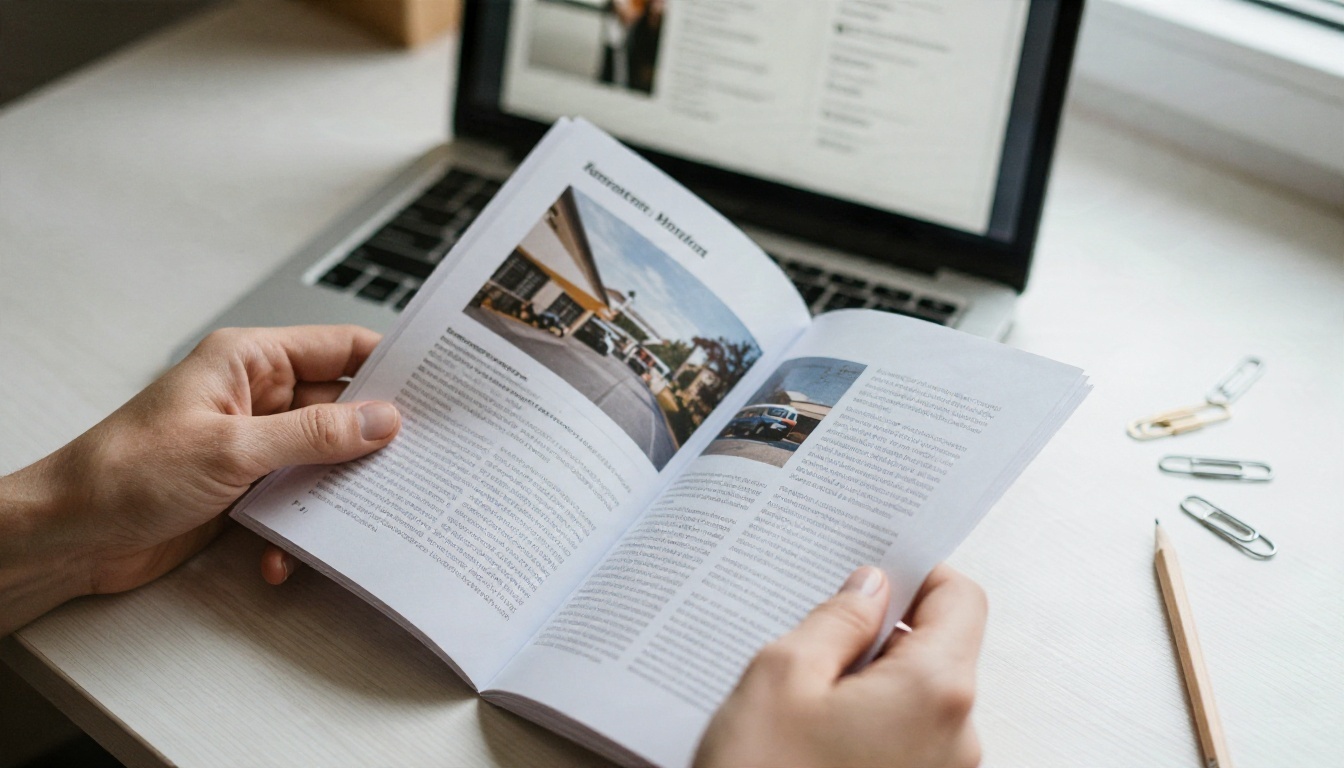
People have read bound pages for centuries, so the motion feels natural. A curling corner tells the reader what to do without a single instruction. Publishers also like it because it keeps the original design intact: spreads stay spreads, full bleed photos stay full bleed, and the pacing the designer planned survives.
| Feature | Plain PDF | HTML5 page flip |
|---|
| Opens in browser | Sometimes, with a viewer | Always |
| Page turn animation | No | Yes |
| Mobile friendly | Poor, needs zoom | Good, adapts to the screen |
| Shareable by link | Download first | Open instantly |
| Embeds in a website | Awkward | Single iframe |
| Tracks readers | No | Possible with analytics |
💡 Pro tip: Keep your source PDF. The flipbook is a presentation layer, so you can always update the original and convert it again.
How the Conversion Works
Every converter follows the same three stages, whether it is a free script or a paid platform. Knowing them helps you diagnose problems when a page looks blurry or a link stops working.
Step 1: Rendering each page
The converter reads the PDF and draws every page. Most tools use a rendering engine, such as Mozilla's open source PDF.js, to produce an image at a chosen resolution. A higher resolution means a sharper page and a heavier file. Good tools create several sizes, so a phone downloads a small version and a desktop downloads a large one.

Step 2: Building the page curl
The curl is pure front end work. A script tracks the pointer or finger, calculates where the corner sits, and draws a folded page with a soft shadow beneath it. Some libraries use the HTML canvas element, others use CSS 3D transforms. Canvas is generally smoother with many pages, while CSS is easier to style.
Step 3: Packaging for the web
Finally the pages, text layer, links and settings are packaged. You can host the files on your own server, or let a platform host them and hand you a link. Hosted options usually include a CDN, so pages load fast for readers in different countries.
| Approach | Output | Speed on mobile | Searchable text |
|---|
| Image per page | JPG or WebP files | Good with lazy loading | Only with a text layer |
| Canvas rendering | Drawn on demand | Very good | Limited |
| SVG or HTML pages | Vector content | Heavy on long documents | Yes |
| Hybrid (image plus text layer) | Images with hidden text | Good | Yes |
✅ Best practice: Choose a hybrid approach. You get fast loading and text that search engines and screen readers can still read.
Open source libraries and online converters
If you are comfortable with code, libraries like StPageFlip and Turn.js give you the animation, and you supply the pages. You export the PDF as images, write a small HTML file, and host it yourself. Check the license first, because some versions of these libraries are free only for personal projects.
If code is not your thing, free online converters take a PDF upload and give you a flipbook link. They are quick for a one time job. The usual price is a watermark, a page limit, or an expiry date on your link.

Where free tools fall short
Free tools tend to hit the same walls. Watch for these before you commit a project to one:
- Watermarks or logos that sit on every page and look unprofessional
- File size caps that reject a PDF full of photos
- No password protection, so private documents are exposed to anyone with the link
- No analytics, which means you never find out whether anyone read it
- Weak mobile behavior, such as tiny pages or broken swipe gestures
- Links that expire after a few days or weeks
| Option | Cost | Watermark | Mobile quality | Best for |
|---|
| Open source library | Free | None | Depends on your code | Developers |
| Free online converter | Free | Often | Average | One time previews |
| Desktop converter | Free or paid | Often in free tier | Average | Offline export |
| Hosted platform like Flipbooks AI | Plans available | None | Built in | Business use |
⚠️ Warning: Never upload a confidential contract or price list to a free converter without reading its privacy terms. Some keep a copy of every file.
Mobile Support Without the Headaches
More than half of web traffic comes from phones, so a flipbook that works only on a laptop is half finished. Mobile support is a set of small decisions, and each one matters.
Touch gestures and layout
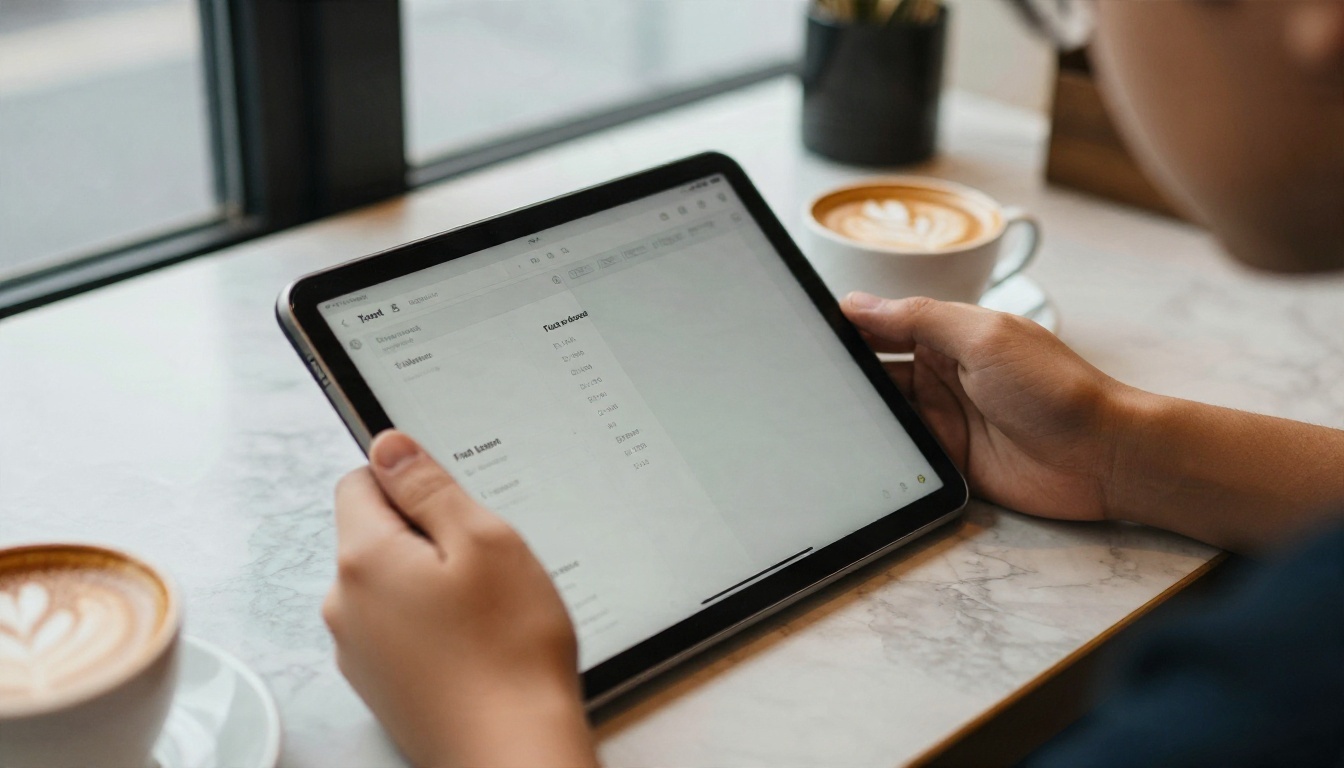
On a desktop the reader sees a two page spread. On a phone held upright, the same spread would shrink to unreadable text. A good flipbook detects the screen and switches to single page mode automatically. It also supports swipe to turn, pinch to zoom, and double tap to fit the page to the screen.

Tablets sit in the middle. In landscape the double page spread works well, and in portrait it should fall back to one page. Test both orientations, because many flipbooks break when the user rotates the device.
Speed on slow connections
Readers on mobile data will not wait for a 200 MB file. Look for lazy loading, which fetches only the current page and the next one. Compressed WebP images also cut the weight by a large margin compared with PNG files.
| Mobile check | What good looks like | Common failure |
|---|
| First page appears | Under 3 seconds | Whole book loads first |
| Swipe to turn | Instant response | Lag or accidental zoom |
| Text legibility | Readable without zoom in single page mode | Spread shrunk to fit |
| Links and buttons | Large tap targets | Tiny links that need a stylus |
| Rotation | Layout adjusts smoothly | Page cut off or frozen |
💡 Pro tip: Open your flipbook on the cheapest phone you can find. If it feels smooth there, it will feel smooth everywhere.
Create One with Flipbooks AI
If you want mobile support, hosting and branding handled for you, this is the quickest route. The process takes about five minutes for a normal document, and the PDF to Flipbook Converter is the page to start from.
Upload and convert
- Open Flipbooks AI and create an account.
- Click to start a new flipbook and drop in your PDF.
- Wait while the pages are converted. A 30 page brochure usually finishes in under a minute.
- Preview the result on desktop and in the mobile view before changing anything.

Customize the look
Open the settings panel and adjust the parts that matter to your brand:
- Colors and background to match your website
- Logo and custom branding in the toolbar
- Page effects, including curl strength and sound
- Multimedia, such as embedded videos and audio on any page
- Clickable links on products, emails and buttons
Nothing is stamped on your pages. Flipbooks AI has no watermarks, ever, which is the first thing most free converters take away.
Share, protect and measure
You have several ways to publish:
- Copy the direct link and send it by email or chat
- Paste the embed code into your site (see the Embed Flipbook on Website tool)
- Add a password for private documents
- Enable offline downloads so readers can save a copy
The Professional plan adds analytics and lead generation, so you can see which pages were read and collect an email address before the book opens. Compare the options on the pricing page. The Standard plan and above include unlimited flipbooks.
Real World Examples
Real estate and hospitality
An agent who sends a property brochure as a flipbook link gets a better first impression than one who attaches a 60 MB file. The buyer opens it in the browser, swipes through the photos, and taps a phone number on the last page. Try the Real Estate Brochure Creator or the Hotel Brochure Designer for ready made layouts.

A restaurant can publish a menu behind a QR code on each table. When prices change, the owner updates the PDF, converts it again, and the same link shows the new version. No reprinting, no stale menus. The Restaurant Menu Creator is built for exactly this.
Magazines, catalogs and portfolios
Publishers use page flip to keep the feel of a printed issue. Retailers turn seasonal PDFs into shoppable catalogs with the Digital Catalog Maker. Photographers and designers present work in a Digital Portfolio Creator layout that opens as a book.
Mistakes That Break a Flipbook
Most bad flipbooks share a few avoidable problems. Check this list before you publish:
- Uploading a low resolution PDF. The converter cannot add sharpness that was never there. Export at 150 DPI or higher for screen use.
- Ignoring page size. A tall A4 portrait file looks tiny on a landscape laptop screen. Decide the format first.
- Embedding huge images. Compress photos before exporting the PDF, so each page stays light.
- Forgetting links. Test every button on desktop and on a phone. Some tools drop links during conversion.
- Skipping the text layer. Without it, nobody can search the document and search engines cannot read it.
- Never testing on a real device. An emulator is useful, but a real thumb on a real screen finds problems faster.
✅ Best practice: Ask two colleagues to open the link on their own phones and tell you honestly where they got stuck.
Ready to Publish Yours?
An HTML5 page flip gives your PDF a second life. It loads fast, reads well on a phone, and lets you share a single link instead of a heavy attachment. Free tools are fine for a quick test, but a project that represents your business deserves clean pages, working mobile gestures and no watermark.

Here is the next step in three moves:
Your readers are already on their phones. Give them something that turns pages the way they expect.



