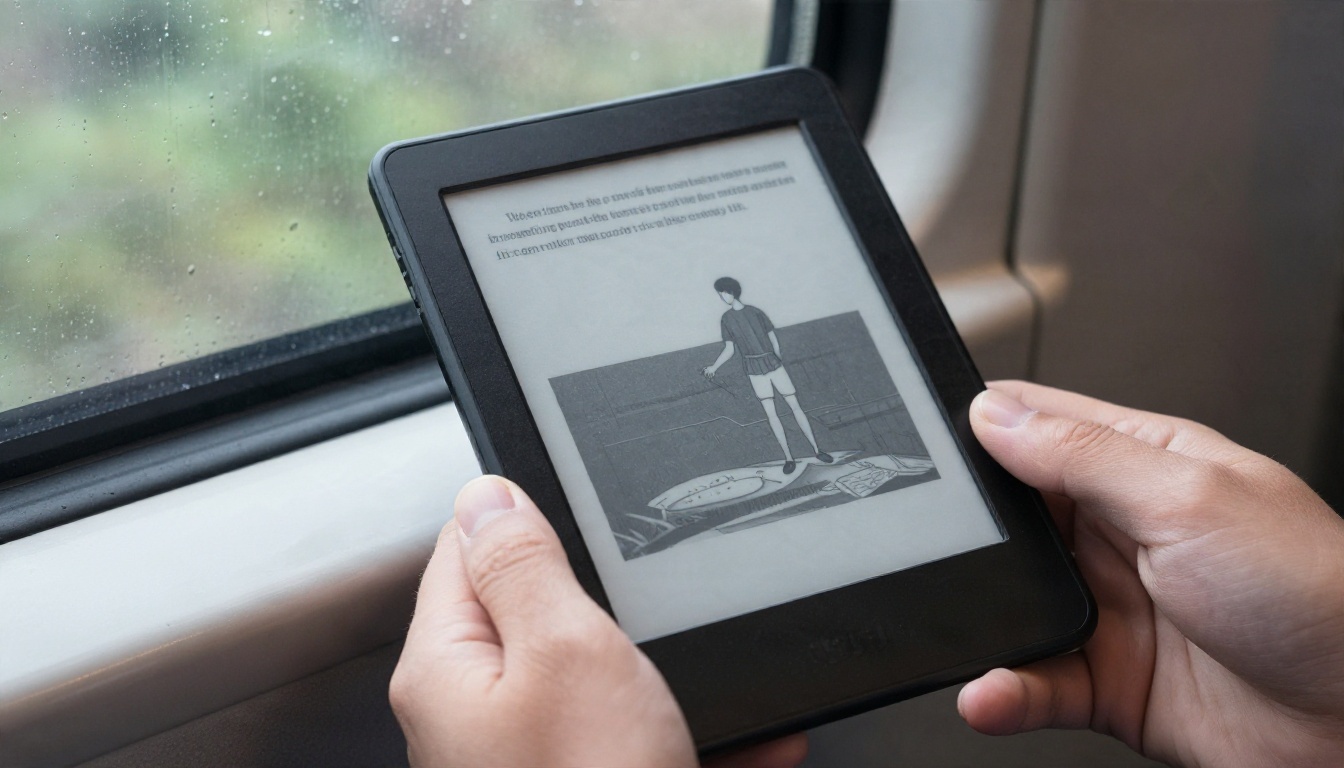
PDF Too Large to Email to Kindle: Size Limits, Compression, and Alternatives
Your PDF bounced before it ever reached your Kindle. This article lays out the actual size limits on both ends, shows how to compress a heavy file without wrecking it, and compares the alternatives: USB, the Send to Kindle app, EPUB conversion, and a shareable flipbook link.
You hit send, wait a few seconds, and get a bounce message instead of a book. A heavy PDF and a Kindle email address do not always get along, and the error text rarely says which side refused the file. This article sorts out the real size limits, shows how to shrink a PDF without turning it into mush, and lists the routes that skip email entirely. If the file is something you made yourself, a tool like Flipbooks AI can also turn it into a link that opens anywhere, no attachment needed.
💡 Short version: the Kindle side usually accepts more than your mail provider does. In most cases the attachment limit of Gmail, Outlook, or Yahoo is what stops you, not Amazon.
What the Limits Really Are
Two separate limits apply, and people mix them up constantly. One belongs to Amazon. The other belongs to whichever email service you use to send the message.
Amazon's Side of the Rules
Amazon's Send to Kindle by email feature accepts documents sent to your personal @kindle.com address. At the time of writing, Amazon's help pages list up to 50 MB per email with a cap on the number of attachments, and PDF is one of the supported formats alongside EPUB, DOCX, TXT, RTF, HTML, and a few image types. The Send to Kindle app and website accept larger single files, with a documented ceiling of around 200 MB per file.
Amazon changes these numbers and format lists from time to time, so check the current Send to Kindle help page before you plan around a specific figure. Older formats such as MOBI have been phased out of the upload route, which catches people who keep a library of old files.
Two more rules trip people up:
The sender address must be on your Approved Personal Document E-mail List in your Amazon account settings.
The message goes to your Kindle address, not your regular Amazon login email.
Your Email Provider's Side
Here is where most failures happen. Your provider enforces its own attachment ceiling, and it is often lower than Amazon's.
Service
Typical attachment limit
Notes
Gmail
25 MB
Larger files become Drive links, which Kindle cannot open
Outlook.com
About 20 MB
Larger files get offered as OneDrive links
Yahoo Mail
25 MB
Hard cap on total message size
iCloud Mail
20 MB
Mail Drop links for bigger files, which also fail here
Amazon (Kindle email)
50 MB per email
Documented limit; verify on Amazon's help page
There is a catch inside the catch. Email encodes attachments in a way that inflates them by roughly one third. A PDF that shows 19 MB in your file manager can reach about 25 MB once encoded, which is enough to trip a 25 MB limit. When a provider replaces the attachment with a cloud link, your Kindle receives a message with a URL and no document.
⚠️ A "link instead of attachment" from Gmail or Outlook is not a delivered book. Kindle's email service needs the real file attached.
Why Your PDF Got So Big
Before you compress anything, it helps to know what is making the file heavy. The fix differs depending on the cause.
Images Are the Usual Culprit
A text-only novel exported as PDF may weigh 1 or 2 MB. A scanned textbook can weigh 200 MB, because every page is a full photograph of paper. Scans at 600 dpi in color are the worst case, and a Kindle screen cannot show that detail anyway. Most current e-ink Kindles sit around 300 pixels per inch and display in grayscale.
Fonts, Layers, and Leftovers
Designed PDFs from InDesign or Canva often carry embedded font files, hidden layers, old revisions, and metadata. These add weight without adding a single visible pixel. Re-saving through an optimizer strips most of it.
PDF type
Typical size
Main cause
Best fix
Plain text novel
1 to 3 MB
Text and fonts
Usually no fix needed
Textbook with diagrams
20 to 80 MB
Vector art, big images
Downsample images
Scanned book
80 to 300 MB
Full-page photos
Grayscale and 150 dpi
Magazine or lookbook
50 to 200 MB
Full-bleed photography
Downsample, or share a link
Slide deck export
10 to 60 MB
Embedded media
Compress, drop video
Shrink the File Without Wrecking It
Compression is lossy for images, so the goal is to lose detail your Kindle could never show. Aim for 150 dpi for most reading material and keep the original as a backup.
Free Online Compressors
Web compressors are the quickest option: upload, pick a level, download. They work well for non-sensitive files. For anything private, such as contracts, medical records, or unpublished manuscripts, avoid uploading to a service you know little about.
Preview on a Mac
Open the PDF in Preview, choose File, then Export, and set the Quartz Filter to Reduce File Size. It is blunt and sometimes crushes images too hard, so open the result and check a few pages before sending.
Ghostscript for Batches
If you have a folder of files, Ghostscript handles them in seconds. This command downsamples images to roughly 150 dpi:
Swap /ebook for /screen if you need a much smaller file at about 72 dpi, or /printer for 300 dpi.
Preset
Approx. image resolution
Size reduction
Good for
/screen
72 dpi
Largest
Text-heavy books, last resort
/ebook
150 dpi
Large
Most Kindle reading
/printer
300 dpi
Modest
Art books on a Scribe
/prepress
300 dpi, color preserved
Small
Rarely worth it for Kindle
Acrobat's Optimizer
Adobe Acrobat Pro offers Save as Other, then Reduced Size PDF, and a deeper Optimize PDF panel where you can drop thumbnails, discard hidden objects, and convert color images to grayscale. Grayscale conversion alone can cut a color scan nearly in half.
A Five-Step Routine That Works
Check the size in your file manager. Anything above about 18 MB is at risk with a 25 MB mail limit.
Make a copy so the original stays untouched.
Compress at 150 dpi, in grayscale if the book has no important color.
Open the result and scan the pages with the smallest text and the finest diagrams.
Send it from an approved address to your Kindle email.
✅ Best practice: if the compressed file still looks sharp at the size your Kindle shows it, you are done. Zoom in on one page rather than judging the whole document.
Skip Email Altogether
Compression is not always the best choice. A 300 MB scanned atlas will not survive aggressive shrinking, and some books are simply too dense. Several routes avoid the attachment limit.
The Send to Kindle App and Website
Amazon's own app and web uploader accept larger files than email does, and they deliver straight to your library without any approved sender setup. Drag the PDF in, pick your device, and send. For files above the email ceiling, this is the easiest first move.
USB Cable Transfer
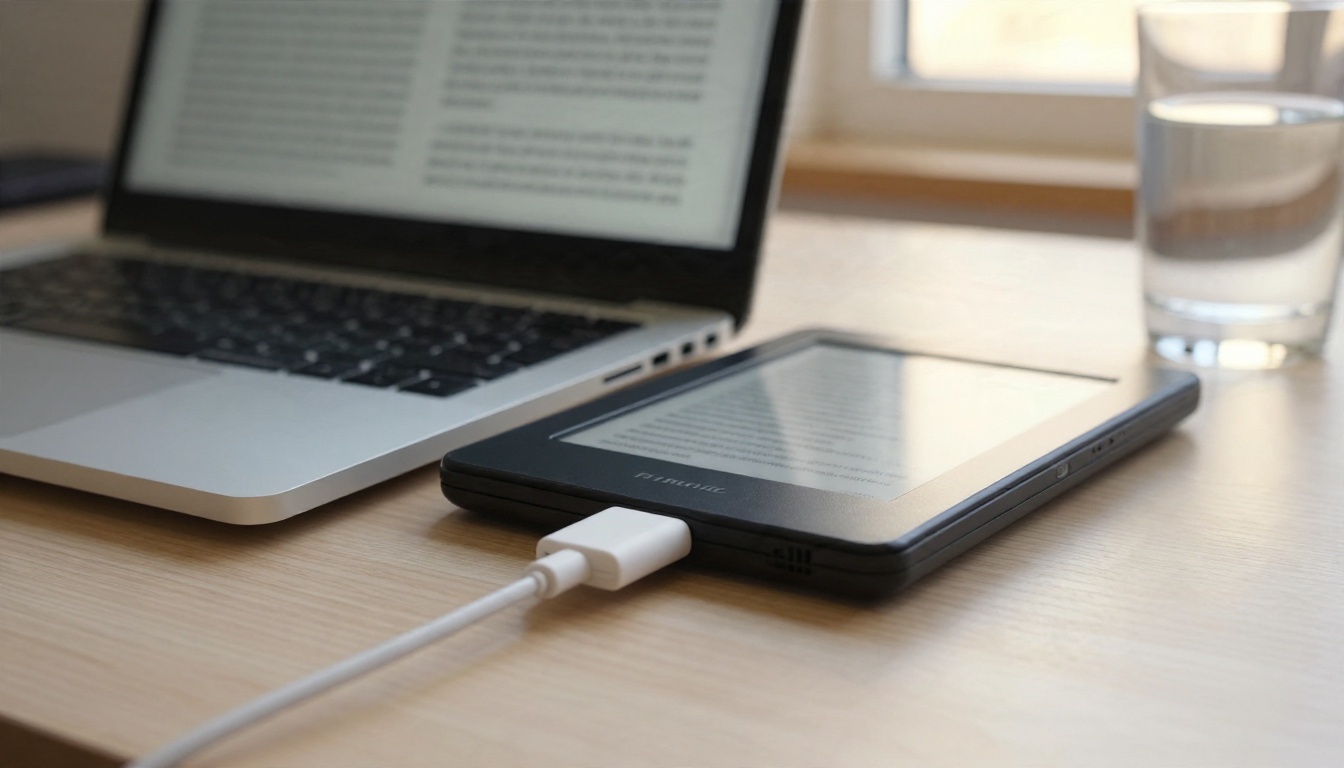
The oldest route is still reliable. Plug the Kindle into your computer, open it as a drive, and drop the PDF into the documents folder. There is no size cap beyond free storage, and no network involved. The downsides are that the file will not sync across devices, and some newer Kindle models handle sideloaded files slightly differently from files delivered through Amazon's service.
Convert to EPUB With Calibre
For text-driven books, converting the PDF to EPUB gives you reflowable text, adjustable font size, and a much smaller file. Calibre is free and handles the conversion in a few clicks. The trade-off is layout: tables, columns, and complex diagrams can break. A PDF of a novel converts nicely. A PDF of a cookbook usually does not.
Method
Size ceiling
Keeps PDF layout
Syncs across devices
Effort
Email to Kindle
50 MB (provider limit lower)
Yes
Yes
Low
Send to Kindle app or web
Around 200 MB
Yes
Yes
Low
USB cable
Device storage
Yes
No
Medium
Calibre to EPUB
Output is smaller
No, reflowed
Depends on delivery
Medium
Link to a flipbook
None
Yes, as pages
Via browser
Low
Share a Link Instead
Sometimes the person you are sending to does not own a Kindle at all, or the PDF is a visual document such as a lookbook, a brochure, a field manual, or a photo-heavy report. Shrinking those until they fit an email defeats the purpose. A link has no size limit to fight.
With Flipbooks AI, you upload the PDF once and get a page-turning version that opens in any browser. It suits phones, tablets, Kindle Fire tablets, and computers. To be clear about the limits: a flipbook is a web page, so it will not appear in your Kindle library as a native book, and the experimental browser on e-ink Kindles is a poor reading surface. For personal reading on an e-ink device, use the Send to Kindle routes above. For sharing a big, image-rich file with readers on screens, a link is far simpler.
Upload your PDF. Large files are processed on the platform, so you do not need to compress anything first.
Customize the look: background color, page-turn effect, logo, and branding. Output carries no watermark.
Set access. Add password protection for private documents, or leave it open for public sharing.
Copy the link or grab the embed code to place the flipbook on a website. The Embed Flipbook on Website page explains the options.
Enable offline downloads if readers need the file on a plane or train.
Teams and creators on the Professional plan also get analytics and lead capture, which shows who opened the document and how far they read. See the pricing plans for what each tier includes.
A student with a 140 MB scanned textbook. Email will fail on every provider. The Send to Kindle app is the first try. If the scan is poor quality, Ghostscript at /ebook with grayscale usually brings it near 40 MB, which then fits the app route easily and sits well within the Kindle limit.
An author sending a 60 MB manuscript proof to a reviewer. The reviewer reads on a phone. A password-protected link is cleaner than any attachment, and it avoids sending the file to a stranger's personal device.
A commuter with ten novels in PDF. These are mostly text, so each file is small. The problem is Gmail's 25 MB total per message. Sending them in batches of three or four, or using the app, solves it.
A designer sharing a 90 MB lookbook. Compressing it would destroy the photography. A flipbook link keeps the full-quality pages and works on any screen.
Fix the Common Errors
The Email Bounced
Check three things in order: total message size after encoding, the sender address on your approved list, and whether the message was sent to the correct @kindle.com address. A single typo in the address sends the file nowhere, sometimes without a bounce.
It Arrived but Looks Wrong
If the text is tiny, the PDF page size is probably larger than a Kindle screen, such as A3 or tabloid. Resize pages to A5 or a 6 by 9 inch format before sending, or use Calibre to convert. If pages show as blank, the PDF may rely on features a Kindle does not render, and re-exporting as a flattened PDF helps.
It Never Arrived
Delivery can take a few minutes. Make sure the device is on Wi-Fi, then check Manage Your Content and Devices in your Amazon account to see if the document is waiting. Also confirm the sending address matches the approved one exactly.
Symptom
Likely cause
Fix
Instant bounce
Attachment too large for your provider
Compress, or use the app
No bounce, no book
Sender not approved
Add the address in Amazon settings
Link instead of file
Provider converted the attachment
Send smaller, or use USB
Tiny text
Page size too large
Resize pages or convert to EPUB
Blurry images
Over-compressed
Redo at 150 dpi, not 72
Pick the Right Fix Fast
Use this quick decision path:
Under about 18 MB: email it directly from an approved address.
18 to 50 MB: compress to 150 dpi, or use the Send to Kindle app.
50 to 200 MB: use the app or website, or compress first.
Above 200 MB: use USB, or split the book into parts.
A text-only novel with odd formatting: convert to EPUB with Calibre.
A visual document for other people: share a flipbook link.
✅ Whichever route you choose, keep your original PDF. You can always compress again at a different quality, but you cannot restore detail that was thrown away.
Send It Without the Stress
A bounced attachment is annoying, but it is also a solvable problem. Know the two limits, compress to a sensible resolution, and pick the delivery route that fits the file. For books that live on your Kindle, the app and USB routes handle almost anything. For heavy, image-rich documents that other people need to read, get started for free on Flipbooks AI and share a single link instead. Browse the full list of flipbook tools, or compare pricing plans to see what fits your workload.