You exported the PDF. Now what? Attaching it to an email works until the file passes 25 MB, and dropping a download link on your site works until a reader on a phone pinches, zooms and leaves after ten seconds. The right platform to publish PDFs online turns that static file into a page people can actually read, share and come back to. Below you will find a straight comparison of free options, a plain explanation of how embedding works, a breakdown of sharing links and password settings, and real numbers on pricing. If you want to test the process while you read, Flipbooks AI converts a PDF into a page turning flipbook in a few minutes.

Why Raw PDFs Fall Short
A PDF is a fantastic format for preserving layout. It is a poor format for distribution. The file lives on a server or in someone's downloads folder, and you lose all visibility the moment it leaves your hands.
The Download Problem
When you send a raw PDF, the reader has to download it, open it in a separate app and scroll through pages built for A4 paper. On mobile this often means tiny text and constant horizontal panning. You also cannot update the file once it has been sent. Version 1 stays alive in inboxes for months.
What Readers Expect Now
People are used to web pages that load instantly, adapt to the screen and can be shared with one tap. A good online PDF viewer delivers the same experience:
- Instant loading in the browser, with no download needed
- Responsive pages that fit a phone, tablet or desktop
- Smooth page turning that feels like a real publication
- A short, clean link that looks trustworthy in a message
- Search and zoom that work without extra plugins
💡 Pro tip: Open your current PDF on your phone right now. If you need to pinch to read a single paragraph, you have a distribution problem, not a design problem.
Before comparing brands, decide what the platform must do for you. Most people searching for a way to publish a PDF online care about five things: price, embedding, sharing, privacy and branding. The table below shows how to weigh each one.
| Requirement | Why it matters | Question to ask |
|---|
| No watermark | A logo from the tool on your document looks unprofessional | Is the free plan watermark free? |
| Embed code | Lets you show the document inside your own site | Does it work on any CMS or builder? |
| Shareable link | Fastest way to distribute | Can I customize or shorten it? |
| Password protection | Keeps private material private | Is it included or a paid add on? |
| Analytics | Shows who read what | Do I see pages viewed and time spent? |
| Mobile design | Most traffic comes from phones | Does the layout reflow or just shrink? |
| Custom branding | Matches your colors and logo | Can I remove third party branding? |

Free Options Worth Using
You can publish a PDF online for nothing. The catch is knowing what "free" means on each type of service, because the limits are rarely on the front page.
What Free Plans Usually Include
Most free tiers give you a small number of documents, a basic viewer and a public link. Some add a watermark or a banner that promotes the platform. Others cap storage or pages per file. For a single portfolio, a menu or a school newsletter, that can be plenty.
Here is how the main categories compare:
| Option type | Typical free offer | Watermark | Embedding | Best for |
|---|
| Cloud drive link | Generous storage | None | Basic viewer, limited styling | Quick internal sharing |
| Document sharing sites | A few public uploads | Often branded | Yes, with ads or banners | Reach and discovery |
| Flipbook platforms | Free trial or entry plan | Varies by provider | Yes, usually responsive | Polished presentation |
| Self hosting | Free software, paid server | None | Full control | Teams with developers |
Hidden Limits to Watch
Read the fine print for these four traps before you upload anything:
- Watermarks or forced branding on every page
- Public only documents, which means no password option
- Expiring links that die after 14 or 30 days
- Page or file size caps that quietly reject long catalogs
⚠️ Warning: A free plan that deletes your files after a trial period can break every link you have already shared. Check the retention policy first.
If you want a no watermark route, the PDF to Flipbook Converter is a fast way to test the result before choosing a plan.
Embedding PDFs on Your Website
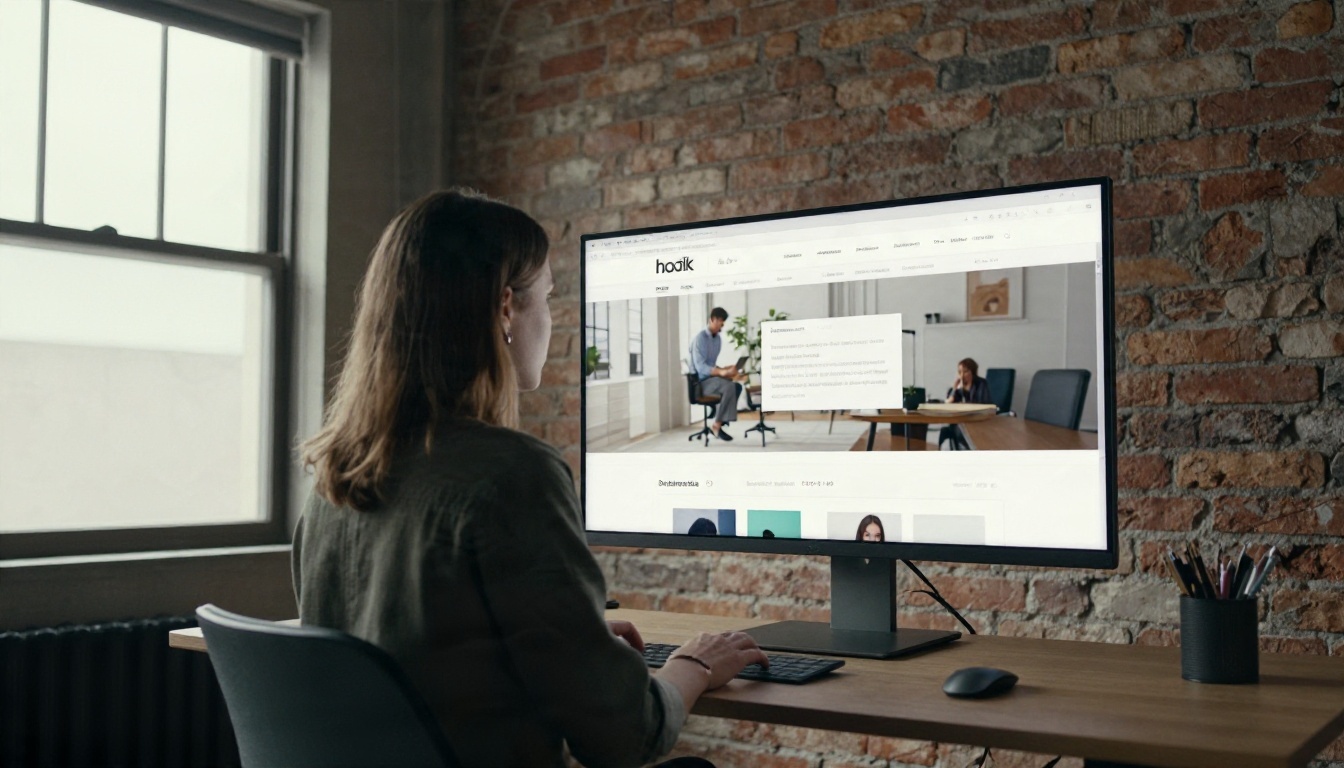
Embedding means the document appears inside your own page instead of sending visitors away. Visitors stay on your domain, see your branding and read without a download.
Iframe or Script Embed
Nearly every platform offers one of two methods. An iframe is a small block of HTML that points to the hosted document. A script embed loads a viewer that can adapt to the container. Both work on WordPress, Wix, Squarespace, Webflow and plain HTML pages.
| Method | Setup time | Responsiveness | Control |
|---|
| Iframe | Under a minute | Good if width is set to 100% | Medium |
| Script embed | A few minutes | Excellent | High |
| Direct PDF link | Seconds | Poor on mobile | Low |
The Embed Flipbook on Website tool generates the code for you, so there is nothing to write by hand.
Mobile Checks Before You Publish
Test the embedded page on at least two screens. Look for these problems:
- The viewer is wider than the screen and forces sideways scrolling
- Text is too small to read without zooming
- Page turn controls are hidden behind a sticky header
- The page loads slowly because of an oversized file
✅ Best practice: Compress images in your PDF to a sensible size before uploading. A 5 MB file loads faster than a 60 MB one and reads the same on screen.

Sharing Links That Work
Embedding is for your website. Links are for everything else: email, chat, social bios, QR codes on printed flyers. A good sharing setup gives you control over who opens the document and for how long.
Public Links for Reach
A public link is the simplest option. Anyone with the URL can read. It suits menus, brochures, portfolios and press kits, where the goal is to be seen. Put the link in your email signature and social profiles, and update the document behind it whenever your content changes.
Password Protected Links for Private Work
For proposals, internal reports or paid course material, add a password. Readers enter the code once and then browse normally. This is far safer than emailing the raw file, which can be forwarded endlessly. Flipbooks AI includes password protection so private content stays private.
QR Codes for Printed Material
A QR code connects paper to screen. Print one on a menu stand, a trade show banner or a real estate flyer and send people straight to the live version. Because the link stays the same, you can update the PDF without reprinting.
| Sharing method | Best use | Privacy level |
|---|
| Public link | Marketing, menus, portfolios | Low |
| Password link | Proposals, reports, courses | High |
| Embedded on site | Landing pages, blog posts | Depends on page |
| QR code | Print, events, packaging | Same as the link behind it |

Pricing: What You Will Really Pay
Price is where most comparisons get vague. Here is a practical way to think about it. You are paying for four things: the number of documents you can publish, the removal of branding, privacy controls and data about readers.
Typical Pricing Tiers
| Tier | What you get | Typical limits |
|---|
| Free or trial | Basic viewer, public link, a few documents | Branding or watermark, small caps |
| Standard | Unlimited flipbooks, no watermark, embed codes, password protection | Limited reporting |
| Professional | Everything above plus analytics, lead generation and offline downloads | Built for teams and sales use |
Always confirm current numbers on the provider's site. On Flipbooks AI, the Standard plan removes the cap on flipbooks, and the Professional plan adds analytics and lead capture. No plan ever adds a watermark.
When Free Is Enough
Stay on a free plan if you publish one or two documents, do not need analytics and are happy with a public link. A personal portfolio or a single event program fits this profile.
When to Upgrade
Move to a paid plan when any of these become true:
- You publish more than a handful of documents each month
- You need password protection for clients
- You want to know which pages readers spend time on
- You collect leads before readers open the file
- Your brand standards forbid third party logos
💡 Pro tip: Calculate cost per document, not cost per month. A plan with unlimited flipbooks often costs less per file than a cheap plan with strict caps.

How to Publish a PDF with Flipbooks AI
Here is the full workflow, from file to live link. It takes around five minutes for a typical document.
Step 1: Create Your Account
Head to Flipbooks AI and sign up. You can start free and move up later from the pricing page.
Step 2: Upload and Convert
- Click the upload button in your dashboard.
- Select your PDF or drag it into the window.
- Wait while the platform converts each page into a flipbook spread. The preview shows page turning right away.
- Check that fonts, images and links survived the conversion.
For a faster route, open the PDF to Flipbook Converter directly.
Step 3: Customize the Look
Open the settings panel and adjust:
- Branding: upload your logo and set a custom background
- Colors: match the viewer toolbar to your brand palette
- Page effects: choose a realistic page curl or a flat slide
- Multimedia: add video and audio to specific pages
Step 4: Choose Your Sharing Options
- Copy the direct link for email and social posts.
- Copy the embed code and paste it into your website editor.
- Turn on password protection if the document is private.
- Generate a QR code for printed material.
Step 5: Use Professional Features
Upgrade to the Professional plan when you need more insight. You get:
- Analytics showing views, pages read and time spent
- Lead generation forms that capture an email before access
- Offline downloads so readers can save a copy
✅ Best practice: Publish a draft with a password first, send it to one colleague and ask them to open it on a phone. Fix any problem, then switch to a public link.
Browse the full list of flipbook tools to find a template for your document type.

Real Use Cases
Theory is helpful, but the best way to judge a platform is to picture your own scenario.
Restaurants and Cafes
A cafe owner updates the seasonal menu in a design app, exports a PDF and uploads it. The same link sits behind a QR code on every table. When prices change, only the file changes. The Restaurant Menu Creator is built for exactly this.
Real Estate Agents
Agents can publish a property brochure, embed it on the listing page and send the link to buyers by message. Password protection works well for off market properties. See the Real Estate Brochure Creator for a ready workflow.
Teachers and Trainers
A teacher can share a reading pack through a password protected link, then update chapters without resending anything. The Course Material Publisher handles this scenario well.
Sales and Product Teams
Teams with long product lists can turn them into a browsable publication with the Digital Catalog Maker. With analytics on the Professional plan, they see which pages buyers read most.
| Use case | Best sharing method | Plan that fits |
|---|
| Cafe menu | Public link and QR code | Standard |
| Property brochure | Embed plus password link | Standard |
| Course reading pack | Password link | Standard |
| Sales catalog with lead capture | Embed and gated link | Professional |
| One off event program | Public link | Free |

Avoid These Common Mistakes
Even a good platform cannot rescue a poorly prepared file. Watch for these three errors.
- Uploading an oversized PDF. Large files load slowly and frustrate readers. Compress images first.
- Skipping the mobile test. Most of your readers will open the link on a phone.
- Forgetting password settings. Check privacy before you share, not after a forwarded email.

Publish Your First PDF Today
The right platform to publish PDFs online should be simple to use, honest about free limits and flexible enough to grow with you. Look for no watermarks, solid embedding, link controls, password protection and a pricing model that charges for real value.
Ready to try it? Create a free account on Flipbooks AI and publish your first document in minutes. Browse all available tools and templates to find the best match for your project, or compare pricing plans to choose the tier that fits how you work.



