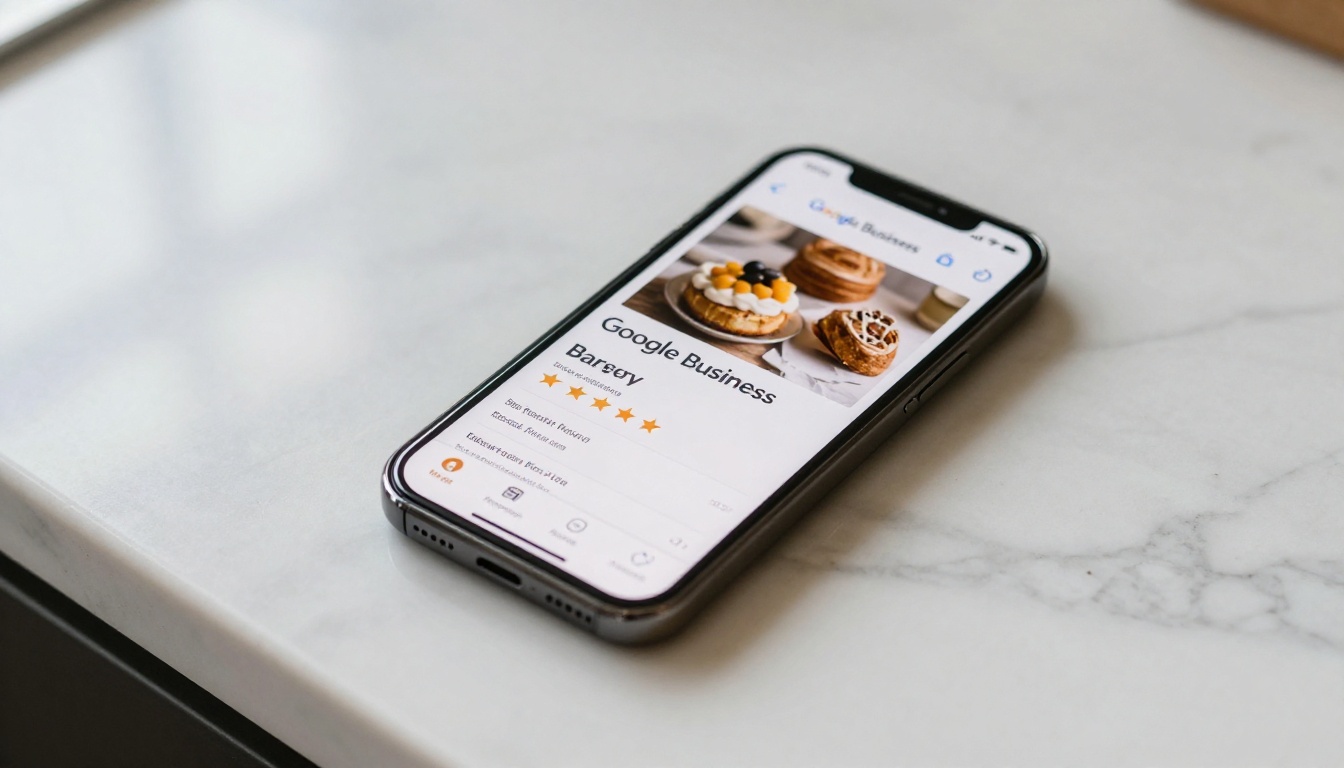
Most small businesses treat their Google Maps listing like a digital business card. Name, address, phone number, hours. Done. But customers who find you on Maps are not just looking for contact details. They want to know what you offer, what it looks like inside, and whether it is worth their time. A flipbook solves all three. Instead of linking customers to a static PDF or a buried page on your website, you send them to an interactive, page-turning experience that captures attention in seconds. Flipbooks AI lets you build that experience without any design background, starting from a single PDF.
What Google Maps Actually Lets You Add
Google does not give you a direct "embed a flipbook here" button. What it does give you is multiple fields and features you can use to point customers toward your flipbook. Knowing what each field does is the first step to using it well.
Fields you control on your Business Profile:
- Website URL: Displayed as a "Website" button on your listing. Every click goes to whatever URL you set here.
- Business Description: A 750-character text field visible on your profile. You can include a URL in this field.
- Google Posts: Short posts with an image, text, and a call-to-action button that appear on your listing for up to 7 days.
- Photos: JPG or PNG images you upload directly to your listing's photo gallery. A QR code image can live here permanently.
- Products: A product section where each item can link to an external URL.
- Services: Similar to products, each service entry can carry its own link.
None of these fields accept an embedded iframe or HTML code. But they all accept URLs, and that is exactly what you need.
Why Flipbooks Pull More Attention Than Static Links
A link to a PDF opens a file download dialog or a flat browser tab with poor mobile formatting. A link to a flipbook opens an animated, page-turning experience that loads instantly and works perfectly on a phone without pinching or zooming.
Here is what the difference looks like in practice: A restaurant adds a PDF menu link to their Google Post. Customers open it and see a compressed, unformatted document. Most close it within 8 seconds. The same restaurant adds a flipbook menu link instead. Customers swipe through beautifully photographed pages on their phone. Average time on page: 2 to 3 minutes. Phone calls for reservations increase noticeably.
The interactive format also signals professionalism. When a customer sees a polished, branded flipbook on your Maps listing, it tells them you take your business seriously. That builds trust before they ever walk through your door.
PDF vs Flipbook: Side by Side
| Feature | Static PDF | Flipbook |
|---|
| Mobile readability | Poor (requires constant zoom) | Excellent (fully responsive) |
| Page animation | None | Smooth page-turn effect |
| Branding options | Limited to file design | Custom logo, colors, background |
| Share method | Download or browser view | Single clean URL |
| Analytics | None | Full tracking (Professional plan) |
| Password protection | Complex to set up | Built-in (Professional plan) |
| Load speed on mobile | Slow for large files | Fast (progressive loading) |
| First impression | Plain document | Professional, interactive experience |
Additional reasons flipbooks perform better on mobile:
- No pinch-to-zoom required on the page-flipping interface
- Pages load progressively so large files never lag
- Works on any device without downloading an app or plugin
- Shared with a single clean URL, no login required from the customer
The 3 Methods That Actually Work
There is no single best way to put a flipbook on your Google Maps listing. Each method has its own reach, shelf life, and audience. Use one, or combine all three for maximum coverage.
Method 1: Google Posts with a Flipbook Link
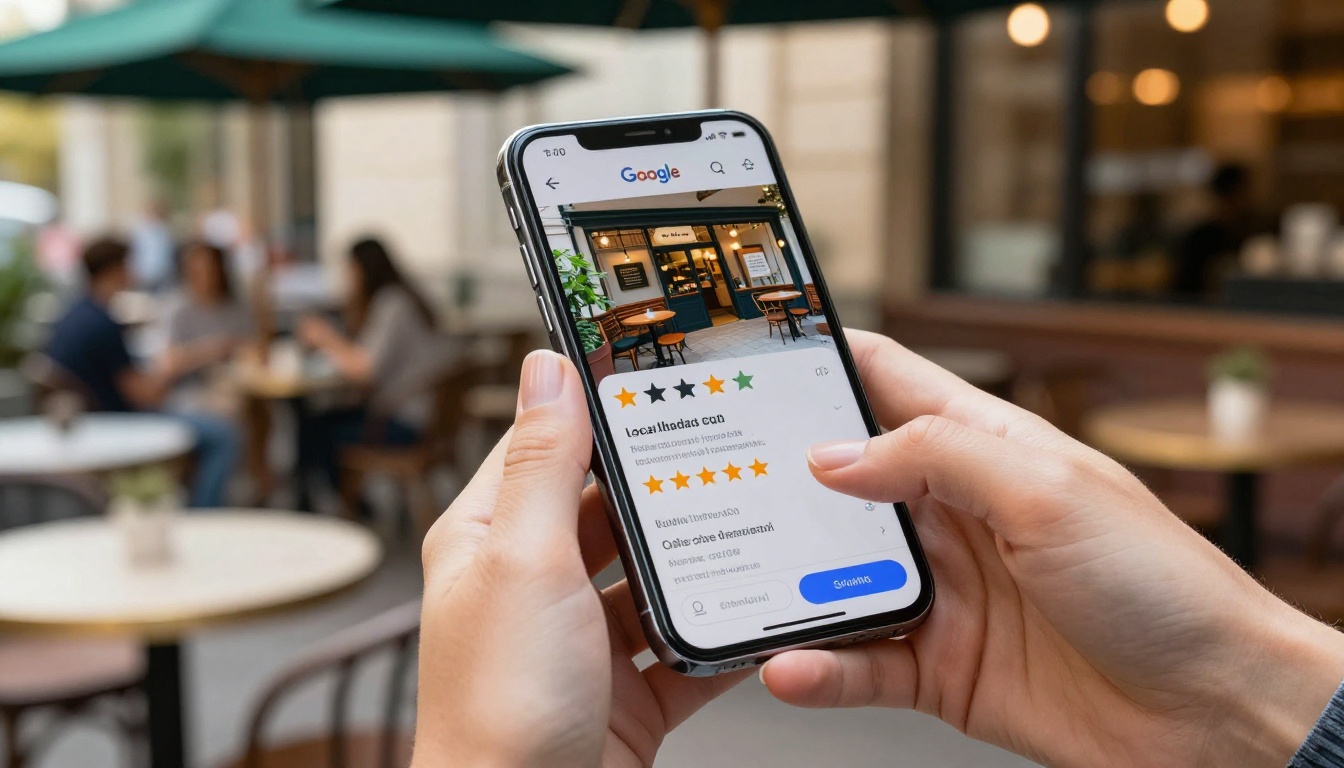
Google Posts are the most visible option. They appear prominently on your listing, right below your main photos and above your reviews. You can create a post with an image, a short description, and a button that links directly to your flipbook.
Step by step:
- Log into your Google Business Profile Manager
- Select your business location
- Click "Add Update" to create a new post
- Upload a thumbnail image from your flipbook
- Write a short description such as "Flip through our spring menu"
- Select "Add a button" and choose an action type such as "Book" or "Call now"
- Paste your flipbook URL in the link field
- Publish
💡 Posts expire after 7 days, so schedule a recurring weekly reminder to refresh them. A new post every week keeps your listing active, which can also positively affect your local search position.
What works well here: Seasonal promotions, new menus, limited-time catalogs, event programs. Anything time-sensitive benefits from this format.
Method 2: Your Business Description URL
Your Business Profile allows 750 characters in the description field. Most businesses fill it with keyword-dense sentences and stop there. A more effective approach includes a short URL at the end pointing to your most important flipbook.
Example:
"We are a family-run Italian restaurant in downtown Austin serving wood-fired pizza and housemade pasta since 1997. View our full menu at: flipbooksai.com/your-flipbook-slug"
This method has no expiration date. The URL stays in your description until you change it. It does not always display as a clickable hyperlink in every Map view, so keep the URL short and easy to read.
⚠️ Do not include multiple URLs in your description. Google may flag this as spam. One clean, relevant link performs better than a list of links.
Method 3: A QR Code Inside Your Photo Gallery
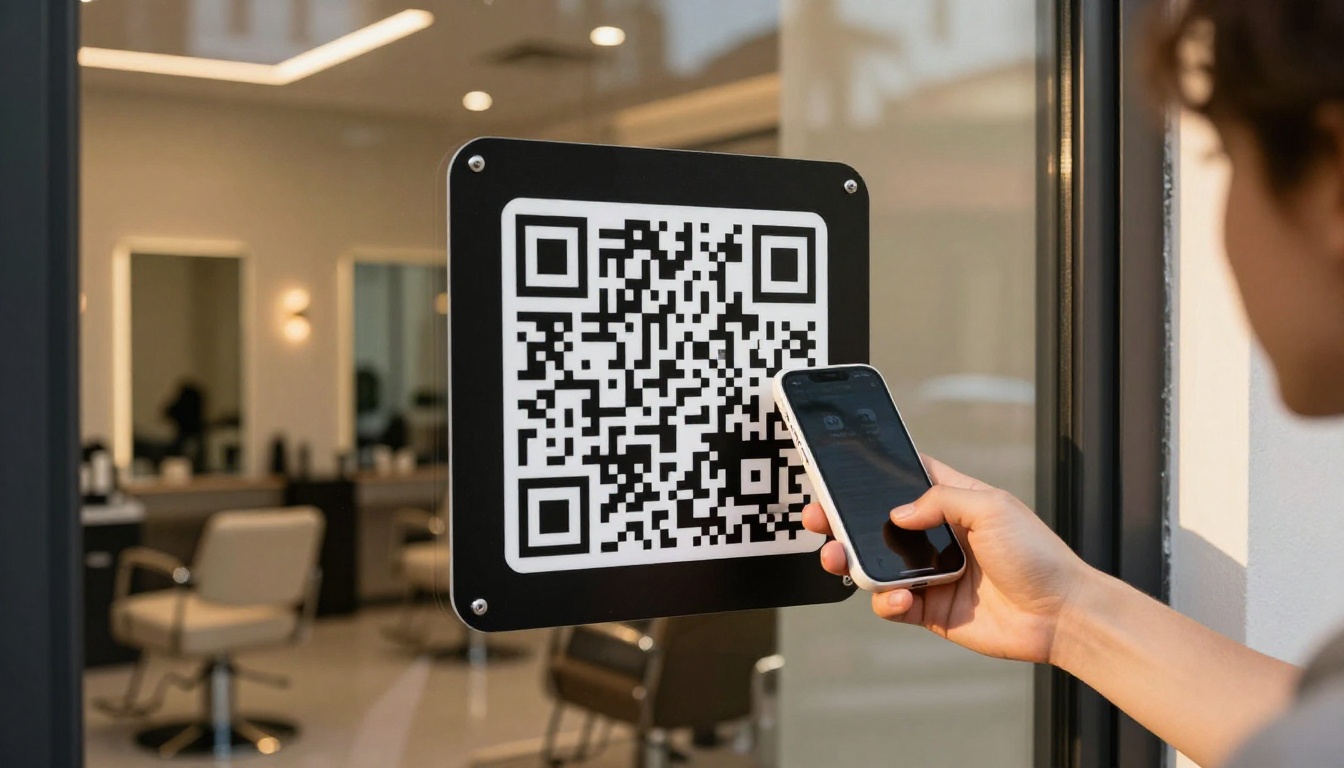
Your Google Maps photo gallery accepts any image you upload. A high-resolution QR code image linking to your flipbook can live there permanently. Customers browsing your photo gallery will see it, and anyone motivated enough to scan a QR code is a high-intent visitor.
How to generate and upload:
- Create your flipbook on Flipbooks AI and copy the public URL
- Use a free QR code generator to create a QR code from that URL
- Download it as a high-resolution PNG, at least 1200x1200 pixels
- Add a brief text label such as "Scan for Our Menu" or "View Our Catalog"
- Upload the image to your Google Business Profile photos section
This works well for businesses with permanent content such as menus, lookbooks, or service brochures that rarely change.
Comparing All 3 Methods
| Method | Visibility | Shelf Life | Best For | Setup Time |
|---|
| Google Post with Flipbook Link | High (featured placement) | 7 days | Promotions, menus, seasonal content | 5 minutes |
| Business Description URL | Medium (text field) | Permanent | Core content, main catalog | 2 minutes |
| QR Code in Photo Gallery | Low-Medium | Permanent | High-intent browsers, restaurants, salons | 10 minutes |
✅ For maximum reach, use all three. A Google Post drives immediate traffic. The description URL catches anyone reading your profile. The QR code in photos serves customers who are actively browsing.
How to Build Your Flipbook in 5 Steps
Before you can add a flipbook link to Google Maps, you need the flipbook. Flipbooks AI is the fastest way to go from a PDF to a shareable, branded flipbook that works on any device.
Step 1: Create Your Account
Go to flipbooksai.com/account and create a free account. No credit card required. The free plan gives you access to the core converter so you can test the output before choosing a paid plan.
Step 2: Upload Your PDF
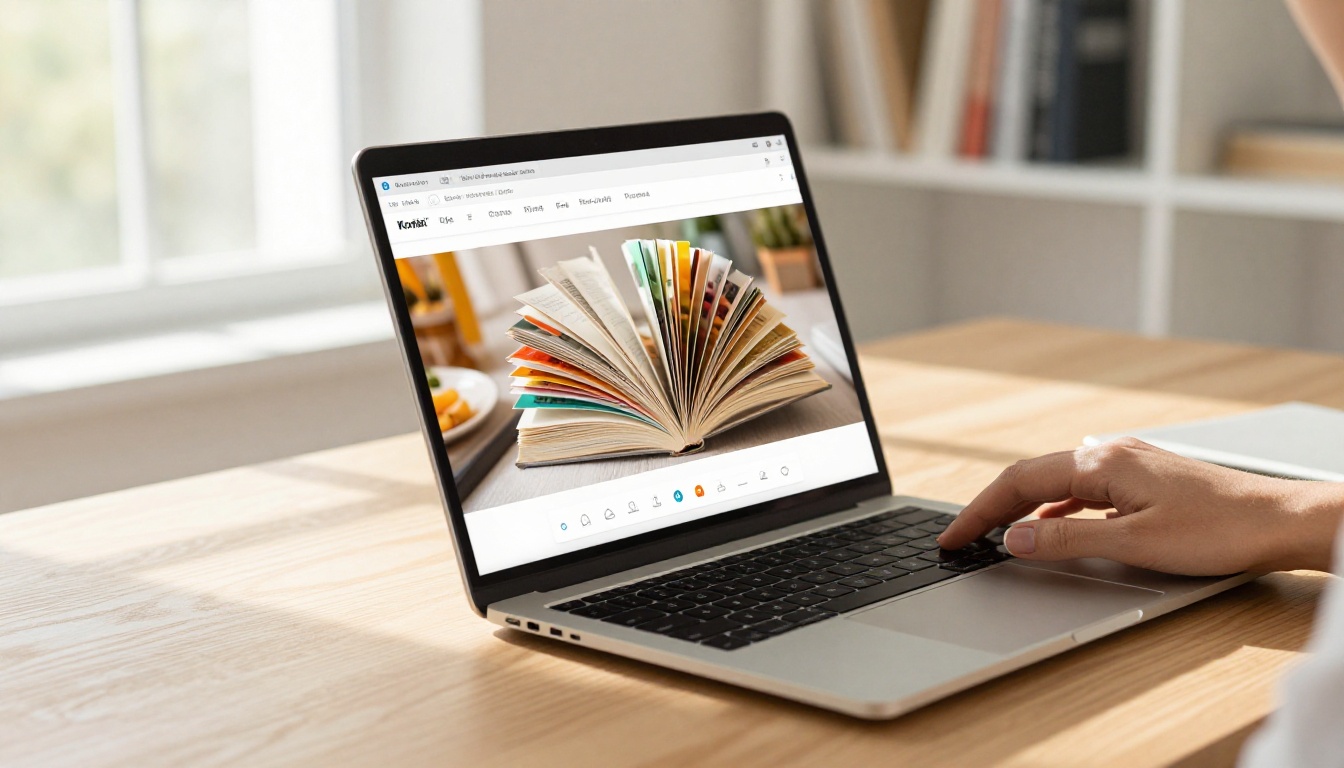
Once inside your dashboard, click "Create Flipbook" and upload your PDF. This can be a menu, a product catalog, a brochure, a lookbook, or any document you want customers to view. The platform converts it instantly, generating a smooth page-turn animation from your file.
💡 For restaurants, the Menu Flipbook Designer is built specifically for this use case. For retail or fashion businesses, the Digital Catalog Maker or Fashion Catalog Creator offer dedicated templates.
Step 3: Customize Your Branding
After uploading, customize the flipbook to match your business identity. Options include:
- Adding your logo to the viewer header
- Setting a custom background color that matches your brand palette
- Adding page shadow and reflection effects
- Embedding a background audio track
- Password-protecting the flipbook for private or exclusive content
This step matters because the flipbook is often the first visual impression a customer gets of your business after seeing your Google Maps listing. Make it look like you.
Step 4: Copy Your Share Link
When your flipbook is ready, copy its public URL from the sharing panel. This is the link you paste into Google Maps. It opens in any browser, on any device, without requiring a login or download.
✅ Standard plan and above give you unlimited flipbooks with no watermarks. If you manage multiple locations, create a separate flipbook for each and link them to the corresponding Google Maps listings.
Step 5: Add It to Google Maps
Take that URL and apply it using any of the three methods above. For the fastest result, create a Google Post with a button linking to your flipbook. You will be live within minutes.
Which Flipbook Type Fits Your Business
Different businesses need different content in their Google Maps flipbook. The table below matches common business types to the format that performs best.
| Business Type | Recommended Flipbook | Content to Include | Tool |
|---|
| Restaurant | Menu Flipbook | Food photos, prices, seasonal specials | Menu Flipbook Designer |
| Retail or Fashion | Product Catalog | Item photos, sizing, pricing | Fashion Catalog Creator |
| Hotel or B&B | Brochure | Room photos, amenities, local attractions | Hotel Brochure Designer |
| Real Estate Agency | Property Brochure | Listings, floor plans, agent bio | Real Estate Brochure Creator |
| Spa or Wellness Center | Service Menu | Services, pricing, atmosphere photos | Spa & Wellness Menu Creator |
| Automotive Dealer | Vehicle Catalog | Specs, features, current offers | Automotive Brochure Generator |
| Photography Studio | Portfolio | Sample work, packages, pricing | Photography Portfolio Flipbook |
| Event Venue | Program or Brochure | Capacity, layout, packages, photos | Event Program Maker |
Flipbooks AI Plans at a Glance
Knowing which plan you need before publishing your Google Maps link will save you from hitting a limitation mid-campaign.
| Plan | Flipbooks | Watermark | Password Protection | Analytics | Offline Download |
|---|
| Free | Limited | Yes | No | No | No |
| Standard | Unlimited | No | No | No | No |
| Professional | Unlimited | No | Yes | Yes | Yes |
For most small businesses adding a single menu or catalog to Google Maps, the Standard plan covers everything you need. Businesses running multiple locations or wanting to track how many customers clicked through from Maps will benefit from the Professional plan, which includes full analytics and lead generation tools.
💡 With analytics active, you can see exactly how many people opened your flipbook from your Google Maps listing, how many pages they read, and whether they clicked any embedded links. This data helps you refine what content you show over time.
4 Mistakes That Hurt Your Results
1. Linking to a PDF Instead of a Flipbook
PDFs render poorly on mobile. A customer opens it, sees a compressed, font-scrambled document that requires constant zooming, and closes it within seconds. Always convert your document to a flipbook before linking. The PDF to Flipbook Converter does this in under a minute, and the result is a world apart from the original file.
2. Forgetting to Renew Google Posts
Google Posts expire after 7 days. If a post is your main vehicle for driving customers to your flipbook, set a recurring weekly calendar reminder to refresh it. A post with an expired button looks neglected and stops driving traffic entirely. Renewing it takes under 3 minutes and keeps your listing looking active.
3. Using a Watermarked Flipbook
A free-plan flipbook displays a visible platform watermark across the pages. This is fine for internal testing, but never publish a watermarked flipbook in a public-facing Google Maps listing. It signals to customers that the business is not fully invested in its own presentation. Upgrade to at least the Standard plan before going live.
4. Sending Customers to the Wrong Flipbook
If you have multiple flipbooks (a lunch menu, a dinner menu, a catering brochure), verify that your Google Maps link points to the right one. Open the link yourself on a mobile phone before publishing. What you see is exactly what every local customer will see, so this check takes 30 seconds and prevents a frustrating mismatch.
Put Your Best Content Forward
Your Google Maps listing is often the very first touchpoint a local customer has with your business. Most competitors have a name, a phone number, and a few photos. An interactive flipbook sets you apart immediately, giving browsers a reason to choose you before they read a single review.
It takes less than 20 minutes to go from a PDF to a live flipbook link on your Google Maps listing. Create your flipbook now at Flipbooks AI, pick your best content, and give local customers something worth clicking on.
Browse all available flipbook tools to find the format that fits your business, or check pricing options to pick what works for your budget.



