You fixed a typo in the price list, exported a fresh PDF, uploaded it to WordPress, and now half your site points to a file that no longer exists. It happens to almost everyone who manages a website with downloadable documents. The good news is that you can update a PDF on WordPress without breaking links, and you can do it in about ten minutes once you know the two reliable routes: replacing the file in place, or embedding a flipbook so the file itself stops being the thing people link to. This tutorial walks through both, shows where each one fails, and explains how Flipbooks AI fits into a setup where the URL never changes.
Why PDF Links Break on WordPress

WordPress stores every upload in wp-content/uploads, usually inside a year and month folder. A PDF uploaded in November 2026 gets an address like /wp-content/uploads/2026/11/price-list.pdf. That address is the identity of the file. Every menu link, blog post, email, PDF directory listing and backlink from another website uses it.
When you upload a new version, WordPress does not overwrite anything. It sees that price-list.pdf already exists and quietly creates price-list-1.pdf. The old link keeps serving the old document, and your new version lives at an address nobody knows about. Delete the old one to "clean up" and you get a 404.
The three ways links go dead
- Renamed file:
price-list-v2.pdf is a new address, so every old link fails.
- Deleted media item: removing the old attachment removes the file from the server.
- Cache lag: the file was replaced correctly, but a CDN or browser still serves the previous copy for hours or days.
What it costs you
A dead PDF link is more than an annoyance. Visitors who land on a 404 rarely come back, search engines drop the page that linked to it, and anyone who bookmarked the file loses it. If the PDF is a sales catalog or a menu, a broken link is a lost order.
💡 Pro tip: treat the URL of a document as a promise. Once it is public, the safest assumption is that someone, somewhere, has copied it.
Audit Your Current PDF Links First
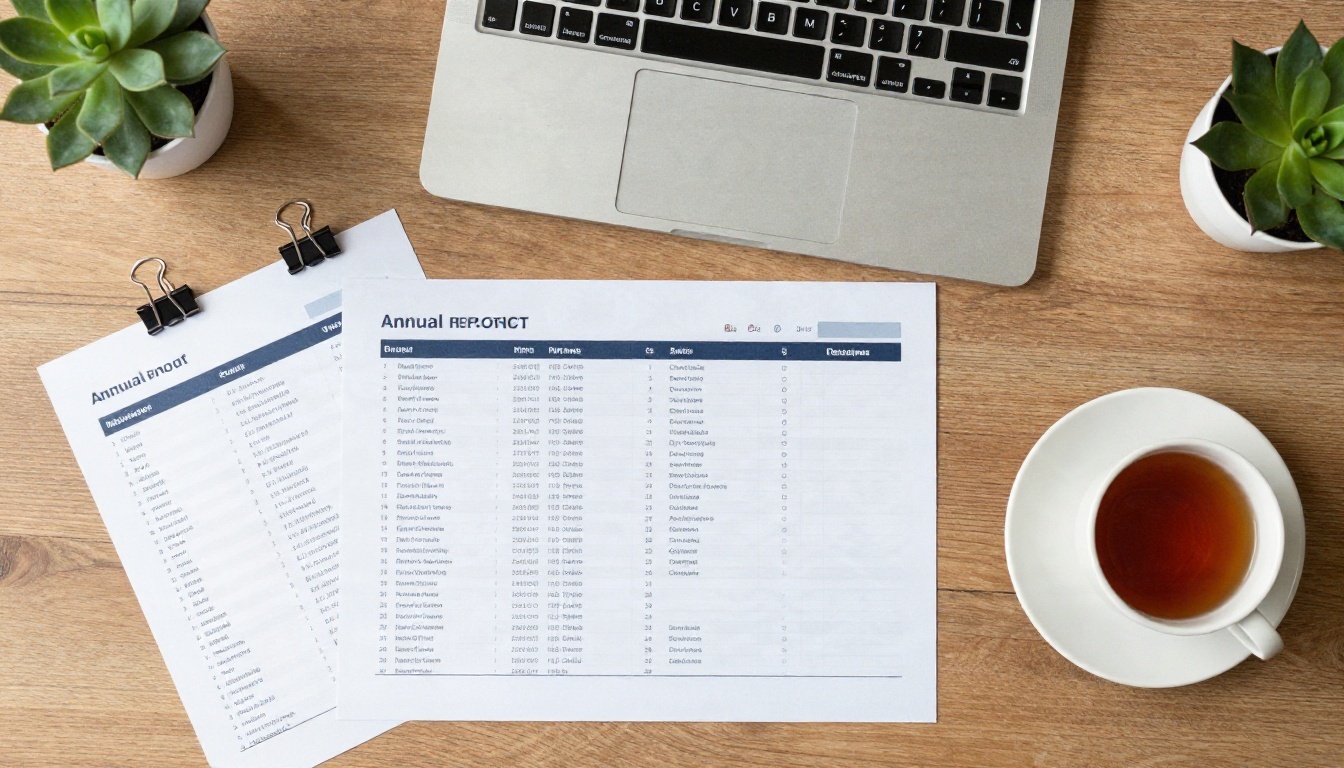
Before changing anything, find out how widely the file is used. Ten minutes here prevents an afternoon of repairs later.
Find every place the file is used
- Open Media > Library and switch to list view. Search for the file name.
- Click the item and copy the File URL from the attachment details.
- Use the WordPress search box in Posts and Pages to look for part of the file name, for example
price-list.
- Check menus under Appearance > Menus, widgets, and any page builder templates, because those are often missed.
- Search your email templates and newsletter archive for the same address.
Check traffic and backlinks
Open your analytics and look at the file's address under downloads or landing pages. A PDF with steady traffic from Google deserves extra care, because search engines may rank the file itself. A backlink checker will show outside sites that link directly to it.
| What to check | Where to look | Why it matters |
|---|
| Internal links | Posts, pages, menus, widgets | These break first and are easy to fix |
| External backlinks | Backlink checker, search console | You cannot edit these, so the URL must survive |
| Organic traffic to the file | Analytics landing pages | Signals how risky a change is |
| Email and social links | Newsletter archive, social bios | Old campaigns keep sending people to the file |
Method One: Replace the File in Place

If the document must stay a plain PDF download, the goal is simple: the new file has to live at exactly the same address as the old one.
Use a media replacement plugin
The most common approach is a plugin such as Enable Media Replace. It adds a "Replace media" option to every item in the library. Here is the process:
- Install and activate the plugin from Plugins > Add New.
- Go to Media > Library and open the PDF.
- Click Upload a new file.
- Choose the new PDF and select the option to replace the file only. This keeps the old file name and path.
- Confirm the upload and open the File URL in a private browser window to check that it now shows the new version.
Choosing the wrong option is the usual mistake. Plugins like this one offer a second mode that renames the file and updates links in the database. That can work on a small site, but it will not fix links outside WordPress.
Overwrite by FTP or file manager
If you prefer no plugin, connect with SFTP or your host's file manager, browse to the exact folder, and upload your new PDF with the identical file name, accepting the overwrite prompt. The WordPress media entry stays the same, and the address is untouched. The downside is that WordPress does not know the file changed, so file size information in the library may look outdated.
Clear every cache
After replacing, purge in this order:
- Your caching plugin (page cache and object cache)
- Your CDN, if you use one
- Server level cache from your host
- Your own browser, or test in a private window
⚠️ Warning: never fix a typo by uploading price-list-final-v2.pdf and deleting the original. That is the single fastest way to create a 404.
Where Method One falls short
Replacing in place works, but it has limits. Readers on a phone still have to download a file, zoom and pan, and you get almost no information about who opened it. You also still have a file that anyone can save and forward, with old copies floating around forever.
Method Two: Embed a Flipbook, Keep One URL

The more durable fix is to stop sending people to the PDF at all. Instead, publish the document as a flipbook and embed it on a normal WordPress page. That page has a permanent address, such as /catalog/, and you link everywhere to that page. When the document changes, the page address does not.
Why a page address outlasts a file address
A WordPress page URL is a slug you control. You can edit the content as often as you like and the address stays the same. A file address, by contrast, is tied to a filename and an upload date folder. Moving from one to the other turns a fragile link into a stable one.
Comparing the two approaches
| Feature | Plain PDF link | Embedded flipbook |
|---|
| URL after an update | Same only if you overwrite carefully | Page URL never changes |
| Reading on mobile | Download, pinch and zoom | Responsive page turning |
| Tracking views | Download count at best | Analytics on the Professional plan |
| Access control | Anyone with the link | Password protection available |
| SEO value | File can rank, but is hard to optimize | Surrounding page text can be optimized |
| Risk of old copies | High, file is saved locally | Lower, readers view the live version |
What happens to old PDF links
If your old PDF is already linked externally, you can keep it in place and add a note on the page or, better, set a redirect from the PDF address to the new page. The redirect section below shows how.
Create Your Flipbook with Flipbooks AI

Turning the PDF into a flipbook takes a few minutes. Create an account on Flipbooks AI and follow these steps. If you only need the conversion, the PDF to Flipbook Converter does exactly that.
Upload and convert
- Sign in and choose to create a new flipbook.
- Upload your PDF. The platform converts each page into a flipbook page with realistic page turning.
- Wait for processing to finish, then open the preview and flip through to confirm the pages, fonts and images look right.
Customize the look
- Add your logo and brand colors so the viewer matches your site.
- Pick a background and page effects that suit the document.
- Embed video and audio where it helps, such as a product demo on a catalog page.
- Check the layout on a phone, because the viewer is mobile responsive.
There are no watermarks, so the flipbook looks like part of your website.
Choose sharing options
Open the sharing settings and you will find a direct link and an embed code. If the content is private, add password protection. Compare pricing plans if you need unlimited flipbooks or the options reserved for higher tiers.
Embed it in WordPress
- Edit the page where the document should live, for example Catalog.
- Add a Custom HTML block.
- Paste the embed code from your flipbook.
- Set a sensible height, then click Update.
- Open the page on desktop and mobile to check that the viewer loads fully.
The Embed Flipbook on Website tool has more detail on embed options. Whenever the document changes, refresh the flipbook with the new PDF and check that the embed still loads. If a new flipbook is generated instead, paste its embed code into that same block. In both cases, the WordPress page URL remains untouched, and that is the address everybody has been using.
Analytics and lead capture
On the Professional plan you get analytics and lead generation, which lets you see how far people read and collect an email address before they open a gated document. You can also allow offline downloads when readers need a copy. These are things a bare PDF link cannot do. See the pricing page for the plan comparison.
✅ Best practice: keep the page slug short and permanent, like /catalog/ or /menu/. Avoid dates or version numbers in the slug, because those are the first thing you will want to change.
Redirects, Caching, and Safety Nets

Even with a clean setup, a few extra steps keep you safe when something goes wrong.
Add a 301 redirect for old file URLs
If an old PDF address is still receiving visits, redirect it to the page that now holds the document. A plugin such as Redirection makes this easy:
- Open the plugin and add a new redirect.
- Set the source URL to the old PDF path, for example
/wp-content/uploads/2026/11/price-list.pdf.
- Set the target URL to the page, for example
/catalog/.
- Choose 301 Moved Permanently and save.
Some hosts do not let WordPress handle requests for static files, so a redirect for a PDF may need a rule in .htaccess or the server configuration. Ask your host if the plugin redirect does not fire.
Keep a changelog
A short table in a shared document saves a lot of confusion, especially if several people edit the site.
| Date | File or page | Change made | Who | Cache cleared |
|---|
| 2026-11-13 | /catalog/ | Updated prices, new PDF uploaded | Editor | Yes |
| 2026-11-20 | /menu/ | Added winter dishes | Manager | Yes |
| 2026-12-01 | /brochure/ | New cover photo | Designer | Pending |
Test before you announce
Open the page in a private window, on a phone using mobile data, and from a second device. Click the old PDF link too. If it redirects or shows the new content, you are done.
⚠️ Warning: do not trust your own browser. It remembers the old version, so a test on your usual device can look fine while everyone else still sees yesterday's file.
Real Examples by Use Case

The same idea applies to many types of documents. Here are a few situations where keeping one URL matters.
- A restaurant changes its seasonal menu every quarter. QR codes on tables point to
/menu/, which embeds a flipbook built with the Restaurant Menu Creator. Nobody reprints the QR codes.
- A boutique hotel updates room rates and photos each season. The Hotel Brochure designer turns the new PDF into a flipbook, and the booking confirmation emails keep linking to the same page.
- A furniture store refreshes its collection twice a year. The Furniture Catalog Maker keeps the product catalog current while partner sites keep pointing to
/catalog/.
- A real estate agency swaps listings weekly. The Real Estate Brochure Creator publishes each new brochure on a stable page that agents share in messages.
- A nonprofit publishes a yearly report. The Annual Report Creator lets donors reach the latest report from the same address as last year.
Which method suits which document
| Document type | Update frequency | Best method | Reason |
|---|
| Legal terms, forms | Rare | Replace in place | Must remain a downloadable file |
| Menu, price list | Monthly | Embedded flipbook | Frequent edits, QR codes in print |
| Product catalog | Seasonal | Embedded flipbook | Mobile reading and analytics |
| Annual report | Yearly | Flipbook plus redirect from old PDF | Old links from press and partners |
| Internal manual | Occasional | Password protected flipbook | Access control matters |
Update Checklist You Can Reuse

Print this or paste it into your project notes. It works for either method.
Before you update
During the update
After the update
Common mistakes to avoid
- Uploading a file with a different name and deleting the original
- Forgetting the CDN cache, so only you see the update
- Changing the page slug while editing the title
- Skipping the mobile test
- Sharing the direct PDF link in new campaigns when the page link is safer
Publish Your Next Update Safely

Replacing a file is fine for the occasional legal document. For anything you revise often, the dependable pattern is one permanent page, one embedded flipbook, and a redirect for the old file address. You edit freely, and your links, QR codes and search listings keep working.
Ready to try it? Get started for free on Flipbooks AI and turn your PDF into an embeddable flipbook. Browse all flipbook tools to find a template for your catalog, menu or report. When you want analytics, lead capture and unlimited flipbooks, compare pricing plans and pick the one that suits your site.



