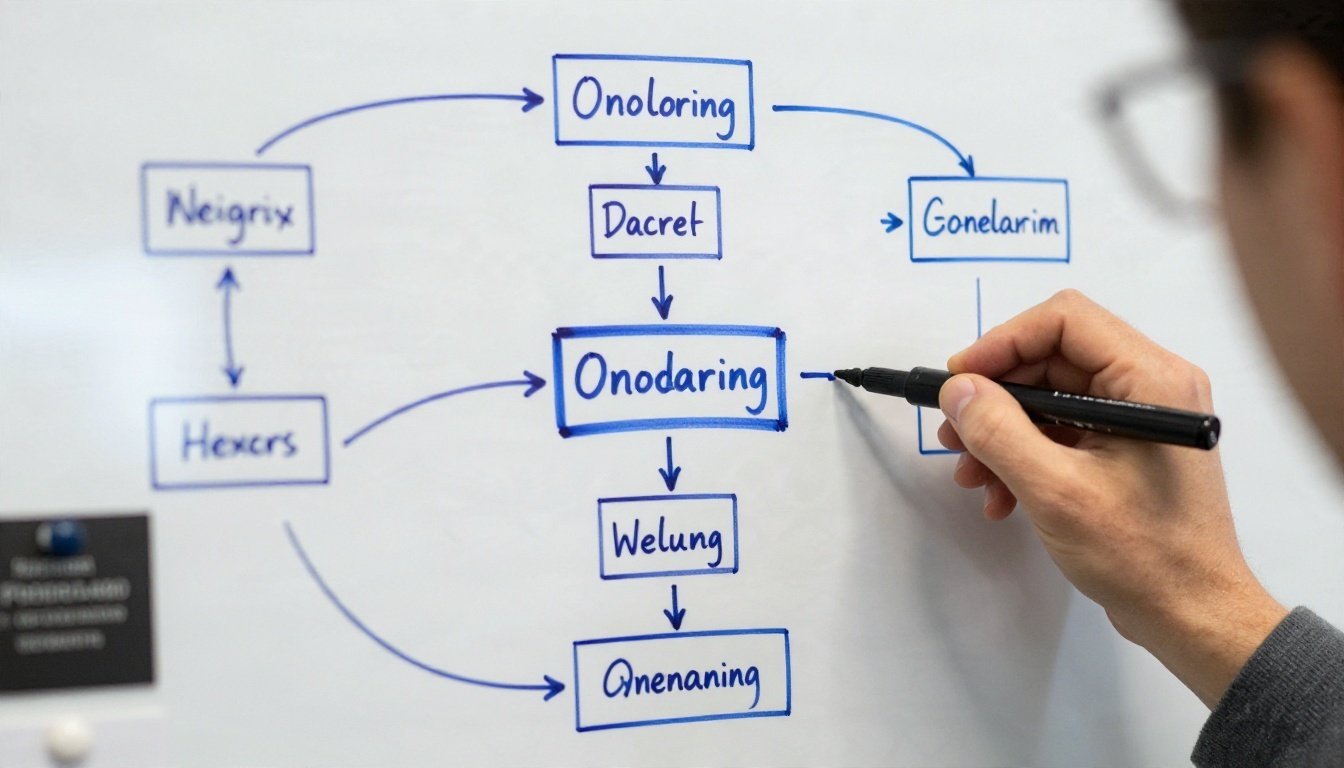
User Manual Template for Web Application: Software Example, Word and Online Version
A working user manual template for a web application, with a filled-in software example, a step-by-step Word version, and an online flipbook version. Includes comparison tables, writing rules, and a maintenance routine so your manual stays accurate after every release.
A good user manual template for a web application saves your support team hours every week. Users stop asking where the export button lives, new hires reach productive work faster, and your release notes finally get a proper home. This article gives you a filled-in software example, a Word version you can build in an afternoon, and an online version your users can open on any phone, tablet or laptop. If you would rather skip ahead and publish, Flipbooks AI turns a finished PDF manual into a page-turning online flipbook with no watermark.
What a Web App Manual Needs
Before you open a blank document, decide what the manual is for. A web application changes often, so the manual has to be short enough to maintain and clear enough that nobody needs to call you.
Who Reads It and Why
Most web app manuals serve three different readers, and each one opens the document with a different question in mind.
New users want to finish their first task without friction.
Power users want a reference they can search for one specific setting.
Administrators want permissions, integrations and security details in one place.
Write a short line at the top of each chapter saying who it is for. That one habit prevents the usual problem where a beginner gets lost in an admin chapter.
Sections Every Manual Includes
Use the table below as the skeleton of your template. Each row is a chapter, and you can merge or drop rows for a smaller product.
Section
Purpose
Typical length
Title page and version
Identifies the product build, date and audience
1 page
Quick start
Gets a reader through the first task in five minutes
2 to 3 pages
Feature reference
One entry per screen or function
Half a page each
Roles and permissions
Explains who can see and change what
1 to 2 pages
Troubleshooting
Lists error messages with fixes
3 to 5 pages
Glossary
Defines product-specific terms
1 page
Support and contacts
Shows the escalation path
Half a page
💡 Pro tip: Write the quick start chapter first. If you cannot explain the first task in three pages, the product flow probably needs work, and the manual just revealed it.
Software Example: A Task Manager Manual
Abstract templates are easy to ignore, so here is a filled-in example. Imagine a fictional web application called TaskLane, a team task manager with boards, due dates and a reporting screen. This is how its manual would look, chapter by chapter.
Title Page and Version Notes
The title page carries more weight than it seems. Support agents ask for the version first, so put it where nobody can miss it.
TaskLane User Manual
Product version: 4.2 (web application)
Manual revision: 4.2.1
Last updated: 13 November 2026
Audience: team members, project leads, workspace administrators
Follow it with a short revision table listing the date, the change and the author. Three columns are enough.
Quick Start Chapter
The quick start for TaskLane is a numbered list that ends with a visible result. A reader who follows it should finish with a working board.
Open the sign-in page and enter your work email.
Select New board from the left sidebar.
Name the board and choose a template, such as Sprint or Content calendar.
Add a first task and assign it to a teammate.
Set a due date and select Save.
Each step contains one action and one interface label in bold. That pattern is easy to scan and easy to translate.
Feature Reference Entries
Every feature gets the same four-part entry, so readers learn the pattern once and then move quickly.
What it does: one sentence in plain language.
Where to find it: the exact menu path, such as Board > Settings > Automations.
How to use it: three to six numbered steps.
Notes: limits, permissions or common mistakes.
For example, the Recurring tasks entry would say that it repeats a task on a schedule, show the path to the setting, list the five steps to configure it, and warn that only project leads can edit a recurring rule.
⚠️ Warning: Never describe a button by its color alone. Themes, dark mode and accessibility settings change colors, while the label stays stable.
Word Version of the Template
Word remains the fastest way to draft a manual, and most teams already own it. The trick is to set it up so the document behaves like a system instead of a pile of pages.
Styles and Headings Setup
Build the file once, then reuse it for every product. Follow this order:
Create a new document and set the page size to A4 or Letter, depending on your market.
Define Heading 1 for chapters, Heading 2 for features and Heading 3 for sub-tasks.
Create a style called Step for numbered instructions and another called Callout for notes and warnings.
Insert an automatic table of contents based on Heading 1 and 2.
Add page numbers and the manual revision to the footer.
Save the file as a .dotx template so nobody overwrites the original.
Real styles matter because a table of contents, a PDF with bookmarks and a clean export all depend on them. Manual bold text pretending to be a heading breaks all three.
Screenshots and Captions
Screenshots age faster than text, so treat them with care. Crop tightly to the relevant panel, use the same browser window width every time, and add a numbered caption such as Figure 4: Board settings panel. Mark one point of interest with a single arrow or box. Five arrows on one screenshot help nobody.
Screenshot habit
Good practice
Common mistake
Size
Same width across the manual
Random sizes that shift the layout
Annotation
One callout per image
Several arrows and colors
Data
Neutral sample data
Real customer names
Captions
Numbered and short
Missing or vague
Word Limitations
Word works well for drafting, but it has real limits. Search is basic, links break when files move, and every update means re-sending a file. Version confusion is the biggest cost: someone always keeps an outdated copy on their desktop. That is why most teams export Word to PDF and then publish an online version.
Online Version Options
An online manual solves the problem of stale copies. You update one place, and every reader sees the new version. Which format to use depends on how your users behave.
Comparing the Four Formats
Format
Editing effort
Search
Mobile reading
Reader analytics
Best for
Word file
Low
Basic
Poor
None
Drafting and internal review
PDF
Low
Good
Fair
None
Downloads and print
Help center
High
Excellent
Good
Yes
Large products with many articles
Online flipbook
Low
Good
Good
Yes (Professional plan)
Structured manuals with a clear reading order
A help center shines when you have hundreds of short articles. A flipbook fits better when the manual is a finite document, say 30 to 80 pages, that people read in order or look up by chapter. Many teams run both: a flipbook for the full manual and a help center for fast answers.
Why Flipbooks Suit Manuals
A flipbook keeps the layout you designed, so numbered steps and screenshots stay exactly where you placed them. It works on a phone without pinching and zooming, and it feels familiar, because readers already know how to turn a page. Support agents can also send one link instead of a file attachment, and you can protect it with a password when the manual is meant for customers only.
How to Create a User Manual with Flipbooks AI
If your Word manual is ready, you can publish it online in a few minutes. The Training Manual Flipbook tool is built for this kind of document, and the PDF to Flipbook Converter handles any finished PDF.
Export your Word file as a PDF with bookmarks enabled. In your dashboard, choose the upload option and select the file. The platform converts each page into a flipbook page, keeps the text sharp and preserves your internal links, so a table of contents entry still jumps to the right chapter.
Step 3: Customize the Look
Open the settings panel and apply your brand.
Upload your logo and set your brand colors.
Choose a page-turn effect, or keep it subtle for a serious product manual.
Check the layout on a phone preview, since the design is mobile-responsive.
There are no watermarks on your pages, so the manual looks like part of your product.
Step 4: Share the Manual
You have several sharing options, and each fits a different situation:
Direct link for support emails and chat replies.
Embed code to place the manual inside your app or help page. The Embed Flipbook on Website tool shows how.
Password protection for customer-only or internal manuals.
Offline download so field teams can read without a connection.
Step 5: Use the Pro Features
On the Professional plan, analytics show which pages readers open most and where they stop. That data is gold for a manual: if everyone abandons the integrations chapter, that chapter needs rewriting. Lead generation forms can also gate a public manual when you want to know who is reading it. Unlimited flipbooks are available from the Standard plan up, which helps when you maintain one manual per product line.
Manual need
Flipbooks AI feature
Branded look
Custom logo, colors and layout
Private distribution
Password protection
Field use without internet
Offline downloads
Visual walkthroughs
Embedded video and audio
Seeing what readers skip
Analytics (Professional plan)
Clean presentation
No watermarks, ever
✅ Best practice: Publish a new flipbook version with each release and keep the same link or embed. Readers never need a new URL, and your support macros stay valid.
Writing Rules That Keep Manuals Clear
A template gives you structure, but the writing decides whether people finish a task or give up. Keep these rules close.
Write One Action Per Step
Compare these two versions. The first reads Open settings, choose the billing tab, and update your card, then save. The second splits it into four steps. The second takes more lines, yet it fails far less often, because readers can find their place again after glancing at the app.
5 Common Mistakes to Avoid
Documenting the interface, not the task. Readers want to invoice a client, not hear about every field on the invoice screen.
Mixing product names. If the button says Workspace, never call it a team space in the text.
Skipping error messages. Quote the exact text users see, so a search finds your page.
Burying prerequisites. Say up front that the user needs admin rights.
Hiding the version. An undated manual quickly loses trust.
Test With a Real Newcomer
Hand the manual to someone who has never used the product and watch silently. Every moment they hesitate marks a sentence to fix. One 30-minute session catches more problems than three rounds of internal review.
Keeping the Manual Current
A manual that is wrong is worse than no manual. Tie the update routine to your release process, not to anyone's memory.
A Simple Update Routine
Trigger
Action
Owner
Every release
Check screenshots and menu paths for changed screens
Technical writer
New feature
Add a feature reference entry and update the quick start if needed
Product owner
Support spike
Add the question to troubleshooting
Support lead
Quarterly
Run the newcomer test and refresh the glossary
Documentation team
Major version
Increase the manual revision and republish online
Release manager
Add one line to your release checklist: Manual updated and republished. Without that line, documentation drifts within two releases.
Real-World Examples
A SaaS startup with a 40-page manual can publish it as a password-protected flipbook for paying customers and embed the quick start chapter in its onboarding email. An internal IT team rolling out a new HR portal can distribute a downloadable flipbook so staff read it on their phones. A software agency delivering a custom web app can hand clients a branded manual that carries the agency logo, which doubles as a quiet piece of marketing. Teams that also write onboarding material can reuse the same approach for course materials.
Ready to Publish Your Manual?
You now have the chapter list, a filled-in example, a Word setup and an online route. The only step left is to put your own product into the template. Start with the quick start chapter, add one feature entry at a time, and test it on a newcomer before release.
When the draft is ready, create your account on Flipbooks AI and upload the PDF. Browse all flipbook tools to find the format that matches your documents, or compare pricing plans to see where analytics, password protection and unlimited flipbooks fit your team. If you want to unlock Professional features right away, go straight to the plans after you sign in.