A magazine template for Word is the fastest route from a blank page to a finished publication, and it costs nothing if you pick the right file. The catch is simple: a template only works when the page size, margins and export settings match where the magazine will end up. A desktop printer, a commercial press and a phone screen all ask for slightly different things. This article covers free layouts, standard sizes, print setup and the step most people skip, which is turning the finished file into an online magazine readers can flip through. If you want to publish digitally from day one, Flipbooks AI converts a Word PDF into a page-turning flipbook in minutes.
Why Word Still Works for Magazines
Professional designers reach for InDesign, but a huge number of newsletters, club magazines, school publications and small business catalogs are built in Word every week. The reason is practical. Your team already owns it, everyone can edit it, and the learning curve is close to zero.
What Word Does Well
- Columns and text flow: Text moves from one column to the next automatically, which is exactly what magazine body copy needs.
- Styles: One heading style change updates every page, so a 24-page issue stays consistent.
- Collaboration: Track changes and comments let an editor, a writer and a proofreader work in the same file.
- Accessibility of templates: Thousands of free layouts exist, so you rarely start from nothing.
Where It Falls Short
Word was not built as a print production tool. It works in RGB, not CMYK. It has no native bleed or crop marks. Image placement can shift when a file opens on another computer. None of this is a dealbreaker, but it explains why the setup steps later in this article matter so much.
💡 Pro tip: Build the whole magazine in one document and one template. Splitting an issue into several Word files is the fastest way to end up with mismatched fonts and margins.
Free Magazine Layouts Worth Using
A good free template saves hours, but a bad one costs you more time than it saves. Pick carefully.

Where to Find Free Templates
Start inside Word itself: File > New, then search for "magazine", "newsletter" or "brochure". Microsoft hosts a decent set of editable layouts. Beyond that, many design marketplaces and template libraries offer free .docx downloads, usually in exchange for an email address or an attribution line.
| Source | Typical Quality | Editing Ease | Licensing Note |
|---|
| Word built-in templates | Basic to good | Very easy | Free for personal and commercial use |
| Template marketplaces (free tier) | Good to polished | Easy | Check attribution rules |
| Design community downloads | Varies widely | Medium | Read the license each time |
| Your own saved .dotx file | Exactly what you need | Very easy | Fully yours |
What to Check Before Downloading
- Page size: Confirm whether it is A4, US Letter or a custom size. Changing it later breaks the layout.
- Fonts: If the template uses fonts you do not have, Word substitutes them and the design collapses.
- Real text styles: Open the Styles pane. If headings are just bold paragraphs, skip the file.
- Image placeholders: Good templates use picture frames you can swap with a single click.
- Page count logic: Print booklets need multiples of four pages. A 10-page template is trouble for saddle-stitch printing.
⚠️ Warning: "Free" does not always mean "free for commercial use." If the magazine will be sold or used for advertising, read the license before you publish.
Magazine Size and Page Setup
Page size is the first decision, and it is the one hardest to reverse. Choose it based on how the magazine will be delivered.
Standard Sizes Compared
| Format | Inches | Millimeters | Best For |
|---|
| US Letter | 8.5 x 11 | 216 x 279 | US newsletters, office printing |
| A4 | 8.27 x 11.69 | 210 x 297 | Europe and most of the world |
| Standard magazine | 8.375 x 10.875 | 213 x 276 | Commercial glossy magazines |
| A5 | 5.83 x 8.27 | 148 x 210 | Compact booklets, programs |
| Digest | 5.5 x 8.5 | 140 x 216 | Short reads, zines |
| Tabloid | 11 x 17 | 279 x 432 | Folded broadsheet style |
If you only print at the office and share online, A4 or US Letter is the safe choice. Those sizes match every desktop printer and look natural on a tablet. If a commercial printer will produce the issue, ask for their trim size before you design anything.
Set Margins, Columns and Gutters
In Word, open Layout > Size and choose a paper size, then go to Layout > Margins > Custom Margins. A solid starting point for a letter or A4 magazine:
- Outside margin: 0.5 to 0.75 inch (12 to 19 mm)
- Top and bottom margin: 0.6 to 0.8 inch (15 to 20 mm)
- Inside margin (gutter): 0.75 to 1 inch, so text does not disappear into the fold
- Columns: Two for a calm look, three for a dense news style
- Column spacing: About 0.25 inch (6 mm)
Under Multiple pages, choose Mirror margins for a two-sided magazine, or Book fold if you want Word to arrange pages as a printable booklet.
💡 Pro tip: Use a section break (not a page break) whenever you switch from two columns to one. This keeps your full-width feature headlines from dragging the column settings with them.
Print Setup That Avoids Surprises
Printing is where a beautiful screen layout meets physical reality. A few settings decide whether the result looks professional or amateur.
Bleed, Trim and Safe Zones
Bleed is the extra 0.125 inch (3 mm) of image or color that runs past the trim edge, so no white sliver shows after cutting. Word has no bleed setting, but there is a workaround:
- Add 0.25 inch to the width and 0.25 inch to the height in Layout > Size > More Paper Sizes.
- Let background images and color blocks extend to the new edges.
- Keep all text and logos at least 0.5 inch inside the original trim line. That area is your safe zone.
- Tell the printer the document includes bleed, and ask them to set the trim marks.
If you only print at the office, skip bleed entirely and use a white border instead. Office printers cannot print to the paper edge anyway.
Color, Resolution and Fonts
| Setting | Office Printing | Commercial Printing | Online Only |
|---|
| Color mode | RGB is fine | Printer converts RGB to CMYK | RGB |
| Image resolution | 150 dpi minimum | 300 dpi | 96 to 150 dpi |
| Fonts | Installed fonts | Embedded in PDF | Embedded in PDF |
| Bleed | Not needed | 0.125 in (3 mm) | Not needed |
| File type | PDF or direct print | Print-ready PDF | PDF |
Expect colors to shift slightly when RGB converts to CMYK. Saturated blues and bright greens change the most, so ask for a printed proof of the cover page before approving a full run.
Page Count for Booklets
Saddle-stitched (stapled) magazines are printed on sheets folded in half, so the page count must be a multiple of four: 8, 12, 16, 20, 24 and so on. If your content runs short, fill the gap with a full-page photo, a contents list or a subscription note. A blank page in the middle of an issue looks like a mistake.
Design Rules Inside Word
A template gives you the structure. The look of the issue still depends on a few habits.
Typography Pairs That Work
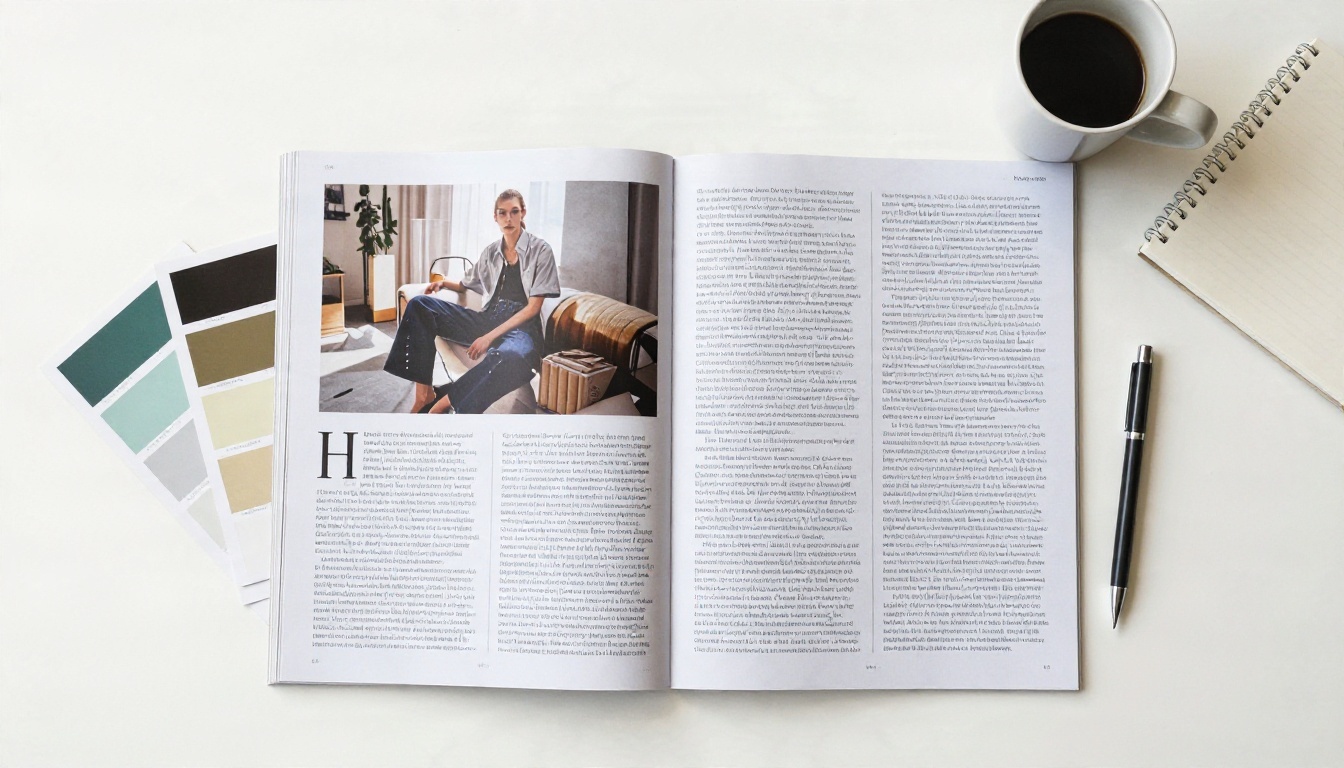
Limit the magazine to two font families: one for headlines, one for body text. Reliable combinations:
- Serif headline + clean sans body: Classic and readable, ideal for features.
- Bold sans headline + serif body: Modern, good for lifestyle and business issues.
- One family, several weights: The safest option for small teams.
Keep body text between 9 and 11 points with line spacing around 1.15 to 1.3. Anything smaller strains the eye, and anything larger makes columns look like a school report.
Image Placement Without Chaos
Word images drift when text is edited. To keep them anchored:
- Right-click the picture and set Wrap Text to Square or Top and Bottom.
- Choose Fix position on page so edits to the text do not push it around.
- Use one consistent caption style, usually 8 or 9 points in italic.
- Compress pictures only after the final layout is approved, never before.
Choose a palette of three colors before you start. One dominant, one accent and one neutral is enough. Save them as custom theme colors so every shape, table and heading uses the same values.
Export to PDF the Right Way
The PDF is the real product. It is what the printer receives and what the online reader opens, so the export settings deserve attention.

- Go to File > Export > Create PDF/XPS Document.
- Under Optimize for, choose Standard (publishing online and printing).
- Click Options and tick Create bookmarks using Headings, which gives readers a clickable contents list.
- Make sure fonts are embedded. Word does this by default in the standard PDF export.
- Open the PDF and check every page for shifted images, missing characters and hyperlinks that still work.
✅ Best practice: Keep two exports. A print PDF with full-resolution images and bleed, and a web PDF with smaller images that loads quickly on mobile connections.
How to Create a Flipbook Magazine with Flipbooks AI
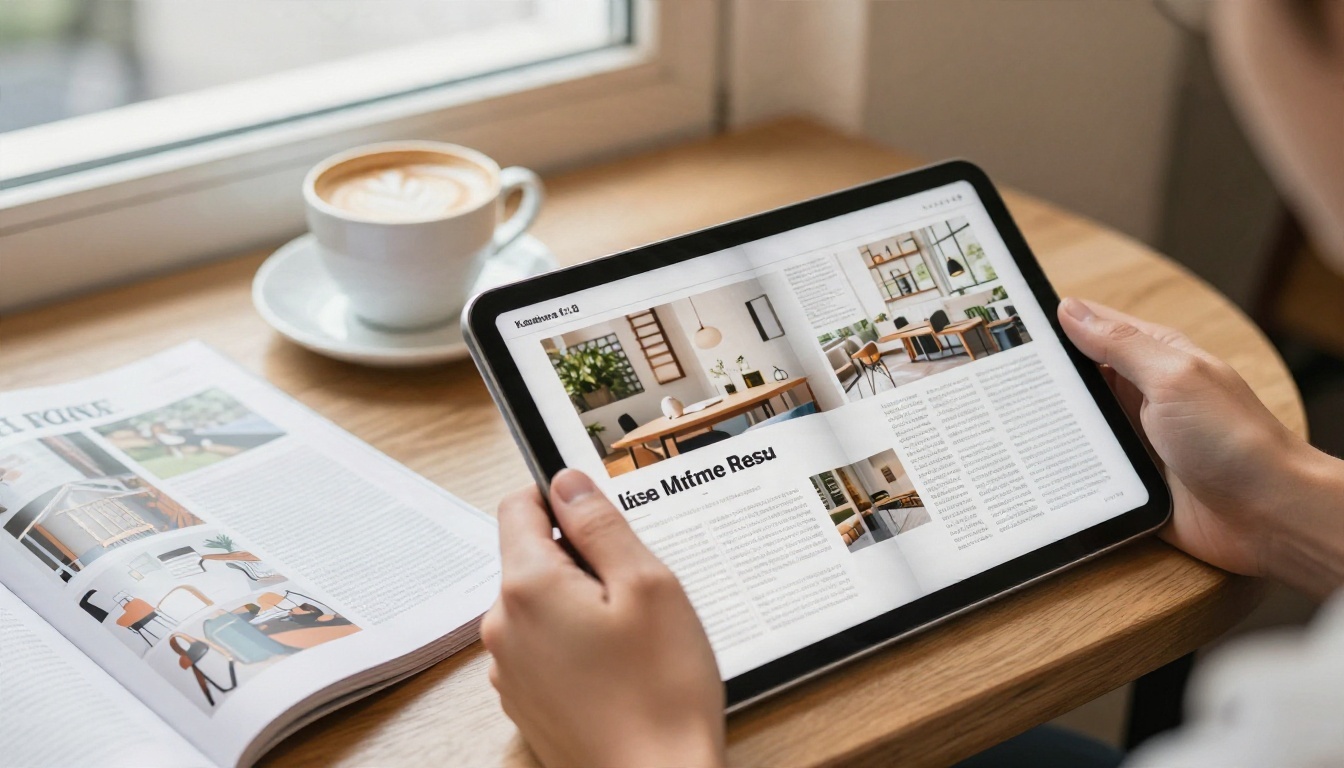
A PDF is great for printing, but it is a clumsy reading experience on a phone. A flipbook keeps the magazine layout, adds realistic page turns and loads in a browser with no download. Here is the full workflow with Flipbooks AI.
Upload and Convert
- Open Flipbooks AI and create an account.
- Choose the PDF to Flipbook Converter and upload the web PDF you exported from Word.
- Wait a moment while the pages are processed. Text stays sharp, and your layout, columns and images stay exactly as designed.
Customize the Reader Experience
- Branding: Add your logo and choose background and toolbar colors that match the magazine palette.
- Page effects: Set the page-turn style and speed to fit the mood of the issue.
- Multimedia: Embed videos and audio to bring interviews, trailers or music playlists next to the relevant article.
- Mobile layout: Flipbooks are mobile-responsive, so readers get single-page view on phones and a spread on desktop.
For a more specialized setup, the E-Magazine Publishing Tool and the Newsletter Flipbook Publisher are built for recurring issues.
Share, Embed and Protect
| Sharing Method | How It Works | Best For |
|---|
| Direct link | Send one URL by email or chat | Quick distribution |
| Embed code | Paste into any page with the Embed Flipbook on Website tool | Blogs, intranets, landing pages |
| Password protection | Readers must enter a password | Paid issues, internal magazines |
| Offline download | Readers save a copy | Travelers, low-signal areas |
No watermarks are added to your magazine, ever, so the issue looks like your own publication and nobody else's.
Pro Features Worth Knowing
Higher plans open up the tools that serious publishers need. Unlimited flipbooks are available on the Standard plan and above, so every monthly issue can live in its own link. The Professional plan adds analytics (which pages get read, where readers drop off) and lead generation forms, handy when a magazine doubles as a marketing asset. See the pricing plans to compare what each level includes.
💡 Pro tip: Publish the flipbook link in your email signature. Every message you send then becomes a free distribution channel for the latest issue.
Real-World Examples
Seeing how others use a Word magazine helps you choose the right approach.

- A school newsletter: A teacher builds a 12-page A4 issue from a free template, prints 100 copies on the office printer and shares the flipbook link with parents. The School Newsletter Creator fits this workflow neatly.
- A boutique hotel: The marketing manager designs a lifestyle magazine in Word, sends a bleed version to a local printer for the lobby and uses the web PDF for an online edition with the Hotel Brochure style layout.
- A freelance photographer: A 16-page portfolio magazine, exported at high quality, becomes a clickable showcase through the Digital Portfolio Creator.
- A local nonprofit: A quarterly issue with stories, donor thanks and event dates goes out as a password-protected link to members only.
Common Mistakes to Avoid
| Mistake | What Happens | Fix |
|---|
| Changing page size late | Every image and column shifts | Set size before adding content |
| Using a page count of 10 | Printer adds blank pages | Round to a multiple of four |
| Low-resolution photos | Blurry print, soft screen view | Use 300 dpi for print |
| Missing fonts | Layout reflows on another PC | Export to PDF with embedded fonts |
| No proof copy | Color surprises after the full run | Print one test page first |
Ready to Publish Your Magazine?
You now have a clear path: pick a clean free template, set the page size first, respect margins and bleed, export a tidy PDF and share it in whatever form your readers prefer. Paper works for the lobby table. A flipbook works for everyone else.
Take the next step today:
Your Word file already holds a finished magazine. One upload turns it into something people can open, flip and share in seconds.


