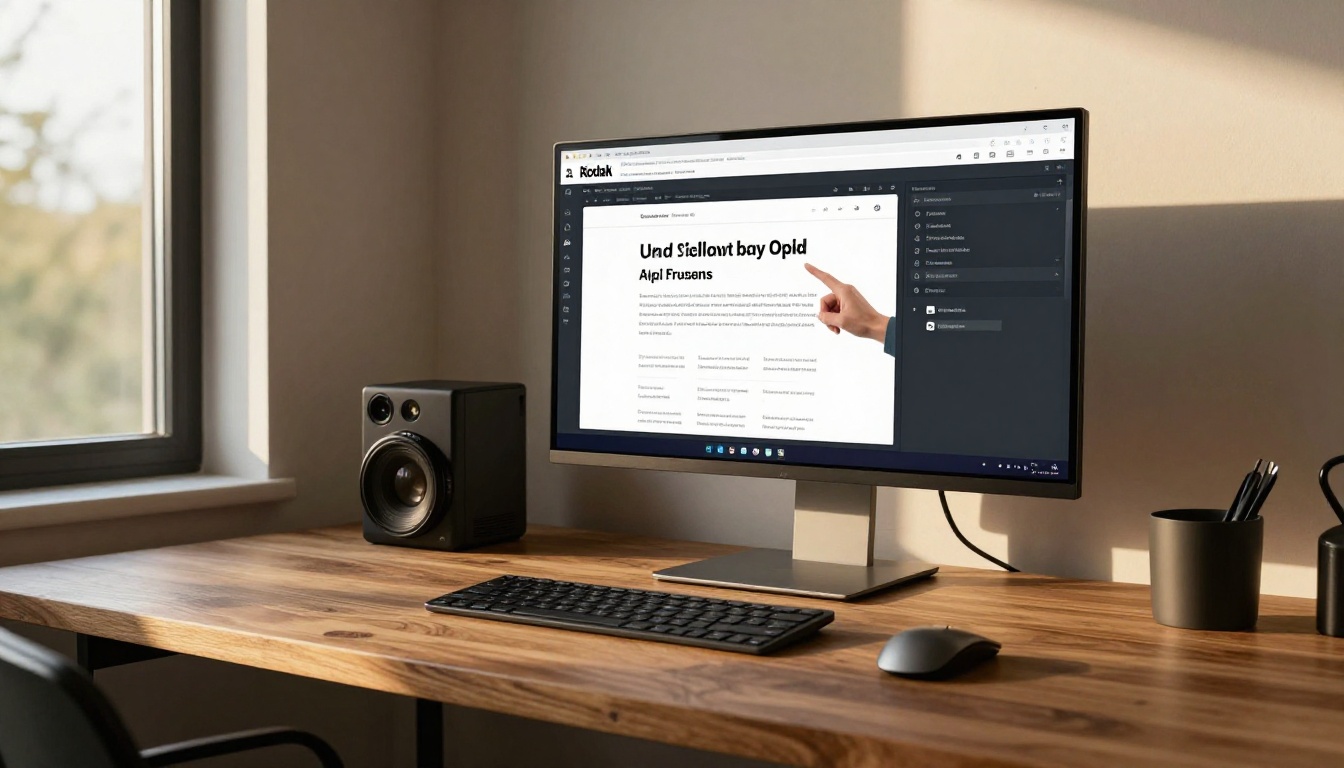
Webflow Code Embed Element: Put a Flipbook on Your Site
Step by step instructions for using the Webflow Code Embed element to place a flipbook on any page. See the iframe code, sizing rules, responsive settings, common errors and a comparison of embed methods so your PDF looks sharp on every screen.
You have a polished PDF, a Webflow site that looks exactly how you want it, and one annoying gap between them. A download link feels flat, and a pile of static images feels clumsy. The cleanest way to close that gap is the Code Embed element, which lets you drop a page-turning flipbook straight into any Webflow page with a few lines of HTML. Build the flipbook with Flipbooks AI, copy the embed code, paste it, publish. That is the whole idea, and the rest of this article walks through every detail so nothing surprises you on launch day.
Why Use a Flipbook in Webflow
Webflow is brilliant at layout, interactions and CMS content. What it does not do natively is render a multi-page document the way a reader expects: with page turns, zoom, a table of contents and a share button. A flipbook fills that role.
What Visitors Actually Get
A visitor lands on your page, sees a book-like publication, and flips through it with a click, a swipe or an arrow press. There is no download, no PDF viewer plugin and no waiting for a 40 MB file to finish. For catalogs, lookbooks, annual reports and menus, this feels far closer to the printed original.
What You Get as the Site Owner
You keep the document inside your own design. Your header, your footer and your analytics scripts stay around it. And because the flipbook lives on its own hosted URL, you can update the PDF later without touching the Webflow Designer again.
💡 Pro tip: Treat the flipbook like any other section of the page. Give it a heading, a short intro paragraph and a call to action below it. A bare embed with no context gets skipped more often than you would expect.
Where It Fits Best
Use case
Typical page
Why a flipbook helps
Product catalog
Shop or resources page
Visitors browse without leaving the site
Restaurant menu
Menu page
Mobile friendly, easy to update seasonally
Portfolio
Work or case study page
Keeps visual pacing of the original layout
Annual report
Investors or about page
Readable on any device, no download needed
Lookbook
Collection landing page
Feels like turning real pages
How the Code Embed Element Works
The Code Embed element is a Webflow component found in the Add panel under Components. It accepts raw HTML, CSS and JavaScript, then renders the result on the published page. Inside the Designer you usually see a placeholder, so previewing requires publishing or using the preview mode.
Code Embed vs Custom Code Settings
People mix these two up. The Code Embed element sits at an exact spot in your layout. Custom Code in page or site settings injects scripts into the head or before the closing body tag, and has no visible spot. A flipbook is visible content, so you want the element.
The Character Limit
Webflow caps each Code Embed at 50,000 characters. An iframe is about 300 characters, so the limit never matters here. It becomes relevant only if you try to paste a whole inlined document, which you should not do.
Plan Requirements
Code Embed is available on all Webflow site plans, including the free Starter plan for staging. Publishing to a custom domain requires a paid site plan, but the embed itself works the same on the staging subdomain, so you can test before you commit.
Build Your Flipbook First
Before opening Webflow, produce the flipbook itself. This takes a few minutes and the quality of the source file matters more than any embed setting.
Prepare a Clean PDF
Export your PDF at the final page size, with images at a sensible resolution. A 150 dpi export is enough for screens, and it keeps load times short. Check that fonts are embedded and that no page has a stray margin.
Convert It in Flipbooks AI
Open Flipbooks AI and sign in or create an account.
Wait for the conversion to finish. Pages are processed into a smooth page-turn viewer.
Open the customization panel and set background color, logo, page effects and any audio or video you want to add.
Open the share options and copy the embed code.
✅ Best practice: Match the flipbook background to your Webflow section background. The viewer then blends into the page instead of looking like a box dropped on top.
Why No Watermark Matters
Many converters stamp a logo across the corner of every page. Flipbooks AI never adds a watermark, which is a big deal when the flipbook sits on a client site or a branded storefront. See the plans for how unlimited flipbooks and password protection fit each tier.
Paste the Embed Code Step by Step
Here is the full process inside Webflow. Keep the Designer open in one tab and your flipbook share panel in another.
Add the Element
In the Designer, open the page where the flipbook should appear.
Select the section or div that will hold it. A dedicated section with its own class gives you the most control.
Press A to open the Add panel, then go to Components and drag Code Embed into the container.
Double click the element to open the code editor.
Drop In the Iframe
Paste your embed code. A typical iframe looks like this:
Replace the src with the exact link copied from your share panel. Click Save & Close.
Publish and Test
Publish to your staging domain first. Open the page on a laptop, then on a phone. Click through a few pages, try the full screen button, and check that the sound plays if you added audio.
⚠️ Warning: If the embed shows nothing after publishing, the cause is nearly always a typo in the src or an iframe blocked by a content security setting. Check the browser console before assuming Webflow is at fault.
Size and Responsive Settings
An iframe has no idea how much room the page has left. You have to tell it, and you have to tell it differently at each breakpoint.
Set a Fixed Height
A flipbook spread is wider than it is tall, so a height of 600 to 750 pixels works well on desktop. Taller than that and you create a lot of empty space above and below the pages.
Keep Width Fluid
Always use width="100%" and let the parent container decide the real width. Set the container to a max width, such as 1100 pixels, for readable text on large monitors.
Use an Aspect Ratio Wrapper
For a flipbook that scales cleanly, wrap the iframe in a div that holds the ratio:
The padding-top of 56.25% gives a 16:9 box that shrinks smoothly on tablets and phones. For portrait documents such as menus, try 75% or even 100% instead.
Suggested Dimensions by Breakpoint
Breakpoint
Container width
Iframe height
Notes
Desktop (1280+)
1100 px max
700 px
Show the two-page spread
Tablet (768 to 991)
90%
600 px
Spread still readable
Mobile landscape
100%
450 px
Single page view often kicks in
Mobile portrait
100%
420 px
Add a short caption above
💡 If you use the aspect ratio wrapper, you do not need a separate height for each breakpoint. The box scales on its own.
Compare Ways to Show a PDF
The Code Embed route is not the only way to put a document on a Webflow page. Here is how it stacks up against the common alternatives.
Method
Page turn effect
Mobile friendly
Edit without republishing
Analytics
Flipbook via Code Embed
Yes
Yes
Yes
Yes (Professional plan)
Direct PDF link
No
Depends on device
Yes
Limited
PDF viewer iframe
No
Mixed
Yes
Limited
Images in a slider
Partial
Yes
No
Limited
Rich text with images
No
Yes
No
None
When a PDF Link Is Enough
If the document is a one-page invoice or a spec sheet that people print, a plain link is fine. Do not over-build.
When the Flipbook Wins
Anything with more than a handful of pages, anything visual, and anything you want to track. A catalog with 60 pages in a slider is painful to build and painful to maintain. A flipbook swaps in a new PDF and the page is already updated.
Real Examples That Work
Seeing the pattern in context makes the setup easier to plan.
A Boutique Owner's Lookbook
A small fashion shop publishes a seasonal lookbook. Using the Lookbook Flipbook Builder, the owner uploads the new PDF each season. The Webflow page never changes, because the embed points to the same flipbook link. Updating takes minutes rather than a design session.
A Restaurant Menu Page
A cafe keeps its menu in a flipbook made with the Restaurant Menu Creator. Prices change monthly. The staff replace the file, and the website menu is correct before the lunch rush.
An Agency Delivering Client Reports
A freelancer builds client sites in Webflow and uses the Report Flipbook Creator for quarterly summaries. Each client gets a private page with a password protected flipbook. The freelancer sends a link, not an attachment.
A Photographer's Portfolio
Using the Photography Portfolio tool, a photographer publishes a curated book of recent shoots. Large images stay crisp, and the embed sits under a short bio on the About page.
Fix Common Embed Problems
Most issues are small and predictable. Run down this list before you start rewriting anything.
The Flipbook Is Blank
Confirm the src URL opens in a new browser tab on its own.
Make sure you pasted into a Code Embed, not a text block.
Publish the site. The Designer canvas often shows only a placeholder.
Wrong Height or Cut-Off Pages
Increase the height or switch to the aspect ratio wrapper. Cut-off pages almost always mean the iframe is shorter than the viewer needs.
Sound or Video Will Not Play
Browsers block autoplay with sound. Visitors must click once first. Add a short line of text like "Press play to hear the audio" near the embed.
Slow Page Load
Add loading="lazy" to the iframe so it only loads when the visitor scrolls near it. Put the flipbook below the fold when possible, and keep the first screen of the page light.
Quick Troubleshooting Table
Symptom
Likely cause
Fix
Nothing shows
Typo in src
Re-copy the link from the share panel
Gray box in Designer
Normal behavior
Publish and view live
Page scrolls inside the box
Height too small
Raise the height value
Fullscreen button missing
allowfullscreen removed
Add the attribute back
Slow first paint
Embed loads immediately
Add loading="lazy"
Polish the Final Result
Once the basics work, small touches make the section feel intentional.
Add Context Around the Embed
Write a heading, one or two sentences about what is inside and a button for people who prefer a download. Offline downloads are available as an option, so you can offer both paths.
Track What Happens
If you want to know how many people open the flipbook and which pages they read, the Professional plan includes analytics and lead generation. Compare options on the pricing page. For a deeper look at this exact setup, see the Embed Flipbook on Website tool.
Keep It Private When Needed
Sensitive material such as price lists for resellers can sit behind a password. The Webflow page stays public, and the flipbook itself asks for the password before opening.
✅ Final checklist: correct src, width="100%", a sensible height, allowfullscreen, loading="lazy", a descriptive title, and a test on a real phone.
Ready to Publish Yours
You now have everything needed: a clean PDF, a flipbook, an iframe, and sizing rules that hold up across breakpoints. The whole process takes about fifteen minutes the first time and a couple of minutes for every update after that.
Ready to build one? Get started for free on Flipbooks AI, then browse all available tools and templates to find the right layout for your content. When you want analytics, passwords and unlimited flipbooks, compare the pricing plans and pick what fits your site.