You have a file sitting on your desktop and a clear vision of turning it into a shareable, interactive digital publication. Before you hit upload, the format of that file determines how clean, accurate, and readable your flipbook will be. Some formats convert perfectly with zero intervention. Others need a quick preparation step. A few are not worth uploading at all. Flipbooks AI supports several input types, and knowing the differences saves time and frustration.
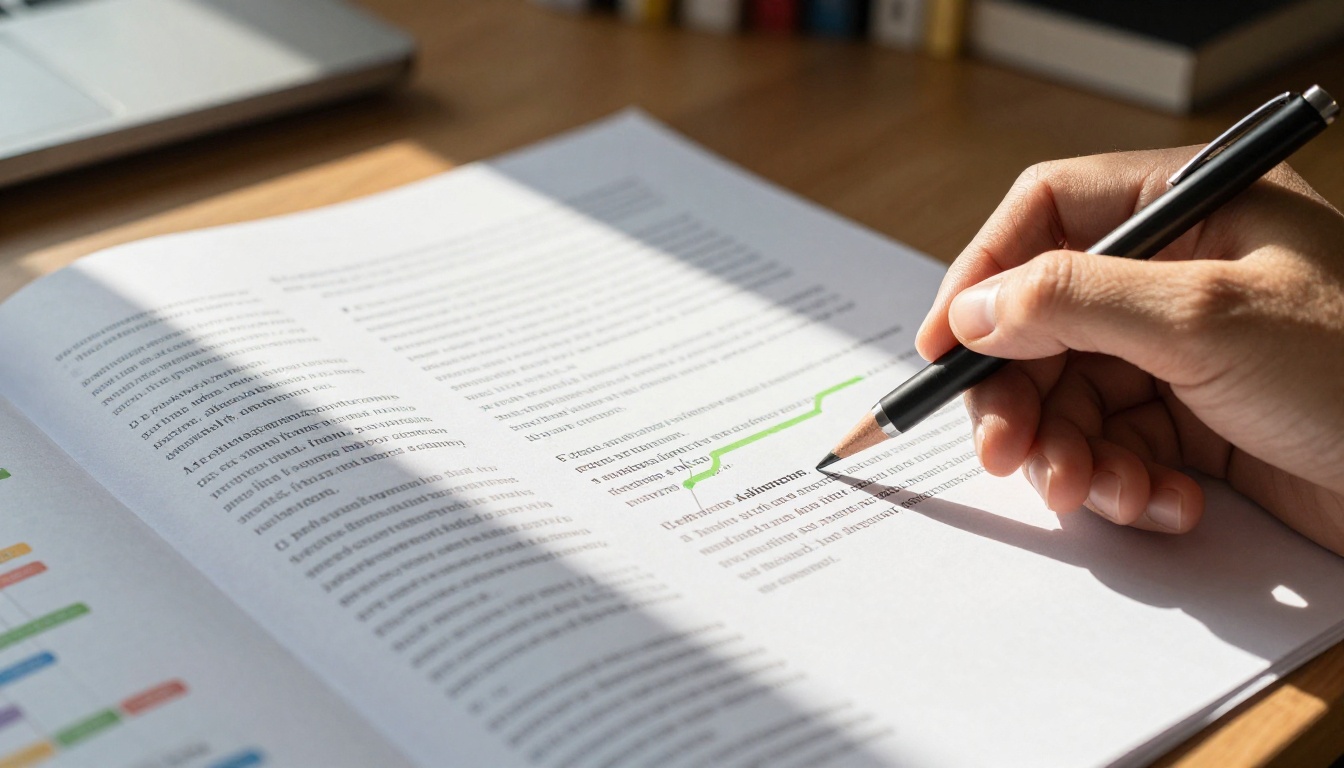
PDF is the standard format for flipbook conversion, and it holds that position for good reason. It was designed specifically to preserve document layouts across different devices, operating systems, and rendering engines. When a flipbook platform reads a PDF, it receives an exact snapshot of every page: fonts, images, vector elements, and all.
Why PDF converts so cleanly
PDF stores everything it needs inside the file itself. Unlike word processors that rely on installed fonts or screen resolution settings, PDF embeds fonts, vectors, and images together in a single self-contained package. The result is a pixel-accurate representation that renders identically on a laptop in Tokyo or a tablet in London.
PDF brings strong advantages to flipbook conversion:
- Embedded fonts ensure typography renders consistently across all devices
- Vector graphics stay sharp at any zoom level, from thumbnail to full-screen
- Multi-page structure handles 200-page documents as smoothly as a 2-page flyer
- Compact compression keeps file sizes manageable even for image-heavy publications
- Wide software support lets you export PDF from Canva, InDesign, Word, PowerPoint, Figma, and hundreds of other tools
💡 Pro tip: When creating a PDF for flipbook upload, export at "Print Quality" or set the DPI on embedded raster images to at least 150. Documents with 72 DPI images will look visibly blurry when the flipbook is viewed full-screen.
PDF quality depends on the source
Not all PDFs are equal. The quality of your flipbook directly reflects the quality of the PDF going in.
| PDF Source | Conversion Quality | Notes |
|---|
| InDesign or Illustrator (vector) | Excellent | Crisp at any zoom level |
| Print-ready PDF (300 DPI images) | Excellent | Best for photography-heavy publications |
| Office export (Word or PowerPoint) | Very Good | Minor font variance possible on rare occasions |
| Canva export | Very Good | Reliable output for most design types |
| Scanned physical document | Good | Resolution depends on scanner quality |
| Low-resolution PDF (72 DPI) | Poor | Avoid for image-heavy content |
Use the PDF to Flipbook Converter on Flipbooks AI to go from a PDF to a live, shareable flipbook in seconds. It works equally well for product catalogs, annual reports, brochures, magazines, and e-books.
Image Files: JPEG, PNG, and Beyond
Single images and image sequences can absolutely become flipbooks. JPEG, PNG, and WebP are the three main image formats that convert smoothly across all major platforms.
JPEG: The Right Choice for Photography
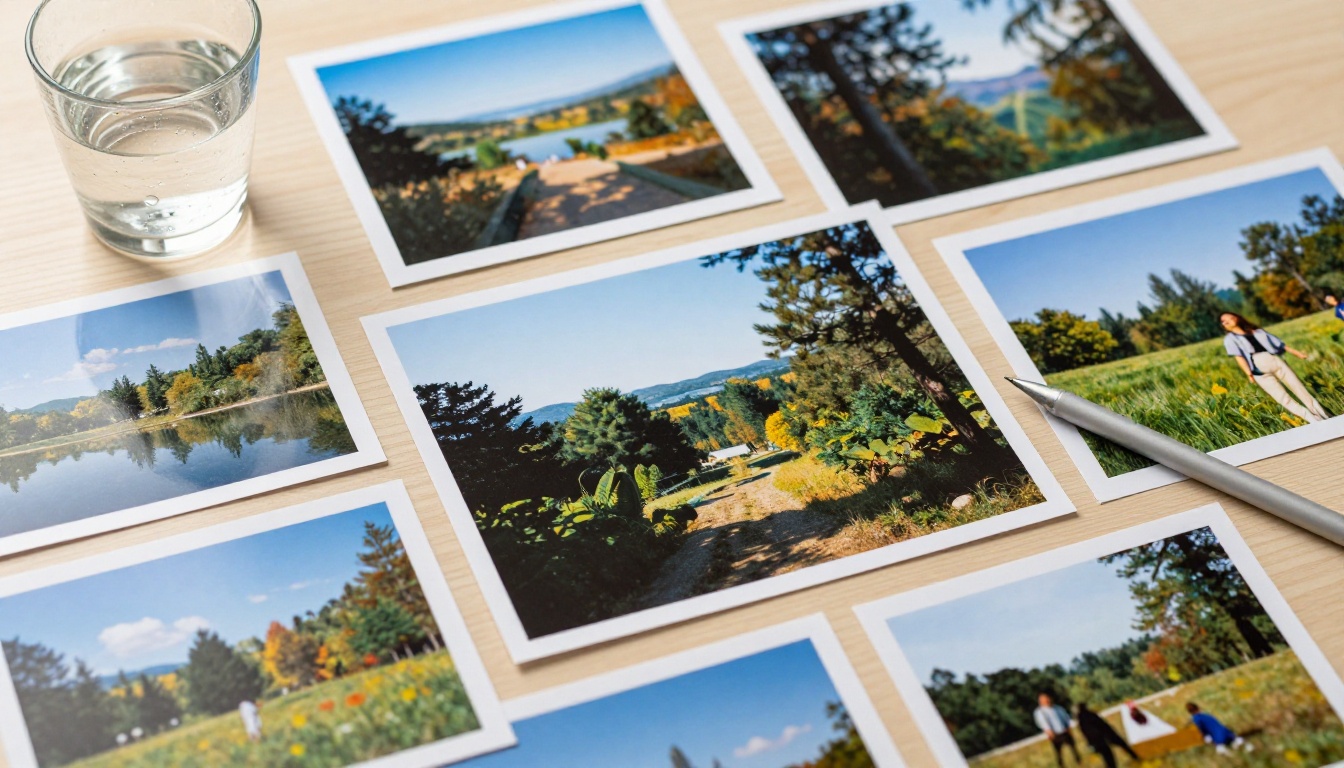
JPEG is the output format of cameras, smartphones, and most online export tools. It compresses images using a lossy algorithm that trades some fine detail for dramatically smaller file sizes. For photographic content, this tradeoff is almost always worth it.
When converting JPEG files to a flipbook, each image becomes one page of the publication. This works exceptionally well for:
- Photography portfolios with one image per spread
- Product showcases with one item per page
- Photo albums and event documentation
- Travel content where each image tells its own story
⚠️ Watch out: JPEG quality degrades each time you re-save the file. If your original has been compressed and saved multiple times, you will see visible artifacts on the flipbook page. Always work from the highest-quality source JPEG available.
JPEG flipbook preparation checklist:
- Minimum 1200px wide for readable detail on standard screens
- RGB color mode (not CMYK, which is designed for print output)
- Saved at 85-95% quality setting
- 16:9 or 4:3 ratio for the best screen fit without black bars
The Photography Portfolio Flipbook tool is built specifically for image-sequence publications.
PNG: Lossless Quality for Graphics and Illustrations
PNG does not use lossy compression. Every pixel value is stored exactly as-is, which makes it the right format when you need sharp edges, flat colors, or transparent backgrounds in your flipbook pages.
When PNG outperforms JPEG:
- Logos and brand assets with transparent layers
- Infographics with flat colors and fine typography
- Screenshots and UI mockups for software documentation
- Architectural drawings and technical diagrams
- Illustrations with clean, hard-edged line work
The tradeoff is file size. A PNG version of the same image will be significantly larger than a JPEG equivalent. For a multi-page flipbook built entirely from PNG files, this adds up quickly. For photographic content, JPEG remains the better choice. PNG is best reserved for graphic work where precision and transparency matter more than file size.
WebP: The Newer Format Worth Knowing
WebP is a modern image format developed by Google that supports both lossy and lossless compression in the same container. It typically produces files 25-35% smaller than equivalent JPEGs at the same visual quality. Browser support for WebP is now near-universal, and several flipbook platforms accept it as a direct upload format. If you are working with web-generated assets or images exported from modern design tools, WebP is a fully valid option.
PowerPoint Presentations
PowerPoint (.pptx) files are among the most commonly requested flipbook input formats. Marketing teams, sales professionals, and educators regularly want to convert slide decks into shareable interactive publications.
What converts and what does not
Slide animations, transitions, and interactive builds do not survive the conversion to flipbook format. Each slide becomes one static page. If your presentation uses animated builds to reveal content progressively, the flipbook will only show the final state of each slide.
Everything else converts well: typography, images, charts, icons, and color backgrounds all render accurately.
| Conversion Path | Layout Fidelity | Notes |
|---|
| PPTX direct upload | Good | Layout may shift slightly by platform |
| PPTX exported to standard PDF | Very Good | Reliable, predictable output |
| PPTX exported to high-quality PDF | Excellent | Best possible result |
The most reliable PowerPoint-to-flipbook path
- Finalize all slide content in PowerPoint
- Go to File > Export > Create PDF/XPS
- Select Standard for screen quality or High Quality for maximum fidelity
- Upload the resulting PDF to Flipbooks AI
This process takes less than two minutes and produces the cleanest possible output.
Presentation flipbook use cases:
- Sales decks converted to always-on digital leave-behinds
- Product demonstrations distributed via a shareable link
- Training materials sent to remote teams without requiring a PowerPoint license
See the Sales Presentation Flipbook and Presentation Flipbook Designer tools for purpose-built workflows.
Word Documents
Microsoft Word (.docx) files are a staple of business and editorial publishing. They can become flipbooks, but they benefit from one preparation step before upload.
Why Word-to-PDF-to-flipbook is the better path
Word documents use a flow-based layout system. The exact appearance of a .docx file depends on the fonts installed on the machine, the printer settings, and the margins configured in the document. When uploaded directly to a flipbook converter, the result can look slightly different from what you see on screen.
Exporting to PDF first locks the layout, fonts, and spacing into a fixed representation that converts predictably.
Word-to-flipbook workflow:
- Finalize all content and formatting in Word
- Set the page size to match your target output (A4 or Letter for most use cases)
- Go to File > Save As > PDF or File > Export > Create PDF/XPS
- Upload the exported PDF to Flipbooks AI
When direct Word upload works fine
For simple documents with mostly text, standard fonts, and basic tables, direct .docx upload can work acceptably. The converter paginates the content automatically. Results vary depending on the complexity of the document and the fonts used.
Word flipbook use cases:
- Employee handbooks and internal policy documents
- Company newsletters and internal communications
- Training materials and course handouts
- Reports with primarily text and simple data tables
The Training Manual Flipbook and Corporate Report Maker tools are built for exactly this type of content.
Beyond the four main types, several other file formats can work in a flipbook workflow with a small amount of preparation.
TIFF
TIFF is a lossless format widely used in professional photography, prepress production, and archival imaging. Quality is outstanding, but file sizes are very large. A single 300 DPI TIFF at print dimensions can easily exceed 30-80MB.
Most flipbook platforms accept TIFF but recommend converting to high-quality JPEG or PDF first to reduce upload time and avoid size limits.
SVG
Scalable Vector Graphics are resolution-independent, remaining perfectly sharp at any size. SVG is increasingly common as an output format from design tools like Figma and Adobe Illustrator.
SVG support in flipbook platforms varies. The most reliable approach is to export SVG-heavy designs as PDF from within the design tool, which preserves full vector quality in a universally supported format.
GIF
Animated GIF files contain multiple frames, but most flipbook converters treat each GIF as a single static image using the first frame. For flipbooks, export your GIF frames as individual JPEG or PNG files and upload them as a sequence, or build the content into a PDF layout.
Excel Spreadsheets (.xlsx)
Spreadsheets are not natural flipbook source material, but financial reports and data tables can be converted effectively. Set the print area in Excel, adjust column widths so content fits cleanly on each page, and export to PDF before uploading. This works well for Annual Report Creator and Non-Profit Annual Report workflows.
BMP and Legacy Formats
Bitmap (BMP) files are uncompressed raster images that produce files far larger than JPEG or PNG for no quality benefit. Most platforms accept BMP, but converting to JPEG or PNG first is always the better option. The same principle applies to outdated formats like PCX or TGA: convert them to a modern format before uploading.
The format you start with sets a ceiling on the quality of the flipbook you can produce. No conversion process can add resolution or detail that was not in the source file.
Full format comparison
| Format | Native Flipbook Support | Layout Fidelity | Image Quality | Best For |
|---|
| PDF | Universal | Excellent | Excellent | All publication types |
| JPEG | Universal | Single-image pages | Very Good | Photo albums, portfolios |
| PNG | Universal | Single-image pages | Excellent | Infographics, illustrations |
| PPTX | Variable (PDF path best) | Very Good | Good | Presentations |
| DOCX | Variable (PDF path best) | Very Good | Good | Reports, manuals |
| TIFF | Variable | Single-image pages | Excellent | Print-quality photography |
| SVG | Limited (PDF path best) | Excellent | Excellent | Vector-based designs |
| WebP | Growing | Single-image pages | Very Good | Modern web assets |
| BMP | Variable | Single-image pages | Good | Not recommended |
Resolution: The factor that applies to all formats
Whatever format you use, source resolution sets the upper limit on how sharp the flipbook looks. For a standard 1080p monitor, your pages need to be at least 1920px wide. For Retina and 4K displays, 2560px or higher produces noticeably sharper results.
Resolution targets by use case:
- Mobile-first sharing: 1200px wide minimum
- Standard web viewing: 1920px wide
- High-DPI and professional publishing: 2560px or higher
💡 A 72 DPI image at standard web dimensions appears fine on screen in most design tools, but when stretched to fill a full-screen flipbook page, the pixelation becomes obvious. Always source from the highest resolution available.
Turn Any File Into a Flipbook with Flipbooks AI
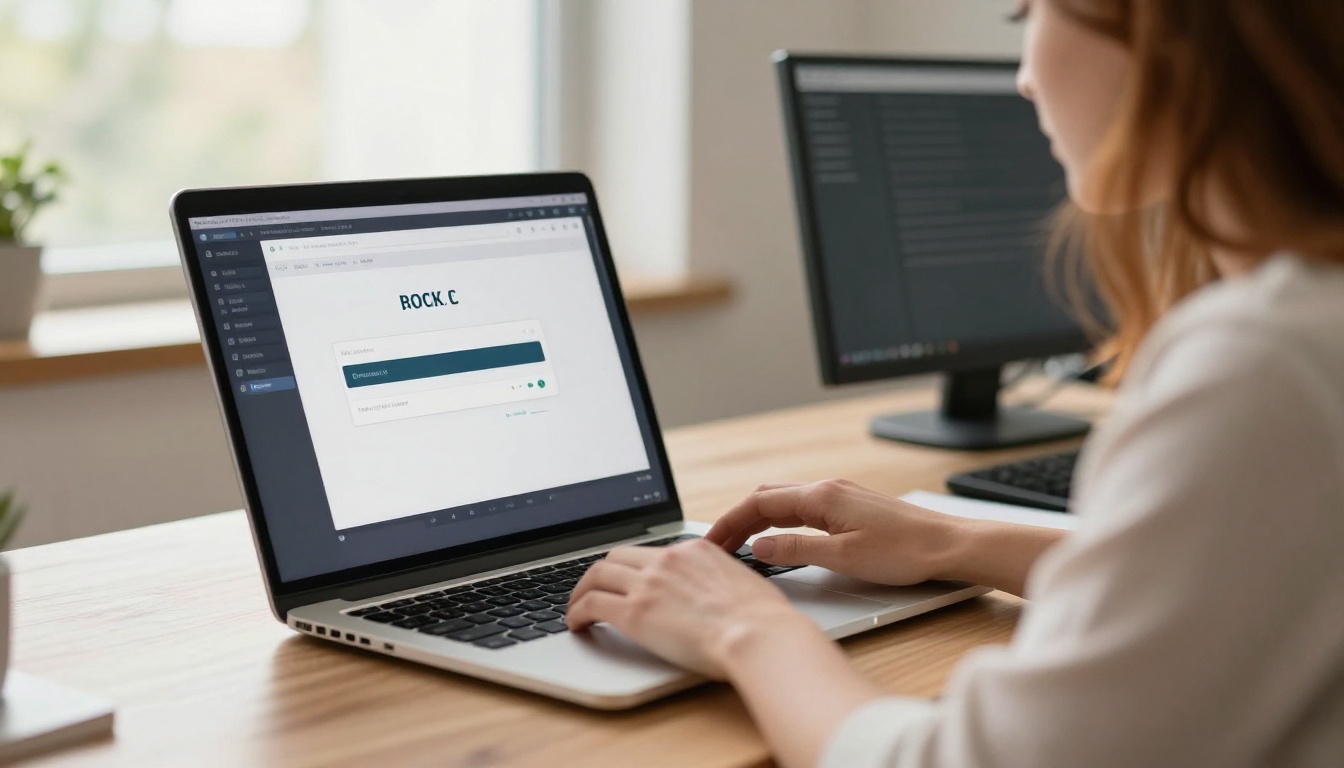
Flipbooks AI accepts PDF, JPEG, PNG, and other common formats, converting them into fully interactive flipbooks in seconds. Here is the process for any source file.
1. Prepare your file
- PDF: Export at high quality from your design or office tool
- Images: Minimum 1200px width; use JPEG for photos, PNG for graphics
- PowerPoint or Word: Export to PDF first for the best result
2. Create a free account
Visit Flipbooks AI and sign up. No credit card is required to begin.
3. Upload and convert
From the dashboard, click Create New Flipbook and drag your file into the upload area. The conversion runs automatically and typically completes in seconds.
4. Customize your flipbook
Once the pages load in the editor, you can:
- Add custom branding: logo, colors, and custom domain
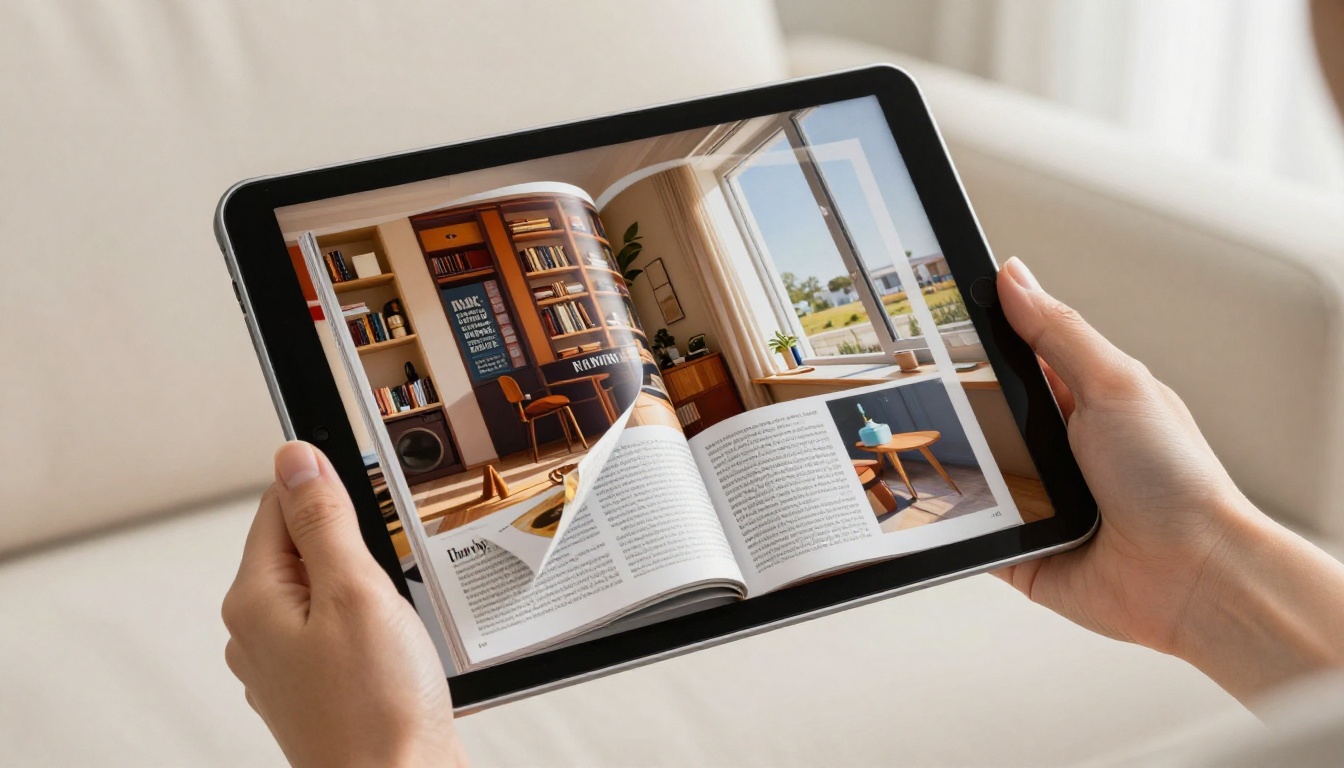
- Select page-flip animations and visual effects
- Embed videos and audio directly into individual pages
- Set a password for private or gated content
5. Share or embed
When the flipbook is ready:
- Shareable link: Copy a direct URL for anyone to view
- Embed code: Place the flipbook on any website using the Embed Flipbook on Website tool
- Offline download: Available on the Professional plan
- Analytics: Track page views and reader activity with the Professional plan
What every plan includes:
- No watermarks
- Password protection for private content
- Mobile-responsive flipbook design
- Custom branding options
- Unlimited flipbooks on Standard plan and above
The decision becomes straightforward once you know your source material. Use this table to pick the right path for your project.

✅ Best practice: When in doubt, export to PDF from your source tool before uploading. PDF is the one format that converts consistently across all content types and all platforms.
The Short Answer
PDF is the most reliable, highest-fidelity format for flipbook creation. JPEG and PNG work well for image-centric publications where each file becomes one page. PowerPoint and Word files produce the best results when exported to PDF first. Formats like TIFF, SVG, and WebP can work but usually benefit from a conversion step.
Whatever you are starting with, Flipbooks AI handles the conversion and produces a clean, shareable flipbook in seconds. Create your account and upload your first file for free. When you are ready for password protection, analytics, and offline downloads, compare the pricing plans to find what fits. Browse the full tools directory to find a purpose-built starting point for your specific project type.



