You send the link. You wait. And then comes the message nobody wants to see: "Hey, I'm getting an access error, can you resend?" At that exact moment, your first impression is already in ruins. Not because your work was bad, not because your proposal was weak, but because a Google Drive link got in the way before your client even saw a single word.
Flipbooks AI exists precisely because document sharing is broken, and the way most professionals share their work is actively undermining them. This article pulls apart the exact mechanisms that make Google Drive links damaging to your professional image, shows you the real-world scenarios where it costs deals, and walks you through what to do instead.
The Moment the Link Gets Clicked
What actually happens on their end
When you send a Google Drive link, here is what your recipient actually experiences: a redirect to a Google login prompt if they are not already signed in, a permissions check, a possible "Request Access" dialog, and then, if they make it through, a generic Google viewer with no branding, no context, and a toolbar full of Google controls.
That sequence takes 10 to 30 seconds on a good day. On mobile, it can be longer. And every second of friction is a second where the person on the other end is thinking about the process, not your content.

What first impressions actually measure
Research in consumer psychology consistently shows that first impressions form in under seven seconds and persist even after contradictory information appears. When applied to document sharing, this means the experience of opening your document matters as much as the document itself.
A confusing, unbranded, access-restricted viewer communicates one thing: this person does not think carefully about how I experience their work. That is a statement about professionalism, attention to detail, and client care. It is not the statement you want to make before a single word of your proposal has been read.
💡 The document is your product. The sharing experience is your packaging. No one respects a gift wrapped in a paper bag.
5 Ways Drive Links Actively Work Against You
The "Request Access" wall stops them cold
The most common failure point is the permissions screen. If you sent a link and forgot to set it to "Anyone with the link," your recipient hits a wall immediately. They have to type in a request, wait for you to approve it, and then try again later.
Even when you set permissions correctly, recipients using a work Google account sometimes get blocked by their organization's own security policies. The link works for you but not for them. There is no way to know this in advance, and by the time you find out, you have already made them do extra work just to see something you wanted them to see.
No branding means no identity
Google Drive strips your identity from the viewing experience entirely. Your recipient sees Google's interface, Google's toolbar, Google's colors. Your logo is not there. Your company colors are not there. Nothing connects the document experience to your brand.
For freelancers sending portfolios, this is especially damaging. The work inside might be brilliant, but the container says "generic file storage." For agencies sending proposals, it signals that the client's experience was an afterthought, not a priority.
It looks like a work-in-progress
Drive links are how people share rough drafts with colleagues. They are the internal tool for "hey, take a quick look at this." When you send that same link to a client or prospect, you are using the vocabulary of internal drafts in a context that demands finished presentation.
Perception matters. A document in a clean, branded, interactive viewer reads as a final deliverable. The same document in Drive reads as something that is still being figured out.
Download prompts disrupt the flow
Even when a Drive link opens without issue, viewers are often prompted to download the file. For large PDFs, this means waiting, then the file opens in a separate application, completely disconnecting the reader from any online experience you hoped to create. If your document had links, form fills, or any interactive elements, they often do not survive the download process intact.
Mobile rendering is genuinely painful
More than 60% of business emails are opened on mobile. A Google Drive PDF viewer on a mobile browser is functional, barely. Pages do not reflow. Pinch-to-zoom is often required. Scrolling through a multi-page document on a phone using Drive is a frustrating experience that most people abandon before finishing.
⚠️ If your prospect is reading your proposal on a phone during a commute, a Drive link may mean they never actually read it at all.
The Real Cost Across Different Scenarios
Sales proposals and pitches
A sales proposal sent via Drive link puts the burden of effort on the buyer. The buyer has to work to access your case for why they should pay you. That reversal of effort signals low attention to the client experience and raises questions about how carefully you will manage their project.
A well-structured, interactive proposal in a dedicated viewer lets the buyer scroll naturally, see structured pricing tables, and click through to relevant sections. The experience mirrors the professionalism you are promising in the proposal itself.

Restaurant and hospitality menus
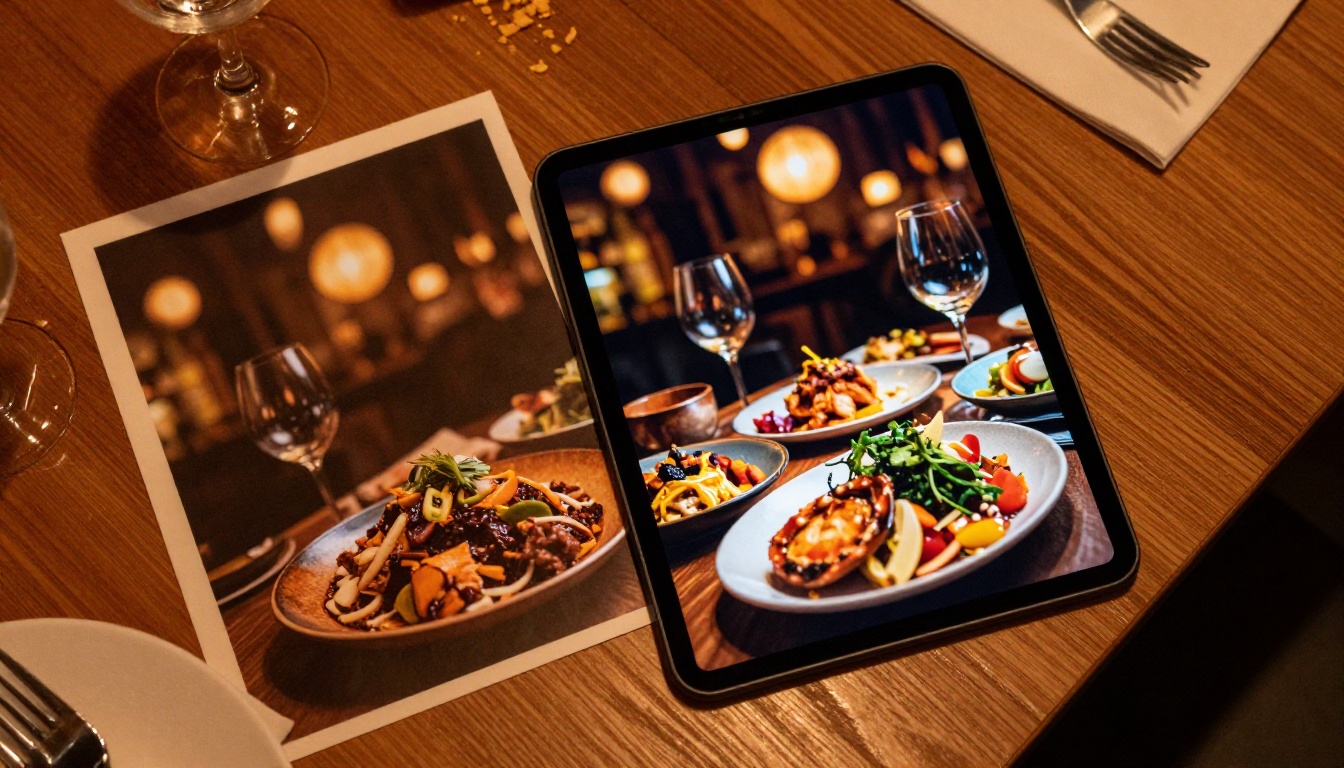
A restaurant that sends a Google Drive PDF menu to a customer asking what they serve is leaving the table before the meal starts. The Drive experience does not support beautiful food photography. Pages load slowly. Zooming in to read menu text on mobile is a chore that creates friction before the customer has even decided to visit.
The Restaurant Menu Creator produces a shareable, mobile-responsive interactive menu that renders beautifully on any device, with no access issues and no download prompts. Hotels benefit from the same approach with the Hotel Brochure Designer, which creates a link that feels as polished as the property it describes.
Real estate brochures and property listings
A real estate agent who sends a Drive link to a property brochure is relying on the buyer to fight through friction before they even see the property. In a competitive market, that friction is enough to lose the lead. A polished, page-turning Real Estate Brochure with embedded imagery and a clean shareable URL sends a completely different message about how seriously you take your clients.

Google Drive vs. Professional Flipbook: Side by Side
This table covers the practical differences between sharing a document via Google Drive versus sharing it as a professional interactive flipbook.
| Feature | Google Drive Link | Professional Flipbook |
|---|
| Access friction | High (permissions, login walls) | None (clean public URL) |
| Mobile experience | Poor (requires pinch-zoom) | Excellent (fully responsive) |
| Custom branding | None | Full (colors, logo, fonts) |
| Page-turn interaction | None | Smooth animated pages |
| Password protection | Basic sharing settings only | Dedicated password per document |
| Analytics and tracking | None | View counts, time-on-page |
| Embed on website | No | Yes (iframe embed code) |
| Download prompt | Frequent and disruptive | Optional, toggled off by default |
| Professional perception | Internal draft tool | Finished client deliverable |
| Offline availability | Requires Google app | Available on Professional plan |
✅ Every single factor that determines whether a document makes a strong first impression favors the professional flipbook format.
Comparing Sharing Options for Business Documents
Different document types have different needs. This table maps document categories to the most common sharing methods and their suitability in professional contexts.
| Document Type | Email Attachment | Google Drive Link | Interactive Flipbook |
|---|
| Sales proposal | Acceptable | Poor | Excellent |
| Product catalog | Poor (size limits) | Poor | Excellent |
| Restaurant menu | Poor | Poor | Excellent |
| Annual report | Acceptable | Acceptable | Excellent |
| Design portfolio | Poor | Acceptable | Excellent |
| Training manual | Acceptable | Acceptable | Excellent |
| Event program | Acceptable | Poor | Excellent |
| Price list | Acceptable | Poor | Excellent |
| Lookbook / catalog | Poor | Poor | Excellent |
The pattern is consistent across every category. Email attachments hit size limits. Drive links introduce friction and strip branding. Interactive flipbooks work without exception and add value at every step.
How to Create a Professional Shareable Document with Flipbooks AI
Replacing Drive links with something that works in your favor takes less time than it sounds.
Step 1: Create your account
Go to Flipbooks AI and sign up for free. No credit card is required to start. The free tier lets you test the platform with real documents before committing.
Step 2: Choose the right tool for your document type
Browse the tools directory to find the tool that fits your use case. Creating a product catalog? Use the Digital Catalog Maker. Sharing a portfolio? Use the Digital Portfolio Creator. Sending a presentation? Use the Presentation Flipbook Designer.
Step 3: Upload your existing PDF
Once inside the tool, upload your PDF. The platform converts it automatically into an interactive flipbook with smooth page-turn animations. Most documents under 50 pages convert in under a minute.
Step 4: Apply your branding
Use the customization panel to set your brand colors, upload your logo, and adjust font styles. This is the step that transforms a generic document into something that carries your identity from the first click to the last page.
Step 5: Configure sharing settings
Choose whether the flipbook is public, password-protected, or restricted to specific viewers. Copy the clean shareable URL. This is the link you send instead of a Drive link, and it will open without friction on any device.
Step 6: Share, embed, and track
Send the URL in email, embed it on your website using the provided iframe code, or drop it into a message. On the Professional plan, you can track view counts, time spent on each page, and return visits.
💡 Password protection is available on Standard and above plans. For sensitive proposals or confidential reports, set a password and send it separately from the link. This adds a security layer without adding friction for authorized viewers.
Flipbooks AI Plan Comparison
| Feature | Free | Standard | Professional |
|---|
| Flipbooks | 3 | Unlimited | Unlimited |
| Watermark | Yes | No | No |
| Custom branding | No | Yes | Yes |
| Password protection | No | Yes | Yes |
| Analytics | No | No | Yes |
| Lead generation forms | No | No | Yes |
| Offline download | No | No | Yes |
| Embed on website | Yes | Yes | Yes |
| Mobile-responsive | Yes | Yes | Yes |
| Custom domain | No | No | Yes |
The Standard plan removes watermarks and adds full branding control. The Professional plan turns your documents into sales and marketing assets with analytics, lead capture, and offline availability. See the full pricing breakdown to choose the tier that fits your workflow.
Who Should Switch Right Now
Freelancers and consultants
If you send proposals, portfolios, or project reports to clients, a Drive link is actively costing you work. A client who struggles to open your portfolio will not look for an alternative way in. They will move to the next candidate. Your work should open beautifully on the first click, with your name and branding visible immediately, not after navigating Google's permission screens.
Sales teams
Every sales proposal is a first impression, and in multi-stakeholder deals, the document gets forwarded to people who were not expecting it. When it lands in someone's inbox cold, it needs to open cleanly without any setup or account login. Drive links fail this test regularly. Interactive flipbooks with clean public URLs pass every time.

Marketing departments
Marketing teams produce catalogs, lookbooks, newsletters, and campaign materials constantly. The E-Magazine Publishing Tool and Newsletter Flipbook Publisher give marketing teams control over how branded content is experienced at the moment of sharing, not just at the moment of production. Analytics on the Professional plan show exactly which content is being read and for how long.
Hospitality and food businesses
A restaurant, hotel, or spa that sends menus or service guides via Drive is missing the chance to create an experience before the customer arrives. The Spa and Wellness Menu Creator and the Restaurant Menu Creator produce shareable links that feel as considered as the physical experience they represent.
Educators and training teams
Training manuals and course materials sent as Drive links are often downloaded, saved locally, and immediately disconnected from any updates you make to the source. The Training Manual Flipbook and Course Material Publisher produce live links that always show the current version of your content, with no redistribution of stale copies.
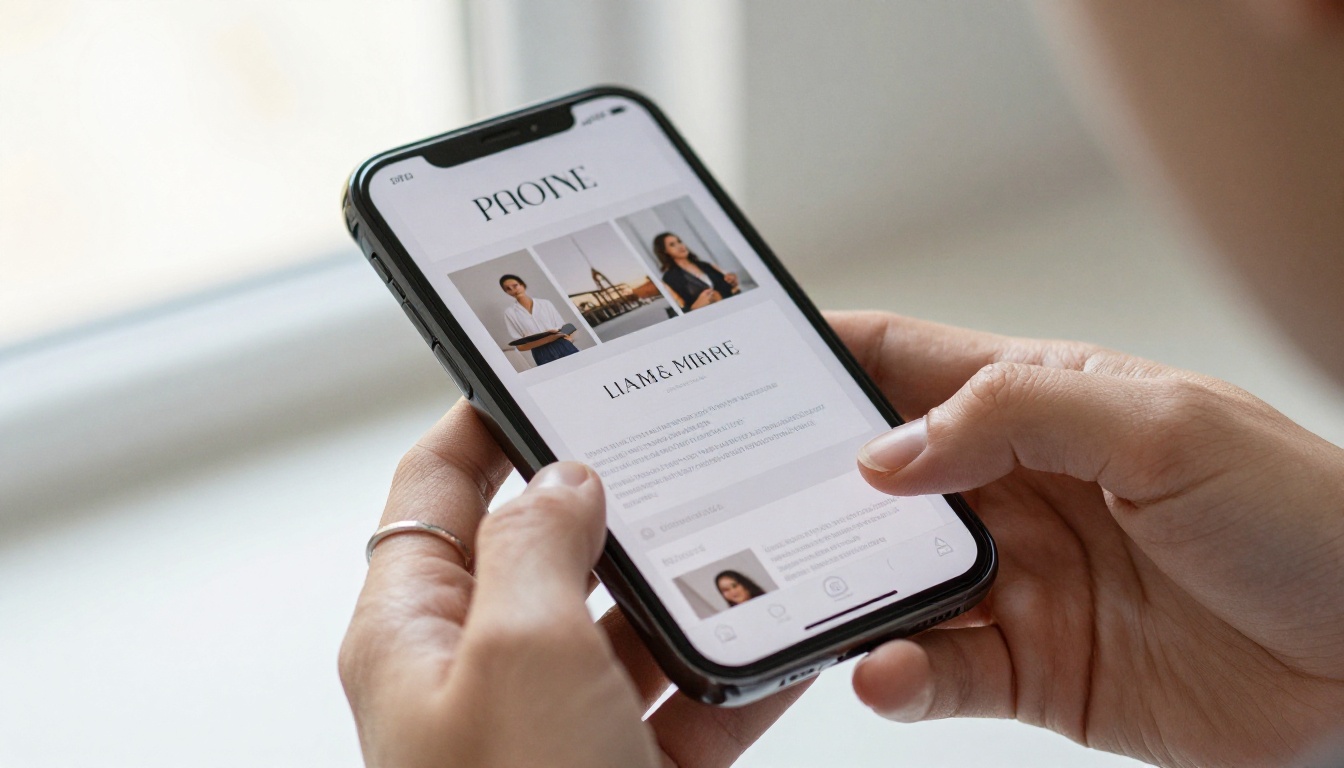
The Link You Send Is Part of the Product
There is no version of professional document sharing where the experience of opening the document does not matter. Your client's first contact with your work is not the words on page one. It is the second they click the link you sent.
Google Drive was built for internal collaboration, not client-facing presentation. Using it as a client delivery tool is the equivalent of handing someone a whiteboard sketch when they asked to see your finished design. The content might be identical. The impression is not.
A clean, branded, zero-friction flipbook link tells your recipient three things before they read a word: you thought about their experience, you present your work with care, and you operate with a level of professionalism that extends to every touchpoint.
Ready to replace every Drive link in your workflow? Create your account on Flipbooks AI and convert your first document for free. Browse all available tools to find the right format for every document type you share, from sales proposals to product catalogs to annual reports.
If you are ready to add analytics and lead capture to your documents, compare plans and choose the tier that fits. Your next first impression should not be left to a file sharing permission screen.



