You spent real time perfecting your flipbook's opening page. The typography is right, the colors are on brand, and the imagery is strong. Then you upload the PDF, click preview, and something is visibly wrong. The top of the page is missing. An edge is sliced off. Your headline disappears behind a clipping boundary you never designed for. This problem is more common than most people expect, and nearly every case has a fixable root cause. Flipbooks AI is built to display your PDF exactly as designed, but the viewer can only work with what the file provides.
The good news: fixing a clipped first page almost always comes down to one of four issues, all correctable in under ten minutes once you know what to look for.
What "Cut Off" Really Looks Like
Before fixing anything, it helps to name exactly what you are seeing. "Cut off" means different things depending on where the clipping happens, and each type points to a different root cause.
Three Common Clipping Patterns
- Top-edge clip: The top strip of the page is missing. This is usually caused by a page size mismatch or a bleed area being trimmed by the viewer.
- Side-edge clip: Left or right content disappears. Often happens when a portrait PDF is displayed in a landscape-biased viewer, or when the browser window is unusually narrow.
- All-four-edges clip: A thin strip is lost on every side. Almost always a bleed area embedded in the PDF that the viewer reads as part of the visible page dimensions.
- Bottom-edge clip: The footer or lower image of the page disappears. Frequently caused by the viewer's toolbar overlapping the bottom of the page frame, especially on mobile.
How the Viewer Renders Your First Page
When you upload a PDF, the flipbook viewer reads the page's embedded dimensions and renders it inside a fixed-ratio frame. If your PDF page does not match that frame's aspect ratio, the viewer must make a decision: letterbox (add padding on the sides), crop (hide the overflow), or stretch (distort proportions to fill the frame). Most modern viewers default to filling the frame, which means anything outside the target ratio gets clipped.
The viewer is not malfunctioning. It is doing exactly what it is designed to do with the dimensions it receives. When the dimensions are wrong, the display is wrong.
⚠️ Important: If your first page looks clipped, the PDF's dimensions or content placement do not align with how the viewer expects to display it. The file is almost always the source of the problem.
Why Pages Get Clipped
There are four distinct reasons a first page ends up truncated in a flipbook viewer. Knowing all four means you can diagnose the issue on the first try.
PDF Page Size Doesn't Match the Viewer
The most common issue is a simple dimension mismatch. If your PDF was designed at a non-standard page size, the flipbook viewer's frame ratio will not align with it, and something will be cropped.

Standard page sizes that cause the fewest display problems:
| Page Size | Dimensions | Orientation | Works Best For |
|---|
| A4 | 210 x 297 mm | Portrait | Reports, brochures, magazines |
| Letter | 8.5 x 11 in | Portrait | US business documents |
| A3 | 297 x 420 mm | Landscape | Spreads, catalogs |
| Square | 210 x 210 mm | Square | Lookbooks, portfolios |
| Tabloid | 11 x 17 in | Landscape | Large-format catalogs |
If your PDF was exported at an unusual custom size, such as 213x301mm or 850x1100px without a standard ratio baseline, the viewer has to interpolate the display, and first-page cropping is the likely outcome.
Your Design Has Embedded Bleeds
A bleed is a zone beyond the visible page boundary where background colors and edge-touching images extend slightly past the trim line. In print design, bleeds prevent white borders if the physical cutting is slightly off. In digital publishing, bleeds cause problems.
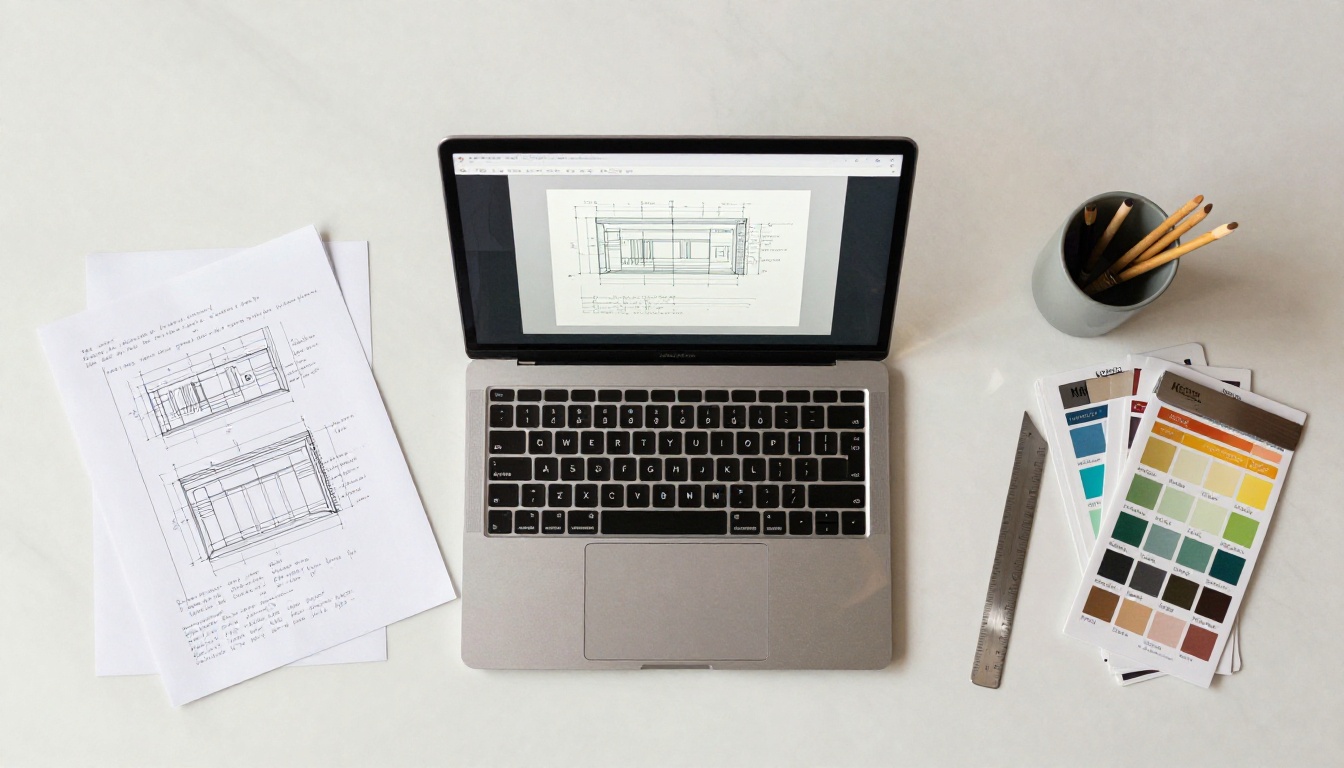
When a PDF is exported with bleeds, the file's embedded page dimensions are larger than the design's visible area. The flipbook viewer sees the full bleed-inclusive page size and scales its frame to match. This means your actual visible content is now centered in a frame sized for the bleed extension, and the edges of your real page appear cropped.
💡 Pro tip: If you are exporting a PDF originally created for print, always export a separate digital version with bleeds explicitly set to 0mm on all sides. Never reuse a print export preset for digital publishing.
Aspect Ratio Mismatch in the Preview Window
Even with correct page dimensions, the browser window in which the flipbook is viewed has its own aspect ratio. If the browser window is narrower or shorter than the PDF's proportions, the viewer trims the overflow rather than adding scrollbars.
This is especially visible when a portrait PDF is previewed in a very short, wide browser window, or when a landscape PDF is opened on a tall, narrow mobile screen.
Content Too Close to Page Edges
This is a design-level issue rather than a technical one. Even if the viewer displays the full page correctly, content placed right at the edge of the page boundary is at risk of being obscured by the viewer's own UI elements: page-turn controls, navigation arrows, toolbar overlays, and shadow effects. The practical safe zone for digital publications is at least 5mm or 0.2 inches from any page edge.
Checking Your PDF Before Uploading
A three-minute preflight check before uploading catches the vast majority of these issues before they reach your readers.
Step 1: Verify Page Dimensions
Open your PDF in any standalone viewer (Adobe Reader, Preview on Mac, or Chrome's built-in PDF viewer) and check the document properties. On most viewers this is File > Properties > Description, or pressing Ctrl+D. The "Page Size" field shows the exact dimensions the flipbook viewer will receive.
If the dimensions shown differ from what you designed, the export settings did not match the document setup. Common mismatches include millimeters vs. inches rounding errors and artboard sizes that include the bleed extension.
Step 2: Check for Embedded Bleeds
If your page dimensions are slightly larger than your intended design, for example A4 is 210x297mm but your PDF shows 216x303mm, the file was exported with a 3mm bleed on all sides included. You need to re-export with bleed set to zero.
Step 3: Apply the Safe Zone Rule
Any critical element, a logo, a headline, a phone number, a call-to-action, should sit at minimum 5mm from every edge. This is the "safe zone." Think of it as a mandatory internal margin for digital display.
✅ Best practice: In your design software, create non-printing guide lines at 5mm from each edge. Place nothing important outside those guides. Some designers use 8-10mm for high-stakes publications.
Fixing It in Your Design Software
The exact steps vary by software, but the principles are the same across every tool.
Correct Page Setup from the Start
In Adobe InDesign: File > Document Setup. Set Width and Height to your target. For a standard flipbook, 210x297mm (A4 portrait) or 297x210mm (A4 landscape) are reliable choices.
In Adobe Illustrator: File > Document Setup, then Artboard Options. Match the artboard size to the intended PDF output, not to the print bleed size.
In Canva: Use a custom size in millimeters or pixels. For a standard portrait publication, 794x1123px (at 96dpi, equivalent to A4) works reliably across most viewers.
In Affinity Publisher: File > Document Setup. Set "Bleed" to 0mm on all four sides for any digital-only export, even when repurposing a print-designed file.
Exporting Without Bleeds
When exporting to PDF, bleed settings must be explicitly set to zero unless the output is going to a printer. A very common mistake is reusing a print export preset, which includes bleeds and crop marks, for a digital publishing workflow.
| Design Software | Where to Remove Bleeds | Setting to Zero |
|---|
| Adobe InDesign | File > Export > Marks & Bleeds | Uncheck "Use Document Bleed Settings" |
| Adobe Illustrator | File > Save as PDF > Marks & Bleeds | Set all bleed fields to 0pt |
| Canva | Download > PDF Print vs PDF Standard | Use "PDF Standard" (no bleeds) |
| Affinity Publisher | File > Export > PDF > More | Set bleed to 0mm |
| Microsoft Publisher | File > Export > Publish PDF/XPS | Advanced Options > Bleed = None |
How to Fix This with Flipbooks AI
Flipbooks AI provides a clean, straightforward upload-and-display workflow. Here is how to use it correctly so your opening page displays exactly as designed.

Step 1: Create or log in to your account
Head to flipbooksai.com/account and sign in. If you are new, setup takes under two minutes.
Step 2: Upload your corrected PDF
Click "New Flipbook" and select your corrected PDF. Before uploading, confirm these three things:
- Page dimensions match a standard size (A4, Letter, A3, or a square)
- No bleeds are embedded in the file (check that PDF dimensions match your artboard size)
- Critical content sits within the 5mm safe zone on every side
Step 3: Preview the first page immediately
After processing, the platform generates a live preview. Check the first page at multiple zoom levels and, critically, switch to the mobile view. Mobile viewports are narrower and will expose any remaining edge issues that desktop previews do not catch.
Step 4: Adjust display settings if needed
In the editor, you can control padding, background color behind the page, and the viewer's aspect ratio fitting. If the first page still appears slightly clipped on mobile after uploading a corrected PDF, increasing the internal padding value by 5-10px often resolves the issue without modifying the source file.
Step 5: Publish and verify across real devices
Once you publish, open the live link on a phone, a tablet, and a desktop browser. Real device testing catches rendering differences that browser-based simulators sometimes miss.
💡 No watermarks, ever: On the Standard plan and above, your published flipbook displays no watermarks, meaning your opening page shows exactly as you designed it to every visitor.
The platform's PDF to Flipbook Converter is purpose-built for clean first-page display. For product catalogs specifically, the Digital Catalog Maker offers presets tuned to common catalog page dimensions, which reduces display issues from the start.
Good vs. Bad First-Page Design
The difference between a first page that displays correctly and one that gets clipped often comes down to a few specific decisions made during design and export.
| Element | Wrong Approach | Right Approach |
|---|
| Page size | Custom dimensions (e.g., 213x301mm) | Standard size (A4, Letter, A3) |
| Bleed | Exported with 3mm bleed | Exported at 0mm bleed |
| Headline placement | Touching the page edge | At least 5mm from every edge |
| Background color | Stops at exact page boundary | Fills to bleed or uses 0mm bleed export |
| Export preset | Print preset reused | Digital PDF Standard preset |
| File size | 50MB+ uncompressed | Under 20MB, images compressed |
Why Mobile Makes This Worse
The clipping problem is often minor on a large desktop screen and significantly more obvious on mobile. There are two distinct reasons.
Portrait vs. Landscape in Mobile Viewers
Most flipbook viewers default to portrait mode on mobile. If your PDF is landscape (wider than tall), the mobile viewer has to fit a wide page into a tall frame. The result is heavy letterboxing or, in some viewers, cropping of the sides entirely.
If your document must be landscape-oriented, consider whether a two-page spread approach would display better. Alternatively, creating a separate portrait-oriented version for mobile distribution is a practical solution for high-traffic publications.
Responsive Padding and Device Chrome
Mobile browsers apply their own viewport margins and UI chrome, including the address bar and the bottom navigation bar, that reduce the available display area significantly. A page that fits perfectly in a 1024px wide desktop preview may clip slightly on a 375px wide mobile screen. Build in the 5mm safe zone with mobile viewports in mind, not just desktop previews.

⚠️ Always test on a real phone. Browser device simulators scale content differently than actual hardware. A 30-second real-device test prevents a week of reader complaints about clipped text and missing imagery.
Quick Diagnostic Checklist
Run through these checks in order before concluding the issue is with the flipbook platform rather than the source file.
| Check | What to Look For | If Wrong |
|---|
| PDF page dimensions | Standard size (A4, Letter, etc.) | Rebuild document at a standard size |
| Embedded bleeds | Page larger than the design intent | Re-export with 0mm bleed on all sides |
| Content in safe zone | Nothing critical within 5mm of edge | Move elements inward |
| Export preset | Digital preset, not print preset | Re-export using PDF Standard preset |
| File size | Under 20MB recommended | Compress images before export |
| Mobile preview | First page fully visible | Add 5-10px viewer padding in settings |
When It Is the Platform, Not the File
Very occasionally, the clipping is not caused by the PDF. If you have confirmed that your PDF opens at the correct dimensions in a standalone viewer, contains no embedded bleeds, places critical content well within the safe zone, and the same file displays correctly in other tools, the issue may be a rendering quirk on the platform side.
In that case, contacting support with the exact page dimensions and a screenshot showing the clipping is the fastest path to a resolution.
If you are embedding the flipbook via iframe on your own website, the iframe's own width and height constraints can also cause clipping that does not appear in the standalone player. Check the iframe dimensions. A minimum width of 600px and a minimum height of 400px is a safe starting point for most portrait documents embedded on external pages.
Getting Your First Page Right
The cause is almost always in the file, not the platform. A corrected PDF, exported at a standard size with no embedded bleeds and content safely inside the margin zone, will display cleanly in virtually every flipbook viewer.
Once your PDF is clean, Flipbooks AI handles everything else: conversion, display optimization, mobile responsiveness, and sharing. The platform works for everything from single-page lookbooks to multi-hundred-page catalogs, with purpose-built tools for every format.
For brochures, the Online Brochure Designer is worth a look. For digital magazines, the E-Magazine Publishing Tool handles complex multi-page layouts with the first page as the focal point of the publication's presentation.
Ready to publish a flipbook that displays exactly as you designed it? Create your free account and upload your corrected PDF. Browse all available tools to find the right starting point for your document type, or compare pricing plans to choose what fits your publishing volume.



