You updated your PDF, re-uploaded it, clicked save, and then opened your flipbook link expecting to see the fresh version. Instead, you are staring at the old one. Every page, every outdated price, every wrong date is still sitting there as if nothing changed. This is one of the most common frustrations in digital publishing, and every single cause has a clear, direct fix. This article walks you through exactly why your Flipbooks AI publication gets stuck on old content, and how to clear it out for good.

The Most Common Culprit: Browser Cache
Before blaming the platform, start with the browser. In the vast majority of cases where a flipbook displays old content, the problem sits entirely in the viewer's browser cache. This is not a bug. It is how the internet is designed to work.
What caching does to your flipbook
When someone visits your flipbook for the first time, their browser stores a local copy of the files: the HTML, the CSS, the JavaScript, and the images. The next visit, instead of downloading everything again, the browser serves that saved version. It loads faster, uses less bandwidth, and feels snappier. When you update your flipbook, the browser does not automatically know. It looks at the stored copy, sees that the URL has not changed, and loads the old version from its own memory.
This is especially noticeable with:
- Shared links that have been clicked before
- Embedded flipbooks on websites that have been cached
- Mobile devices, which tend to hold cache for longer
- Corporate networks, where proxy servers can store copies centrally
⚠️ Warning: Simply clicking the reload button often does not clear the cache. The browser reloads the page but can still serve cached assets from memory.
How to hard-refresh and clear your cache
A hard refresh forces the browser to bypass its cache and pull a fresh copy from the server. Here are the shortcuts by browser:
| Browser | Windows/Linux Hard Refresh | Mac Hard Refresh |
|---|
| Chrome | Ctrl + Shift + R | Cmd + Shift + R |
| Firefox | Ctrl + Shift + R | Cmd + Shift + R |
| Edge | Ctrl + Shift + R | Cmd + Shift + R |
| Safari | Develop menu, then Empty Caches | Cmd + Option + E, then reload |
For a full cache clear in Chrome: open Settings, then Privacy and Security, then Clear Browsing Data. Select "Cached images and files" and hit Clear Data. Then revisit your flipbook URL.
💡 Pro tip: Always test your updated flipbook in an incognito or private browsing window first. These sessions start with a completely clean cache every time, so you see exactly what a new visitor will see.
Your Embed Code Points to the Old File
If you updated your flipbook and regenerated it entirely, rather than just editing its settings, there is a strong chance your embed code is now pointing to an outdated version. This is the second most common reason for old-version problems.
What happens when you re-upload a PDF
When you upload a new PDF to a platform, the system typically generates a new flipbook instance with a new identifier. The previous embed code you copied still works, but it targets the old publication. Your website keeps showing the previous version because the iframe source has not changed.
This happens frequently when:
- You fix errors in a product catalog and re-upload the PDF
- You update a price list or menu and create a fresh flipbook
- You replace an annual report with a revised edition
- You redesign a brochure and upload the new file as a separate flipbook
⚠️ Warning: Simply replacing the source PDF on the platform side does not always update existing embedded flipbooks. Always verify by copying the new embed code and testing it in a clean browser session.
Updating your embed code the right way
- Open your updated flipbook in Flipbooks AI
- Navigate to the Share or Embed section
- Copy the new iframe or embed snippet
- Replace the old embed code in your website, CMS, or email template
- Save and publish your page change
- Test in a private browser window to confirm the new version loads
Using the Embed Flipbook on Website tool makes this process clean and reliable. The embed codes it generates are always tied to the current version of your flipbook, and you can control access, sizing, and autoplay directly from the tool. This is particularly useful for businesses embedding catalogs, menus, or brochures directly on their websites.
CDN Cache and Delivery Delays
Even after fixing your own browser cache and updating your embed code, there is still one more layer that can hold onto old content: the Content Delivery Network, or CDN.
How CDN caching works behind the scenes
CDNs are global networks of servers placed at strategic locations around the world. When a user in Tokyo opens your flipbook, they do not connect to a server in New York. They connect to the nearest CDN node, which caches a copy of your flipbook to serve it faster. These cached copies save bandwidth and dramatically improve load times for everyone.
The trade-off is that CDN nodes do not instantly refresh when you update your content. They hold onto their cached version for a set period of time, called the TTL (Time to Live). Depending on how the platform has configured its CDN, this could range from a few minutes to 24 hours.

How long before the new version appears
| Cache Layer | Typical Refresh Time | Controlled By |
|---|
| Your browser | Immediately with a hard refresh | You |
| Your website server | Minutes to 1 hour | Your web host |
| CDN nodes | 1 to 24 hours | Flipbook platform |
| Corporate or ISP proxy | Up to 48 hours | Network admin |
| Mobile device cache | Up to 72 hours | Device OS |
Most modern flipbook platforms, including Flipbooks AI, set relatively short CDN TTLs and trigger cache invalidation automatically when a flipbook is updated. If you updated your flipbook and it still looks old after 30 minutes, the CDN is rarely the cause. Start with browser cache and embed codes first.
💡 Pro tip: If you suspect a CDN issue, try accessing your flipbook from a mobile data connection rather than Wi-Fi. Mobile carriers often have their own routing that can bypass corporate or local network caches and show you a more up-to-date version.
Shared Links That Show the Wrong Version
If you send a flipbook link to clients or colleagues and later update the flipbook, the people who clicked your original link may still see the old version. Here is why.
Why old share links stay alive
Share links point to a specific flipbook by its identifier. In most cases, that identifier does not change when you update the content within the same flipbook. So the link is still valid and still works. The browser loads the page, but the browser (or a middle proxy) has cached the old assets and serves those instead.
In a small number of cases, especially if you deleted the original flipbook and created a brand-new one with the same or similar name, the old link may point to a broken or entirely different publication. This is common when businesses do seasonal updates to catalogs or menus and accidentally lose the original URL structure.

When to generate a new share link
You do not always need a new link. In most cases, the viewer just needs to hard-refresh. But there are times when generating a fresh share link from Flipbooks AI is the cleaner approach:
- When the flipbook has been substantially redesigned, not just lightly edited
- When you want analytics tracking to start fresh for the new version
- When the old link has been widely distributed and you cannot control who sees it
- When the flipbook is password-protected and you have changed the password
- When the original flipbook was deleted and recreated
✅ Best practice: When sharing flipbooks in time-sensitive contexts, such as press releases, price announcements, or event programs, always send the link fresh from the platform rather than copying a link from a previous session.
How to Fix It on Flipbooks AI
Flipbooks AI is built around the PDF to Flipbook Converter workflow, and fixing a version mismatch is straightforward once you know which step caused it.
Step 1: Re-upload your updated PDF
- Log in to your Flipbooks AI account
- Open the flipbook you want to update
- Find the Replace PDF or Update Source option in the editor
- Upload your revised PDF file
- Wait for the conversion to complete (usually under 60 seconds for most documents)
- Review every page in the preview to confirm the new content is showing
💡 Pro tip: On the Standard plan and above, you get unlimited flipbooks with no watermarks. Creating a clean new version and retiring the old one is always a safe option if an in-place update feels risky.
Step 2: Refresh or replace your embed
After updating the source PDF, go to the Share section and copy the embed code again. Even if the identifier has not changed, refreshing the embed code ensures you are working with the most current snippet. Paste it into your website and publish.
If you use a CMS like WordPress or Webflow, most page builders maintain a cache of their own. After updating the embed, clear your page builder's cache as well. A cached CMS page can serve old embed code to visitors even after you updated it in the backend.
Step 3: Force viewers to see the new version
You cannot directly clear another person's browser cache for them. But you can:
- Add a version parameter to the URL: Append
?v=2 or ?updated=20260805 to the flipbook link before sharing. Most platforms treat this as a fresh URL, bypassing cached versions
- Send a direct notification: Email or message your audience and ask them to hard-refresh (Ctrl+Shift+R on desktop, or close and reopen the tab on mobile)
- Use the platform's sharing tools: Flipbooks AI's built-in sharing options generate clean, cache-aware links automatically
Stop It From Happening Again
Once you have resolved the immediate issue, a few simple habits will prevent you from running into this again.
Version control tips for digital documents
Treating your flipbooks like versioned files gives you a clean paper trail and makes updates far less stressful.
- Name your PDFs with version numbers:
product-catalog-v3.pdf instead of product-catalog.pdf
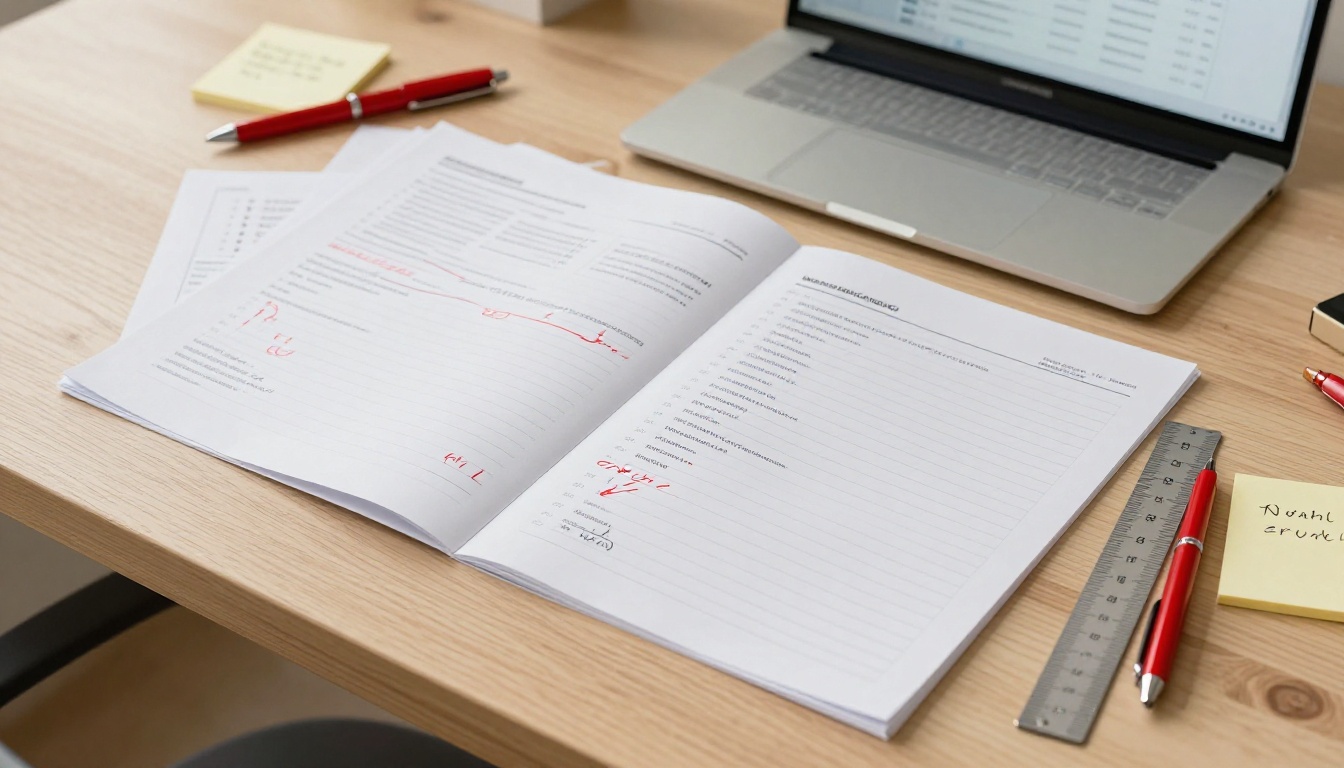
- Keep a revision log: A simple spreadsheet or sticky note with dates and what changed is enough
- Archive old versions: Do not delete the previous flipbook immediately. Keep it for 30 days in case someone references it
- Use descriptions: Flipbooks AI lets you add notes to your publications. Use this field to record what changed and when
- Test before announcing: Always open the updated flipbook in a fresh incognito window and confirm every page before sending the link to your audience
When to notify your audience about updates
Not every update warrants an announcement. This table helps you decide:
| Type of Update | Notify Audience? | Recommended Action |
|---|
| Minor typo fix | No | Hard refresh link, silent update |
| Price or date changes | Yes | Email or message with fresh link |
| New sections or pages added | Yes | Highlight what is new in your message |
| Full redesign or rebrand | Yes | New link, archive old version |
| Error correction (critical) | Yes, immediately | Direct notification with new URL |
| Seasonal update (menu, catalog) | Yes | Schedule announcement in advance |
If you manage recurring publications like monthly newsletters or seasonal catalogs, consider using the Newsletter Flipbook Publisher or the Magazine Flipbook Creator on Flipbooks AI to keep your update workflow consistent across every issue.
When the Problem Is on the Viewer's Side
Sometimes you have done everything right. The flipbook is updated, the embed is fresh, and the share link is new. But one viewer is still seeing the old version. At that point, the problem is almost certainly in their browser, device, or network.
What to tell your audience
Give your viewers a simple, jargon-free fix:
- On desktop: Press
Ctrl + Shift + R (Windows) or Cmd + Shift + R (Mac) on the flipbook page
- On mobile (Chrome): Tap the three-dot menu, then select "Reload" or hold down the reload button for a hard refresh option
- On mobile (Safari): Tap and hold the reload icon in the address bar, then clear Safari cache from Settings if the problem persists
- As a fallback: Copy the link, paste it into a private or incognito window, and open it there
A short message like "If you see an older version, press Ctrl+Shift+R to refresh" solves 95% of viewer-side complaints immediately, with no technical support required.
Mobile vs desktop cache differences
Mobile caches are often more aggressive than desktop ones. This is by design: mobile devices benefit more from cached content on limited data connections. But it means mobile viewers are more likely to see old versions of your flipbook after an update.
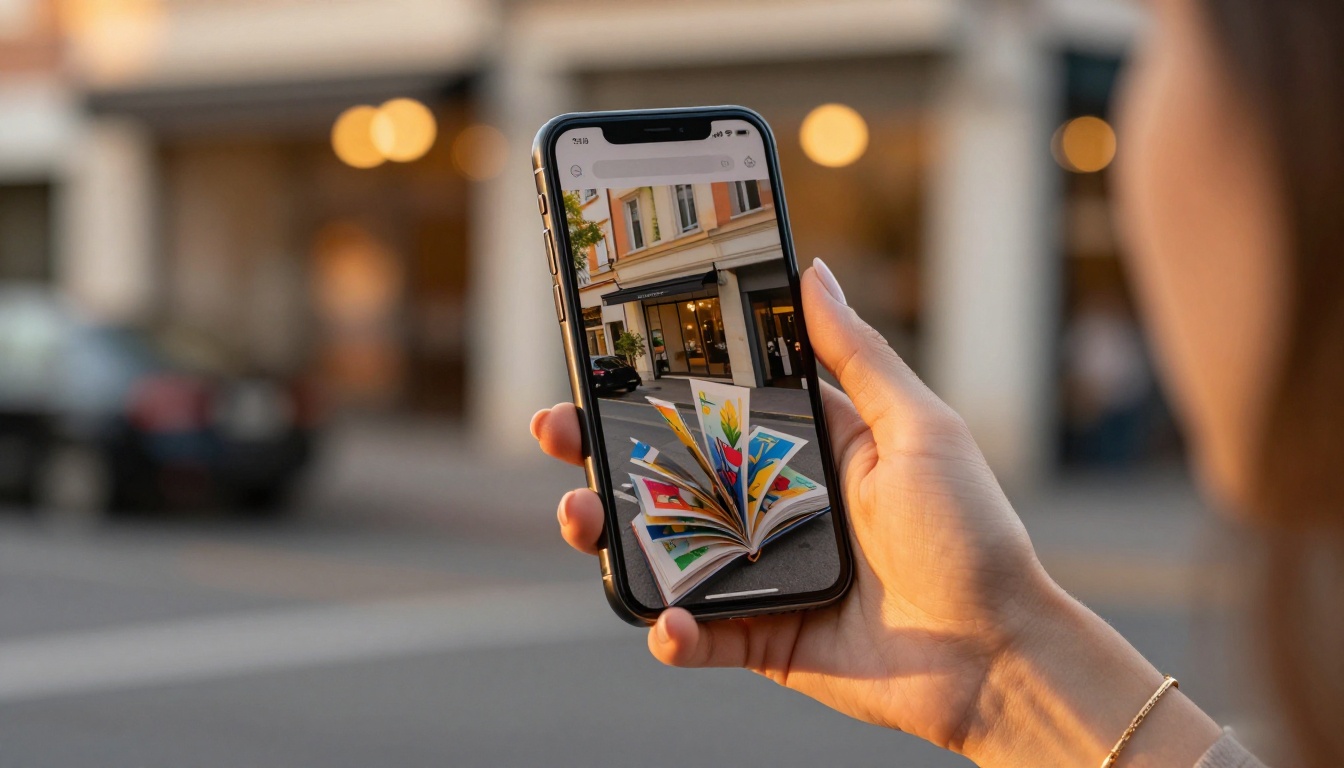
Browsers on iOS in particular cache aggressively, sometimes holding content for days. If a specific viewer consistently sees old versions on mobile, the most reliable fix is to have them clear the browser cache from their device's Settings app directly, rather than relying on the in-browser refresh.
For publications that get updated frequently, like restaurant menus or event programs, the Restaurant Menu Creator and Event Program Maker on Flipbooks AI are designed with exactly these use cases in mind, making it easy to re-publish fresh versions without disrupting your existing links. Similarly, businesses using the Digital Portfolio Creator or the Real Estate Brochure tool benefit from being able to push updates instantly and share clean new links with clients.
Take Control of Every Update
Seeing old content when you just updated your flipbook is frustrating, but it is always fixable. The issue sits in one of four places: your browser cache, your embed code, a CDN delay, or the viewer's own device. Work through them in order and you will find the culprit every time.
Flipbooks AI makes the update process as smooth as possible, with clean re-upload tools, instant embed code refresh, and sharing options that generate cache-aware links. Create your account and see how much easier version management becomes when your platform is built for it.
Check out pricing plans to access analytics, lead generation, offline downloads, and more. Or browse all available flipbook tools to find the right fit for your next publication.



