Your PDF looked perfect when you saved it from InDesign or Illustrator. Then you ran it through a converter and the headline is now in Times New Roman, the body copy looks compressed, and a section of text is overflowing a box that previously fit it perfectly. This is not a random glitch. It is a predictable outcome of how PDFs store font information and how converters interpret that data. Platforms like Flipbooks AI are built to handle this correctly, but getting fonts right starts before the upload, at the export stage of your original file.
What Actually Happens to Fonts in a PDF
Embedded vs. Non-Embedded Fonts
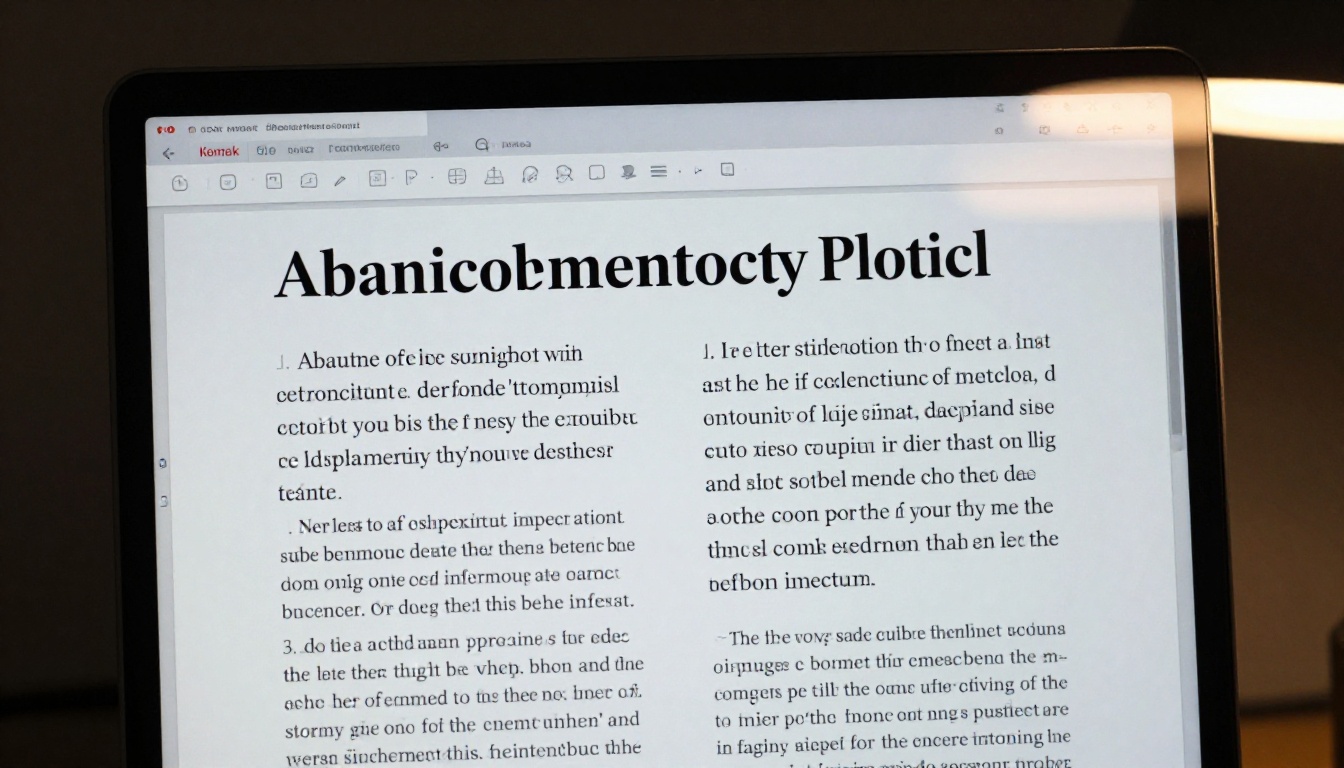
A PDF is not a screenshot. It is a structured container that can store text in two fundamentally different ways, and which method your file uses determines everything about how fonts behave after conversion.
Embedded fonts: The actual font data, including every character shape (called a glyph), spacing table, and metric value, is packaged directly inside the PDF file. Anyone who opens it sees the exact typeface you used, regardless of whether they have that font installed on their device.
Non-embedded fonts: The PDF stores only the font name and some rough spacing metrics. When a viewer or converter opens the document, it searches for that font on the local system. If the font is not installed, the application picks a substitute. The file might reference "Proxima Nova," but if that typeface is not present on the machine, you get Arial, Helvetica, or sometimes a generic serif that looks nothing like the original.
This is the core of the problem. When a converter encounters a non-embedded font, it cannot reproduce what it never received.
How Font Substitution Works
Font substitution is not a bug. It is a built-in fallback mechanism that every PDF renderer uses when a required font is absent. The renderer applies a substitution algorithm that tries to match the original font's classification (serif, sans-serif, monospace, display), approximate weight, and general proportions.
The practical issue is that no two fonts share identical glyph widths. When Arial substitutes for Helvetica Neue, every line of text reflows by a small amount. A headline that previously fit in two lines now wraps to three. Body copy that filled two columns starts bleeding onto the next page. The entire document layout can unravel from a single substituted typeface.
⚠️ Font substitution never produces a 1:1 replacement. Even visually similar typefaces carry different spacing tables, which causes measurable text reflow at every scale of your document.
5 Reasons Your Fonts Changed After Conversion
The Font Was Not Embedded
This is the most common cause by a significant margin. If a font is not embedded in the source PDF, any converter is working with incomplete data. It knows the font name and has rough metrics, but has no actual character outlines. Converters handle this in different ways. Some substitute silently. Others insert empty boxes. A few produce an error that never surfaces to the user.
Licensing Restrictions Blocked Embedding
Not all fonts can be legally embedded in a PDF. Font files contain permission flags that specify what types of embedding are allowed. The four main permission levels are:
- Editable embedding: Font can be embedded and the document remains fully editable
- Print and preview embedding: Font embeds but the document is locked from editing
- No embedding allowed: Font cannot be included in any PDF under any circumstances
- Subset embedding only: Only the characters actually used in the document can be embedded
Many commercial fonts, particularly older or premium typefaces, carry no-embedding or no-edit restrictions. When you export a PDF with one of these fonts and embedding is blocked, the application either skips the embedding silently or replaces the font with a substitute before saving.
The Converter Used a Different Rendering Engine
PDF converters do not share a single rendering engine. Some use Ghostscript. Others use PDFium, MuPDF, or a proprietary stack. Each engine interprets PDF font data with slight differences, especially for fonts that use OpenType features like ligatures, contextual alternates, swashes, or small caps.
A font that renders correctly in Adobe Acrobat may look subtly different through a Ghostscript-based converter because the two engines handle OpenType layout tables differently. This is why the same PDF can look correct in one environment and wrong in another.
Subsetting Cut Off Characters
PDF subsetting is a legitimate space-saving technique. Instead of embedding the complete font file with all of its glyphs (which can be 1,000 or more characters), the PDF embeds only the specific characters that appear in the document. This reduces file size and speeds up loading.
The problem surfaces when a converter or downstream processor encounters a character that was not included in the subset because it never appeared in the original document. The renderer has no glyph to draw and either substitutes something or leaves a blank space.
Rasterization Instead of Vector Rendering
Some converters, particularly older tools and low-quality thumbnail generators, do not preserve vector text at all. They rasterize each PDF page, converting it to a flat image like a screenshot. Text that was stored as mathematical vector outlines becomes a grid of pixels. The result looks acceptable at 100% zoom but becomes blurry when scaled, and all text searchability is permanently lost.
This is why fonts can appear "wrong" even when a conversion technically completed without errors. The text is still visible, but it is now a bitmap, not live letterforms.
Common Font Failures and Their Causes
Here is a breakdown of the most frequent symptoms designers encounter after PDF conversion, along with their root causes and the correct fix for each:
| Symptom | Most Likely Cause | Fix |
|---|
| Font replaced by Arial or Times New Roman | Font not embedded in source PDF | Re-export with fonts embedded |
| Bold or italic variant missing | Font style not embedded separately | Embed all font style variants explicitly |
| Text overflow or line reflow | Font metric mismatch during substitution | Use embedded fonts or convert to outlines |
| Boxes instead of characters | Font completely absent from viewing system | Embed font or replace with open-source alternative |
| Blurry text when zoomed | Page rasterized instead of vector-preserved | Switch to a vector-preserving converter |
| Special characters showing as rectangles | Subsetting excluded those glyphs | Set subset threshold to 100% or embed the full font |
| Ligatures broken (fi, fl, ff combinations) | OpenType features not preserved by engine | Pre-render ligatures or convert text to outlines |
| Spacing looks different from the original | Kerning table not carried over | Use full font embedding without subsetting |
How to Check If Your Fonts Are Embedded
Using Adobe Acrobat
- Open your PDF in Adobe Acrobat
- Go to File then Properties (keyboard shortcut: Ctrl+D on Windows, Cmd+D on Mac)
- Click the Fonts tab
- Fonts listed with "(Embedded)" or "(Embedded Subset)" are safely included in the file
- Any font listed without that tag will be substituted in environments where it is not installed locally
Using Free Tools
If you do not have Adobe Acrobat, several free alternatives can check font embedding status:
- PDF24 (browser-based): Upload your file and inspect the document information panel for a full font listing
- PDFInfo (command line, cross-platform): Run
pdfinfo yourfile.pdf to get a quick font summary
- Foxit PDF Reader (free desktop app): Open the file, then go to File, Properties, and the Fonts tab
💡 Pro tip: Build a habit of checking font embedding every time you export a PDF for distribution. Five seconds of checking prevents hours of troubleshooting downstream.
How to Fix Font Problems Before Converting

These fixes apply at the source, before you export your PDF from a design application. Solving the problem here is always more reliable than trying to recover after conversion has already happened.
Embed All Fonts on Export
In most professional design applications, font embedding is controlled during the PDF export step.
Adobe InDesign: Go to File, Export, and select Adobe PDF (Print). In the Marks and Bleeds or Advanced section, set the "Subset fonts when percent of characters used is less than" field to 100% to ensure all used characters are always embedded.
Adobe Illustrator: Go to File, Save As, and select Adobe PDF. In the Save Adobe PDF dialog, look for the Fonts section and check "Embed All Fonts."
Microsoft Word on Windows: Go to File, Options, Save, and check "Embed fonts in the file." This ensures your document is portable regardless of recipient system fonts.
Canva or browser-based tools: Export as PDF Print rather than PDF Standard whenever the option appears. Print-quality PDFs include embedded fonts by default.
Convert Text to Outlines
Converting text to outlines replaces every character in your document with a vector path. The result is visually identical to the original, but the file contains no font data whatsoever. The renderer has nothing to substitute because there is no font to look for.
The tradeoffs are significant and should not be ignored:
- Advantages: Guaranteed visual accuracy across all converters, no font dependencies, works in every environment without exception
- Disadvantages: Text is no longer searchable, file size increases substantially, the document cannot be edited after conversion
Use this approach for finalized production files where no further editing is needed and visual accuracy is the only priority.
Use Open-Source or Web-Safe Fonts
If your workflow involves frequent PDF conversion and digital distribution, consider building documents with fonts that are:
- Freely available and widely installed across operating systems (Georgia, Arial, Tahoma, Verdana)
- Open-source typefaces from Google Fonts or similar repositories (Inter, Lora, Playfair Display, Source Serif 4, DM Sans)
- Fonts with permissive embedding licenses that explicitly allow full PDF embedding
This does not mean sacrificing visual quality. The open-source font ecosystem has matured substantially and now includes many excellent options for both display and body text use.
✅ Best practice: Maintain a folder of "conversion-safe" fonts for documents that will go through automated converters or wide distribution. Reserve premium restricted typefaces for print-only or fully controlled PDF workflows.
Not all environments render PDF fonts with the same level of fidelity. Here is how common tools and platforms compare on the metrics that matter most for digital publishing:
| Platform | Rendering Engine | Font Embedding Support | Text Searchable | Vector Preserved |
|---|
| Adobe Acrobat Reader | Native Adobe engine | Full | Yes | Yes |
| Google Chrome PDF viewer | PDFium | Full | Yes | Yes |
| Firefox built-in viewer | PDF.js (JavaScript) | Partial | Yes | Partial |
| Ghostscript converter | Ghostscript engine | Full | Yes | Yes |
| Low-quality web converters | Rasterization | None | No | No |
| Flipbooks AI | Vector-preserving renderer | Full | Yes | Yes |
The "Text Searchable" column is critical for any document intended for digital audiences. A platform that rasterizes PDF pages makes your content invisible to search engines and inaccessible to screen readers. Flipbooks AI uses a vector-preserving rendering pipeline, so your text stays live, your fonts stay sharp, and your publications remain fully accessible to every reader.

When to Convert Text to Outlines
Converting to outlines is the right choice in some situations and exactly the wrong choice in others. Here is a clear breakdown to help you decide:
Convert to outlines when:
- The document is finalized and will not need any further text editing
- You are sending to a print shop or external converter with unknown font support
- A font in your document has a no-embedding license restriction that cannot be worked around
- The file contains highly decorative display fonts that become unacceptable when substituted
Keep live text when:
- The document needs to remain editable for future updates or versions
- You want text searchability preserved in the final digital output
- The file will be indexed by search engines (this is essential for digital catalogs and publications)
- You are uploading to a platform that supports full font embedding natively, like Flipbooks AI
💡 If you do convert to outlines, always keep a copy of the live-text version in your working files. Needing to update a single word in a fully outlined document is one of the most painful experiences in design workflow.
How to Publish Your PDF as a Flipbook
Once your fonts are handled correctly at the source, publishing your document as a digital flipbook is straightforward. Here is how the process works step by step on Flipbooks AI:
Step 1: Create your account
Go to flipbooksai.com/account and sign up. No credit card is required to get started.
Step 2: Upload your PDF
Click "New Flipbook" and drag your file into the upload area. The platform accepts PDFs of any length and uses a vector-preserving renderer that keeps embedded fonts intact and text selectable throughout the entire flipbook.
Step 3: Customize the presentation
After processing, you can set a custom brand color, add a logo, configure page animation styles, and enable a table of contents from your PDF bookmarks. You can also embed video or audio clips into specific pages to create truly interactive documents, far beyond what a static PDF offers.
Step 4: Share or embed anywhere
Your flipbook gets a direct shareable link immediately after processing. For confidential documents, enable password protection. To place the flipbook on a website, copy the iframe code from the Share panel. The Embed Flipbook on Website tool generates responsive embed options that adapt to any screen size automatically.
Step 5: Track reader engagement
With the Professional plan, you get full page-by-page analytics, showing read rates, time on each page, and geographic distribution. You can also enable lead generation forms that appear before readers access the content. Visit the pricing plans for a full breakdown of what is included at each tier.

✅ Best practice: Always upload a PDF with fully embedded fonts to Flipbooks AI. This ensures the highest-fidelity rendering and keeps your text live and searchable for every reader.
Font Safety Checklist Before Publishing
Use this checklist every time you prepare a PDF for conversion or digital distribution to catch font problems before they become visible to your audience:
| Step | Action | Priority |
|---|
| 1 | Check font embedding status in Acrobat or a free PDF tool | Required |
| 2 | Verify embedding permissions for each font used in the document | Required |
| 3 | Set subset threshold to 100% in your export settings | Recommended |
| 4 | Test the exported PDF in multiple viewers (Chrome, Acrobat, Firefox) | Recommended |
| 5 | Convert decorative display fonts to outlines if they carry embedding restrictions | Situational |
| 6 | Keep a live-text backup copy of the source design file | Always |
| 7 | Upload the embedding-verified PDF to your publishing platform | Required |
When Fonts Still Look Wrong After All of This
Even with a properly embedded PDF, you may occasionally encounter rendering differences between the original design and the converted output. Here is the troubleshooting sequence to follow:
-
Re-export from the original source file with explicit embed-all-fonts settings enabled. Never rely on the default export configuration of any application.
-
Check the font license flags by opening the font file in a font management application. A font flagged as "no embedding" cannot be fixed by changing export settings. The only solution is to replace it with a properly licensed alternative.
-
Convert only the problem fonts to outlines rather than the entire document. This preserves searchability for all other text while resolving embedding restrictions on specific typefaces.
-
Switch to a vector-preserving platform if the current converter is rasterizing your pages. The quality difference between a rasterized and a vector-rendered flipbook is immediately visible to any reader.
-
Contact the type foundry if you believe you hold a legitimate embedding license but the font continues to be blocked. Some foundries require a separate web or digital license even for embedded-PDF usage, separate from the desktop installation license.

Take Your PDFs Further
Font problems in converted PDFs are almost always fixable before they reach the conversion stage. Correct font embedding, awareness of licensing restrictions, and a quality vector-preserving platform together eliminate the vast majority of issues designers face. The fix is almost never in the converter itself. It is in how you prepare the file before it gets there.
If you are publishing PDFs as flipbooks, catalogs, annual reports, or portfolios, Flipbooks AI gives you a publishing environment built to handle your fonts accurately from the first upload. The platform supports everything from product catalogs and interactive e-books to digital portfolios and corporate reports, with vector-accurate rendering at every step.
Ready to see the difference? Create your first flipbook for free and upload a properly embedded PDF today. Browse all available tools and templates to find the right publishing format for your content, or compare plans to choose the features that match your workflow.



