You scanned a printed brochure, turned it into a flipbook, typed a word into the search box, and got zero results. The words are right there on the page, crisp and readable, yet the flipbook acts as if the page is empty. If you publish with Flipbooks AI or any other tool, this is one of the most common surprises, and it has a simple cause and a reliable fix.
This article explains why scanned text isn't searchable, how to confirm the problem in under a minute, and how to repair your files so readers (and Google) can find every word.
Why Scanned Text Isn't Searchable
A scanner does not read your document. It takes a photograph of each page. The output is a grid of colored pixels, and a pixel has no idea that a cluster of dark dots forms the letter "A".
When you save that scan as a PDF, you get a file where every page is a single picture. Your eyes see words. The software sees a photo of words.
A native PDF, exported from Word, InDesign, or Canva, is different. It stores characters as actual text with fonts and positions. Search, copy, and highlight all work because the text exists as data.
Image-only vs. text-based PDFs
| Feature | Scanned (image-only) PDF | Native (text-based) PDF |
|---|
| Text stored as characters | No | Yes |
| In-document search | Fails | Works |
| Copy and paste | Impossible | Works |
| Screen reader support | None | Full |
| Indexed by Google | Rarely | Yes |
| File size | Large | Small |
💡 Pro tip: If you still have the original Word, InDesign, or Canva file, export a fresh PDF from it. That always beats scanning a printout.
Why the flipbook can't fix it alone
A flipbook converter reads whatever the PDF contains. If the PDF holds only images, the flipbook holds only images. No viewer can search text that was never there. The repair has to happen before or during conversion, and the tool for it is OCR.
What OCR Actually Does
OCR stands for optical character recognition. It examines each page image, detects lines and shapes, matches them to known letters, and writes the result as a hidden text layer positioned exactly over the original picture.
The page still looks identical. The difference is invisible: now there are real characters under the image, and search tools can reach them.
Why OCR sometimes gets it wrong
OCR is only as good as the image it receives. These are the usual culprits:
- Low resolution. Scans below 200 DPI blur small letters together.
- Skewed pages. A tilt of even 3 degrees confuses line detection.
- Shadows near the spine. Book scans often darken the inner margin.
- Decorative fonts. Script and ornamental typefaces are hard to match.
- Colored backgrounds. Low contrast between ink and paper drops accuracy.
- Wrong language setting. Accents and special characters get replaced with garbage.
Check If Your File Has Text
Before fixing anything, confirm the diagnosis. It takes under a minute.
- Open the PDF in any viewer (Chrome, Acrobat, Preview).
- Press Ctrl+F (or Cmd+F on Mac) and type a word you can see on the page.
- Try to drag-select a sentence with your cursor.
- If nothing highlights and the search finds nothing, the file is image-only.
A second, faster test: select all with Ctrl+A. If the whole page turns into one blue rectangle, it's a single image. If individual lines highlight, you have real text.
⚠️ Warning: Some PDFs look partly searchable. A file may contain text on pages 1 to 5 and scanned images afterward, because several sources were merged. Test pages from the middle and the end, not just the first one.
Three Ways to Fix It
You have three realistic options. The right one depends on how many files you have and whether the original exists.
| Method | Best for | Effort | Accuracy | Cost |
|---|
| Re-export from the source file | You own the original | Low | 100% | Free |
| OCR in a PDF editor | A few important files | Medium | 95 to 99% | Often paid |
| Batch OCR software | Hundreds of pages | Medium | 90 to 99% | Varies |
| Retype manually | Tiny documents | Very high | 100% | Your time |
Option 1: Re-export from the original
If a designer built the brochure, ask for the source file. Export as PDF with fonts embedded. This is the cleanest path and produces a smaller, sharper flipbook.
Option 2: Run OCR on the scan
Most PDF editors have a "Recognize Text" or "OCR" command. The general steps are the same everywhere:
- Open the scanned PDF.
- Choose the OCR or text recognition tool.
- Select the correct language (and add a second one if the document is bilingual).
- Set output to "searchable image" so the original look is kept.
- Run it on all pages.
- Save under a new filename, and keep the original as a backup.
Option 3: Rescan with better settings
If the OCR result is full of errors, the scan itself may be the problem. Rescan with these settings:
- 300 DPI for normal text, 400 DPI for tiny print
- Grayscale or black and white for text-only pages, color only when photos matter
- Auto-straighten turned on
- Flat pages pressed gently against the glass
- Clean glass, since dust becomes phantom punctuation
✅ Best practice: Scan at 300 DPI, run OCR, then proofread the first and last page plus one random middle page. If those three are clean, the rest is almost always fine.
How to Rebuild It with Flipbooks AI
Once your PDF has a real text layer, rebuilding the flipbook is quick. Here is the process using the PDF to Flipbook Converter.
- Create your account. Sign up on Flipbooks AI in a few seconds.
- Upload the repaired PDF. Drag the OCR'd file into the upload area. Wait for the conversion to finish.
- Test search right away. Open the preview, use the search box, and type three words from different pages.
- Customize the look. Pick colors, add your logo, and choose page-turn effects that fit your brand.
- Add extras. Embed video or audio where they help the reader.
- Share it. Copy the direct link, grab the embed code for your site, or turn on password protection for private material.
- Check mobile. The layout is responsive, so open it on a phone and tap through a few pages.
Every flipbook is published without watermarks. Teams that need numbers on what readers do can use analytics and lead capture on the Professional plan, listed on the pricing page.

💡 Pro tip: Name your PDF with real words, such as spring-product-catalog.pdf, before upload. A clear filename gives search engines one more relevant signal.
Why Searchable Text Matters for SEO
Search is not only for readers inside the flipbook. It also decides whether Google can understand what your publication is about.
When a page is only an image, a crawler sees a rectangle with no words. It cannot match your catalog to the phrase "organic cotton throw pillows" because the phrase doesn't exist as text. A text layer changes that.
Benefits of a real text layer
- Findability. Long-tail phrases inside your document can bring organic visitors.
- Accessibility. Screen readers can read the content aloud for people with visual impairments.
- Copy and quote. Readers can lift a price, a code, or an address without retyping.
- Translation. Browser tools can translate selectable text on the fly.
- Reuse. You can repurpose paragraphs for blog posts and social captions.

Side by side: before and after
| Metric | Before OCR | After OCR |
|---|
| Reader search results | 0 | Every matching page |
| Selectable text | None | Full pages |
| Accessible to screen readers | No | Yes |
| Searchable on the web | Unlikely | Much more likely |
| Time to fix | n/a | Minutes per file |
⚠️ Warning: Do not hide a block of keywords in white text on the page to "boost" ranking. Search engines penalize that. A truthful OCR text layer is the honest and effective way.
Real-World Examples
A boutique clothing catalog
A shop owner scans last season's printed lookbook. Customers search "linen" and "XL" but get nothing. After OCR and a rebuild with the Digital Catalog Maker, those searches jump straight to the right pages.
A school archive
An administrator digitizes twenty years of newsletters. Parents want to find a name from a 2009 event. Without OCR, the archive is a pile of pictures. With it, a single search locates the issue. The School Newsletter Creator is a natural home for that content.
A training manual
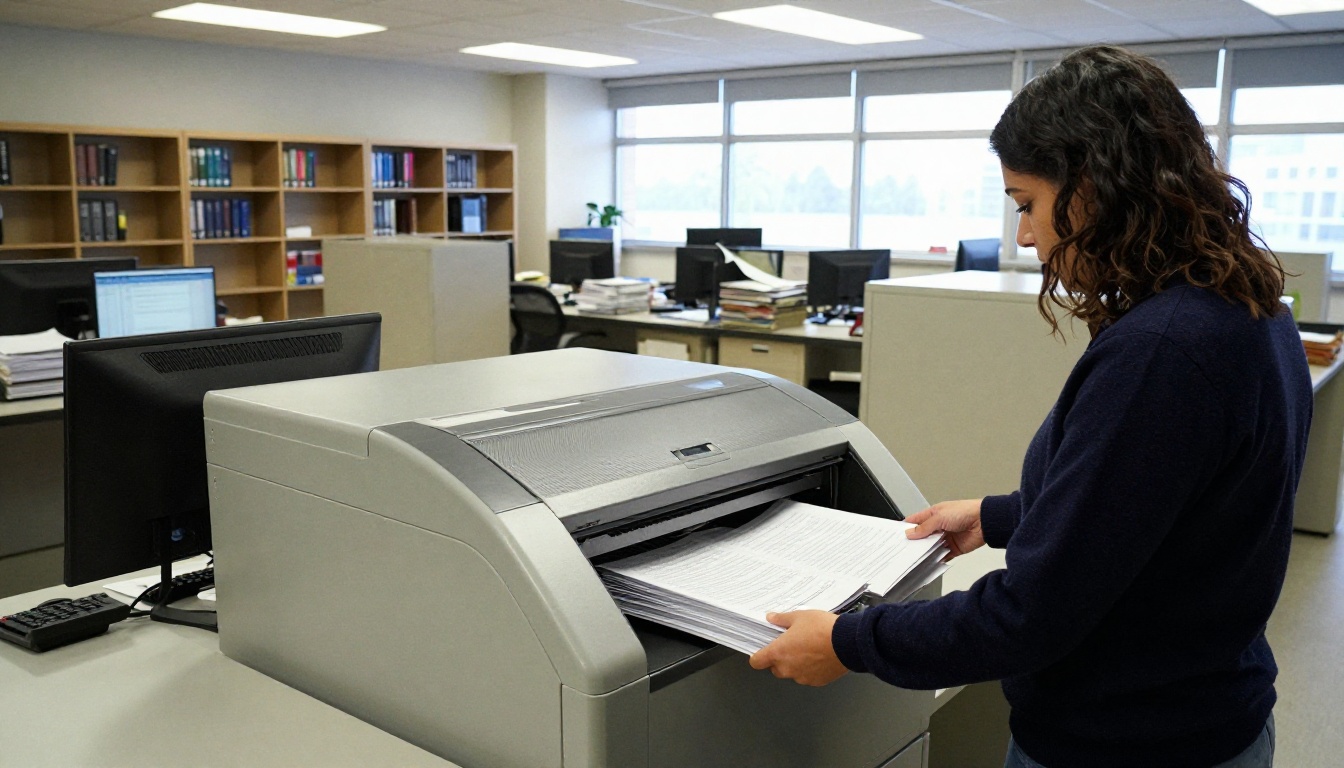
A company scans an old safety manual. Employees need to find "fire exit" in seconds, not flip through 80 pages. A searchable Training Manual Flipbook makes that realistic.
Quick comparison by use case
| Use case | Typical source | Biggest risk | Best fix |
|---|
| Product catalog | Printed lookbook | Small captions misread | 300 DPI rescan plus OCR |
| Newsletter archive | Old print copies | Faded ink | Contrast boost, then OCR |
| Training manual | Photocopies | Skewed pages | Auto-straighten, then OCR |
| Menu | Photo of a menu | Decorative fonts | Re-export from design file |
Common Mistakes to Avoid
- Converting first, fixing later. Run OCR on the PDF before upload, so the flipbook inherits the text from the start.
- Photographing pages with a phone at an angle. Perspective distortion wrecks recognition. Use a scanning app that flattens the page.
- Choosing the wrong language. Spanish text read as English loses every accented letter.
- Skipping proofreading. OCR can turn "rn" into "m". Spot-check names, prices, and numbers.
- Flattening the PDF afterward. Some "optimize" or "print to PDF" steps throw away the text layer. Test again after every edit.
- Assuming a big file means real text. Large file size often signals images, not text.
Quick Troubleshooting Checklist
Run through this list when search still fails:
- Can you select a single word with your cursor in the PDF itself?
- Did you save the OCR output as a new file and upload that one?
- Is the scan at least 200 DPI?
- Is the OCR language correct?
- Did a later compression step strip the text layer?
- Does search work on page 1 but fail on later pages?
If the answer to the first question is no, the problem is in the PDF, not the flipbook. Fix the PDF and upload again.
✅ Best practice: Keep two versions of every project: the untouched scan and the OCR'd working copy. If something looks off, you can always start over from the original.
Ready to Make Your Pages Findable
A scanned flipbook that can't be searched is not broken beyond repair. It is simply a stack of photographs waiting for a text layer. Run OCR, check the result with a quick Ctrl+F test, and rebuild.