You built a polished report, added a dozen links to your pricing page, your sources and your contact form, then exported it to PDF and found that none of them respond to a click. It is one of the most common and most irritating export problems in Word, and the cause is almost always a single setting or the wrong export route. This article walks through every reason links break, the exact fix for each one, and a way to publish the finished file so links work everywhere. If you want a version readers can flip through on any screen, a tool like Flipbooks AI can take over once your PDF is clean.

Why Word Drops Your Links
Word does not "delete" hyperlinks when it exports. It either never writes them into the PDF or it flattens the page into a picture where links cannot exist. Three situations cause nearly every case.
- The export path ignores link data, such as printing to a virtual PDF printer.
- An option in the Save As dialog converts text to bitmaps.
- The link itself is not a real hyperlink, only text that looks like one.
Before changing anything, spend ten seconds finding out which case you are in. Open the PDF in a browser, hover over a link and look at the cursor. If it never changes into a hand, the link is missing from the file.
💡 Quick test: Press Ctrl and click a link inside Word itself. If Word cannot open it, the link was never valid, and no export setting will rescue it.
The Three Failure Types
| Symptom | Likely cause | Fastest fix |
|---|
| No link in any part of the PDF | Printed with a virtual printer | Use Save As or Export instead |
| Links gone only in some pages | Links inside text boxes or shapes | Move the link into body text |
| Text looks fine but is not selectable | Bitmap text option turned on | Turn the option off |
| Links work but open a wrong address | Broken or relative path | Replace with a full URL |
Fix 1: Use Save As, Not Print
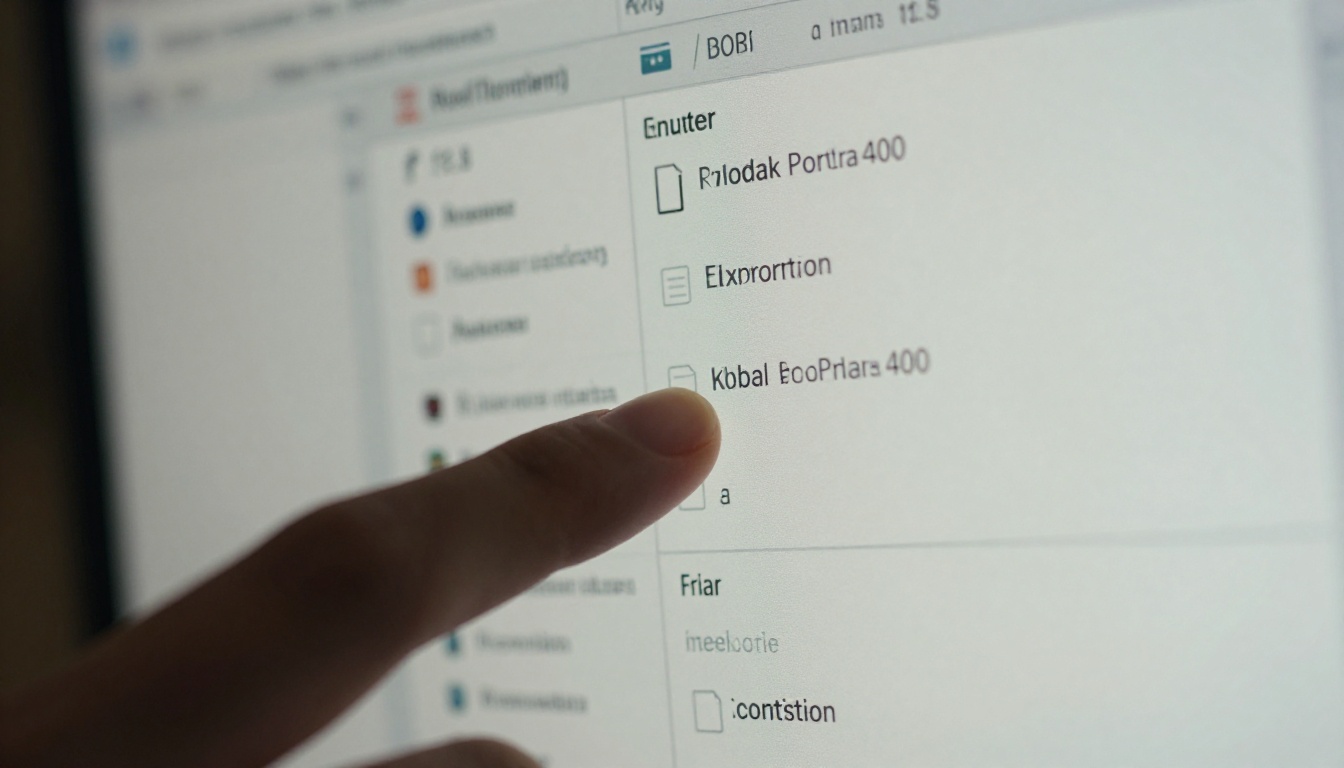
The most frequent culprit is the print route. When you pick Microsoft Print to PDF from the print dialog, Windows produces a flat copy of the page. Fonts, bookmarks and links are all lost because a printer driver only receives drawing instructions.
Steps on Windows
- Open the document and choose File, then Save As (or Export).
- Pick a folder and set Save as type to PDF (*.pdf).
- Select Standard (publishing online and printing).
- Click Options and check the settings listed in the next section.
- Click Save, then open the file and test a link.
Steps on Mac
On a Mac the same mistake happens through File, Print, PDF, Save as PDF. That route can strip links in some Word versions. Use File, Save As and set File Format to PDF instead. Then choose Best for electronic distribution and accessibility, because the printing preset can flatten the page.
⚠️ Avoid "Best for printing" when your priority is clickable links. That preset optimizes for press output, not for interactivity.
Fix 2: Check the Options Dialog
Inside Save As, the Options button hides three checkboxes that decide whether your links survive. Many people never open it.
| Option | Recommended setting | What it does to links |
|---|
| ISO 19005-1 compliant (PDF/A) | Off, unless an archive demands it | Can restrict active content in some builds |
| Bitmap text when fonts may not be embedded | Off | Turns text into pictures, links disappear |
| Create bookmarks using Headings | On | Adds a clickable outline in the PDF sidebar |
| Document structure tags for accessibility | On | Keeps link roles readable for screen readers |
| Encrypt the document with a password | Off while testing | Some viewers block link actions on locked files |
The bitmap option deserves special attention. It sounds harmless, yet when it is ticked Word renders each page as an image. A picture of a link is not a link. Untick it, re-export, and in most cases the problem is gone.
What About PDF/A?
PDF/A is an archival format built for long-term storage. Hyperlinks to outside websites are allowed in the standard, but certain versions of Word handle them poorly when this box is ticked. If you do not have a legal reason to use PDF/A, leave it off.
Fix 3: Repair the Links Themselves
Sometimes the export is perfect and the links were never solid. Here is how to check.
- Press Ctrl + A to select everything.
- Press F9 to refresh all fields. This also updates any
HYPERLINK fields.
- Right click a link and choose Edit Hyperlink to confirm the address is complete.
- Make sure every address begins with
https:// or mailto:.
A relative address such as /pricing works inside a website but means nothing inside a PDF. Always use the full address.

Links That Look Real But Are Not
Pasting from a website, an email or a chat window often brings over text that is only coloured and underlined. It has no link behind it. To convert it, click at the end of the text and press Enter or Space, and Word's AutoFormat will usually turn it into a real hyperlink. You can also select the text and press Ctrl + K to attach an address by hand.
Links Inside Text Boxes and Shapes
Hyperlinks placed inside floating text boxes, shapes or WordArt sometimes fail during export, especially on older builds. If a link only fails in one area of a page, move that text into the normal body flow, or place it inside a table cell, which exports reliably.
💡 Table cells are a safe layout trick. Use a borderless table to position a button style link instead of a floating shape.
Fix 4: Handle Headers, Footers and Tables of Contents
Three areas behave differently from normal paragraphs.
| Area | Common problem | What to do |
|---|
| Header and footer | Links export as plain text on some versions | Re-add the link, then export again |
| Table of contents | Entries not clickable | Insert it with References, Table of Contents and keep the hyperlink option ticked |
| Cross references | Jump to the wrong page | Update fields with F9 before exporting |
| Footnotes | Link text splits across lines | Shorten the displayed text |
For a table of contents, open References, Table of Contents, Custom Table of Contents and make sure Use hyperlinks instead of page numbers is checked. If you built the contents by typing, none of the entries can ever be clickable.

Fix 5: Rule Out the Viewer
The PDF may be fine and the viewer may be to blame. Several programs and apps block links by default.
- Email previews often show attachments without any interactivity.
- Phone file managers may open a basic preview that ignores links.
- Protected View in Adobe or a browser plugin can disable actions until you enable editing.
- Cloud previews can strip actions to keep files safe.
Open the same file in a full desktop viewer or a modern browser and test again. If links work there, your export was never the problem. Ask recipients to download the file instead of previewing it.
✅ Best practice: Test in two different viewers, one desktop and one mobile, before sending the final file to anyone.
A Faster Checklist You Can Reuse
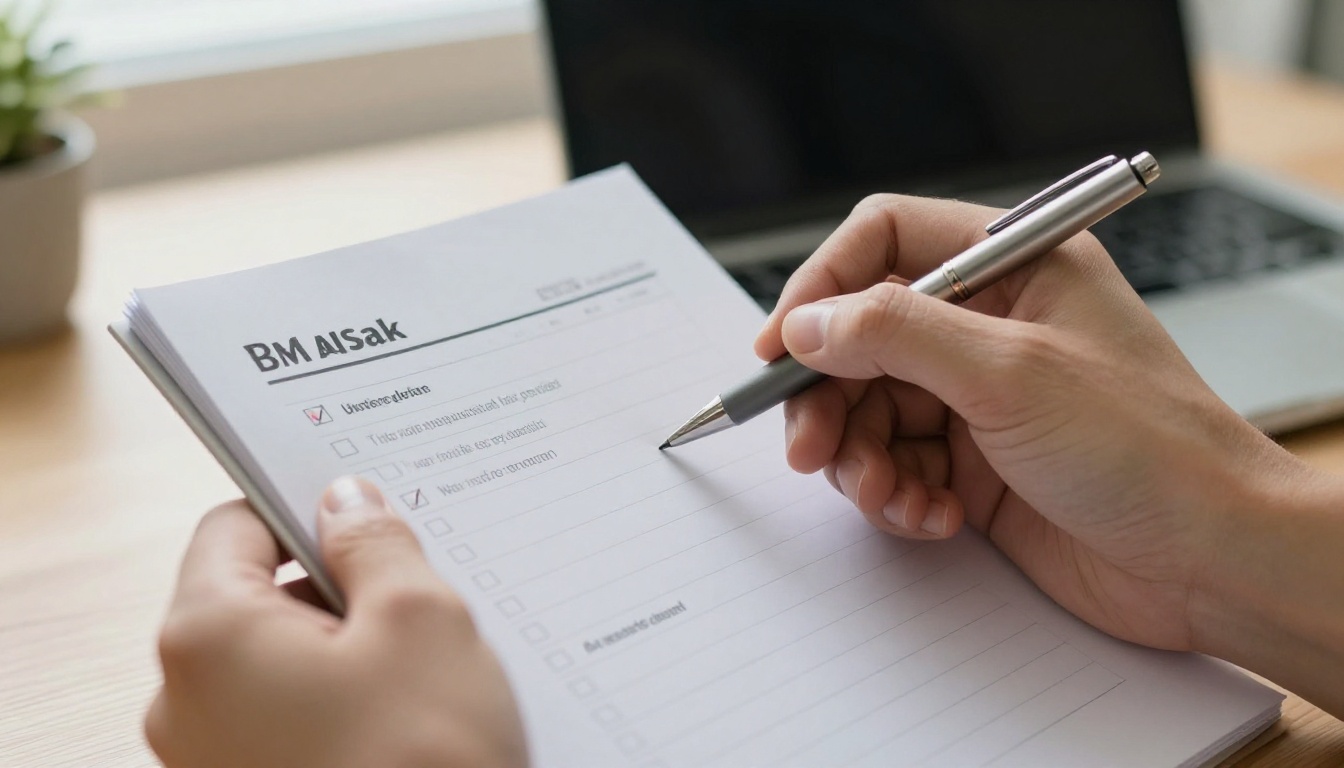
Print this and keep it near your desk.
- Confirm every link opens inside Word with Ctrl and click.
- Replace relative addresses with full URLs.
- Move links out of text boxes and shapes.
- Refresh fields with Ctrl + A, then F9.
- Use File, Save As and never the print route.
- Open Options and turn Bitmap text off.
- Keep Create bookmarks using Headings on.
- Test the PDF in a browser and on a phone.
Following these eight steps resolves the large majority of broken link reports, usually in under five minutes.
Even with a perfect export, a PDF has limits. Links can be blocked by previews, pages are fixed in size, and on a phone readers pinch and zoom to find the right spot. If your document is a brochure, a catalog, a report or a lookbook, there is a more reader friendly way to share it.

PDF Versus Flipbook
| Feature | Standard PDF | Flipbook from PDF |
|---|
| Clickable links | Depend on the viewer | Preserved in the reader |
| Mobile reading | Pinch and zoom | Responsive layout |
| Page turn effect | None | Realistic page flip |
| Tracking views | Not available | Analytics on Professional plans |
| Password protection | Basic | Built in on the platform |
| Sharing | Attachment | Link or embed code |
A flipbook keeps the pages you designed and wraps them in a reader that opens in any browser. Links you fixed in Word stay active, and you can share one short address rather than a heavy attachment.
How to Turn Your Fixed PDF Into a Flipbook
Once your links are working in the PDF, the same file can become an interactive publication in a few minutes with the PDF to Flipbook Converter.
Step by Step
- Go to Flipbooks AI and create your free account.
- Click to start a new flipbook and upload your PDF. The upload takes seconds for most files.
- Wait while the platform converts each page. Your layout and live links come across as they were.
- Open the customization panel to set your brand colours, background and page effects.
- Add videos or audio to pages where a clip helps explain a point.
- Choose how to share: copy a direct link, use an embed code for your site, or turn on password protection for private files.
- Publish, then click a few links to confirm they work in the viewer.
What You Get
- ✅ No watermarks, ever
- ✅ Mobile responsive design
- ✅ Custom branding with your own colours
- ✅ Offline downloads for readers on the move
- ✅ Embedded video and audio
- ✅ Password protection for private content
- ✅ Analytics and lead generation on the Professional plan
See what each tier includes on the pricing page. Unlimited flipbooks start with the Standard plan.
Real Examples Where This Fix Matters
Seeing how different teams use clickable documents makes the stakes clearer.
- A sales team sends a proposal where every price line links to a product page. A flattened PDF turns the proposal into a static sheet and the buyer has to search by hand.
- A restaurant owner exports a menu from Word with links to online ordering. Broken links mean lost orders. The Restaurant Menu Creator keeps those links live.
- A consultant prepares a research report with source links on every page. Readers who cannot click through lose trust in the numbers.
- A school office sends a newsletter with links to forms. The School Newsletter Creator lets parents tap straight to sign up.
- An agency shares a portfolio. With the Digital Portfolio Creator, each project links to a live case study.
Cost of Broken Links
| Scenario | What breaks | Result |
|---|
| Proposal PDF | Price and contact links | Slower deal, extra emails |
| Menu PDF | Ordering links | Missed orders |
| Report PDF | Source references | Lower credibility |
| Newsletter PDF | Form links | Fewer sign ups |
Troubleshooting Stubborn Cases
If you followed every step and the links still fail, try these last options.
- Export in smaller pieces. Save a few pages as PDF. If links work, a specific page has an object causing the problem.
- Remove strange objects. Delete shapes, WordArt and embedded objects one at a time, then re-export.
- Repair the file. Copy all content into a fresh blank document and export again. Corrupt styles can break link data.
- Update Word. Open File, Account, Update Options and install updates. Several export bugs were fixed in later builds.
- Try another route. Upload the file to a cloud word processor, then download it as PDF. This often rebuilds links cleanly.
⚠️ When using another route, double check fonts and spacing. Layouts can shift between programs.
Ready to Share Links That Work?

Fixing hyperlinks comes down to using the right export route, switching off the bitmap option and making sure every link is a real, full address. Once your PDF behaves, give it a better home. Get started for free on Flipbooks AI, browse all flipbook tools to find a template that fits your project, or compare plans when you are ready to publish without limits.



